.png)
 简体中文
简体中文 
Recording a Microsoft Teams call is straightforward once you know where to look and what permissions you need. Whether you want to preserve a client meeting, share notes with a colleague who missed the session, or maintain a compliance record, Teams has a built-in feature that handles most situations. This guide walks through every step, explains where the recording ends up, and covers what to do when the button is unavailable.

How to Record a Teams Call: Step-by-Step Guide
What You Need Before Recording a Teams Call
Run through these three quick checks before you try to start a recording:
- Microsoft 365 plan: Built-in recording requires a paid Microsoft 365 subscription such as Business Basic, Business Standard, or an Enterprise plan. Users on the free Teams tier cannot access the built-in recording feature in most regions.
- Meeting role: By default, the meeting organizer, co-organizer, and presenters can start a recording. Attendees typically cannot unless an admin has changed the policy.
- Admin policy: Your IT administrator may have disabled recording at the organization level through the Teams admin center. If the record button is missing or grayed out and you have a paid plan with the correct role, an admin restriction is the most likely cause. Contact your IT team to confirm.
Teams automatically displays a notification banner to all participants the moment recording starts, so the tool handles disclosure for you, though verbally announcing it is still good practice.
How to Record a Teams Call or Meeting (Built-In Method)
On Desktop (Windows and Mac)
The steps are identical on Windows and Mac.
- Join the meeting or call in Microsoft Teams.
- Inform participants that the meeting will be recorded.
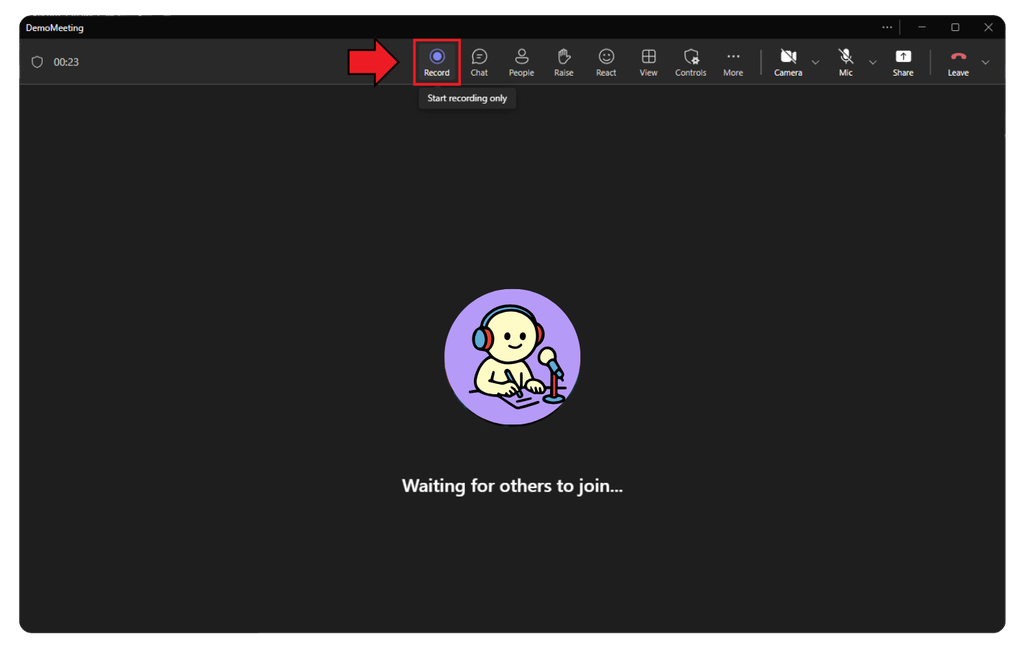
- In the meeting toolbar, click the Record icon. This is only available with a Microsoft 365 subscription.
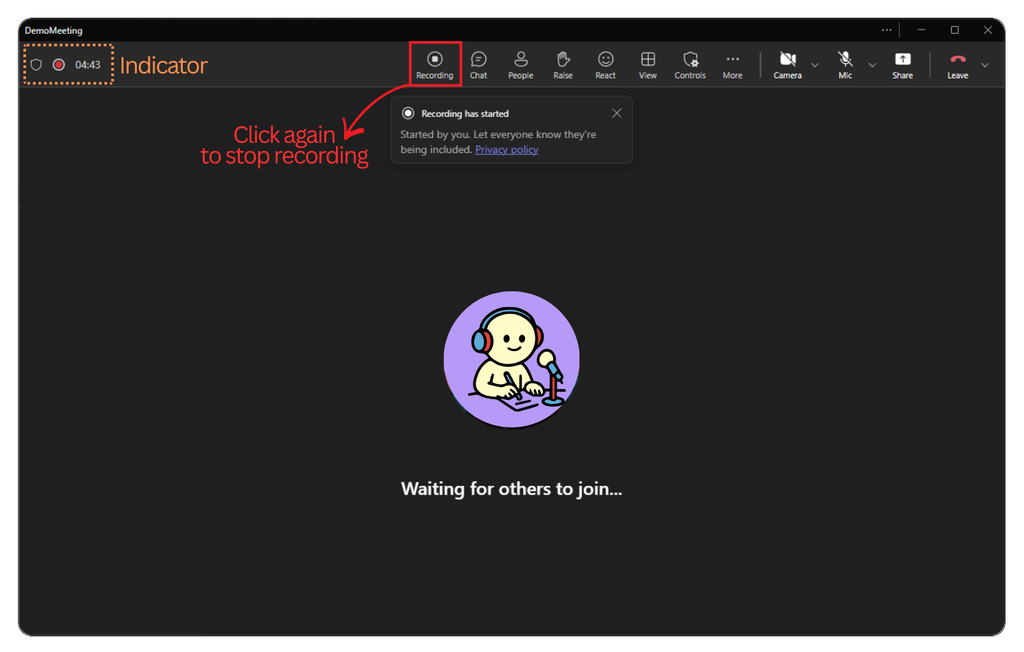
- Click the Record button again to stop recording. The recording also stops automatically when the meeting ends.
If Start recording is grayed out, refer back to the prerequisites above. The most common causes are an ineligible plan, insufficient meeting role, or an admin policy restriction.
On Mobile (iOS and Android)
- Join the meeting in the Teams mobile app.
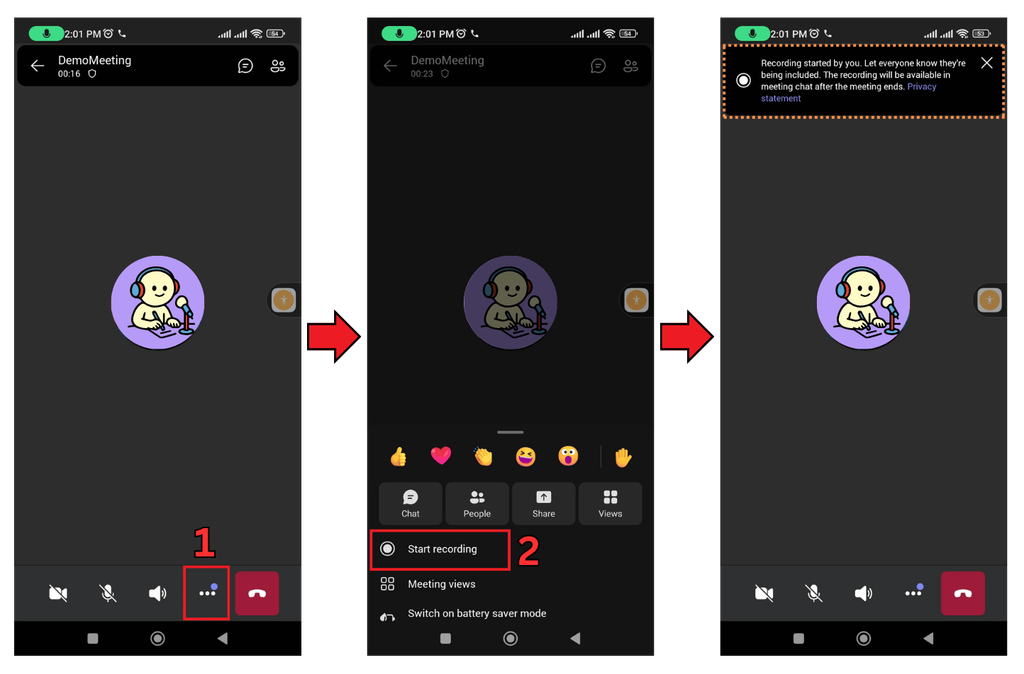
- Tap the More options button (three dots “…”) in the meeting controls.
- Tap Start recording.
- A banner confirms that recording has started for all participants.
- To stop, tap More options (…) again and select Stop recording.
Note that admin policies can restrict mobile recording separately from desktop recording. If the option is absent on mobile but works on desktop, your organization’s IT admin has likely applied a device-specific restriction.
Where Does the Teams Recording Go After the Call?
After the meeting ends, many users search for the recording file and cannot find it. Here is where it actually goes.
For standard (non-channel) meetings, the recording is saved automatically to the meeting organizer’s OneDrive. For channel meetings, it goes to the SharePoint document library tied to that channel. The file does not arrive in anyone’s email inbox.
How to access the recording:
- A link appears automatically in the meeting chat shortly after the call ends. All invited participants can use this link to stream or download the file.
- The organizer can also locate the file directly in OneDrive inside a folder labeled “Recordings,” or in the relevant SharePoint library.
- Participants with access can watch the video in a browser or download it as an MP4.

A note on Microsoft Stream: Older Teams tenants previously stored recordings in Microsoft Stream (Classic). Microsoft has since migrated storage to OneDrive and SharePoint for most organizations. If you are working in a recently created tenant, Stream is not where you should look.
Retention and expiration: By default, recordings stored in OneDrive and SharePoint do not expire automatically. However, your organization’s admin can apply a retention or deletion policy that removes recordings after a set period. If a recording disappears sooner than expected, check with your IT team.
How to Record a Teams Call Without the Built-In Feature
If you are on the free Teams plan, joined as a guest, or working in an admin-restricted environment, a screen recorder is a practical fallback. You are responsible for notifying other participants before you record by this method.

How to Record a Teams Call Without the Built-In Feature
- Windows Game Bar (Win + G): Press Windows key + G to open the overlay, then click the record button or press Win + Alt + R. It captures your screen with system audio and saves an MP4 to your Videos folder. No installation required.
- macOS QuickTime Player: Open QuickTime, go to File > New Screen Recording, choose your microphone, and click record. Simple and built into every Mac.
- OBS Studio (free, cross-platform): A stronger option when you need higher video quality, combined system audio and microphone capture, or longer recording sessions. OBS requires more initial setup but is reliable for regular use.

Even when using external screen recorders, you are still legally and ethically responsible for letting all other participants know they are being recorded.
Recording Consent and Legal Considerations
Teams automatically displays a notification banner to every participant the moment a recording begins, and you should never attempt to suppress or work around it. Recording laws also vary by jurisdiction: some regions require only one-party consent, while others require explicit agreement from all parties before a recording starts. When in doubt, verbally state at the top of the meeting that the call is being recorded.

Recording Consent and Legal Considerations
Best practice: Open any recorded meeting with a brief statement such as, “I’ll be recording this call for reference.” It takes five seconds and protects everyone involved.
Frequently Asked Questions
Why is the record button grayed out or missing in Teams?
The most common reasons are that you are on the free Teams plan, you are joined as an attendee rather than an organizer or presenter, or your IT admin has disabled recording via the Teams admin center. Check your Microsoft 365 subscription tier first, then contact your IT team if the problem persists after confirming your role in the meeting.
Can I record a Teams call without the other person knowing?
No. Teams automatically shows a visible banner to every participant as soon as recording begins. Recording without notification violates Microsoft’s terms of service and may also breach consent laws in your region, depending on local regulations governing call recording.
Can I record a Teams call as a guest or external participant?
Guests cannot initiate a recording by default. Only the meeting organizer, co-organizer, or a participant with presenter permissions can start it. If you need a recording of the session, ask the meeting organizer to start one on your behalf.
How long are Teams recordings kept?
By default, recordings saved to OneDrive or SharePoint do not carry an automatic expiration date. Your organization’s IT admin may have applied a retention or deletion policy that removes recordings after a specific period. If files are disappearing unexpectedly, contact your IT team to review the active policy.
Can I record a one-on-one Teams call, not just a meeting?
Yes. The built-in recording feature works for 1:1 calls and group calls started from the Calls tab, not only scheduled meetings. The same Microsoft 365 plan requirements and admin policy restrictions apply, so verify your subscription and permissions before starting.
Wrapping Up
If you have an eligible Microsoft 365 plan and the right meeting role, use the built-in method: More options (…) > Start recording. If that feature is unavailable, fall back on Windows Game Bar, macOS QuickTime, or OBS Studio, and always inform participants first. After the call ends, check the meeting chat for the OneDrive or SharePoint link to your file. For your next step, explore how to share a Teams recording with external users or how to generate an in-meeting transcript to complement your recordings.