.png)
 简体中文
简体中文 
Recording a Microsoft Teams meeting lets you capture presentations, decisions, and discussions for teammates who could not attend. Whether you are hosting a client call, running a webinar, or logging a training session, the built-in recording feature is straightforward once you know where to look. This guide covers permissions, step-by-step instructions for desktop and mobile, where to find recordings afterward, and what to do when the Record option is missing.
How to Record a Teams Meeting: A Step-by-Step Guide
Before You Start — Who Can Record a Teams Meeting
Not everyone in a Teams meeting can start a recording. Three conditions must be in place before you try:
- You have an eligible Microsoft 365 license. Cloud recording is available on Business Standard, Business Premium, and enterprise plans (E1, E3, E5, and equivalents). Microsoft 365 Basic and the free version of Teams do not include this feature.
- Your IT admin has enabled recording. Even with a qualifying license, an administrator can disable recording through the Teams admin center. If you have never been able to record, this is the most common reason.
- Your meeting role allows recording. Organizers, co-organizers, and presenters can start a recording. Attendees cannot. Guests and anonymous users are excluded from initiating recordings, regardless of license.
If all three conditions are met, you are ready to proceed. If you are unsure about your license or admin settings, confirm with your IT department before the meeting starts.
How to Record a Teams Meeting on Desktop (Windows and Mac)
The recording process is identical on Windows and Mac. Teams handles recording through the meeting controls toolbar, not through your operating system’s screen capture tools.
Make sure you have organizer or presenter permissions before following these steps:
- Join or start your Teams meeting. The meeting controls toolbar appears at the top of the meeting window.
- Click the More actions icon (the three-dot “…” menu) in the toolbar.
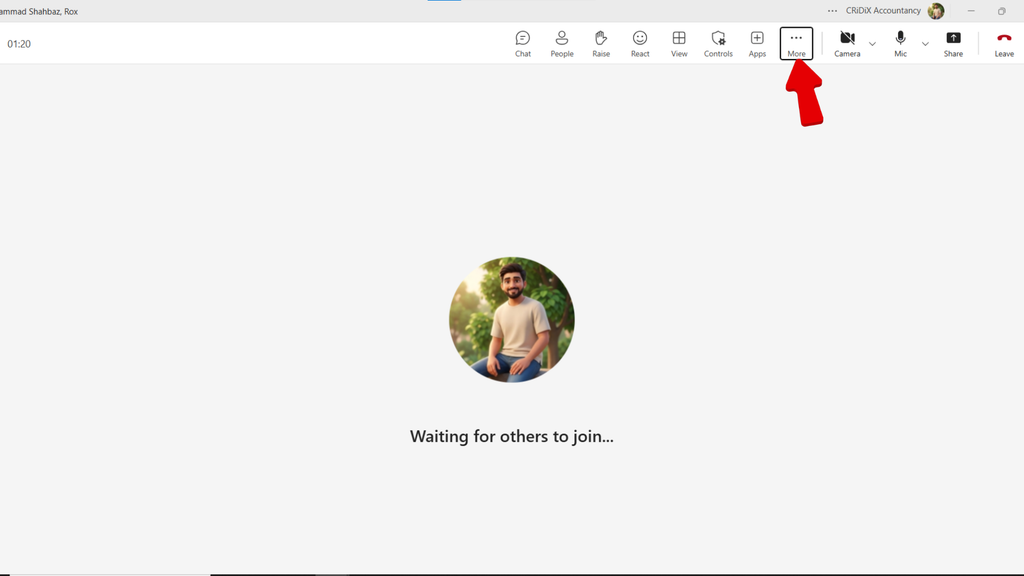
- Select “Start recording” from the dropdown. If transcription is available on your plan, you will also see an option to start both at the same time.
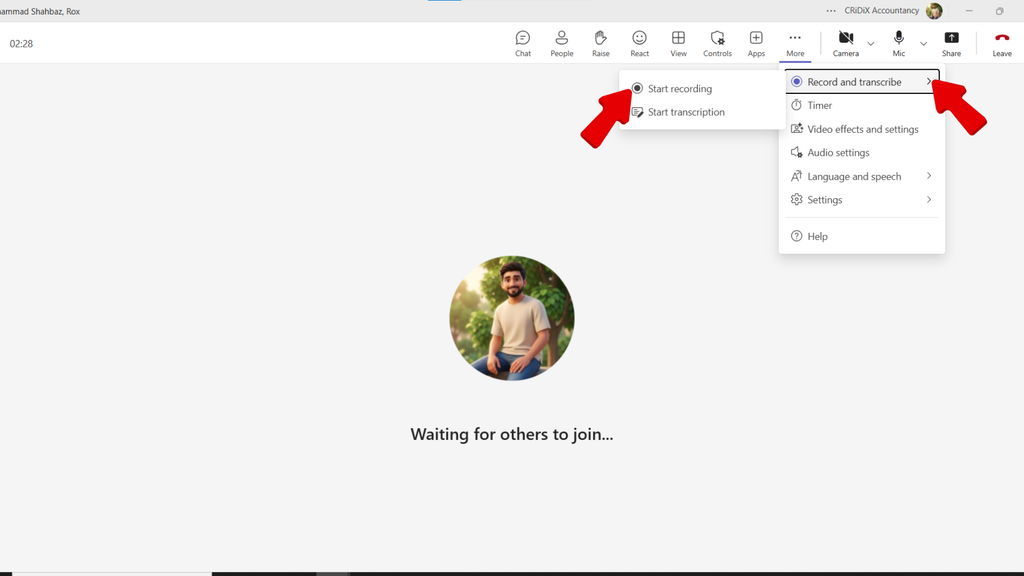
- A notification banner immediately appears for all participants, and a red recording indicator remains visible on screen for everyone throughout the call. Teams does not support silent recording.
- Continue your meeting. The recording runs in the background without interruption.
To stop the recording:
- Click the More actions icon (…) again.
- Select “Stop recording.” The recording also stops automatically when the meeting ends.
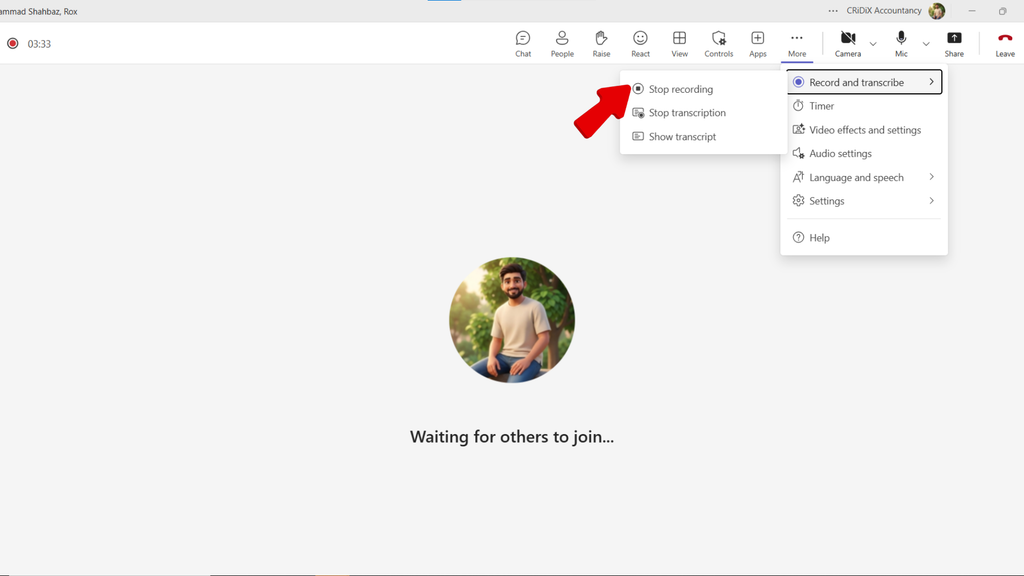
Note: If you leave the meeting early, another presenter or organizer can stop the recording. The file will still be saved to OneDrive or SharePoint.
Where to Find Your Teams Meeting Recording
The most common frustration after a recorded meeting is not knowing where the file went. Here are the places to check:
- Meeting chat: A link is posted automatically in the chat thread as soon as the file finishes processing. This is the fastest access point.

- OneDrive: For non-channel meetings, the recording saves to the organizer’s OneDrive for Business inside a folder called Recordings.

- SharePoint: For channel meetings (held inside a Teams channel), the file saves to the SharePoint document library for that channel.
- Teams calendar: Open the meeting event in your Teams calendar and select the Recording and transcripts tab.
Allow a few minutes after the meeting ends for the file to finish processing. Longer meetings take more time to appear.
If recordings disappear after a set period, your admin has likely configured a retention or expiration policy. Common settings are 60 or 120 days. Check with your IT team if this is affecting your access.
How to Share a Teams Meeting Recording
Participants who attended the meeting can already see the recording link in the meeting chat. To share the recording with someone who was not present:
- Open OneDrive (or SharePoint for channel meetings) and locate the file in your Recordings folder.

- Right-click the recording and select Share or Copy link.

- Choose a permission level. Options include sharing with specific people, anyone with the link, or view-only access. For external recipients outside your organization, confirm your admin policy permits external sharing before sending.
- Send the link by email or Teams chat.
How to Record a Teams Meeting on Mobile (iOS and Android)
Mobile recording follows the same logic as desktop, with a slightly different interface.
- Join the meeting in the Teams mobile app.
- Tap the More options icon (three dots) at the bottom of the screen.

- Tap “Start recording.”
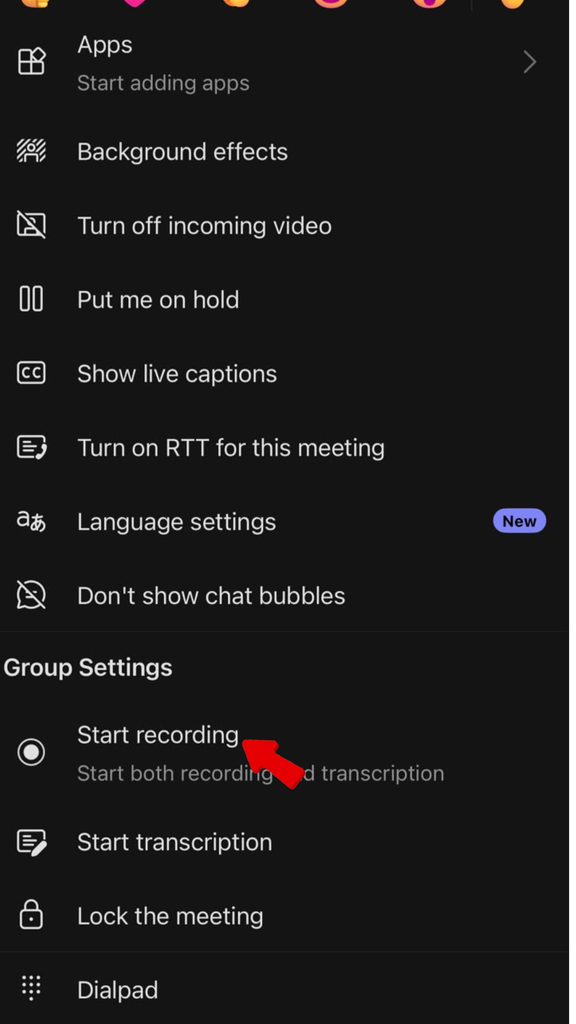
- All participants receive a notification that recording has started, the same as on desktop.
- To stop, tap the More options icon again and select “Stop recording,” or let it stop automatically when the meeting ends.

The recording saves to OneDrive and a link appears in the meeting chat, exactly as it does on desktop. Some advanced settings available on the desktop app may not be accessible from the mobile interface.
What to Do If the Record Option Is Missing or Greyed Out
If “Start recording” does not appear in the menu, one of the following is typically the cause:
- Insufficient license: Your Microsoft 365 plan does not include cloud recording. Check your subscription in the Microsoft 365 account portal or ask your IT admin to confirm your license tier.
- Admin policy has disabled recording: Your organization’s Teams policy is blocking recording for your account. Contact your IT admin and request that recording be enabled.
- Your role is Attendee: Attendees cannot record. Ask the meeting organizer to promote you to Presenter or Co-organizer, either before the meeting or through the Participants panel during the call.
If none of these apply, update the Teams app to the latest version. Outdated versions can occasionally cause menu items to display incorrectly.
Tips for Getting Better Audio in Your Recordings
For casual standups, your laptop mic is usually fine. For client calls, webinars, or any recording you plan to share externally, a few quick adjustments make a real difference:

Tips for Getting Better Audio in Your Recordings
- Use a dedicated headset or external microphone instead of your laptop’s built-in mic.
- Record from a quiet room with doors and windows closed.
- Mute participants who are not speaking to keep background noise out of the recording.
For professional recordings where audio quality is a priority, a dedicated wireless microphone like the Hollyland LARK MAX 2 significantly raises the bar, capturing at 48 kHz / 32-bit Float with AI Noise Cancellation that reduces background noise before it ever reaches your Teams call.
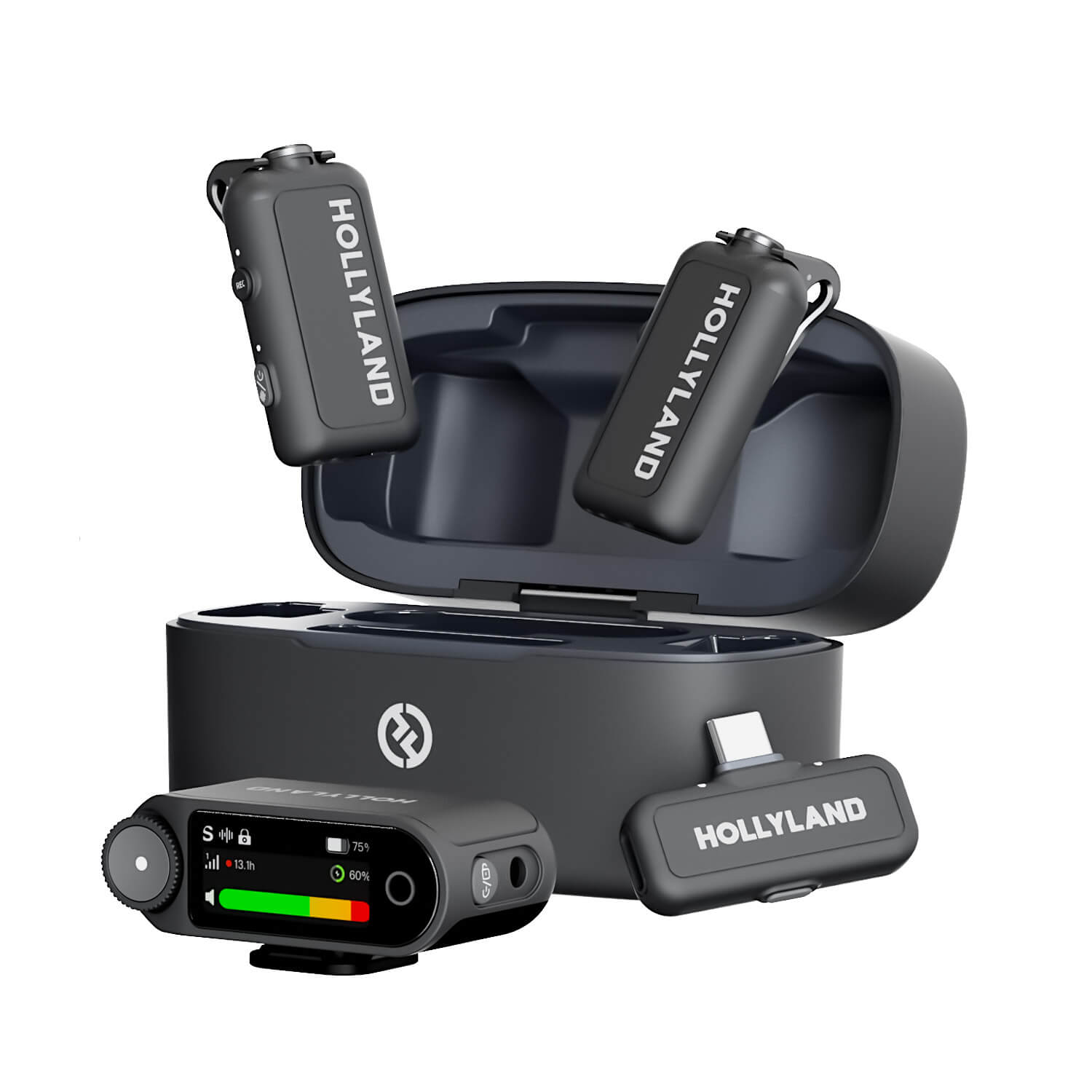
Hollyland LARK MAX 2 - Premium Wireless Microphone System
A premium wireless microphone for videographers, podcasters, and content creators to capture broadcast-quality sound.
Key Features: Wireless Audio Monitoring | 32-bit Float | Timecode
Frequently Asked Questions
Q: Can I record a Teams meeting without others knowing?
No. Microsoft Teams automatically notifies all participants the moment a recording starts. A notification banner appears for everyone in the call, and a recording indicator stays visible for the full duration. There is no option to record silently using the built-in Teams feature.
Q: How long are Teams meeting recordings stored?
By default, recordings are saved to OneDrive or SharePoint without an automatic expiration date. However, your organization’s IT admin may configure a retention or expiration policy, commonly set at 60 or 120 days. If recordings are disappearing sooner than expected, ask your admin about the current setting.
Q: Can a guest record a Teams meeting?
No. Guest users and anonymous attendees cannot initiate a recording in Teams. Only licensed Microsoft 365 users assigned an organizer, co-organizer, or presenter role can start recording. The feature must also be permitted by the organization’s admin policy before recording options become available.
Q: Can I record a Teams meeting if I am not the organizer?
Yes, in most cases. If the organizer has assigned you the co-organizer or presenter role, and your organization’s admin settings allow recording, you can start and stop the recording. Check the More actions menu to confirm the option is available for your account.
Q: Why can I not find the recording after the meeting?
Check the meeting chat first, where a link is posted automatically once the file is ready. Then look in your OneDrive Recordings folder. For channel meetings, check the SharePoint document library for that channel. If the recording is still missing, it may have expired under a retention policy, or recording may not have been permitted for that meeting type.
Conclusion
Recording a Teams meeting comes down to three steps: start from the More actions menu during the meeting, retrieve the link from the meeting chat or your OneDrive Recordings folder, and share from OneDrive with anyone who needs access. If the Record option is unavailable, your license tier or meeting role is the first thing to verify. For a complete workflow, pairing Teams recording with transcription gives you both a video record and a searchable text version of every meeting.