.png)
 简体中文
简体中文 
MacBooks come with everything you need to record video right out of the box. No paid software required. The key is knowing which tool matches your goal. Recording yourself on camera and recording your screen are two different tasks handled by different built-in apps. This guide covers three methods, maps each one to a clear use case, and ends with practical tips to improve how your recordings look and sound.

What to Check Before You Start Recording
Before you hit record, run through this three-point checklist to avoid avoidable problems mid-take.
- Camera access is enabled. Go to System Settings > Privacy & Security > Camera and confirm that the apps you plan to use are listed and toggled on. If your MacBook’s built-in FaceTime HD Camera is not recognized, this is the first place to check.
- Audio input is active. Open System Settings > Sound > Input and watch the input level meter respond when you speak. If the bar stays flat, your microphone source is not selected correctly.
- Storage is available. Video files are larger than most users expect. A five-minute QuickTime recording at maximum quality can exceed 1 GB. Check Apple menu > About This Mac > Storage before any long session.
Method 1: Record Video of Yourself Using QuickTime Player
Best for: Recording yourself on camera for tutorials, video messages, vlogs, or any content where you are the subject.
QuickTime Player is the most reliable native option for camera-based recording on any MacBook. It is pre-installed, handles .mov output cleanly, and gives you direct control over your camera source, microphone, and quality level. Most users skip the dropdown that unlocks these settings and then wonder why their audio is wrong or their file is unexpectedly large. Pay close attention to Step 3.
Steps:
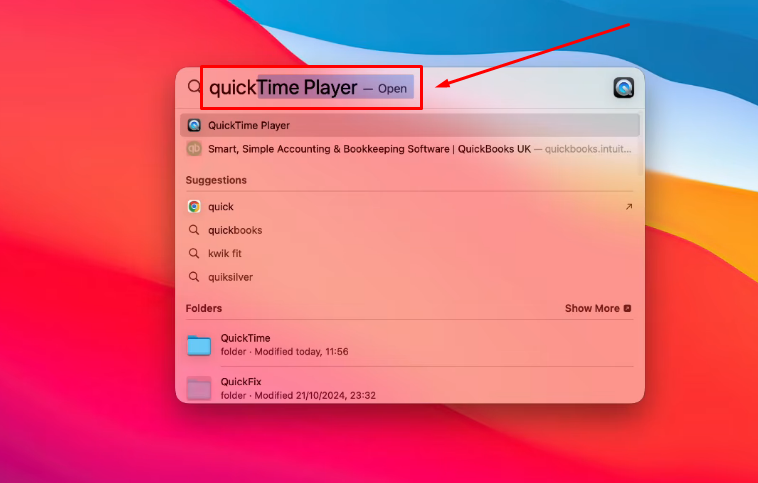
- Open QuickTime Player. Press Command + Space to open Spotlight Search, type “QuickTime,” and press Return. You can also find it in your Applications folder.
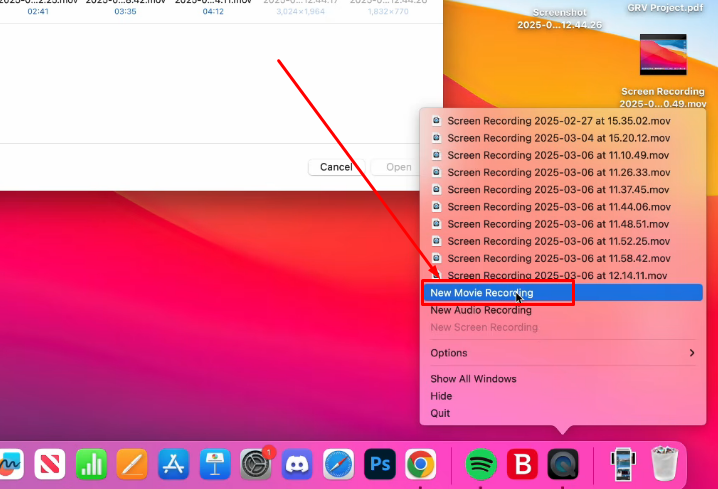
- Start a new movie recording. Click the File menu in the menu bar and select New Movie Recording. A preview window opens showing the live feed from your FaceTime HD Camera.
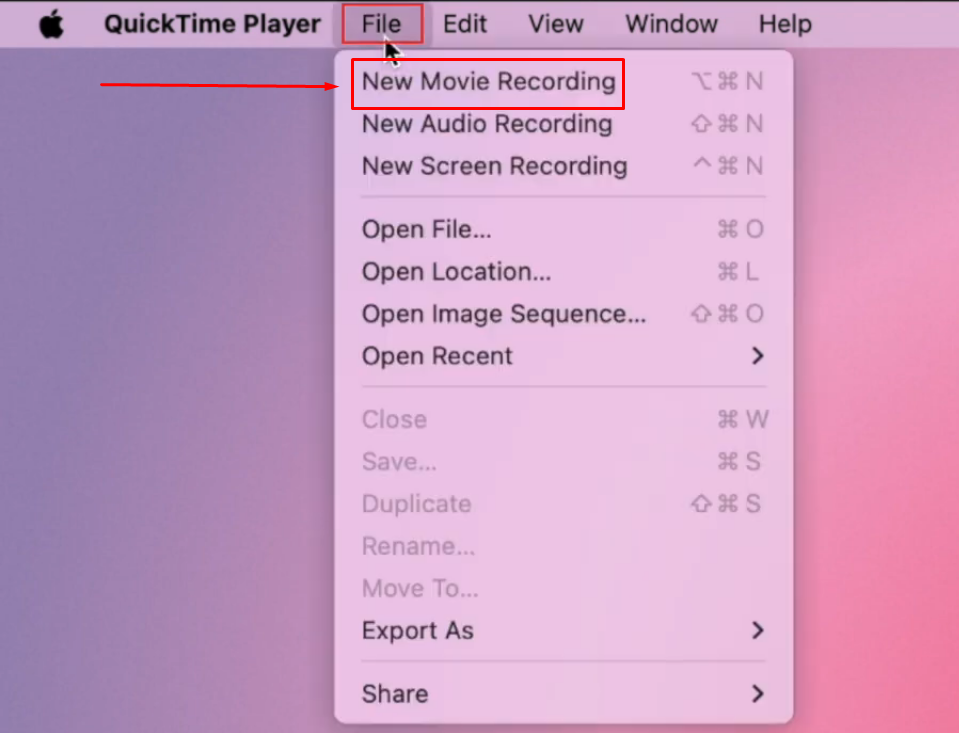
Alternatively, you can click the QuickTime icon in the dock and select New Movie Recording.
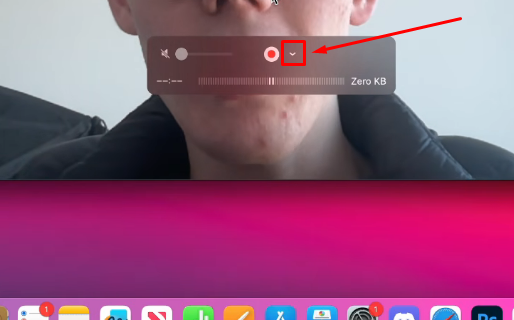
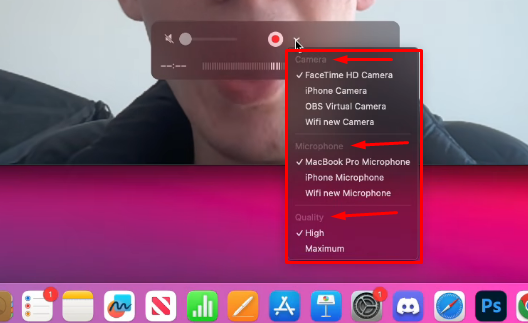
- Configure your recording settings. Look for the small dropdown chevron (▼) just to the right of the red Record button. Click it to reveal three options:
- Camera: Select FaceTime HD Camera (default) or any connected external camera.
- Microphone: Choose your audio input. The built-in microphone is selected by default, but any connected audio device will appear here as an option.
- Quality: Choose High for most recording purposes. Choose Maximum only when storage space is not a concern, as Maximum files are significantly larger.
- Note: QuickTime remembers the last-used settings, which may not be what you want. Check this dropdown before every new recording session.
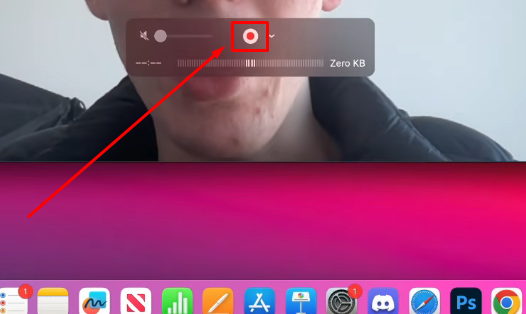
- Start recording. Click the red Record button. The QuickTime window confirms that recording is active.
- Stop the recording. Click the Stop button (the square icon) that appears in the menu bar at the top right of your screen. You can also press Command + Control + Escape.
- Save your file. Go to File > Save, choose a destination folder, enter a filename, and click Save. The file saves as a .mov file, which is compatible with iMovie, Final Cut Pro, and most video platforms.
Method 2: Record Your Screen (With or Without Audio) Using the Screenshot Toolbar
Best for: Screen tutorials, software demos, product walkthroughs, app explainers, or any recording where the content is your display.
The Screenshot Toolbar is macOS’s built-in capture hub. A single keyboard shortcut opens it, and it handles both screenshots and screen recording in the same lightweight interface. You can record your full display or a specific region, and you can opt in to microphone audio to narrate while recording.
Steps:
- Open the Screenshot Toolbar. Press Shift + Command + 5. A small toolbar appears at the bottom of your screen with icons for screenshots and screen recording modes.
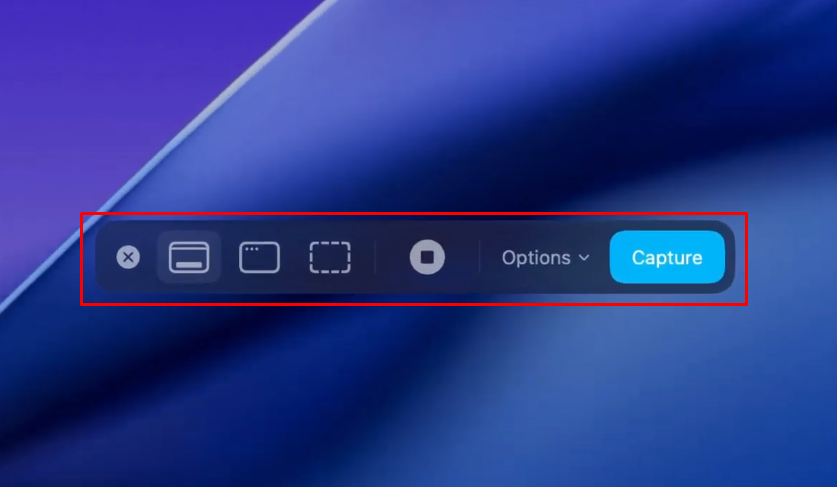
- Choose a recording mode. Select one of the two screen recording icons:
- Capture Entire Screen (the full-screen icon with a circle): captures everything visible on your display.
- Capture Selected Window records only one open browser window or app.
- Capture Selected Portion (the dashed rectangle icon): lets you drag to define a specific capture area before recording starts.

- Set your options. Click the Options button on the toolbar to configure:
- Microphone: Defaults to None for silent recording. Switch to your built-in microphone or any connected input to capture narration alongside the screen.
- Save To: Defaults to the Desktop. Change this to any folder you prefer.
- Timer: Set a 5- or 10-second countdown if you need a moment to prepare before capture begins.
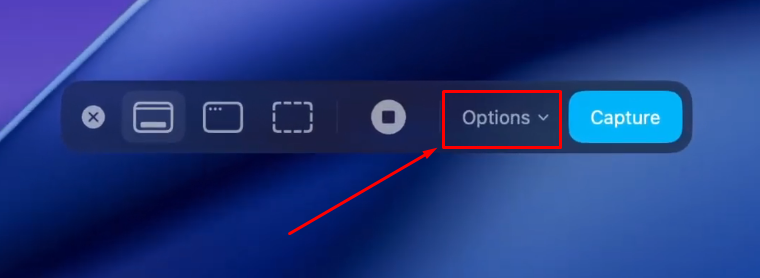

- Start recording. Click the Capture button on the toolbar. If you selected a portion, draw the capture area first.

- Stop the recording. Click the Stop button in the menu bar, or press Command + Control + Escape.
- Find your recording. The file saves automatically to the Desktop or your chosen location as a .mov file. A thumbnail preview appears briefly in the lower right corner of the screen. Click it to review immediately, or let it save on its own.
Method 3: Quick Video Clips with Photo Booth or the Camera App
If you just need a fast front-facing clip and do not want to navigate QuickTime menus, two lighter alternatives are already on your Mac.
Photo Booth
Photo Booth is the fastest way to record a casual selfie-style video clip with zero configuration required.
- Open Photo Booth from your Applications folder or via Spotlight Search.
- Click the video camera icon in the bottom-left corner of the window to switch from photo mode to video recording mode.

- Click the large red video camera button to begin recording. Click it again to stop.

- Your clip saves automatically to the Photo Booth library inside the app. Right-click any clip and choose Export to save it as a standalone video file.
Method 3 — Third-Party Apps for More Control (OBS, Loom)
When native tools do not cover what you need, two free third-party apps are worth knowing about.
| App | Best For | Cost | Key Differentiator |
|---|---|---|---|
| OBS Studio | Streaming, multi-source recording | Free | Simultaneous screen + webcam + audio mixing |
| Loom | Async team communication | Free (limited) / Paid | Auto-generates a shareable link after each recording |
OBS Studio is open-source and built for users who need to mix multiple inputs, screen, webcam, and audio, in real time. It is the right tool for streamers and advanced tutorial creators, but it has a learning curve that most casual users will not need to climb.
Loom records your screen with an optional face-bubble overlay and immediately generates a shareable link when you stop recording. No manual exporting or uploading required. It is popular for async team updates and client-facing demos.
For most users, QuickTime and the Screenshot Toolbar do the job. Come back to these tools only after you have outgrown the built-in options.
5 Tips to Improve Your MacBook Video Recording Quality
Getting the recording started is step one. Getting it to look and sound good is where most beginners leave improvement on the table.

- Face your light source, not your window. Sitting with a bright window behind you turns your face into a silhouette. Position yourself facing natural light, a desk lamp, or a ring light. Even a simple lamp repositioned in front of you can make a big difference without extra equipment.
- Upgrade your audio input. The built-in MacBook microphone picks up keyboard clicks, fan noise, and room echo. An external microphone is the single highest-impact hardware upgrade for recording quality. A compact wireless lavalier option like the Hollyland LARK M2 connects to your MacBook via its USB-C receiver and appears as a selectable audio input directly inside QuickTime’s microphone dropdown and the Screenshot Toolbar’s Options menu – no drivers needed. For professional work such as interviews or filmmaking, the Hollyland LARK MAX 2 adds 32-bit Float internal recording as a safety backup. Both options are practical, straightforward upgrades over the built-in mic for any regular recording workflow.
- Choose the right quality setting in QuickTime. Select High for most use cases. YouTube uploads, presentations, and social media content all look great at this setting. Choose Maximum only when you plan to edit the footage heavily and need maximum image data. Maximum quality files are significantly larger, so confirm your storage before selecting it.
- Check your display resolution before recording. QuickTime captures at the resolution your display is currently set to. If you have scaled your display to a lower resolution for readability (System Settings > Displays), the output video will reflect that lower resolution. Set your display to its native or recommended resolution before starting a session to record the sharpest possible image.
- Close background apps before you press record. Video recording is CPU-intensive. Open browser tabs, cloud sync services, and background updates all compete for processing power and can cause dropped frames. They can also trigger the MacBook’s cooling fan, which the built-in microphone will capture clearly. Open Activity Monitor (Spotlight: “Activity Monitor”), sort by CPU, and quit anything that is not necessary before recording.
FAQs
Q1: Can I record video on a MacBook without downloading any app?
Yes. QuickTime Player, Photo Booth, and the Screenshot Toolbar are all pre-installed on every MacBook running a current version of macOS. No download, account, or subscription is required. You can open QuickTime Player and start recording within a couple of minutes of sitting down at a new Mac.
Q2: How do I record both video and audio at the same time on a MacBook?
In QuickTime Player, go to File > New Movie Recording and click the dropdown chevron beside the Record button to select your microphone source. For screen recording, press Shift + Command + 5, click Options, select a microphone input, then click Record. Both methods capture synchronized audio and video in a single .mov file.
Q3: Where are recorded videos saved on MacBook?
QuickTime Player recordings save wherever you specify when you go to File > Save after stopping the recording. Screenshot Toolbar recordings save automatically to the Desktop by default. You can change the save location in the Screenshot Toolbar Options menu before starting a new recording session.
Q4: How do I record my screen with my face in the corner (picture-in-picture)?
The native Screenshot Toolbar does not support picture-in-picture recording on its own. To overlay a webcam feed on a screen recording, use Loom (which adds a face bubble automatically) or OBS Studio (which lets you build a custom multi-source scene combining your screen and camera feed simultaneously).
Q5: Why is my QuickTime recording showing a black screen?
A black screen in QuickTime almost always means macOS is blocking screen recording permission. Go to System Settings > Privacy & Security > Screen Recording, find QuickTime Player in the list, and enable it. After granting permission, quit QuickTime Player completely and reopen it. The permission change does not take effect until the app restarts.
Conclusion
QuickTime Player is the go-to option for recording yourself on camera, the Screenshot Toolbar handles anything screen-based, and Photo Booth is the fastest route for a quick casual clip. All three are free and ready to use right now.