



































.png)
 简体中文
简体中文 
OBS Studio is mainly designed for video recording, but audio recording is simple too. You can record podcast audio, voiceovers, or commentary without game footage. OBS can save a clean audio file without adding any video track. This guide explains two reliable methods and their exact settings. The Hollyland LARK MAX 2 serves as the microphone input throughout.
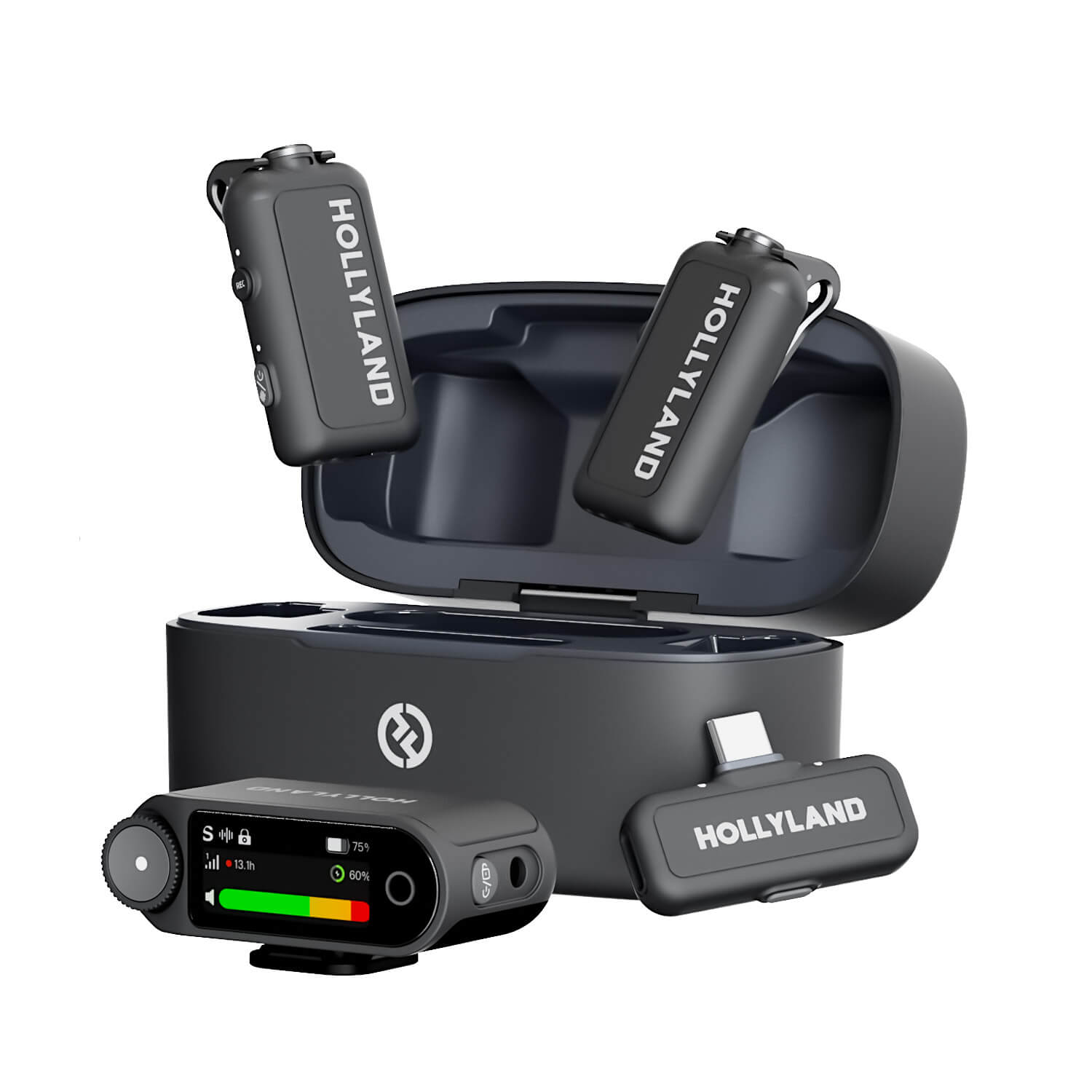
Hollyland LARK MAX 2 - Premium Wireless Microphone System
A premium wireless microphone for videographers, podcasters, and content creators to capture broadcast-quality sound.
Key Features: Wireless Audio Monitoring | 32-bit Float | Timecode

Why Use OBS to Record Audio Only?
Most podcasters, narrators, and streamers already have OBS open during a session. Recording audio directly inside OBS removes the need for a second application and keeps file sizes lean by eliminating the video stream entirely.

Three common use cases:
- Podcast recording: Capture clean voice audio for direct upload to a hosting platform
- Voiceover and narration: Record a scratch track or final take without a video layer
- Streamer commentary: Grab reaction or commentary audio without recording game footage
What You Need Before You Start
Before opening a recording session, confirm the following are in place:
- OBS Studio version 32 or later – earlier versions have limited Custom FFmpeg output options
- A recognized audio input device – this guide uses the Hollyland LARK MAX 2 throughout
- Operating system audio permissions – Windows: Settings > Privacy > Microphone > allow desktop apps; macOS: System Settings > Privacy and Security > Microphone > enable OBS
- An active scene in OBS – even an empty one is sufficient for audio-only sessions
Setting up the Hollyland LARK MAX 2:
- Unbox the LARK MAX 2 kit. You will find the transmitter (clip-on body), the USB-C receiver dongle, and the OWS wireless earphones for real-time audio monitoring.
- Plug the USB-C receiver into your PC or Mac. Windows auto-installs it as a generic USB audio device.

On macOS, it appears under System Settings > Sound > Input immediately.
- Check the transmitter LED:
- Solid blue means paired and transmitting;
- Blinking blue means it is searching for the receiver.
- If blinking, press the power button on both units for 3 seconds until the LED stabilizes to solid blue.

- Confirm the device name appears in Windows Sound Settings > Input Devices or macOS System Settings > Sound > Input before opening OBS.
Note: The LARK MAX 2 transmits natively at 48 kHz. You will need to match this in OBS’s sample rate setting, which is covered in the audio quality section below.
Method 1: Record True Audio-Only Files Using Custom FFmpeg Output (Recommended)
Custom FFmpeg Output is OBS’s most direct route to a true audio-only file. The output container (MP3, FLAC, or AAC) holds no video stream at all, which keeps files small and immediately compatible with podcast platforms, DAWs, and audio editors. This method requires switching OBS to Advanced Output Mode.
Before working through the steps below, confirm the LARK MAX 2 is visible inside OBS:
- Go to Settings > Audio > Mic/Auxiliary Audio and select “LARK MAX 2” (or the device name shown in your OS) from the dropdown.

- Check the OBS Audio Mixer panel. The VU meter for the mic source should show green movement when you speak into the transmitter.

- Verify the transmitter LED is solid blue.

If the LED is red, double-press the power button on the transmitter to unmute it.

Step 1: Switch OBS to Advanced Output Mode
- Open OBS and go to Settings > Output.
- In the Output Mode dropdown, select Advanced.
- Click the Recording tab. It will now show expanded configuration options.

Step 2: Configure the Recording Tab for Custom FFmpeg Output
- Under Type, select Custom Output (FFmpeg).

- Set FFmpeg Output Type to Output to File.
- Choose a Recording path and enter a filename that includes the extension, for example: podcast-episode-01.mp3 or session-vocal.flac.

Step 3: Set Audio Codec and Disable Video
- In the Audio Encoder field, type libmp3lame for MP3 or flac for lossless output.

- Leave the Video Encoder field blank. For MP3 and FLAC containers, OBS will not write a video stream since the container format itself excludes video.
- Set Audio Bitrate to at least 192 kbps for MP3. FLAC is lossless, so bitrate does not apply.
Step 4: Start and Stop the Recording
- Click Start Recording in the OBS main window.
- Speak into the LARK MAX 2 transmitter and confirm the VU meter is active in the Audio Mixer.
- Click Stop Recording when finished.
- Open the output file in a media player to verify it plays audio with no video track present.
Method 2: Record Audio Using an Empty Scene (No Video Sources)
This approach does not require Advanced Output Mode. You create a scene with no video sources attached, so the recorded file contains only a static black frame alongside your audio. The resulting MKV or MP4 is technically a video file, but the video track is functionally empty. Only the audio channel carries meaningful content.
Before recording, open the OBS Audio Mixer and confirm the LARK MAX 2 fader is active and not muted. The transmitter LED should be solid green. If it shows red, press the hardware mute button to unmute. You can also plug the OWS earphones into the LARK MAX 2 receiver for real-time monitoring of the mic signal before hitting Record. This confirms the mic is live independently of OBS and is especially useful if you are troubleshooting input issues.
Step 1: Create a New Scene with No Video Sources
- In the Scenes panel at the bottom-left of OBS, click the + button and name the scene “Audio Only.”

- In the Sources panel, do not add Display Capture, Window Capture, Video Capture Device, or any image or media sources.
- Click + in Sources, select Audio Input Capture, name it, and choose “LARK MAX 2” from the device dropdown.


Step 2: Configure Standard Recording Output
- Go to Settings > Output and keep Output Mode on Simple.
- Set Recording Format to MKV (recommended for crash safety, as MKV can be recovered if OBS closes unexpectedly) or MP4.
- Set a clear recording path so the file is easy to locate after the session.

Step 3: Minimize Video Processing (Optional but Recommended)
- Go to Settings > Video.
- Set both Base (Canvas) Resolution and Output (Scaled) Resolution to 2×2.
- This drops video encoding overhead to near zero while leaving audio capture fully intact.
Step 4: Record and Extract Audio
- Click Start Recording and begin your session.

- Click Stop Recording when finished.
- The output file is an MKV or MP4 with a 2×2 black frame. Open it in VLC or drag it into a DAW. Only the audio track carries meaningful content.
Configuring Audio Quality Settings in OBS for the Best Recording
These settings affect recording fidelity regardless of which method you use. Work through each one after selecting your output method.

- Sample Rate: Go to Settings > Audio and set Sample Rate to 48 kHz. The LARK MAX 2 transmits natively at 48 kHz, so a mismatch will cause pitch-shifted or distorted recordings.
- AI Noise Cancellation on the LARK MAX 2: The transmitter has a dedicated NC button. Press it to cycle through noise cancellation modes (the LED color or pattern indicates the active mode per the hardware manual). Enabling hardware-level NC reduces background noise before the signal reaches OBS, which avoids the processing latency that OBS software filters can introduce.
- Gain Control: Use the + / – hardware buttons on the LARK MAX 2 transmitter to adjust mic gain in 3 dB increments. Aim for the OBS Audio Mixer to peak between -12 dBFS and -6 dBFS during normal speech. Levels above -6 dBFS risk clipping; levels below -18 dBFS will require heavy post-processing.
- OBS Noise Suppression Filter: If you prefer to leave hardware NC off, add a software filter instead. Right-click the mic source in the Audio Mixer, go to Filters > + > Noise Suppression, and select RNNoise mode for best voice quality.
- Internal Backup Recording: The LARK MAX 2 transmitter records internally at 32-bit Float / 48 kHz to onboard storage. If your OBS file ends up corrupt or silent, retrieve this backup from the transmitter before starting a new session.
Choosing the Right Audio Format for Your OBS Audio-Only Recording
Use the table below to match your format choice to your delivery destination.
| Format | Best Use Case | File Size | OBS FFmpeg Container | Quality Trade-off |
|---|---|---|---|---|
| MP3 | Podcast upload, general voice | Small | mp3 + libmp3lame | Lossy; suitable for speech at 192 kbps or higher |
| AAC | YouTube upload, mobile playback | Small to Medium | mp4 + aac | Lossy; slightly more efficient than MP3 at equal bitrate |
| FLAC | DAW import, archival, music | Large | flac + flac | Lossless; ideal match for LARK MAX 2’s 32-bit Float output |
| WAV | DAW tracking, broadcast delivery | Very Large | wav + pcm_s24le | Lossless uncompressed; no encoding overhead |
For podcast delivery, MP3 at 192 kbps is the accepted standard. For any session you plan to edit or archive, FLAC preserves the full quality of the LARK MAX 2’s 48 kHz signal without any encoding loss.
Troubleshooting: OBS Audio-Only Recording Not Working
- LARK MAX 2 not appearing in the OBS input dropdown
- Cause: The USB-C receiver was not recognized by the operating system.
- Fix: Unplug and reconnect the receiver. Check Windows Device Manager or macOS Audio MIDI Setup for the device listing. Confirm the transmitter LED is solid green. If it is blinking, press the pairing button on both units until both LEDs stabilize to solid green.
- Mic appears in OBS but records silence
- Cause: The transmitter is muted at the hardware level.
- Fix: Press the hardware mute button on the LARK MAX 2 transmitter. The LED should shift from red back to green. Also verify the fader in the OBS Audio Mixer is not set to zero.
- Audio file opens but has no sound
- Cause: The wrong audio track is assigned in the recording output settings.
- Fix: Go to Settings > Output > Recording and confirm the Audio Track checkbox for Track 1 is enabled. In the Audio Mixer, verify the LARK MAX 2 source is routed to Track 1.
- Output file is corrupt or will not open
- Cause: OBS crashed mid-recording or the Custom FFmpeg container and codec names contain a typo.
- Fix: First, retrieve the onboard backup from the LARK MAX 2 transmitter storage (32-bit Float / 48 kHz). Then review your Custom FFmpeg settings and confirm container and codec names are spelled exactly as OBS expects, for example: mp3 and libmp3lame, not “MP3” or “lame.”
Frequently Asked Questions
Q: Can OBS record audio only without any video at all?
Yes. Method 1 (Custom FFmpeg Output with an audio-only container such as MP3 or FLAC) produces a file with no video stream. The container format itself excludes video entirely. Method 2 creates a standard video container with a black frame, which is audio-only in practice but technically includes an empty video track.
Q: Why is there no sound in my OBS audio-only recording?
The most common causes are: the wrong audio source selected in Settings > Audio, the microphone muted at the hardware level (check the LED on a wireless mic like the LARK MAX 2 – red means muted), or the audio track assignment not matching the recording track enabled in Output settings. Check hardware mute status first before adjusting OBS settings.
Q: Can I record desktop audio and microphone audio as separate tracks in an audio-only output?
Yes. In OBS Advanced Output Mode, enable multiple audio tracks (Track 1 for mic, Track 2 for desktop audio) and select both in your recording settings. Each track is embedded in the output file and can be extracted separately in a DAW or audio editor after the session ends.
Q: What is the best audio quality setting for OBS audio-only recording?
Set the OBS sample rate to 48 kHz to match professional microphone output like the LARK MAX 2. Use FLAC for lossless archival or MP3 at 192 kbps or higher for podcast delivery. Avoid dropping below 128 kbps for any voice-focused content, as speech intelligibility degrades noticeably at lower bitrates.
Q: Does reducing video resolution to 2×2 affect audio recording quality in OBS?
No. OBS handles audio capture independently of the video pipeline. Setting canvas resolution to 2×2 (as used in Method 2) only reduces video encoding load on your CPU. Audio quality, sample rate, and bitrate are entirely unaffected by the video resolution setting.
Conclusion
For a true audio-only file, Method 1 (Custom FFmpeg Output) is the cleanest route, producing an MP3 or FLAC with no video track. Method 2 is the faster fallback if you want to stay in Standard Output Mode without adjusting Advanced settings. Either way, audio quality starts at the source: the LARK MAX 2’s 48 kHz output, hardware noise cancellation, and onboard 32-bit Float backup make it a reliable input for any OBS audio workflow.


