.png)
 简体中文
简体中文 
Recording your presentation as a video makes sharing your work easier. You can submit it through an LMS or create course content. It also lets viewers watch without scheduling a live session. The main challenge is choosing the right recording method. This guide covers four options for different presentation setups. These include PowerPoint, Loom, OBS Studio, Zoom, and Google Meet. Each method includes clear steps for creating a shareable video.

What You Need Before You Start
Before choosing a method, confirm four things about your setup:

- Software already installed: PowerPoint users can record without downloading anything extra. If you use Google Slides or want more control over your layout, you will need a screen recorder such as Loom or OBS Studio.
- Microphone: A built-in laptop mic works for a rough draft, but an external microphone produces noticeably cleaner audio. The audio section below explains the options at every level.
- Webcam: Decide upfront whether you want your face visible on screen. Webcam overlay is optional in every method covered here.
- Intended output: A self-contained MP4 file (for email or LMS), a shareable link (Loom), or a cloud recording (Zoom) each require slightly different workflows. Know where the final video is going before you press record.
Method 1: How to Record a Presentation in PowerPoint
PowerPoint includes a full-featured built-in recorder that captures your slides, voice narration, and webcam feed in a single pass. No additional software is required, and the output is an MP4 file you can share or upload directly. This method suits educators, trainers, and business professionals who already work in Microsoft 365 and want a straightforward, self-contained workflow.
Setting Up Your Microphone and Camera in PowerPoint
Confirming your audio and video inputs before you start saves you from discovering a silent recording after the fact.
- Open your presentation in PowerPoint.
- Click the Record tab in the top ribbon. In older versions of Office (pre-Microsoft 365), go to Slide Show and select Record Slide Show instead.
- The recording interface opens as a full-screen overlay on Windows or a toolbar-based view on Mac with Microsoft 365.

- Click the microphone icon in the recording toolbar to open the audio input dropdown and select the microphone you intend to use.
- Speak at your normal presentation volume and watch the real-time audio level meter next to the microphone icon. If the bars do not move when you speak, you have the wrong input device selected. Return to step 4 and choose a different source.
- Click the camera icon to toggle your webcam on or off. When enabled, a circular webcam bubble appears in the lower corner of the slide. Drag it to your preferred position before you begin recording.

Recording, Pausing, and Re-recording Slides
- Click the Record button (the red circle icon) to start the 3-second countdown and begin capturing.


- Narrate the current slide, then advance to the next by pressing the forward arrow key or using the on-screen navigation arrows. Slide timing is captured automatically as you advance.

- If you lose your place or need a moment to collect your thoughts, press Pause in the toolbar. The recording pauses silently with no audio captured. Click Resume/Play again when you are ready to continue.


- To re-record a single slide without affecting narration on the rest, navigate directly to that slide in the recording interface, click More Options (three dot menu), hover over Clear in the toolbar, and select Clear Recording on Current Slide. Then click Record to narrate only that slide again.

- To remove all narration across every slide simultaneously, click Clear and select Clear All Recordings.
- When you have finished narrating every slide, click Stop.
Pro Tip: Re-record individual slides rather than restarting the entire session. PowerPoint stores narration at the slide level, so a stumble on slide 10 does not require you to redo slides 1 through 9.
Exporting to MP4
- Click File in the top menu, then select Export.

- Click Browse to assign the destination folder.
- Click Export Video to save the file.

A progress bar appears along the bottom of the PowerPoint window. A 15-minute narrated presentation typically takes 3 to 5 minutes to render, depending on your hardware.
Method 2: How to Record a Presentation with a Screen Recorder
Screen recording software gives you more control over your layout, works with any presentation application, and offers different sharing workflows compared to PowerPoint’s native recorder. If you use Google Slides, this is your primary option since Google Slides has no built-in recording feature. This section covers two tools: Loom for the fastest async sharing experience and OBS Studio for high-resolution recordings with custom layouts.
Using Loom (Best for Quick Async Sharing)
Loom records your screen, webcam, and microphone simultaneously and generates a shareable link automatically the moment you stop. There is no manual export or file management required.
- Download the Loom desktop app from loom.com or install the Loom Chrome extension for browser-based recording.


- Sign in or create a free Loom account.
- Click on the New Video tab and select Record a Video.

- To choose your capture region, select Window to record only your presentation application, or Full Screen to capture everything visible on the display. Window capture produces a cleaner result by excluding your desktop and other open apps.
- Confirm your microphone and webcam selections in the dropdowns at the bottom of the Loom panel.

- Click Start Recording. A 3-second countdown will appear.
- Switch to your presentation window and advance through your slides while narrating normally.
- When finished, click the Loom icon in your taskbar (Windows) or menu bar (Mac) and click Stop Recording.
- Loom uploads the recording automatically and opens a browser tab with your video and a shareable link. Copy the link to distribute it.
Note: Loom’s free tier limits individual videos to 5 minutes. For longer presentations, you will need the Starter paid plan or one of the other recording tools in this guide.
Using OBS Studio (Best for High-Resolution or Custom Layouts)
OBS Studio is free, open-source software with no recording time limits and no watermarks. The initial configuration takes more time than Loom, but the output quality is excellent, and you have complete control over your scene layout.
- Download OBS Studio from obsproject.com and install it on Windows or Mac.
- Open OBS. In the Scenes panel at the bottom left, click + and name your new scene (for example, “Presentation Recording”).

- In the Sources panel beside it, click + and select Window Capture to record a specific application window, or Display Capture to record your entire screen. Select your presentation window as the source.


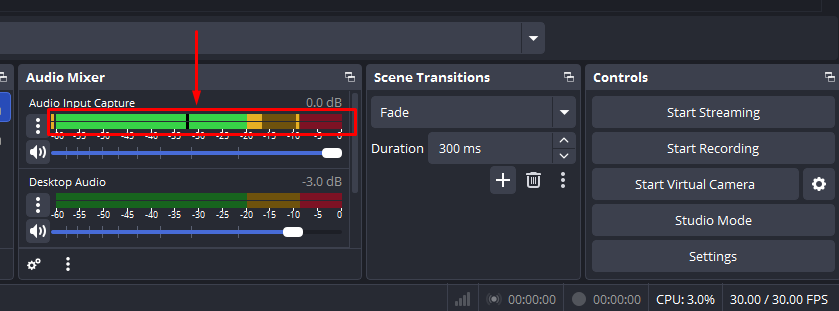
- Click + in Sources again, select Audio Input Capture, and choose your microphone from the device list.

Confirm the audio meter in the Audio Mixer panel moves when you speak at a normal volume.
- To add a webcam as a picture-in-picture overlay, click + in Sources, select Video Capture Device, and choose your webcam. In the OBS canvas preview, drag the corners of the webcam layer to resize it and position it in a corner of the frame.


- Go to Settings (bottom right of the OBS control panel), click the Output tab, and set the recording format to mp4 under the Recording section.

- Click OK to save your settings, then click Start Recording.

- Switch to your presentation and present as normal. When finished, return to OBS and click Stop Recording.
- Find your output file in the folder path listed under Settings → Output → Recording Path.
Method 3: How to Record a Presentation in Zoom or Google Meet
This approach works well for users who are already delivering the presentation in a meeting context or who want to avoid installing additional recording software. The result is an MP4 file of your screen share and audio narration.
Using Zoom:
- Open Zoom and click New Meeting to start a session. You do not need other participants present to record.
- Click Share Screen in the Zoom toolbar and select the specific window showing your presentation rather than your entire desktop. This keeps the recording focused on your slides.


- Click Record in the toolbar and select Record on this Computer (available on free Zoom accounts) or Record to the Cloud (requires a paid Zoom plan).
- Advance through your slides and narrate as normal.

- When finished, click Stop Recording in the Zoom toolbar, then end the meeting. Zoom will begin converting the session to a video file.
- Locate the MP4 in your local Zoom recordings folder. On Windows, this is typically Documents/Zoom. On Mac, look in ~/Documents/Zoom.
Using Google Meet:
The Record button in Google Meet is available only to users with a Google Workspace Business Standard plan or higher. If you have access, open your meeting, click the three-dot menu at the bottom right of the screen, and select Record Meeting. The recording saves automatically to the meeting host’s Google Drive when the session ends.
Important: If other participants are in the meeting, tell them you are recording. Most platforms display a notification banner, but recording consent requirements vary by country and region.
How to Get Great Audio When Recording a Presentation
Audio quality is the single most noticeable factor in whether a recorded presentation feels professional or rough. Built-in laptop microphones pick up keyboard clicks, fan noise, room echo, and HVAC hum. These sounds are amplified in narrated recordings because the listener focuses on your voice. The good news is that you can fix audio quality with three levels of effort.

- Mic positioning (no cost): Move to within 12 to 18 inches of your laptop microphone, close doors and windows to limit ambient noise, and pause briefly before pressing record to let background sounds settle. This adjustment alone produces a meaningful improvement over default laptop audio.
- Software noise reduction (no cost): Loom includes a noise suppression toggle in its recording settings. In OBS Studio, you can add a Noise Suppression filter to your Audio Input Capture source by right-clicking the source, selecting Filters, and adding Noise Suppression from the list. PowerPoint has no native noise reduction, so mic positioning and external hardware are the only remedies there.
- External microphone (best results): For regular recording sessions or content intended for a wider audience, upgrading your microphone removes room noise at the source rather than filtering it afterward. The Hollyland LARK M2 is a compact wireless clip-on microphone (9g, attaches to your collar) whose receiver plugs directly into your laptop’s audio input, making it a practical choice for presenters who stand or move during recording. For desk-based setups, the Hollyland LARK A1 uses a USB-C or Lightning direct-receiver design: plug the receiver into your laptop port, clip on the transmitter, and it is recognized immediately as an audio input device with no driver installation or pairing steps required.
How to Show Your Webcam During a Presentation Recording
A webcam feed adds a human presence to an otherwise static slide deck and tends to improve engagement for asynchronous viewers. Here is how webcam integration works across each method, along with three quick framing tips.

By method:
- PowerPoint: Toggle on the camera icon in the recording interface before you start. A circular webcam bubble appears in the lower corner of your slides and is baked into the exported video file.
- Loom: Camera-in-corner mode is active by default when you select “Screen + Camera + Mic.” The video bubble appears automatically, with no additional configuration.
- OBS Studio: Add a Video Capture Device source to your scene and resize it as a picture-in-picture overlay, as described in the OBS steps above. You control the exact placement and dimensions on the frame.
Three quick framing tips:
- Place your camera at eye level by propping your laptop or webcam on a stand or stack of books. A lens positioned below your eye line makes you look like you’re looking down at the audience throughout the recording.
- Position your primary light source in front of you, not behind you. A window or desk lamp facing your face eliminates the silhouette effect that makes expressions difficult to read.
- Clear visible clutter from the area behind you, or use a virtual background if your recording software supports it. Distracting backgrounds pull attention away from your content.
How to Export, Save, and Share Your Recorded Presentation
- Format: Export as MP4 for universal compatibility across devices, browsers, and LMS platforms.
- Resolution: Use 1080p as the standard. Drop to 720p if your file size is too large for your upload destination or storage allowance.
- File size management: If your exported MP4 is too large for direct upload, run it through HandBrake (free and open-source) to compress the file without a significant loss in visual quality.
- Sharing options:
- Upload to YouTube as public or unlisted to get a permanent shareable link with no file size ceiling.
- Share your Loom recording link directly if you used Loom to record.
- Upload or embed in your LMS (Canvas, Moodle, Teachable) as a hosted video URL.
- Store in Google Drive or Dropbox and distribute a view-only link to your audience.
FAQs
Can I record a presentation on Google Slides?
Google Slides has no built-in recorder. Use Loom, OBS Studio, or your operating system’s native screen recorder: Windows Game Bar (Win + G) or the macOS Screenshot toolbar (Shift + Command + 5). Open your Slides presentation in full-screen presentation mode before starting the recording tool.
How do I record a presentation with audio narration only and no video of myself?
Disable the webcam before you start. In PowerPoint, toggle off the camera icon in the recording interface. In Loom, uncheck the camera option in the mode selector. In OBS, don’t add a Video Capture Device source to your scene. Your voice narration will still sync with the slides throughout the recording.
Why is there no sound in my recorded presentation?
The most common cause is selecting the wrong audio input device. Check the microphone dropdown in PowerPoint’s recording interface or the audio input selector in your screen recorder and confirm it matches the device you are actually using. Run a short test recording and play it back before committing to the full session.
What is the best free tool to record a presentation?
PowerPoint’s built-in recorder is free with a Microsoft 365 subscription and requires no extra software. Loom’s free tier is the fastest option for shareable link output, though videos are capped at 5 minutes each. OBS Studio is free, has no recording time limits, and delivers the highest output quality of the three options.
How do I record a presentation on a Mac without extra software?
Press Shift + Command + 5 to open the Screenshot toolbar, then select “Record Selected Portion” or “Record Entire Screen.” In the Options menu, confirm your microphone is selected as the audio source. Open your presentation and start recording. The result saves as a .mov file, which you can convert to MP4 using QuickTime’s File → Export As menu.
Conclusion
For most people, the best option depends on their needs. PowerPoint works for standalone files without extra software. Loom offers a quick way to create a shareable link. OBS Studio suits high resolution videos and custom layouts. Zoom or Google Meet fit live sessions you already host. No matter which method you choose, prioritize clear audio. Good audio can make the biggest difference in video quality.