.png)
 简体中文
简体中文 
TikTok’s recording screen has more options than most beginners expect, and that first tap of the “+” button can feel overwhelming. This guide walks you through every step, from opening the camera to capturing your first clip, covering each recording mode, video length option, and in-app creative tool. Whether you’ve been scrolling TikTok for months or just downloaded the app, you’ll leave knowing exactly how to hit record with confidence.
How to Record on TikTok: Step-by-Step Guide for Beginners
How to Get to the TikTok Recording Screen
Open the TikTok app and tap the “+” icon at the bottom center of the screen. This opens the native camera interface and is the starting point for every video you record in the app.
Take a moment to get familiar with the layout. The large circular record button sits in the center at the bottom. Above it, you’ll find the duration selector. The effects panel runs along the left side, and filters are accessible by swiping right on the camera preview. Along the top bar, you’ll see options to flip the camera, toggle the flash, and add a sound before you start recording.
How to Record a TikTok Video — The Basic Method
The default TikTok recording workflow is straightforward once you know the steps. Here’s the full process from start to finish:
- Open the camera. Tap the “+” icon at the bottom of the TikTok home screen.
- Select your video length. Use the duration selector to choose 15s, 60s, 3 minutes, or 10 minutes based on how long your content will run.
- Frame your shot. Tap the flip icon to toggle between the front and back camera. Position the phone before you start.
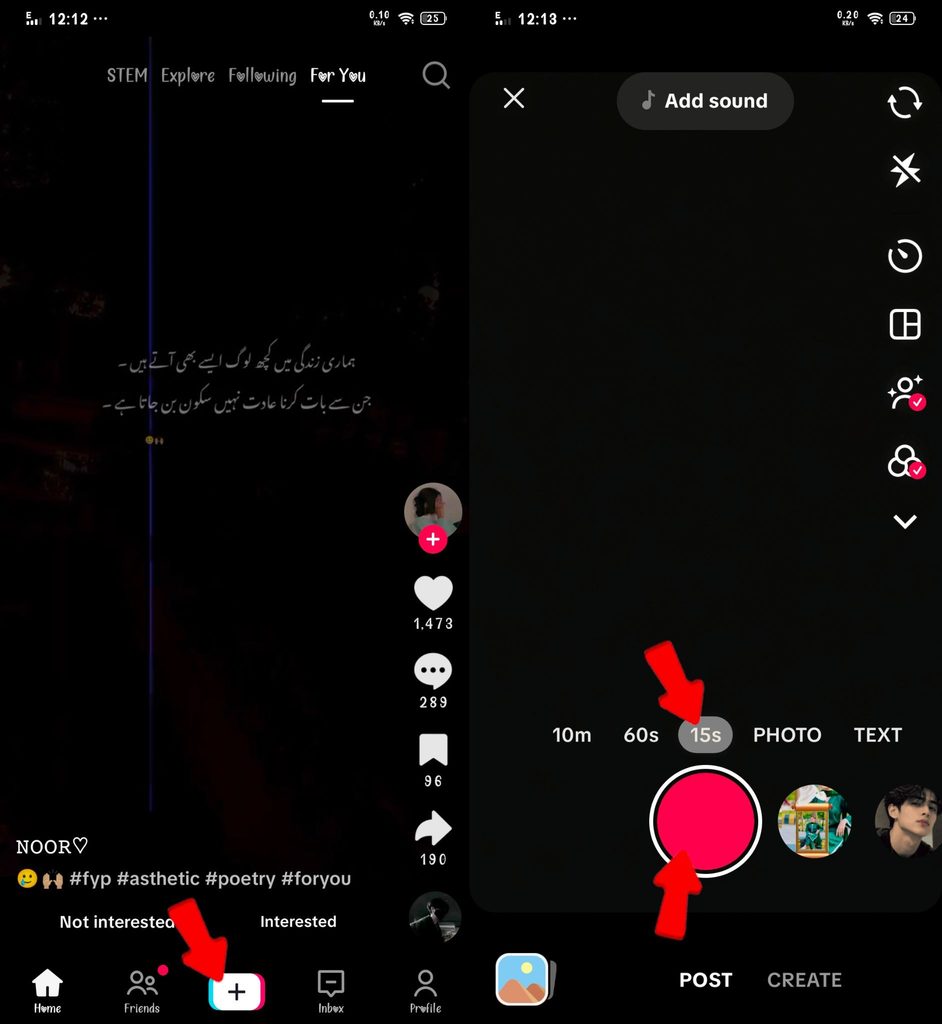
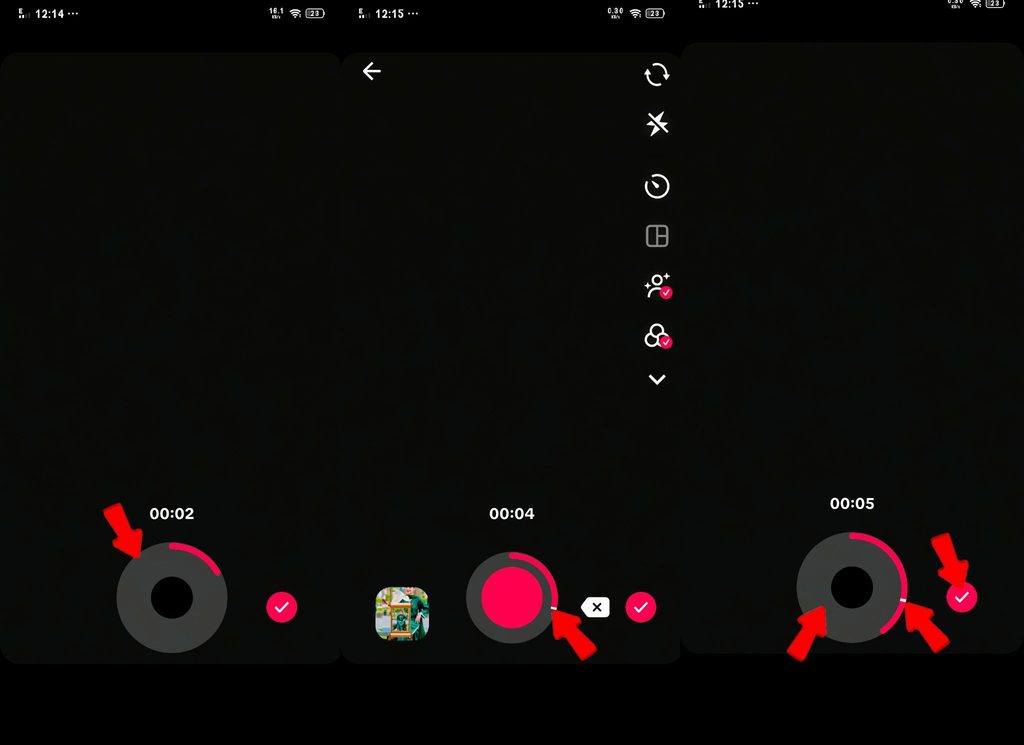
- Press and hold the record button. The large circular button at the bottom center starts recording when you press and hold it. A red progress bar at the top of the screen tracks how much of your selected duration you’ve used.
- Release to pause. Lifting your finger pauses recording and saves that clip. The progress bar stops exactly where you left off.
- Record additional clips. Press and hold the record button again to add another clip to the same video. TikTok automatically combines all clips recorded in a session into one video.
- Tap the checkmark. Once you’re happy with your footage, tap the checkmark button to move to the edit screen.
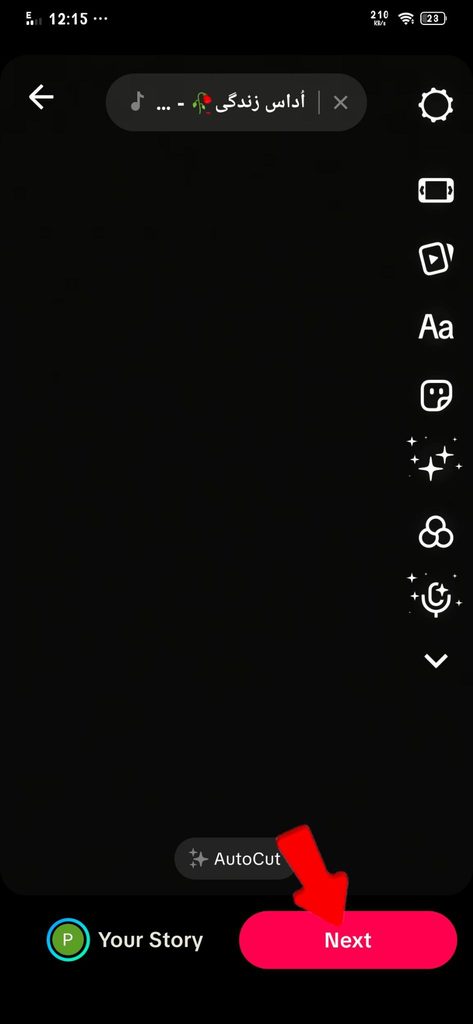
- Proceed to editing. Tap “Next” on the edit screen when you’re ready to add captions, hashtags, and publishing settings.
Note: The duration you select is a cap, not a requirement. If you choose 60 seconds but only record 20 seconds of footage, TikTok works with what you captured.
TikTok Recording Modes Explained
TikTok offers four recording modes on the camera screen. Each one suits a different shooting situation. Swipe through the mode options just above the record button to switch between them.
Hold to Record (Default)
Press and hold the record button to film; release to pause. This is TikTok’s standard mode and the one most creators use daily. It gives you direct control over each clip, making it ideal for content where you want to start and stop on precise moments.
Best for: Casual, fast-moving content; reaction videos; multiple short cuts in a single session.
Timer
Timer mode sets a 3-second or 10-second countdown before recording begins automatically. Once the countdown ends, the camera fires without requiring you to touch the screen. The countdown displays prominently so you have time to step into frame or get into position.
Best for: Solo creators recording without anyone operating the phone; hands-free situations where you need a few seconds to prepare.
Multi-Clip / Segments
With multi-clip recording, TikTok automatically stitches together every clip you record in a session into one continuous video. This is actually the native behavior of the default recording screen rather than a fully separate mode. You record, pause, and record again, and TikTok handles the assembly. There is no need to delete clips and restart between takes.
Best for: Videos requiring multiple angles, location changes, or scene cuts all recorded in a single session.
Templates
Templates are pre-built video formats tied to specific soundtracks. TikTok prompts you to record a set number of clips, each at a defined length, and then auto-syncs your footage to the audio. A preview shows you what the final video will look like before you record a single clip.
Best for: Participating in trending formats; creators who want a polished result without manual editing; beginners who prefer a structured approach.
Quick Mode Comparison
| Mode | How It Works | Best Use Case |
|---|---|---|
| Hold to Record | Press and hold to film, release to pause | General content, reactive clips |
| Timer | Countdown starts recording automatically | Hands-free, solo recording |
| Multi-Clip | All session clips are auto-stitched | Scene cuts, multi-angle videos |
| Templates | Pre-set clip lengths synced to a track | Trending formats, beginner-friendly |
Choosing Your TikTok Video Length
The duration selector sits just above the record button. Tap the option that matches the type of content you’re making. Remember, your selection sets a maximum length, not a required one.
| Duration | Best For | Notes |
|---|---|---|
| 15 seconds | Trending sounds, quick reactions, hooks | Short enough to loop; encourages high watch-through rates |
| 60 seconds | Storytelling, product demos, short tutorials | The most versatile length for general content |
| 3 minutes | Vlogs, step-by-step guides, deeper topics | Good when you have more detail to cover |
| 10 minutes | In-depth content, long-form commentary | Requires strong viewer retention to perform well |
If you’re just starting out, 60 seconds is a reliable default. It gives you enough room to communicate an idea without the pressure of sustaining attention for three or ten minutes.
Setting Up Sound, Effects, and Filters Before You Hit Record
Most creative setup on TikTok happens before you press record. Taking a few seconds to configure your tools in advance saves editing time and produces a cleaner result.
- Add a Sound: Tap “Add Sound” at the top of the camera screen to browse TikTok’s audio library or search for a specific track. The sound plays in the background during recording, helping you time your clips to the beat.
- Effects: Tap the Effects icon on the left side of the screen to open the full effects panel. This includes face effects, background effects, and the popular Green Screen effect, which replaces your background with any image or video. This panel is one of the most commonly overlooked tools on the recording screen.
- Filters: Swipe right on the camera preview to browse and apply color filters before recording begins. Most users assume filters are only available after filming, but applying them first means your clips already have the look you want.
- Flip Camera: Tap the two-arrow flip icon to switch between front-facing and rear-facing cameras.
- Flash: Tap the lightning bolt icon to activate your phone’s flash for low-light environments.
Configuring sound and effects beforehand means your footage already matches your creative vision, with fewer adjustments needed on the edit screen.
Tips for Better TikTok Recording Quality
The mechanics of recording are only part of the picture. These four practical adjustments will improve the overall quality of what you capture.

Tips for Better TikTok Recording Quality
- Fix your lighting. Face a natural light source such as a window, or position a ring light in front of you. Avoid standing with a bright window behind you, since backlighting darkens your face and makes footage hard to watch.
- Stabilize your phone. Even minor hand movement reads clearly on screen. Prop your phone against a stable object, use a small phone stand, or attach it to a mini tripod. Steady footage instantly looks more professional.
- Upgrade your audio. The built-in phone microphone picks up everything around it, including room echo, background music, and ambient noise. For talking-head videos, tutorials, or voiceover content, a compact wireless clip-on mic is one of the most impactful upgrades you can make. The Hollyland LARK M2 weighs just 9 grams, clips directly onto your shirt, and connects to your phone with no complicated setup required. It delivers focused, clear audio and is built specifically for vlogging and TikTok-style recording. The improvement in sound quality is immediately noticeable.
- Clean your lens. Phone lenses collect fingerprints and smudges throughout the day. A quick wipe with a soft cloth before filming removes the haze that makes footage look soft or low-resolution.
Frequently Asked Questions
Can I record a TikTok video without posting it?
Yes. After recording, tap “Next” on the edit screen, then select “Drafts” instead of “Post.” The video saves privately to your profile under the Drafts tab and remains invisible to anyone else. You can return to edit or publish it whenever you’re ready.
How do I upload an existing video to TikTok instead of recording?
On the recording screen, tap the Upload icon in the bottom-right corner (it looks like a photo gallery thumbnail). This opens your camera roll and lets you select any video file you’ve already recorded outside the app.
Why does my TikTok recording sound muffled or echoey?
The phone’s built-in microphone captures the entire room, including reflections and background noise. Recording in a quieter space, moving the phone closer to your mouth, or switching to an external clip-on microphone will substantially improve clarity. Rooms with soft furnishings also absorb echo naturally.
Can I record TikTok videos on a desktop or PC?
No. TikTok’s native recording feature is only available through the mobile app. On desktop, you can access the TikTok web creator portal to upload pre-recorded video files, but recording directly through a browser is not supported.
What to Do Next
TikTok recording becomes straightforward once you understand the four modes, the duration selector, and how to set up sound and effects before you film. The “+” button is your entry point to everything. Once you’ve captured your clips and tapped the checkmark, the next step is editing: adding text overlays, captions, transitions, and final adjustments before you publish. See our guide to editing TikTok videos for a complete walkthrough of everything that happens after you hit record.