.png)
 简体中文
简体中文 
iMovie has a built-in recording feature that many users overlook entirely. Whether you need to narrate a project on your Mac or capture live footage straight from your iPhone, the tools you need are already inside the app. This guide covers every recording option iMovie supports, walks through the exact steps for each platform, and includes practical tips to make sure your audio actually sounds good.

How to Record on iMovie: Voiceover and Video, Step by Step
What iMovie Lets You Record (and What It Doesn’t)
Before diving into steps, it helps to know exactly what iMovie supports. The answer differs by platform:
| Platform | Voiceover / Narration | Live Video Capture |
|---|---|---|
| iMovie for Mac | Yes | No |
| iMovie for iPhone / iPad | Yes | Yes |
On Mac, iMovie records audio narration only. You position the playhead over existing footage and record a voiceover directly into the timeline. On iPhone and iPad, you can do that same voiceover recording and also capture new video from the camera without ever leaving the app.
One common point of confusion worth clearing up: iMovie does not do screen recording. On Mac, screen capture is handled by QuickTime Player (File → New Screen Recording). You can record your screen there and import the file into iMovie for editing afterward.
How to Record a Voiceover in iMovie on Mac
- Open your project in iMovie and make sure your footage is already in the timeline.
- Position the playhead by clicking on the timeline at the exact point where you want narration to begin.
- Click the microphone icon labeled “Voiceover” in the toolbar above the timeline. The voiceover options panel will open below the viewer window.
- Select your microphone input from the dropdown menu in the panel. Choose the specific mic you plan to use rather than leaving it on whatever the default happens to be.
- Set the input level. Speak into your mic and watch the meter in the panel. Aim to keep levels in the green-to-yellow range. Avoid hitting red.
- Decide whether to mute the project while recording. The “Mute project while recording” checkbox is useful if your timeline already has music or audio you do not want bleeding into the voiceover mic.
- Click Record. A three-second countdown plays before the microphone goes live.
- Click Stop (or press the Space bar) when you finish speaking.
- Review the clip. The voiceover appears in the timeline as a purple audio clip below the video track. You can trim its edges or reposition it like any other clip.
Checking Your Microphone Input Before Recording
If your recording finishes with no audio, the most common cause is a mismatched mic input. In iMovie’s voiceover panel, open the microphone dropdown and confirm the correct device is selected. Also check System Settings (macOS Ventura or later) or System Preferences → Sound → Input on older versions to verify the same device is active there. If the issue persists, go to System Settings → Privacy and Security → Microphone and make sure iMovie has been granted access.
How to Record a Voiceover in iMovie on iPhone or iPad
- Open your project in iMovie on your iPhone or iPad.
- Tap the timeline at the point where you want the voiceover to start. The playhead (the white vertical line) will move to that position.
- Tap the Add Media button (the + icon) in the upper-left area of the timeline.
- Select Voiceover from the menu that appears.

- Confirm your playhead position in the preview and adjust if needed.
- Tap Record. A three-second countdown gives you time to settle before the mic goes live.
- Tap Stop when you are done speaking.
- Tap Accept to keep the take or Retake to record again.

The voiceover clip appears as a blue audio clip below the video in the timeline. You can tap and drag it to reposition it or tap the ends to trim.
Note: By default, iMovie uses the iPhone’s or iPad’s built-in microphone. If an external mic is connected, it should be recognized automatically, but say a few test words and play them back before committing to a full take.
How to Record Video Directly in iMovie on iPhone or iPad
iMovie on iPhone and iPad lets you shoot new footage and drop it into your project without switching to the Camera app. This feature is not available in iMovie for Mac.
- Open your project and navigate to the point in the timeline where you want new video inserted.
- Tap the Add Media button (the + icon).
- Tap Camera. iMovie will open a camera interface inside the app.

- Tap the red Record button to start recording. Tap it again to stop. You can also tap the shutter button to capture a still photo if needed.
- Tap Use Video (or Use Photo) to insert the clip directly into your timeline at the playhead position.

If you need another take, tap Retake before confirming. Once added, the clip behaves exactly like any imported footage and can be trimmed, reordered, or adjusted immediately.
How to Get Better Audio Quality When Recording in iMovie
Clean audio makes a larger difference to a finished video than most beginners expect. A few straightforward habits will improve your recordings significantly:

How to Get Better Audio Quality When Recording in iMovie
- Record in a quiet room. HVAC vents, fans, and open windows create low-frequency noise that is difficult to remove in post.
- Keep your microphone 12 to 18 inches from your mouth. Too close picks up breath noise; too far introduces unwanted room sound.
- Stay away from your keyboard and any desk fans while the mic is live. Both create noise that shows up clearly on the audio waveform.
- Watch the input meter in real time. Levels should sit comfortably in the green range during normal speech.
- Do a short test take first. Listen back with headphones before recording your full narration.
The single most impactful change you can make is switching from the built-in microphone to an external one. iMovie recognizes any microphone that macOS or iOS recognizes, so a hardware upgrade requires zero reconfiguration inside the app. If you record on iPhone or want one mic that works across both mobile and Mac, the Hollyland LARK M2 is a practical option. It is a wireless clip-on microphone that weighs just 9 grams, provides up to 40 hours of total battery life through its charging case, and connects cleanly to both iPhone and Mac. Clip it to your collar, attach the receiver, and your voiceover quality improves immediately without touching a single setting in iMovie.
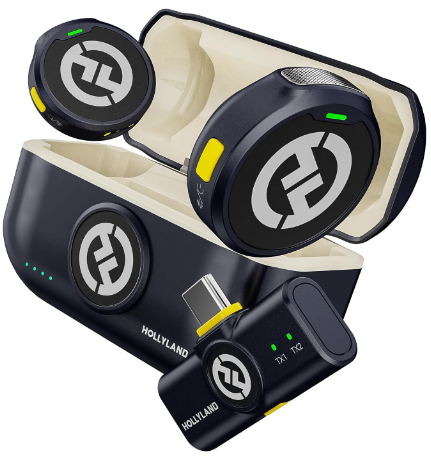
Hollyland LARK M2 - Mini Lavalier Microphone
An incredibly lightweight and compact wireless button microphone that captures high-fidelity audio.
Key Features: 9g Button Size | 48 kHz/24-bit | 40 Hours Battery
FAQ
Can you record from a camera directly into iMovie on Mac?
No. iMovie for Mac does not support live video capture from a webcam or external camera inside the app. To record live video on Mac, use QuickTime Player (File → New Movie Recording) or your camera’s own software to capture the footage first. Once you have the file saved, import it into iMovie for editing the same way you would any other clip.
Why is there no sound on my iMovie voiceover recording?
The most likely causes are an incorrect microphone input selection or a blocked system permission. Open the voiceover panel and confirm the right device is selected in the dropdown. Then check System Settings → Privacy and Security → Microphone to make sure iMovie has been granted access. On older macOS, look under System Preferences → Security and Privacy → Privacy → Microphone.
Can I record audio only (no video) in iMovie?
Yes, with some limitations. iMovie’s voiceover tool captures audio-only clips and places them on a dedicated track below the video in the timeline. It is not designed as a general-purpose audio recorder, but it handles narration and commentary reliably. The resulting clip can be trimmed, repositioned, and adjusted for volume directly inside the timeline without any additional tools.
Does iMovie have screen recording?
No. Screen recording is not part of iMovie. On Mac, use QuickTime Player (File → New Screen Recording) to capture your screen. After saving the file, import it into your iMovie project the same way you would any video. This workflow lets you edit screen recordings inside iMovie without installing anything extra or changing your existing project setup.
Does an external microphone work with iMovie?
Yes. Any USB, 3.5mm, or wireless microphone recognized by macOS or iOS will appear as an input option in iMovie’s voiceover panel or under System Settings → Sound → Input. The Hollyland LARK M2, for example, connects to both iPhone and Mac and shows up as an audio input automatically. No additional drivers or in-app setup are required on either platform.
Wrapping Up
iMovie covers the recording needs most creators actually have: voiceover narration on both Mac and iPhone, plus live video capture on iPhone and iPad. Once you know where the controls are, the process is quick. If your recordings sound flat or noisy, the microphone is almost always the fastest fix. To go further with your project, take a look at our guide to editing in iMovie for the next steps in trimming, arranging, and finishing your video.