.png)
 简体中文
简体中文 
CapCut is one of the most popular free editing apps for TikTok, Instagram Reels, and YouTube Shorts, but finding the record button is not always obvious. Whether you want to shoot new footage directly inside the app or add a voiceover track to an existing project, this guide walks through both methods step by step so you can record and edit without ever leaving CapCut.

How to Record on CapCut: Video and Voiceover (Step-by-Step)
Two Ways to Record on CapCut (And Which One You Need)
CapCut offers two separate recording workflows that serve very different purposes. Knowing which one applies to your situation before you start will save you a lot of frustration.
| Mode | When to Use It | Where to Find It |
|---|---|---|
| Camera recording | You want to shoot new video footage to build a project around | Home screen camera icon, or “+” inside an existing project |
| Voiceover recording | You already have clips on the timeline and want to add narration or commentary | Inside a project: Audio > Voiceover |
If you have no footage yet, start with Method 1. If your timeline is already built and you just need to add your voice, jump straight to Method 2.
How to Record Video Directly in CapCut
CapCut’s built-in camera lets you record footage without switching to your phone’s default camera app. There are two ways to access it depending on whether you are starting fresh or adding to an existing project.
Step-by-Step: Record Before Starting a Project
Use this method when you want to film first and build your project around the new footage.
- Open CapCut and stay on the home screen.
- Tap the camera icon in the top-right corner to open CapCut’s built-in camera.
- Set a countdown timer or choose your preferred clip length using the options along the right side of the screen.
- Tap the red record button to start recording. Tap again to stop, or press and hold if your app version uses that input instead.
- Review your clip in the playback preview.
- Tap Add to import the footage into a new project.
Note: The camera interface is nearly identical on iOS and Android. On some Android devices, a “Multi-clip” toggle appears at the top, letting you record several short takes back-to-back and import them all at once.
Step-by-Step: Record Clips Inside an Existing Project
Use this method when you are already editing and need to insert a freshly recorded clip without leaving the project.
- Open your existing project in CapCut.
- Tap the “+” button on the timeline at the point where you want to add new footage.
- Select Camera from the media source options.
- Record your clip using the red record button.
- Tap Add or the checkmark to insert the clip directly at that point on the timeline.
Note: Multi-clip mode is useful here if you want to capture several shots in order. Each clip will stack on the timeline in the sequence you recorded it.
How to Record a Voiceover in CapCut
The voiceover tool sits inside the Audio menu, which is where most users get stuck when searching for it. Once you know the path, the recording process is straightforward.
Step-by-Step: Add a Voiceover Track
- Open your project in CapCut.
- Tap Audio in the bottom toolbar.
- Tap Record from the Audio menu.
- Drag the playhead to the exact point in the video where you want the voiceover to begin.
- Press and hold the record button to start recording. Release to stop.

- Speak clearly and at a steady pace while the video plays in the background for reference.
- Tap the checkmark to save the recording to your timeline.
- The voiceover clip will appear as a separate audio layer below the video track. Drag it left or right to fine-tune the sync if needed.

Note: The voiceover layer is independent of the main video audio. You can adjust its volume or mute it without affecting the original sound from your clips.
How to Edit or Re-record a Voiceover
Once a voiceover is on the timeline, you have several options for refining it:
- Trim: Tap the voiceover clip and drag either edge inward to shorten it.
- Split: Position the playhead at any point within the clip, then tap Split to divide it into two segments.
- Delete: Tap the clip and select Delete to remove it entirely.
- Re-record a section: Delete or split the segment you want to replace, drag the playhead to the correct frame, and record a new take to fill the gap.
Tips for Better Recording Quality in CapCut
Clean audio and stable footage inside CapCut come down to a few simple habits applied before and during recording.
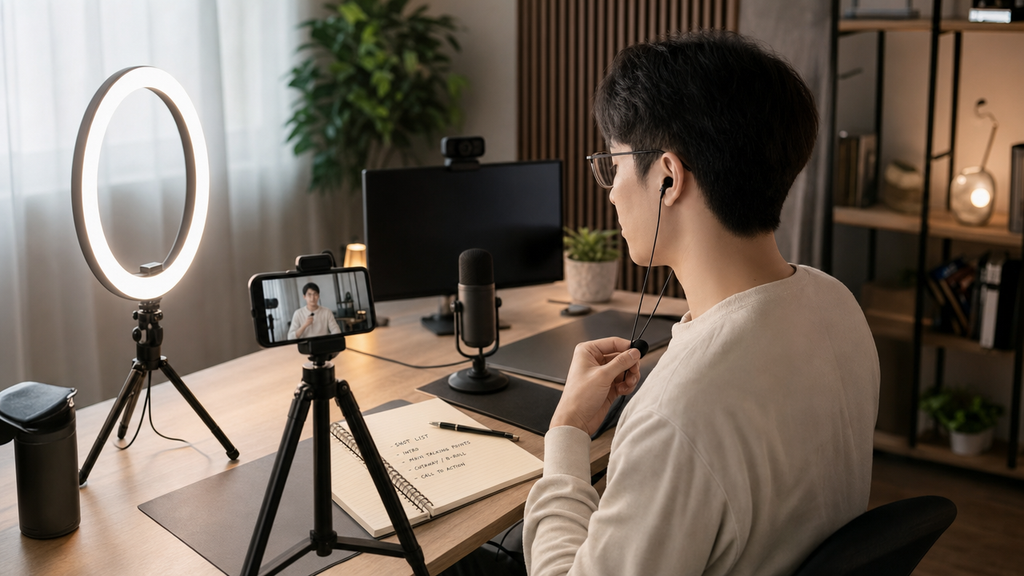
Tips for Better Recording Quality in CapCut
- Find a quiet space before you start. Background noise from fans, traffic, or a running TV is difficult to remove cleanly in post. Mute phone notifications before hitting record to avoid alert sounds ruining a take.
- Use headphones with a built-in mic. The inline mic on most earbuds picks up your voice more directly than the phone’s built-in microphone, and it costs nothing extra if you already own a pair.
- Position your phone correctly for voiceovers. Hold the phone 6 to 8 inches from your mouth and angle it slightly to the side. This reduces plosive sounds on letters like “p” and “b” and produces cleaner takes.
- Consider a wireless mic for on-camera video. If you are recording footage to edit in CapCut, phone audio rarely survives a professional-looking edit. A compact clip-on like the Hollyland LARK M2 (9g, up to 40-hour battery life) eliminates cable tangle and delivers significantly cleaner on-camera audio. If you are just getting started and want a completely plug-and-play option, the Hollyland LARK A1 connects directly to an iPhone Lightning port or USB-C Android device with no pairing or app required, and includes three-level intelligent noise cancellation.
- Keep your recording environment consistent across sessions. Recording in different rooms on different days creates noticeable volume and tone mismatches between clips when you are assembling a longer project.
- Use CapCut’s built-in Denoise tool as a fallback. After recording, tap the audio clip and navigate to Audio > Edit > Denoise. It will not rescue a genuinely poor recording, but it effectively removes low-level hiss and hum from decent takes.
Common Recording Issues and Quick Fixes
| Problem | Likely Cause | Fix |
|---|---|---|
| Record button is greyed out | Microphone permission denied | Go to phone Settings > Apps > CapCut > Enable Microphone |
| Voiceover audio is very quiet | Phone mic blocked or too far away | Move the phone closer and check nothing is covering the mic port |
| Recording stops automatically | In-app clip length limit reached | Tap stop, start a new clip, and stitch the segments on the timeline |
| Voiceover syncs to the wrong spot | Playhead not set before recording | Drag the playhead to the correct frame before pressing the record button |
FAQ
Can you record on CapCut on a PC or desktop?
Yes. CapCut’s desktop version includes a voiceover recording function under the Audio panel, and the steps closely mirror the mobile workflow. However, direct in-app camera recording is a mobile-only feature. On desktop, you will need to import pre-recorded video files rather than filming through the app itself.
How long can a CapCut voiceover recording be?
There is no strict time limit on a single voiceover segment. That said, recording in shorter takes, one sentence or section at a time, gives you far more flexibility when editing. Shorter clips are easier to trim, reposition, or re-record without redoing an entire narration.
Does CapCut save recordings automatically?
Video recordings captured through the CapCut camera save to your project and can optionally be saved to your camera roll. Voiceover recordings attach only to the project file and will not appear in your camera roll, so avoid deleting the project if the voiceover is important to keep.
Why is my CapCut voiceover not playing back?
The most common cause is a muted voiceover layer. Tap the voiceover clip on the timeline and confirm the volume slider is above zero. Also check that the clip is not positioned outside the visible timeline range by scrolling horizontally to locate it.
Can I record my screen with CapCut?
CapCut does not include a built-in screen recorder. Use iOS’s native Screen Record feature or your Android device’s built-in screen capture tool to record first, then import the resulting video file into CapCut as a regular clip the same way you would any other footage.
Ready to Record
CapCut covers both recording needs: shoot fresh footage directly from the app, or layer a voiceover over clips you have already assembled. Both workflows are easy to repeat once you know where the controls live. To keep building your project, explore how to [add background music to a CapCut project], how to [use CapCut’s auto-caption feature to generate subtitles], and how to [export and share your finished video to TikTok or Instagram Reels].