.png)
 简体中文
简体中文 
Instagram has three built-in ways to record video, and the button you need depends on what you want to create. If you’ve ever opened the app and couldn’t figure out where to start, you’re not alone. This guide walks you through each recording method step by step, so you can go from confused to recording in under a minute.
How to Record Videos on Instagram: Stories, Reels, and Live
The Three Ways to Record Video on Instagram
Before diving into steps, it helps to know which format fits your goal. Instagram Stories, Reels, and Live each live in a different part of the app and serve a different purpose. Choosing the wrong one is the most common reason people end up frustrated mid-recording.
| Format | Best For | Max Length | Disappears? |
|---|---|---|---|
| Story | Quick, casual moments | 60 sec/clip | Yes, after 24 hours |
| Reel | Shareable short-form content | Up to 90 seconds | No |
| Live | Real-time broadcast | Up to 4 hours | Optional replay |
How to Record an Instagram Story
Stories are the fastest option for casual, in-the-moment video. They disappear after 24 hours, so there is no pressure to make them perfect.
How to Record an Instagram Story
Steps to record a Story:
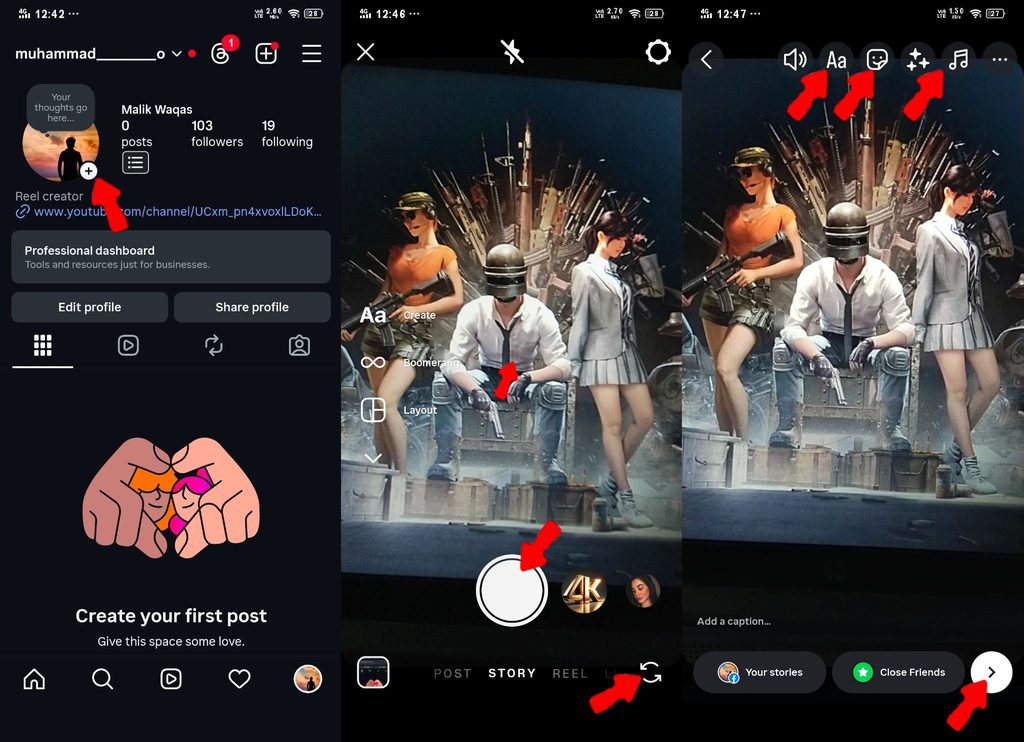
- Open Instagram and swipe right from your feed, or tap your profile photo in the top-left corner.
- The Instagram camera opens automatically.
- Point your phone at what you want to capture.
- Press and hold the white circle button at the bottom of the screen to record video. Release to stop.
- To switch between the front and rear camera, tap the rotate icon in the upper-right corner.
- When you are done recording, tap the arrow button in the bottom-right to reach the editing screen.
- Add stickers, text, or audio as needed, then tap Share to Story.
Each clip can be up to 60 seconds long. If your moment runs longer, simply stop and hold the button again to record a new clip. Instagram will stitch them together automatically on your Story.
Using Other Recording Modes in Stories
The Story camera includes a few built-in recording modes beyond standard video. Look for these along the left side of the screen:
- Boomerang: Records a short clip that loops forward and backward on repeat.
- Superzoom: Automatically zooms in with a dramatic effect as you record.
- Hands-Free: Starts recording without holding the button, which is useful for selfies or keeping the phone stationary.
These are quick alternatives built into the same camera screen. You do not need to leave Stories or set anything up separately to use them.
How to Record an Instagram Reel
Reels are Instagram’s short-form video format. Unlike Stories, Reels are discoverable by people who don’t follow you, making them the better choice when you want your content to reach a broader audience.

How to Record an Instagram Reel
Steps to record a Reel:
- Tap the + icon at the Top of the screen.
- Select Reel from the format options along the bottom.
- On the left side of the screen, tap the timer icon to set your clip length: 15, 30, 60, or 90 seconds.
- To add a song or audio clip, tap the Audio option on the left side before you start recording.

- Press and hold the record button to start recording. Release to stop.
- When your clips are ready, tap the arrow button to move to the editing screen.
- Add captions, effects, or a cover image, then tap Share to post or Save Draft to return later.

For hands-free recording, tap the Timer option on the left side before you start. Set a countdown and a recording duration, then tap Set Timer. The camera will start and stop on its own.
Recording Multiple Clips in One Reel
Reels let you stack several clips back-to-back without leaving the camera screen. Here is how it works:
- Press and hold the record button to capture your first clip.
- Release to stop.
- Press and hold again to add a second clip immediately after.

- Repeat until you reach your chosen length limit.
Each clip appears in sequence on the timeline bar at the bottom of the screen. You can trim or delete individual clips before moving to the editing screen, which gives you full control over the final cut.
How to Go Live on Instagram
Instagram Live puts you in front of your audience in real time. Viewers can comment, react, and even join you on screen as co-hosts during the broadcast.

How to Go Live on Instagram
Steps to go Live:
- Tap the + icon at the bottom of the screen.
- Scroll through the format options at the bottom and select Live.
- Optionally, tap the title field at the top to add a title that viewers will see before they join.

- Tap the Go Live button. Instagram counts down from three and then you are broadcasting.
- Viewer comments appear at the bottom during the broadcast. To add a co-host, tap the two-person icon and select a viewer who has requested to join.
- To end the broadcast, tap the X button in the top-right corner and confirm when prompted.
- After ending, Instagram will offer you the option to share the replay to your feed. Tap Share to keep it available, or Discard to remove it.
Note: Instagram Live requires a stable internet connection. A weak Wi-Fi or mobile data signal will cause buffering or drop the broadcast entirely. Connect to Wi-Fi before going live whenever possible.
Quick Fixes If You Can’t Record Video on Instagram
If the record button is greyed out or the camera won’t open, the cause is almost always one of these:
- Camera or microphone permissions are off. Go to your phone’s Settings, find Instagram, and confirm that both Camera and Microphone are set to Allow. On Android: Settings > Apps > Instagram > Permissions. On iOS: Settings > Instagram.
- The app is outdated. Older versions of Instagram sometimes have features that don’t function correctly after an interface update. Open the App Store or Google Play, search for Instagram, and tap Update if one is available.
- Your phone storage is full. When storage is nearly exhausted, the camera may fail to open. Free up space and try again.
- The app needs a restart. Force-close Instagram and reopen it to clear temporary bugs that cause the camera to freeze or not load at all.
One Easy Way to Improve Your Instagram Video Quality
Instagram’s built-in microphone picks up everything around you: background chatter, wind, room echo. That is fine for casual Stories, but for Reels or Live broadcasts, poor audio undercuts even great visuals. The Hollyland LARK A1 is a practical fix for this. It connects directly to your smartphone via USB-C or Lightning with no app or pairing required, and its 3-Level Intelligent Noise Cancellation removes background noise before it reaches your recording. If you create Reels consistently and need a wireless two-person setup with longer battery life, the Hollyland LARK M2 is a capable step up.

Hollyland LARK A1 - Affordable Wireless Microphone
A perfect starter mic for creators on a budget. It’s simple to use and features effective noise cancellation.
Key Features: 48kHz/24-bit | 3-Level Noise Cancellation | 54-Hour Battery

One Easy Way to Improve Your Instagram Video Quality
Frequently Asked Questions
How long can an Instagram video recording be?
Stories allow up to 60 seconds per individual clip, but you can record multiple clips back-to-back to cover longer moments. Reels support a maximum total length of 90 seconds. Instagram Live broadcasts can run for up to 4 hours before the session ends automatically.
Can I record a video on Instagram without posting it?
Yes. In Reels, record your clips and tap Save Draft instead of Share. In Stories, record your video and close the camera without tapping the Share button. Instagram will typically ask whether you want to save the clip to your camera roll before you exit.
How do I record Instagram videos with sound from another app or music?
In Reels, use Instagram’s built-in audio library to add a licensed song before or after recording. For Stories, play audio from another app through your phone’s speaker and let the microphone capture it during recording. Keep in mind that copyrighted audio may be muted on upload depending on your region and the rights attached to the track.
Why does my Instagram camera look blurry when recording?
The most common causes are a smudged camera lens, a low-light environment forcing the camera into a reduced-quality mode, or Instagram not having permission to access the camera at full resolution. Start by wiping the lens clean, moving to a brighter location, and checking that camera permissions are fully enabled in your phone’s settings.
Start Recording
Use Stories for everyday casual moments, Reels when you want new audiences to discover your content, and Live when you want to connect with followers in real time. All three formats are free, built into the app, and reachable in two taps once you know where to look. For your next step, check out our guide on how to edit Reels to refine your clips and make them ready to share.