.png)
 简体中文
简体中文 
Need to record your voice on a Chromebook but cannot find where to start? ChromeOS keeps its recording options surprisingly out of sight. There is no desktop record button or obvious shortcut to point you there. Still, your Chromebook already has tools that can record audio.
This guide covers three simple ways to get started. You can make a quick memo with Recorder or connect a wireless microphone for cleaner audio. If installing anything is not an option, a browser-based recorder can help. Keep reading to find the method that best matches your needs.

What You Need Before You Start
Take 60 seconds to confirm the following before choosing a method:
- Chrome OS is up to date. Go to Settings > About Chrome OS > Check for updates. Audio input behavior can be inconsistent on older builds.
- Your recording source is identified. The built-in microphone is sufficient for quick memos. A quality recording requires a free USB-C port for an external microphone receiver.
- You know your goal. Match the method to your use case:
- Quick voice memo or lecture capture → Method 1 (Recorder app)
- Podcast, voiceover, or presentation recording → Method 2 (external wireless mic)
- No-install, no-setup recording → Method 3 (browser fallback)
Method 1: Record Voice Using the Chrome OS Recorder App
The Recorder app comes preinstalled on Chrome OS version 130 or newer. It requires no download, no Google account sign-in, and starts recording with a single tap.
Steps:
- Click the Launcher icon (the circle in the lower-left corner of your screen) or press the Search key.
- Type Recorder in the search bar. The app appears immediately in the results.
- Click to open the app. The main interface shows a large record button centered on the screen.
- Press the record button to begin. A timer starts, and the waveform display activates, confirming your microphone is picking up sound.
- Press the Stop button (square icon) when you are finished. The recording saves automatically and appears in the left-hand list with a timestamp as the default name.
- To rename a file, click the three-dot menu next to the recording and select Rename. Type a descriptive name and press Enter.
- To find the saved file, open the Files app from the shelf or Launcher and navigate to the Audio folder in the left sidebar. Voice Recorder saves files in .webm format in this location.
The Recorder app works reliably for voice memos, lecture notes, and personal reminders. The limitation is the Chromebook’s built-in microphone, which captures a wide field of sound including keyboard noise, fan hum, and room echo. If audio quality is important, Method 2 solves these problems directly.
Method 2: Record Voice on Chromebook with an External Wireless Microphone
Built-in microphones are mainly made for video calls. They are placed around the screen and capture sounds throughout the room. They cannot focus closely on the person speaking. An external microphone addresses these issues and captures clearer voice audio.

The Hollyland LARK A1 is a wireless clip-on microphone system that connects to a Chromebook through a USB-C receiver dongle. It requires no drivers, no software installation, and no Bluetooth pairing through the Chrome OS settings menu. The following steps walk through the complete setup and recording workflow.

Hollyland LARK A1 - Affordable Wireless Microphone
A perfect starter mic for creators on a budget. It’s simple to use and features effective noise cancellation.
Key Features: 48kHz/24-bit | 3-Level Noise Cancellation | 54-Hour Battery
Step 1: Plug the LARK A1 USB-C Receiver into Your Chromebook
- Remove the LARK A1 USB-C receiver dongle from its charging case.
- Locate an available USB-C port on your Chromebook. Most models have at least one port on each side.
- Insert the receiver dongle into the USB-C port. It seats flush with no adapter required.
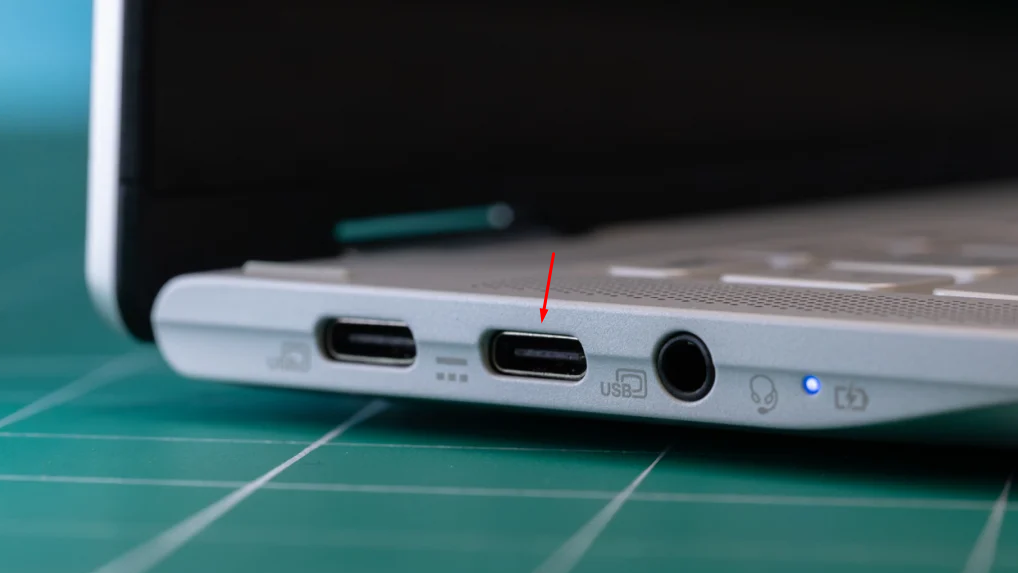
- Watch the receiver’s LED indicator. It turns on within a few seconds, confirming the device has powered on and is ready to connect to the transmitter.
Chrome OS does not display a driver installation prompt. The LARK A1 is recognized as a standard USB audio device and registers in Chrome OS audio settings automatically. You can verify this by glancing at the status tray in the lower-right corner, where the audio icon may briefly update to reflect the new input device.
Step 2: Power On the Transmitter and Confirm Pairing
- Take the LARK A1 clip-on transmitter out of the charging case.
- Press and hold the power button on the transmitter for approximately 3 seconds until the LED activates to turn this unit on or off.

- Read the transmitter LED state:
- Rapid blue flashing = the transmitter is searching for a receiver
- Solid blue light = transmitter is fully paired with the receiver

- Confirm the receiver LED also shows solid, indicating both units are linked, and audio is passing between them.
LARK A1 transmitter and receiver units come pre-paired from the factory. In standard use, you do not need to complete any manual pairing sequence. Power on both units and they connect automatically.
Note: If the transmitter LED is solid but in a distinct pattern or color from normal operation, check whether the mute button has been activated. A muted transmitter shows a red LED state. Press the power button twice to mute or unmute recording.

Step 3: Turn on Noise Cancellation and Select the Intensity
Hollyland LARK A1 lets you activate noise cancellation with a click! Plus, the HollyAudio app allows you to set three different noise-canceling levels.
To do that:
- Connect the HollyAudio app to your LARK A1 using your tablet or phone.
- When it is connected, press the main power button once on the transmitter to activate noise cancellation. The transmitter indicator light turns solid green.

- Now, open the HollyAudio app and locate the NC Level option. Choose the levels from the available options: Low, Medium, and High.

- Level 0 (off): No filtering applied. Use this in a controlled, quiet space where you want to capture the full natural sound of the environment.
- Level Low (light filtering): Reduces low-level background noise such as light HVAC hum or computer fan sound. A good default for quiet home offices or classrooms.
- Level Medium/High (moderate to strong suppression): Aggressively filters ambient noise. Use this in cafes, open offices, or outdoors where background sound would otherwise compete with the speaker’s voice.
Step 4: Set the LARK A1 as Your Active Microphone in Chrome OS
After the receiver is connected, Chrome OS may not automatically switch the active input to the LARK A1. Confirm the selection manually before recording.
- Click the status tray in the lower-right corner of the screen (where the clock, Wi-Fi, and battery icons appear).
- Click the Settings icon (gear icon) inside the Quick Settings panel.
- In the Settings app, select Device from the left sidebar.
- Click Audio.
- Under the Input section, open the dropdown menu. The LARK A1 should appear by device name alongside the built-in microphone option.
- Select the LARK A1 from the dropdown.
- Speak directly toward the transmitter capsule and watch the input level meter below the dropdown. The meter should respond visibly to your voice, confirming a live signal is passing from the transmitter through the USB-C receiver to Chrome OS.
If the meter does not respond when you speak, refer to the Troubleshooting section below.
Pro Tip: Once the LARK A1 is set as the active input in Chrome OS Audio settings, it becomes the default microphone for every app on the device, including the Voice Recorder app from Method 1. You can record high-quality audio natively without opening any additional software.
Method 3: Record Voice Directly in a Browser
Browser-based recording is the simplest fallback when you need to capture audio without installing anything and prefer not to use the Voice Recorder app. Several tools work entirely inside Chrome with no extension or account required, including Online Voice Recorder by 123apps and Vocaroo.
- Open Chrome and navigate to your preferred browser-based voice recorder, such as 123apps.com
- Click the record button on the page. Chrome displays a microphone permission prompt at the top of the browser window.


- In the permission prompt, confirm the correct microphone is shown. If the LARK A1 is already configured from Method 2, it appears by device name in this dropdown. Select it if it is not the active choice, then click Allow.
- Speak into your microphone. Most browser tools display a live waveform to confirm the signal is being captured.
- Click Stop when finished. The tool processes the recording and presents a playback player for review.

- Click Download / Save button to save the file locally. Browser recorders typically output .mp3 or .ogg format.

Note: Browser-based recorders have limits because Web Audio API compression affects quality. They are fine for rough drafts or quick voice notes. For cleaner recordings, the Voice Recorder app is a better choice. Pairing it with an external microphone can improve the result noticeably.
How to Check and Change Microphone Input Settings on Chromebook
If a recording came back too quiet, distorted, or completely silent, the active input was likely set to the wrong device. Use the following steps to verify and correct it at any time.
- Click the status tray in the lower-right corner of the screen.
- Click the Settings icon in the Quick Settings panel.
- Navigate to Device > Audio.
- Under Input, check which device is selected in the dropdown. If it shows “Built-in Microphone” and you intended to record with an external mic, switch the selection here.
- Adjust the input gain slider if your recording level was too low or too high. Drag right to increase the input level, left to reduce it.
- Speak into your microphone and confirm the input level meter responds. A meter that does not move indicates the selected device is not receiving a signal.
If the LARK A1 does not appear in this dropdown at all, return to Step 4 of Method 2 and confirm the USB-C receiver is fully seated and the transmitter LED shows a solid paired state.
Troubleshooting: Microphone Not Working on Chromebook
Problem 1: External microphone does not appear in Chrome OS audio settings
Cause: The USB-C receiver is not fully connected, or the transmitter has not yet paired.
Fix:
1. Remove and reinsert the USB-C receiver until it seats completely. A loose connection prevents Chrome OS from registering the device.
2. Check the transmitter LED. It should be solid, not flashing. A flashing LED means the transmitter has not yet finished linking to the receiver.
3. Press the power/mute button on the transmitter twice to mute (LED indicator turns solid red) and then press again to unmute. Sometimes this resolves edge cases where the device registers as connected but passes no signal.
Problem 2: Browser recording permission was denied
Cause: Chrome blocked microphone access from a previous denial or a site-level permission setting.
Fix:
1. Click the lock icon to the left of the URL in Chrome’s address bar.
2. Find Microphone in the permissions list and change it from “Block” to “Allow.”
3. Refresh the page and attempt to record again.
Problem 3: Input level meter shows no activity
Cause: The wrong input device is selected, or the transmitter is in a muted state.
Fix:
1. Open Settings > Device > Audio > Input and confirm the LARK A1 is selected, not the built-in microphone.
2. Check whether the noise cancellation level is set too high relative to the distance or volume of your test signal. Lower the NC level or speak more directly toward the transmitter capsule.
3. Confirm the transmitter LED is solid blue and not showing a muted-state pattern. Toggle the mute button once if uncertain.
Problem 4: Voice Recorder app shows no waveform activity
Cause: The Recorder app is using the built-in microphone even though an external device is connected.
Fix:
1. Before opening the Voice Recorder app, set the active input in Settings > Device > Audio > Input.
2. Close and reopen the Voice Recorder app after changing the input selection.
3. Press record and confirm the waveform responds to your voice.
Frequently Asked Questions
Does Chromebook have a built-in voice recorder?
Yes. ChromeOS has a built-in Recorder app on ChromeOS 130 and newer. You can find it by searching “Recorder” in the Launcher. The app records audio through your Chromebook’s built-in microphone. It also provides live speech-to-text transcription while recording. Recordings save locally in the Files app under the Audio folder. You do not need an account or internet connection to record. Chromebook Plus devices also get AI-generated titles and summaries.
Can I use a USB microphone with a Chromebook?
Yes, as long as the microphone is USB audio class compliant and doesn’t require a custom driver. Chrome OS does not support third-party audio drivers, so driver-dependent microphones will not work. Devices like the Hollyland LARK A1 use a plug-and-play USB-C receiver that Chrome OS recognizes automatically with no additional setup.
What file format does Chromebook save voice recordings in?
The native Recorder app saves recordings in .wav format, which plays back in Chrome and most modern media players. If you need a more widely compatible format such as .mp3, use a browser-based recorder instead, or convert the .webm file using a free online converter after recording.
How do I record voice on a Chromebook without installing anything?
Two options require no installation at all. The native Recorder app is pre-installed and opens directly from the Launcher. For a web alternative, open Chrome and use a browser-based recorder such as Vocaroo or Online Voice Recorder by 123apps. Both function inside Chrome with no extensions, downloads, or account creation required.
Why does my external microphone not show up in Chromebook settings?
Some of the common problems include a loose USB-C receiver or incomplete pairing. Some microphones may also need their own special driver. Push the receiver firmly into the Chromebook before testing again. Check that the transmitter LED stays solid instead of flashing. Also, make sure the microphone supports USB Audio Class standards. Models needing custom drivers will not work on ChromeOS. This applies regardless of how the microphone connects.
Recording
For a quick voice memo, the Chrome OS Recorder app is already in your Launcher waiting to be used. For clean, quality audio, the Hollyland LARK A1 connects in seconds via USB-C and removes the friction that makes most external microphones difficult on Chrome OS. For a no-install fallback, a browser-based recorder handles the task with a single permission click.