



































.png)
 简体中文
简体中文 
Adding ASMR sounds can change the feeling of any video. But getting them right takes more than adding audio. First, you need the right sounds before opening your editor. Then, you need to mix them without hurting existing audio. This guide covers both ways to find your sounds. You can record original ASMR or choose royalty-free audio libraries. You will also learn the steps for importing and mixing. The process covers CapCut, Adobe Premiere Pro, and DaVinci Resolve.
What Makes a Sound Work as ASMR in Video
ASMR audio works because of texture, proximity, and spatial intimacy. The sounds that trigger a response are characteristically soft, detailed, and close-mic’d, which makes them feel personal in a way that generic background music simply does not. Before you source or record anything, know the category you are working with.

Common ASMR sound types:
- Tapping (fingernails or objects on hard surfaces)
- Crinkling (paper, plastic packaging, or foil)
- Whispering or soft speech
- Rain or ambient water sounds
- Page-turning or book handling
- Soft keyboard or mechanical typing
Step 1: Source Your ASMR Sounds
Before opening your video editor, you need a high-quality audio file ready to import. You have two simple options for adding ASMR sounds. Record your own audio or download sounds from royalty-free libraries. Choosing the right path upfront prevents wasted editing time on unusable audio.

Option A: Record Your Own ASMR Sounds
Recording your own ASMR audio gives you greater creative control. You can decide its texture, tone, and unique qualities. It also removes concerns about licensing or usage rights. Still, microphone quality matters greatly when recording ASMR sounds. Small audio flaws can become much easier to hear.
ASMR recording demands extreme sensitivity. A microphone that picks up the quiet rustle of paper or the subtle tap of a fingernail without adding background noise is not optional; it is the baseline. Large-diaphragm condenser microphones are the standard choice because they capture the full frequency range and fine detail that ASMR sounds require. Self-noise is equally critical: a microphone with high self-noise will bury the quiet textures you are trying to capture in audible hiss.
The Hollyland MELO P1 is well-suited for this type of recording. Its 1-inch large-diaphragm condenser capsule captures the high-frequency shimmer in tapping and crinkling without harshness, and its 32-bit float recording means you can record whispers and sudden louder triggers in the same session without riding a gain knob. With a max SPL of 132 dB, it handles the dynamic range extremes that are common in ASMR sessions. Its compact, all-in-one design also works for location recording, whether you are capturing rain on a windowsill or tapping objects around your home.
Recording technique tips:
- Record in the quietest room available. Turn off HVAC, fans, and any devices producing a consistent hum.
- Position the microphone 3 to 6 inches from the sound source. Proximity is what gives ASMR its signature intimacy.
- Handle the microphone body as little as possible during recording. Vibration from touching the mic or cable transfers directly into the take.
- Do a short test recording and listen back on headphones before the full session to catch room noise or handling issues early.
Option B: Download Royalty-Free ASMR Sound Effects
Without a recording setup, pre-made ASMR sounds can save time. Just make sure the audio allows royalty-free or commercial use. Avoid taking sounds from YouTube videos or other creators’ work. Such audio may still have copyright protection, regardless of its description.
Verified royalty-free sources for ASMR sounds:
- YouTube Audio Library (studio.youtube.com): Free sounds and effects for YouTube uploads; filter by category for ambient and ASMR-adjacent textures.
- Freesound.org: Large community-uploaded library. Search for “ASMR tapping,” “paper crinkle,” or “whispering.” Always check individual Creative Commons licenses before commercial use.
- Pixabay Audio (pixabay.com/sound-effects): Fully royalty-free with no attribution required; solid selection of ambient and nature loops.
- Epidemic Sound: Subscription-based; covers full commercial licensing including social media monetization. Extensive ASMR and ambient sound catalog.
- Zapsplat (zapsplat.com): Free with account registration; large library of texture sounds, crinkling, tapping, and foley effects directly applicable to ASMR.
- Soundsnap (soundsnap.com): Subscription or credit-based; professional-grade sound effects with high-quality ASMR trigger recordings.
When searching these libraries, use specific terms. “Paper crinkle,” “fingernail tapping,” “soft rain loop,” and “keyboard typing soft” will return more usable results than searching “ASMR” alone.
Step 2: Prepare Your Audio File for Import
Before dragging anything into your timeline, take a few minutes to confirm the file is correctly formatted. This prevents the most common cause of muffled or distorted ASMR audio after export.
Pre-import checklist:
- Use WAV over MP3 when possible. WAV files are uncompressed, which preserves the fine texture detail that makes ASMR effective. MP3 compression at lower bitrates (128 kbps or below) can smear the high-frequency detail in crinkling and tapping sounds.
- Match your project’s sample rate. Most video projects run at 48 kHz. If your audio file is 44.1 kHz, your editor may resample it automatically, which can introduce subtle artifacts. Convert to 48 kHz using Audacity (free) before import if needed.
- Trim before import. If the sound file has silence at the head or tail, open it in Audacity, trim to the actual content, and export a clean version. This makes timeline placement significantly cleaner.
Note: Keep all audio files for your project inside one dedicated folder. Premiere Pro and DaVinci Resolve remember each imported file’s location. Moving a source file later can break that connection. This may cause errors when editing your timeline.
Step 3: Add ASMR Sounds in Your Video Editor
How to Add ASMR Sounds in CapCut (Mobile and Desktop)
CapCut is the most accessible editor for adding ASMR audio, with a nearly identical workflow on mobile and desktop.
- Open your project in CapCut and tap or click the video clip in the timeline.
- Tap “Audio” in the toolbar at the bottom on mobile, or in the left panel on desktop.

- Select “Sounds” to browse CapCut’s built-in library.

Or choose “Import” on desktop, or tap on the “Your audio” tab (folder icon) and select the “Device” tile on mobile to use your own downloaded file.

- Locate your ASMR audio file and tap “+” to add it. CapCut places it as a separate audio track beneath the video.

- Drag the audio clip along the timeline to align it with the visual moment you want it to accompany.

- Tap the audio clip and use the volume slider to adjust the level. For background ASMR under dialogue, start around 30 to 40 percent.


- Use the split tool to cut the audio at any point.

And drag the clip edges to trim its length.

Note: The free mobile version of CapCut limits simultaneous audio tracks to two. The desktop version is more flexible for layering multiple ASMR sounds.
How to Add ASMR Sounds in Adobe Premiere Pro
Premiere Pro offers the most control for ASMR audio layering and mixing.
- Open your sequence and go to File > Import, or drag the audio file directly into the Project panel.

- Drag the audio file from the Project panel onto an empty audio track in the timeline.

Right-click the timeline and select “Add Track” if you need a dedicated ASMR track separate from your existing audio.

- Position the clip on the timeline to sync with the visual trigger — for example, aligning a tapping sound with an on-screen tap.
- To adjust volume over time, select the audio clip and look for the white rubber-band line running through it. Click anywhere on the line to create a keyframe, then drag keyframes up or down to automate level changes.

- Apply fade handles at the start and end of the clip by dragging the top-left and top-right clip corners inward. This creates a smooth fade-in and fade-out.
- For stacked ASMR effects, import a second sound and place it on a third audio track. Keeping each ASMR layer on its own track lets you adjust them independently.
How to Add ASMR Sounds in DaVinci Resolve
DaVinci Resolve’s Fairlight page gives you dedicated mixing tools that work particularly well for ASMR audio.
- In the Media Pool, right-click and select “Import Media” to bring your ASMR audio file into the project.

- Switch to the Edit page. Drag the audio file from the Media Pool onto the timeline below the video track. A new audio track will be created automatically.
- Click the audio clip and drag up or down the “Volume Overlay line” directly on the audio track to adjust the initial audio levels.
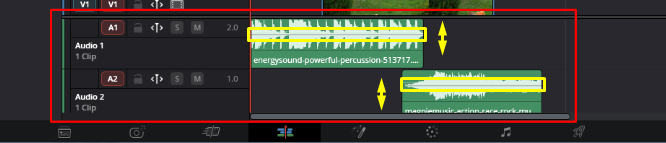
- For precise mixing, switch to the Fairlight page. Here you will find a full mixer with per-track faders, EQ, and dynamics controls.

- On the ASMR track, open the EQ panel (Fairlight Page > Effects > Fairlight EQ) and apply a gentle boost around 8 to 12 kHz to enhance the airy shimmer in tapping or crinkling sounds. Avoid cutting aggressively in the high-mids, as that range carries much of the ASMR texture.


- Turn on Automation from the timeline toolbar. Choose “Fader Level” from your track header. Then, use the Pencil tool or Option/Alt-click to draw volume curves. These curves can create fades and gradual volume changes.
Step 4: Mix ASMR Audio with Your Main Video Sound
Getting the balance right between ASMR audio and any existing dialogue, music, or original video sound separates polished content from amateur-sounding uploads. ASMR audio needs to be present and textured without overwhelming everything else.

Follow these mixing principles:
- Set relative volume levels first. If your video has dialogue or narration, bring the ASMR track to roughly 10 to 15 dB below the voice track. This keeps the ASMR audible but non-distracting.
- Use fade-ins at the start. A 0.5 to 1 second fade-in on the ASMR layer prevents a jarring entrance, especially when the sound begins mid-video.
- Apply fade-outs at cut points. When the video cuts to a new scene, a quick 0.2 to 0.5 second fade-out avoids an abrupt audio stop that can feel like an edit mistake.
- Pan for binaural effect. If your ASMR sound comes from a specific on-screen direction, pan that audio track slightly left or right to match. Even subtle panning adds spatial depth that makes the effect more immersive. Keep ambient loops centered.
- Loop ambient sounds to fill the full video. If your ASMR clip is shorter than the video, copy and paste it end-to-end on the timeline. Add a short crossfade wherever the loop repeats. Let both ends overlap by about 0.5 seconds. Apply fades on both sides to avoid clicks at the seam.
- Check for frequency overlap with voice. If your ASMR sound shares the same frequency range as narration (typically 200 Hz to 3 kHz), the two tracks will compete for space. Apply a gentle high-pass filter to the ASMR track, rolling off below 200 Hz, to create separation without killing the texture.
Quick Tips for Better ASMR Sound in Videos
- Monitor with headphones throughout the edit. ASMR is designed for headphone listening. What sounds balanced on speakers can be completely wrong in-ear. Use a reliable pair of headphones for every mix decision.
- Test on earbuds before exporting. Most ASMR viewers use phone earbuds. Plug in a standard consumer pair and listen through the full video at least once before final export. Adjust anything that sounds harsh, clicky, or unbalanced.
- Keep bit depth consistent across the project. If your video project is set to 24-bit, ensure your imported audio is also 24-bit. Mixing different bit depths introduces unnecessary conversion steps and potential artifacts.
- Avoid over-compression on the ASMR track. Compression reduces dynamic range, which is the opposite of what ASMR relies on. Light limiting to prevent clipping is fine, but heavy compression flattens the quiet-to-loud variation that makes ASMR feel alive.
- Target a consistent loudness for export. For YouTube and TikTok, aim for an integrated loudness around -14 LUFS. This aligns with platform normalization and prevents your ASMR audio from sounding quieter than surrounding content.
- Leave space in the mix. Resist filling every moment with sound. A low ambient ASMR bed, or even strategic near-silence, lets your trigger sounds land with greater impact.
FAQs
Can I use ASMR sounds from YouTube in my videos?
No. YouTube videos are copyright-protected by default, regardless of whether they carry a “relaxation” or “free use” label. Using that audio in your own uploads risks a copyright claim or a video takedown. Use the YouTube Audio Library, Freesound.org, or another explicitly licensed platform for any ASMR sounds you plan to publish.
What is the best free app to add ASMR sounds to videos on iPhone or Android?
CapCut is the strongest free option on both iOS and Android. It includes a built-in sound library, supports importing your own audio files, and provides a timeline-based editor for adjusting volume, trimming clips, and layering tracks. The mobile interface is beginner-friendly without stripping out the audio controls you actually need.
How loud should ASMR sounds be relative to dialogue in a video?
Keep background ASMR audio roughly 10 to 15 dB below your dialogue or narration track. For ASMR-only videos without dialogue, aim for peak levels between -12 dBFS and -18 dBFS. This range preserves the dynamic detail and quiet texture that define effective ASMR without the track sounding too thin on consumer speakers.
Why does my ASMR audio sound muffled after adding it to my video?
The most common cause is a sample rate mismatch. If your audio file is 44.1 kHz and your project is set to 48 kHz, the editor resamples it in a way that can slightly soften transients. Convert your audio to 48 kHz in Audacity before import. Also confirm that your export settings are outputting WAV or high-bitrate audio rather than compressing to a low-quality MP3.
Conclusion
Adding ASMR sounds to videos comes down to two stages. Start with quality audio from a condenser mic or a licensed library. Then mix it carefully so it supports your existing sound. The quality of your ASMR audio sets the final limit.


