.png)
 简体中文
简体中文 
Premiere Pro does not include a built-in TikTok preset. Because of this, many creators export videos with the wrong size and later see them cropped or boxed with sidebars after upload. This guide walks you through the sequence settings and export configuration you need to produce a clean, TikTok-ready vertical video — from creating your custom sequence to hitting export with the right codec, resolution, and bitrate.

What Is the TikTok Video Format?
Before changing anything in Premiere Pro, you should know the specs you need. TikTok uses a vertical 9:16 aspect ratio, which is the inverse of the standard 16:9 widescreen format most cameras default to. There is no built-in TikTok preset in Premiere Pro because Adobe hasn’t added one — you’ll build it manually using the values below.
| Setting | Recommended Value |
|---|---|
| Aspect Ratio | 9:16 |
| Resolution | 1080 × 1920 px |
| Frame Rate | 29.97 / 30 fps (24 fps acceptable) |
| Pixel Aspect Ratio | Square Pixels (1.0) |
| Codec | H.264 |
| Container Format | MP4 |
| Video Bitrate | 2–5 Mbps (3–5 Mbps recommended) |
| Audio Codec | AAC |
| Audio Sample Rate | 44.1 kHz or 48 kHz |
| Audio Bitrate | 128–320 kbps |
| Max File Size | 287.6 MB |
| Max Duration | 10 minutes |
Keep these values open while you work through the steps below — you’ll reference them in both the sequence setup and the export dialog.
How to Create a TikTok Sequence in Premiere Pro?
This is the step most creators skip or get wrong. Setting up your sequence correctly from the start means your canvas is already vertical, your footage drops in at the right orientation, and there are no surprises when you export.
Step 1 — Open New Sequence Settings
- In Premiere Pro, go to File → New → Sequence.
- In the New Sequence dialog, click the Settings tab at the top.
- Under Editing Mode, open the dropdown and select Custom. This unlocks every field so you can enter your own values rather than being locked into a preset’s defaults.
Step 2 — Configure Frame Size and Frame Rate
- Under Video, set Frame Size to 1080 (horizontal) × 1920 (vertical).
- Set Timebase (frame rate) to 29.97 frames/second or 30.00 frames/second. Either works; 29.97 is the broadcast-standard drop-frame option and the safer pick for compatibility.
- Set Pixel Aspect Ratio to Square Pixels (1.0). This is the correct setting for the digital display — any other option will distort your image.
- Leave all other fields at their defaults unless your specific footage requires a change.
Step 3 — Save as a Preset
- Once your settings are entered, click Save Preset in the upper-right corner of the Settings tab.
- Name it something clear, such as TikTok 1080×1920 30fps.
- Click OK, then click OK again to create the sequence.
The preset now lives in your Sequence Presets panel under the Custom folder. Every future TikTok project starts here instead of repeating these steps.
How to Reframe Horizontal Footage to 9:16?
If you’re repurposing 16:9 footage — from a camera, screen recording, or an older shoot — you have two ways to fit it into your vertical sequence.
Method 1: Manual Scale and Position
- Drop your 16:9 clip into the 9:16 sequence timeline.
- In the Effect Controls panel, increase Scale until the clip fills the vertical frame (typically around 170–180%).
- Adjust Position to center the subject within the frame.
- Keyframe position changes if your subject moves across the shot.
This works well for static or slow-moving shots where you know exactly where the subject sits.
Method 2: Auto Reframe Effect
For footage with moving subjects, use Premiere Pro’s built-in Auto Reframe effect:
- Right-click the clip in the timeline and select Auto Reframe Sequence, or apply the Auto Reframe effect from the Effects panel directly to the clip.
- Set the Motion Preset to Slower Motion or Faster Motion depending on how quickly your subject moves.
- Premiere Pro uses AI-based subject tracking to pan the frame automatically.
Review the result in the Program Monitor and manually adjust any keyframes where tracking drifts off the subject.
How to Export TikTok Format from Premiere Pro?
Correct sequence settings don’t automatically produce a correct export. You need to confirm every value in the Export Settings dialog independently.
Open Export Settings
- With your sequence active in the timeline, go to File → Export → Media (or press Cmd+M on Mac / Ctrl+M on Windows).
- The Export Settings dialog opens with a preview of your sequence on the left.
Choose the Right Codec and Format
- Under Format, select H.264.
- Under Preset, choose Match Source – High Bitrate as a starting point. This pulls your sequence dimensions into the export settings automatically.
- Confirm under the Video tab that Width is 1080 and Height is 1920. If the values are reversed, your export will be horizontal — double-check before proceeding.
Set Bitrate and Audio Settings
- In the Video tab, scroll to Bitrate Settings.
- Set Bitrate Encoding to VBR, 2 Pass. This takes slightly longer to render but produces the best quality-to-file-size ratio.
- Set Target Bitrate to 3 Mbps and Maximum Bitrate to 5 Mbps. This keeps your file well under TikTok’s 287.6 MB limit while preserving quality.
- Click the Audio tab. Set Audio Codec to AAC, Sample Rate to 48000 Hz, and Bitrate to 320 kbps for the cleanest audio TikTok will accept.
Export or Send to Adobe Media Encoder
- Click Export to render directly from Premiere Pro. This locks the application until rendering finishes.
- Click Queue to send the job to Adobe Media Encoder, which renders in the background and lets you keep editing.
Note: Keep an eye on your final file size. If you’re exporting longer content (over 3–4 minutes), check the estimated file size shown in the Export dialog before rendering. Clips approaching the 287.6 MB cap may need a slight bitrate reduction.
Quick Tips for TikTok Video Quality in Premiere Pro
- Enable Maximum Render Quality. In the Export Settings dialog under the Video tab, check Use Maximum Render Quality. This improves how the video is scaled, which is especially useful if you resize any footage.
- Don’t upscale low-resolution footage. Making a 720p clip fill a 1080×1920 frame can cause visible compression problems once TikTok processes it. So, shoot at 1080p or higher whenever possible.
- Check safe zones for UI overlays. TikTok shows the username, caption, and buttons along the bottom and lower-right of the screen. In Premiere Pro, turn on the safe zone guides in the Program Monitor and keep important visuals inside the inner area.
- Watch your brightness levels in Lumetri Scopes. TikTok’s compression is noticeably harsher on dark, underexposed footage. Use the Waveform scope in Lumetri Color to keep shadows lifted above the 10–15 IRE range before you export.

If you’re shooting your own TikTok content before bringing it into Premiere Pro, clean audio makes the biggest quality difference at upload. The Hollyland LARK M2 is designed for TikTok and vlogging, weighing just 9 grams with a 40-hour battery, making it light enough to wear during any shoot.
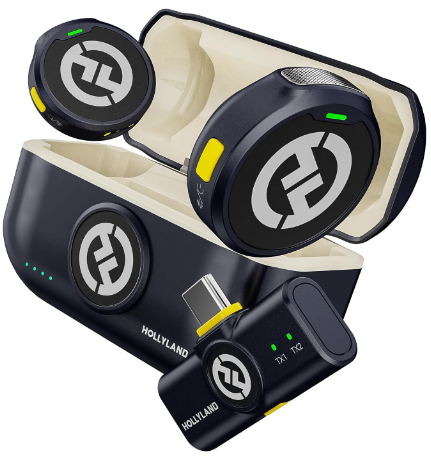
Hollyland LARK M2 - Mini Lavalier Microphone
An incredibly lightweight and compact wireless button microphone that captures high-fidelity audio.
Key Features: 9g Button Size | 48 kHz/24-bit | 40 Hours Battery
FAQs
Does Premiere Pro have a TikTok preset?
No native TikTok preset exists in Premiere Pro. You need to create a custom sequence using 1080×1920 at 29.97/30fps with square pixels, then save it as a reusable preset. Adobe has not added platform-specific social media presets to the sequence dialog, though export format presets for some platforms do exist.
What frame rate should I use for TikTok in Premiere Pro?
30fps (29.97) is the safest and most widely compatible choice. TikTok supports up to 60fps, and 60fps can look smooth for certain content types, but 30fps uploads are more universally stable across devices and tend to compress more predictably through TikTok’s encoding pipeline.
Can I upload a 4K video to TikTok from Premiere Pro?
You can, but TikTok recompresses every upload. Exporting at 1080×1920 H.264 gives the best quality-to-compression ratio for TikTok’s pipeline. Sending a 4K file increases render time and file size without producing a visible quality improvement in the final published video after TikTok’s processing runs.
What file format does TikTok accept from Premiere Pro?
MP4 (H.264) is the recommended and most reliable format. TikTok also accepts MOV files, but MP4 is preferred for upload stability and consistent playback across the platform. Stick with H.264 inside an MP4 container unless you have a specific reason to use another format.
Why is my TikTok video blurry after upload?
Blurriness after upload is almost always caused by a low export bitrate or incorrect resolution. For high-quality TikTok uploads, a bitrate of 10 to 15 Mbps at 1080×1920 with H.264 VBR 2-pass is usually recommended to keep the video sharp after re-encoding. Also, verify your sequence frame size matches your export frame size — a mismatch forces Premiere Pro to scale the output, which degrades sharpness.
Conclusion
The workflow is straightforward once you run it once: configure a custom 9:16 sequence at 1080×1920, edit your content inside it, then export with H.264 at 10–15 Mbps VBR 2-pass. Save that sequence as a named preset now — it’ll cut several minutes off every future TikTok project.