.png)
 简体中文
简体中文 
YouTube Shorts live streaming shows your video in the vertical feed that millions of people scroll through daily. It works differently from a regular YouTube Live, and the setup has some specific steps that are easy to overlook. This guide explains what makes a Shorts live stream different, what your channel must have to qualify, and how to set up and start a vertical live stream step by step.

What Is a YouTube Shorts Live Stream?
A YouTube Shorts live stream is a vertical video, recorded and shown in 9:16 portrait mode. It appears in both the Shorts feed and the Live tab at the same time. Unlike a standard YouTube Live, which defaults to landscape (16:9) and surfaces in your subscriber feed, a Shorts stream is designed for the mobile-first, swipe-up viewing experience that Shorts audiences expect.

This difference matters because feed placement changes who sees your content. Shorts streams can reach non-subscribers browsing the Shorts feed organically. This makes vertical live streaming a way to attract new audiences, not just share with people who already follow your channel.
How It Differs from Standard YouTube Live
- Orientation: Shorts stream = 9:16 (portrait); Standard Live = 16:9 (landscape)
- Feed placement: Shorts stream appears in the Shorts feed and the Live tab; Standard Live surfaces in the subscription feed and homepage
- Clip reuse potential: Shorts stream replays can be manually clipped into standalone Shorts after the broadcast ends
- Discovery path: Shorts streams can reach non-subscribers via the Shorts algorithm; standard live reaches primarily existing subscribers
Do You Qualify? Eligibility Requirements
Before you open the YouTube app and tap “Go Live,” there are several eligibility gates to clear. YouTube enforces these requirements at the account level, and missing even one will prevent the portrait-mode stream option from appearing.
Minimum requirements for YouTube Shorts live streaming:
- 50 or more subscribers: At least 50 subcribers are required to go live on mobile via the YouTube app. Channels below this threshold do not have access to the mobile live streaming feature at all.
- Verified phone number: Your YouTube account must have a verified phone number on file. This is a one-time verification step completed through your Google account settings.
- No live stream restrictions in the past 90 days: If your channel received a live streaming restriction due to a Community Guidelines strike or terms of service violation, you must wait until the restriction expires before streaming again.
- Account in good standing: Active Community Guidelines strikes that limit live streaming will block access to the feature.
- Live streaming is enabled on your account: First-time streamers may need to enable live streaming manually from YouTube Studio. Once enabled, activation can take up to 24 hours.
- YouTube app updated to the latest version: The vertical/portrait toggle for Shorts-format streaming is only available in recent app versions. An outdated app may not surface the option at all.
Note: YouTube periodically adjusts feature eligibility thresholds, so it is worth checking the YouTube Help Center’s live streaming requirements page for the most current criteria before troubleshooting.
How to check your eligibility in YouTube Studio?
Navigate to YouTube Studio → Create → Go live. If you do not meet the requirements, YouTube will display a message specifying which condition is unmet. On mobile, tap the “+” icon → “Live.” If the option is absent, it almost always indicates an eligibility issue rather than a technical bug.

How to Start a YouTube Shorts Stream (Step-by-Step)
Getting the format right before you tap “Go Live” is critical. Orientation is locked at the start of the stream. There is no way to switch from landscape to portrait mid-broadcast.
Here is how to configure and launch a vertical Shorts stream from scratch.
Going Live via the YouTube Mobile App
This is the primary method for Shorts-format streaming. The vertical portrait toggle is native to the mobile app and is not replicated in the same way through a desktop browser.
- Open the YouTube app on your iOS or Android device and confirm it is updated to the latest version.
- Tap the “+” (Create) button at the bottom center of the screen.

- Select “Live” from the creation options that appear.
- Switch to portrait/Shorts mode. On the Live setup screen, locate the orientation toggle or camera orientation icon. Tap it to flip from landscape (horizontal) to portrait (vertical). YouTube will display a “Shorts” label or a vertical rectangle icon to confirm the mode change.
- Set your stream title. Write something keyword-rich and under 100 characters. This title is searchable in both the Shorts feed and the Live tab.
- Configure privacy and audience settings. Select Public, Unlisted, or Private. If the content is made for kids, toggle that option on. Also, note that enabling “Made for Kids” disables live chat.
- Add a thumbnail (optional). Auto-generated thumbnails work, but a custom 9:16 vertical image will stand out more prominently in the Shorts feed.
- Tap “Go Live” to begin broadcasting.
Pro Tip: Run a 30-second test stream set to “Unlisted” before your first public Shorts live. This lets you verify audio quality, portrait framing, and lighting in the actual Shorts player — before an audience is watching.
Setting Up a Shorts Stream via YouTube Studio (Desktop)
YouTube Studio’s browser-based Live Control Room is useful for scheduling streams in advance or pre-configuring title and privacy settings. However, for Shorts-format streaming, desktop plays a supporting role — the actual broadcast is best launched from mobile.
- Go to YouTube Studio (studio.youtube.com) and click “Go live” in the upper-right corner.

- Select “Manage” to schedule an upcoming stream, or click “Start” to enter the setup flow for an immediate broadcast.

- Set the stream title, description, category, and privacy settings. These will carry over when you begin the broadcast on mobile.

- Schedule the stream with a start time if you are announcing it in advance. This generates a shareable stream link you can post in Community posts or as a teaser Short before going live.
- Switch to mobile to broadcast. Open the YouTube app, tap “+”, select “Go Live”, and choose portrait orientation as outlined above. The stream details you set in Studio will appear automatically.
Note: Desktop-only streaming via encoder software does not currently support Shorts feed placement in the same way as mobile-native streaming. For true Shorts feed distribution, mobile remains the recommended broadcast method.
Essential Settings for a YouTube Shorts Live Stream
Setting these options correctly before you go live helps avoid common problems. This includes the wrong orientation, blurry video, or a title that never appears in search.
| Setting | Recommended Value | Why It Matters |
|---|---|---|
| Aspect Ratio | 9:16 (portrait) | Required for Shorts feed placement |
| Resolution | 1080 × 1920 minimum | Maintains visual quality in the Shorts player |
| Stream Duration | Under 60 minutes recommended | Optimized for replay clipping and viewer retention |
| Title | Keyword-rich, under 100 characters | Searchable in the Shorts feed and Live tab |
| Latency Mode | Normal or Low | Ultra-low latency can cause audio sync drift on mobile |
| Privacy | Public | Required for Shorts feed discovery |
| Made for Kids | Off (unless applicable) | Enabling this disables live chat |
A few points worth noting: resolution matters more than most mobile streamers expect. If your phone automatically lowers video quality in dim lighting, the full-screen vertical Shorts player will make that visible immediately. Set your phone’s camera to 1080p before opening the YouTube app. In latency mode, the trade-off is real. Lower latency means faster chat responsiveness, but Ultra-Low Latency occasionally introduces audio sync drift on mobile streams. Normal or Low is the more reliable default for most Shorts creators.
Audio and Equipment Setup for Shorts Streaming
Video quality in a Shorts stream is easy to notice right away. But audio often decides if viewers stay or keep scrolling. Built-in phone microphones were not engineered for live streaming. They pick up background noise aggressively, lose quality when the phone is more than a foot or two from the speaker, and offer no wind protection outdoors. For a viewer discovering your stream cold in the Shorts feed, poor audio is the fastest reason to scroll away.

Practical upgrade options without overcomplicating the setup:
- Wired lavalier mic with a Lightning or USB-C adapter: Affordable and low-latency, but the cable creates visible on-screen clutter and restricts movement.
- USB-C or Lightning headphones with a built-in mic: Better than the phone’s built-in mic, but still susceptible to cable noise and looks unprofessional on screen.
- Wireless clip-on microphone: The optimal choice for mobile Shorts streaming. No visible cables, no movement restrictions, consistent audio quality regardless of how you position the phone.
Getting Clear Audio on a Shorts Live Stream
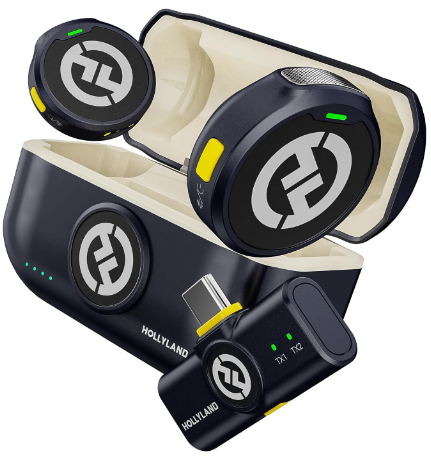
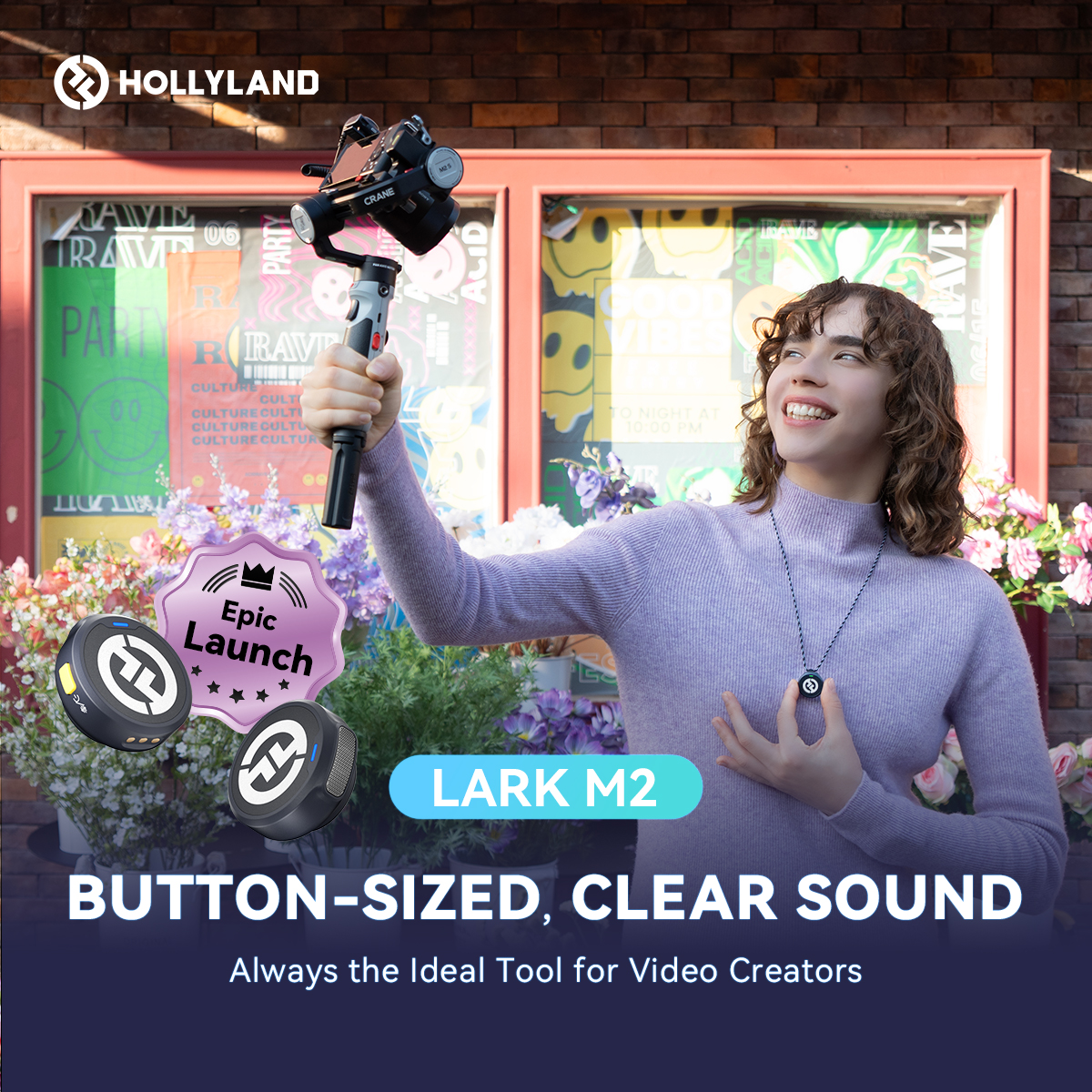
For creators streaming on mobile, a compact wireless microphone eliminates the audio quality gap without adding setup complexity. The Hollyland LARK M2 weighs only 9 grams and has a coin-sized transmitter. It clips straight onto your clothing. This mic connects wirelessly to a smartphone, keeping the on-screen setup clean while delivering broadcast-quality audio. Plus, its 40-hour battery life means it won’t run out during long or back-to-back sessions, and plug-and-play compatibility with both iOS and Android requires no driver installation or audio interface.
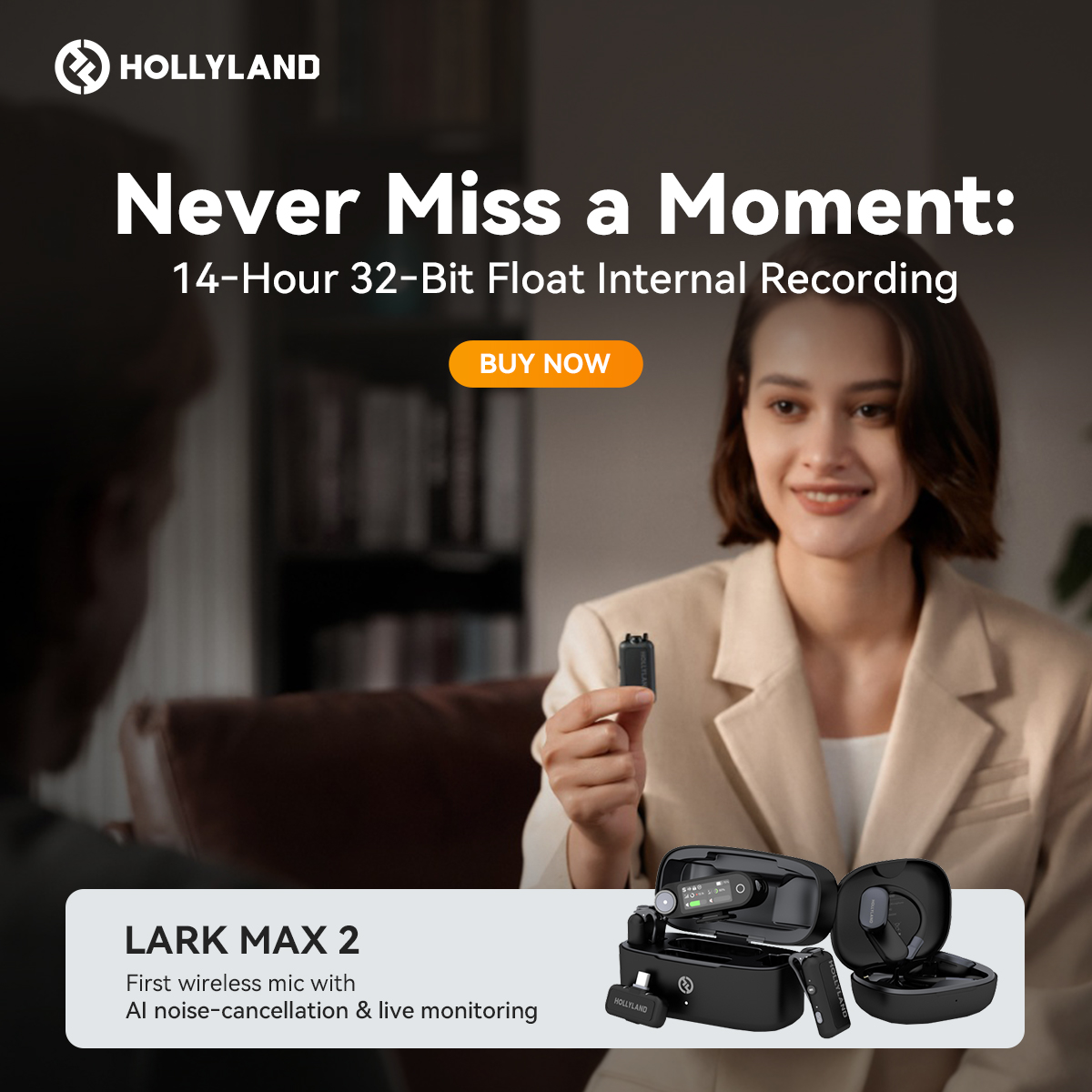
For creators running interview-style Shorts streams or broadcasting in high-ambient-noise environments, the Hollyland LARK MAX 2 adds 32-bit float recording and professional Environmental Noise Cancellation (ENC) for an additional layer of audio control.

Tips to Maximize Reach and Engagement on a Shorts Stream
Starting a live stream in vertical format is just the beginning. What you do in the first few minutes, and before and after the stream, decides if it gains traction or slowly fades away.

- Stream during your audience’s peak hours. Check YouTube Studio → Analytics → Audience to find when your subscribers are most active. Streaming at off-peak times reduces initial view velocity, which directly affects how broadly YouTube distributes the stream.
- Announce the stream 24-48 hours in advance. Post a teaser Short or a Community post with the stream link. Even a single day of advance notice significantly increases the number of viewers who show up at the start rather than catching the replay.
- Hook viewers in the first 10 seconds. Shorts viewers are conditioned to scroll. Open with your most compelling statement, question, or visual. Skip the introductions and get to the point immediately.
- Pin a comment directing viewers to subscribe for live notifications. This appears in the live chat stream and helps convert passive first-time viewers into notified subscribers who will catch future broadcasts.
- Clip the best 60-second moment after the stream ends. The live replay does not automatically become a Short. Identify the strongest minute of the broadcast, clip it in YouTube Studio or a mobile editing app, and upload it as a standalone Short with a dedicated title, description, and thumbnail.
How YouTube Treats Shorts Streams for Discovery
YouTube surfaces vertical live streams in two places simultaneously: the Shorts feed and the Live tab. This placement in two areas is a major reason vertical streams can grow a channel faster than standard horizontal lives. Your stream reaches current subscribers through the Live tab, and it also shows up to new viewers scrolling through Shorts who may not know your channel yet.

Engagement signals generated during the live broadcast, like watch time, live chat activity, shares, and new subscriptions, contribute to your channel’s overall authority signals in YouTube’s algorithm. Once the stream ends, the replay is saved as a standard video. Creators who manually clip and republish segments as standalone Shorts extend the content’s reach well beyond the original broadcast window, compounding the value of a single live session.
Frequently Asked Questions
Can you live stream on YouTube Shorts?
Yes. YouTube supports vertical-format (9:16) live streams that appear in the Shorts feed, provided your channel meets the eligibility requirements, such as 50 or more subscribers and a verified phone number for mobile streaming. The feature is available through the YouTube mobile app on both iOS and Android devices.
How long can a YouTube Shorts live stream be?
Unlike pre-recorded Shorts, which are capped at 60 seconds, live streams in vertical format can run longer. Keeping the session under 60 minutes is recommended, however, since it improves viewer retention and makes it significantly easier to identify and clip a strong replay segment into a standalone Short afterward.
Do YouTube Shorts live streams count as a Short after the broadcast ends?
Not automatically. The replay is saved as a standard video, not published as a Short. To repurpose it, you need to manually clip a segment under 60 seconds in 9:16 format and upload it as a new Short with its own dedicated title, description, and thumbnail.
Why isn’t my Live button showing a portrait/Shorts mode option?
Portrait mode for Shorts streaming is a mobile-only feature within the YouTube app. It will not appear if your account has live streaming restrictions, your channel doesn’t meet the subscriber threshold, your app is not updated to the latest version, or the feature has not yet rolled out to your region.
What microphone works best for YouTube Shorts live streams?
A compact wireless clip-on microphone is ideal for mobile Shorts streaming. The Hollyland LARK M2 connects directly to iOS or Android devices via plug-and-play, clips invisibly onto clothing, and delivers clear broadcast-quality audio. Its 40-hour battery life makes it a reliable choice for frequent or extended streaming sessions without worrying about charging between broadcasts.
Conclusion
Shorts live streaming works well with the platform’s system and is different from regular YouTube Live. But this only happens when the vertical format, channel requirements, and settings are set correctly before you tap “Go Live.” Horizontal broadcasts and Shorts streams reach different audiences through different discovery paths, and confusing the two will cost you reach.
So check your eligibility in YouTube Studio first, then follow the step-by-step setup above for your first vertical stream.