.png)
 简体中文
简体中文 
TikTok’s built-in voiceover tool lets you narrate, dub, or add commentary to your videos without leaving the app. It’s one of the most useful features in the editor — and one of the easiest to miss if you don’t know where to look. This guide walks you through how to find it, record your voiceover, adjust the audio, and troubleshoot the most common problems creators run into.

Where to Find the Voiceover Feature in TikTok?
The voiceover tool lives inside TikTok’s post-recording editing screen — not on the main camera interface. This is the step most creators miss: you won’t see a voiceover button while you’re filming. It only appears after you’ve recorded or uploaded a clip and moved into the editor. The feature works on both iOS and Android, as long as a few basics are in place.
Before you start, confirm the following:
- You have a video already recorded or uploaded to TikTok
- The TikTok app has been updated to its latest version
- Microphone permission has been granted to TikTok in your phone’s settings
- Your phone is not in silent mode
If all of that is set, you’re ready to record.
How to Add a Voiceover to a TikTok Video?
Step-by-Step Instructions
- Open TikTok and tap the + button to record a new video.

Ortap Upload to bring in a clip from your camera roll.
- Once your video is ready, tap Next to enter the editing screen.
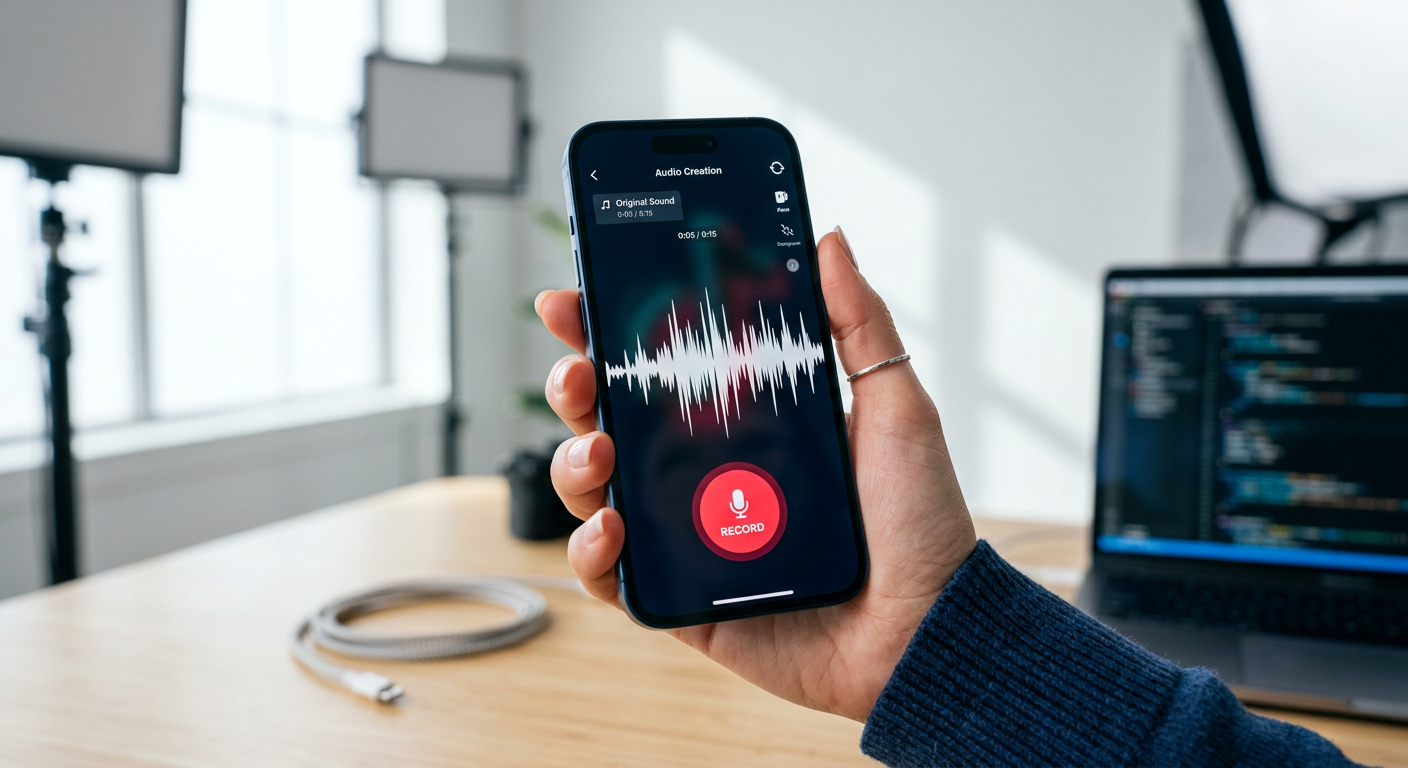
- On the editing screen, look for the Voice feature— it’s a microphone symbol typically located in the upper-right area of the screen. Tap it.

- On the next screen, you will see a Record button at the bottom. Tap it.

- The voiceover timeline appears at the bottom, showing your video’s full duration. Scrub the playhead to the point where you want your voiceover to begin.

- Press and hold the Record button to start narrating. The video will play back in real time as you speak, so you can sync your words to what’s happening on screen.
- Release the Record button to stop. TikTok saves that segment automatically — you can record multiple segments across different parts of the timeline. If you have recorded the voiceover, tap Done.
- When you’re satisfied, tap Save in the top-right corner to confirm your voiceover and return to the main editing screen.

- Continue editing — add captions, music, effects, or text.

- Then tap Post when you’re ready.

Note: If you exit the editor without tapping Save, your voiceover recording will be discarded. Always save before navigating away.
How to Adjust Your Voiceover After Recording?
Once your voiceover is recorded, TikTok gives you a handful of controls to fine-tune the audio before you post.
- Voiceover Volume slider — Drag this to balance your voice against any background music or the original video audio. If your narration is being drowned out, raise this first.
- Keep Original Sound toggle — This lets you mute or reduce the video’s original audio so your voiceover can be heard clearly without competing noise.
- Re-record option — Tap Record on any segment of the timeline to overwrite a specific portion. You don’t need to redo the entire voiceover — just the parts that need a second take.
- Save to Draft — If you’re not ready to post, saving to drafts preserves your voiceover exactly as recorded so you can return and keep editing later.
One important limitation: voiceover cannot be added or edited after a video has been published. All adjustments must happen before you hit Post, or while the video is still in your drafts.
Tips for Recording a Clear, Professional TikTok Voiceover
The quality of your voiceover depends as much on your environment and delivery as it does on the tool itself. These practical habits will make a noticeable difference in your first recording.

- Record in a quiet room. Air conditioning units, fans, open windows, and appliances all create low-level hum that your phone mic will pick up clearly. A closed room with soft furnishings (a bedroom, a closet) absorbs more sound and produces cleaner audio.
- Hold your phone 6–8 inches from your mouth. Too close and you’ll get plosives on words starting with “P” and “B.” Too far, and your voice loses presence and picks up more room noise.
- Speak at a consistent volume and pace. Uneven delivery — speeding up, dropping off at the end of sentences, or varying your loudness — is harder to fix after recording than it is to correct in the moment.
- Leave a 2–3 second silent pause before speaking. This prevents TikTok from clipping the very first syllable of your narration.
- Listen back before saving. Play the full voiceover once through in the editor. It takes 30 seconds and saves you from re-editing a posted video.
Upgrade Your Audio with an External Microphone
The built-in phone microphone is a functional starting point, but it picks up room noise easily and loses clarity as soon as you move the phone more than a foot away. Clipping on a compact wireless mic solves most of these problems instantly. The Hollyland LARK M2 — weighing just 9g and small enough to stay out of frame — is designed specifically for TikTok and vlogging workflows. It captures close-mic audio wirelessly and offers up to 40 hours of battery life, making it a reliable option for creators who narrate regularly. And if you’re just starting out and want something even simpler, the Hollyland LARK A1 plugs directly into your phone via USB-C or Lightning and features 3-level intelligent noise cancellation with no configuration required.
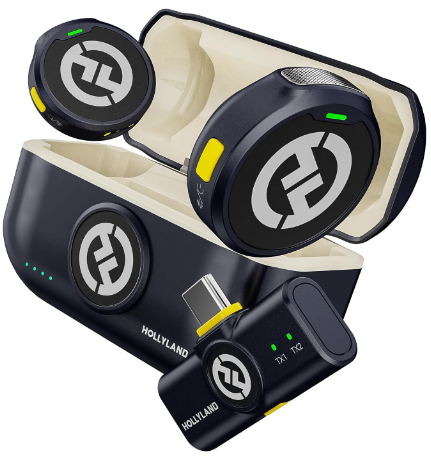
Hollyland LARK M2 - Mini Lavalier Microphone
An incredibly lightweight and compact wireless button microphone that captures high-fidelity audio.
Key Features: 9g Button Size | 48 kHz/24-bit | 40 Hours Battery
Troubleshooting Common TikTok Voiceover Problems
- Voiceover button is greyed out or missing — TikTok likely doesn’t have microphone access. Go to your phone’s Settings, find TikTok in your app list, and enable microphone permission. Restart the app afterward.
- Voiceover isn’t saving — You must tap the Save button inside the voiceover screen before exiting. Closing the editor or tapping the back arrow without saving discards all recorded segments.
- Voiceover audio is very quiet — Open the voiceover volume slider and raise the level. Also, check that your phone’s microphone isn’t physically blocked by a case or your hand while recording.
- Can’t hear voiceover on playback — Check that your phone is not in silent mode, and confirm the voiceover volume slider isn’t set to zero in the editing controls.
Frequently Asked Questions
Can you add a voiceover to a TikTok video after it’s already been posted?
No. Once a TikTok is published, the voiceover cannot be added or changed. To fix it, you’d need to delete the post, re-open the draft (if you saved one before posting), record the voiceover, and publish again. This is why saving to drafts before posting is worth the habit.
Does TikTok’s voiceover record over the original video audio?
No — not by default. TikTok layers your voiceover on top of the existing audio rather than replacing it. If you want your narration to be the only thing heard, use the Keep Original Sound toggle and the voiceover volume controls to reduce or mute the background audio.
Can you do a voiceover on TikTok from a video in your camera roll?
Yes. Tap the Upload button on the record screen to bring in any video from your camera roll. Once you’re in the editing screen, the voiceover tool works exactly the same way as it does for natively recorded clips.
Why is my TikTok voiceover choppy or out of sync?
Choppy or out-of-sync voiceover is usually caused by a slow internet connection or a device struggling with playback performance. Close any background apps, make sure you have a stable connection, and re-record the affected segment. If the problem continues, fully restart TikTok and try again.
Conclusion
TikTok’s voiceover tool is straightforward once you know where it lives — inside the editing screen, not on the record screen. Record your clip, tap the microphone icon, and you’re a hold-and-release away from clean narration. Once your voiceover is in place, pairing it with TikTok’s auto-captions feature makes your content accessible and can improve watch time significantly. And if you plan to narrate regularly, a compact mic like the Hollyland LARK M2 or LARK A1 is the fastest single upgrade you can make to your audio quality.

Hollyland LARK A1 - Affordable Wireless Microphone
A perfect starter mic for creators on a budget. It’s simple to use and features effective noise cancellation.
Key Features: 48kHz/24-bit | 3-Level Noise Cancellation | 54-Hour Battery