.png)
 简体中文
简体中文 
FL Studio is a powerful DAW for beatmakers and music producers. But guitar recording can feel confusing at first. If your Mixer shows no signal, relax! You are not the only one facing this issue. This guide covers everything needed to record your guitar properly. We will start with audio driver setup and recording basics. Then, you will learn how to capture your first take. And as you read more of this guide, you will explore both Edison and Playlist recording methods.
Note: This guide uses FL Studio 2026 to demonstrate the steps for the recording methods.
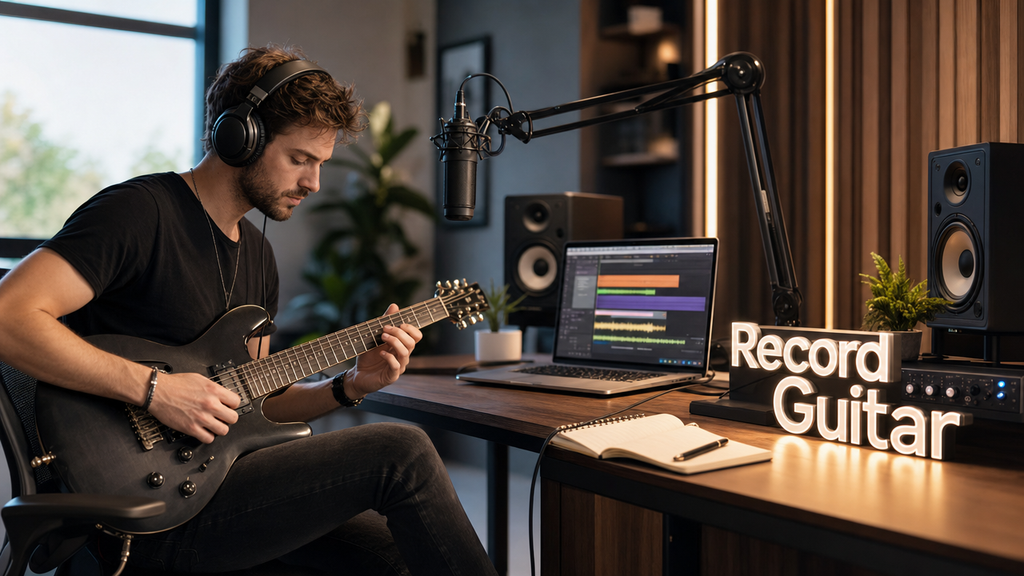
What You Need to Record Guitar in FL Studio
Before opening FL Studio’s settings, confirm you have the following:
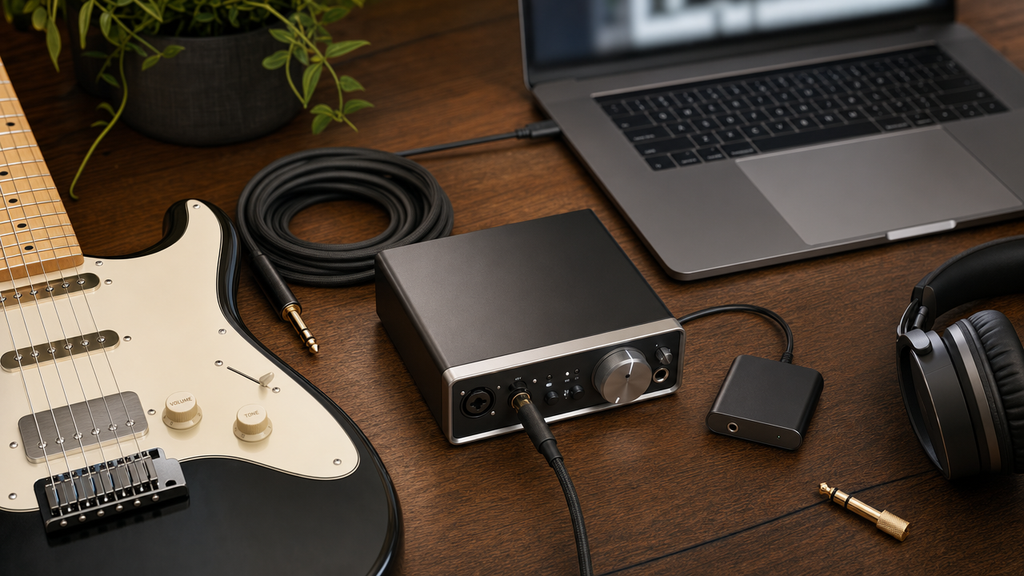
- A guitar (electric, acoustic, or acoustic-electric)
- An instrument cable (standard 1/4-inch TS)
- An audio interface with a Hi-Z instrument input (Focusrite Scarlett, PreSonus AudioBox, etc.) – this is the recommended path for low-latency, quality recordings
- FL Studio Producer Edition or higher – the Fruity Edition does not support audio recording
- A USB or USB-C cable to connect your interface to your computer
No dedicated audio interface yet? You can use any USB audio device that includes an instrument input. The Hollyland MELO P1, for example, includes a 3.5mm instrument input and connects directly to a computer via USB-C, making it a compact entry point without a full interface setup.
How to Configure FL Studio’s Audio Settings for Guitar Recording
This is the most important step in the entire process. FL Studio ships with a default driver focused on playback output, not recording. Until you switch to an ASIO driver, your guitar input will not appear anywhere in the software.
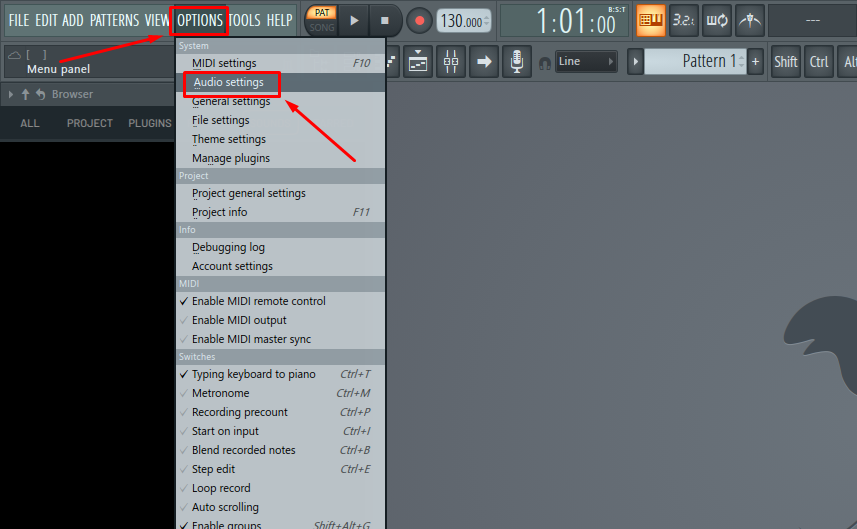
- Open Audio Settings. Navigate to Options → Audio Settings (keyboard shortcut: F10).
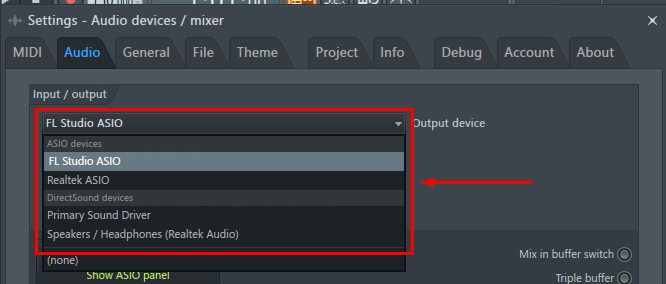
- Select your ASIO driver. In the “Input / output” section > Output device dropdown, choose your interface’s native ASIO driver (for example, “Focusrite USB ASIO”). If you don’t have a dedicated interface, select FL Studio ASIO or download ASIO4ALL (details in the section below).
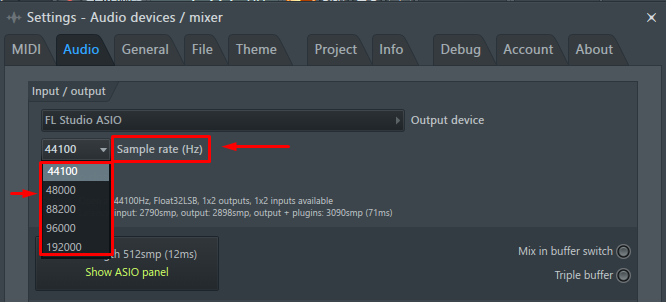
- Set your sample rate. Choose 44,100 Hz (44.1 kHz) for standard music production or 48,000 Hz (48 kHz) for video-focused work. Either option works for guitar recording.
- Set your buffer length. Start at 256 samples for live monitoring. Raise it to 512 if you hear crackles or dropouts. Lower values reduce latency but require more CPU headroom.


- Confirm the input device. Check that your interface appears in the input device field. A blank or “none” entry means FL Studio has no path to receive your guitar signal.
- Close the Settings window once you are done with the above settings.
Note: If you swap interfaces between sessions or plug in a new USB device, revisit Audio Settings to reconfirm the correct device is selected. FL Studio does not always auto-detect hardware changes.
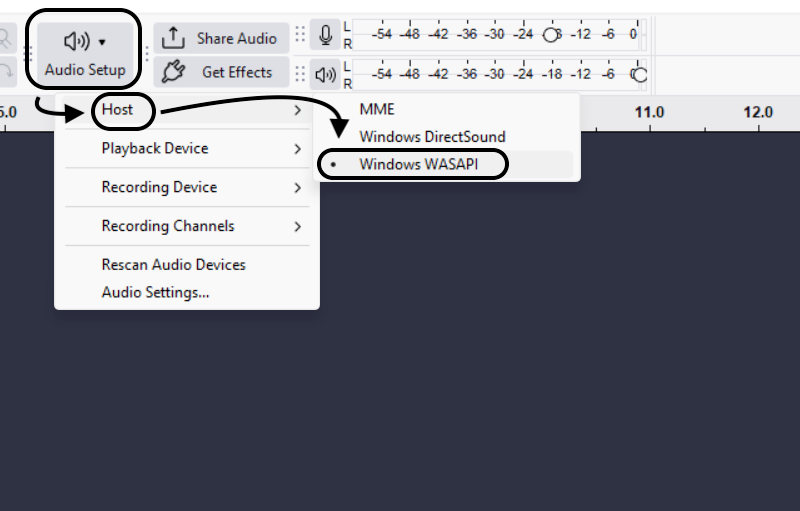
Choosing the Right Driver (ASIO, WDM, and WASAPI Explained Simply)
For recording live instruments in FL Studio on Windows, ASIO is the only driver type that works reliably. ASIO communicates directly with your audio hardware, bypassing the Windows audio engine entirely. This reduces monitoring latency to single-digit milliseconds, which is critical when you need to hear your playing in sync with the backing track. WDM and WASAPI run through Windows audio processing, which adds noticeable delay and, in most setups, blocks FL Studio from accessing hardware inputs altogether.
| Driver Type | Latency | Recording Support |
|---|---|---|
| ASIO (interface-native) | Very low (2-10 ms) | Full support |
| ASIO4ALL (free, Windows) | Low to moderate (10-30 ms) | Supported |
| WDM / WASAPI / DirectSound | High (30-150+ ms) | Limited or none |
If your audio interface came with its own ASIO driver, use that first. ASIO4ALL is a free download and a dependable fallback for built-in soundcards or USB devices without dedicated drivers.
Routing Your Guitar Input in the FL Studio Mixer
With the driver configured, the next step is telling FL Studio which physical input your guitar is coming from. This happens inside the Mixer.
- Open the Mixer. Press F9 or click the Mixer button in the toolbar.


- Select an Insert channel. Click any unused Insert channel (Insert 1 through 16+ are available).

Right-click the channel name and rename it “Guitar” to keep your session organized from the start.

- Assign your hardware input. At the top-right corner of the selected Insert strip within the Mixer panel, locate the input dropdown (it reads “—” by default). Click it and select the hardware input that matches your guitar’s physical port, typically IN 1 for the first input on your interface.

- Arm the channel for recording. Click the small record button (arm disk recording) on the Insert strip. It glows red when armed.

- Strum your guitar. Watch the VU meter on the Insert channel. Active green bars confirm the signal is flowing. A flat meter means the input assignment or driver setup needs adjusting.

- Adjust gain at the hardware level. Use the gain knob on your interface to bring VU meter peaks to approximately -12 dBFS to -6 dBFS during normal playing.
How to Check and Set Your Input Gain
Getting your levels right before recording is one of the most valuable habits in home recording.
Target VU meter peaks between -12 dBFS and -6 dBFS during your loudest passages. This headroom protects the recording if your dynamics spike on a strong chord or a forceful pick attack.
Watch for these warning signs:
- Red on the VU meter – clipping is occurring. Turn down the gain knob on your interface immediately.
- Meter barely moving – the signal is too weak. You will introduce noise when boosting the level during mixing.
- FL Studio’s Mixer fader – do not use this to correct an input level problem. Always adjust at the source (your interface hardware).
Record dry with no amp simulation or effects loaded on the Insert channel during capture. Add processing afterward for fully non-destructive control over the final sound.
How to Record Guitar in FL Studio Using Edison
Edison is FL Studio’s native audio recorder. It loads directly onto a Mixer Insert channel as a plugin and captures whatever signal flows through it. It is the preferred method for individual takes, short loops, and isolated musical ideas.
- Load Edison on your Guitar Insert channel. Click the FX slot and select Edison from the list.


- Choose your recording trigger. Inside the Edison window, locate the record mode button.

Select Record on Input to have Edison start automatically when your guitar signal crosses the noise floor. Select Record on Play to start and stop manually with FL Studio’s main transport controls.

- Arm Edison. Click the red record button inside the Edison window. It illuminates red to confirm it is listening and ready.

- Play your guitar part. The incoming waveform draws across Edison’s display in real time as you perform.
- Stop recording. Press the stop button inside Edison or use FL Studio’s main transport stop button.

- Review the take. Play it back inside Edison to confirm the capture is clean and properly leveled before committing it to the arrangement.
- Move the clip to the Playlist. Drag the waveform from Edison’s display directly onto the FL Studio Playlist, or right-click the waveform and choose Send to Playlist as audio clip. It will appear on a new Audio Clip track.
Edison is best suited for single-take captures, loop recording, and comparing multiple short takes within a single session.
How to Record Guitar Directly to the FL Studio Playlist
Playlist recording skips Edison and writes audio directly onto the arrangement timeline. This method suits full-song tracking, sequential multi-takes, and workflows where you want all recorded material visible in the arrangement view from the very first moment.
- Arm your Guitar Insert channel in the Mixer (record button glowing green, same as before).
- Open Playlist mode. Click the small dropdown arrow (the Playlist / Maximize Play list) option near FL Studio’s Transport bar.


- Position the Playlist cursor at the bar where you want recording to begin.

- Press Record in the Transport bar. Choose “Audio, into the playlist as an audio clip” option when a dialog box appears.


- Play your guitar part. A new audio clip grows on the Playlist in real time as you perform.

- Press Stop when finished. The recorded clip sits on the Playlist, ready for editing, looping, or layering with other tracks.
When to choose Playlist recording over Edison:
- You are tracking a complete song from start to finish
- You want multiple takes placed in sequence for easy side-by-side comparison
- You prefer staying inside the arrangement view throughout the session
The core difference between the two methods: Edison is a standalone recorder housed inside the Mixer, while Playlist recording places your guitar takes directly into the song timeline alongside every other element in your project.
Recording Electric Guitar vs. Acoustic Guitar in FL Studio
The signal path changes depending on which type of guitar you are recording. Both approaches use the same FL Studio workflow described above, but the input source is different.

Electric Guitar
Connect your electric guitar directly to the Hi-Z instrument input on your audio interface using a standard 1/4-inch TS cable. Hi-Z (high-impedance) input is specifically designed for passive magnetic pickups and preserves the guitar’s natural tone without impedance mismatch or signal loss.
Record a clean, dry signal with no amp simulation active during capture. Once the take is locked, load your amp sim VST (AmpliTube, Neural DSP, BIAS FX, or a similar plugin) onto the Insert FX chain and shape your tone from there. This non-destructive approach keeps the raw DI file available for reprocessing at any point and lets you audition multiple amp sounds without recording a single note twice.
You can monitor through an amp sim while recording clean audio. Set your Mixer input to capture the raw guitar signal. Then, route that track to your amp sim plugin. You can also send it through another Mixer channel. This lets you hear the processed sound while playing. Keep the recording option set to dry external audio. You can also disable recording on the processed subgroup. This keeps the amp effects out of your recorded guitar file.
Acoustic Guitar
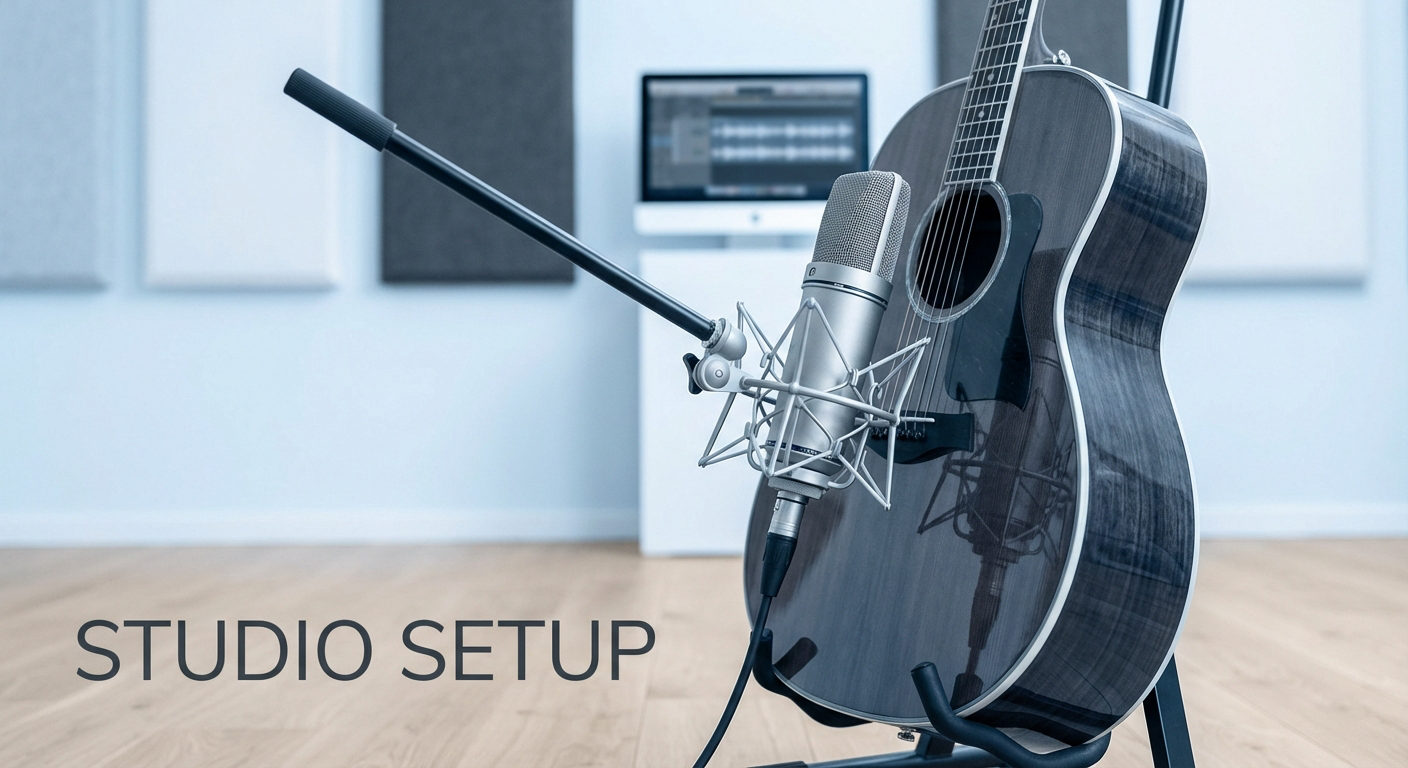
Acoustic guitars require a microphone rather than a direct connection. Place a condenser microphone 6 to 12 inches from the guitar body, aimed either at the soundhole or toward the 12th fret. The 12th fret position typically captures a more balanced tone with less low-frequency buildup caused by proximity to the soundhole.
A large-diaphragm condenser microphone is the standard choice for acoustic guitar recording because of its sensitivity and extended frequency response. The Hollyland MELO P1 features a 1-inch large-diaphragm condenser microphone with Noise Cancellation, and it connects directly to your computer via USB-C. Inside FL Studio’s Audio Settings, it appears as a standard USB audio input device, making it a practical option for a portable acoustic recording setup when a separate interface-and-mic chain is not available.
Fixing Common Guitar Recording Problems in FL Studio
| Problem | Cause | Fix |
|---|---|---|
| No signal in the Mixer meter | Input device not selected in Audio Settings, or Insert input dropdown not assigned | Open Options → Audio Settings and confirm your interface is set as the input device; open the Mixer and assign the correct hardware input on your Insert channel |
| High monitoring latency (audible delay) | Buffer size too high, or software monitoring active instead of hardware direct monitoring | Lower buffer size in Audio Settings; switch to direct monitoring on your audio interface hardware |
| Audio crackling or dropouts | Buffer size too low, or CPU overload from background applications | Increase buffer size to 512 or 1024 samples; close unnecessary apps; check for USB bandwidth conflicts if multiple USB devices are connected |
| Record arm button greyed out | Insert channel not linked to an active recording session | Confirm the Insert is armed (green indicator lit); verify the recording mode is correctly set in the Transport bar dropdown |
| Recorded clip drifts out of sync with MIDI | Buffer-induced latency offset between audio and MIDI | Enable PDC (Plugin Delay Compensation) under Options → General Settings; or manually shift the audio clip left on the Playlist by the latency offset amount shown in Audio Settings |
Quick Tips for Better Guitar Recordings in FL Studio

- Tune your guitar before recording every take. Small tuning issues can become obvious inside a full mix.
- Record at consistent gain levels from session to session so clips land at predictable levels during mixing.
- Always record the dry signal. Never print reverb, delay, or amp simulation effects to the audio file.
- Use direct monitoring on your interface rather than FL Studio’s software monitoring to keep perceived latency near zero during performance.
- Label and color-code Insert channels immediately (“Guitar DI,” “Guitar Chorus,” etc.) to avoid confusion as the project grows.
FAQs
Q1: Can I record guitar in FL Studio without an audio interface?
Yes. You can use a USB audio device with an instrument input, a computer’s built-in line-in jack, or an all-in-one USB input device. Without a dedicated ASIO interface, expect higher latency and reduced recording quality. ASIO4ALL can partially reduce latency on a standard soundcard, but performance will not match a purpose-built audio interface.
Q2: What ASIO driver should I use to record guitar in FL Studio on Windows?
Your audio interface’s native ASIO driver is usually the best pick. It gives you low latency and keeps performance more stable. If your device lacks a dedicated ASIO driver, try FL Studio ASIO. It already comes with FL Studio, so no extra download is needed. You can also download ASIO4ALL for free if needed. Then, select your preferred driver under Options → Audio Settings. Skip WDM and DirectSound drivers when recording guitar live. They can add noticeable delay between playing and hearing the sound. That delay can make real-time recording feel pretty frustrating.
Q3: Does FL Studio have built-in guitar amp simulation?
FL Studio has built-in tools like Fruity Convolver for impulse responses. Hardcore also gives you virtual guitar pedals and amp simulations. Its stock amp models are older and fairly basic, though. Many producers prefer third-party VST plugins for better guitar tones. Popular options include Neural DSP, BIAS FX, and AmpliTube. Add these plugins to the Insert FX chain afterward. First, record your guitar as a clean DI signal. Plenty of quality free plugins also exist for tighter budgets.
Q4: Why does my recorded guitar clip drift out of sync in FL Studio?
The offset comes from input buffer latency during recording. This happens between playing and the DAW receiving audio. First, check your audio interface’s dedicated ASIO driver. Open Options → Audio Settings and select that driver. FL Studio can also correct the input placement automatically. Click the clock or latency icon beside your selected input. Then, set compensation in milliseconds or samples as needed. You can also adjust Input Latency Compensation inside Audio Settings. If one take still feels slightly off, move it manually. Drag the audio clip until it lines up with the grid.
Q5: Can I record guitar and vocals at the same time in FL Studio?
Yes, provided your audio interface has two or more inputs. Connect guitar to Input 1 and your microphone to Input 2. Create two separate Mixer Insert channels, assign each to its corresponding hardware input, arm both channels, and press record. FL Studio captures them as independent audio clips simultaneously, keeping each fully editable on its own track.
Conclusion
Recording guitar in FL Studio is done through two simple recording options. You can use Edison for individual takes inside the Mixer. Or, record directly into the Playlist for timeline-based tracking. Before starting a full session, record a quick test take first. This helps confirm your guitar signal reaches FL Studio correctly. Check your audio driver and input settings before recording. Also, keep your guitar tuned before starting each new take. Once everything looks good, you can start recording confidently.