.png)
 简体中文
简体中文 
Audacity is a favorite for entry-level recording for a reason: it’s free, open-source, and surprisingly capable. It strips away the intimidating clutter of professional Digital Audio Workstations (DAWs) like Pro Tools, making it the perfect sandbox for capturing your first demos.
However, simply installing the software doesn’t solve the biggest hurdle: physics. Unlike a MIDI keyboard that plugs in via USB, an electric guitar generates a high-impedance analog signal that your computer’s sound card doesn’t naturally understand. If you have ever tried plugging your guitar directly into your laptop’s microphone jack with a cheap adapter, you likely experienced weak volume, terrible noise, or even silence.
If you are wondering how to record electric guitar in Audacity without the headache, you need the right signal chain. Here is the essential checklist to get started:
- Electric Guitar & Instrument Cable: Your standard gear.
- Computer with Audacity: Ensure you have the latest version installed (Windows, Mac, or Linux).
- Audio Interface (Recommended): A dedicated box (like a Focusrite Scarlett or Behringer U-Phoria) that converts your guitar’s analog signal to digital audio.
- OR USB Guitar Cable (Budget): A 1/4″-to-USB cable is a cheaper, albeit lower-quality, alternative to an interface.
- (Optional) Amplifier & Microphone: If you prefer the authentic sound of your physical amp over digital effects, you will need a microphone to capture the speaker cabinet.
Method 1: Direct Injection (The Best Way for Clean Audio)
If you want professional results with the flexibility to change your tone later, Direct Injection (DI) is the industry standard. Instead of using a microphone, you plug your electric guitar directly into an Audio Interface, which then connects to your computer.
This method captures the raw signal from your guitar pickups. It gives you the cleanest possible audio canvas to work with in Audacity.
The Setup Process
Follow these steps to establish a clean signal chain:
- Connect the Interface: Plug your audio interface into your computer via USB. Make sure you’ve installed the necessary drivers from the manufacturer’s website.
- Plug In Your Guitar: Connect your guitar cable to the input on the interface. Crucial: If your interface has a switch labeled “INST” or “Hi-Z”, turn it ON. This adjusts the impedance to match your electric guitar, ensuring the tone doesn’t sound muffled.
- Set Your Gain Levels: Play your guitar as loudly as you intend to record (strum hard!). Slowly turn up the Gain knob on the interface.
- Aim for Green: Most interfaces have a light that flashes green when you play.
- Avoid Red: If the light turns red, you are “clipping” (distorting). Turn the gain down slightly until the red disappears.
Pro Tip: Why Does It Sound “Boring”?
When you record via DI, the playback will sound “dry”—completely clean and devoid of effects, similar to an acoustic guitar. Don’t panic; this is normal.
This raw signal is exactly what you want. To get that crunchy, distorted rock tone, you will apply VST Amp Simulators (software plugins) inside Audacity after you record. This allows you to tweak the distortion level endlessly without having to re-record the part.
Method 2: Recording Your Amp (Capturing Real Tone)
While Direct Injection is flexible, many guitarists feel that digital plugins just can’t replicate the visceral sound of moving air through a physical speaker cabinet. If you love the specific tone of your amplifier, the best way to record it is the old-school way: placing a microphone in front of the speaker.
However, recording loud amplifiers at home is tricky. Traditional setups require bulky microphone stands, running long XLR cables across the room, and constant tweaking to prevent the loud volume from distorting (clipping) your recording.
The Modern Wireless Solution: Hollyland LARK MAX 2
If you want a professional, cable-free setup, the Hollyland LARK MAX 2 is a standout choice. It eliminates the need for audio interfaces and mic stands while solving the biggest problem in home recording: unexpected distortion.

Hollyland LARK MAX 2 - Premium Wireless Microphone System
A premium wireless microphone for videographers, podcasters, and content creators to capture broadcast-quality sound.
Key Features: Wireless Audio Monitoring | 32-bit Float | Timecode
Here is why this is a smart choice for recording amps:
- Distortion-Free Recording (32-bit Float): Guitar amps are dynamic—they go from a whisper to a scream instantly. Standard microphones often “clip” when the volume spikes, ruining the take. The LARK MAX 2 features 32-bit Float Recording, which captures such a massive dynamic range that it is virtually impossible to distort. You can crank your amp volume to 11, and the audio will remain crystal clear in post-production.
- Studio-Grade Fidelity: To capture the crunch of a distortion pedal or the shimmer of a reverb tank, you need high resolution. The LARK MAX 2 records at 48kHz/24-bit, ensuring every nuance of your tone is preserved.
- Wireless Audio Monitoring: Finding the “sweet spot” on an amp speaker usually requires recording a take, walking back to the computer, listening, and repeating the process. The LARK MAX 2 supports Wireless Audio Monitoring via OWS earphones. You can wear the earphones and listen to the mic signal in real-time while you position the transmitter on the amp.
How to Set It Up
- Placement: Attach the LARK MAX 2 transmitter directly to the grille cloth of your amp using the magnetic clip, or place it on a small stand facing the speaker cone.
- Connection: Connect the Receiver (RX) unit to your computer via USB-C. Audacity will recognize it as a standard microphone input.
- Monitoring: Put on the OWS earphones connected to the system to check your levels.
- Record: Because of the 32-bit float technology, you don’t need to obsess over gain staging—just hit record and focus on your performance.
Configuring Audacity Settings (Crucial Setup)
You have physically connected your guitar, but if Audacity isn’t looking for the right signal, you won’t record a single note. Incorrect software configuration is the #1 reason beginners experience “dead air.”
Follow this exact sequence to ensure Audacity recognizes your instrument.
- Select Your Audio Host:
- Locate the Audio Setup button in the top toolbar.
- Windows: Select MME for the broadest compatibility. If you experience significant delay, try Windows DirectSound or WASAPI.
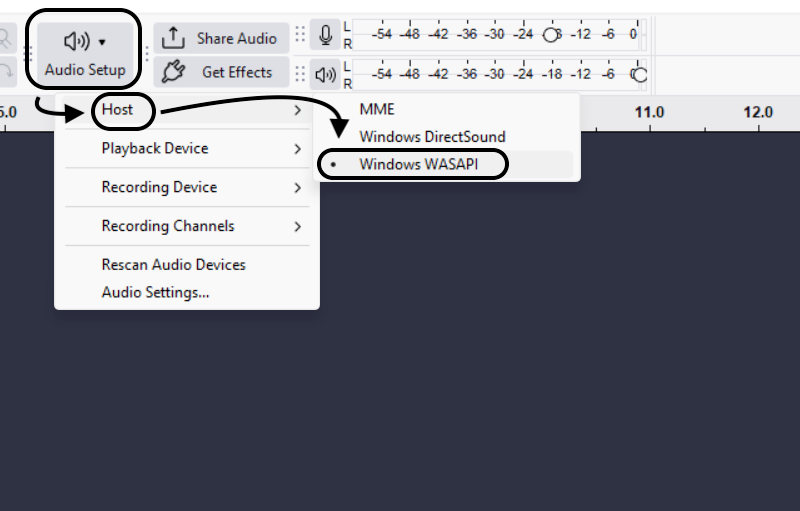
- Mac: Select Core Audio.
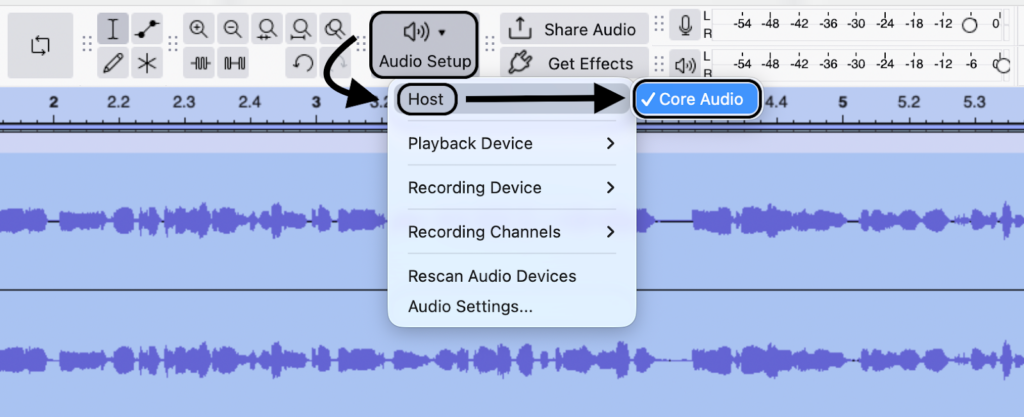
- Choose Your Recording Device:
- Go to Audio Setup > Recording Device.
- Select your specific hardware from the list (e.g., “Focusrite USB Audio” or “LARK MAX Receiver”).
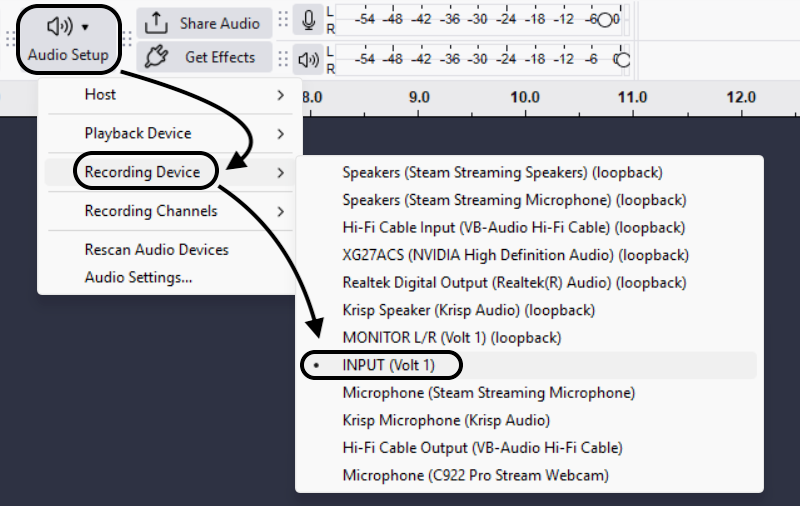
- Set Recording Channels to “Mono” (Important):
- Go to Audio Setup > Audio Settings > Recording > Channels and select 1 (Mono) Recording Channel.

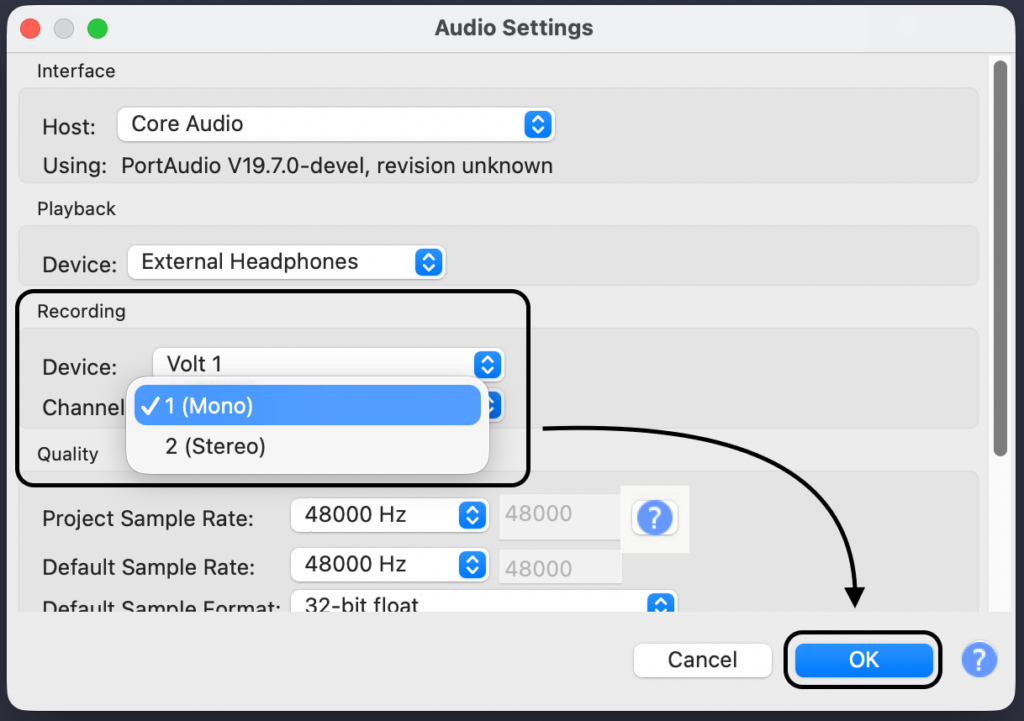
- Why Mono? Your electric guitar is a mono instrument. If you choose “Stereo,” Audacity will record your guitar on the Left side and pure silence on the Right side. Always record guitar in mono; you can make it stereo later using effects.
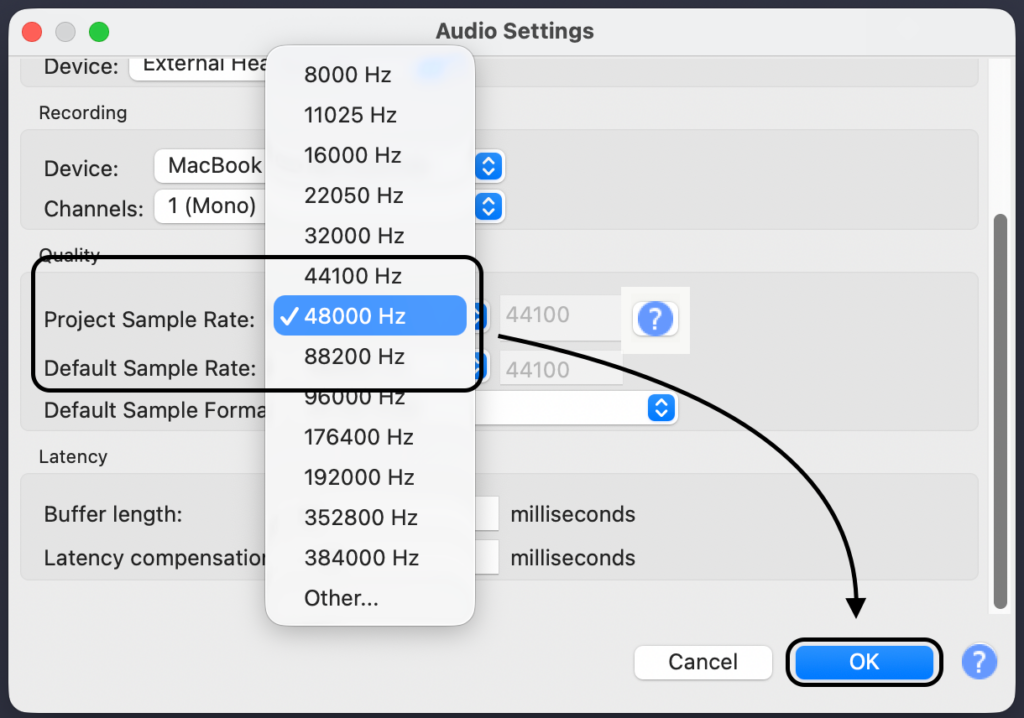
- Set the Project Rate:
- Look at the bottom-left corner of the Audacity window for Project Rate (Hz).
- Set this to 44100 Hz (CD quality) or 48000 Hz (Video standard). Ensure this matches the sample rate setting on your interface or the LARK MAX 2 to prevent synchronization errors.
Recording and Monitoring
Once your input levels are set, you might be tempted to hit the record button immediately. However, most beginners run into a major issue right away: Latency.
Latency is the distracting delay between plucking a string and hearing the sound come out of your speakers. If you hear the note a split-second after you play it, it becomes impossible to stay in time with the beat. Here is how to fix it.
1. Fix the Delay (Turn Off Software Playthrough)
Audacity has a feature called “Software Playthrough” that sends your input signal through the computer and back out to your speakers. Because the computer takes time to process the audio, this creates a delay.
You must turn this off to record properly.
- Go to the top menu bar.
- Navigate to Transport > Transport Options.
- Uncheck “Hear other tracks during recording”.

2. How to Hear Yourself (Direct Monitoring)
Since you turned off Software Playthrough, you won’t hear your guitar through the computer speakers while recording. You need to use Direct Monitoring instead. This allows you to hear the guitar signal before it enters the computer, resulting in zero latency.
- If using an Audio Interface: Plug your headphones directly into the interface. Look for a switch or knob labeled “Direct Monitor” or “Mix” and turn it on.
- If using the Hollyland LARK MAX 2: Connect headphones or OWS earphones directly to the receiver. This allows you to monitor your playing in real-time without being tethered to your desk.
3. Recording Your First Take
- Arm the Track: Ensure your recording device is selected in Audio Setup.
- Hit Record: Press the Red Circle button or hit “R” on your keyboard.
- Play: Perform your riff. Watch the waveform appear on the screen.
- Stop: Press the Yellow Square button or hit Spacebar.

Post-Processing: Making It Sound Good
If you just listened to your playback, you might be thinking, “Why does my electric guitar sound like a weak acoustic?”
This is completely normal. If you recorded via Direct Injection (DI), you captured the clean signal from the pickups. It lacks the color, distortion, and “punch” of an amplifier. To turn that thin signal into a professional tone, you need to apply post-processing.
1. Normalize Your Audio
Before adding effects, ensure your recording is at a healthy volume level. Normalization increases the gain of your track so the loudest peak reaches a specific target.
- Click Select on the Track Control Panel to highlight the audio.
- Go to Effect > Volume and Compression > Normalize.

- Set “Normalize peak amplitude to” to -1.0 dB.
- Click Apply.

2. Using Amp Simulators (VST Plugins)
This is the most critical step for electric guitar. Since you didn’t record through a physical amp, you need to use a software version—known as an Amp Simulator.
- Get a Plugin: Download a free amp sim like Amplitube 5 CS, Guitar Rig 7 Player, or Neural DSP (trials).
- Enable in Audacity: Go to Tools > Plugin Manager, find your installed plugin, and click Enable.

- Apply the Effect: Select your track, go to the Effect menu, find your plugin, and dial in your tone.

3. Noise Reduction
Electric guitars—especially those with single-coil pickups—are notorious for background hum.
- Get the Noise Profile: Highlight a small section of the track where you are not playing (just the background hum).

- Go to Effect > Noise Removal and Repair > Noise Reduction and click “Get Noise Profile”.


- Apply the Reduction: Highlight the entire track. Go back to Effect > Noise Reduction.
- Adjust the settings (Start with defaults: 12 dB, Sensitivity: 6, Smoothing: 3) and click OK.

Troubleshooting Common Issues
Nothing kills a creative vibe faster than technical gremlins. If you hit record and something feels “off,” don’t panic.
| Issue | Probable Cause | The Fix |
|---|---|---|
| No Sound | Wrong Input Device | Go to Audio Setup -> Recording Device and ensure your Interface or USB Mic is selected, not the computer’s built-in mic. |
| Delay (Latency) | Software Playthrough is ON | Go to Transport -> Transport Options and uncheck Software Playthrough. Use your interface’s “Direct Monitor” feature instead. |
| Distortion/Clipping | Input Gain too high | Lower the gain knob on your interface until the meter stays green. Or, use the Hollyland LARK MAX 2 with 32-bit float to recover distorted audio later. |
| Sound only on Left side | Stereo track selected | Guitars are mono sources. Delete the track and add a new Mono Track. |
| Crackling/Pops | Buffer Size too low | Go to Audio Setup -> Audio Settings and slightly increase the Buffer Size. |
Frequently Asked Questions (FAQ)
Can I plug my guitar directly into the microphone jack on my laptop?
Technically yes, but you shouldn’t. Computer microphone jacks are designed for cheap headsets, not musical instruments. This creates an impedance mismatch, making your guitar sound muddy and quiet with a lot of background hiss. You also won’t be able to play in time due to latency. Always use an Audio Interface or a USB Guitar Cable.
How do I record guitar and a backing track at the same time?
To play along with a song, use Audacity’s Overdub feature:
- Import your backing track: Drag your MP3/WAV file into Audacity.
- Enable Overdub: Go to Transport > Transport Options and ensure “Enable audible input monitoring” is on so you can hear the track.

- Record: Press Shift + R. Audacity will create a new track for your guitar while playing the backing track through your headphones.
Why does my electric guitar sound like a clean acoustic guitar?
If you recorded via Direct Injection (DI), you captured the raw signal from the pickups, bypassing the amplifier. To fix this, you either need to apply an Amp Simulator VST plugin inside Audacity or record your physical amplifier using a microphone like the Hollyland LARK MAX 2.
Conclusion
Recording electric guitar in Audacity is one of the most accessible ways to start your music production journey. You don’t need an expensive studio to capture professional riffs; you just need the right workflow.
Remember the two main paths:
- Direct Injection (DI): Best for maximum flexibility. It gives you a clean slate to add effects later.
- Amp Miking: Best for capturing the “air” and authentic character of your physical gear.
If you prefer the authentic route of miking your amplifier but want to avoid the hassle of cable management, the Hollyland LARK MAX 2 is the modern solution. With its 32-bit float recording, you can crank your amp volume without fear of clipping, ensuring your tone remains pristine.
The most important step is simply hitting that red “Record” button. Plug in, check your levels, and lay down your first track today.