.png)
 简体中文
简体中文 
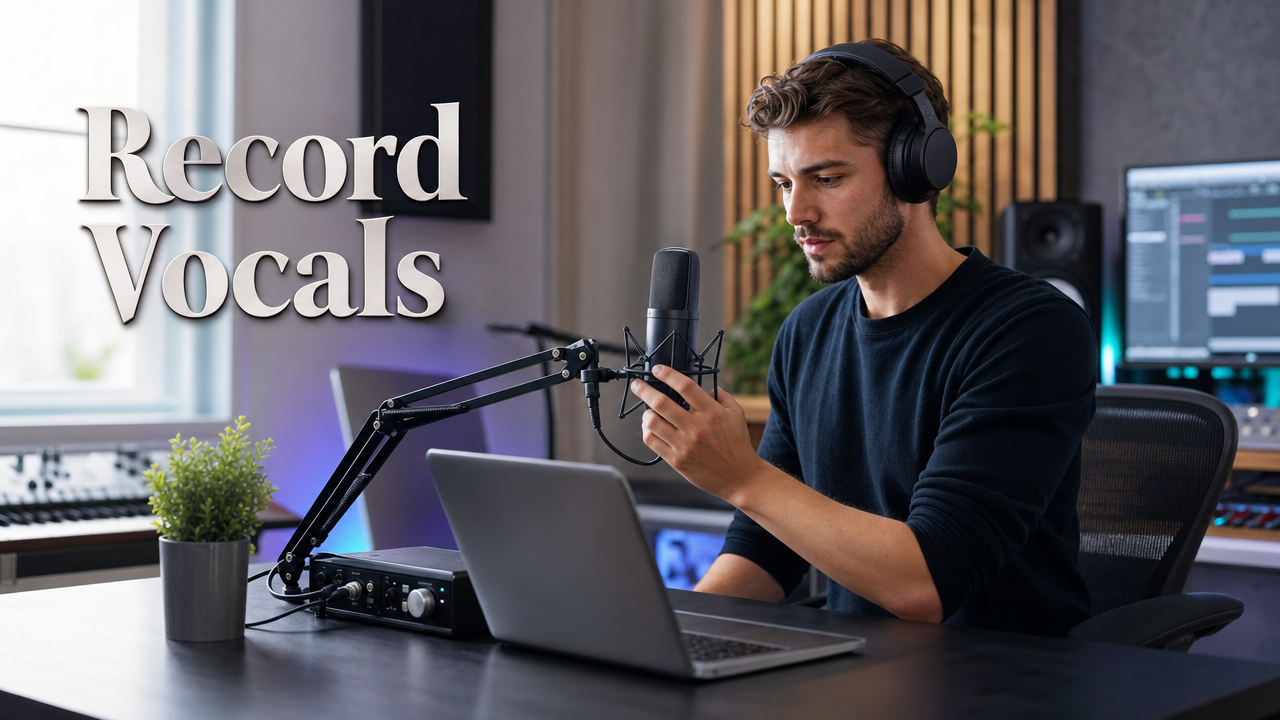
Recording vocals at home once meant booking time at costly studios. It also meant putting together lots of complicated equipment. These days, recording at home feels much more manageable. You can get strong results without having a perfect studio. A decent setup and some room adjustments can go far. Even small changes can help when treating your room. The main thing is knowing what to do first. This guide takes you through the process from start to finish. Follow each step, and you can record vocals confidently.

What You Need to Record Vocals at Home
The traditional vocal recording chain is built from four components working in sequence:

- Large-diaphragm condenser microphone (LDC): Captures the full frequency range and dynamic nuance that makes vocals sound polished. A cardioid polar pattern is standard for solo vocal recording because it rejects sound from behind the capsule.
- Audio interface: Converts the analog mic signal to digital audio your computer can process. It provides 48V phantom power for condenser mics and a gain control for setting input level.
- DAW (Digital Audio Workstation): The software where you route inputs, record tracks, and later edit takes. Common options include Logic Pro, GarageBand, Audacity, Reaper, and Pro Tools.
- Closed-back headphones: For monitoring your voice during recording without sound bleeding back into the open microphone. Closed-back is critical; open-back headphones leak too much audio.
Each component needs to be compatible with the next link in the chain. Mismatched gain staging, incompatible connectors, and incorrect DAW routing account for most beginner frustrations before a single note is recorded.
The All-in-One Route: Hollyland MELO P1

Hollyland MELO P1 - All-in-One Wireless Audio Studio
A revolutionary all-in-one wireless studio system combining handheld vocal capture, smart DSP mixing, and zero-latency monitoring in a single portable case.
Key Features: All-in-One Wireless Studio | 32-Bit Float Recording | 40 Hours Total Battery
The Hollyland MELO P1 puts the whole recording setup into one portable kit. It comes with three main components included in the box:
- 1-inch large-diaphragm condenser microphone: The same capsule size used in professional studio condensers. Rated at 132 dB Max SPL, it handles both delicate, breathy passages and powerful belting without capsule distortion.
- 55g dual-DSP smart audio mixer: A compact mixer unit managing gain control, AI noise cancellation, EQ processing via the HollyAudio App, and a USB-C audio output to your laptop or smartphone. At 55 grams, it sits on a desk or clips to a stand without adding bulk.
- TWS Wireless Monitoring Earphones: Bundled in-ear monitors that connect directly to the HollyAudio app for zero-latency direct monitoring, no separate headphone purchase required.
The USB-C output on the mixer is your DAW connection point, replacing a traditional audio interface entirely. A 3.5mm instrument input on the mixer accepts a guitar or keyboard signal, which is useful for singer-songwriters who track vocals and instruments in the same session.

How to Set Up Your Recording Space
Your recording environment shapes the sound before the mic captures a single note. These six practical steps target the most common problems quickly:

- Record in a small, furnished room or a closet. Smaller spaces with irregular surfaces produce fewer standing waves and flutter echoes than large, parallel-walled rooms.
- Hang heavy moving blankets behind and around the mic position. Thick fabric absorbs high-frequency reflections without permanent installation.
- Position bookshelves filled with books near your recording spot. Irregular surfaces scatter sound and reduce comb filtering.
- Mount a reflection filter behind the capsule on your mic stand. A portable acoustic shield catches reflections that would otherwise bounce back off the wall directly behind the mic.
- Record over carpet or a rug. Hard floors introduce low-frequency slap-back that compounds room echo problems.
- Turn off all HVAC units, fans, and appliances with motors before pressing record. Consistent low-level hum is harder to remove in post-production than any other noise source.
Note: Even in an untreated space, the MELO P1’s onboard AI noise cancellation DSP provides a first line of defense against ambient noise at the source level. It is a supplement to physical room treatment, not a replacement for it, but it meaningfully lowers the minimum room quality needed to produce a usable take.
Setting Up Your Microphone and Signal Chain
Complete these hardware steps before opening your DAW.
- Mount the microphone on a stand. Thread the MELO P1 condenser mic into a standard mic clip or suspension shock mount and position the stand at mouth height. You will fine-tune exact placement in a later section.
- Attach the pop filter. Position it 1 to 2 inches in front of the capsule. The pop filter intercepts plosive air bursts from “p,” “b,” and “t” consonants before they reach the diaphragm.
- Pair the MELO P1 Microphone and Mixer: If the units are already powered on, you will need to turn them off first. To do that, press and hold the power button on the mic and smart audio mixer for 3 seconds.

Once both units are powered off, press and hold the same power button for 6 seconds in order to power them on and make them enter the pairing process. When the indicators on both units start flashing, you can release the buttons. Remember, the process takes approximately 6 seconds; therefore, do not stop pressing the button. Or else, both units will not be paired.

- Connect the USB-C output to your computer or smartphone. Plug the USB-C cable from the mixer into your device. The operating system should recognize the MELO P1 as an audio input device within a few seconds. On macOS, verify in Audio MIDI Setup. On Windows, check Sound settings under Recording Devices. On iOS, audio routing apps will list the MELO P1 in their input selector.

- Set the Microphone Input Volume level: Download the HollyAudio app and connect the MELO P1 mic to it.

Upon successful connection, you will see various settings and sections, including the Volume section. Go to the Mic option and set the input level while you speak or sing. Notice the volume color levels near the Mic adjustment bar. If the level rises to yellow or green during your speech, it means the input volume can still be increased without clipping, or it is within the right range. If the level rises to red, it indicates audio clipping.

- Note the 3.5mm instrument input for future use. This port accepts guitar or keyboard signals for singer-songwriter sessions or layered tracking.

Configuring Your DAW for Vocal Recording
With hardware connected, complete these steps inside your DAW before recording.
- Select the MELO P1 as your audio input device. Navigate to your DAW’s audio preferences or I/O settings and choose the MELO P1 from the input device list. If it does not appear, confirm the USB-C cable is fully seated and relaunch the DAW.
- Create a mono audio track. Vocals are a single-source signal and should always be recorded as mono. A stereo vocal track wastes disk space and creates gain inconsistencies during mixing.
- Set the session sample rate to 48 kHz. The MELO P1 outputs audio natively at 48 kHz. Matching your DAW session to this rate prevents sample rate conversion, which causes the DAW to resample the incoming audio and can introduce subtle artifacts.
- Enable 32-bit float recording via the HollyAudio App if your DAW supports it. The MELO P1 supports 32-bit Float / 48 kHz output. Enabling 32-bit float in your DAW preserves far more dynamic range than the 24-bit standard, which means minor gain staging errors during capture are recoverable rather than permanent.

- Lower the buffer size to reduce monitoring latency. In your DAW’s audio settings, set the I/O buffer to 128 samples or 64 samples. Lower buffer sizes reduce latency during monitoring but increase CPU load. Only reduce further if your computer handles it without audio dropouts.
- Open the HollyAudio App and select a vocal EQ preset before recording. The HollyAudio App connects to the MELO P1 and applies tonal shaping at the hardware level before the signal reaches your DAW. Select the vocal EQ preset that matches the voice type and style in this session. Because preset changes affect the signal entering the DAW, set this now rather than after you have already recorded.

Five configuration errors to avoid:
- Selecting the built-in laptop microphone instead of the MELO P1 as the audio input
- Creating a stereo track instead of mono
- Leaving the session sample rate mismatched from the hardware output rate
- Monitoring through the DAW software and wondering why there is a delay
- Forgetting to arm the vocal track before pressing record
Microphone Placement and Vocal Technique
Distance, angle, and posture interact with the physics of your microphone before any software is involved. Correct placement now prevents time-consuming repairs later.

Distance: 6 to 12 Inches
A starting distance of 6 to 12 inches from the MELO P1 capsule gives you enough proximity effect to add warmth without the signal becoming muddy, and enough clearance to avoid plosive overload. Use the pop filter as a practical distance guide: if the filter sits correctly at 1 to 2 inches from the capsule, the vocalist’s lips naturally sit 6 to 8 inches behind it.
Proximity Effect on a Large-Diaphragm Condenser
The MELO P1 uses a 1-inch large-diaphragm condenser capsule. LDC mics exhibit a pronounced proximity effect: as the vocalist moves closer, low-frequency response increases, adding warmth and body to the sound. At 4 to 6 inches, this effect is intentional and strong, useful for R&B, soul, and any style that benefits from a fuller, more intimate tone. At 10 to 12 inches, the proximity effect diminishes, producing a leaner, more neutral recording that captures more of the room character. At 132 dB Max SPL, the MELO P1’s capsule handles loud vocalists at close range without distorting, which is a common failure point on lower-rated condensers.
Cardioid Polar Pattern Behavior
The MELO P1 microphone uses a cardioid polar pattern. Maximum sensitivity is directly on-axis at 0 degrees, and sensitivity decreases gradually toward the sides. The null point (maximum rejection) is at 180 degrees, directly behind the capsule. Position the vocalist facing the front of the mic and place any sound sources you want to reject behind it. A slight off-axis angle of 10 to 15 degrees reduces plosive impact on the capsule without significantly affecting frequency response.
Note: The MELO P1’s AI noise cancellation builds a noise model based on a consistent incoming signal. Drifting significantly closer to or farther from the mic during a take changes that reference point. Establish a consistent distance at the start of the session and maintain it across takes.
Posture and Breath Management
Standing opens the diaphragm fully and produces more controlled airflow than sitting. Keep the chin parallel to the floor; tilting it down compresses the throat, and tilting it up produces a thinner tone. Take slow, controlled breaths between phrases to avoid breath blasts catching the mic between lyric lines.
How to Monitor Your Voice While Recording (Zero-Latency Setup)
Monitoring quality directly affects vocal performance. Delay or a poorly balanced monitor mix will negatively affect pitch, timing, and confidence.
Hardware Direct Monitoring vs. Software Monitoring
Software monitoring routes the microphone signal through the DAW and back out to headphones. The round-trip adds latency, typically 10 to 50 milliseconds depending on buffer size. Even 20 ms of delay is enough to noticeably disrupt timing and pitch matching. Hardware direct monitoring routes the signal from the mic directly to the headphone output inside the mixer, bypassing the computer entirely. Latency is effectively zero. This is the correct approach for vocal recording.
Setting Up Direct Monitoring on the MELO P1
- Start by putting both wireless earphones back into their charging case. Ensure each earphone is placed in its correct slot.

- Next, press the function button 3 times consecutively, which is beside the earphone slots. The indicator light beside it then turns white. This white light confirms pairing readiness with the Smart Audio Mixer.

- Open the HollyAudio app and use the Monitoring volume adjustment slider under the Volume > Output section to control the volume of the speaker during real-time monitoring.

- Disable software monitoring in the DAW. Confirm that input or live monitoring is turned off on the vocal track inside your DAW. Leaving it active alongside hardware monitoring creates a double-signal echo in the headphones.
Note: The earphones connect through 2.4GHz wireless monitoring mode. This connection provides real-time monitoring of the audio. When the indicator becomes blue, Bluetooth mode is active. They can then connect to your smartphone as normal Bluetooth earphones.
Running Your Vocal Recording Session
With setup complete, use this session structure for consistent, recoverable results.

- Record a full reference take first. Run through the entire song or section once from start to finish without stopping. This warms up the vocalist’s voice and frequently yields usable phrases you would miss by waiting for the “real” attempt.
- Record with a guide track or click. Always run a backing arrangement or click track in the monitoring mix. This keeps timing consistent across multiple takes and makes comping much easier during cleanup.
- Create a new take lane for each pass. Most DAWs support take lanes or playlists. Record multiple passes in sequence without deleting any take. You will select the best phrases afterward in the comping process.
- Use the MELO P1 mute button between takes. The power / pairing button at the bottom of the MELO P1 handheld wireless mic also acts as a mute function. Press it twice to mute or unmute the microphone. Once the microphone is muted, a red indicator will appear.

This keeps the DAW rolling and maintains continuous take lanes while preventing room noise, coughs, and conversation from printing during transitions.
- Punch in on weak sections after full run-throughs. After capturing several complete passes, identify the weakest phrases and punch in on those specific bars rather than re-recording the entire song. This preserves vocal energy and reduces fatigue.
- Monitor your DAW input meter after each take. Glance at the track meter to confirm no portion peaked into clipping. If it did, reduce the Mic input volume on the MELO P1 via the HollyAudio app before the next take.
- Make a deliberate decision on AI noise cancellation. Enable the AI noise cancellation toggle (in the HollyAudio App) for sessions in environments with consistent background noise such as HVAC, traffic, or ambient hum. Disable it in acoustically treated or very quiet spaces where DSP processing may alter the natural timbre of the voice.
Basic Vocal Cleanup After Recording
First-pass cleanup prepares the raw recording for mixing without crossing into the mixing stage itself.
- Comp your takes. Listen through all take lanes and mark the best phrase or line from each pass. Use your DAW’s comp tool to assemble the selected segments into one continuous performance track.
- Remove pre-count-in audio and inter-take room tone. Delete anything recorded before the usable performance begins, including count-ins, verbal adjustments, and transitions captured between takes.
- Trim distracting breath sounds. Reduce the volume of loud or disruptive breaths between phrases using clip gain or short fades rather than deleting them outright. Complete silence between phrases sounds less natural than a quietly present breath.
- Apply a light noise gate if the noise floor is audible. A gate set to open only when the vocal signal is present silences the mic during gaps without affecting sung passages.
- Apply basic gain automation for consistency. Even out significant volume differences between sections using track automation or clip gain before the file is handed off for mixing.
Common Vocal Recording Mistakes (and How to Fix Them)
| Problem | Likely Cause | Fix |
|---|---|---|
| Recording clips and distorts | Input gain set too high | Reduce the volume level b on the MELO P1; confirm in the DAW track meter. See the Signal Chain Setup section. |
| Excessive room echo in the recording | Untreated parallel walls reflecting sound back into the cardioid pattern | Add soft materials behind and beside the vocalist; mount a reflection filter; enable the MELO P1 AI noise cancellation as a supplementary measure. |
| Vocals sound distant or thin | Vocalist positioned too far from the mic | Move the vocalist into the 6 to 8 inch range; use proximity effect on the LDC capsule to restore warmth. |
| Monitoring latency disrupts pitch and timing | Software monitoring enabled in the DAW instead of hardware direct monitoring | Enable direct monitoring on the MELO P1 and disable input monitoring on the DAW track. See the Monitoring Setup section. |
| Recording in stereo instead of mono | Track type selected incorrectly at session creation | Delete the stereo track and create a new mono audio track; re-route the MELO P1 input. |
| Inconsistent tone between takes | Mic distance or angle shifting between passes | Mark the microphone position with floor tape; use the pop filter as a consistent distance reference across every take. |
FAQs
What type of microphone is best for recording vocals at home?
A large-diaphragm condenser microphone is the standard choice for home vocal recording. LDCs capture the full frequency range and transient detail of the human voice more accurately than dynamic microphones, which are designed for high-SPL live-stage environments. The Hollyland MELO P1 uses a 1-inch large-diaphragm condenser capsule, the same form factor found in professional studio condensers.
Do I need a separate audio interface to record vocals?
Not necessarily. If your microphone or recording kit connects via USB-C directly to your computer or smartphone, a standalone audio interface is not required. The Hollyland MELO P1 handles audio routing through its onboard Smart Audio Mixer via USB-C, replacing a traditional interface. You only need a separate interface when using an XLR-only condenser microphone that lacks a built-in preamp or digital output.
What sample rate should I use for vocal recording?
48 kHz is the recommended standard for new sessions. 44.1 kHz is also widely accepted, particularly for projects distributed as audio-only files. The practical difference for home vocal recording is minimal, but 48 kHz avoids resampling overhead when working with hardware like the Hollyland MELO P1, which outputs natively at 48 kHz.
What is 32-bit float recording and does it matter for vocals?
32-bit float recording captures a vastly larger dynamic range than 24-bit, which means gain staging errors during recording are recoverable in post-production rather than permanent. For vocals, where dynamics can shift significantly between a quiet verse and a powerful chorus, this headroom is genuinely useful. The Hollyland MELO P1 supports 32-bit Float recording through its USB-C output.
How do I reduce room echo when recording vocals at home?
Two approaches work best together: physical room treatment such as hanging blankets, using a reflection filter, and recording in a smaller furnished room to absorb early reflections, combined with source-level noise cancellation from the MELO P1’s onboard AI DSP. Neither approach alone eliminates all problems, but used together they cover most home recording environments without costly acoustic renovation.
Can I record vocals with just a phone?
Yes, with compatible hardware. The Hollyland MELO P1 connects to smartphones via USB-C and pairs with the HollyAudio App on both iOS and Android. This puts the full vocal signal chain, including LDC microphone, Smart Audio Mixer, EQ presets, direct monitoring, and 32-bit Float recording, entirely within a phone-based setup, no laptop or desktop required.
Conclusion
Recording clean vocals at home comes down to five sequential stages: assemble compatible gear, optimize your recording space, configure the hardware signal chain, set your DAW correctly, and run a structured session with real-time zero-latency monitoring. Following those stages in order eliminates most of the problems that produce thin, echoey, or clipped recordings before you ever touch an edit.