.png)
 简体中文
简体中文 
Recording a lesson with a Pivo Pod means no camera operator is needed. Still, proper setup takes more than pressing record. Choosing the wrong tracking mode can ruin useful footage. Placing the device too close can cause similar problems. The built-in microphone may also affect recording quality. This guide covers setup, recording, and final video export. Coaches, instructors, and athletes can capture clear lesson footage. These steps help produce reliable recordings from the beginning.

What You Need Before Recording a Pivo Lesson
Confirm you have everything ready before starting:

- Pivo Pod (Red, Silver, or compatible model), charged and powered on
- Compatible smartphone with sufficient battery and at least 2GB of free storage for an hour of 1080p footage
- Pivo app installed (available on iOS and Android; search “Pivo” in the App Store or Google Play)
- Tripod or stable flat surface at adjustable height
- Good lighting: Natural light or a ring light reduces motion blur during tracking
- Open floor space: Most lesson setups require at least 10–15 feet between Pivo and the subject
How to Set Up Your Pivo Pod for a Lesson
Physical placement has more impact on tracking reliability than any in-app setting. Get this right before touching the app.

- Mount your smartphone in the Pivo clamp. Squeeze the clamp arms open, slide your phone in horizontally (landscape), and release. Confirm the clamp does not cover the camera lens or block the charging port.

- Attach Pivo to your tripod. The base of the Pivo Pod has a standard 1/4-inch tripod thread. Secure it to your tripod head. Avoid placing the unit directly on the floor, as tracking accuracy drops significantly below knee height.

- Set the height. For full-body recordings (fitness, dance, martial arts), position Pivo at approximately chest to shoulder height. For upper-body or seated coaching, eye level works better.
- Set the distance. Start at 8–12 feet from the subject. Too close and the tracking system struggles to frame full-body movement; too far and small technique details become hard to review on playback.
- Level the base. Make sure Pivo sits on a level surface so it rotates in a true horizontal plane. A tilted base causes the camera to drift up or down during tracking rotation.
Pairing Pivo with Your Phone via Bluetooth
- Open the Pivo app (Pivo+) and approve all requested permissions, including camera access and Bluetooth.
- Enable Bluetooth on your phone. Go to Settings > Bluetooth and confirm it is toggled on before returning to the app.
- Power on your Pivo Pod. Press and hold the power button on the unit. The unit will beep once it turns on.
- Connect within the app. Tap the Create button / + sign on the app’s interface.. The app will scan for available devices and display your Pod. Tap it to connect. The LED indicator shifts from flashing to solid once pairing is successful.
- Confirm the live camera feed appears in the app. A live preview confirms pairing is complete.
If the app does not detect the Pivo Pod, verify Bluetooth is active, close and reopen the app, and check that you are running the latest version. Older app versions have known Bluetooth pairing bugs that have since been patched.
Choosing the Right Pivo Tracking Mode and Speed for Your Lesson
For better lesson recordings, select the right tracking target first. Then match it with the proper tracking speed.
1. Choose Your Tracking Target in Auto Tracking Mode
Face Tracking: This suits seated lessons and presentations. It also works for lessons where you face the camera.
- Body Tracking: This suits dance, yoga, and full-body fitness lessons. It follows movements across the recording area.
- Horse / Pet / Tennis Tracking: These AI profiles recognize specific subjects and movements. They are designed for horses, pets, and tennis activities.
- Action Tracking: This suits unpredictable or object-based movements. Draw a box on the screen to select your target manually.
2. Choose Your Tracking Speed
The Pivo Pod offers six tracking speed levels. These settings control how quickly the mount rotates.

- Slower / Slow: This suits yoga, seated coaching, and gentle stretching. It reduces sudden or jerky movements during slower activities.
- Normal: This suits moderate fitness, aerobics, and general dance. It provides smooth tracking for steady movements without sudden turns.
- Fast / Frenzy / Turbo: These settings suit fast sports and martial arts. They also work for agility training and quick direction changes. The mount responds quickly to rapid movements and sprints.
Note: If you are not sure about which speed to select, start with Normal speed first. If you move outside the frame before Pivo follows, raise the speed. Try Fast or Frenzy for quicker movement.
How to Start and Manage Recording a Pivo Lesson
Step 1: Turn On and Connect Your Pivo Pod
Press and hold the Pivo unit’s power button for three seconds. Wait for the beep and a blinking blue LED light. This shows that the Pod is ready to pair. Open the Pivo Track app on your smartphone. Tap the Capture (+) button and select your Pod. Once connected, the LED turns solid blue. The live camera view then appears on your phone.
Step 2: Select Tracking Mode and Enable Lock-On
Choose your preferred AI tracking profile from the app menu. Options include Body Tracking and Horse Tracking. Stand in front of the camera lens after selecting your mode. Pivo’s AI should detect you and show a tracking box. Enable Lock-On Tracking to prevent unwanted target changes. Tap the Lock icon at the screen’s top. You can also hold the M button on the remote.
Step 3: Walk through your Expected Movement Range
Before the lesson starts. This confirms the subject stays in frame at the widest points of the session. Adjust distance or in-app zoom if the subject exits the frame during this check.
Step 4: Start the Lesson and Begin Recording
For remote coaching through Lessons Mode, check your subscription first. An active Pivo Subscription is needed to record these sessions. Tap the Record button inside the Pivo app. You can also use the remote control shortcut. Avoid using your phone’s regular camera app for recording. It bypasses Pivo’s rotation controls and tracking system. Let the AI tracking settle for a moment first. Then begin faster or more forceful movements.
Step 5: Stop and Save:
Stop recording by tapping the record button again. The file saves automatically to your phone’s camera roll or Pivo app storage depending on your permission settings.

Keeping the Subject in Frame Throughout the Lesson
Even with auto-tracking active, certain conditions push the subject outside the tracking range. These adjustments address the most common mid-lesson failures:
- Keep at least 6 feet of distance between the subject and Pivo. Closer than this, the system cannot handle full-body movement without constant overcorrection.
- Avoid high-contrast backgrounds. Bright windows, large mirrors, or reflective surfaces can cause the tracking system to lock onto a reflection or light source instead of the subject.
- Wear non-reflective, solid-colored clothing. Highly reflective gym gear or complex patterns can cause the tracking algorithm to drift.
- Lower the rotation speed setting if Pivo overshoots or swings past the subject during movement. Rotation speed can be adjusted independently of the tracking mode within the app.
- Keep the Pivo app in the foreground throughout the lesson. Switching to another app can interrupt the Bluetooth connection and pause tracking.
Getting Good Audio When Recording a Pivo Lesson
The Pivo Pod’s tracking mechanic introduces an audio problem that is easy to overlook during setup. Because the phone physically rotates to follow the subject, the built-in microphone constantly shifts its orientation relative to the speaker. As Pivo turns, the mic points away from the instructor, then back, then away again. The result is inconsistent audio throughout the recording, which might be usable in some moments butnearly inaudible in others.

For any lesson where the instructor is speaking throughout, the practical solution is to remove the mic from the rotation equation entirely. A wireless clip-on microphone keeps the transmitter attached to the instructor while the receiver connects to the phone. Pivo can rotate freely without affecting audio quality, because the audio signal path between transmitter and receiver is fully independent of where the phone is pointing.
A compact option well-suited to lesson recording is the Hollyland LARK M2. Its transmitter weighs just 9 grams and clips to the instructor’s clothing without restricting movement. The wireless receiver connects to the phone and delivers clean, consistent audio regardless of how many degrees Pivo has rotated during the session. For coaches and instructors who record regularly, this combination closes the biggest remaining gap in recorded lesson quality.
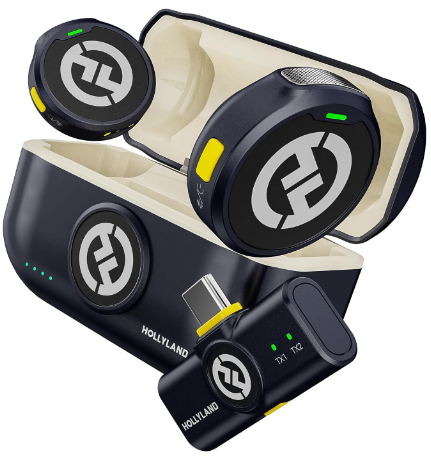
Hollyland LARK M2 - Mini Lavalier Microphone
An incredibly lightweight and compact wireless button microphone that captures high-fidelity audio.
Key Features: 9g Button Size | 48 kHz/24-bit | 40 Hours Battery
Saving, Exporting, and Sharing Your Pivo Lesson Recording
- Locate the recording. Pivo saves recordings to your phone’s camera roll by default. The file appears in your Photos or Gallery app immediately after stopping the recording.
- Verify the resolution setting. Open Pivo app settings before your next session and confirm resolution is set to 1080p. This setting does not always persist after an app update and can silently default to a lower resolution. 1080p delivers the best balance of clarity and file size for lesson review.
- Trim within the Pivo app to remove setup time or post-session footage before sharing. The app includes basic trim functionality (scissors icon) for this purpose.
- Share directly. From the camera roll, use your phone’s native share function to send the file by messaging app, AirDrop, or email.
- Upload to cloud storage for lessons you plan to reference repeatedly or share with multiple students. Google Drive, Dropbox, and iCloud all work well. Expect a one-hour 1080p lesson file to be roughly 3–6GB depending on your phone’s video codec.
Common Problems When Recording a Pivo Lesson and Quick Fixes
- Pivo stops tracking mid-lesson: Tap the subject in the Pivo app preview to re-lock tracking. If this recurs, reduce rotation speed and ensure nothing passes between Pivo and the subject.
- App disconnects during recording: Keep the Pivo app open in the foreground and prevent the phone’s screen from locking. Check that your phone’s Bluetooth settings are not configured to disconnect on inactivity.
- Recording saves at low resolution: Set resolution to 1080p manually in the Pivo app settings before starting. This setting does not always carry over between sessions.
- Pivo overshoots or rotates too aggressively: Switch from Action mode to Speed or Angle mode, and reduce the independent rotation speed slider in the app’s tracking settings.
Frequently Asked Questions
Can I record a Pivo lesson without the Pivo app?
The Pivo app is required for auto-tracking and virtual lessons. Without the app, the Pod receives no AI tracking commands. As a result, it cannot follow your movements automatically. Manual rotation does not depend on the app, though. You can pair the Pivo Remote Control directly with the Pod. This lets you control panning, movement speed, and 360-degree rotation. The app does not need to be installed or connected.
What is the best phone orientation for recording a Pivo lesson: portrait or landscape?
Landscape (horizontal) is recommended for most full-body lesson recordings. It captures a wider vertical range of movement and produces footage that is easier to review on a screen. Portrait works for close-up skill demonstrations or content intended for vertical platforms such as Instagram Reels or TikTok.
How do I record a Pivo lesson with clear audio if I am moving around the room?
A wireless clip-on microphone keeps your voice connected to the phone. The Hollyland LARK M2 offers a practical option for this setup. Its 9g transmitter clips onto the instructor’s clothing easily. It sends audio wirelessly to a receiver attached to the phone. This keeps audio quality steady as Pivo follows the instructor.
Conclusion
The basic process becomes simple after trying it once. Place the Pivo Pod at the right height and distance. Connect it through the Pivo app and select a tracking mode. Choose a mode that matches your lesson’s pace. Lock onto your subject before starting the recording. A wireless clip-on mic keeps audio clear during rotation. Afterward, review your first recording carefully. Then test different tracking modes for your lesson format.