.png)
 简体中文
简体中文 
By default, OBS Studio records everything into one composited video file. That works fine until you need to reframe your face cam, color-grade it independently, or cut it from a specific moment without touching the gameplay footage underneath. This guide shows three easy ways to record webcam and gameplay separately in OBS, with the Hollyland Lyra as your webcam source each time.
Why You Should Record Webcam and Gameplay as Separate Files
When both sources share one export, every change requires another render. Separate files give your editor more control during editing. You can resize or move the face cam without changing gameplay. You can also color each source separately during editing. Plus, awkward moments can lose the webcam footage completely.:
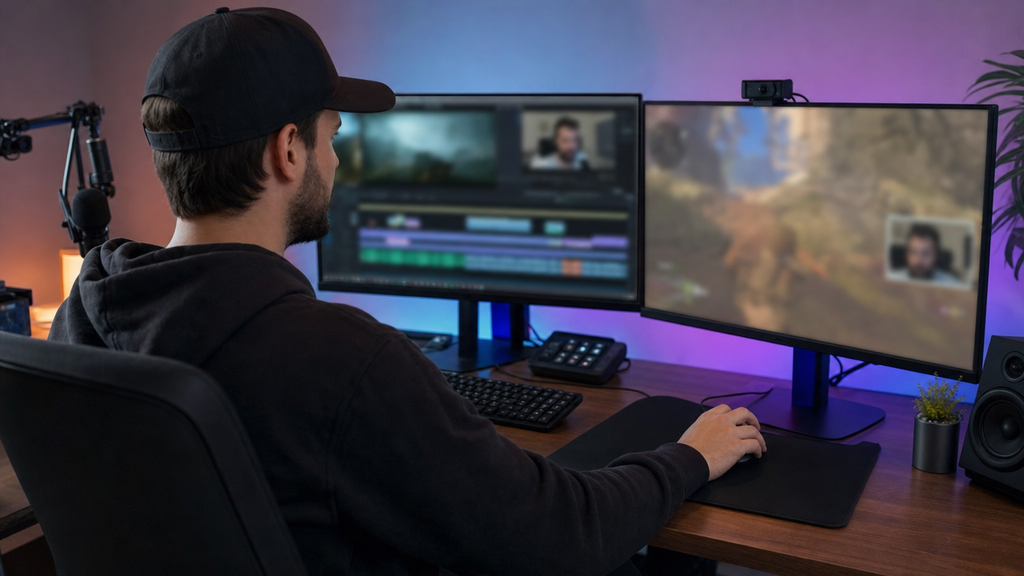
The three immediate benefits are:
- Independent crop and resize of the face cam in the editing timeline
- Per-source color grading so the face cam can match changing room light without affecting the game image
- Non-destructive removal of the webcam overlay from specific scenes
What You Need Before You Start
Confirm each item before opening OBS:
- OBS Studio 29 or later — check via Help > About inside OBS
- Hollyland Lyra connected via USB-C to a USB 3.0 port — no driver installation required on Windows 10/11 or macOS; the device appears automatically
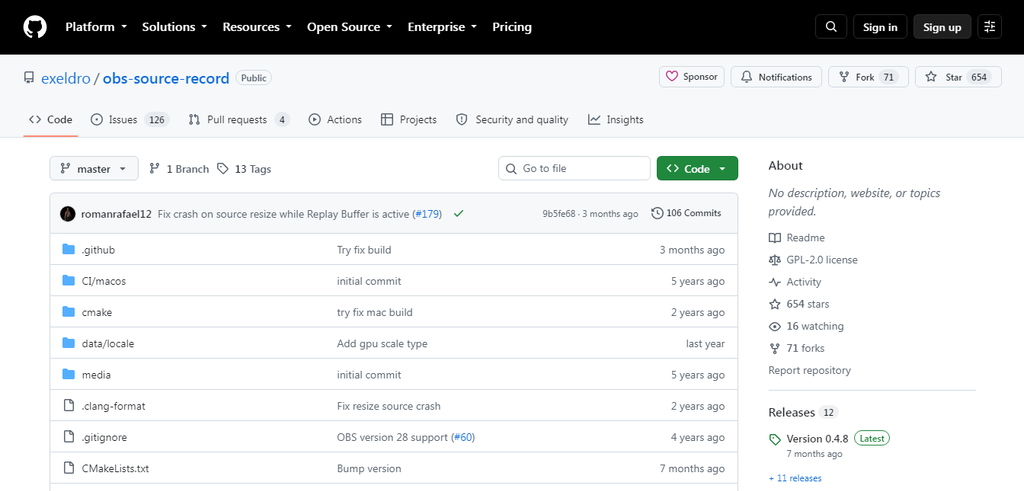
- Source Record plugin (Exeldro) — download from Exeldro’s GitHub releases page; required for Method 1 only
- Sufficient storage — two simultaneous recordings double your file output; a fast external SSD on a USB 3.0 port is a sensible target drive
Lyra connection checklist:
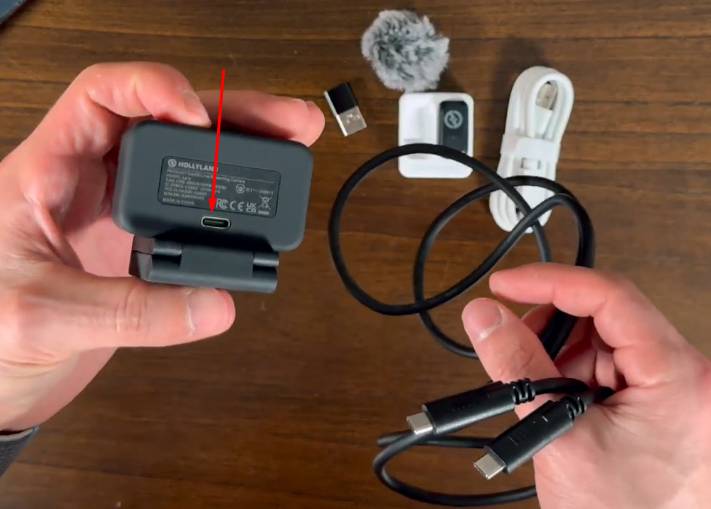
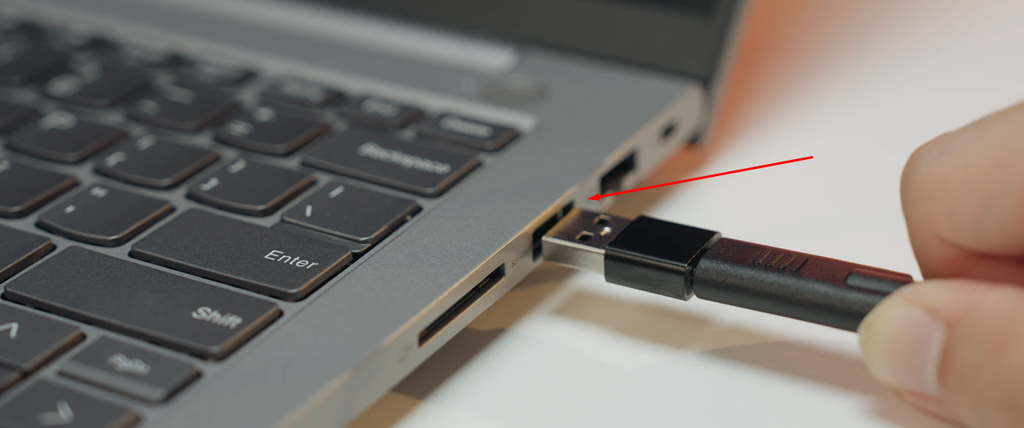
- Insert the USB-C cable from the Lyra into a USB 3.0 port on your PC or Mac
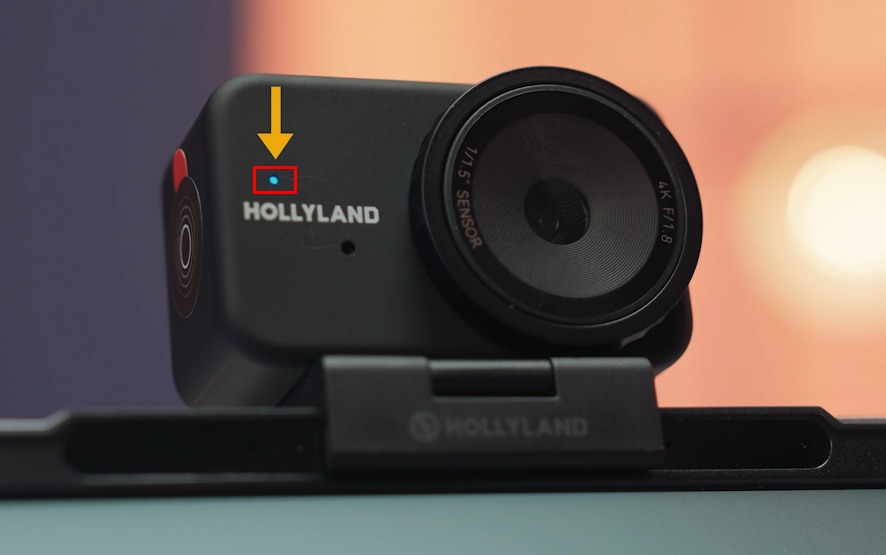
- Confirm the solid blue LED on the Lyra is lit. This indicates the camera is powered and recognized by the host
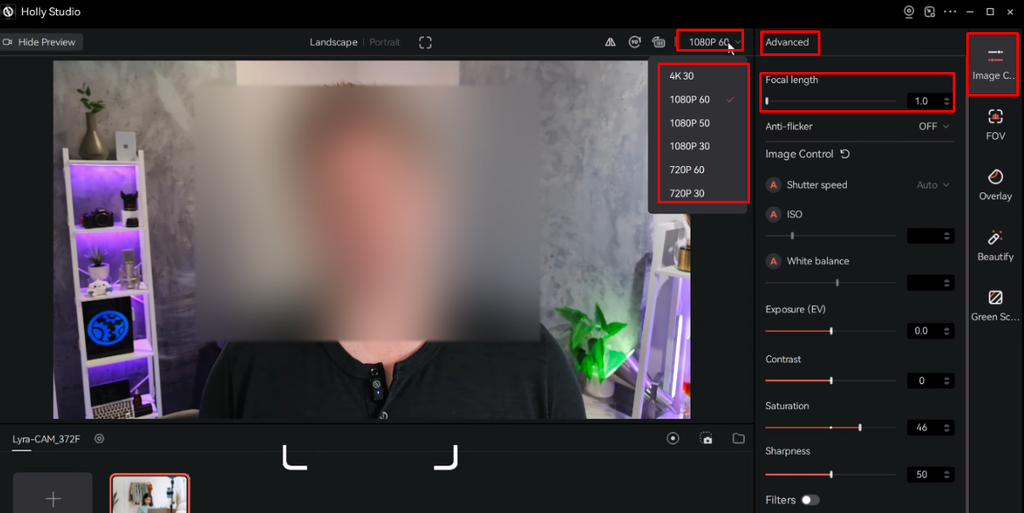
- Optional but recommended: Open HollyStudio before launching OBS, set resolution to 1920×1080 or 3840×2160, and confirm the digital zoom level (1–4x) is where you want it by adjusting the Focal Length slider from the Image Control page. Locking these settings first prevents OBS from receiving an unexpected resolution signal mid-session
Method 1: Use the Source Record Plugin to Output Separate Files (Recommended)
The Source Record plugin by Exeldro attaches a per-source recording filter directly inside OBS. A single instance handles both outputs simultaneously, encoder overhead stays low, and both files start from the same recording trigger, giving you the tightest natural sync of all three methods.
Step 1: Install the Source Record Plugin
- Download the latest release from Exeldro’s GitHub page (search “obs-source-record releases”).
- Windows: Copy the .dll files into your OBS plugins folder, typically C:\Program Files\obs-studio\obs-plugins\64bit\.
- macOS: Follow the .pkg installer if one is provided, or place the plugin files in ~/Library/Application Support/obs-studio/plugins/.
- Restart OBS Studio.
- Confirm the install worked: right-click any source in the Sources panel, select Filters, and look for Source Record in the effect filter list. If it appears, the plugin is active.
Step 2: Add the Hollyland Lyra and Game Capture as Separate Sources
- In the Sources panel, click + and select Video Capture Device.
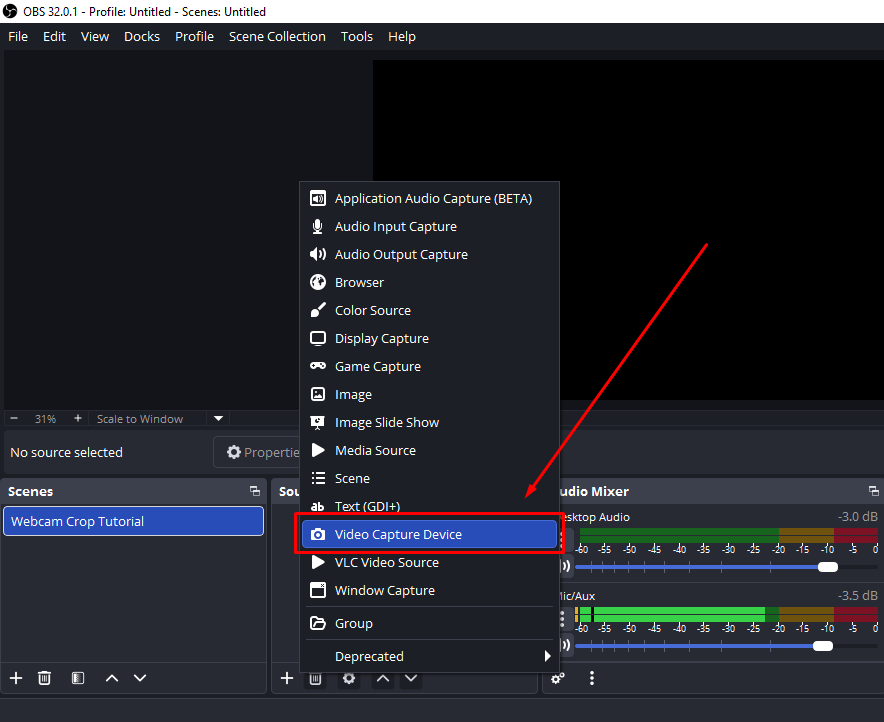
- Name the source “Lyra Webcam” and click OK.
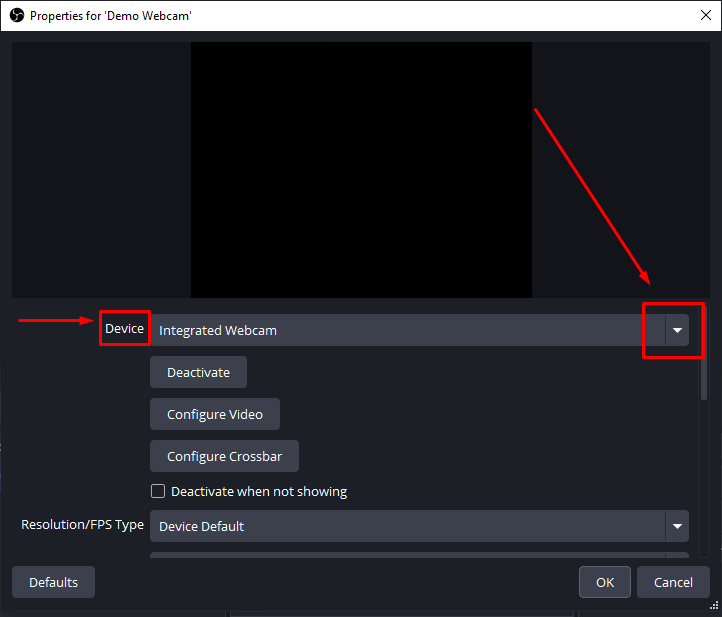
- In the properties window, open the Device dropdown and select “Hollyland Lyra” from the list (it appears automatically after the USB-C connection).
- Set Resolution to Custom and enter 1920×1080.
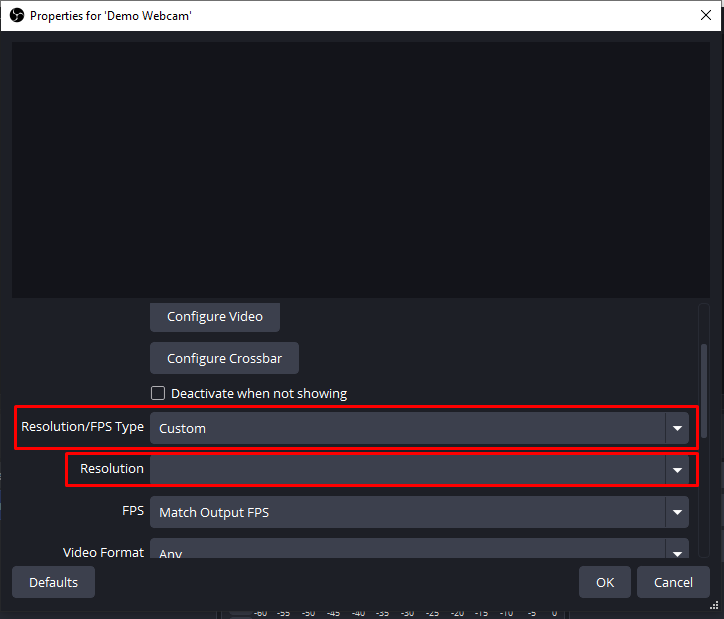
- Set FPS to 60 to match the Lyra’s 1080p60 UVC output.
- Set Video Format to MJPEG. This is recommended for USB bandwidth efficiency given the Lyra’s 50MP sensor pipeline.
- Click OK to confirm.
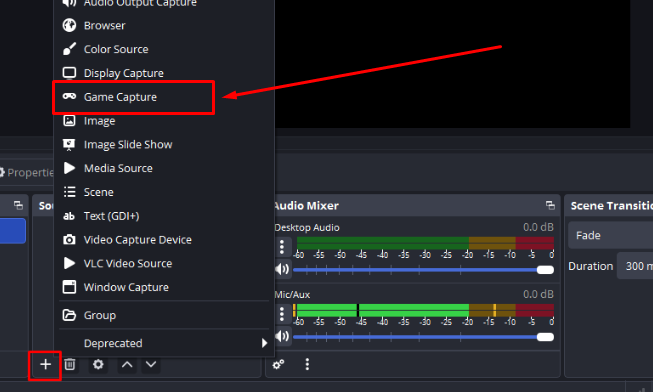
- Add a second source: click + again, select Game Capture, name it “Gameplay”, and configure it for your target game or application window.
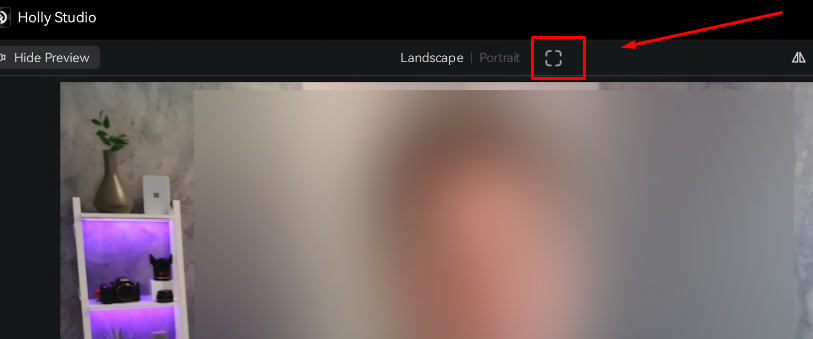
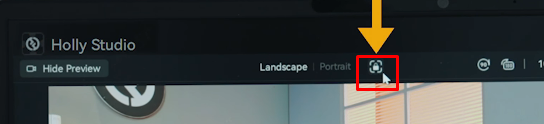
Note: If you have Lyra’s AI Auto Framing enabled in HollyStudio, the crop will animate inside OBS as you move. Decide before recording whether you want dynamic auto-framing or a static frame you can reposition manually in post, then set it consistently in HollyStudio before pressing record. You can enable or disable AI Auto Framing by clicking the frame icon (square with a padlock symbol inside when framing is locked) at the top of the preview screen inside the HollyStudio app.
Step 3: Apply the Source Record Filter to Each Source
- In the Sources panel, right-click “Lyra Webcam” and select Filters.
- Click + under Effect Filters and choose Source Record.
- Set the Output Path to a dedicated folder, for example: D:/Recordings/webcam.mkv.
- Set Format to MKV. MKV writes file headers continuously, so a crash mid-session still produces a usable file.
- Choose your encoder. For most setups, NVENC (NVIDIA) or AMF (AMD) keeps GPU load manageable; use a lower bitrate for the webcam track than for gameplay since the source is smaller.
- Click Close.
- Repeat the same process for the “Gameplay” source, pointing the output path to a separate file: D:/Recordings/gameplay.mkv.
Step 4: Start Recording and Verify Output Files
- Press Start Recording in OBS (or use your assigned hotkey). Both Source Record filters fire at the same moment as the main recording trigger.
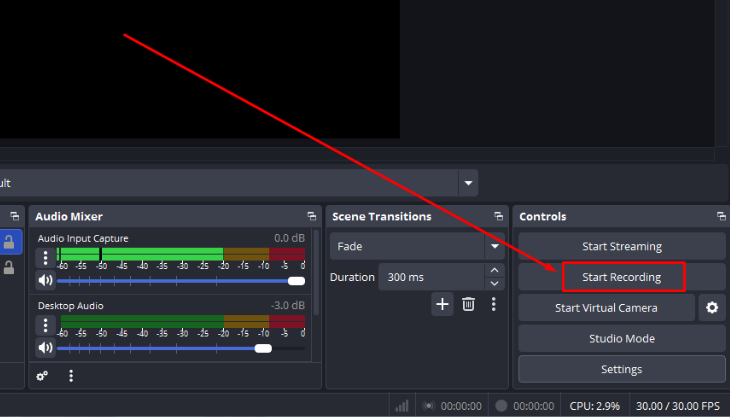
- Record a 30-second test clip, then press Stop Recording.
- Navigate to both output folders and confirm two separate files exist.
- Open each file in your media player and compare the first few seconds — timecodes from a simultaneous trigger should be very close. If you clapped your hands at the start of the test, use the audio spike to confirm alignment.
Method 2: Run Two OBS Instances Simultaneously
Choose this method when plugins cannot be installed on your computer. This can happen on managed or shared computers. The main hurdle with this method is higher CPU and RAM usage. Two OBS instances each run their own encoder. So, CPU and RAM usage can nearly double. Most mid-range gaming PCs can manage this setup. Still, check system performance before going live.
Note: Some steps may require Administrative access.
- Launch the first OBS instance normally for gameplay. In the Sources panel, add a Game Capture source. Under Settings > Output, configure the recording path to D:/Recordings/gameplay.mkv.
- Launch the second OBS instance using the –portable flag so it maintains its own separate profile and settings folder. Right-click your OBS shortcut, select Properties, and append –portable to the target path. Alternatively, open a command prompt and run: “C:\Program Files\obs-studio\bin\64bit\obs64.exe” –portable
- In the second OBS instance (webcam-only), go to the Sources panel, click +, select Video Capture Device, and choose “Hollyland Lyra” from the device list. Set resolution to 1920×1080, FPS to 60, and video format to MJPEG — the same configuration as Method 1, Step 2.
- Under Settings > Output in the second instance, set the recording path to D:/Recordings/webcam.mkv.
- Start recording in both instances as close together as possible. Using a hotkey assigned in both windows reduces the gap.
Note: Watch the Lyra’s LED indicator after both instances are running. A solid blue LED confirms the device is stable. If the LED flickers, both instances may be competing for device access. Assign the Lyra exclusively to Instance B (webcam-only) and use a window/display capture in Instance A for gameplay rather than a shared capture device.
Method 3: Record Webcam with a Standalone App While OBS Captures Gameplay
This is the simplest setup and requires no plugins or dual instances. OBS handles gameplay only; a separate lightweight recording application captures the Lyra at the same time. The main compromise is a slightly larger manual sync effort in post.
Method 3: Record Webcam with a Standalone App While OBS Captures Gameplay
- Set up your OBS scene with a Game Capture source only. Remove the webcam from the OBS scene entirely for this method, or keep it as a scene monitor without recording it via OBS.
- Open your standalone recording application of choice. Windows Camera, OBSBOT Center, or any lightweight screen recorder that lets you select a video input device will work.
- In the standalone app, select “Hollyland Lyra” as the video device.
- Match the recording app’s resolution and frame rate to OBS’s output settings. If OBS is set to 1080p60, configure the standalone app to 1920×1080 @ 60 FPS as well. The Lyra supports 1920×1080 at 60 FPS over USB 3.0, so neither application will throttle the frame rate.
- If you need color correction, skin smoothing, or zoom adjustments, apply them in HollyStudio before pressing record in both applications. Changes made to HollyStudio mid-session will appear as a visible cut in the standalone recording.
- Start the standalone webcam recorder first, then start OBS recording immediately after. Use a sync marker at the start (see the next section).
How to Sync Your Separate Recordings in Post-Production
The Source Record plugin (Method 1) produces the tightest sync because both filters start from the same OBS recording trigger. Methods 2 and 3 introduce a small timing gap that requires manual alignment in your editing timeline. Two reliable techniques cover most situations:
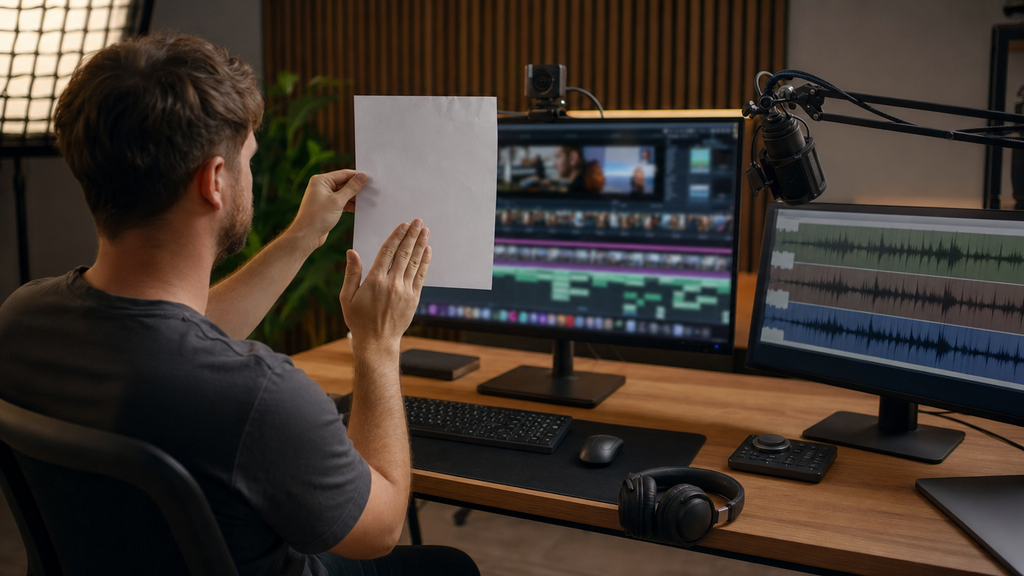
- Audio waveform matching: At the very start of your recording session, clap your hands once sharply in front of the Lyra (or play a short beep tone through your speakers). The spike appears in both audio tracks. Drag the clips in your timeline until the spikes overlap.
- Visual clapper: Hold a piece of paper in front of the webcam and drop it at the same moment you announce “3, 2, 1, mark.” The visual frame where the paper hits your hand gives you a frame-accurate sync point alongside the audio spike.
Pro Tip: Even with Method 1, run a quick audio waveform check on your first session to confirm nothing drifted. Once you trust your setup, you can skip this step for routine recordings.
FAQs
Q: Can OBS record webcam and gameplay to separate files without any plugins?
No. OBS does not include a native multi-file recording output. The Source Record plugin (Method 1) is the recommended workaround. Running two OBS instances (Method 2) is the plugin-free approach that stays entirely within OBS. Both require deliberate setup beyond OBS’s default configuration.
Q: Will recording separate files hurt my PC’s performance?
The Source Record plugin adds marginal encoder overhead per additional source. Using a hardware encoder like NVENC or AMF and setting a lower bitrate for the webcam track keeps GPU load manageable for most modern systems. Running two full OBS instances (Method 2) carries a meaningfully larger performance penalty and is worth benchmarking before a long session.
Q: Can I still display my webcam as an overlay in the finished video if I record separately?
Yes. Keep the Lyra source visible in your main OBS scene as usual for monitoring and streaming purposes. The Source Record filter captures the raw source signal without altering the composite scene layout. Your editor then reassembles the overlay from the separately recorded file, with full control over size, position, and timing.
Q: What file format works best for separate recordings?
MKV is recommended for both files. It writes file headers continuously during capture, so a crash mid-recording still produces a usable file. Convert to MP4 after the session if your editing software requires it. Most NLEs accept MKV directly, so conversion is often unnecessary.
Q: Will the Hollyland Lyra’s AI Tracking cause sync issues in separate recordings?
No. AI Tracking operates inside the Lyra’s onboard processing and outputs a standard cropped video stream to OBS. It does not cause frame drops or variable timing in the signal. Sync is unaffected. If you prefer a static webcam frame that you can reposition freely during editing, disable AI Tracking in HollyStudio before your session.
Conclusion
For most creators, the Source Record plugin (Method 1) is the right starting point. It stays within a single OBS instance, keeps sync tight, and adds minimal overhead. If plugins are off the table, two OBS instances (Method 2) get the job done at a higher hardware cost. Method 3 suits anyone who wants the fastest setup and is comfortable doing a manual sync in post.