.png)
 简体中文
简体中文 
Creating webcam recordings does not require costly recording programs. You can get started without complicated equipment or technical steps. The basic routine stays similar across different recording needs. This could include lessons, tutorials, or team video updates.
You can start by placing your webcam in the right position. After that, plug it in and configure the settings. Once everything looks right, start recording your video. This guide explains the process with the Hollyland Lyra webcam. Lyra records in 4K UHD with a 1/1.5-inch CMOS sensor. It also provides AI framing and studio-quality audio.
What You Need Before You Start
Before you begin, gather the following:
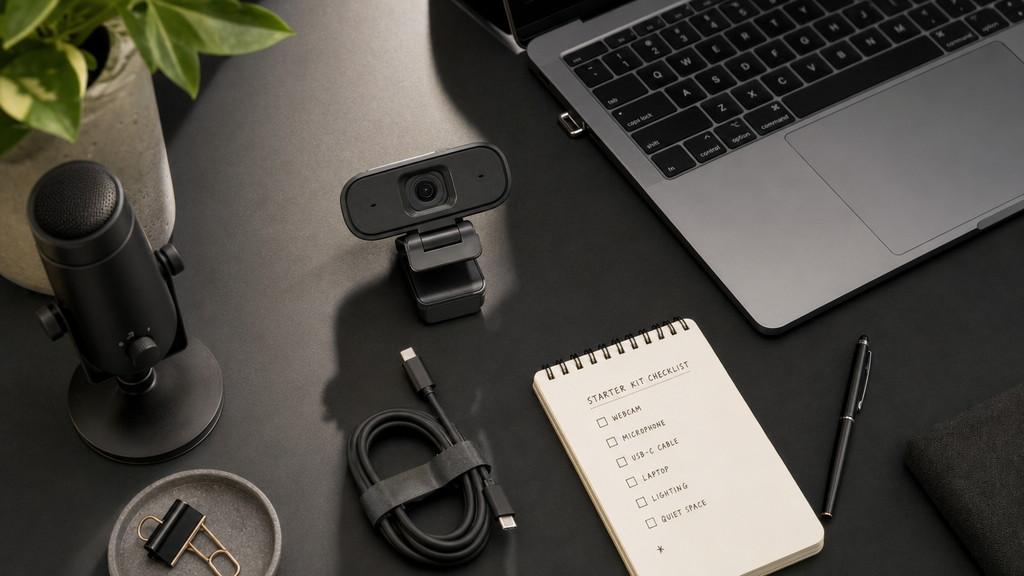
- Hollyland Lyra webcam — includes the camera body, a hinged clip/monitor bracket, and a USB-C cable
- A USB-C port on your computer — USB 3.0 is preferred for full 4K output; USB 2.0 still supports 4K30 via MJPEG
- A Windows or macOS computer — the Lyra is UVC-compliant and plug-and-play; no driver download is required on either platform
- Recording software — Windows Camera app, QuickTime Player (macOS), or OBS Studio (free, cross-platform) all work
- HollyStudio — Hollyland’s desktop companion app for configuring resolution, AI tracking, zoom, and audio before you open any recording software (recommended but not strictly required for basic recording)
Step 1: Mount and Position the Lyra Webcam
Getting the camera in the right physical position before you connect it saves time and prevents awkward re-framing mid-session.
- Unbox the Lyra. The camera body measures 60 x 33.3 x 37 mm and weighs 80 g. The included clip bracket and USB-C cable are in the same box.
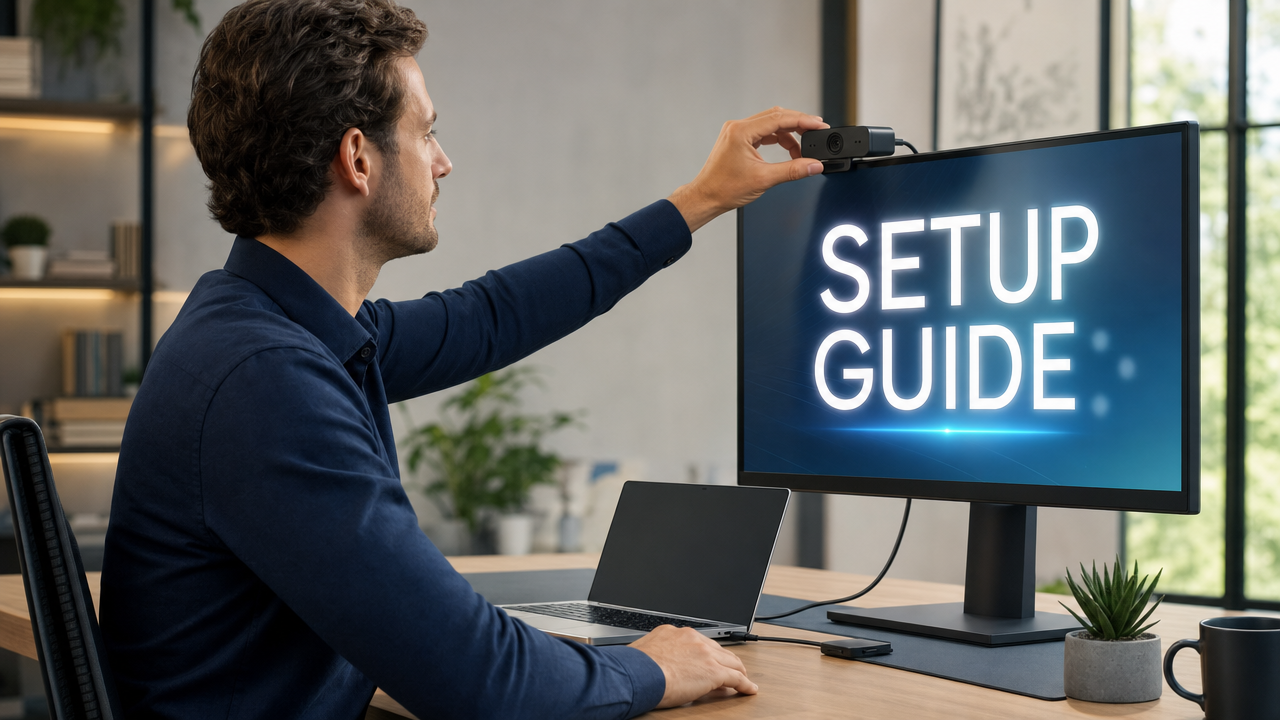
- Open the clip bracket. The spring-loaded hinge grips the top edge of a monitor or laptop screen. Pull the rear arm backward, set the clip over the screen edge, and release slowly so the spring grips the surface.
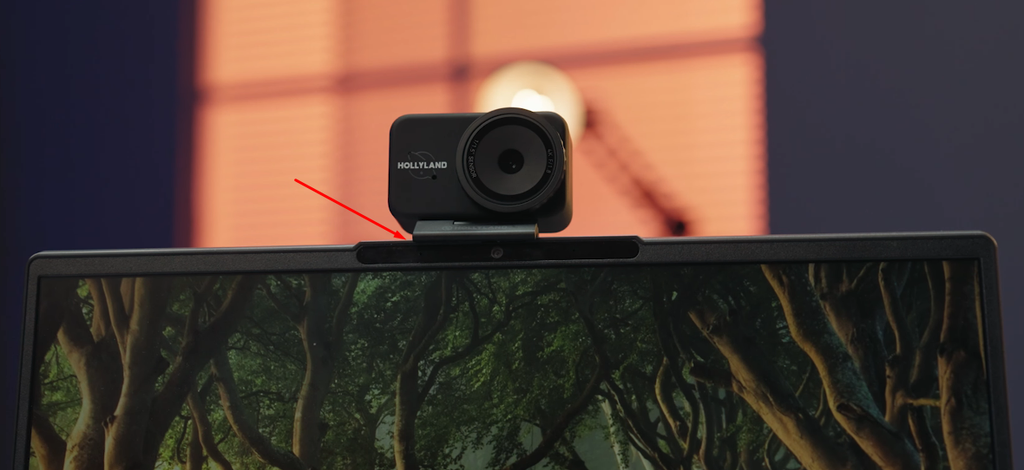
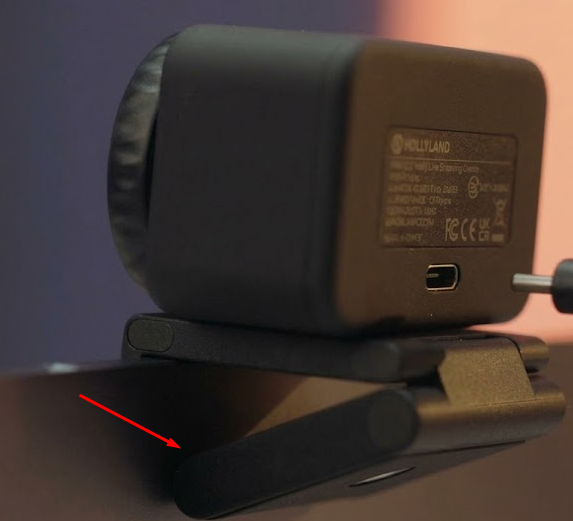
- Seat the camera on the bracket. The bracket snaps into the base of the Lyra body. Press down until fully seated and the camera does not rock.
- Adjust the tilt hinge. The hinge lets the lens tilt forward or backward. Angle it so the lens points directly at your face rather than at the ceiling or your desk. A slight forward tilt is usually correct when the monitor is taller than eye level.
- Assess the framing. The Lyra’s 82-degree field of view and 26mm equivalent focal length capture a generous head-and-shoulders frame at a typical desk distance of 50 to 70 cm. If you need a tighter frame, adjust zoom later in HollyStudio rather than moving the camera.
- Consider a tripod. The Lyra base includes a 1/4-inch threaded mount for tripod attachment. This is useful for standing demos or presentations where no monitor is nearby.
Note: Position the camera at eye level or very slightly above it. A lens placed significantly below eye level creates an unflattering upward angle that is difficult to correct in post-production.
Step 2: Connect the Lyra to Your Computer via USB-C
The Lyra draws all of its power from the USB-C connection. There is no battery and no separate power adapter.
- Locate the USB-C port on the rear of the Lyra body.
- Plug one end of the included USB-C cable into the Lyra and the other end into your computer.


If your computer has only USB-A ports, use a USB-C to USB-A adapter. The Lyra still works; USB 3.0 gives you the uncompressed NV12 path for 1080p and MJPEG at 4K, while USB 2.0 delivers 4K30 using MJPEG compression.

- Wait for the LED indicator to confirm recognition. When the Lyra powers on and is in standby-ready state, the LED on the camera body will illuminate. A solid blue LED means that Lyra is ready to use. When it turns solid green, it means the camera is in use.

- Confirm detection on Windows. Right-click the Start menu, open Device Manager, expand “Cameras,” and check that “Hollyland Lyra” appears in the list. You can also open the Windows Camera app and look for the Lyra in the camera selector at the top of the screen.

- Confirm detection on macOS. Go to Apple menu > System Settings > General > About > System Report > USB. The Lyra should appear as a connected device. Opening Image Capture or Photo Booth will also show it as a selectable camera.


- Skip driver installation. The Lyra is UVC-compliant and uses the operating system’s built-in camera class driver on Windows 10, Windows 11, and current versions of macOS. No vendor driver download is needed.
Pro Tip: If another application such as a video conferencing tool or a browser tab with active camera permissions is already using the Lyra, your recording software will show the camera as unavailable. Close every other app that might have claimed the camera before starting your session.
Step 3: Configure Settings in HollyStudio
HollyStudio is Hollyland’s desktop companion app for the Lyra. It exposes resolution, frame rate, digital zoom, AI tracking, exposure, white balance, and audio controls in one interface. Settings configured here apply at the device level and carry through into any recording software you open afterward.
Download and install HollyStudio from the Hollyland website, then work through the controls in this order:
- Open HollyStudio. The dashboard shows a live camera preview pane alongside the control panel.
- Confirm the Lyra is selected. The device selector at the top of the panel should read “Hollyland Lyra.” Choose it if another camera is active.
- Set resolution and frame rate. Use the Resolution dropdown to choose your recording profile. See the table below for guidance on which setting matches your use case.

- Set the digital zoom level. Go to the Image Control page > Advanced and adjust the Focal Length slider for digital zooming. The slider runs from 1x to 4x. At 1x, the full 82-degree FOV is in use. At 2x to 3x, the frame tightens to a close head-and-shoulders crop appropriate for talking-head recordings. Confirm the framing in the live preview before recording.

- Enable AI Tracking and Smart Auto Framing. When enabled, a bounding box appears in the preview around the detected subject. The camera uses digital pan, tilt, and zoom to keep the subject centered. Here’s how to activate the mode:
- Select the frame icon (a padlock icon appears in the middle once it is activated) from the options above the preview.

- Open Settings by selecting the gear icon.

- Click the Camera Settings tab on the left.
- Switch Face Priority Focus on and close the window.

- Head to the FOV page.
- Under Smart Framing, deselect None and turn on the auto framing option shown beside it (it’s an image tile).

- Adjust exposure. On the Image Control page and under the Advanced section, use the Exposure (EV) slider to adjust light.
- Set white balance. You can manually use the white balance slider. Or, click “A” to enable the “Auto” white balance mode. Auto handles most daylight and LED setups well.

- Enable Noise Cancellation. In the HollyStudio app, go to Settings (gear icon) and select the Audio settings tab. Then, toggle on Noise cancellation. This helps mitigate environmental noise, such as HVAC and air conditioners.

Choosing the Right Resolution and Frame Rate for Recording
| Use Case | Recommended Setting | Reason |
|---|---|---|
| Tutorial or product demo (detail matters) | 3840×2160 @ 30 fps | Maximum sharpness for static or slow-moving content |
| Demo with fast hand movements | 1920×1080 @ 60 fps | Smoother motion, smaller file size |
| Quick async update or standup | 1280×720 @ 60 fps | Lightweight file, fast to upload and share |
| Screen-share-heavy session | 1920×1080 @ 30 fps | Balanced quality without heavy CPU load during capture |
The Lyra supports all of these combinations over both USB 3.0 and USB 2.0. Using a USB 3.0 port gives you access to the uncompressed NV12 stream at 1080p and the full MJPEG stream at 4K, providing the best quality for recording.
Step 4: Set Up Audio for Your Recording
Audio quality shapes how professional a recording feels as much as image quality does. The Lyra’s built-in microphone captures 48 kHz / 24-bit audio with Intelligent Noise Cancellation capable of reducing background noise by up to 25 dB.
- In HollyStudio, confirm the audio input is set to the Lyra’s built-in microphone and that Noise Cancellation is toggled on.
- On Windows, open Settings > System > Sound. Under “Input,” confirm “Hollyland Lyra” is listed and selected as the default recording device. Speak at a normal level and watch the input meter to verify signal strength.
- On macOS, open System Settings > Sound > Input. Select “Hollyland Lyra” and set the input volume so that normal speech peaks around three-quarters of the meter.
- Optional: Connect a LARK A1 wireless microphone. While the built-in Lyra microphone is powerful enough, you can also wirelessly connect the Hollyland LARK A1 to take audio clarity to the next level. Here’s how you can connect the LARK A1 with Lyra:
- Open HollyStudio, access Settings through the gear icon beneath the preview screen, and open the Audio Settings tab.
- Scroll down and enable Bluetooth by clicking its toggle. Then, choose Start Pairing to put Lyra into pairing mode.


- Power off the LARK A1 transmitter. Hold its power button for 6 seconds until the blue LED starts flashing.
- Lyra will automatically connect to the LARK A1 TX, and the transmitter LED will turn solid blue.

- In your recording software, verify the audio input is set to “Hollyland Lyra” and not to your laptop’s built-in microphone. Some apps override the system default audio device when they open, so it is worth checking even if you already confirmed the setting in system preferences.
Note: If you are using a LARK A1, clip the transmitter to your lapel at chest height and speak at a normal conversational volume. At close mic distance, the LARK A1 captures broadcast-level audio that noticeably outperforms even the Lyra’s strong built-in microphone for recordings where the speaker moves around.

Hollyland LARK A1 - Affordable Wireless Microphone
A perfect starter mic for creators on a budget. It’s simple to use and features effective noise cancellation.
Key Features: 48kHz/24-bit | 3-Level Noise Cancellation | 54-Hour Battery
Step 5: Open Your Recording Software and Select the Lyra as Source
All the settings you configured in HollyStudio are now active at the device level. Open your chosen recording software, point it at the Lyra, and the configured profile will be live.
Windows Camera App
- Press the Windows key, type “Camera,” and open the app.
- If the app does not automatically show the Lyra feed, click the camera-switch icon and select “Hollyland Lyra” from the list.
- Click the video camera icon to enter video mode.
- Confirm the preview matches what you see in HollyStudio.
- You are ready to record.
QuickTime Player (macOS)
- Open QuickTime Player from the Applications folder or via Spotlight.
- Go to File > New Movie Recording.
- Click the small arrow next to the record button to open the source dropdown.

- Under Camera, select “Hollyland Lyra.” Under Microphone, also select “Hollyland Lyra.”
- Verify that the live preview matches your HollyStudio settings.
- You are ready to record.
OBS Studio
- Open OBS Studio. In the Sources panel, click the “+” button and select “Video Capture Device.”

- Name the source (for example, “Lyra Webcam”) and click OK.
- In the Properties window, open the Device dropdown and select “Hollyland Lyra.”
- Set the Resolution to match your HollyStudio selection (for example, 3840×2160 for 4K or 1920×1080 for 1080p).
- Set the Frame Rate to match (30 fps for 4K, 60 fps for 1080p).
- Click OK. The Lyra feed will appear in the OBS scene canvas.
- In the Audio Mixer panel, confirm the Lyra microphone is active, or add it manually as an Audio Input Capture source.
- Go to Settings > Output > Recording > Recording Path and Recording Format to set the output folder and file format. MP4 is the recommended format for compatibility.

- You are ready to record.
Pro Tip: In OBS, navigate to Settings > Video and set the Output (Scaled) Resolution to match your source resolution. Recording at 4K while the OBS canvas is set to 1080p will downscale the output and discard the quality benefit of the 4K sensor entirely.
Step 6: Start, Monitor, and Stop the Recording
- Start the recording using whichever control your software provides: the red circle button in Windows Camera, the record button in QuickTime, or “Start Recording” in OBS.
- Watch the Lyra LED indicator. During an active recording or live session, the LED may change color or switch to a steady state to signal the camera is live. Check the quick-start card that came with the Lyra for the specific LED color meanings.
- Monitor the HollyStudio preview. If AI Tracking is active, you will see the bounding box following your face. Glance at this occasionally during longer takes to confirm the subject has not drifted outside the crop boundary.
- Check audio levels throughout. In OBS, the Audio Mixer displays live input levels during recording. For Windows Camera and QuickTime, run a short 10-second test recording and play it back before committing to a full take.
- Stop the recording by clicking Stop in your software of choice. The file will save automatically to the default output location.
- Confirm the saved file. Windows Camera saves to Pictures > Camera Roll. QuickTime prompts you to choose a save location when you stop, or defaults to the Desktop. OBS saves to the path defined under Settings > Output > Recording Path, which defaults to the Videos folder on Windows.
Tips for Better Webcam Recording Quality
A few small setup decisions make a significant difference in the final result.
- Place your main light source in front of you, not behind you. A window or lamp behind you creates a silhouette on camera. Face a window or place a desk lamp in front of you and slightly to the side for even, flattering illumination.
- Keep the camera at or slightly above eye level. The Lyra clip bracket should sit on the top edge of your monitor so the lens aligns with your eye line. A camera placed below eye level produces an unflattering angle and exaggerates chin and neck.
- Use 1080p60 rather than 4K30 for screen-share-heavy recordings. Smooth 60 fps motion reads better when the audience is watching cursor movement and on-screen interactions, and the resulting file size is considerably more manageable.
- Enable Noise Cancellation in HollyStudio when recording in a noisy space. Air conditioning hum, keyboard noise, and room echo are common problems. The Lyra’s Intelligent Noise Cancellation addresses these at the device level without requiring a plugin in your recording app.
- Use the HollyStudio digital zoom slider to tighten your framing rather than rearranging your desk. Pulling the zoom to 2x or 3x brings you into a clean head-and-shoulders frame without physically moving the camera, monitor, or your seating position.
FAQs
Can I record in 4K with a webcam?
Yes. The Hollyland Lyra supports 3840×2160 at 30 fps. Select 4K30 in the HollyStudio resolution dropdown before opening your recording software, and confirm the app’s output settings match.
Does the webcam need to be plugged in while recording?
Yes. The Lyra draws power entirely from its USB-C connection at 5V/1A. There is no internal battery and no standalone recording mode. Keep the cable connected to your computer throughout the full recording session, or the camera will lose power, and the recording will stop.
Why does my webcam look blurry in the recording?
Auto-focus may have locked onto a background object rather than your face. In HollyStudio, enable AI Tracking and Smart Auto Framing. Also confirm the privacy shutter on the lens bezel is fully open.
Can I use a wireless microphone with the Lyra instead of the built-in mic?
Yes. The great thing about the Hollyland Lyra is that it comes with a built-in wireless receiver for the Hollyland LARK A1. You can purchase the Lyra’s Combo version that comes with the LARK A1 transmitter. And connect the transmitter to Lyra via the Audio Settings by turning on the Bluetooth toggle and hitting the Pairing button.
Where does the recorded file get saved?
The save location depends on your software. Windows Camera saves automatically to Pictures > Camera Roll. OBS saves to the folder specified under Settings > Output > Recording Path, which defaults to the Videos folder on Windows. QuickTime asks you to choose a location when you stop recording, or saves to the Desktop if you dismiss the prompt.
Conclusion
With the Hollyland Lyra, the recording process stays simple from start to finish. Begin by mounting it on your monitor or tripod. Then connect the webcam through its USB-C port. Adjust the picture and audio settings inside HollyStudio. Select Lyra as your computer’s audio input device. Choose the same source in your recording software. Windows Camera, QuickTime, and OBS all support this setup. Once everything is ready, you can begin recording. For clearer voices, connect the Hollyland LARK A1 directly. This setup reduces background noise around your voice. It also provides closer, cleaner voice capture without receivers. If live streaming is next, another guide covers that setup.