.png)
 简体中文
简体中文 
Cropping a webcam feed in OBS helps create a cleaner camera frame. Streamers, podcasters, and remote workers often need this adjustment. You may want closer face framing or less of the background visible. You may also need the webcam inside a custom overlay. OBS offers three different ways to crop it. This guide explains all three methods with clear steps. You can choose the method that matches your needs.
Why Crop Your Webcam Feed in OBS?
Most webcams capture more of your environment than your stream layout actually needs. The most common reasons to crop are removing background clutter, fitting a webcam window inside an overlay frame, or tightening the shot around your face. Wide-angle lenses make this especially relevant: the Hollyland Lyra, for instance, has an 82° field of view, meaning it captures a much wider scene than most streaming layouts require, making a crop the logical next step after adding the source.

Before You Crop: Add Your Webcam as a Video Capture Device in OBS
Your webcam needs to be added as a source in OBS before any cropping method can be applied. If you have already done this, skip ahead to Method 1.
- Open OBS Studio and select the scene where you want the webcam to appear.
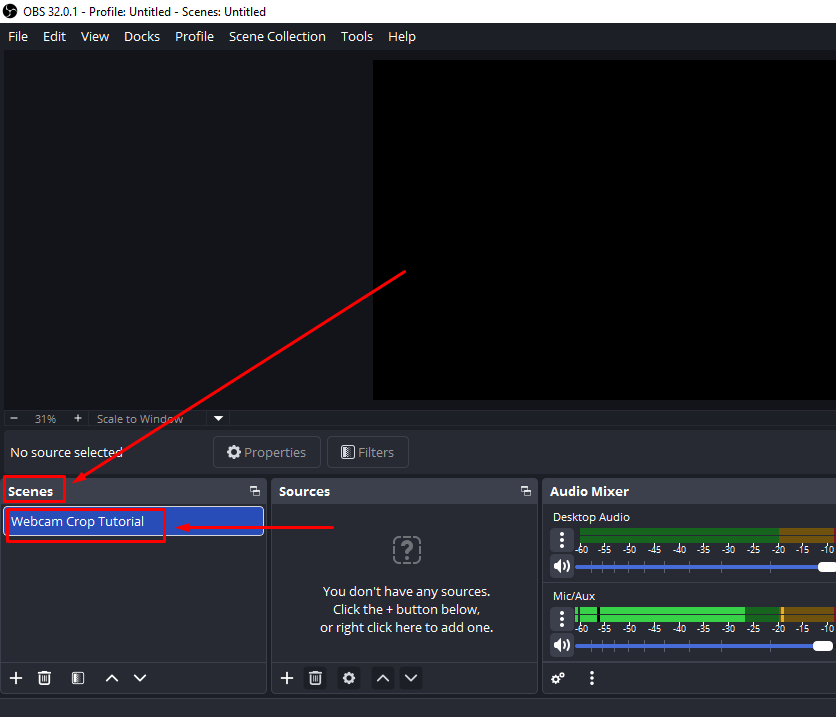
- In the Sources panel at the bottom of the screen, click the + button.
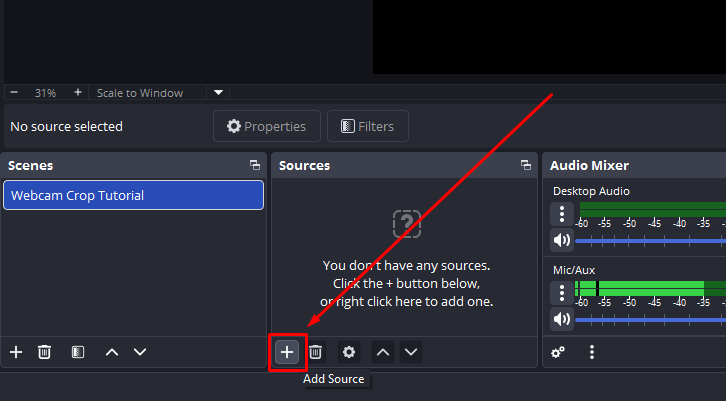
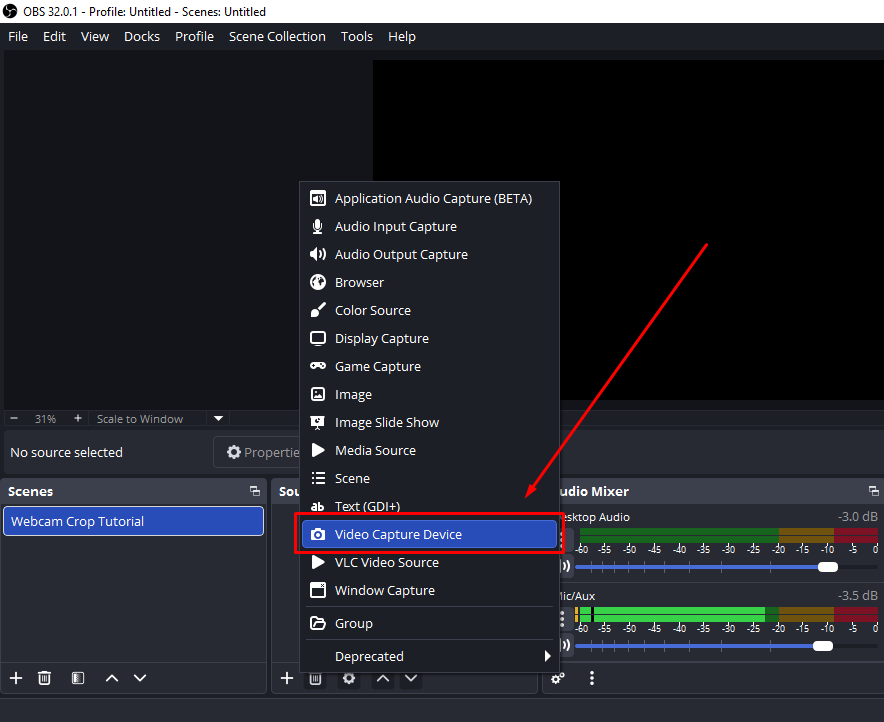
- Select Video Capture Device from the source type list, give it a recognizable name such as “Lyra Webcam,” and click OK.

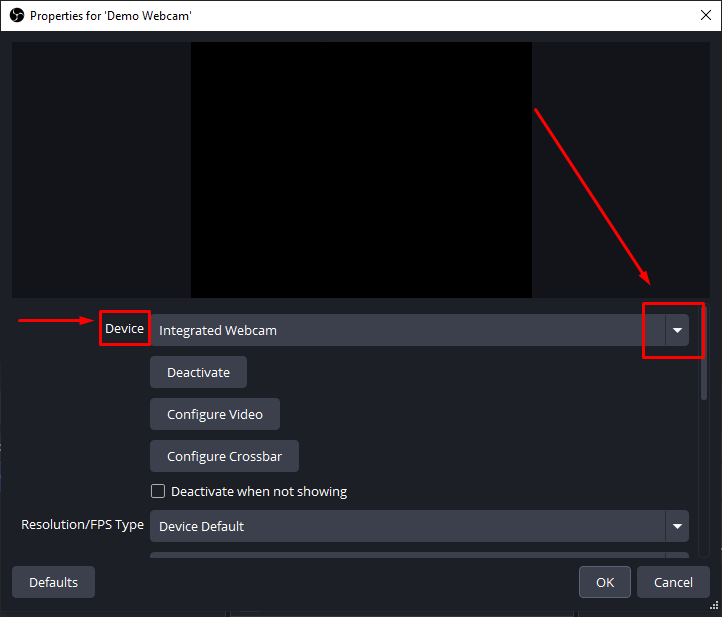
- In the properties dialog, open the Device dropdown and select your webcam.
If you are using the Hollyland Lyra:
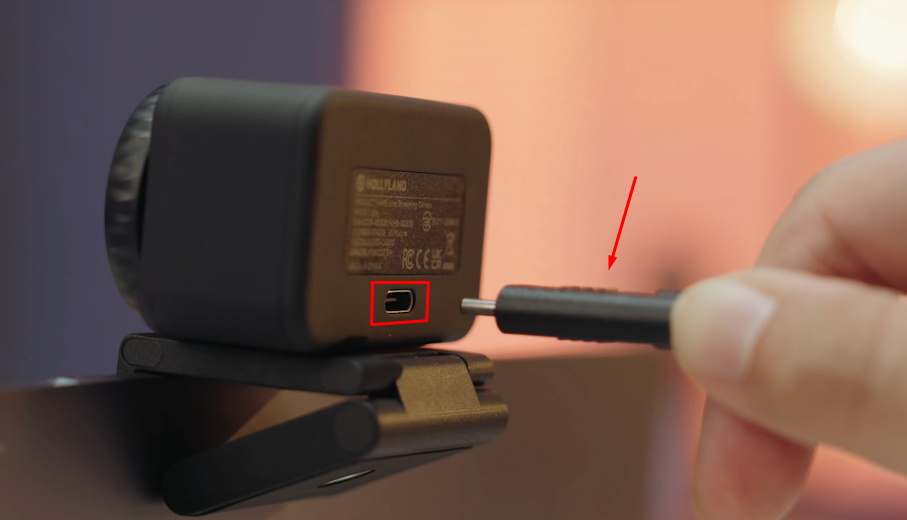
- Plug it into a USB-C port first – no driver installation is required.

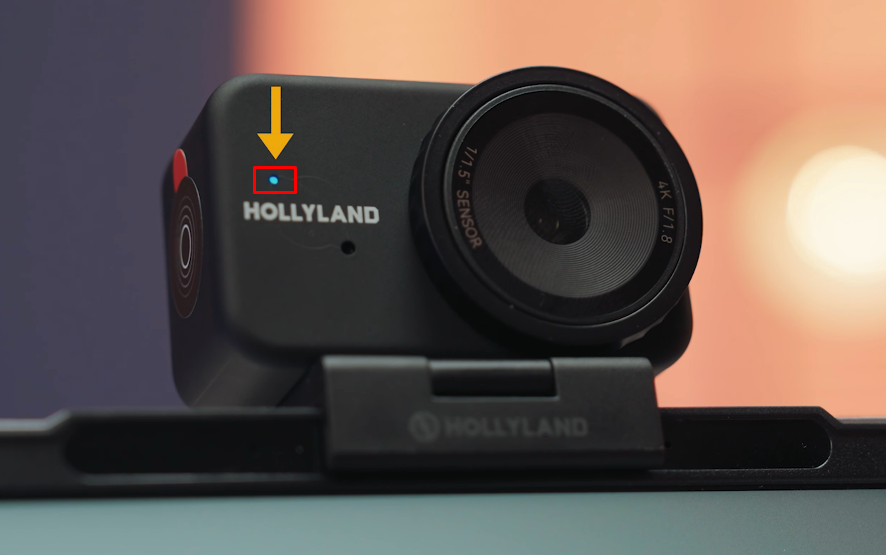
- Wait for the LED indicator on the Lyra to turn solid blue, confirming the camera is active.
- Then select it from the dropdown by name.
In OBS Video Capture Device’s properties window, set the Resolution to match your intended output. You can select “Custom” and choose 4K or 1080p from the Resolution dropdown menu if your webcam supports these resolutions.
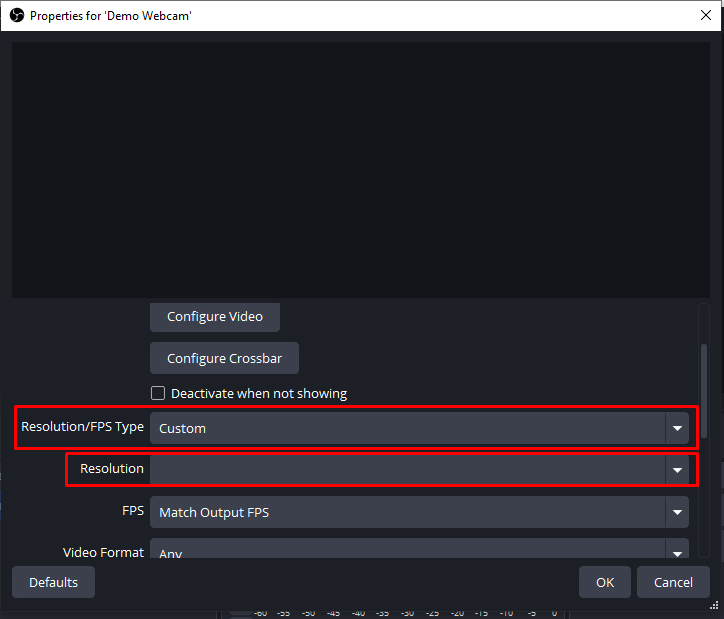
For example, if you have the Hollyland Lyra webcam that supports 1080p and 4K, you can choose 1920×1080 for up to 60fps or 3840×2160 for 4K at 30fps using the HollyStudio app.
- Above the preview screen, locate the current resolution dropdown menu, such as 1080P 60.
- Expand the menu and switch to 4K or vice versa.

In OBS, if 4K does not appear in the dropdown automatically, type the value in manually
Note: The OBS screenshots in this guide show the laptop’s built-in webcam, which supports a maximum resolution of 720p. But the Hollyland LYRA external webcam works at both 4K and 1080P. So if 4K or 1080p is missing from Video Capture Device properties, or you can’t set manual values, OBS likely isn’t receiving a 4K or 1080p feed option. Your webcam driver may not be providing those resolution options to OBS. Alternatively, the selected video format settings may be choking available bandwidth.
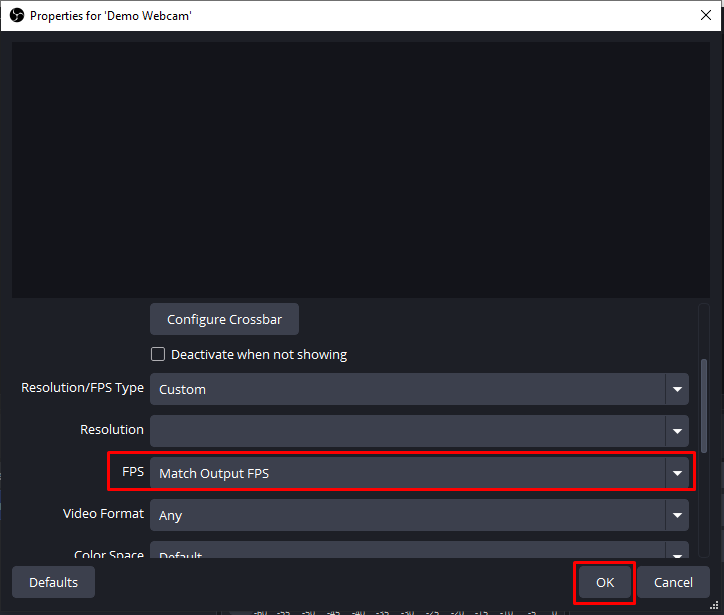
- Confirm the FPS setting matches your stream output (30 or 60). So, select “Match Output FPS” from the FPS dropdown menu. A mismatch between source FPS and output FPS can cause dropped frames once a crop is applied.
- Click OK to add the source.
Note: If you are capturing at 4K (3840×2160), all pixel crop values used in the methods below must be calculated against a 3840×2160 base frame. The same visual crop at 4K requires roughly double the pixel values compared to 1080p.
Method 1: Alt+Drag (Fastest Crop for Quick Framing)
Alt+drag is the quickest cropping method in OBS. No menus or dialog boxes are needed — you hold a keyboard modifier and drag an edge handle directly on the canvas. Use this method when you need to adjust framing visually and do not need to hit specific pixel dimensions.
- Click the webcam source on the OBS canvas to select it. Eight red square handles appear around the bounding box. These are the standard scale handles used for resizing.

- Hold Alt on Windows or Linux (hold Option on macOS) and hover your cursor over any edge handle. The handle changes from red to green, signaling that the tool has switched from scale mode into crop mode.
- With Alt held, drag the handle inward. The edge of the source frame is now being cropped rather than scaled. The remaining image area stays at its original proportions and is not stretched.

- To reduce the wide peripheral area that Lyra’s 82° FOV captures on either side of your subject, drag the left and right edge handles inward. Even a modest crop on each side significantly tightens the composition.
- Drag the top or bottom handles to remove overhead space, ceiling, or desk clutter from the frame.
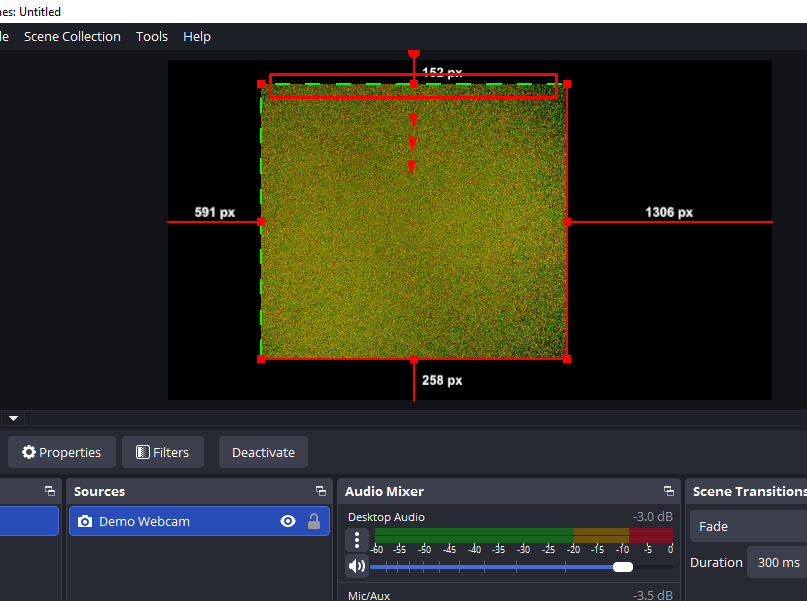
- Release the mouse when the framing looks right. You can refine the crop at any time by repeating the Alt+drag gesture on any edge handle.
Crop handles vs. scale handles at a glance:
| Handle state | Action | What it does |
|---|---|---|
| Red (no key held) | Drag handle | Scales (resizes) the source |
| Green (Alt or Option held) | Drag handle | Crops (removes) edge pixels |
Method 2: Edit Transform (Crop to Exact Pixel Values)
Edit Transform lets you enter specific pixel values for each edge of the crop. Use this method when the crop needs to match an overlay dimension exactly, produce consistent results across sessions, or align with a layout spec that has defined measurements.
- Right-click the webcam source in the Sources panel (right-clicking in the panel avoids accidentally repositioning the source on the canvas).
- Hover over Transform in the context menu, then click Edit Transform.

- In the Edit Transform dialog, locate the four crop input fields: Crop Left, Crop Right, Crop Top, and Crop Bottom. Each value represents the number of pixels removed from that edge of the source frame, measured against the resolution you set in the Video Capture Device properties.
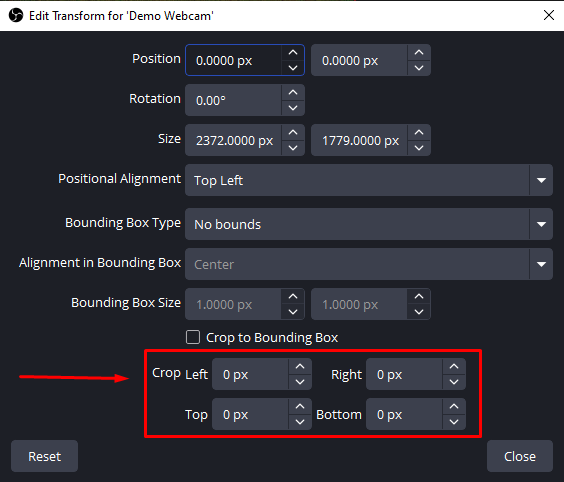
- Enter your crop values based on your webcam, such as Lyra’s active resolution. The table below shows worked examples at both output resolutions:
| Goal | Crop Left | Crop Right | Crop Top | Crop Bottom | Resulting Size |
|---|---|---|---|---|---|
| Remove 200px per side at 1080p | 200 | 200 | 0 | 0 | 1520×1080 |
| Equivalent crop at 4K | 400 | 400 | 0 | 0 | 3040×2160 |
| Remove 150px top and bottom at 1080p | 0 | 0 | 150 | 150 | 1920×780 |
When cropping a 4K Lyra feed, use pixel values roughly double those you would use for the same visual crop at 1080p, since the frame is twice as wide.
- Click Close when done. The source on the canvas updates immediately to reflect the entered values.
Note: Edit Transform crops are stored per source instance within a scene. Adding the same webcam to a second scene does not carry the crop values over. If you need a crop that follows the source to every scene automatically, use Method 3 instead.
Method 3: Crop/Pad Filter (Non-Destructive, Per-Source Crop)
The Crop/Pad filter applies a crop at the source level rather than the scene level. This means the crop travels with the source into every scene that uses it, without needing to be re-entered each time. It is the best choice when you want a consistent, locked crop that persists globally across your layout.
- Right-click the webcam source in the Sources panel and click Filters.

- In the Filters window, click the + button in the lower-left corner, located under the Effect Filters column header.
- Select Crop/Pad from the dropdown list.
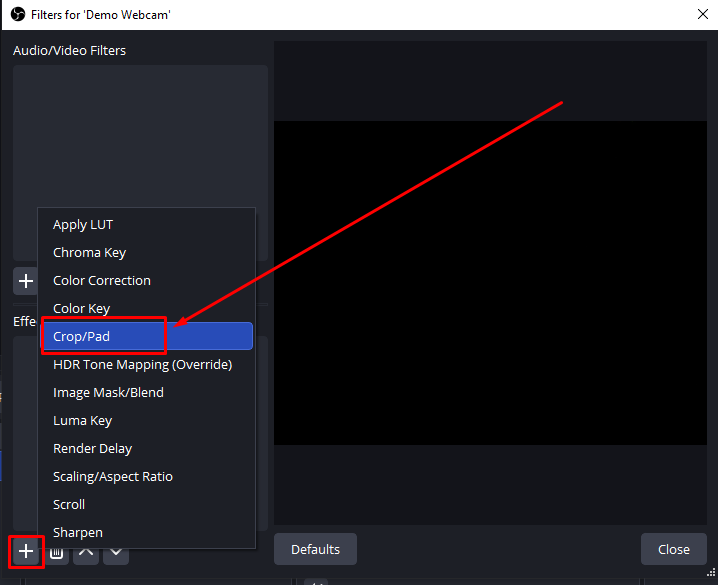
- Name the filter something descriptive, such as “Lyra Crop,” and click OK.
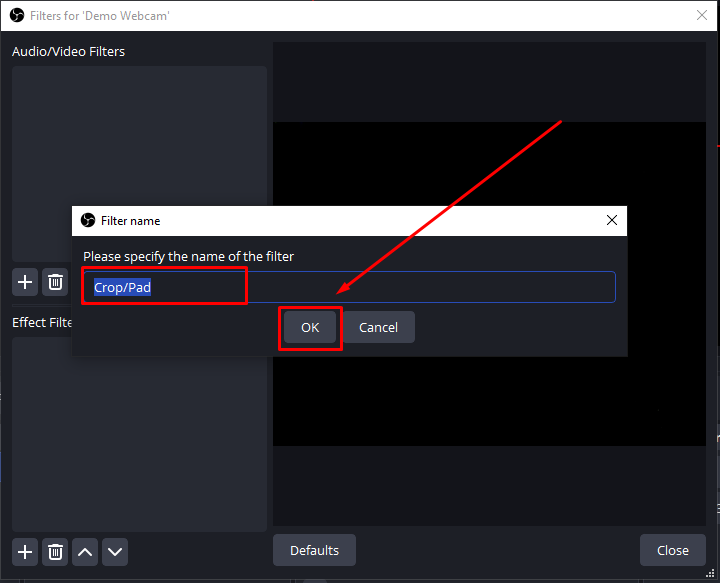
- The filter properties panel shows four input fields: Left, Top, Right, and Bottom. Enter the number of pixels to remove from each edge. Refer to the example values in Method 2 for guidance based on whether your Lyra is set to 1080p or 4K output.
- Close the Filters window. The crop is now applied to this source globally — the Lyra feed will appear with the same crop in every scene that references this source instance.
Note: If you need different crops of the same webcam in different scenes — for example, a tight face crop in one scene and a wider shot in another — duplicate the source rather than referencing the same instance. Right-click the source in the Sources panel, choose Copy, paste it into the target scene, and apply a separate Crop/Pad filter to the copy.
How to Reset or Remove a Crop in OBS
The reset method depends on how the crop was originally applied:
- Alt+drag crop: Hold Alt and drag the cropped edge handle back outward toward its original position. For a full reset of all transforms at once, right-click the source, go to Transform, and select Reset Transform.
- Edit Transform crop: Right-click the source, go to Transform, click Edit Transform, and set all four Crop fields (Left, Right, Top, Bottom) to 0. Click Close to apply.
- Crop/Pad filter: Right-click the source, click Filters, and select the Crop/Pad filter in the list. Either set all four fields to 0 to clear the values while keeping the filter available, or click the – button to delete the filter entirely.
FAQs
Does cropping a webcam in OBS reduce video quality?
Cropping removes pixels from the edges of the frame but does not degrade the quality of the remaining area. Your stream or recording output resolution is configured separately in OBS Settings under the Video tab. If you crop a lower-resolution source heavily and scale the remaining region up to fill the canvas, you may notice softness. Starting with a high-resolution source like the Lyra at 4K30 reduces this concern significantly.
Can I crop my webcam differently in each OBS scene?
Yes. Method 1 (Alt+drag) and Method 2 (Edit Transform) store the crop per source instance within a scene, so each scene can hold its own crop values for the same camera. Method 3, the Crop/Pad filter, applies the crop across every scene. It affects the source globally instead of one scene instance. To create different crops per scene, duplicate the source first. Then apply the Crop/Pad filter to each source separately.
Why does my webcam look stretched or distorted after cropping?
This usually happens when a cropped source is scaled to fill a canvas with a different aspect ratio than the cropped frame. After cropping, right-click the source, go to Transform, and select Fit to Screen to let OBS resize the source proportionally. Avoid holding Shift unless you want to stretch the frame.
Conclusion
All three methods produce the same result in different ways. Alt+drag offers quick, freeform cropping for simple adjustments. Edit Transform provides exact pixel values you can repeat later. The Crop/Pad filter keeps the crop with that source across every scene. After framing your webcam, build your scene layout and position overlays. You can also check OBS Settings > Video for your resolution settings. Make sure your recording or stream resolution matches the cropped frame.