.png)
 简体中文
简体中文 
Adding a webcam to Streamlabs Desktop takes a few minutes once you know the right source type and the settings that matter. The most common mistake is leaving the Color Format field on “Auto” and wondering why the resolution looks wrong. This guide covers every step using the Hollyland Lyra as the demo webcam, from physical connection through canvas positioning.
What You’ll Need Before You Start
Before opening Streamlabs, confirm you have the following ready:
- Streamlabs Desktop (latest version) installed on Windows 10/11 or macOS
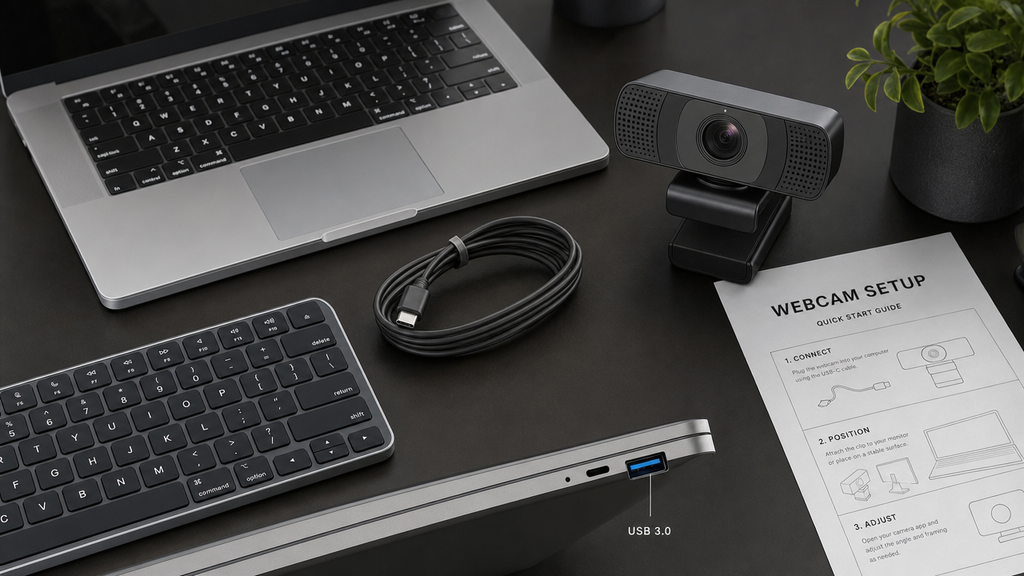
- A UVC-compatible USB webcam — this guide uses the Hollyland Lyra, a 50MP 4K webcam with a 1/1.5” CMOS sensor and USB-C connectivity
- An available USB 3.0 port on your PC or Mac (look for the SS marking or a blue port interior)
- No driver installation required — the Lyra is bus-powered at 5V/1A via USB and operates as a plug-and-play UVC device on Windows 10/11 and macOS
- An integrated monitor clip is built directly into the Lyra — no separate tripod or adapter is needed for monitor-top placement
Step 1: Connect the Hollyland Lyra to Your PC
Always connect the camera and confirm OS recognition before opening Streamlabs. Confirming the camera is visible to your operating system eliminates the most common troubleshooting scenarios before they occur.
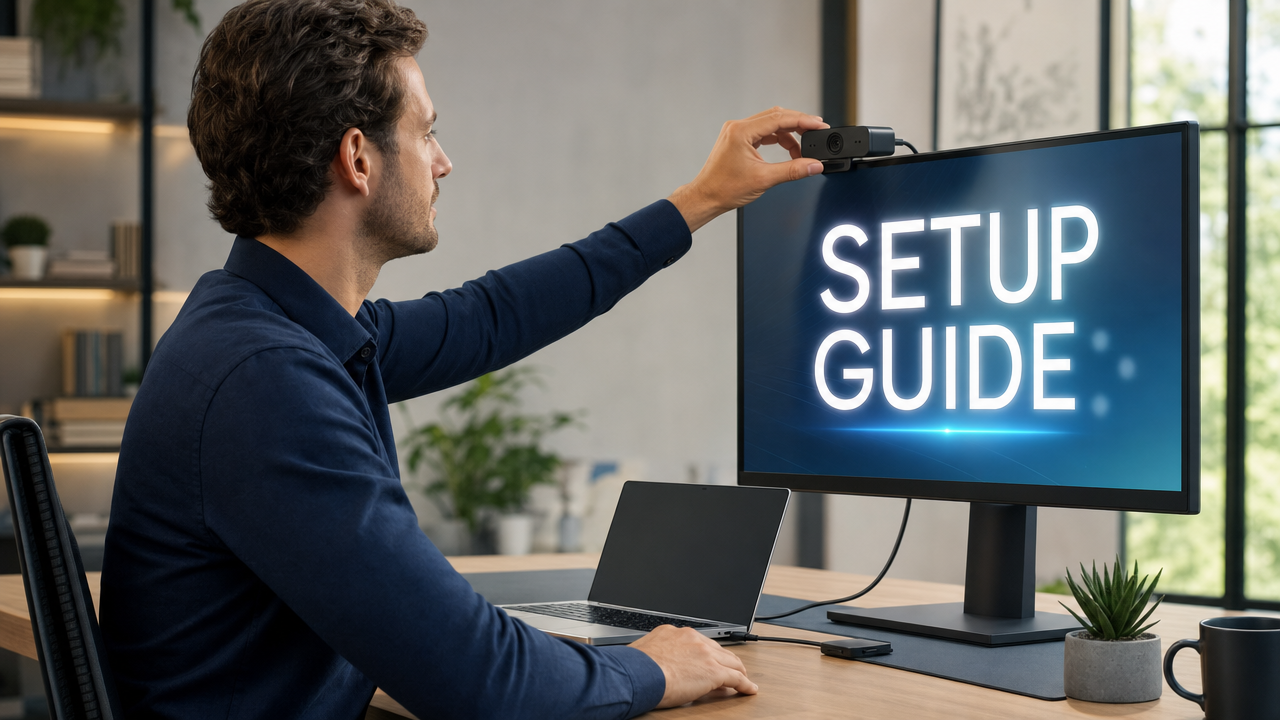
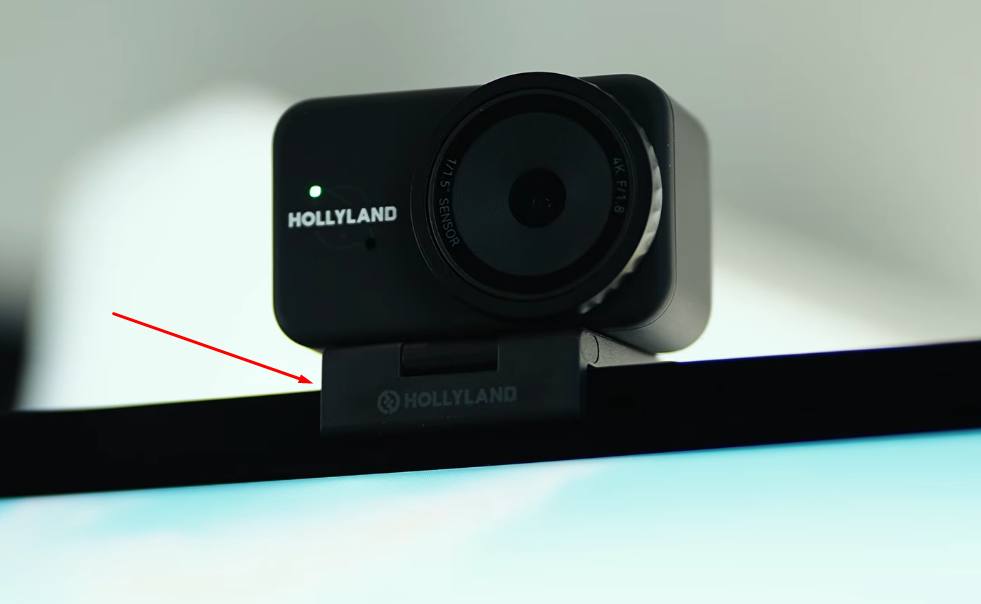
- Attach the monitor clip. Place the mount’s front edge over your monitor bezel. Slide the rear leg backward against the monitor’s back area. Once done, bring your Lyra camera near the mount’s top platform. Its built-in magnets will hold the camera securely. Now, using the camera’s hinge, adjust the angle. You can try tilting it upward or downward until the eyeline level looks right. A camera aimed upward from below creates an unflattering angle and is one of the most common positioning mistakes.
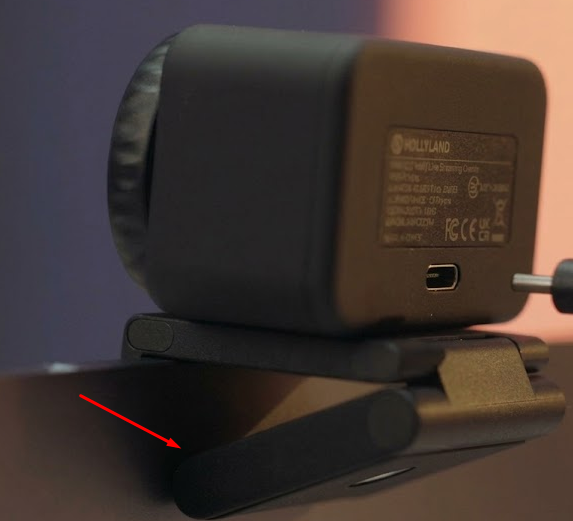
- Connect the USB-C cable. Insert the USB-C end into the port on the Lyra, then plug the other end into a USB 3.0 port directly on the PC. Avoid USB hubs when planning to use 4K MJPEG output. A direct USB 3.0 connection provides the bandwidth headroom that 4K streaming requires. If your machine only has USB-C ports, use a USB-C to USB-C cable rated for USB 3.0 speeds.
- Check the LED indicator. The LED on the Lyra illuminates when the camera receives USB power and establishes a data connection. If the LED stays dark after plugging it in, try a different port or replace the cable before proceeding.
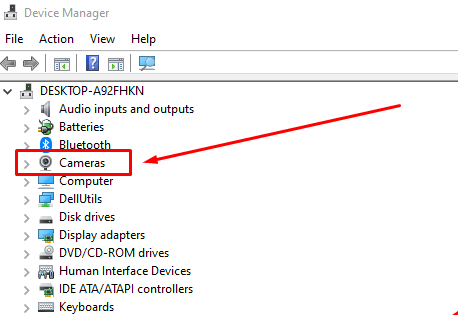
- Verify OS recognition on Windows. Open Device Manager (right-click the Start menu, select Device Manager), expand “Cameras” or “Imaging Devices,” and confirm the Lyra appears in the list. A warning icon next to the entry means the device did not enumerate cleanly. In that case, disconnect the camera, wait 10 seconds, and reconnect to allow UVC re-enumeration.
- Verify OS recognition on macOS. Open the Apple menu and select System Settings. Choose General, then open About. Scroll down and select System Report. Find USB under the Hardware section on the left. Open the USB device list and check each entry. Look for Hollyland Lyra among the listed devices.


Make sure your computer detects the camera before continuing. This check helps identify connection problems early. It can also prevent device errors inside Streamlabs later.
Step 2: Open Streamlabs Desktop and Select Your Scene
- Launch Streamlabs Desktop and allow it to fully load before proceeding.
- Locate the Scenes panel in the bottom-left corner of the interface. It lists all your configured scenes, such as “Gameplay,” “Just Chatting,” or “BRB Screen.”

- Click the scene where the webcam overlay should appear. The Sources panel in the bottom-center of the interface updates to show the sources assigned to that scene.
- Understand the scene-source relationship. In Streamlabs, a source only exists inside the scene it was added to. If you add the webcam to your “Gameplay” scene, it will not appear automatically in “Just Chatting.” Select the right scene before adding the source, or you will need to repeat the process in each scene separately.
Step 3: Add a Video Capture Source
For a USB webcam, select Video Capture in Streamlabs Desktop. Do not select Media Source, Window Capture, or any other source option.
- Click the “+” icon in the Sources panel.

- Select “Video Capture” from the source type list. Depending on your Streamlabs version, it may be grouped under a “General” or “Essentials” category. Then click the “Add Source” button.

- Name the source. In the next dialog that appears, type a descriptive name such as “Webcam – Lyra,” then click “Add Source.” Clear naming helps when managing multiple sources across scenes.

- The properties dialog opens automatically. This is where device selection and video settings are configured.
- Select your device. In the Device dropdown inside the properties dialog, select “Hollyland Lyra,” and close the dialog. The name will match what you saw in Device Manager or System Report during Step 1. On some OS builds, it may display as a generic UVC device string rather than the branded name.

- Confirm the live preview. A live feed from the Lyra should appear in the properties preview window immediately. If the preview is black, stop here and consult the Troubleshooting section before adjusting any other settings.
Step 4: Configure Resolution, Frame Rate, and Color Format / Space / Range
This is the most technically consequential step in the entire setup. Leaving these fields on “Auto” frequently produces unpredictable results — suboptimal resolution, incorrect frame rate, or no image at all. Setting each value explicitly to match the Lyra’s UVC output modes is always the correct approach.
Color Format, Color Space and Color Range
Color Format
This setting controls how Streamlabs processes video pixels internally. Common choices include NV12, I420, I444, and RGB. NV12 is an 8-bit 4:2:0 format with broad hardware support. It works with encoders such as NVENC and QuickSync. It reduces color data while keeping the picture looking clear. This also helps lower processing demands and file sizes. I420, I444, and RGB provide different color data structures. RGB and higher bit-depth formats can require more system resources. Most users do not need those options for regular streaming.
To set Color Format:
- Click the gear icon on the right sidebar of the main Streamlabs desktop interface to open Settings.

- Select the Advanced tab from the right-side menu.
- Under the Video section, open the Color Format dropdown menu and choose NV12.

- Close the Settings dialog.
Color Space
Color space tells Streamlabs how to interpret incoming colors. Common options include Rec. 601, Rec. 709, and Rec. 2100. Rec. 601 is mainly intended for SD and older analog sources. Rec. 709 is common for HD and SDR video content. Rec. 2100 is more suitable for newer HDR workflows. Choose the setting that matches your camera or capture hardware. A mismatch can cause colors to look incorrect or unnatural.
Color Range
Color range controls the brightness values used in your video. Limited range normally covers values from 16 through 235. This range is common for television and online video streaming. Full range covers the complete 0 through 255 scale. It is often found with PC displays and computer video. The selected range should match the connected capture device. A mismatch can make the picture look washed out. In other cases, the image may appear too dark.
To set Color Space and Color Range:
- Double-click on the Webcam source under the Sources section to open the Properties dialog.
- Scroll down to the Color Space option, click the dropdown menu, and choose Rec. 709.

- Next, move to the Color Range option, expand its dropdown menu, and select Limited

Quick Look at the Recommended Settings for Webcam / Hollyland Lyra:
- Color Format: NV12
- Color Space: Rec. 709
- Color Range: Limited
Note: Avoid setting the above options to Default / Any.
Resolution
After selecting Color Space and Color Range, first select the “Resolution/FPS Type” to Custom, and then choose from the available options in the Resolution dropdown, such as:
- 3840×2160 (30fps)
- 1920×1080 (30 or 60fps)
- 1280×720 (30 or 60fps)
FPS
Match the FPS value to the resolution you selected: 30fps for 4K, and up to 60fps for 1080p and 720p when smoother motion is a priority.

Buffering
Leave Buffering at “Auto-Detect” unless you experience consistent stream lag. If lag persists after addressing other settings, set Buffering to “Disable.”
Once all fields are configured, click “Close” to close the properties dialog. The Lyra feed now appears as a live layer on the Streamlabs scene canvas.

Step 5: Position and Resize the Webcam Overlay on Your Canvas
- Click and drag the source on the Streamlabs scene canvas to reposition it. The conventional face-cam placement is the bottom-left or bottom-right corner, which keeps the overlay clear of in-game UI elements.
- Resize proportionally. Drag a corner handle to adjust the overlay size. Hold Shift to constrain the aspect ratio and prevent distortion.

- Use Transform for precision placement. Right-click the source in the Sources section and select Transform to access options including Fit to Screen, Center Horizontal, and Reset Transform.

- Crop with Alt+drag. Hold Alt and drag an edge handle to crop the source. This is useful for masking empty background around the face without changing the underlying capture resolution.
- Check the source layer order. In the Sources panel, the webcam source must sit above the game capture layer. Sources higher in the list render on top of sources below them. Drag sources up or down in the panel to reorder.
Note: The Lyra has an 82° field of view, which can capture more shoulder and background than you want at small overlay sizes. Use the Lyra’s 1-4x digital zoom in HollyStudio (covered in the next section) to tighten framing before locking canvas dimensions. This avoids heavy edge-cropping inside Streamlabs.
Fine-Tune the Hollyland Lyra’s Image with HollyStudio
Once the Lyra is live on the Streamlabs canvas, open the HollyStudio companion app on the same machine to control camera-side image parameters. Changes made in HollyStudio apply at the camera’s ISP level and flow directly into the UVC stream that Streamlabs receives. No source restart or re-add is required.
- Launch HollyStudio. The app auto-detects the connected Lyra and displays the camera feed in its preview window alongside all available controls.
- Enable AI Tracking and Smart Auto Framing.
- Look for the frame icon above the preview screen. Click to activate it. When the frame icon shows a padlock symbol inside, it means AI tracking has been enabled.


- Then, open the Settings window through the gear icon and select the Camera Settings tab.

- Toggle Face Priority Focus on and close Settings.

- Next, go to the FOV page and scroll down to the Smart Framing section.
- Deselect “None” and enable the auto framing option by clicking the image tile beside the None tile.
Toggle this feature on to activate subject-following mode. The Lyra tracks your face and keeps you centered in frame automatically — useful if you shift position during gameplay or conversation. The tracked, framed output is what Streamlabs receives as the live UVC feed.
- Adjust Digital Zoom (1-4x). Use the Focal Length slider on the Image Control page’s Advanced section to zoom in order to tighten framing before finalizing canvas dimensions in Streamlabs. A setting between 1.5x and 2x typically isolates the face and upper torso for a classic face-cam look without requiring aggressive cropping in Streamlabs.

- Set Exposure and White Balance. Auto-exposure and auto-white-balance work well for standard room lighting. For controlled studio setups, lock manual values to prevent flickering or color temperature drift during a long stream.
- Enable Skin Smoothing and Color Correction. On the HollyStudio app, go to the Beautify page to adjust skin smoothing and color correction by following these steps:
- On the Beautify Page, activate the Beautify switch and select Custom.
- Look for the Smooth skin slider and gradually increase or decrease it until the results look natural.

- Next, click Add New Template to save the adjustments as a preset under “My Templates.”

- Now, go to the Image Control page, scroll down to the Custom section, choose Color, and click the Color Correct button that has a dropper symbol.

- Use the color picker tool to select specific colors in your webcam visuals and adjust them.

- Optional: Feel free to adjust Hue, Saturation, and Exposure sliders for professional color grading.

These adjustments apply at the camera level and are immediately visible in the Streamlabs preview window in real time.
- Add the built-in microphone as a separate audio source. The Lyra’s 48 kHz/24-bit microphone appears as a separate audio device in Streamlabs. To use it for stream audio, add an Audio Input Capture source in the Sources panel and select “Hollyland Lyra” from the audio device dropdown. This is a distinct source from the Video Capture Device created in Step 3.
Troubleshooting: Webcam Not Showing Up in Streamlabs
Camera Doesn’t Appear in the Device Dropdown
- Re-seat the USB-C cable and switch to a different USB 3.0 port directly on the PC. Remove any USB hub from the connection chain.
- Verify the Lyra LED is illuminated. A dark LED means the camera is not receiving USB power. Try a different port or cable before any other step.
- Open Windows Device Manager and confirm the Lyra entry exists under “Cameras” or “Imaging Devices.” A warning icon signals a failed enumeration. Disconnect the camera, wait 10 seconds, and reconnect to trigger UVC re-enumeration.
- Close Streamlabs completely, reconnect the Lyra, then reopen Streamlabs. The device list is populated at launch, so a cold restart after reconnecting resolves most missing-device issues without further intervention.
Black Screen After Adding the Source
- In the Video Capture Device properties dialog, click Deactivate, wait three seconds, then click Activate to force a re-handshake with the camera.
- Change Color Format manually. Auto can select an incompatible format and produce a black preview with no error message.
- Check for competing application access. Zoom, Microsoft Teams, browser-based camera tabs, and other tools can hold exclusive access to the Lyra and block Streamlabs from receiving the feed. Close all competing applications, then reopen Streamlabs. HollyStudio and Streamlabs can generally share the Lyra’s feed simultaneously, but active browser camera sessions may prevent access.
Low Resolution or Wrong Frame Rate in the Feed
- Confirm Color Format is set to MJPEG if the target output is 4K or 1080p 60fps. NV12 does not expose 4K, and Auto may silently default to NV12 without indicating it has done so.
- Verify the port is USB 3.0. Look for the SS (SuperSpeed) marking or a blue-colored port interior. USB 2.0 can pass MJPEG output from the Lyra but may become unstable at 4K resolutions. Switch to a confirmed USB 3.0 port and retest.
- In Streamlabs output settings, confirm the Base Canvas resolution is set to at least 1920×1080. A 720p canvas will downscale any source, including a 4K feed, making the face cam appear softer than the camera actually outputs.
FAQs
Q: Can I stream in 4K with a webcam in Streamlabs?
Yes, you can stream in 4K with a compatible webcam. Open Streamlabs Settings > Video and set Base and Output Resolution to 3840×2160. Set FPS to 30 for smoother 4K streaming. Add your webcam under Video Capture Device, then select Custom resolution at 3840×2160 and 30 FPS. If 4K is missing, close other camera apps. Under Settings > Output, select hardware encoding and use 13,000 to 30,000+ Kbps, based on your platform.
Q: Does Streamlabs work with USB-C webcams?
Yes. Streamlabs Desktop recognizes any UVC-compliant webcam regardless of connector type. The Hollyland Lyra connects via USB-C and is plug-and-play on Windows 10/11 and modern macOS versions. No driver download or adapter is needed. The operating system registers it as a standard UVC camera device that Streamlabs can access immediately after connection.
Q: Can I add more than one webcam to Streamlabs at the same time?
Yes. Add a separate Video Capture Device source for each camera. You can assign them to different scenes — a close-up scene versus a wide scene, for example — or layer multiple camera sources on the same canvas for a multi-angle setup. Each source independently selects its device in the Device dropdown within the properties dialog.
Q: Why is my webcam feed lagging or stuttering in Streamlabs?
Common causes include encoder CPU overload, a 4K feed running through a USB 2.0 port, or a mismatch between camera output and canvas settings. Start by dropping to 1920×1080 @ 60fps via MJPEG. Also enable hardware encoding (NVENC for NVIDIA, AMF for AMD, VideoToolbox on macOS) in Streamlabs Output settings to offload encoding from the CPU and reduce capture lag.
Q: Does Streamlabs control the Lyra’s AI Tracking feature?
No. AI Tracking and Smart Auto Framing are managed exclusively through the HollyStudio companion app, not through Streamlabs. Once enabled in HollyStudio, the tracked and framed output is passed to Streamlabs as a standard UVC stream. Streamlabs simply receives and displays the result without requiring any special configuration on the Streamlabs side.
Conclusion
Start by connecting the Hollyland Lyra and opening Streamlabs Desktop. Add it as a Video Capture Device source. Next, set the Color Format, Color Range, Color Space, and resolution. Place the camera overlay where you want it on the canvas. Keep in mind that many people skip the Color Format settings. And that can lead to resolution problems later. So before your actual stream, run a private test. An unlisted YouTube stream or Twitch preview is enough. Check your face camera during the test. Make sure the video looks right and moves normally. Once everything checks out, your setup is ready.