.png)
 简体中文
简体中文 
A mirrored webcam feed makes text appear backward and undermines your on-screen presence. An upside-down feed is even more disruptive. In both cases, the fix is almost always in software, not hardware. This guide explains the fastest resolution for each major platform, such as the Hollyland Lyra’s HollyStudio app, Zoom, Microsoft Teams, OBS Studio, and Google Meet. Find your scenario and apply the correction in under two minutes.
Mirror, Flip, or Rotate: Which Problem Do You Actually Have?
Before jumping into steps, match your symptom to the right fix:
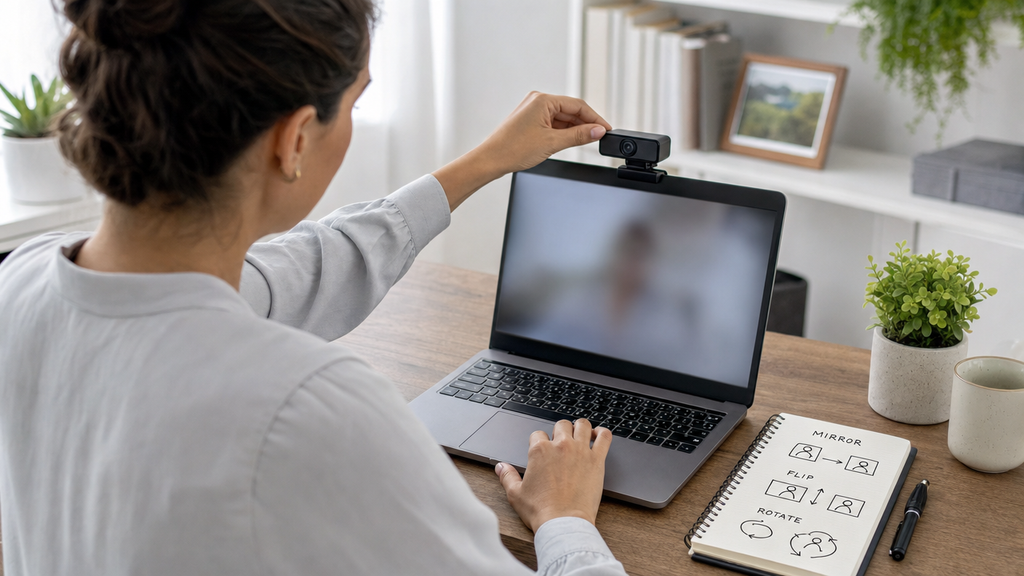
- Text or logos appear reversed (left-right): This is a mirror or horizontal flip issue. Go to the HollyStudio, Zoom, or Teams sections below.
- Image is upside down: This is a vertical flip problem. Use HollyStudio’s Vertical Flip toggle, OBS Flip Vertical, or Zoom’s rotation control.
- Image is both upside down and reversed: You need a full 180-degree rotation. Enable both Horizontal Flip and Vertical Flip simultaneously in whichever method you choose.
The fix always lives at the software level. Operating system camera drivers rarely expose flip controls, which is why companion app corrections or in-app settings are the standard approach.
How to Flip Your Webcam in HollyStudio (Hollyland Lyra)
The Hollyland Lyra is a 4K USB-C webcam with a 1/1.5” CMOS sensor and F/1.8 aperture, designed to be configured through the HollyStudio companion app.
Applying a flip correction inside HollyStudio is the most efficient method because the change is saved at the device level.
What you need: Hollyland Lyra connected via USB-C to your PC or Mac, and HollyStudio Control installed.
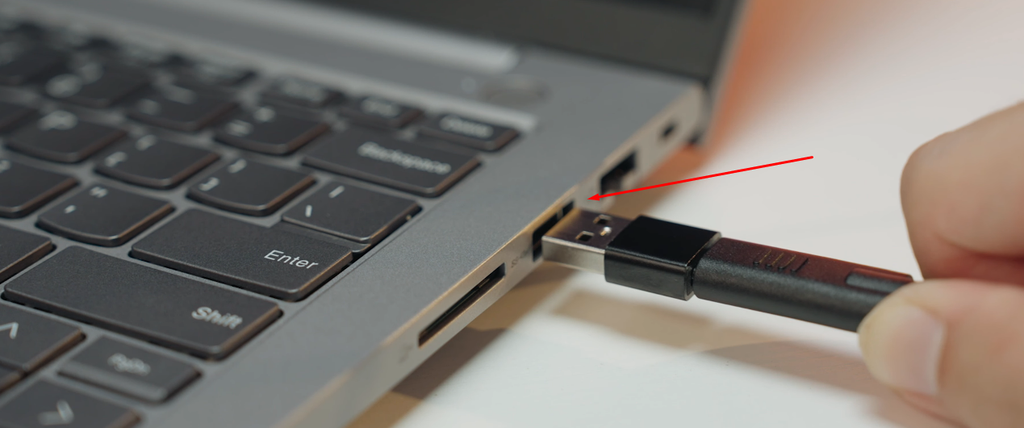
- Connect the Lyra. Plug the Lyra into a USB-C port on your computer.
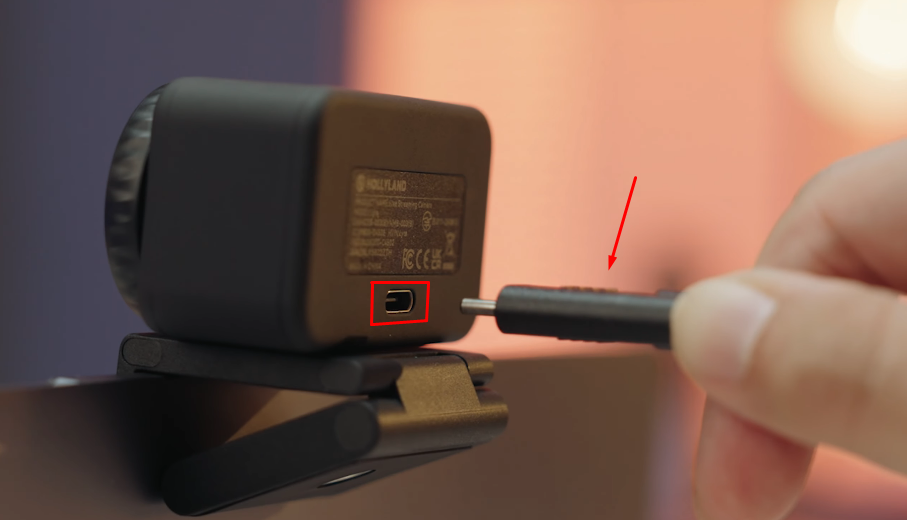
The webcam also uses plug-and-play recognition over USB 2.0 or USB 3.0.
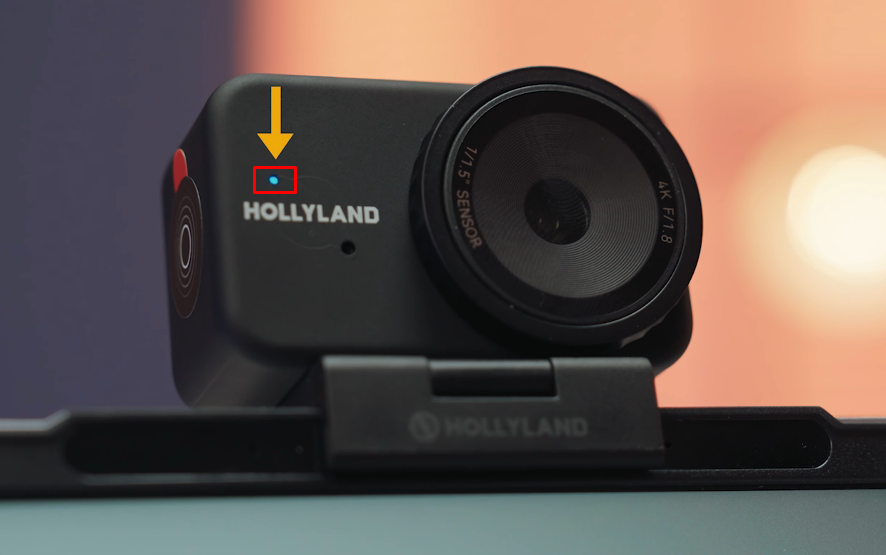
Confirm the LED indicator on the Lyra is active and showing a steady live-connection state before proceeding.
- Open HollyStudiol. Launch the app. The Lyra should be detected automatically. Verify the device name appears in the camera selector at the top of the app dashboard. If another camera is selected, click the selector and choose the Lyra.
- Navigate to the Image Control Page. Inside the dashboard, locate the Image Control Page. This section contains all major image adjustment options, including exposure, color correction, and orientation.
- Locate the Flip option. Within the Image Control page, find the Flip or Mirror icon above the preview screen. Click the icon to flip your live webcam feed.
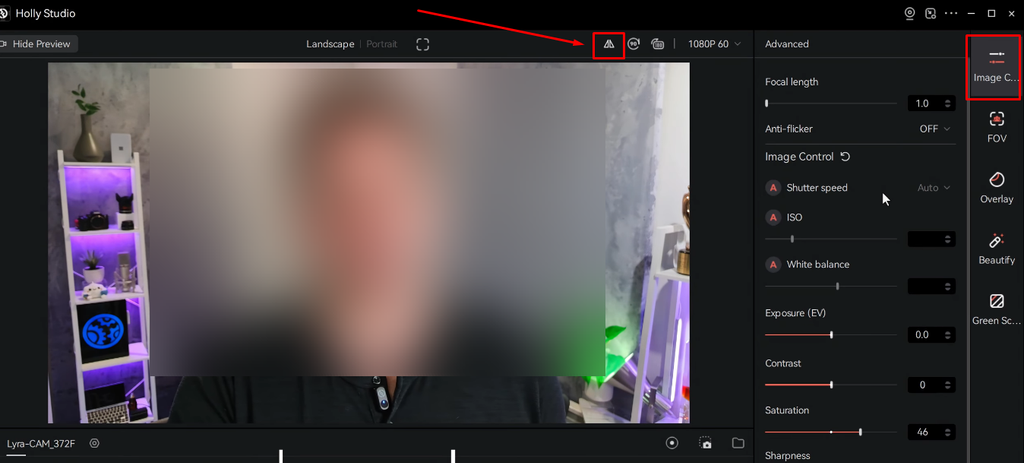
- Verify in the live preview. Confirm the correction looks right in the live preview window inside HollyStudio before switching to any call or streaming app.
Settings are saved automatically. Once applied, you do not need to reconfigure flip settings when opening Zoom, Teams, OBS, or any other application. The Lyra delivers the corrected feed to all downstream software.
Pro Tip: If you use the Lyra’s AI Auto Framing feature, apply your flip correction in HollyStudio first. The auto-framing engine works on the corrected output, so subject tracking and centering behavior stays accurate.
How to Flip Your Webcam in Zoom
Zoom normally mirrors your local preview, like a smartphone selfie camera. This makes your own image appear reversed on your screen. Other participants still see you without the mirror effect. Turning off mirroring only changes your preview. You then see yourself as others see you. This helps when showing text, slides, or anything with on-screen labels.
The Lyra appears in Zoom’s Camera dropdown as a standard selectable device. Select it there before following the steps below.
- Open Zoom and click the profile icon to select and open Settings.
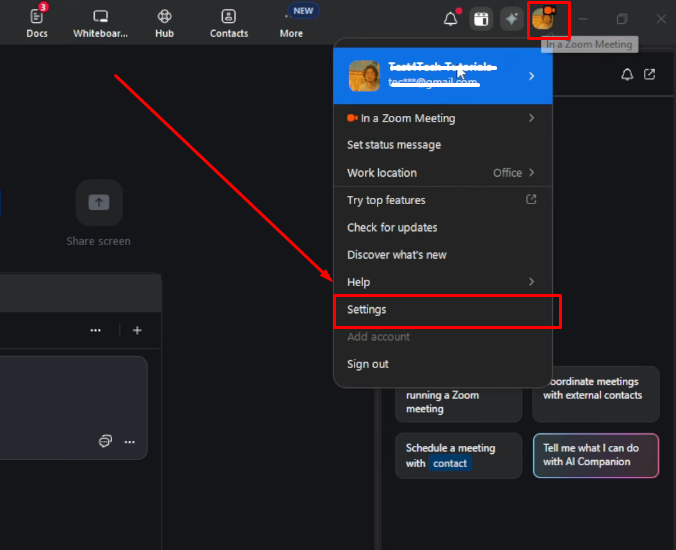
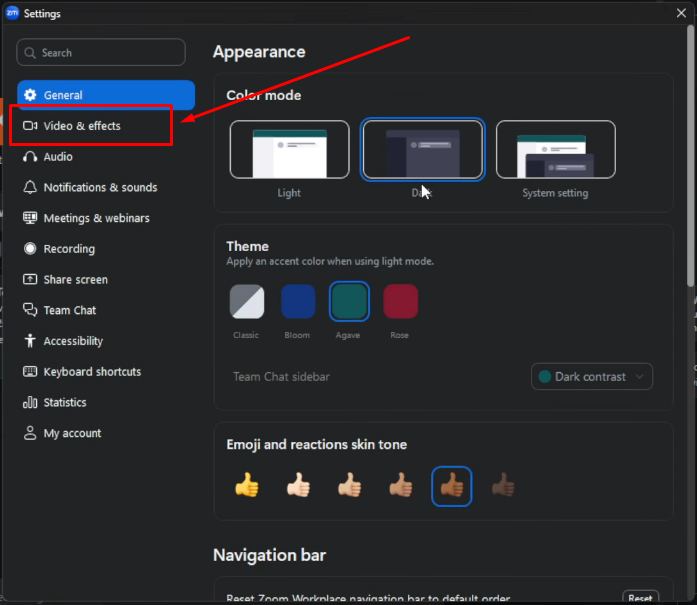
- Select the Video & effects tab in the left sidebar.
- In the preview area, locate the “Mirror my video” option.
- Toggle off “Mirror my video” to disable the horizontal mirror. The preview updates immediately.
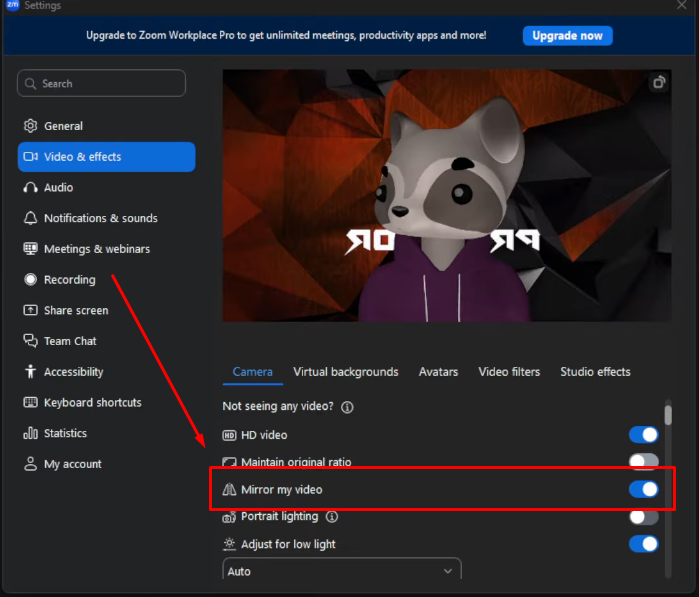
- If your image is upside down rather than mirrored, look for a Rotate 90° button in the top-right corner of the preview in the Video & effects tab. Click it until the orientation is correct, which requires two clicks for a full 180-degree correction.

- Close Settings. The change is saved for future sessions.
How to Flip Your Webcam in Microsoft Teams
Microsoft Teams mirrors your personal video preview by default. It makes your preview look like a normal mirror. Other meeting participants see your video without mirroring. So, text on whiteboards and background logos appear normal. To change how your personal preview looks before joining a call, follow these steps:
- Open Microsoft Teams and click Settings and more (three-dot menu) in the top-right corner of the interface.

- Select Settings from the expanded menu.

- Go to the Devices tab.

- Under the Video settings section, toggle on the Mirror my video option.

How to Flip Your Webcam in OBS Studio
OBS Studio provides precise transform controls for every source in your scene. Streamers and recorders who need to flip a webcam feed can use either the right-click shortcut for a quick fix or the Edit Transform dialog for full control.
- Open OBS Studio and locate your webcam source in the Sources panel. It should appear as a Video Capture Device.
If you have not added the Lyra yet, click the + button, select Video Capture Device, and choose the Lyra from the Device dropdown.


- Right-click the Video Capture Device source in the Sources panel.
- Path A (quick shortcut): Hover over Transform in the context menu, then click Flip Horizontal or Flip Vertical. The correction applies immediately to the OBS canvas.

- Path B (full control): Hover over Transform, then click Edit Transform. Find the Size fields in the dialog box. Add a minus sign before the width value for a horizontal flip. Add a minus sign before the height value for a vertical flip. Then, click Close.

- Check the OBS canvas preview to confirm the orientation is correct before going live or starting a recording.
Pro Tip: OBS transform settings are saved per scene. If you use the Lyra across multiple scenes, repeat the flip step for each Video Capture Device source, or copy the source and paste it into other scenes to carry the transform settings along with it.
Flipping Your Webcam in Google Meet: What Works
Google Meet does not include a native flip or mirror control. If your webcam image appears reversed or inverted during a Meet call, use one of these two workarounds:
- HollyStudio (Lyra users): Locate the Mirror / Flip icon and turn it on in HollyStudio before launching Google Meet. The flip is applied at the device level, so Meet receives an already-corrected signal with no further setup required.
- OBS Virtual Camera: Apply the flip transform to your Video Capture Device source in OBS. Do this when others need to see the flipped image. This can override a mirror setting from your camera hardware. Next, enable OBS Virtual Camera and select it in Google Meet. This method works with any webcam. If text needs to look readable, do not flip it in OBS. Google Meet already sends an unmirrored feed to others.
FAQs
Why does my webcam always look mirrored in video calls?
Zoom and most video conferencing apps mirror your local preview by default, borrowing the selfie-camera convention from smartphones. In most cases, other participants already see a non-mirrored version of you. If you want your own preview to match what others see, disable “Mirror my video” in Zoom’s Video settings or apply a horizontal flip in your webcam’s companion app.
If I disable mirroring in Zoom, does it change what participants see?
No. Zoom’s “Mirror my video” setting only changes your preview. It does not change the video sent to participants. Turning it off shows your video without mirroring. Other participants still see the standard unmirrored video.
Can I flip my webcam permanently so I don’t have to adjust every app separately?
Yes. Applying the flip/mirror feature in a companion app like HollyStudio for the Hollyland Lyra makes the correction at the device level. Every downstream application, including Zoom, Teams, OBS, and Google Meet, receives the corrected feed automatically. You configure it once, and the setting persists across all sessions and apps.
How do I fix an upside-down webcam image?
An upside-down image is a vertical flip issue, typically caused by a non-standard camera mount. In HollyStudio, click the 90-degree Rotate button at the top of the preview screen; in OBS, use Transform > Flip Vertical; in Zoom, click the Rotate 90° button twice for a 180-degree correction.
Does flipping affect video quality or resolution?
No. Flip operations are display-level transformations applied after the image is captured. They do not reduce resolution, frame rate, or bit depth. A 4K30 feed from the Hollyland Lyra remains 4K30 after a horizontal or vertical flip is applied in HollyStudio or any other app.
Conclusion
There are two tiers for resolving webcam flip and mirror issues. First, apply the correction in a companion app such as HollyStudio if you use the Hollyland Lyra; that device-level change persists across every app without repeated configuration. Second, use per-app settings in Zoom, Teams, or OBS for app-scoped control. For a permanent, set-it-once fix, the Lyra and HollyStudio are a strong starting point.