.png)
 简体中文
简体中文 
You’ve just finished recording a podcast or voiceover. The content is great, but every time you say a word with an “S” or “T,” the audio sounds like a piercing hiss. This is called sibilance, and it’s one of the most common ways to ruin a good recording.
If you don’t have expensive paid software, you might think you’re stuck with it. Fortunately, you can fix this for free.
In this guide, we will cover exactly how to use a De-Esser in Audacity to fix harsh sibilance. We will walk through installing the plugin, dialing in the perfect settings, and even a manual method for stubborn audio issues.
What is Sibilance and Why Does it Ruin Audio?
Sibilance is that sharp, hissing sound that happens when you pronounce consonants like “S,” “T,” “Z,” and “Sh.” While we need these sounds to speak clearly, they naturally carry more energy than vowels.
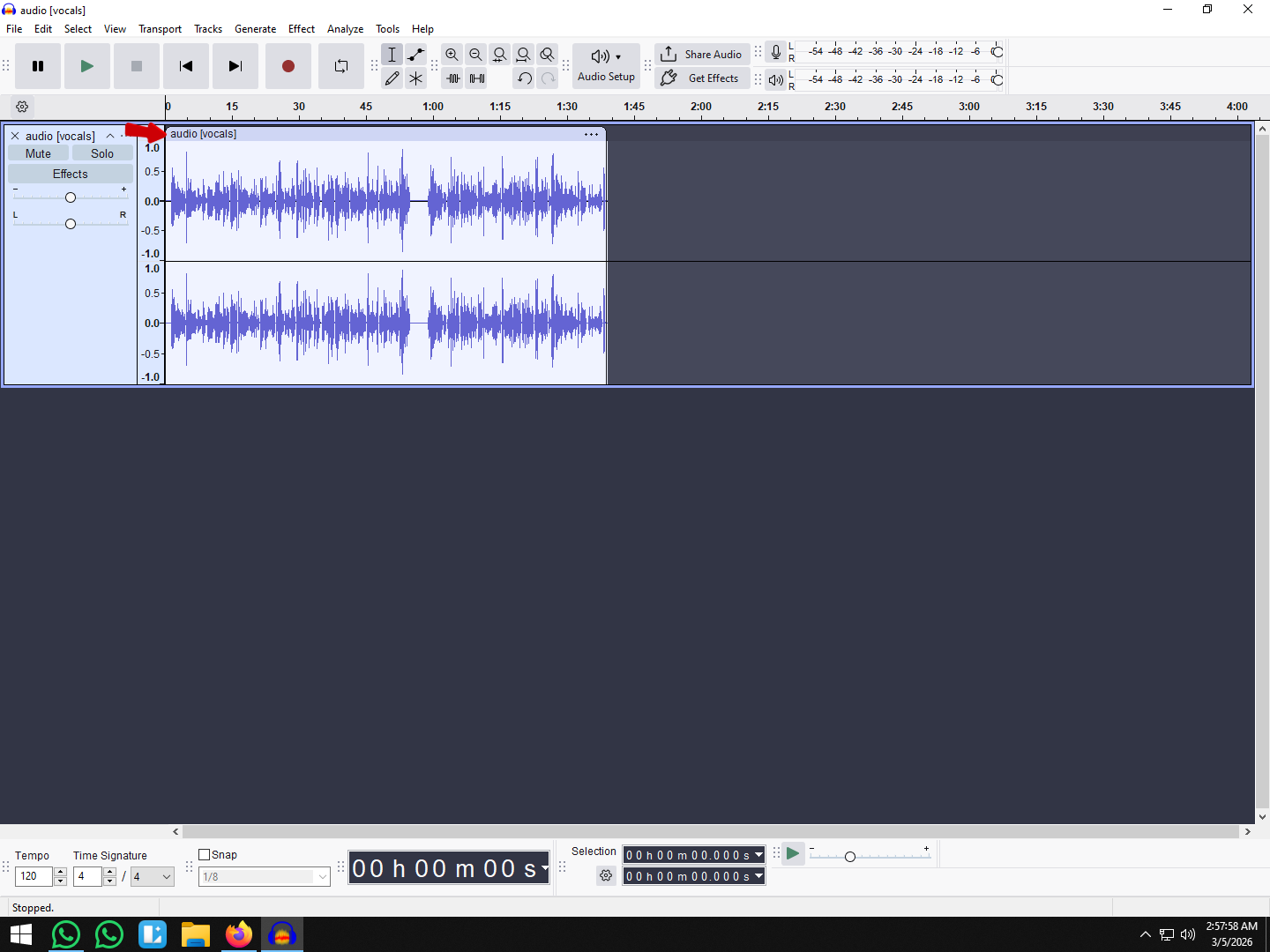
Technically, sibilance is a volume spike between 5kHz and 8kHz. If you look at your waveform in Audacity, you can often spot these moments as dense, solid blocks of noise compared to the rest of your speech.
The Danger of “Listener Fatigue”
Sibilance is more than just annoying; it causes listener fatigue. Our ears are naturally sensitive to high-frequency sounds. When a listener hears constant, sharp “S” sounds, their brain has to work overtime to process the audio. This physical irritation often causes people to turn down the volume or stop listening entirely.
Why It Happens
While this guide focuses on fixing the issue with software, the problem usually starts with your hardware.
- “Hyped” Treble: Many entry-level microphones are engineered to boost high frequencies artificially. Manufacturers do this to make the mic sound “crisp,” but it often exaggerates sibilance, turning normal speech into harsh noise.
- Compression: If you compress your audio heavily to make it louder, you are also raising the volume of those sharp “S” sounds.
A De-Esser is the software tool that tames these specific frequencies, pushing them back down to a natural level without muffling the rest of the voice.
Step 1: Installing the De-Esser Plugin in Audacity
If you just scrolled through your Effect menu and couldn’t find a tool labeled “De-Esser,” don’t panic. Unlike paid audio workstations, Audacity doesn’t always show a De-Esser in the main menu by default.
Depending on your version, the tool is either hidden in a sub-menu or requires a quick manual installation.
How to Find or Install the Plugin
- Check the Built-in Menu First
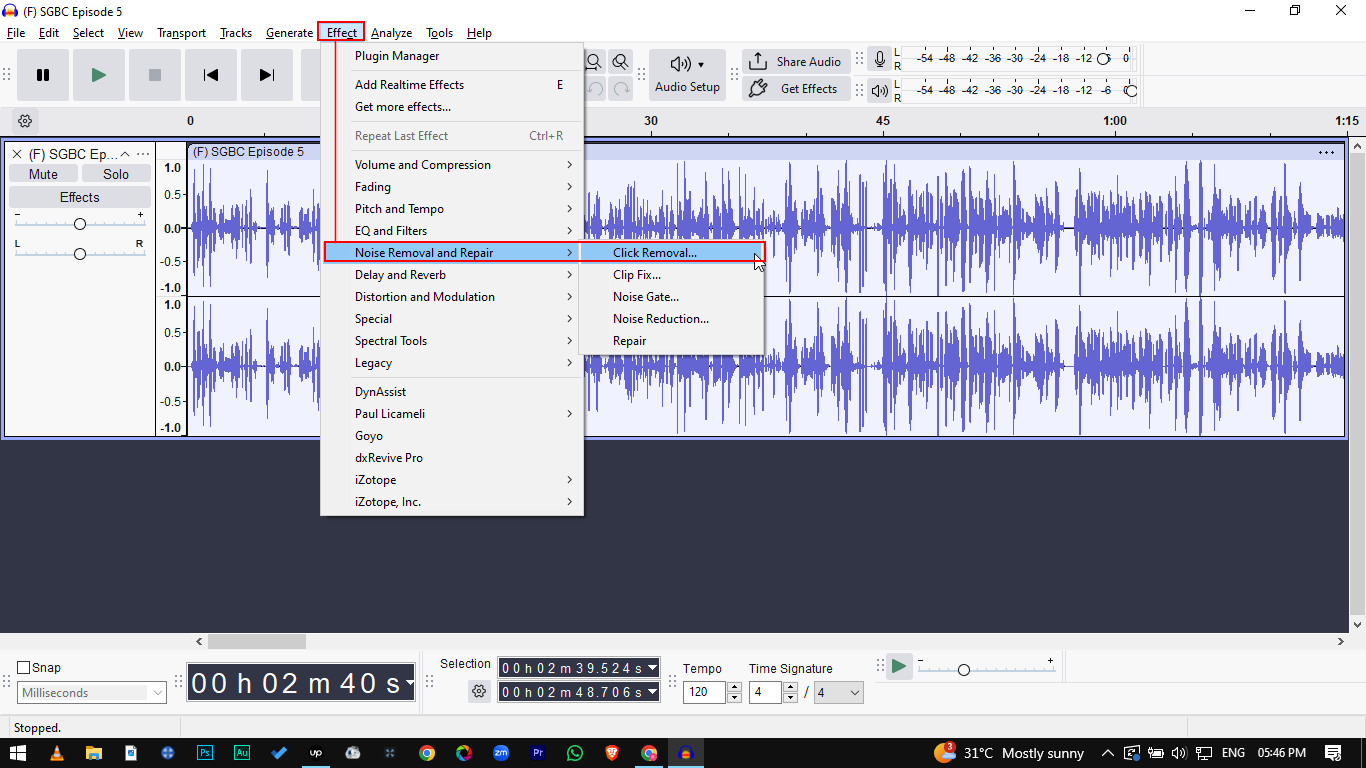
Before downloading anything, go to Effect > Nyquist or Effect > Plugin Manager. Look for “De-Esser” or “Desibilizer.” If you see it but it’s greyed out, skip to Step 4.


- Download the Plugin (If Missing)
If the tool is missing, you need to download the De-Esser.ny file. You can find this for free on the official Audacity Wiki or the Audacity Plugins site.


- Install the File
Move the downloaded .ny file to your Audacity installation folder.
- Windows: Usually C:\Program Files\Audacity\Plug-Ins
- macOS: Usually ~/Library/Application Support/audacity/Plug-Ins

- Enable the Plugin
Restart Audacity so it sees the new file. Go to Tools > Plugin Manager (or Effect > Add/Remove Plugins). Scroll down until you find “De-Esser,” select it, and click Enable.


Once enabled, the De-Esser will appear in your Effect menu, usually under the “Nyquist” section.
Step 2: How to Apply the De-Esser Settings Correctly
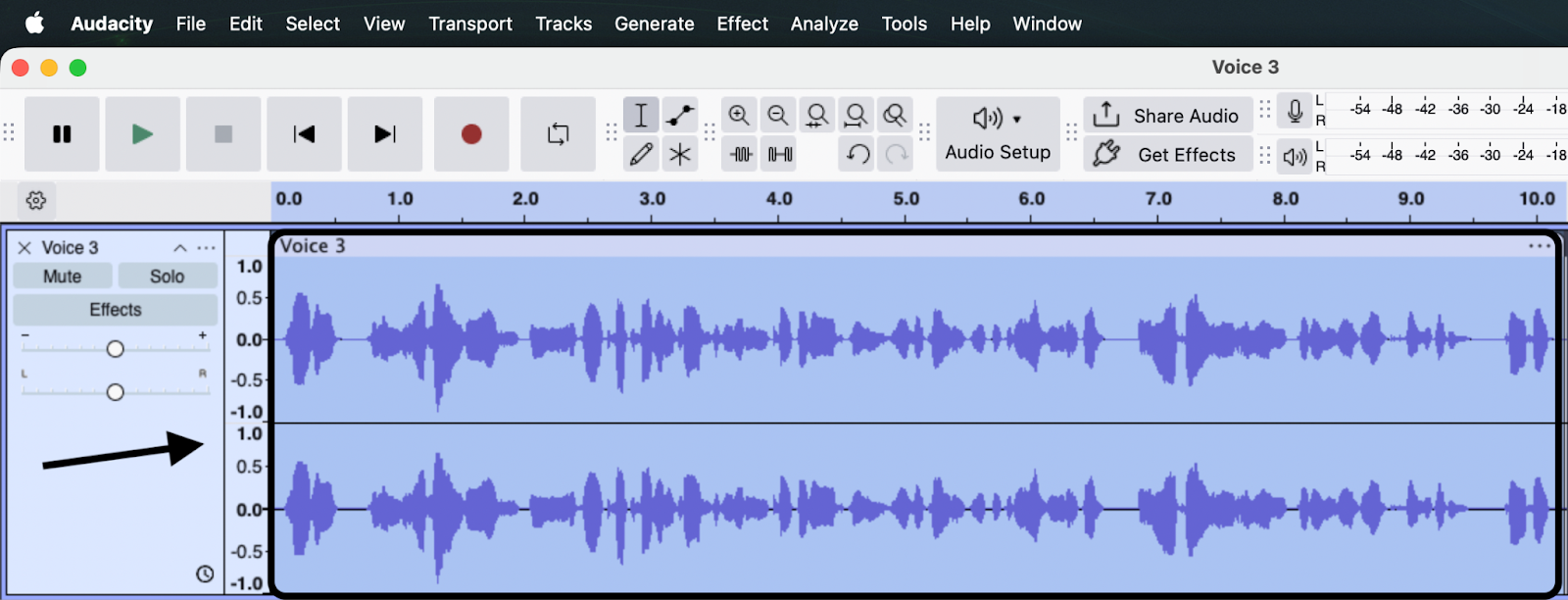
Once your plugin is ready, select the part of the audio track you want to fix (or press Ctrl + A to select the whole track). Go to Effect > Nyquist > De-Esser to open the interface.

You will see a few sliders, but the success of your edit relies almost entirely on balancing two specific settings: Threshold and Frequency.
1. Threshold
The Threshold decides how loud a sound must be before the De-Esser kicks in. Think of this as the “sensitivity” of the effect.
- How it works: If you set the threshold too high (e.g., -5dB), the plugin will ignore most of the sibilance. If you set it too low (e.g., -40dB), it will start compressing normal speech, making you sound muffled.
- Recommended Setting: Start between -10dB and -20dB. You want the effect to trigger only on the sharp “S” spikes, not the rest of your words.
2. Frequency
The Frequency setting tells Audacity where the harsh “S” sounds are living so it knows what to target.
- How it works: Sibilance usually lives in the high-mid frequency range. If you target the wrong area, you won’t reduce the harshness.
- Recommended Setting: Set this range between 4000Hz (4kHz) and 7000Hz (7kHz).
- Deep Voices: Sibilance is usually closer to 4000Hz – 5000Hz.
- Higher Voices: Sibilance usually sits higher, around 6000Hz – 8000Hz.

Pro Tip: Avoid the “Lisp” Effect
De-essing works by suppressing volume in high frequencies. If you push the Threshold too low, you will remove too much definition. This makes the speaker sound like they have a lisp.
Rule of Thumb: It is better to leave a tiny bit of natural sibilance than to over-process the voice until it sounds robotic. Apply the effect lightly.
Method 2: The “Manual EQ” Technique (For Stubborn Sibilance)
While a De-Esser plugin is fast, it applies a blanket effect to your entire track. If you push the plugin too hard to fix one loud “S,” you might ruin the rest of the recording.
For those specific, piercing moments that a plugin can’t handle, you need the “Surgeon” method: Manual Equalization (EQ). This allows you to fix individual sounds without touching the rest of your performance.
How to Surgically Remove Sibilance
This takes a bit more time, but it sounds the most natural.
1. Locate the Sibilance Visually

Zoom in on your waveform (Ctrl + Scroll or Cmd + Scroll). Vowel sounds look like consistent, wavy lines. Sibilance (“S”, “T”, “Sh”) looks like a dense, fuzzy “blob” or a tight cluster of noise.
2. Isolate the Selection

Highlight only the specific “S” sound causing the issue. Do not include the vowel sounds before or after it, or the transition will sound choppy.
3. Open the Filter Curve EQ
Go to the top menu:
- Effect > EQ and Filters > Filter Curve EQ.

4. Create the “Dip”
You need to lower the volume of the specific frequencies where the harshness lives (usually 5kHz to 8kHz).
- Click on the line in the graph to create a point around 5000 Hz.
- Create a second point around 8000 Hz.
- Drag the line between these points down by -3dB to -6dB.
- Note: Do not cut more than -6dB, or the “S” will disappear entirely, leaving a hole in your audio.
5. Preview and Apply
Click Preview. The “S” should sound softer but still distinct. If it sounds muffled, raise the curve slightly. Once you’re happy, click Apply.

Pro Tip: If you have multiple harsh “S” sounds, you don’t need to redraw the curve every time. After fixing the first one, highlight the next “S” and press Ctrl + R (Cmd + R) to instantly repeat the last effect with the same settings.
Pro Tip: How to Prevent Sibilance Before You Record
Plugins and EQ curves are powerful, but relying on them too heavily comes at a cost. Every time you use a De-Esser, you are technically degrading your audio signal. If you push it too far, you lose the “air” and clarity of the voice.
The most effective way to handle sibilance is to stop it from entering your recording in the first place.
Master the “Off-Axis” Technique
Sibilance is essentially a blast of high-frequency air hitting the microphone capsule. If your mic is directly in front of your mouth, it catches the full force of every “S” and “T.”
To fix this, use Off-Axis placement:
- Move your microphone slightly to the side (about 45 degrees relative to your face).
- Angle the microphone capsule back toward your mouth.
- Speak past the microphone rather than directly into it.
This simple adjustment allows the harsh air blasts to pass harmlessly by the capsule while still capturing the full resonance of your voice.
Upgrade Your Source Audio
Hardware plays a massive role here. Many entry-level microphones artificially boost treble to sound “crisper.” Unfortunately, this often turns normal speech into piercing noise that is difficult to fix later. Professional wireless systems prioritize accurate, flat frequency response over artificial boosting.
If you find yourself constantly fighting harsh “S” sounds in Audacity, consider upgrading to the Hollyland LARK MAX 2. It solves sibilance issues through superior internal processing:

Hollyland LARK MAX 2 - Premium Wireless Microphone System
A premium wireless microphone for videographers, podcasters, and content creators to capture broadcast-quality sound.
Key Features: Wireless Audio Monitoring | 32-bit Float | Timecode
- Studio Quality (48kHz/24-bit): Unlike budget microphones that compress data and introduce digital artifacts, the LARK MAX 2 captures high-resolution audio. This ensures high frequencies remain smooth and natural rather than jagged and harsh.
- 32-bit Float Recording: Sudden loud “S” sounds can sometimes cause micro-distortion (clipping) in standard 16-bit recordings. The LARK MAX 2’s 32-bit float capability captures a massive dynamic range, ensuring that even the loudest peaks are captured cleanly without the distortion that often mimics sibilance.
By recording a cleaner signal with professional hardware, you significantly reduce the need for aggressive de-essing in Audacity.
Frequently Asked Questions (FAQ)
Where is the De-Esser located in Audacity?
In standard installations, the De-Esser isn’t always in the main “Effect” menu. Check Effect > Nyquist or the Plugin Manager. If it’s missing, download the De-Esser.ny file from the Audacity Wiki, place it in your Plug-Ins folder, and enable it via the Plugin Manager.
What frequency is sibilance usually at?
For most voices, harsh sibilance occurs between 5kHz and 8kHz (5000Hz – 8000Hz). Deeper male voices may have issues closer to 4kHz–6kHz, while higher-pitched voices can extend up to 9kHz.
Why does my De-Esser make me sound like I have a lisp?
This happens when you over-process the audio. Usually, your Threshold is set too low (triggering the effect too easily) or you are reducing the volume too aggressively. The goal is to tame the “S” sound, not delete it.
Can I use third-party VST plugins in Audacity?
Yes. Audacity supports VST plugins. Popular free options like Spitfish or Techivation T-De-Esser work well within Audacity and often have better visual interfaces than the built-in tools.
Conclusion
Fixing sibilance is always a balancing act. Your goal isn’t to remove every “S” sound—that destroys the natural clarity of the human voice—but to tame the sharp frequencies that cause listener fatigue.
Before you finalize your track, always apply the De-Esser to a small 10-second sample first. Listen to the result with fresh ears to ensure you haven’t crushed the life out of the vocal performance before applying the effect to the entire file.
Finally, remember that the best way to fix bad audio is to capture it cleanly in the first place. If you spend hours surgically removing harshness from every recording, the issue likely lies in your hardware. Upgrading to a professional system like the Hollyland LARK MAX 2 can solve this at the source, giving you a smooth signal that saves you hours of post-production work.