.png)
 简体中文
简体中文 
Learning how to add a song to your Audacity project is the first step in turning a flat recording into a professional production. Whether you are launching a podcast, recording a music cover, or polishing a voiceover for YouTube, audio layering is what keeps listeners engaged.
Audacity is the go-to free tool for this because of its robust multi-track editing. Unlike basic voice recorders that capture a single stream of sound, Audacity lets you stack multiple files—putting a “bed” of music underneath your narration or combining a beat with vocals.
However, getting the file into the software is just the beginning. The real trick is balancing the levels so your music supports the voice rather than drowning it out. Below, we’ll cover exactly how to import your tracks and the essential adjustments needed to make your final mix sound right.
Method 1: Drag and Drop (The Fastest Way)
Stop digging through complex menus. If you already have your audio file accessible on your computer, the drag-and-drop method is the fastest workflow for modern versions of Audacity.
Follow these steps to import your audio instantly:
- Open Audacity and your computer’s file manager (File Explorer on Windows or Finder on Mac) side-by-side.

- Locate your target song file (MP3, WAV, or AIFF).

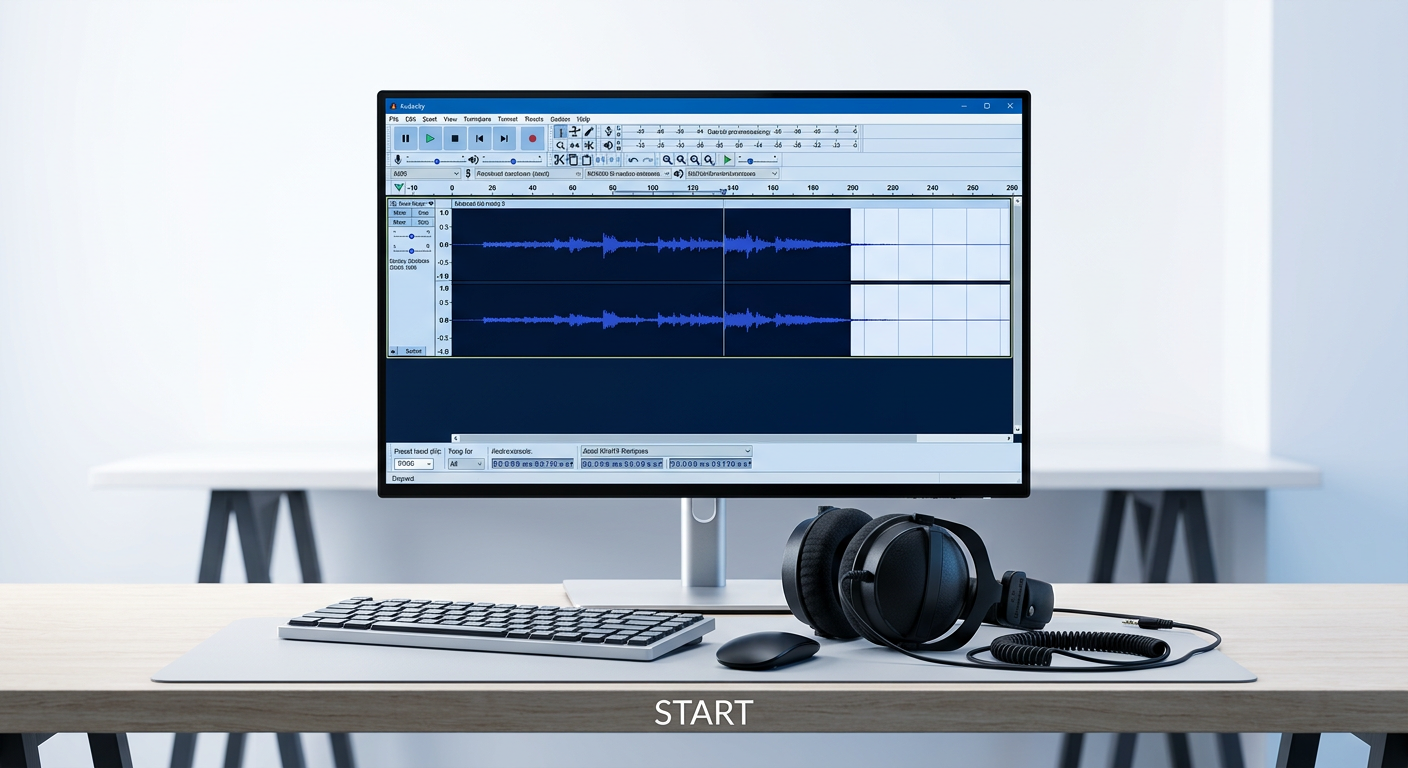
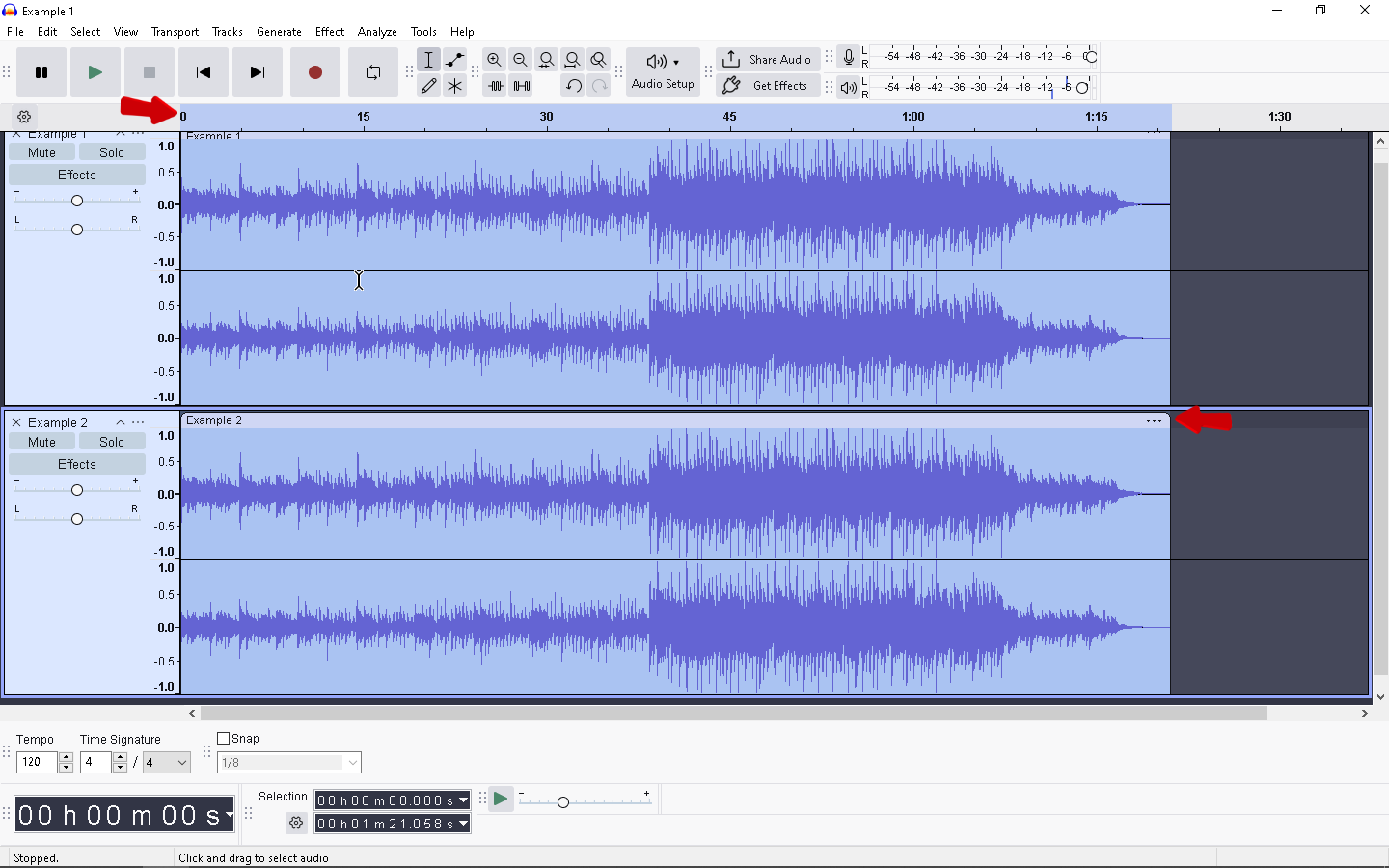
- Click and drag the file directly into the dark gray workspace within Audacity.

- Release the mouse button; Audacity will automatically process the file and generate a new stereo track with a visible blue waveform.

Once the waveform appears, your song is imported and ready for mixing. If the track appears flat or you see an error message, check that your file isn’t corrupted or in a protected format (like M4P).
Pro Tip: You aren’t limited to one song at a time. If you highlight and drag multiple files into Audacity simultaneously, the software will stack them as separate tracks. This is a massive time-saver when setting up a podcast project containing a voiceover, intro music, and sound effects all at once.
Method 2: The “Import Audio” Menu (Standard Method)
While dragging and dropping is fast, the traditional menu method is often more reliable if you need to browse through complex folder structures. This is the “formal” way to get external files into your project.
Follow these steps to import your track:
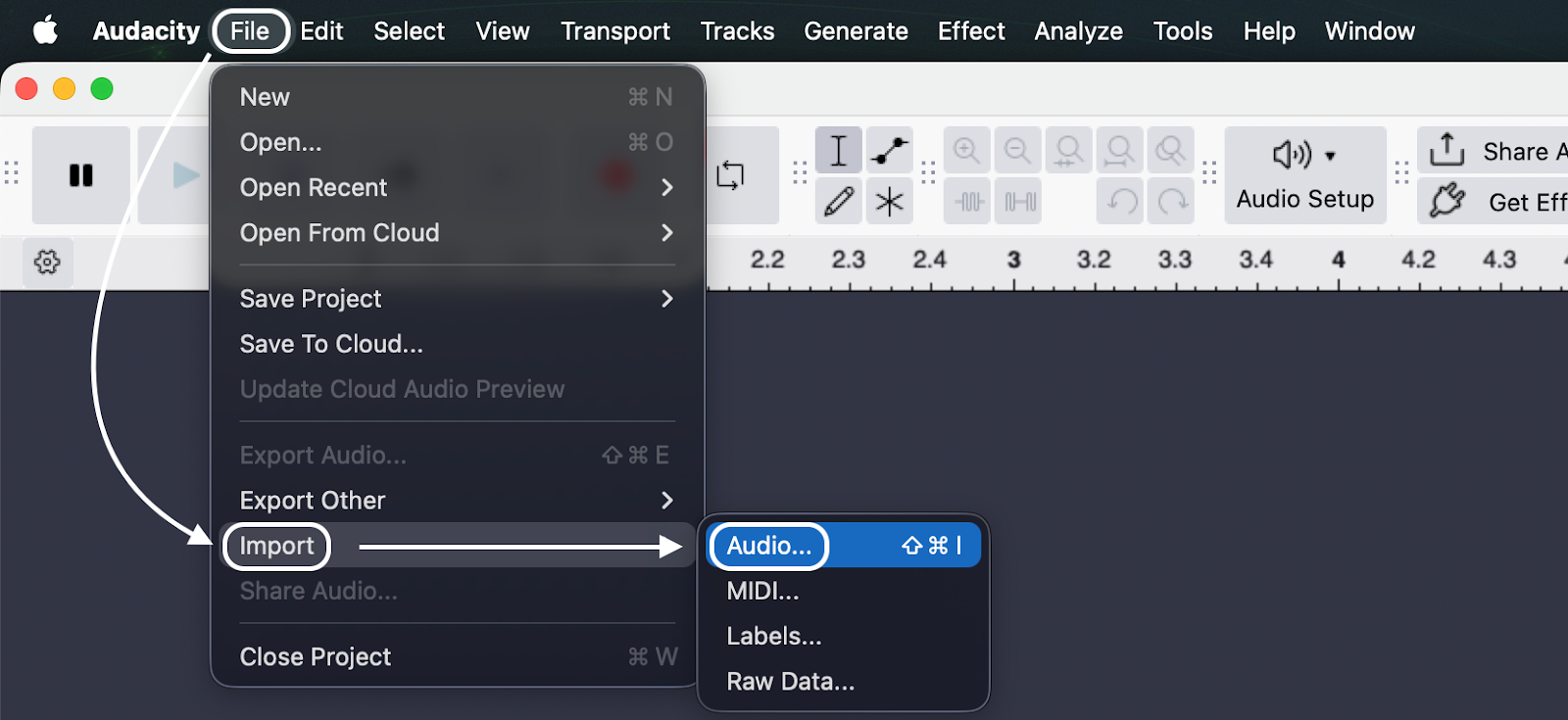
- Navigate to the top menu bar and click File.

- Hover your mouse over Import and select Audio.
- A file browser window will pop up. Locate your song file (MP3, WAV, or AIFF).
- Click Open.


Keyboard Shortcut: You can skip the menus entirely by pressing Ctrl + Shift + I (Windows) or Cmd + Shift + I (Mac).
⚠️ Crucial Warning: “Open” vs. “Import”
A common mistake beginners make is using File > Open to add a song.
- File > Open: Creates a brand new Audacity project window. This is useful if you are starting from scratch, but useless if you are trying to combine a song with a voiceover you already recorded.
- File > Import: Adds the audio file to your current project as a new track, stacking it beneath your existing audio.
Always use “Import” when you want to mix multiple sounds together.
Why Can’t I Add My Song? (Troubleshooting Common Errors)
It is frustrating to drag a file into Audacity only to be hit with a “File not recognized” or “Error importing” message.
If you are trying to add a standard MP3 or WAV file, this rarely happens. However, if you are importing audio recorded on an iPhone (M4A), ripped from a video, or exported from other software, Audacity often rejects it out of the box.
This isn’t a bug; it is a licensing rule. Because Audacity is open-source, it cannot legally bundle proprietary software codecs by default. To fix this, you need a “translator” called FFmpeg.
The Solution: Installing the FFmpeg Library
The FFmpeg library is a plugin that allows Audacity to read and write almost any audio format, including M4A (AAC), AC3, and WMA.
Here is how to get full compatibility:
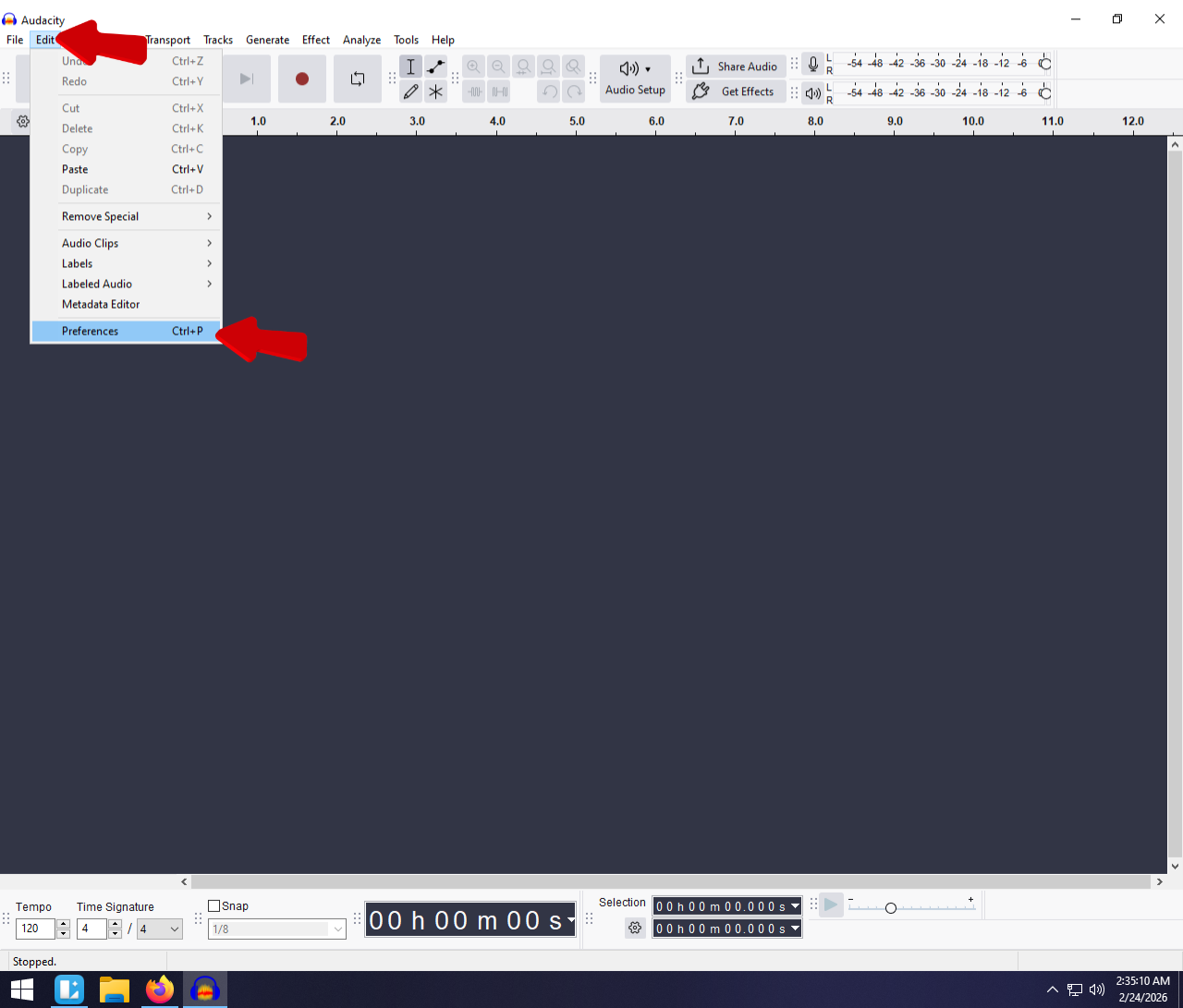
- Open Preferences:
- Windows: Go to Edit > Preferences.
- Mac: Go to Audacity > Settings.

- Navigate to Libraries: On the left-hand sidebar, click on Libraries.
- Locate FFmpeg: You will see a section labeled “FFmpeg Import/Export Library.” Click the Download button.

- Install: This will take you to the official external download page. Download the installer appropriate for your OS (Windows/Mac/Linux), run it, and restart Audacity.

Once installed, Audacity will automatically detect the library, and you will be able to drag and drop virtually any audio file into your project without error.
Common Formats That Require FFmpeg
If your file extension matches any of the following, you must install the FFmpeg plugin to edit them in Audacity:
- .M4A / .AAC: Standard formats for Apple Voice Memos and iTunes music.
- .AC3: Common audio format found inside video files.
- .WMA: Windows Media Audio files.
Post-Import: How to Mix Your Song with Voice
Importing your file is only the first step. If you hit “Play” immediately after dragging your song in, you will likely hear a chaotic wall of sound where the music drowns out your voice recording.
To turn raw files into a polished episode, you need to adjust timing and volume levels.
Aligning Tracks: Moving Audio in Time
In older versions of Audacity, you had to select a specific “Time Shift Tool.” In modern versions (3.0 and later), this feature is built directly into the track itself via Clip Handles.
- Look at the top of your audio waveform (the song track). You will see a lighter gray bar with the track name—this is the Clip Handle.

- Hover your mouse over this bar until the cursor turns into a Hand Icon.
- Click and drag the music track left or right to align it perfectly with your voiceover.

Pro Tip: If you want the music to start before you speak, drag your voice track slightly to the right so there is a few seconds of silence at the beginning.
Adjusting Volume: The Envelope Tool
The most common mistake beginners make is leaving the background music at 100% volume. To ensure your voice is clear, you need to lower the music volume using the Envelope Tool. This tool allows you to change volume dynamically—keeping the music loud during the intro, but quiet when you start speaking.
- Select the Envelope Tool from the top toolbar (it looks like a line connecting two dots, usually between the “I” beam and the Draw tool).

- Click anywhere on the blue line inside your music track to create a Control Point.
- Create a second point where you want the volume to change.

- Drag the line down to lower the volume.

Visually, the waveform will shrink, indicating the music is quieter in that section. Aim for the background music to sit around -20dB to -25dB while you are speaking.
Why Source Quality Matters
Mixing becomes a nightmare if your original vocal recording is distorted, clipping, or noisy. No amount of background music or envelope adjustments can hide bad audio.
For studio-quality source audio, we recommend the Hollyland LARK MAX 2. Its 32-bit Float Recording ensures you never clip or distort—even if you scream or laugh loudly—making the editing process significantly faster. Plus, the included Wireless Audio Monitoring lets you hear exactly what you get via the new OWS earphones before you even open Audacity, saving you from “fix it in post” headaches.

Hollyland LARK MAX 2 - Premium Wireless Microphone System
A premium wireless microphone for videographers, podcasters, and content creators to capture broadcast-quality sound.
Key Features: Wireless Audio Monitoring | 32-bit Float | Timecode
Pro Tip: Using “Auto Ducking” for Professional Podcasting
If you are creating a podcast or a voiceover reel, manually lowering the music volume every time you speak (using the Envelope Tool) takes hours. Instead, you can use Auto Ducking.
This feature automatically lowers the volume of your background music track whenever it detects audio on your vocal track. It creates that polished “Radio DJ” effect instantly.
The Golden Rule: Track Order Matters
Before you apply the effect, you must arrange your tracks correctly. Audacity’s Auto Duck logic is strict:
- Top Track: This must be your Voice/Control Track (the audio that triggers the change).
- Bottom Track: This must be your Music Track (the audio that gets quieter).
If your music is above your voice track, the effect will not work. Click the dropdown menu on the track header and select “Move Track Down” if necessary.
How to Apply Auto Ducking
- Select the Music Track: Click the header of the background music track to select the entire waveform. Do not select the voice track.
- Open the Effect: Go to Effect > Volume and Compression > Auto Duck.

- Configure the Settings:
- Duck Amount: This determines how quiet the music gets. -12 dB is usually a good starting point for subtle background music.
- Maximum Pause: This tells Audacity how long to wait after you stop speaking before bringing the music volume back up. 0.5 seconds usually sounds natural.
- Threshold: This is the sensitivity. If your voice recording is quiet, you may need to lower the threshold so Audacity detects it.
- Preview and Apply: Click Preview to hear how it sounds. If the music drops smoothly when you speak, click Apply.

Note: Unlike real-time plugins, this is a “destructive” edit in Audacity. If you don’t like the result, simply press Ctrl + Z (Cmd + Z) to undo and try different settings.
Frequently Asked Questions (FAQ)
Can I add a song from Spotify directly to Audacity?
No, you cannot. Audacity requires an actual audio file (like an MP3 or WAV) stored locally on your computer’s hard drive.
Songs on Spotify, Apple Music, and YouTube Music are protected by DRM (Digital Rights Management) and are “streamed,” not downloaded as accessible files. To edit a song in Audacity, you must own the track and have the file saved in a folder on your desktop.
How do I cut the song to fit my project?
If your background music is longer than your voice recording, you can trim it quickly:
- Select the Selection Tool (the icon that looks like a capital “I” or press F1).

- Click and drag your mouse over the part of the song you want to remove.
- Press the Delete or Backspace key on your keyboard.

Why is the music louder than my voice?
This is a common mixing issue where the frequencies of the music clash with your vocals. You have two quick fixes:
- Global Volume: Use the Gain Slider (the -/+ bar on the far left of the music track) and drag it to the left (negative dB) until the music sits clearly behind the voice.
- Dynamic Volume: If the music is only too loud in specific spots, use the Envelope Tool to manually draw volume points and lower the volume only where necessary.
Conclusion
Adding a backing track in Audacity doesn’t have to be complicated. By now, you should feel comfortable getting your audio files onto the timeline—whether you prefer the speed of Drag and Drop or the precision of the File > Import menu.
Remember, simply adding the file is only step one. The difference between an amateur recording and a professional production lies in the mix. Take the time to use the Envelope Tool or Auto Ducking to ensure your music sits comfortably behind your vocals without fighting for attention.
Ready to share your work?
Don’t forget that saving the project (.aup3) is only for editing. To publish your podcast or video, you must go to File > Export > Export as MP3 (or WAV). Now, get your episode out there and let the world hear what you’ve created.