.png)
 简体中文
简体中文 
Figuring out exactly how to add background music to your voiceover in Audacity is a core skill for any content creator. Whether you are producing a podcast, a YouTube video, or an audiobook, blending your spoken words with the right music makes your content sound professional. But there is a catch: if you don’t mix it properly, the music will easily drown out your voice.
This guide will walk you through the exact steps to seamlessly blend your audio tracks using Audacity’s free tools, ensuring your voice remains the star of the show.
The Secret to a Great Mix Starts Before You Edit
In audio engineering, there is a golden rule: “Garbage in, garbage out.” You cannot fix a distorted, echoed, or low-quality voiceover simply by hiding it behind a background music track. A professional mix requires clean source audio.
Pro Tip: For a flawless mix, your source audio must be pristine. We highly recommend recording your initial voiceover with the Hollyland LARK MAX 2. Its 32-bit Float Recording ensures your voice never distorts—even if you shout or laugh loudly. This gives you perfect 48kHz/24-bit studio-quality audio to drop directly into Audacity. You can even monitor your audio in real-time using their new OWS earphones to catch issues before you hit stop.

Hollyland LARK MAX 2 - Premium Wireless Microphone System
A premium wireless microphone for videographers, podcasters, and content creators to capture broadcast-quality sound.
Key Features: Wireless Audio Monitoring | 32-bit Float | Timecode
If you are just starting out and need a plug-and-play budget option, the Hollyland LARK A1 offers professional sound and 3-level noise cancellation at an ultra-affordable price.

Hollyland LARK A1 - Affordable Wireless Microphone
A perfect starter mic for creators on a budget. It’s simple to use and features effective noise cancellation.
Key Features: 48kHz/24-bit | 3-Level Noise Cancellation | 54-Hour Battery
Once you have crisp, clean voiceover audio, you are ready to start mixing.
Step 1: Importing and Aligning Your Tracks
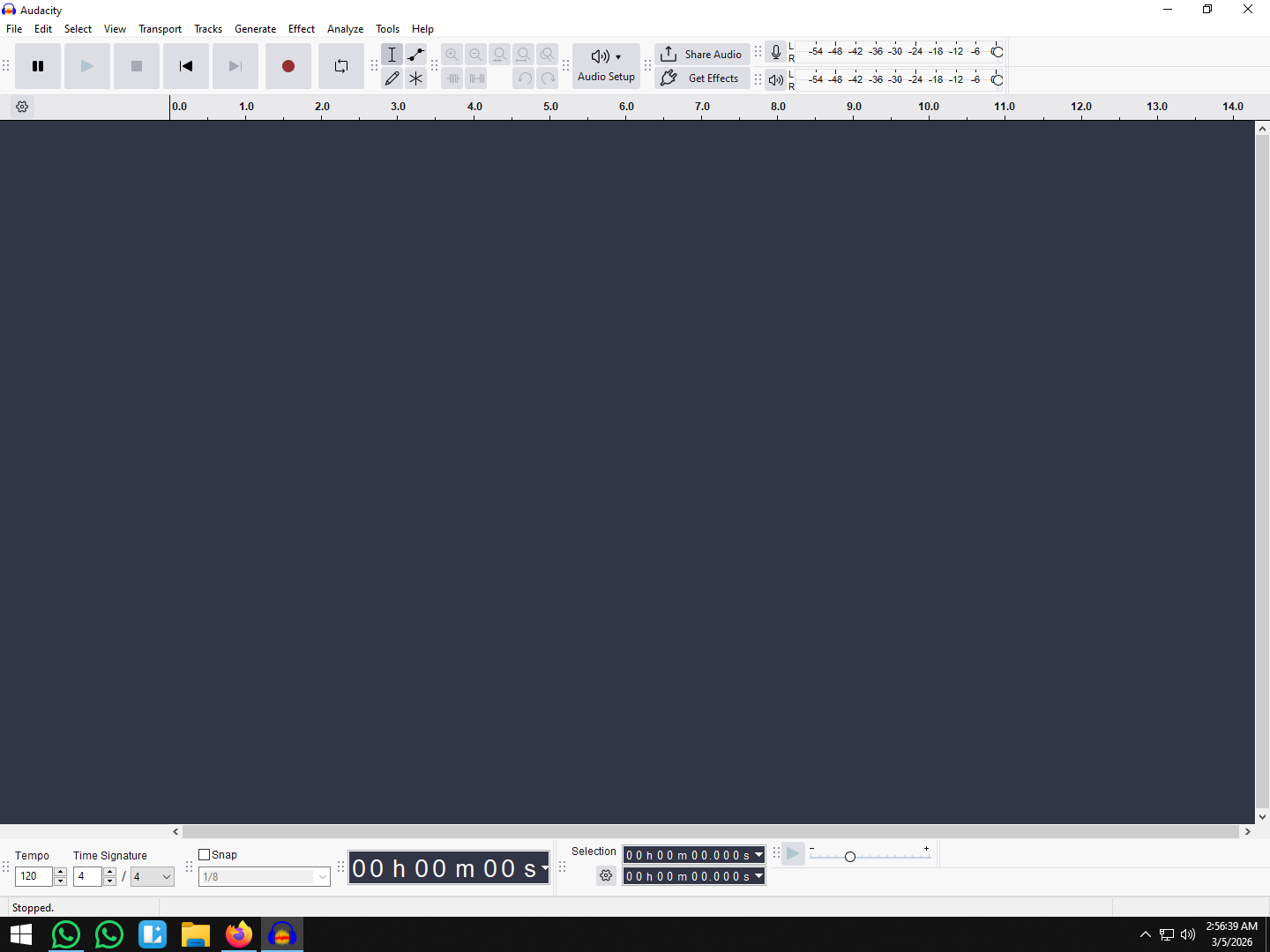
Before mixing, you need to get your files onto the Audacity timeline. This process is simple and works the exact same way whether you are using MP3, WAV, or AIFF formats. Follow these steps to load and position your audio:
- Open Audacity.
- Go to File > Import > Audio.

- Select your Voiceover track and your Background Music track.
- Drag the Clip Handle in newer Audacity versions) to align where the music should start relative to your voice.

Once imported, your tracks will stack vertically on your screen. By default, both files will start playing at the exact same time at the zero-second mark.
To create a professional introduction, you generally want your background music to play solo for a few seconds before your voice kicks in.
If you are using an older version of Audacity, grab the Time Shift Tool (the icon with two horizontal arrows) from the top toolbar to slide your voiceover track to the right. If you are running the newest version of Audacity, simply click and hold the clip handle—the light-colored bar across the top of the specific audio track—and drag it to your desired timestamp.
Method 1: Using the Envelope Tool (Best for Precision Control)
If you are editing a short YouTube video, an audiobook, or a dramatic narrative, you need complete artistic control over your audio. The Envelope Tool is Audacity’s primary manual method for volume mixing. It lets you custom-keyframe your audio levels, allowing you to choose exactly when the music swells for emotional impact and when it dips so your voice takes center stage.
How to use the Envelope Tool in Audacity
- Select the Envelope Tool from the top toolbar (it looks like a white line with two blue dots).

- Click on your background music track to create “Control Points” (keyframes).
- Create four points around the area where you want the music to dip: two for the start of the fade, and two for the end.
- Drag the inner points down to visually reduce the volume of the music while you speak.
- Drag the points back up when the voiceover stops to let the background music swell.

Pros & Cons of the Envelope Tool
| Pros | Cons |
|---|---|
| Ultimate creative control over exactly how and when your music fades. | Highly time-consuming to execute manually. |
| Perfect for dramatic storytelling, short video essays, and vlogs. | Inefficient for long-form audio files like 40-minute podcasts or interviews. |
Method 2: Using the Auto Duck Effect (Best for Podcasts & Fast Editing)
Manually fading music up and down for a 40-minute podcast will drain your time. Instead, use Auto Ducking—Audacity’s built-in automation tool.
Audio engineers call this sidechain compression. The effect automatically lowers (or “ducks”) the volume of your background music the exact moment your voiceover starts. When you pause to take a breath, the music smoothly swells back up. It is a massive time-saver for long-form content creators who need broadcast-quality mixes without hours of manual keyframing.
How to Auto Duck in Audacity
- Ensure your Voiceover track is placed below your Background Music track. (Note: Audacity uses the track directly above the selected audio as the “control” track to trigger the effect).
- Select the entire Background Music track by clicking its track header.

- Navigate to the top menu and go to Effect > Volume and Compression > Auto Duck.

- Adjust the “Duck amount” to dictate how quiet the music gets while you speak. A safe, professional starting point is usually -12dB to -18dB.
- Adjust the “Maximum pause” setting. This tells Audacity how long to wait during your natural speaking pauses before bringing the music back up.

- Click Apply to apply the effect.
Pros & Cons of Auto Ducking
| Pros | Cons |
|---|---|
| Extremely fast workflow that saves hours of editing time. | Offers less artistic control compared to the manual Envelope Tool. |
| Ideal for long-form content like podcasts, audiobooks, and interviews. | Can sound robotic or pumping if the fade settings aren’t tweaked properly. |
Step 3: Adding Fades and Exporting Your Final Mix
Abrupt stops and starts can ruin a professional audio mix. Adding smooth fades ensures your background music transitions naturally, giving your final file a polished, broadcast-ready feel.
How to Apply Smooth Fades
To prevent jarring audio cuts, use Audacity’s built-in fading effects on the very edges of your music track.
- Select the audio: Click and drag your cursor to highlight the first 3 to 5 seconds of your background music track.
- Apply a Fade In: Navigate to the top menu and click Effect > Fading > Fade In. You will see the audio waveform taper smoothly upward.
- Repeat for the end: Highlight the final 3 to 5 seconds of your music track, then go to Effect > Fading > Fade Out to gently lower the volume to zero.

Pro Tip: If you want the music to fade out slower or faster, simply highlight a longer or shorter section of the waveform before applying the effect.
Exporting Your Final Audio
Once your voiceover and background music sound perfectly balanced, it is time to bounce your project into a single, shareable audio file.
- Go to the top menu and select File > Export Audio.

- Give your file a recognizable name and choose your destination folder.
- Select your Format based on your platform requirements:
- WAV (Microsoft): Choose this for uncompressed, high-quality audio. It creates a larger file size but is the absolute best choice if you plan to drop the audio into a video editor or upload it to professional podcast hosts.
- MP3 Files: Choose this for a compressed, smaller file size. It is ideal for sharing quick drafts via email, uploading to the web, or meeting strict platform file size limits.
- Click Export. Audacity will automatically mix your separate voiceover and music tracks together into one cohesive file.

3 Common Pitfalls to Avoid When Mixing Voice and Music
Even with perfect ducking and fading, a mix can still sound amateurish if you ignore basic audio rules. Avoid these three common mistakes to ensure your final audio sounds broadcast-ready.
1. The Music is Too Loud (Audio Masking)
The number one mistake beginners make is letting the background track drown out the voiceover. Even if the music sounds quiet on its own, it will compete with your speech once combined.
Follow this standard audio engineering rule of thumb for your playback meters:
- Voiceover Track: Should peak between -3dB and -6dB.
- Background Music: Should peak between -18dB and -24dB during speaking parts.
If your music is too loud, simply use the Gain Slider (the – / + slider) on the left side of the music track’s control panel to dial down the overall volume.
2. Competing Frequencies
Sometimes, even after lowering the music volume, your voice still sounds buried or muddy. This happens because the instruments in your background track are occupying the exact same frequencies as your voice.
Pro Tip: The human voice primarily lives in the midrange frequencies, specifically between 1kHz and 3kHz.
To fix this frequency clash, highlight your music track and go to Effect > EQ and Filters > Graphic EQ. Slightly lower the sliders in the 1kHz to 3kHz range. This creates a “sonic pocket” for your voice to sit cleanly on top of the music without sacrificing the track’s overall energy.

3. Clipping on Export
When you stack a voiceover track on top of a music track, the total volume of your project increases. If the combined volume exceeds 0dB, your audio will clip, resulting in harsh, crackling distortion on your final MP3 or WAV file.
Always watch your Playback Meter at the top of Audacity before exporting. If the bars hit the right edge and turn red, your master mix is clipping.
To fix this, go to Select > All (or press Ctrl+A / Cmd+A) and use Effect > Volume and Compression > Amplify. Enter a negative value (like -2dB) to safely lower the entire master mix until the meter stays in the green or yellow zones.


Frequently Asked Questions (FAQ)
How do I lower background music while speaking in Audacity?
You can use two primary tools to lower background music while speaking. For fast, automatic volume reduction, apply the Auto Duck effect to your music track. For precise, manual control, select the Envelope Tool to place keyframes and manually drag the music volume down exactly where you want it to dip.
What is a good volume level for background music behind a voiceover?
A good volume level for background music typically sits between -18dB and -24dB. The exact sweet spot depends on the energy of the music track. To ensure your mix sounds professional, keep your background music strictly in the background while your main voiceover track peaks comfortably around -3dB to -6dB.
Why can’t I hear my voiceover over the music?
If you cannot hear your voiceover over the music, your background track is too loud and is actively “masking” your voice frequencies. You need to reduce the gain of the music track. You can fix this instantly by dragging the gain slider (the – / + slider) to the left inside the track control panel.
Conclusion & Next Steps
Mixing your voiceover with background music is a balancing act, but practice makes perfect. Once you understand how to control audio levels and gracefully fade your tracks, you can transform a basic recording into a highly engaging, broadcast-ready piece of content.
The best way to master these techniques is to open your software and start experimenting. Grab a sample audio file today and test out both the Envelope Tool and the Auto Duck effect to see which workflow fits your editing style best.
Remember, no amount of post-production magic can fix a poorly recorded voiceover. Upgrading your source audio with a premium microphone like the Hollyland LARK MAX 2 makes the entire mixing process drastically easier. Its 32-bit float recording guarantees you will bring pristine, distortion-free audio into your timeline every single time, yielding true studio-quality results.