.png)
 简体中文
简体中文 
If you are mixing music, syncing audio to video, or producing a podcast, matching tempos is crucial. But figuring out how to use a BPM analyzer in Audacity can be confusing since the software doesn’t have a simple, one-click tempo calculator built right in. Instead of guessing the Beats Per Minute (BPM), this guide will show you exactly how to find it using free plugins, native tools, and simple manual math.
Does Audacity Have a Built-in BPM Analyzer?
No, Audacity does not have a native BPM analyzer that automatically calculates and displays a track’s exact Beats Per Minute.
While the software includes a built-in “Beat Finder” tool, it only places visual text labels on loud audio transients (beats). It will not give you a definitive BPM number. To get a true, automated reading, you need to install a free add-on called a Vamp Plugin or use a manual calculation method.
If you are trying to sync audio to video or mix a voiceover with background music, the native Beat Finder is useful for visual mapping. However, it gets frustrating when you just need the exact tempo to match external tracks. Because Audacity’s default tools require manual math, most editors prefer a faster route. By downloading a third-party audio analysis tool, you can get the exact BPM number in seconds.
Method 1: How to Use Vamp Plugins for Exact BPM (Recommended)
If you want Audacity to scan your audio and give you a straightforward BPM number, you need a third-party add-on. The industry standard is the Queen Mary Vamp Plugins set. It is completely free, highly accurate, and integrates perfectly into Audacity’s native toolkit.
Follow these steps to set up and use the analyzer:
- Download the free Queen Mary Vamp Plugins. Find the right installation file for your operating system – Windows, Mac, or Linux from the official Vamp plugin directory. (https://vamp-plugins.org/pack.html)

- Install the plugin files into your Audacity Plug-Ins folder. Extract your downloaded files and drag them directly into the designated Audacity plugin folder on your computer.
- Restart Audacity and import your audio track. Closing and reopening the software forces Audacity to scan the folder and recognize the new tools.
- Select the audio track, go to the top menu, and click Analyze. Make sure your entire audio waveform is highlighted (press Ctrl + A or Cmd + A) before opening the menu.
- Select Tempo and Beat Tracker. This specific Queen Mary tool calculates the tempo of both simple and complex audio files.

- Review the generated label track. Once the analysis finishes, Audacity creates a new track directly underneath your audio. This track contains a text label displaying your exact BPM.

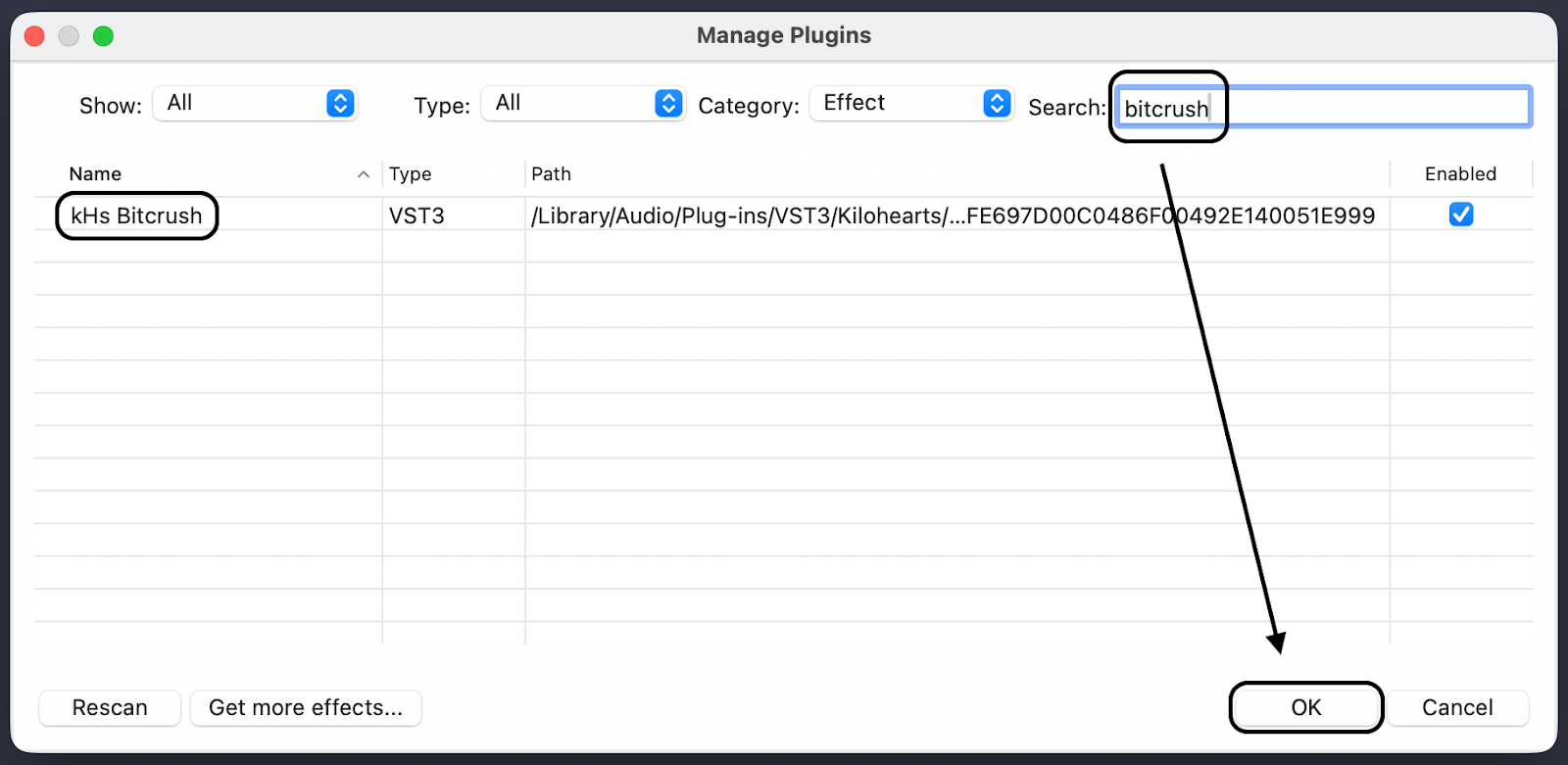
Note: If you do not see the tool in your Analyze menu after restarting, go to Effect > Plugin Manager, locate the Queen Mary plugins in the disabled list, and click Enable.
Method 2: Using Audacity’s Native “Beat Finder” Tool
If you would rather not install extra plugins, Audacity includes a built-in tool to help you figure out the tempo. It doesn’t function as a traditional BPM calculator that spits out a number. Instead, it maps out the rhythm visually.
Here is how to use the native Beat Finder:
- Highlight the section of the audio track you want to analyze.
- Navigate to the top menu and click Analyze > Beat Finder.

- A settings box will appear. Leave the “Threshold Percentage” at the default setting and click OK.

- Audacity will instantly generate a new label track beneath your audio. It places a text label (usually a “B”) at every loud sudden spike in volume it detects.

The Catch: Doing the BPM Math
Because the Beat Finder only generates visual markers, you have to calculate the actual BPM yourself. Fortunately, the math is easy.
Simply highlight exactly a 15-second span of your audio using the timeline at the top of the screen. Count the total number of beat labels (“B”) inside that 15-second window. Finally, multiply that number by 4 to get your true Beats Per Minute.
For example: If you count 32 labels within a 15-second span, your track is 128 BPM (32 x 4 = 128).
Pros & Cons of the Native Beat Finder
| Pros | Cons |
|---|---|
| No installation required: Ready to use immediately out of the box. | No direct BPM number: Requires manual counting and basic math. |
| Visual mapping: Excellent for visually aligning voiceovers or video cuts to specific music drops. | Accuracy issues: Struggles heavily with quiet, ambient, or highly complex tracks without clear drum beats. |
Method 3: The Manual “Time Selection” Method (For Complex Tracks)
Algorithms aren’t perfect. Live music, acoustic performances, or tracks with shifting tempos often confuse automated plugins. When software fails, you can calculate the exact BPM by hand using Audacity’s timeline selection tools.
Here is how to calculate your BPM manually:
- Zoom into the waveform: Use the magnifying glass tool (or Ctrl + Scroll Wheel) to get a close-up view of the audio transients. Look for the sharp visual spikes that represent heavy downbeats.
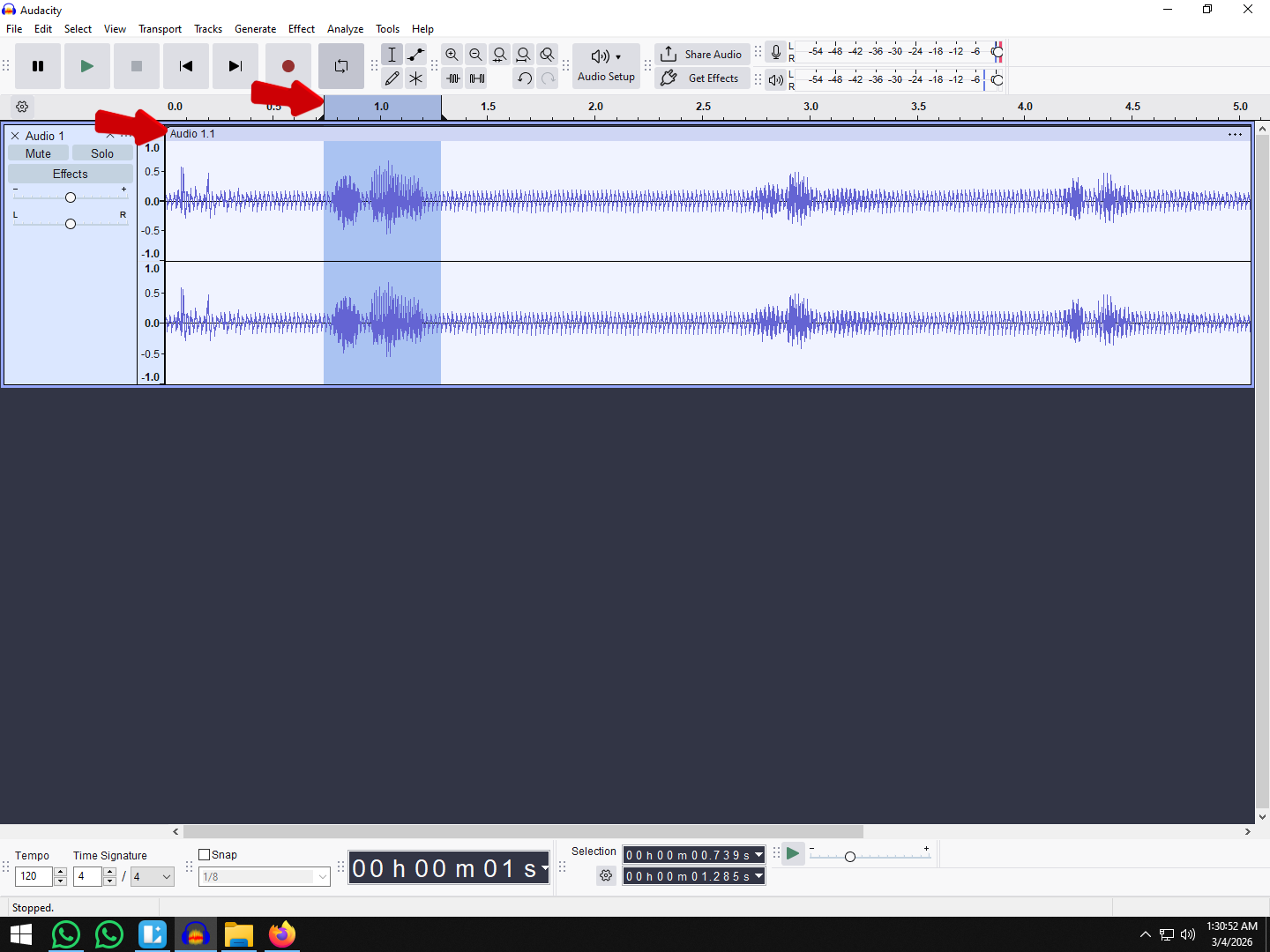
- Highlight exactly one measure: Click and drag your cursor to select a four-beat sequence. Start exactly at the beginning of the first beat and end right before the fifth beat strikes.

- Check the “Length of Selection”: Look at the Selection Toolbar at the bottom of the Audacity window. Set the time format to hh:mm:ss + milliseconds and note the exact length of your highlighted section in seconds.

- Apply the BPM formula: Plug your selection length into a simple formula to get your final tempo.
The BPM Calculation Formula
Once you have the length of your 4-beat selection in seconds, use this exact formula:
(60 / selection length in seconds) * beats in selection = BPM
Example Calculation:
Let’s say you highlighted exactly 4 beats, and the “Length of Selection” box at the bottom of Audacity says your selection is 2.0 seconds long.
- Step 1: 60 / 2.0 = 30
- Step 2: 30 * 4 = 120
- Result: Your track is exactly 120 BPM.
Pro Tip: If your final number is a decimal like 119.98, simply round up to the nearest whole number (120 BPM). Electronic and produced music is almost always recorded at whole-number tempos.
Pro Tips for Audio Syncing and Mixing
Finding your music’s BPM is just the first step. Once you have the exact tempo mapped out, the real work begins: blending your voiceover, podcast, or vocal track smoothly with the background beat.
Here are a few best practices for a professional mix in Audacity.
1. Master the Clip Alignment Tool
Once your beat labels are generated, you need to physically align your tracks. Use the Clip Handle (found at the top of the audio clip in newer Audacity versions) to drag your vocal track left or right. Zoom in closely to ensure the transients of your most impactful words land exactly on the downbeat of the music.

2. Carve Out Space with Auto-Ducking
Never let your background track drown out your voice. Use Audacity’s native Auto Duck effect to automatically lower the music’s volume whenever someone speaks. For even better clarity, apply a subtle EQ cut to the instrumental track in the primary vocal frequency range (around 1kHz to 3kHz). This helps speech cut through the mix without fighting the beat.

3. Capture Distortion-Free Source Audio
If your vocal tracks are distorted or clipped from the start, no amount of tempo-syncing will save the edit. For studio-quality sound, we highly recommend recording your voiceovers or interviews with the Hollyland LARK MAX 2.

Hollyland LARK MAX 2 - Premium Wireless Microphone System
A premium wireless microphone for videographers, podcasters, and content creators to capture broadcast-quality sound.
Key Features: Wireless Audio Monitoring | 32-bit Float | Timecode
It features 32-bit Float Recording, meaning your audio will never clip or distort—even if you get loud over a heavy beat during a high-energy take. It captures pristine 48kHz/24-bit audio with professional Environmental Noise Cancellation (ENC), ensuring your vocal stems are completely isolated and clean.
Plus, you can maintain perfect pacing while recording by using its Wireless Audio Monitoring via the new OWS earphones. This lets you hear the beat in real-time while you record, making post-production syncing in Audacity practically effortless.
Troubleshooting Common Audacity BPM Issues
Even with the right tools installed, audio analysis algorithms can sometimes misread a track or fail to load. Here is how to quickly fix the most common BPM analyzer hurdles in Audacity.
- “My Vamp plugin isn’t showing up in the Analyze menu.”
- The Fix: Audacity requires you to manually enable newly installed plugins. Go to the top menu and click Effect > Plugin Manager (or Analyze > Plugin Manager in older versions). Locate the Queen Mary Vamp plugins, select them, and click Enable. Once enabled, restart Audacity completely to force the plugins to appear in your dropdown.

- “The BPM is exactly half or double what it should be.”
- The Fix: This is a common algorithm error known as “half-time” or “double-time” confusion. Heavy basslines or complex hi-hat patterns can trick the analyzer into counting every second beat (halving the BPM) or counting subdivisions (doubling the BPM). If the plugin says 70 BPM but the track feels fast, simply multiply the number by 2 (to get 140 BPM). If it reads 170 BPM but feels slow, divide it by 2 (to get 85 BPM).
- “The Beat Finder labels are completely off-beat.”
- The Fix: Audacity’s native tool relies entirely on volume spikes to detect beats. If your track is highly compressed, quiet, or features loud vocals, the tool will place labels in the wrong spots. To fix this, undo the analysis and run it again, but adjust the Threshold Level in the Beat Finder settings. Raise the percentage so the tool only triggers on the loudest peaks (like kick drums) and ignores background noise.
Frequently Asked Questions (FAQ)
How do I change the BPM of a track in Audacity?
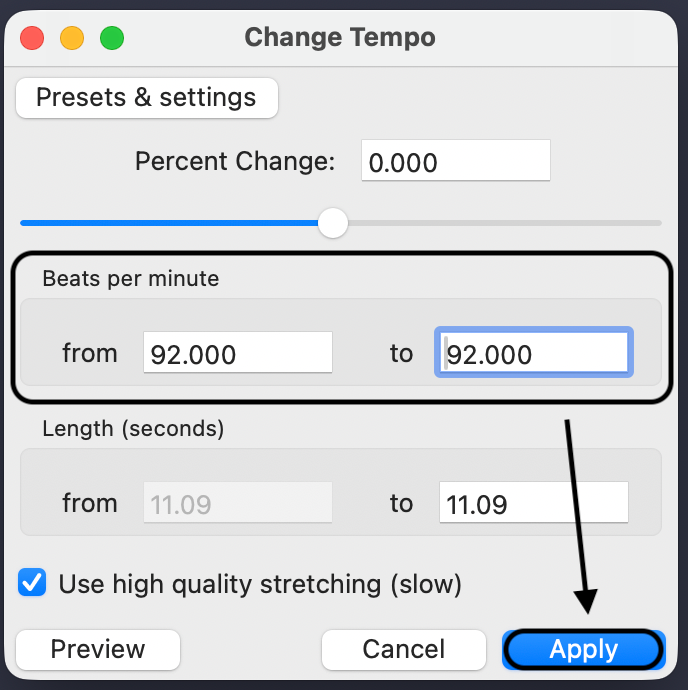
To alter the speed of your track without changing its pitch, highlight your audio and navigate to Effect > Pitch and Tempo > Change Tempo (or simply Effect > Change Tempo in older versions). Enter your current BPM and your target BPM into the dialog box. Audacity will automatically stretch or compress the audio to match your new tempo.

Is there a free BPM analyzer?
Yes. If you prefer not to install the free Queen Mary Vamp Plugins directly into Audacity, you can use free web-based alternatives. Sites like Tunebat, SongBPM, and Audioalter let you upload your audio file directly into your browser to instantly find the track’s BPM and musical key at no cost.
Can Audacity automatically sync two tracks by BPM?
No, Audacity does not feature an auto-sync or automatic beatmatching function like dedicated DJ software. Once you analyze and match the BPM of your tracks, you must manually align them. You can do this by clicking the Clip Handle at the top of the audio track and dragging the audio left or right until the visual waveforms line up perfectly.
Conclusion
Finding the exact tempo of your audio in Audacity doesn’t have to be a guessing game. If you need a fast, automated BPM number, installing the Queen Mary Vamp Plugins is your most accurate option. However, if your goal is to visually align sound effects or voiceovers to music drops, Audacity’s native Beat Finder provides a great visual map without extra downloads.
Ready to streamline your audio editing process? Start by downloading the Vamp plugins and testing your tracks today. To truly improve your workflow, make sure your source audio is flawless from the start by upgrading to a 32-bit float recording system. Capturing your vocals with gear like the Hollyland LARK MAX 2 guarantees crisp, distortion-free audio that mixes perfectly with any beat, no matter the tempo.