.png)
 简体中文
简体中文 
If you’ve ever stared at the tags field while uploading a Short and wondered whether it’s actually worth filling out, you’re not alone. The advice online ranges from “tags are everything” to “tags are dead,” and neither extreme is accurate. This guide gives you a straight answer on whether tags move the needle for Shorts, how to add them correctly, and a practical system for choosing the right ones without wasting time on the wrong elements.

Do Tags Matter for YouTube Shorts?
Tags still matter for YouTube Shorts, but probably less than expected. They matter much less than tags for regular long-form videos.
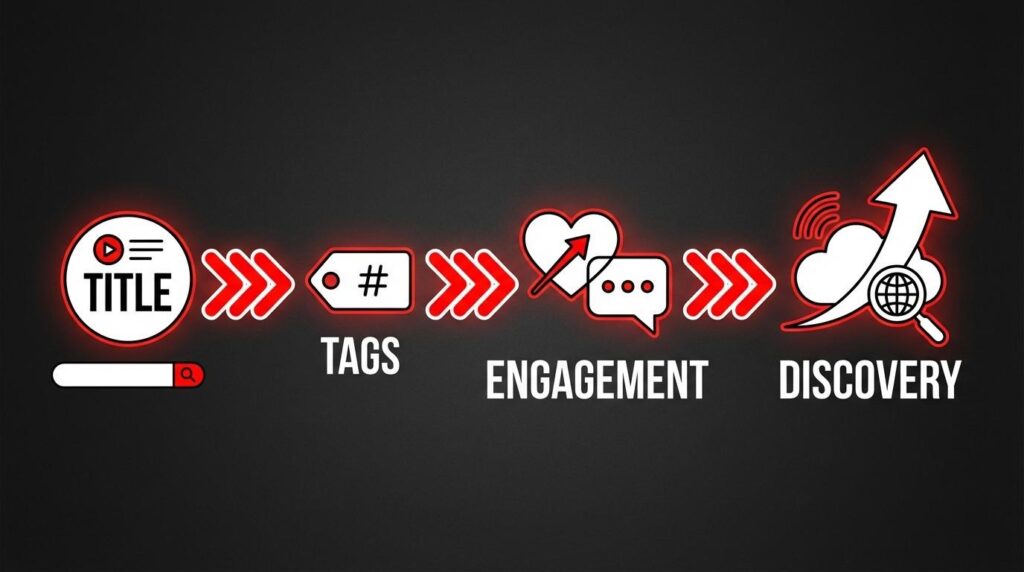
The direct answer: Tags act as a small-to-medium ranking signal. They help YouTube sort your content inside its system. But they are not a main factor for discovery, views, or channel growth. If your title is vague, your hashtags are missing, and your thumbnail is weak, no tag set will compensate for that.
Why is there so much conflicting advice?
Most advice that says “tags are critical” came from the time of classic long-form YouTube. In those times, tags had more influence on the algorithm than they do presently. Over time, YouTube has publicly stated that titles and descriptions are stronger ranking signals than tags. That pattern holds even more strongly for Shorts, where the feed is primarily engagement-driven. Watch time, swipe-away rate, likes, and comments push content to new viewers far more powerfully than metadata alone.
At the same time, ignoring tags completely is also a mistake. In competitive niches, the right tags can help YouTube connect your Short with the right viewers in suggested feeds and related video spots. They also support the keywords already mentioned in your title, which helps since Shorts titles are often brief.
Where tags actually help:
- Categorizing your Short so it surfaces alongside topically similar content.
- Reinforcing keyword signals already in your title and description.
- Assisting the algorithm when your title and description are brief, as they often are on Shorts.
The realistic framing: Get your title and hashtags right first. Then spend two minutes filling in 5-8 precise tags. That’s the ideal time you should spend when researching tags.
Tags vs. Hashtags on YouTube Shorts – Know the Difference
This is the single most common point of confusion among Shorts creators, and resolving it matters because the two systems serve different purposes and carry different algorithmic weight.
Tags are hidden metadata keywords entered in YouTube Studio during upload or editing. Viewers never see them, and only YouTube’s algorithm uses them to categorize your content internally.
Hashtags are the clickable #keywords you place in your title or description. They are publicly visible and searchable, and function as topic labels that connect your Short to a broader category, trend, or community. For Shorts specifically, hashtags carry significantly more discoverability weight than tags do.
Note: YouTube adds the #Shorts hashtag automatically to videos it sees as Shorts, which are vertical and under 60 seconds. Even so, you should still put #Shorts in your title or description. This helps confirm the classification and makes sure your video appears in the Shorts tab and feed.
| Feature | Tags | Hashtags |
|---|---|---|
| Where you enter them | YouTube Studio metadata field | Video title or description |
| Visible to viewers? | No – hidden metadata | Yes – clickable links |
| SEO weight for Shorts | Minor – categorization support | Stronger – search and feed discovery |
| Character/count limit | 500 characters total | Up to 15 (YouTube guidance) |
| Feed sorting impact | Indirect | Direct (especially #Shorts) |
| Best use | Reinforce niche and topic keywords | Signal topic, trend, and content type |
Bottom line: Don’t skip tags, but prioritize hashtags in your title and description first. They’re the stronger lever for Shorts specifically.
How to Add Tags to YouTube Shorts? (Step-by-Step)
The tags section in YouTube Studio can be easy to overlook because it is hidden under a “Show More” or “More Options” button during upload. Here’s how to find it on both desktop and mobile.
Adding Tags on Desktop (YouTube Studio)
- Go to studio.youtube.com and sign in to your account.
- Click Create (the camera icon with “+” in the top right corner) and select Upload videos.


- Drag and drop your Short file or click Select Files to browse your device.

- On the Details tab, add your title and description. Place your hashtags directly in the description or at the end of the title here.

- Scroll down and click Show More to expand the additional fields section.

- Locate the Tags field. Enter each tag separated by commas or press Enter after each one.

- Move through the Video elements and Initial check tabs as prompted.


- On the Visibility tab, set your publish preferences and click Publish — or schedule for later.

Note: To update tags on an already-published Short, go to YouTube Studio → Content, click the pencil (edit) icon on the relevant video, scroll down to Show More, and edit your tags there. Changes take effect within a few hours.
Adding Tags on Mobile
- Open the YouTube app and tap the + (Create) button at the bottom of the screen.

- Make sure the Short tab is selected. Then choose an existing clip from your camera roll by tapping the Add option, or record directly.

- On the upload screen, add your title and description. Include your hashtags in the description field at this stage.
- Tap Show more(label may vary slightly by device or app version).
- Find the Tags field and enter your tags.

- Tap Upload Short to publish.
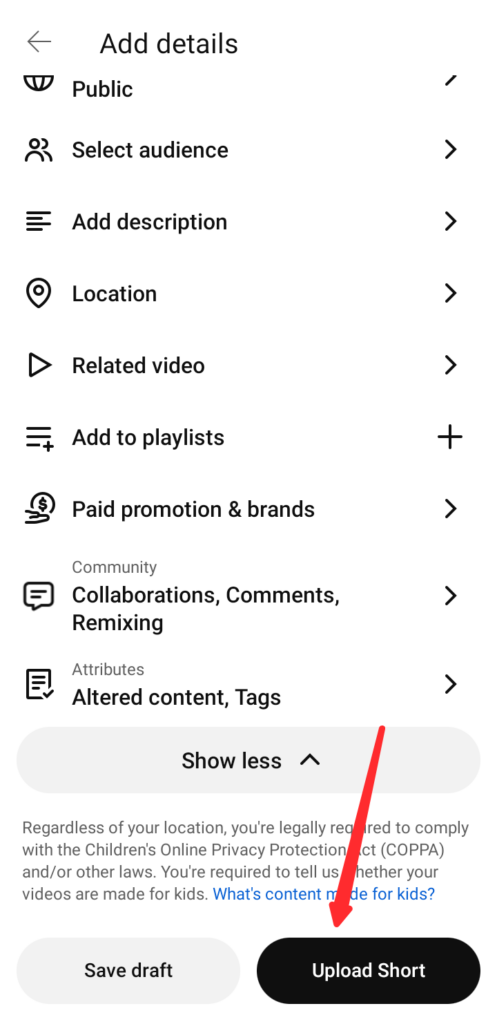
Note: The mobile upload screen is simpler than the desktop version. Also, some app versions allow you to edit tags only in limited ways. If the tags field isn’t visible under “More options,” complete the upload and then open the video in YouTube Studio via a mobile browser or desktop to add tags after publishing.
How to Choose the Right Tags for Your YouTube Shorts?
Tag selection comes down to one principle: relevance over volume. A Short with ten highly relevant tags will almost always outperform one stuffed with fifty loosely connected terms. Irrelevant tags can confuse YouTube’s categorization system. This may cause your content to reach the wrong audience, lowering engagement and sending negative signals to the algorithm.

Use this three-tier framework to build a tight, effective tag set:
- Start with your core topic keyword. This should mirror the primary keyword in your title. If your Short is “how to do a Dutch braid,” your first tag is dutch braid or how to dutch braid.
- Add 2–3 niche or specific variations. Think about how your exact audience searches. For the same Short, this might include dutch braid tutorial, dutch braid for beginners, or easy dutch braid step by step. These long-tail tags help YouTube understand your content’s specific angle.
- Add 1–2 broader category tags. This gives YouTube a higher-level context for placement. In this example: hair tutorial or braiding tutorial. Avoid using tags that are too broad. For example, a tag like beauty on a braiding Short is too general to help with categorization.
Free methods for finding the right tags:
- YouTube Search Autocomplete: Type your core topic into YouTube’s search bar and note the autocomplete suggestions. These are real search terms from real users in your niche.
- Competitor research via browser extension: Search your topic on YouTube, find high-performing Shorts in your niche, and use a tool like VidIQ or TubeBuddy to view their tags. Both have free tiers that surface this data.
- Your own title and description: If you’ve already written a strong title and description, use them for tag ideas because they’re already keyword-optimized.
Freemium and paid tools worth considering:
- VidIQ: Tag scoring, competitor tag visibility, and search volume estimates. Free plan available.
- TubeBuddy: Tag explorer with ranking data and channel-specific suggestions. Free plan available.
- Keywords Everywhere: Browser extension showing search volume data across YouTube and Google.
Pro Tip: Always verify that a tag actually returns results on YouTube. If a tag shows no search presence, it adds almost no categorical signal. Prioritize tags you’ve confirmed through autocomplete research or spotted on high-performing competitor videos in your niche.
How Many Tags Should You Use on YouTube Shorts?
YouTube lets you use up to 500 characters for tags per video. This is a limit on characters, not a set number of tags. In practice, that translates to roughly 10–15 short tags or 5–8 longer descriptive phrases.

For Shorts, the best practice is to use 5–8 highly relevant tags rather than filling every available character with loosely related terms. When you pile on 30+ tags spanning different subtopics, you dilute the signal. YouTube gets a less clear idea of what your video is about. Your content may reach viewers who are not really interested. This lowers the engagement and makes the problem worse.
There’s also a persistent myth that “maxing out” the tags field improves ranking through sheer keyword coverage. It doesn’t. YouTube’s algorithm evaluates relevance, not tag volume. Adding extra synonyms, related topics, or trending words that don’t fit your content won’t help you reach more viewers. It will probably show your video to the wrong audience instead.
The clear recommendation: Choose 5–8 tags that accurately describe your Short’s specific topic, starting with your most specific terms and working outward to a slightly broader category. That’s the right balance of precision and coverage.
Common YouTube Shorts Tagging Mistakes to Avoid
- Using irrelevant tags to borrow trending traffic. Tagging a cooking Short with “gaming” just because it is trending tells YouTube your video fits the wrong context. This lowers audience relevance and reduces engagement.
Fix: Only use tags that directly describe your actual video content. - Skipping hashtags and relying on tags alone. Tags are hidden metadata; hashtags in your title and description drive discoverability and visibility. So, not using hashtags is the bigger missed opportunity between the two.
Fix: Add 3–5 targeted hashtags to every Short, including #Shorts. - Copying competitor tags without filtering for topic fit. A competitor’s tags are designed for their audience and content style. Copying them without checking if they fit your video can misalign your targeting.
Fix: Use competitor tags as research inspiration, not a copy-paste template. - Using an identical tag set on every Short. If every video you upload shares the same tags regardless of content, the tags carry no useful differentiation signal.
Fix: Update your tags for each Short based on that video’s specific topic and keyword. - Over-tagging with near-duplicate variations. Adding tutorial, tutorials, how to tutorial, and video tutorial in the same field wastes character budget on marginal signal gain.
Fix: Pick the clearest version of each tag and use the remaining characters for genuinely distinct terms.
FAQ
Q1: Do hashtags count as tags on YouTube Shorts?
No, they’re entirely separate systems. Hashtags (placed in your title or description with a # symbol) are publicly visible, clickable, and searchable by any viewer. Tags are hidden metadata entered only in YouTube Studio. Both are read by YouTube’s algorithm, but they function differently and are entered in different places. For Shorts, hashtags carry more direct discoverability weight than tags.
Q2: Should I add #Shorts as a tag or a hashtag?
Use #Shorts as a hashtag in your title or description, and not just as a hidden metadata tag. YouTube treats the hashtag placement as a stronger classification signal for routing your video into the Shorts feed. Adding it to both places doesn’t hurt, but the title or description placement is what matters most for ensuring correct Shorts categorization by the algorithm.
Q3: Can bad tags hurt my YouTube Shorts performance?
Yes, but indirectly. Using misleading or irrelevant tags degrades the accuracy of YouTube’s content categorization, which can cause your Short to be suggested to audiences unlikely to engage with it. Lower engagement signals, like shorter watch time and higher swipe-away rates, feed back into the algorithm. This reduces how much your Short is promoted to new viewers over time.
Q4: Do tags help YouTube Shorts rank in search?
Tags play a minor supporting role in search ranking, but titles and hashtags are the primary levers. If a viewer searches a keyword that appears in your title and hashtags, your Short is more likely to rank than if the same term only appears in hidden tags. Use tags to reinforce your title keywords, not as a substitute for optimizing them directly.
Conclusion
The right priority order for Shorts is consistent: title and hashtags first, tags as a supporting signal. Spend your optimization energy there, then take two to three minutes to add five to eight precise tags that reinforce what your Short is actually about. That gives a good result for a small effort, especially when done consistently on every upload. Don’t max out the field for its own sake, and don’t skip it entirely.