.png)
 简体中文
简体中文 
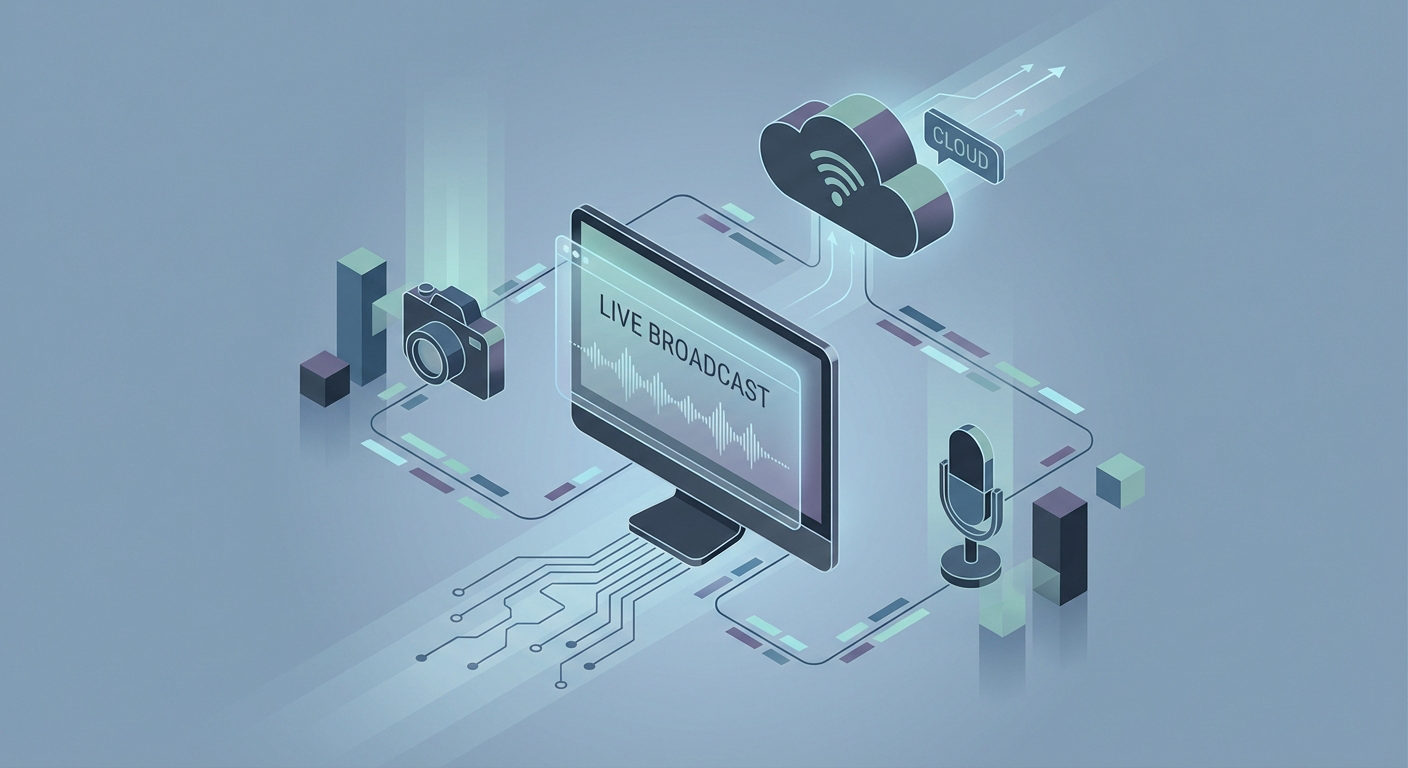
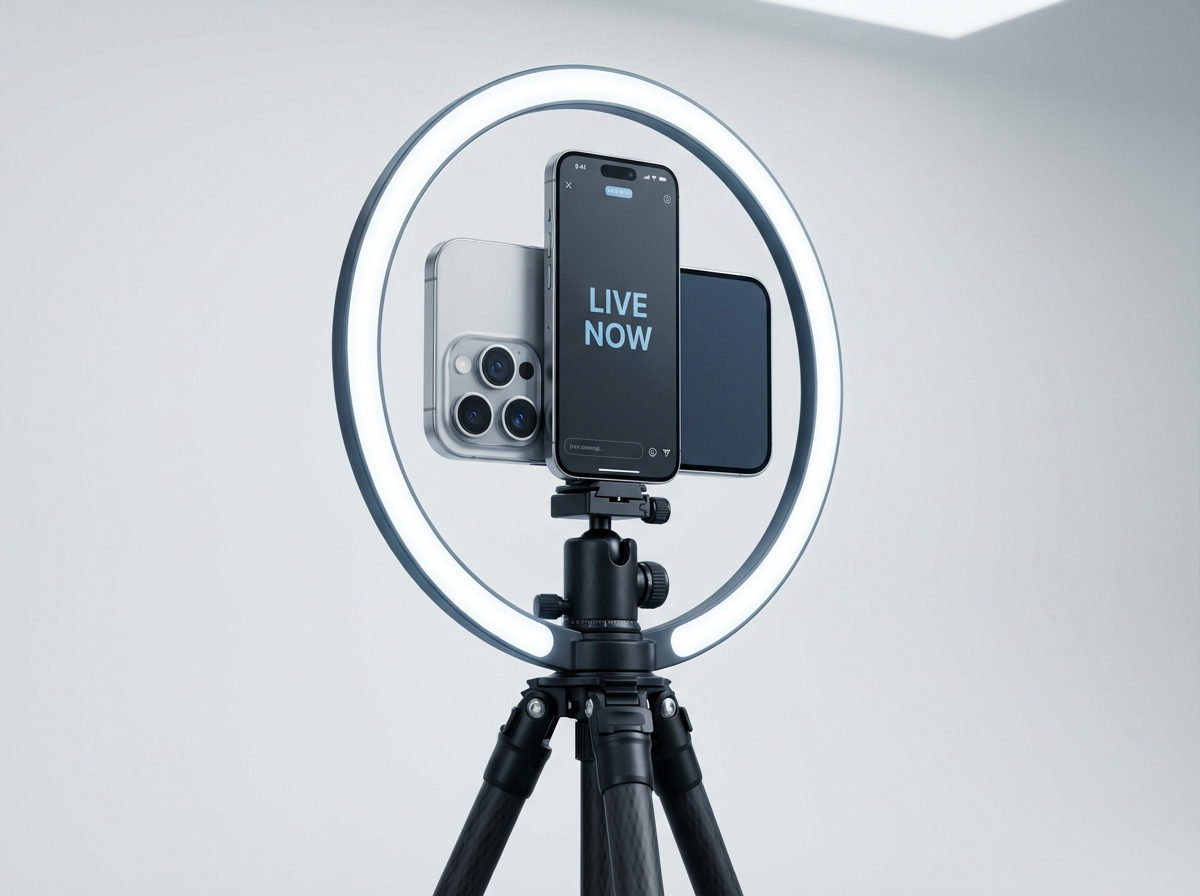
Live streaming has transformed the way we watch events, interact with creators, and participate in communities in real time. From live concerts and sports to interactive discussions and lessons, the immediacy of live streaming brings the thrill right to your devices.
On your phone, computer, or even TV, finding and enjoying live streams easily can unlock endless entertainment and engagement possibilities. This guide will illustrate how to access your favorite live streams with ease.
How to Watch a Live Stream from Different Platforms?
YouTube
YouTube is one of the most popular platforms for watching live streams for free. Here’s how to access a live video:
- Open the YouTube app and sign in to your account.
- Click “Live” at the top of the homepage or use the search bar with keywords like “live.”

- Scroll down and click the live stream you want to watch.

Note: You can also search for the live stream by going to the search bar and entering the channel name or the video topic.
Discord
Discord is an amazing platform for connecting with the gaming community and making friends. To watch a live stream of your favorite player on Discord:
- Download the Discord app from the Play Store or App Store and open it.

- Enter your credentials or sign up.
- To watch a live stream, you must be part of a Discord server where streaming is happening.
- To join a server, tap the + icon on the left sidebar, then select “Join a Server” and enter an invite link.

- Once in the server, look at the left sidebar for voice channels.
- Tap the voice channel with an ongoing live stream (indicated often by a red “Live” badge next to the channel).

Click on “Watch Stream” or double-tap on the username of that streaming channel to join the live stream automatically.Twitch
Twitch features a broad range of live streaming categories, including music, sports, and video games. The following are the steps to watch a live stream on this platform:
- Download the Twitch app from the Google Play Store or the Apple App Store and open it, or visit www.twitch.tv.
- Tap the profile icon in the top-left corner, then log in or create an account.
- The home screen shows recommended live streams from channels you follow and popular streams.
- Tap on Discover to see channels from different categories that are currently live.

- Tap the magnifying glass/search icon at the top of the screen to find specific channels, games, or categories.

- Alternatively, tap Browse at the bottom of the menu to explore various streaming categories, such as games, music, or “Just Chatting.”

Once you find the live video you want to watch, tap on its thumbnail to start watching.
Social Media (Facebook, Instagram, etc.)
Popular social media platforms like Facebook and Instagram allow you to connect with your favorite content creators and influencers. To watch their live videos:
Instagram:
- Open the app and go to the stories section.
- If you are following a channel that is streaming live, it will appear in that section under the “Live” batch.

- Alternatively, you can search for that channel and click on its profile picture to watch the stream.
- Open your Facebook account and click the video icon.

- Tap “Live.”

- You can also click on the search bar to find any live.

Have you ever wondered how your favorite creators can look so fresh and live-stream for hours with no technical problems? Advanced solutions like the Hollyland VenusLiv Air camera offer round-the-clock streaming, letting creators stay live 24/7 to capture every moment. Its smart AI tuning ensures every frame looks polished, turning your favorite live streams into professional-grade experiences.
Vimeo
Vimeo supports live streaming for professional events like webinars, conferences, training sessions, and internal meetings.
- To attend an event on Vimeo, you will receive the link from the event host.
- Click on the link to join directly. If it is a public or unlisted event, you do not need to have a Vimeo account.
- If it’s a limited-access (password-protected) event, you will be asked for a password. Find the password attached to the event’s main link and enter it where required.
- The live stream will start playing on your screen.
Note: For private events, you need to be part of the organization’s team to access the event.
How to Watch a Live Stream from TV?
If you are tired of watching a live stream on a mobile or laptop, you can stream it to your TV for a more immersive experience. Here are three easy ways to do this.
Use a Laptop and an HDMI
- Locate the HDMI port on the laptop and the TV. If the laptop has only USB-C, use a USB-C to HDMI adapter.
- Connect one end of the HDMI cable to the laptop’s HDMI port.
- Connect the other end to an available HDMI port on the TV.

- Use the TV remote to press the “Input” or “Source” button and select the correct HDMI input where the laptop is connected.

- On the laptop, adjust display settings if necessary, such as setting the display mode to “Extend” or “Second screen only” to mirror or extend the display.
- Open the live stream on the laptop, and it will appear on the TV screen.
Tip: Ensure the laptop resolution matches the TV for the best viewing quality.
ChromeCast
- Connect both the TV with Chromecast and the casting device (laptop or mobile) to the same Wi-Fi network.
- Open the Google Chrome browser on your laptop.
- Click the menu (three dots) at the top-right corner.

- Select “Cast, save, and share.”

- Tap on “Cast.”

- Choose the Chromecast device from the list.
BoxTV Apps
- On the smart TV or Roku TV, navigate to the home screen.
- Install the BoxCast app on the TV.

- Follow the app’s setup process.
- The live streams will appear on your screen.
- For a specific channel, click “Find an organization” to find the channel broadcasting live.

- Once located, click it to start watching.
Conclusion
Watching live streaming has never been more convenient. With multiple platforms and diverse device options, real-time content can be accessed with ease by anyone. Whether you are a casual viewer or an active member of any channel, knowing how to access these streams ensures you can stay connected to the latest broadcasts.
FAQs
1. Can I watch a live stream for free?
Yes, many live streams are free to watch on platforms like YouTube, Twitch, and free streaming websites that provide news, sports, and entertainment content without requiring subscriptions or fees.
2. How to find a live stream from YouTube?
Open the YouTube app or website and search for your topic. Use the filter option to select “Live” under features. Alternatively, tap the “Live” tab on the YouTube homepage to browse ongoing live streams.
3. Can I join a live stream?Yes, you can join a live stream as a viewer without needing any special permission on most platforms. To participate as a co-streamer or collaborator, you must send a request to join, which you can do once the host approves your invitation to join the stream.