.png)
 简体中文
简体中文 
Learning how to stream your iPhone or Android on PC is essential. It provides access to a larger display, making it convenient to play your favorite video game or give a work presentation. This article outlines 5 methods to link your phone to a PC efficiently.
When streaming to your PC and wondering which camera to try, consider using the Hollyland VenusLiv Air, which supports 24/7 live streaming capabilities. The camera has cinematic 4K30 image quality and a built-in AI tuning feature, making it suitable for first-time streamers.
Method 1: Stream Phone to PC Using AirDroid
AirDroid allows you to mirror, manage, and control your mobile phone remotely from a PC by establishing a wireless connection. You can then access all your files, photos, or apps without touching your phone. This phone-to-PC streaming app comes in both free and paid versions. The former is only applicable for local network connections.
Follow the steps below to stream your Android or iPhone to your PC using AirDroid:
Step 1. Download and install AirDroid on your PC and mobile phone.
Step 2. Launch the app on your phone, sign in to an account, and allow all the screen mirroring permissions.

Step 3. Go to your PC and log in to the Android account you’ve just created on your phone. When the main interface loads, select the telescope icon, then click “Screen Mirroring” to connect your Android or iPhone to your PC.
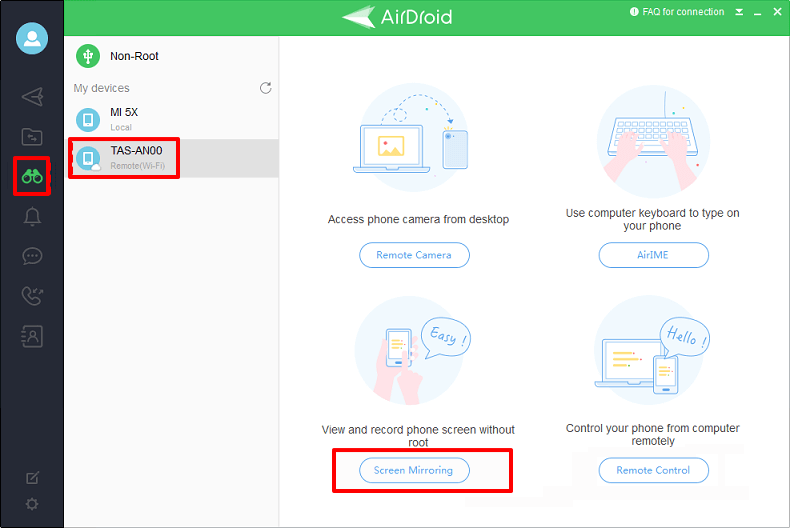
Step 4. Once you’ve established the connection, your phone screen will display on your computer. You can now start streaming anything you want without touching your phone.
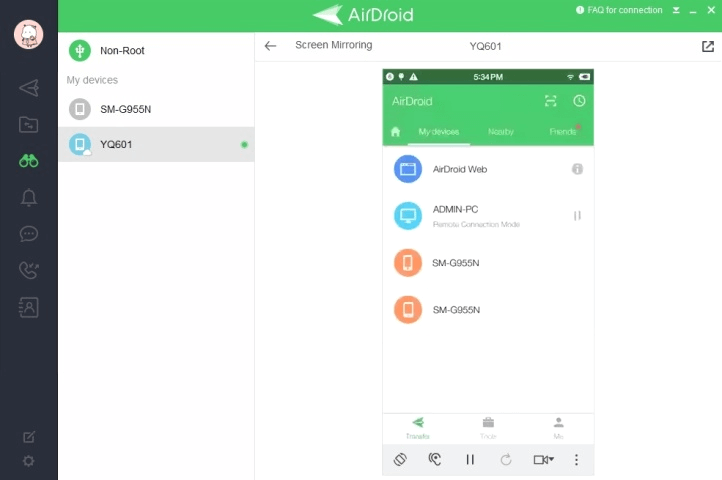
Method 2: Stream Phone to PC with LetsView
LetsView is another powerful third-party tool for linking your Android or iPhone screen to a PC. It provides cutting-edge features that are free to access, so you won’t need to incur any additional costs.
Once you’ve connected both devices (phone and PC) to the same Wi-Fi network, mirroring your screen via LetsView is quite a seamless process.
Below are the steps for how to mirror your iPhone screen to a PC using this app:
Step 1. Install LetsView on your PC and mobile phone.
Step 2. Connect both devices to a similar Wi-Fi network.
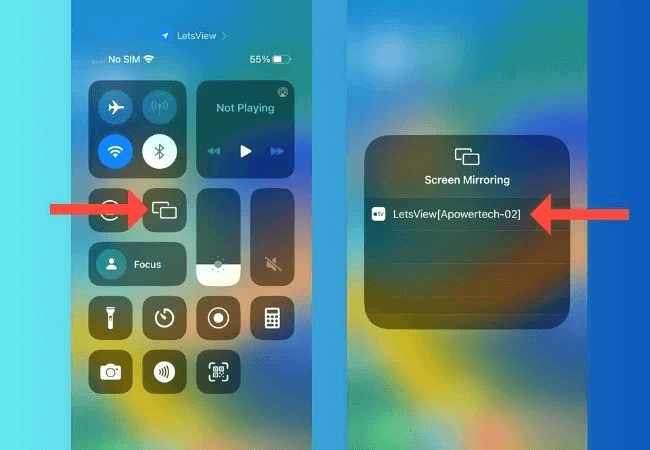
Step 3. Start the application on both your iPhone and computer. Select the “Screen Mirroring” option on your phone and choose your PC from the list of discoverable devices.

Step 4. Next, click “Share my screen” then “Start Broadcast.” This will initiate the process of sharing your iPhone screen with a PC.
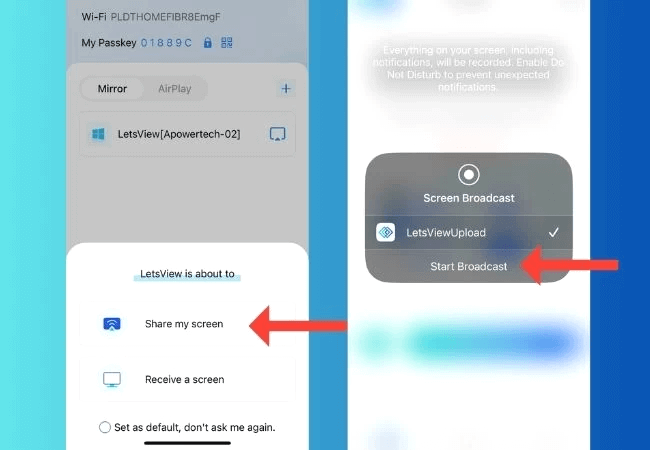
Step 5. Go to your iPhone’s Control Center and select “Screen Mirroring.” Select your PC from the list to initiate the mirroring/streaming process.
Method 3: Stream Phone to PC via AnyViewer
Supporting iPhone and Android, AnyViewer is a go-to solution to stream your phone screen on a PC seamlessly. The tool provides a secure and robust platform that allows you to conveniently work on your PC while accessing all your mobile phone features. It’s known for its high-performance capabilities, which minimize lag and unresponsive connections.
Here are the steps for how to use this app on your iPhone and PC:
Step 1. Download and install AnyViewer on both devices.
Step 2. Next, create an account and ensure both devices can access the same account.

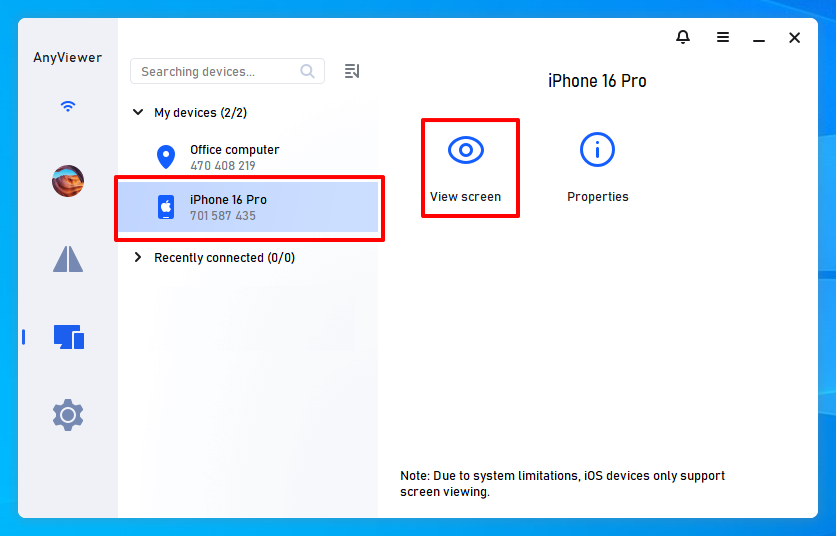
Step 3. From the AnyViewer interface on your PC, select your iPhone from the list of connected devices and choose “View Screen.”
Step 4. Next, go to your iPhone and tap the “Allow” button so your PC can access the screen.

Step 5. Click the “Start Broadcast” tab on your iPhone to initiate the screen sharing process. That’s it! You’ve now linked your phone screen to your PC.

Method 4: Stream Phone to PC Using Vysor
Vysor allows you to project and control your phone or tablet screen flexibly from a PC. The app requires a USB connection between your phone and PC for uninterrupted access. You’ll only need to turn on developer mode on your phone. Once you’ve established a connection between your phone and PC, Vysor allows you to run different apps and play games. Check these steps:
Step 1. Go to your Android phone’s “Settings” and select “About phone.” Next, tap “Build number” seven times to turn on Developer options. Next, activate “USB Debugging.” This will allow your PC to access your phone unrestricted.

Step 2. Next, download and install Vysor on your PC and mobile phone.
Step 3. Launch the software on your PC and sign in using a Google account.

Step 4. Connect your Android phone to your PC via USB, then launch Vysor on your phone.
Step 5. Go to the Vysor app on your PC and click the “View” tab to access the mirrored screen from your phone. You can now start streaming your phone’s screen on your PC.

Method 5: Stream Phone to PC via ApowerMirror
ApowerMirror is a powerful mirroring tool because it supports screen sharing between a mobile phone and a PC, and vice versa. This means you can stream your PC screen to your phone if you wish. What more? The app supports wireless and wired connections during the mirroring process, enhancing flexibility.
Follow the steps below to stream your phone screen to PC using ApowerMirror:
Step 1. Download and install ApowerMirror on your phone. Repeat the same process for your PC.
Step 2. Connect your phone and PC to a similar Wi-Fi network.
Step 3. Next, launch ApowerMirror on your phone and select “LocalCast.”

Step 4. Select your PC from the listed devices and tap “Mirror Phone to PC” to initiate screen mirroring.

Step 5. Navigate to your iPhone’s Control Center, select “Screen Mirroring,” and select your PC again. This will now activate the mirroring process, letting you conveniently access your iPhone screen on PC, thanks to ApowerMirror!

Conclusion
Streaming your iPhone or Android to a PC makes it easy to manage and control all activities on your mobile phone, without moving an inch from your computer. When choosing a streaming tool, ensure it supports wireless connectivity and has minimal lag times. For 4K quality streaming services, ensure you use a reliable, modern camera.
FAQs
1. Is it possible to play mobile games on a PC through mirroring?
YES. Mirroring your phone to a PC gives you total control over it. You can manage all activities on your PC, including playing games and reading text messages. A PC gives you a larger display area to conveniently play your game and improve the overall performance.
2. Why is there a lag when I stream my phone to PC?
Sometimes, a slow Wi-Fi connection may interrupt the wireless connection between your phone and PC. You can try switching to a more reliable network or using a USB connection, which is always considered more stable. An efficient streaming process requires an uninterrupted connection between your phone and PC.