.png)
 简体中文
简体中文 
This guide takes you from an unboxed webcam to a fully working camera on Windows 11 in under 10 minutes. Every step is demonstrated using the Hollyland Lyra – a USB-C plug-and-play 4K webcam that installs without any driver downloads. The companion app, HollyStudio, unlocks resolution controls, AI tracking, and audio settings that Windows 11’s native camera panel does not expose.
One detail older setup guides often leave out is camera privacy. Windows 11 has settings that control webcam access. You can allow or block camera access for each app. Windows also shows alerts when apps request permission. This guide explains these settings step by step. This can help prevent a black screen during setup.
What You Need Before You Start
Gather these before you begin:
- Hollyland Lyra webcam with the included USB-C cable
- Windows 11 PC with a USB-C or USB 3.0 port (USB-A ports require a USB-C-to-A adapter, which is not included with the Lyra)
- Active internet connection so Windows Update can pull any pending system files
- HollyStudio (free download from hollyland.com) – not required for basic camera operation, but needed to access resolution selection, AI tracking, digital zoom, noise cancellation, and audio controls beyond Windows defaults
No driver disc or third-party driver package is required. The Lyra uses the Windows inbox UVC driver and installs automatically.
Step 1: Mount the Hollyland Lyra on Your Monitor
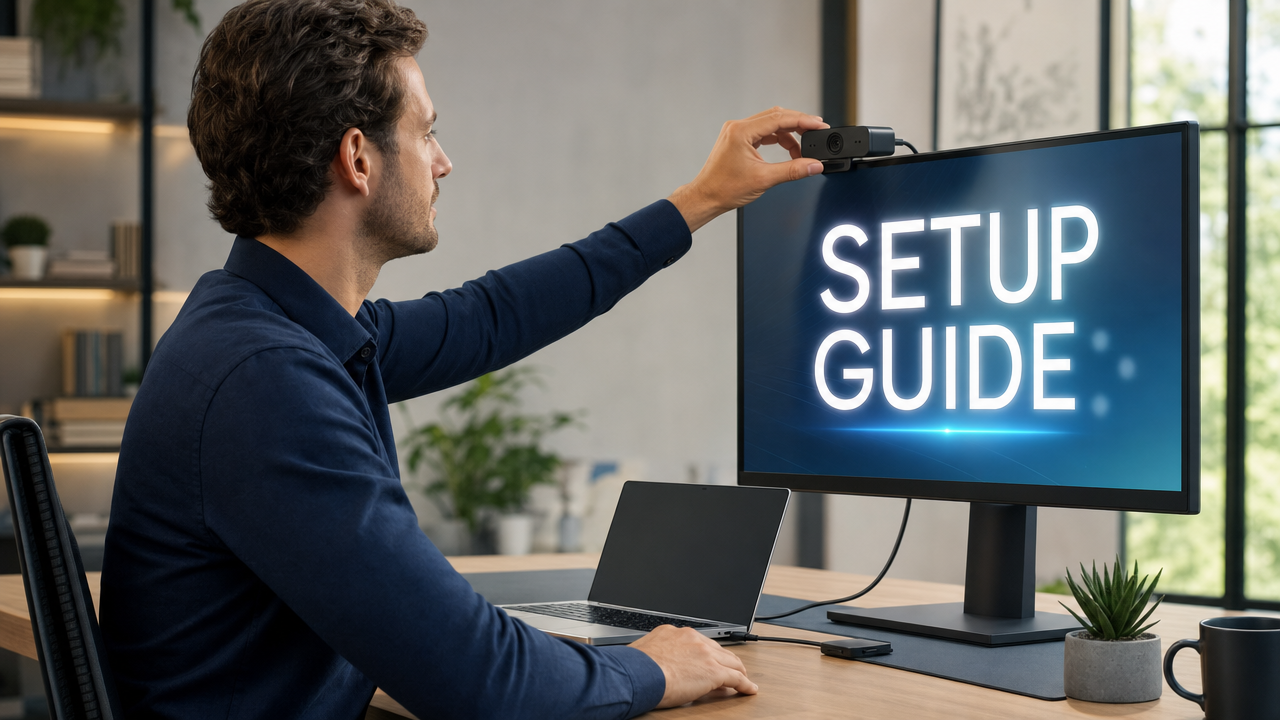
Physical placement determines framing and eye contact. The Lyra weighs 80g and measures 60 x 33.3 x 37mm, so it sits stably on any standard monitor or laptop display edge without adding noticeable load.

- Open the clip. Locate the hinged clip at the base of the Lyra body. Pull it backward to open it fully. The mechanism holds its position while you place the camera.

- Position the camera on the monitor edge. Set the Lyra on the top edge of your monitor or laptop display, centered horizontally with the lens facing you.

- Close the clip to grip the bezel. Release the clip so it closes against the rear of the display. The Lyra should sit flush with no rocking. Give it a gentle nudge side-to-side to confirm the grip is secure.
- Adjust the tilt. Use the friction hinge at the base to tilt the camera forward or backward until the lens points directly at your face. At a typical 60-80 cm desk distance, the Lyra’s 82-degree FOV captures from shoulder height to above your head. Center the lens at eye level for natural video call presence.
- Final check. Confirm the camera is stable and the lens is clear of any bezel overhang before connecting the cable.
Pro Tip: If your monitor sits below eye level, raise it first. Place it on a stand before mounting the Lyra. Looking down at a webcam can cause poor framing. Fixing the monitor height now can prevent that issue.
Step 2: Connect the Lyra to Your Windows 11 PC
- Seat the USB-C cable into the Lyra. The USB-C port is on the rear of the Lyra body. Push the cable in firmly until fully seated. A loose connection here is the most common reason the device fails to appear in Windows.

- Connect the other end to your PC. Plug into a USB-C or USB 3.0 port directly on the computer, not through an unpowered hub.

If your PC only has USB-A ports, use a USB-C-to-A adapter.

- Watch for the Windows 11 setup notification. Within a few seconds, a “Setting up a device” toast notification will appear in the taskbar. This confirms that Windows 11 has detected the Lyra and is loading the UVC inbox driver automatically. No separate driver download is needed.
- Note the LED indicator state. At this point, the Lyra’s LED will be in standby. The camera is connected and recognized, but no application has opened the stream yet. The LED will activate fully in Step 6 when an app accesses the camera feed.
Note: USB 3.0 enables UVC NV12 output at 1080p60, which delivers the lowest latency at full HD resolution. USB 2.0 still supports MJPEG 4K30, so 4K output is available on either port type. But a USB 3.0 port is recommended for the best overall experience.
Step 3: Verify Windows 11 Recognizes the Webcam
Before changing any app settings, check if Windows detects the Lyra. This confirms the webcam connection at the system level. It also helps rule out connection problems first. Then, you can move on to app settings.
- Open Device Manager. Press the Windows key, type “Device Manager,” and select it from the results. Alternatively, press Win + R, type devmgmt.msc, and press Enter.

- Expand the Imaging Devices node. In the Device Manager tree, find “Imaging Devices” (some Windows 11 builds label this node “Cameras”) and click the arrow to expand it.

- Confirm that the Lyra is listed without a warning icon. The device should appear as “Hollyland Lyra” or a similar UVC-compliant label. A clean listing with no yellow triangle means Windows has loaded the driver correctly and the camera is ready.
- Check the LED. The Lyra’s LED should remain in standby (off) at this stage – that is expected and correct.
Yellow warning icon? Try this first: A yellow triangle next to the device in Device Manager means the driver did not load. Right-click the device, select Update driver, then choose Search automatically for drivers. Windows Update will retrieve the correct UVC driver. No separate Hollyland driver file is required.
Step 4: Enable Camera Access in Windows 11 Privacy Settings
This is why your webcam may show a black screen. It can happen even when Device Manager detects it. If camera access is off in Privacy settings, Windows 11 blocks the webcam. Until you enable these settings, apps cannot access the video feed. This includes Zoom, Teams, and the Windows Camera app.
- Open Windows Settings. Press Win + I, or click the Start menu and select the Settings gear icon.

- Navigate to Privacy and Security, then Camera. In the left sidebar, click Privacy & security, then click Camera in the right panel.


- Enable Camera access. Confirm the first toggle, “Camera access,” is switched on. This is the system-level master switch – if it is off, no app on the machine can read from any camera hardware.
- Enable app-level access. Turn on “Let apps access your camera.” This covers Microsoft Store apps including the Windows Camera app and the Store version of Teams.
- Enable desktop app access. Scroll down and confirm “Let desktop apps access your camera” is also on. This covers Win32 applications including Zoom, most browsers running Google Meet, and OBS.

- Check per-app toggles. Scroll further to review individual app listings. If Microsoft Teams or another specific app has its own toggle set to off, turn it on.
After completing these steps, open the Windows Camera app. When the Lyra’s LED turns on, the permission is active, and the OS is successfully reading the camera feed.
Step 5: Configure Webcam Settings with HollyStudio
Windows 11’s camera settings provide basic controls. These include brightness and image rotation. They do not show Lyra’s AI features or resolution controls. You also cannot adjust frame rate or microphone settings there. HollyStudio provides access to all these Lyra controls.
Download and Install HollyStudio Pro
- Go to hollyland.com, navigate to the Lyra product page, and find the software download section.

- Download the HollyStudio installer for Windows and run it.
- Follow the on-screen prompts. No restart is required.
- Open HollyStudio while the Lyra is connected. The app detects the Lyra automatically and opens a live camera preview.
Configure Key Settings
Resolution and Frame Rate
Use the resolution dropdown in HollyStudio to choose the output that fits your use case:
| Resolution | Frame Rate | Format | Best For |
|---|---|---|---|
| 3840 x 2160 | 30 fps | MJPEG | Recording, high-quality streaming |
| 1920 x 1080 | 30 or 60 fps | NV12 / MJPEG | Video calls, everyday streaming |
| 1280 x 720 | 30 or 60 fps | NV12 / MJPEG | Low-bandwidth or congested networks |
For most video calls, 1920 x 1080 at 60fps is the recommended starting point. Switch to 4K30 when recording or streaming to an audience where image quality is the priority.
How to set resolution in HollyStudio app?
- Open the HollyStudio application on your Windows 11 PC.
- Locate the resolution dropdown menu above the preview screen. Click the dropdown menu and select your desired resolution.

AI Tracking
Toggle AI Tracking on to enable subject-following. To do that:
- In the HollyStudio app, locate the frame icon (it has a padlock icon inside).
- Click it to activate or deactivate AI Tracking.

The Lyra digitally repositions the crop to keep you centered as you move. Because this is applied at the camera level, it is active in every app that accesses the Lyra – Teams, Zoom, OBS, and any other software.
Smart Auto Framing
Smart Auto Framing adjusts the crop automatically based on the number of subjects visible. When a second person enters the frame, the shot widens to include both; when only one person is visible, it tightens back to a solo framing.
Here’s how you can enable it via the HollyStudio app:
Note: You should first enable AI Tracking as explained in the above section.
- Look for the Settings option (gear icon) under the preview screen of the HollyStudio app.

- When the dialog box opens, click on the Camera Settings tab from the left-side menu.
- Next, toggle ON the Face Priority Focus option and close the window.

- Then, go to the FOV page on the right-side menu.
- Under the Smart Framing section, first deselect “None,” then select the auto framing option (close-up image tile).

Digital Zoom via Focal Length Slider
You can use the Focal Length slider for digital zooming. It runs from 1x to 4x. Zooming in reduces the effective pixel count of the output, so staying between 1x and 2x is recommended for 1080p calls. Higher zoom values are more useful in 4K recording scenarios where source resolution can absorb the crop.
Here are the steps to use the focal length slider:
- Go to the FOV page.
- Use the Focal Length slider to zoom in or out.

Intelligent Noise Cancellation
Toggle this on to suppress keyboard clicks, HVAC hum, and ambient room noise from the Lyra’s built-in 48 kHz/24-bit microphone. Particularly useful in home offices with variable background noise levels.
- In the HollyStudio app, click the Settings option.
- Select the Audio Settings tab.
- Look for the Noise cancellation option and toggle the switch ON.

AI Tuning for Skin and Lighting Perfection
The AI Tuning panel includes a skin smoothing slider and color correction presets. Set skin smoothing to low-to-medium for natural-looking video calls. Use the color correction presets to shift white balance toward warmer or cooler tones based on your room lighting.
- Launch the Holly Studio app on your computer.
- From the right-side menu toolbar, select the Beautify Page.

- Turn on the Beautify switch, then select Custom.

- Move the Skin Whitening, Smooth skin, and Skin tone sliders until the result looks satisfactory.

- When the skin smoothing looks natural, click Add New Template to save the adjustments as a preset under “My Templates.”


- Select the Image Control page from the right toolbar.
- Scroll to the Custom section, choose Color from the available options, and click Color Correct using the dropper icon.

- Select specific colors in your webcam visuals with the color picker tool and adjust them as needed.

- Fine-tune settings such as Hue, Saturation, and Exposure.

White Balance and Exposure
Leave White Balance on Auto for desk environments where room light changes throughout the day. Adjust the Exposure slider upward in low-light setups or downward if you are backlit by a bright window behind you.
You can find both parameters on the Image Control page and under the Advanced section.

Direct Mic Connection (LARK A1)

Hollyland LARK A1 - Affordable Wireless Microphone
A perfect starter mic for creators on a budget. It’s simple to use and features effective noise cancellation.
Key Features: 48kHz/24-bit | 3-Level Noise Cancellation | 54-Hour Battery
If you are using the Lyra Streaming Combo with a LARK A1 TX wireless microphone, its pairing status will appear in the HollyStudio audio panel. When connected, the LARK A1 audio passes through the Lyra’s USB connection to the PC and appears as a selectable audio input in apps.
Here’s the step-by-step pairing process:
- Launch HollyStudio on your computer.
- Below the preview screen, click the gear icon to open Settings, then select Audio Settings.
- Scroll down and switch Bluetooth on.

- Click Start Pairing to place Lyra in pairing mode.

- With the LARK A1 transmitter powered off, press and hold its power button for 6 seconds. The blue LED will begin flashing, showing that the transmitter has entered pairing mode.

- Lyra will connect to the LARK A1 TX automatically. Once connected, the transmitter LED will turn solid blue.

Step 6: Test Your Webcam with the Windows Camera App
The Windows Camera app offers a fast, zero-configuration live preview to confirm everything is working before you join a real call.
- Open the Windows Camera app. Press the Windows key, type “Camera,” and select the app.
- Select the Hollyland Lyra. If the app defaults to a laptop’s built-in webcam, click the Change camera icon – typically found in the upper-right corner of the preview – and choose “Hollyland Lyra” from the device list.
- Verify the live feed. A live preview should appear immediately. At 4K30 MJPEG, the image will be noticeably sharper than a standard 1080p webcam – a direct result of the 1/1.5” CMOS sensor working at F/1.8 aperture. Confirm the framing reflects the tilt adjustment from Step 1.
- Test AI Tracking. If AI Tracking is enabled in HollyStudio, move slowly to one side. The live crop should re-center to follow within a second or two.
- Confirm the LED indicator. The Lyra’s LED should now be solid-on, indicating that the Camera app has an active stream. When you close the Camera app, the LED should return to standby. If the LED is on but the preview is black, return to Step 4 and recheck the Privacy & security camera toggles.
Step 7: Set the Lyra as Your Camera in Zoom, Teams, and Google Meet
Windows 11 does not have a single global “default camera” that applies across all applications. Each video app stores its own camera selection independently. The steps below show where to make that change in the three most common platforms.
All settings configured in HollyStudio, including resolution, AI tracking, and auto framing, are applied at the camera driver level and remain active regardless of which app opens the Lyra stream. You do not need to reconfigure them inside each application.
Microsoft Teams
- Click the three-dot menu (…) next to your profile picture and select Settings.

- Click Devices in the left panel.

- Under the Video and Video Settings sections, go to the Camera option and select Hollyland Lyra from the dropdown menu. A live preview thumbnail confirms the selection.

Zoom
- Click your profile picture to open the dropdown menu and click Settings.

- Select the Video and effects option from the left-side panel.

- Open the Camera dropdown at the top of the panel and select Hollyland Lyra.

- The preview window updates to show the Lyra’s live feed, confirming the change is active.
Google Meet
- On the pre-call screen, click the gear icon to open the Settings dialog.

- Click the Video tab, and under the Camera section, select Hollyland Lyra from the dropdown menu.

- If you are already inside a call, click the three-dot menu within the meeting, select Settings, and make the same change from the Video tab.
The Lyra’s LED will turn on as soon as the video call goes live, providing a clear physical signal that the correct camera is active and streaming.
Frequently Asked Questions
Does the Hollyland Lyra need drivers on Windows 11?
No. The Lyra is UVC-compliant, so Windows 11 installs the built-in UVC driver automatically on first connection. HollyStudio is a separate optional app that unlocks AI tracking, resolution controls, and audio settings, but it is not required for the camera to appear and function in Zoom or Teams.
Why is my webcam showing a black screen even though it appears in Device Manager?
The most common cause on Windows 11 is a disabled camera privacy toggle. Go to Settings → Privacy & security → Camera and confirm that “Camera access,” “Let apps access your camera,” and “Let desktop apps access your camera” are all switched on. If only one toggle is off, the camera will be blocked silently.
How do I switch the Lyra between 4K and 1080p on Windows 11?
Open HollyStudio Pro, navigate to the resolution and frame rate dropdown, and select the desired output – 3840 x 2160 at 30fps for 4K, or 1920 x 1080 at 60fps for smooth full HD. The change takes effect immediately and applies to all apps accessing the Lyra. Note that 4K availability within a specific app depends on that app’s own settings and account plan.
Can I use the Hollyland Lyra with Zoom and Microsoft Teams at the same time?
No. Windows allows only one application to capture from a physical camera at a time. If Zoom has the camera open, Teams cannot access the Lyra at the same time. Close one app’s camera access before the other can use it. Virtual camera routing software can work around this limitation, but that is outside the scope of basic setup.
What do the LED indicator states on the Lyra mean?
The LED is off when the Lyra is in standby, which means it is connected to the PC but not being accessed by any app. It turns on when an application opens the camera stream. If the LED is on but you see no video, recheck the camera permission toggles in Settings → Privacy & security → Camera for the specific app you are using.
Conclusion
You can quickly stream and make calls when you have an external webcam like the Hollyland Lyra. It has a pretty simple setup and requires no dedicated drivers. Just mount it at eye level and adjust the tilt. Connect it through USB-C for automatic UVC detection. Check Device Manager to confirm Windows recognizes the webcam. Next, enable camera access under Privacy & security settings.
Use HollyStudio to adjust resolution, AI tracking, zoom, and audio. Test the live feed through the Windows Camera app. For meetings, select Hollyland Lyra in Zoom, Teams, or Google Meet. If video suddenly disappears, check camera permissions first. Windows privacy settings can block webcam access after updates.