.png)
 简体中文
简体中文 
No wonder that almost everybody uses laptops for meetings, classes, and livestreams. But guess what? There are still users out there who are unsure about using webcams. Well, setting one up is easier than it may seem without having a strong technical background. Your laptop already has a built-in camera. You can also connect an external USB-C webcam, such as the Hollyland Lyra. So this guide explains the setup process from start to finish. You will also learn ways to improve video and audio quality.
What to Know Before You Start
You can use a laptop webcam in two different ways. So your setup steps depend on the option you choose.
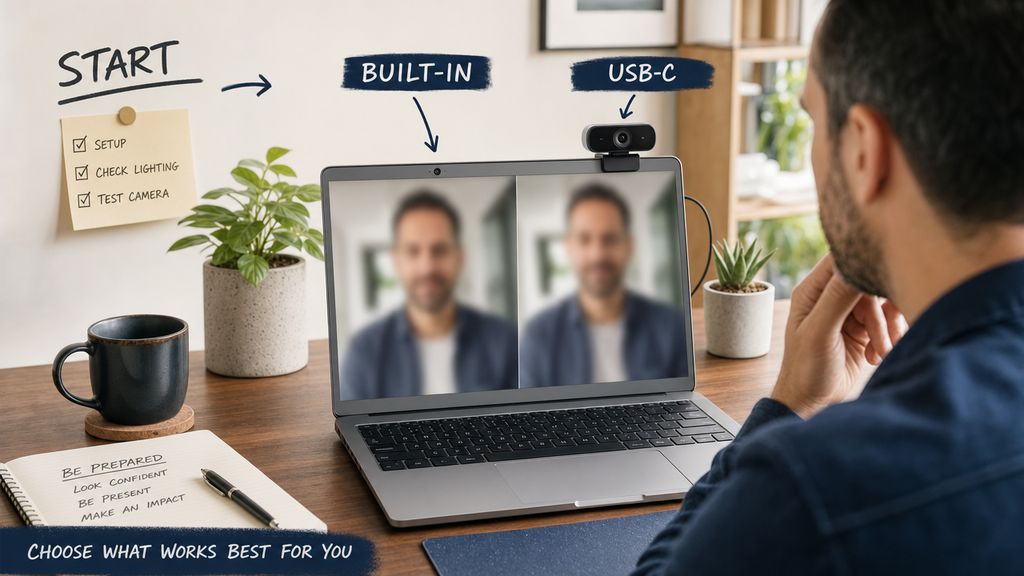
- Built-in webcam only: Your laptop already has a camera embedded in the display bezel. Jump to Section 2 to enable it, confirm permissions, and verify the feed. The process takes about five minutes.
- External USB-C webcam (Hollyland Lyra): You are adding or upgrading to a standalone webcam that clips onto your laptop screen. Continue through the full guide for physical mounting, plug-and-play connection, HollyStudio app configuration, and AI feature activation.
The one common thing in both ways is selecting the correct camera device inside Zoom, Teams, Meet, or OBS before your session begins.
How to Use the Built-In Webcam on Your Laptop
Most laptops include a built-in webcam at the top center of the display bezel. The steps below cover enabling the camera, granting the necessary permissions, and confirming the device is recognized at the OS level. If you have already verified your built-in camera works and want to set up an external webcam instead, skip ahead to Section 3.
Enable and Open the Webcam on Windows
- Press the Windows key, type Camera, and select the Camera app from the search results.
- If a permission prompt appears, click Allow to grant the app access to your camera.
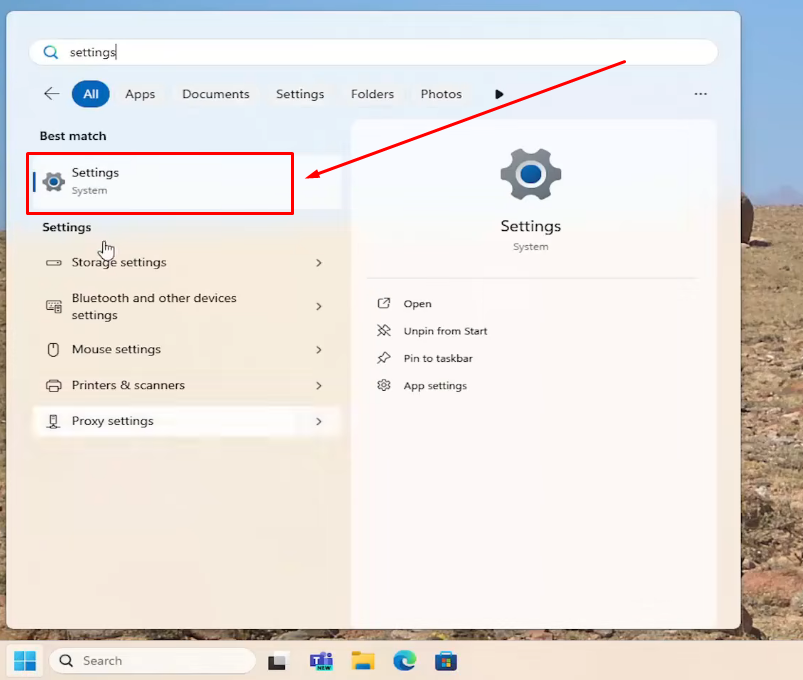
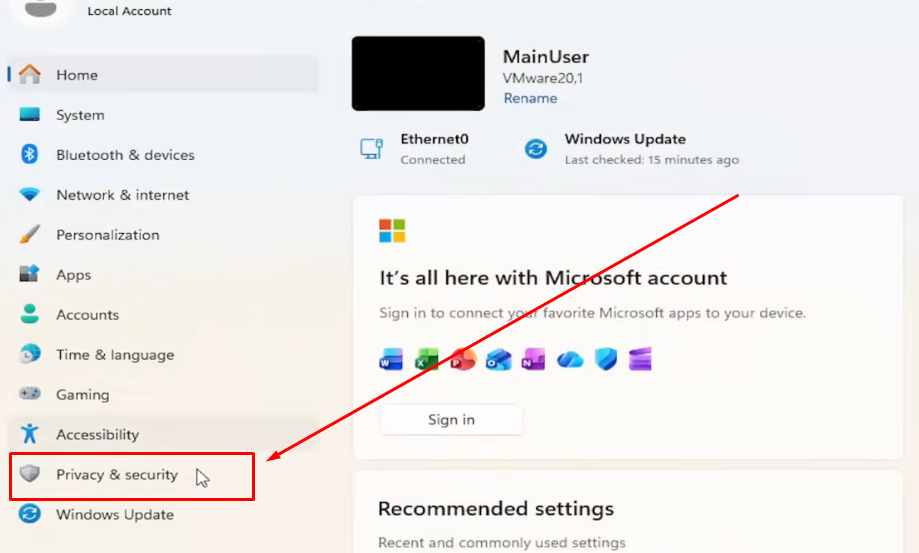
- Go to Settings > Privacy and Security > Camera and confirm that Camera access is turned on. Verify that the Camera app and any other apps you use for calls are individually listed and enabled.
- Open Device Manager by right-clicking the Start button and selecting Device Manager. Expand the Imaging Devices or Cameras category. Your built-in webcam should appear without a warning triangle. A yellow warning icon signals a driver issue that needs separate attention.

- Return to the Camera app. A live preview confirms the built-in webcam is active and ready.
Enable and Open the Webcam on macOS
- Open System Settings (macOS Ventura or later) or System Preferences (earlier versions) and navigate to Privacy and Security > Camera.


- Confirm that any app you plan to use for video calls, such as FaceTime, Zoom, or Google Meet, has camera access enabled. Toggle the switch on if it is currently off.
- Open Photo Booth or FaceTime. The live camera feed should appear on screen immediately, confirming the built-in camera is recognized and accessible.
- To verify device recognition, open the Apple menu > System Settings > General > About > System Report, then click USB or Camera in the left sidebar. The built-in camera will be listed there.

Note: macOS activates the built-in camera automatically when a compatible app requests access. There is no separate “enable camera” toggle at the OS level beyond the per-app privacy permission in System Settings.
How to Set Up an External Webcam on a Laptop: Hollyland Lyra Walkthrough
The Hollyland Lyra is a USB-C webcam built around a 1/1.5” CMOS sensor with 50MP effective pixels and 4K video output. It clips onto your laptop display, connects without any driver installation, and is controlled through the HollyStudio application. The three steps below take you from unboxing to a fully recognized, operational device.

Mount the Lyra on Your Laptop Display
- Place the mount’s front edge over the top of your laptop bezel.


- Pull the rear support backward until it rests toward the back of the screen lid. The weighted base and rear arm balance each other, keeping the mount secure without pressing the display. Also, position it in the center.

- Bring Lyra close to the platform on top. Its magnets will pull the camera into place.
- Once attached, rotate the camera from side to side to change its direction.
- Use the hinge where the mount connects to tilt Lyra up or down until it matches your eyeline.
- Verify the lens is roughly level with your eyeline when you are seated at a normal working distance. Adjust your chair height or monitor position if needed rather than tilting the camera, since the clip is designed to sit flush against a flat bezel.
Note: The Lyra also mounts on a tripod via its 1/4-inch threaded hole or sits on a flat surface using its magnetic base. The laptop-clip method is the standard approach for video calls and is the focus of this walkthrough.
Connect via USB-C and Confirm Plug-and-Play Recognition
- Locate the USB-C port on your laptop. The Lyra package includes both a USB-C to USB-C cable and a USB-C to USB-A adapter, so the camera connects regardless of which port type your laptop has.
- Plug the cable into the Lyra’s USB-C port first, then into the laptop’s port.


- For best performance, connect directly to the laptop rather than through an unpowered USB hub. If you use a dock, confirm it has independent power and supports USB 3.0.
- Within a few seconds, the Lyra’s LED indicator will light up in a steady blue color, confirming the camera has received power and been recognized by the operating system.

- On Windows, open Device Manager and expand the Imaging Devices or Cameras category. “Hollyland Lyra” should appear without any warning icons. No additional driver installation is required — the Lyra uses the UVC (USB Video Class) standard, which Windows 10, Windows 11, and macOS support natively.
- On macOS, open System Report and click USB in the left sidebar. “Hollyland Lyra” will be listed among the connected USB devices.
Install and Open HollyStudio
The Lyra functions as a standard UVC webcam without HollyStudio, but the application is required to access AI tracking, resolution and frame rate selection, digital zoom, focus control, exposure, white balance, noise cancellation, AI tuning, and virtual backgrounds.
- Download HollyStudio from the Hollyland website or the dedicated download link included with the product.

- Run the installer and follow the on-screen prompts. No system restart is typically required.
- Open HollyStudio. The home screen displays a device tile for each connected Hollyland device.
- The Lyra should appear as a connected device tile showing a live camera thumbnail and the current firmware version. A connection status indicator confirms the device is active and ready to configure.
- If the Lyra tile does not appear, confirm the USB connection is secure and the LED is lit, then restart HollyStudio.
Pro Tip: Keep HollyStudio running in the background during calls and streams. AI features, including tracking, auto-framing, and noise cancellation, are processed through the app and passed to your video-call platform as a virtual camera feed. Closing the app mid-session will disable those features.
How to Configure Webcam Settings for the Best Video Quality
HollyStudio gives you direct control over every parameter that affects image quality. Work through each setting once after initial setup, then revisit only when your environment or use case changes.
Select Resolution and Frame Rate
- In HollyStudio, locate the Resolution menu above the preview screen.
- Choose the resolution and frame rate combination that matches your use case:
- 3840×2160 at 30 fps: Maximum image detail for local recording or high-bandwidth streaming. Requires a USB 3.0 connection and MJPEG output mode.
- 1920×1080 at 60 fps: Smooth, fluid motion for live video calls. The higher frame rate reduces motion blur during gestures and head movement.
- 1920×1080 at 30 fps: A balanced default for most video calls. Lower data overhead than 60 fps with no visible quality difference on a static subject.
- 1280×720 at 30 or 60 fps: Best for bandwidth-limited connections or platforms that cap incoming video at 720p.

- Confirm the selection in the live preview window, which updates immediately to reflect the new output resolution.
Adjust Field of View and Digital Zoom
- The Lyra has a fixed 82-degree field of view, capturing a wide frame with background context on both sides of the subject.
- Open the Focal Length slider for digital zooming in HollyStudio. The option is available on the Image Control page and under the Advanced section. The range runs from 1x to 4x.

- Drag the slider right to tighten the frame. At 1.5x to 2x, the framing approximates a standard head-and-shoulders video-call composition without any physical repositioning of the camera.
- The live preview updates in real time as you move the slider, allowing precise framing before a call starts.
- At 4x zoom, the image is cropped significantly. Reserve this setting for close-up presentations or demonstrations where the wider view would show unwanted content.
Control Exposure and White Balance
- Find the Exposure (EV) slider on the Image Control page and under the Advanced section of the HollyStudio app. The exposure compensation slider brightens or darkens the image independently of the auto-exposure system.
- Drag toward positive values if your face appears dark against the background.
- Drag toward negative values if the image looks washed out or overexposed.
- On the same page, find the White Balance control and select the mode that matches your light source:
- Manual White Balance: Increase or decrease the slider to adjust light according to the environment.
- Auto White Balance: Click the “A” icon on the Auto White Balance field to activate automatic adjustment. It works well in stable, single-source lighting.
- If a custom Kelvin value input is available in HollyStudio, use it when you need precise color matching across multiple cameras in a production setup. Typical values run from 2500K (warm) to 6500K (daylight).

- Confirm results in the preview. Skin tones should appear neutral and consistent before you lock in the setting.
Using Lyra’s AI Features: Tracking, Auto-Framing, and Audio
The Hollyland Lyra’s built-in AI capabilities go well beyond what a standard UVC webcam offers. Each toggle below is available in HollyStudio and applies its effect in real time to the camera feed passed to your video-call or streaming app.
Enable AI Subject Tracking and Smart Framing
- On the HollyStudio app, find a small frame icon at the top of the preview screen. Click the icon to lock the frame. Once it’s done, the icon will include a padlock symbol.
- Click the gear icon below the preview window to enter Settings.

- From the left menu, select the Camera Settings tab, turn on the Face Priority Focus toggle, then close the window.

- Go to the FOV page and navigate to the Smart Framing section.
- If the “None” tile is selected, click the tile with an image to enable auto framing.

Activate Intelligent Noise Cancellation
- Open Settings and navigate to the Audio settings panel in HollyStudio.
- Toggle Noise Cancellation to on.

- The feature suppresses ambient noise sources, including keyboard typing, HVAC fans, and background conversations, while preserving your voice.
Apply AI Tuning (Skin Smoothing and Color Correction)
- Open the HollyStudio software and click on the Beautify page from the right sidebar menu.

- Toggle the Beautify switch and select the Custom tab.

- Look for the “Smooth skin” slider and adjust the levels as per your requirement.

- For color correction, go to the Image Control page.
- Find the Custom section, select a color from the available options, and click the dropper icon for color correction.

- Once the color picker tool appears, use it to select specific colors in your webcam feed and adjust them.

- For advanced color correction, tweak Hue, Saturation, and Exposure sliders.

Note: On macOS, HollyStudio currently supports basic features and green screen only. AI Tuning effects, including skin smoothing and color correction, are available on Windows. Check Hollyland’s documentation for the latest macOS feature parity updates before relying on these settings on a Mac.
Set a Virtual Background via the Green Screen Keying
HollyStudio has its own cutout algorithm that lets you remove a green screen and replace it with a custom background image. You can also change the background’s shape and size for a more natural look. Follow these steps:
- Launch HollyStudio.
- Find and select the Green Screen page from the menu on the right.
- Turn on Green Screen Keying.

- Go to the Custom tab and click the + button to add your background image.

- Choose the image you want to use as the new background.

- Adjust the RGB color if needed.
- Move the intensity slider to change how the background looks in the live webcam view.

- In the preview window, place the cursor over the background image. Left-click and hold the mouse, then drag the image left, right, up, or down to adjust the virtual background.

How to Select Your Webcam in Video-Call and Streaming Apps
Even after you fully configure Lyra in HollyStudio, each video-call and streaming application maintains its own camera device setting. You must manually switch each app to the Lyra. This is the most commonly missed step: users configure the camera correctly and then join a call still showing the laptop’s built-in camera.
Zoom
- Open Zoom and go to Settings by clicking the profile icon in the top-right corner of the home screen.

- Click the Video & effects tab.

- In the Camera dropdown of the Video settings, select Hollyland Lyra.

- The preview pane will update to show the Lyra’s live feed. Confirm the image is sharp and correctly exposed before joining a meeting.
Microsoft Teams
- Click Settings and more (three-dot menu) near your profile picture in Teams and select Settings.


- Navigate to the Devices section.

- In the Video section, open the dropdown and select Hollyland Lyra.

Google Meet
- Before starting or joining the call, click the Settings gear icon at the top right of the call screen.

- Select the Video tab.

- Open the Camera dropdown and select Hollyland Lyra. The change takes effect immediately within the active call.

OBS Studio
- In the Sources panel at the bottom of the OBS window, click the + button and select Video Capture Device.


- Name the source (for example, “Lyra Webcam”) and click OK.
- In the Device dropdown, select Hollyland Lyra.

- Set Resolution/FPS to Custom and choose or enter the resolution that matches your HollyStudio output in the Resolution field — for example, 1920×1080 for a 1080p stream.

- Set the FPS value to match your HollyStudio selection (30 or 60).

- Click OK to add the source. The Lyra’s feed will appear in the OBS preview canvas.
Pro Tip: In OBS, match the Video Capture Device resolution and FPS exactly to the values set in HollyStudio. A mismatch — for example, OBS requesting 4K while HollyStudio is outputting 1080p — can cause the feed to scale unexpectedly or produce unwanted cropping in the canvas.
How to Test Your Webcam on a Laptop
Before any live session, run this quick verification sequence to confirm the full pipeline is working.

- Open the OS camera app. On Windows, open the Camera app from the Start menu. On macOS, open Photo Booth. A live feed with no delay, error message, or black screen confirms the Lyra is connected and recognized at the OS level.
- Run a browser-based webcam test. Navigate to a webcam test tool (such as webcamtests.com) in your browser. The tool displays the camera feed and confirms the microphone is also outputting audio, which verifies that browser and OS permissions are correctly set.
- Check the Lyra’s LED indicator. A steady LED light on the Lyra body confirms the camera is powered and active. If the LED is off, check the USB connection. If the LED shows an unexpected color or is blinking, consult the Lyra product documentation for the specific indicator state.
- Confirm the privacy shutter is open. The Lyra has a built-in physical privacy shutter. If the shutter is closed, the camera will output a black frame in every application regardless of software settings. Ensure the shutter is in the open position before running any test.

- Run a test call in your target app. Zoom, Teams, and Meet all include a test call or camera preview in their settings panels. Use this to confirm the Lyra is the selected device and that both video and audio are passing through correctly before going live.
Tips for Better Image and Audio Quality
Once setup is complete, these adjustments will improve the consistency and professionalism of your video output.

- Position the Lyra at eye level. The laptop-clip mounting position naturally places the lens near eye height when you are seated, creating a direct, natural angle. Cameras aimed upward from a low surface or downward from a high shelf are the most common framing mistakes in video calls.
- Light from the front, not the back. Place a key light, ring light, or lamp in front of you and slightly above eye level. Sitting with a window directly behind you will silhouette your face regardless of camera quality. If you cannot reposition the light, use Lyra’s virtual background feature to remove the bright background entirely.
- Enable noise cancellation before every call. Open HollyStudio’s Audio settings and confirm Noise Cancellation is active. This is especially important in home offices with HVAC noise, street traffic, or other people in the room.
- For recording, select 4K 30 fps. Choose 3840×2160 at 30 fps in HollyStudio’s Record output mode to capture maximum image detail. Files are saved locally as MP4 (Windows only).
- For live calls on slower connections, use 1080p 30 fps. Lower resolution reduces upload bandwidth demand without a visible quality difference to call participants on most platforms.
- Upgrade to a wireless microphone for professional audio. The Lyra’s built-in 48 kHz/24-bit mic handles most calls well, but for a significant step up in audio quality, connect the Hollyland LARK A1 wireless microphone transmitter to the built-in wireless receiver engineered into Lyra’s body.
- Keep a plain background behind you when possible. AI virtual backgrounds produce sharper subject edges when there is clear contrast between your outline and the background. A plain-colored wall outperforms a cluttered bookshelf every time.
- Keep HollyStudio updated. New software updates add features and improve AI performance. Check the Hollyland website after major OS updates on Windows or macOS to ensure full compatibility.
Frequently Asked Questions
How do I know if my laptop already has a built-in webcam?
Look for a small circular lens at the top center of your display bezel. On Windows, open Device Manager and expand the Imaging Devices or Cameras category. A built-in camera will be listed there. On macOS, open System Report and navigate to USB or Camera. Most laptops produced after 2010 include a built-in webcam as standard.
Does the Hollyland Lyra work on both Windows and Mac without installing drivers?
Yes. The Lyra uses the UVC standard, which is natively supported by Windows 10, Windows 11, and macOS. Plug it in via USB-C and the OS recognizes it immediately as a camera device. HollyStudio is a separate installation needed only to access AI features, resolution controls, audio settings, and virtual backgrounds; not for basic UVC operation.
How do I switch my laptop from the built-in camera to the Lyra mid-call?
In Zoom or Teams, open the in-call settings and navigate to the Camera or Devices section, then select Hollyland Lyra from the dropdown. In Google Meet, click the gear icon during the call and change the Camera selection under the Video tab. The switch applies immediately without ending or interrupting the active call.
Why is my webcam showing a black screen even though it is connected?
Check four things in order: confirm the Lyra’s physical privacy shutter is in the open position; verify the LED indicator is lit steadily; check that camera permissions are enabled in Windows Privacy Settings or macOS Privacy and Security for the specific app you are using; and confirm the Lyra appears as a connected device in HollyStudio.
Can I use the Lyra for local recording as well as live streaming?
Yes. In HollyStudio, select the Resolution to 3840×2160 at 30 fps to save footage locally as an MP4 file (Windows only). For live streaming, switch to UVC MJPEG mode and set the resolution your streaming platform requires. Both workflows run from the same physical device without any hardware changes.
Does the Lyra work if I only have a USB-A port on my laptop?
Yes. The Lyra package includes a USB-C to USB-A adapter. Attach the adapter to the USB-C cable and plug it into your USB-A port. Performance matches USB 3.0 speeds as long as the port supports USB 3.0. Avoid connecting through an unpowered USB hub, as insufficient power can cause recognition issues.
Conclusion
You now have a complete process from first connection to a fully configured, app-ready webcam. The Hollyland Lyra is mounted on your screen, recognized by the OS, tuned in HollyStudio, and selected inside your video-call or streaming app.