.png)
 简体中文
简体中文 
Setting up a webcam on an external monitor takes five simple steps. Mount the camera, connect it through USB-C, and allow camera access. Then select the webcam in your video app. Finally, adjust the image quality through its companion software. This guide explains each step using Hollyland Lyra as the example. It covers both Windows and macOS computers. No special hardware or unusual drivers are needed.
Why an External Monitor Setup Needs Its Own Webcam
When you dock a laptop and close the lid (clamshell mode), the built-in webcam either points at the ceiling or becomes entirely inaccessible. Even with the lid open, the camera sits far below the monitor’s center line, producing an unflattering upward angle on video calls. A webcam clipped to the external monitor’s top bezel restores proper eye-level framing with no repositioning needed.
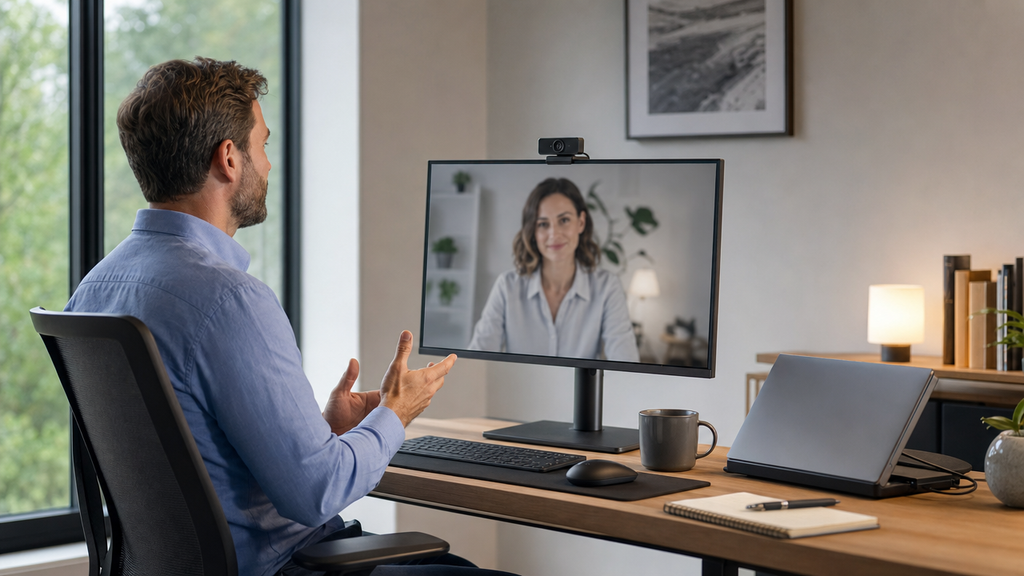
Desktop PCs have the opposite problem because they lack built-in cameras. Adding a USB webcam to the monitor gives the display a front-facing camera. Plus, mounting it there keeps the camera at a natural height.
Throughout this guide, the Hollyland Lyra serves as the reference webcam. Its integrated clip mount, USB-C plug-and-play connection, and HollyStudio companion app map cleanly onto every step described below.
What You’ll Need
Before starting, confirm you have:
- A webcam with a clip or stand mount. This guide uses the Hollyland Lyra (80 g; 60 × 33.3 × 37 mm body). It is compact enough to sit stably on narrow-bezel monitors.
- A USB-C cable (included with the Lyra at 1.5 m).
- An external monitor with a flat, accessible top bezel.
- Windows 10/11 or macOS Ventura/Sonoma on the host computer.
- HollyStudio installed (free download from Hollyland; required for quality optimization in Step 5).
Step 1: Mount the Webcam on Top of Your External Monitor
Physically seating the camera takes a few minutes and requires no tools.
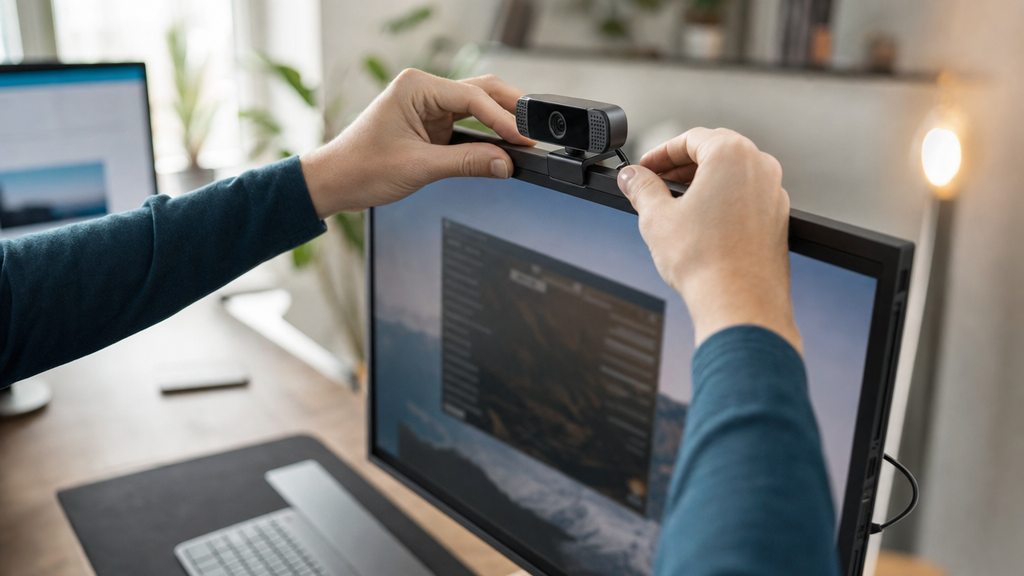
- Unfold the clip assembly. Pull the Lyra’s integrated hinge open, separating the front jaw from the rear arm until both are fully extended.
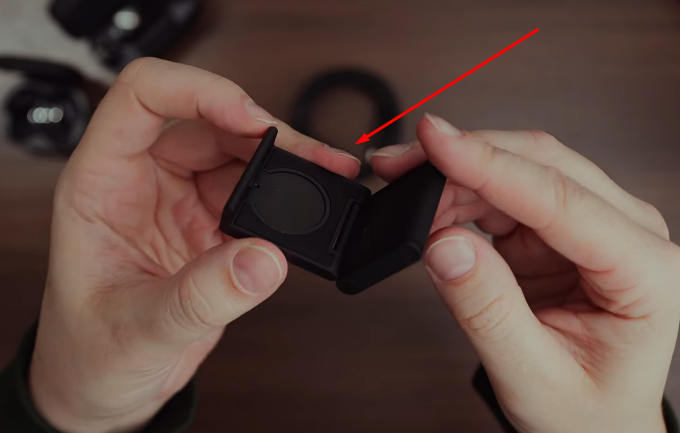
- Hook the front jaw over the bezel. Slide the front jaw down over the top edge of the monitor. Center the camera horizontally above the screen’s midpoint so the lens aligns directly in front of your face.
- Lower the rear arm onto the back panel. Let the rear arm rest flush against the monitor’s back surface. On most flat-panel monitors, the clip grips securely without further adjustment. On a very thin bezel, apply gentle downward pressure until the clip feels firmly seated.
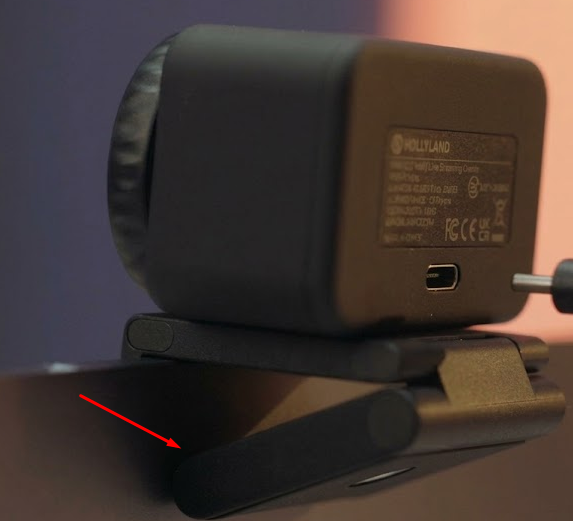
- Adjust the tilt angle. Rotate the camera body on its hinge until the lens is approximately level with your seated eye line. Aim for the top third of the monitor face: not angled steeply downward, and not tilted upward toward the ceiling. A lens positioned at or slightly above eye level and angled gently downward produces the most natural, professional perspective.
- Dress the USB-C cable. Route the cable toward one side of the monitor and leave a small loop of slack before it descends to the computer. Taut cable tension is one of the most common reasons a clipped webcam shifts out of position over time.
Tip: After adjusting the tilt, sit in your normal working posture and run a quick live preview in any camera app before proceeding. Small tilt corrections take seconds now and are much harder to make mid-call.
Step 2: Connect the Webcam to Your Computer
The Lyra requires a single USB-C cable and no external power adapter.
- Plug the USB-C cable into the Lyra. The USB-C port is located on the back of the camera body. Push the connector in until it seats fully.

- Connect the other end to your computer. Plug directly into a USB-C or USB-A port on the computer itself.

If your computer only has USB-A ports, use a USB-C to USB-A adapter.

- Confirm the LED indicator. The Lyra’s LED illuminates solid blue when the camera has power and is recognized by the host device. If the LED stays dark, try a different port directly on the computer rather than relying on a hub.

- Watch for OS detection. On Windows, a brief “Setting up a device” notification may appear in the taskbar. On macOS, no notification appears, but the camera will be listed in System Settings once permissions are granted in Step 3.
Step 3: Recognize and Enable the Webcam in Your Operating System
Enable camera permissions at the OS level before any video app can access the Lyra.
On Windows 10 / 11
- Open Settings and navigate to Privacy & Security → Camera.


- Confirm “Let apps access your camera” is toggled On. If it is off, enable it before proceeding.

- Open the Windows Camera app (search “Camera” in the Start menu). Click the camera-switch icon in the upper-right corner and select “Hollyland Lyra” from the device list. The live preview switches to the Lyra feed immediately.
- For additional confirmation, open Device Manager and expand the Cameras node. “Hollyland Lyra” should appear without a yellow warning triangle. A yellow flag points to a power or port issue rather than a missing driver. The Lyra is recognized as a plug-and-play UVC device on Windows 10/11.

On macOS (Ventura / Sonoma)
- Open System Settings → Privacy & Security → Camera.


- Toggle camera access On for each app you plan to use (Zoom, FaceTime, Teams, Google Meet). Each application must be individually enabled here.

- Open FaceTime and click the Video menu in the menu bar. Select “Hollyland Lyra” as the camera source.
- Confirm the FaceTime preview window shows the Lyra’s live feed before moving to Step 4.
If FaceTime is not installed, Photo Booth provides the same one-click verification: the camera selector appears in its Video menu.
Step 4: Select the Webcam as Your Camera in Video Conferencing Apps
After OS recognition, each video app keeps its own camera-source setting and defaults to the built-in laptop camera until you change it manually. The switch needs to be made once, after which most apps save the preference for future sessions.
Zoom
- Click the profile icon and select Settings.

- Select the Video & effects tab.

- In the Camera dropdown, choose “Hollyland Lyra”.

- The preview panel on the right updates immediately. Verify the feed shows the Lyra’s view before joining a call.
Microsoft Teams
- Click the three-dot menu (Settings and more) at the top of the Teams window and select Settings.


- Navigate to the Devices section.

- Under the Video and Video settings section, look for the Camera option, open the dropdown, and select “Hollyland Lyra”.

- The thumbnail preview below the dropdown refreshes to confirm the selection.
Google Meet
- Before a call, click the gear icon to open Settings.

- Go to the Video tab.

- In the Camera dropdown, select “Hollyland Lyra”.

Note: Each app saves your camera selection after the first change. You will not need to repeat this step in future sessions unless the app is reinstalled or its settings are reset.
Step 5: Optimize Video and Audio Quality with HollyStudio
HollyStudio is Hollyland’s companion control application for the Lyra. Install it before this step and launch it while the Lyra is connected. The app header displays a real-time “Connected / Disconnected” status. Confirm it reads Connected before adjusting any setting.
Resolution and Frame Rate
- Open the Resolution menu in the top-right corner of the preview window in HollyStudio.
- Choose the resolution and frame rate that match your use case:
- 3840 × 2160 @ 30 fps: Maximum visual quality for recorded content or high-quality streams. Compatible with both USB 2.0 and USB 3.0.
- 1920 × 1080 @ 60 fps: Best balance of motion smoothness and platform compatibility for live calls. Requires USB 3.0.
- 1280 × 720 @ 60 fps: Recommended when the internet connection is bandwidth-limited.

Note: You can also use the USB-C to USB-C connection to connect Lyra.
- Match your output to the maximum resolution your video app accepts. Zoom and Teams cap live camera input at 1080p, so 4K output is most useful for local recording workflows.
Digital Zoom and Field of View
The Lyra’s hardware lens has a fixed 82° field of view (equivalent focal length: 26 mm). HollyStudio’s digital zoom via the Focal Length slider on the Image Control Page’s Advanced section adjusts effective framing from 1x to 4x digitally, without physically repositioning the camera.
- For a solo talking-head shot at a standard desk distance: 1.2x to 1.5x is typically ideal.
- For group calls or wider scene context: keep the slider at 1x.
The Lyra’s 50 MP sensor captures significantly more data than 4K output requires, so a moderate digital zoom does not noticeably degrade image quality.

AI Tracking and Smart Auto Framing
- Toggle AI Tracking On in HollyStudio. The camera tracks subject movement across the 82° frame by dynamically cropping the sensor output.
- Toggle Smart Auto Framing On to keep the subject centered in the output window when moving between a seated and standing position.
Here’s how to enable AI Tracking and Smart Auto Framing via the HollyStudio app:
- Click the frame icon located at the top of the preview screen. This is the first step to activate AI Tracking, and the frame icon will include a padlock symbol inside it.


- Open Settings with the gear icon at the bottom of the preview screen.

- Select Camera Settings in the left menu. Then turn on Face Priority Focus and close the window.

- Select the FOV page.
- Go to the Smart Framing section, deselect None, and enable the image tile next to None.

Both features can run simultaneously. AI Tracking drives the framing direction; Smart Auto Framing determines the crop boundary. All processing happens inside HollyStudio and is delivered to Zoom, Teams, or Meet as a standard camera feed.
Audio: Noise Cancellation, AI Tuning, and Direct Mic Connection
- In HollyStudio’s Settings > Audio settings, enable Noise Cancellation to filter keyboard clicks, fan noise, and ambient room sounds from the microphone signal before it reaches the video app.

- For wireless audio, connect a Hollyland LARK A1 wireless microphone to the Lyra’s built-in LARK A1 receiver. No separate USB receiver is required. The LARK A1 signal routes through the Lyra’s single USB-C cable to the computer.
The Lyra’s built-in microphone records at 48 kHz / 24-bit. Intelligent Noise Cancellation applies to the built-in mic and any connected LARK A1 input.

Hollyland LARK A1 - Affordable Wireless Microphone
A perfect starter mic for creators on a budget. It’s simple to use and features effective noise cancellation.
Key Features: 48kHz/24-bit | 3-Level Noise Cancellation | 54-Hour Battery
Exposure and White Balance
- In the HollyStudio app, go to the Image Control page and the Advanced section.
- Use the Exposure (EV) slider to adjust lighting.
- Next, go to the White Balance slider and adjust it to adjust the warmth of your image. Alternatively, you can set the White Balance slider to “Auto” by clicking the “A” icon.

- Optionally adjust the Sharpness, Contrast, and Saturation sliders for further image refinement.
Troubleshooting: Webcam Not Working on External Monitor Setup
Most post-setup issues fall into one of five categories. The table below maps each symptom to its most likely cause and the fastest fix.
| Issue | Likely Cause | Fix |
|---|---|---|
| Webcam not detected in any app or Device Manager | USB port not supplying sufficient power; passive hub in the chain | Connect the USB-C cable directly to a port on the computer; replace any passive USB hub with a powered one |
| Video app still shows laptop camera after connecting | App defaulted to the built-in camera on launch | Open the app’s camera settings and manually select “Hollyland Lyra” (see Step 4) |
| Black screen or no preview after selecting the webcam | Camera access blocked in OS Privacy settings | Enable camera permission for the specific app in Windows Privacy & Security or macOS System Settings (see Step 3) |
| Choppy or low-resolution feed in 4K mode | NV12 UVC output requested over a USB 2.0 port | Switch the output format to MJPEG in HollyStudio, or move the cable to a USB 3.0 port |
| AI tracking or auto-framing not activating | HollyStudio not running in the background | Launch HollyStudio before opening the video app; confirm the app header shows “Connected” |
LED indicator check: If the Lyra’s LED does not illuminate after plugging in, the USB port is not delivering adequate power. Try a different port directly on the computer, or switch to a powered USB-C hub.
FAQs
Can I still use my laptop’s built-in webcam when it’s connected to an external monitor?
Yes, if the laptop lid is open. The built-in camera remains available in any app regardless of whether an external monitor is connected. But the angle from desk level typically points upward. A webcam mounted on the external monitor at eye level produces significantly better framing for video calls and eliminates the unflattering low-angle perspective.
Do I need to install special drivers to use a USB webcam on Windows or macOS?
No. UVC (USB Video Class) webcams, including the Hollyland Lyra, are recognized as plug-and-play devices on Windows 10/11 and macOS Ventura/Sonoma. The OS loads a generic UVC driver automatically upon connection. You don’t need to download a manufacturer driver before using the webcam in Zoom, Teams, Google Meet, or any other UVC-compatible application.
Where is the best position for a webcam on an external monitor?
Center the webcam horizontally on the top bezel so the lens aligns with the screen’s midpoint. Adjust tilt so the lens sits at or very slightly above your natural eye level when seated. This delivers the straight-on, professional camera angle expected in video calls and avoids the unflattering low-angle effect that laptop cameras placed at desk level typically produce.
Why does my webcam show a blurry or low-resolution image even on a 4K monitor?
The monitor’s display resolution does not affect webcam output quality. The issue is usually the output format or USB port type. In HollyStudio, confirm the resolution is set to 3840 × 2160 @ 30 fps, which is compatible with USB-C, USB 2.0, and 3.0.
Can I use one webcam across two monitors simultaneously?
A webcam connects to the computer, not to a specific display. It is a single input device, and only one application can access it at a time. You can open a video app on either screen and select the webcam as the camera source from that app’s settings. The monitor displaying the app doesn’t affect camera access or feed quality.
Conclusion
Setting up a webcam on an external monitor is quite easy! Mount on the bezel, connect via USB-C, enable OS camera permissions, select the camera in your video app, and fine-tune quality in HollyStudio. Once configured, the Hollyland Lyra retains your settings across sessions.