.png)
 简体中文
简体中文 
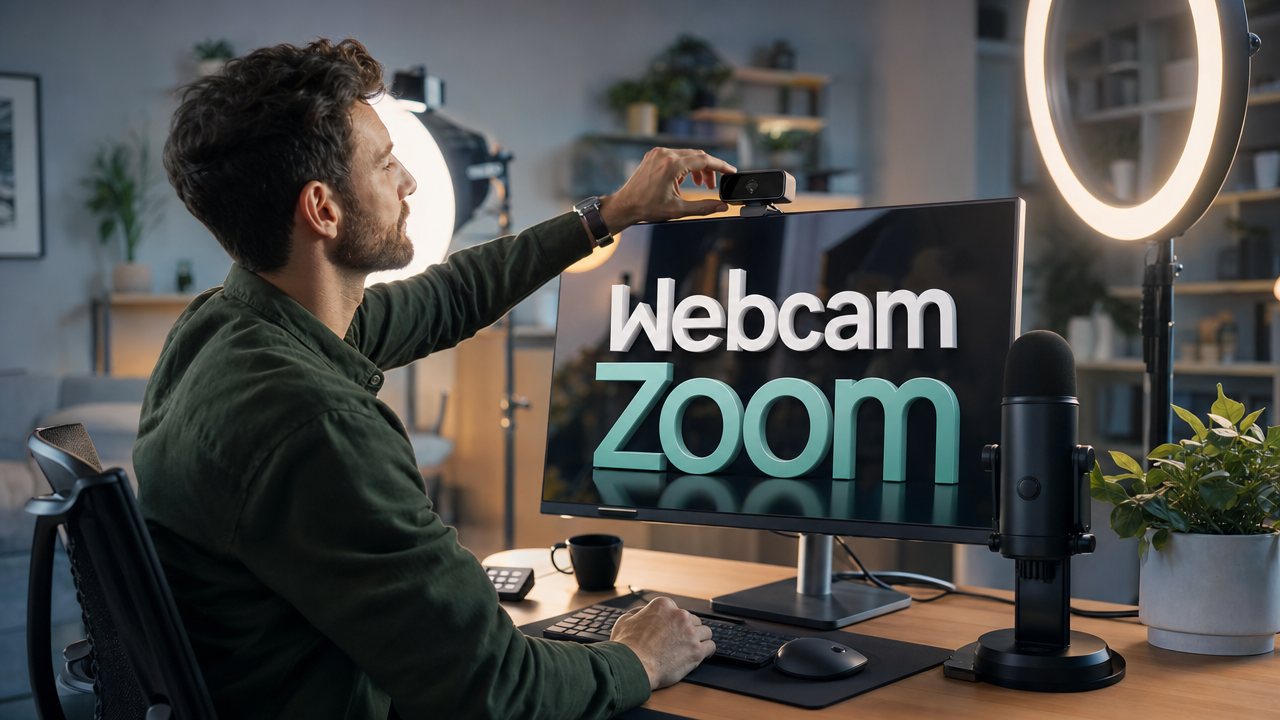
Setting up a new webcam for Zoom can take just minutes. Still, one wrong setting can create an unexpected problem. Your laptop camera may stay active during the call. Meanwhile, your external webcam could remain unused. This guide shows how to connect your Hollyland Lyra correctly. You will learn each step from start to finish. We will begin by mounting the Lyra on your monitor. Then, you will check the video feed before calling. By the end, your next Zoom meeting will feel ready.
What You Need Before You Start
Confirm you have everything on this short list before starting:
- Hollyland Lyra webcam with the included USB-C to USB-C cable and USB-C to USB-A adapter
- Zoom desktop app installed on Windows 10/11 or macOS (version 5.0 or later is recommended for Full HD support; update via Help → Check for Updates if needed)
- An available USB-C or USB-A port — USB 3.0 is preferred for 1080p60 output; USB 2.0 also supports UVC MJPEG up to 4K30
- No driver download required. Lyra is UVC-compliant and plug-and-play on both Windows and macOS
- HollyStudio (optional) for full control over resolution, AI tracking, AI Tuning, and virtual backgrounds
Step 1: Mount the Lyra on Your Monitor or Laptop
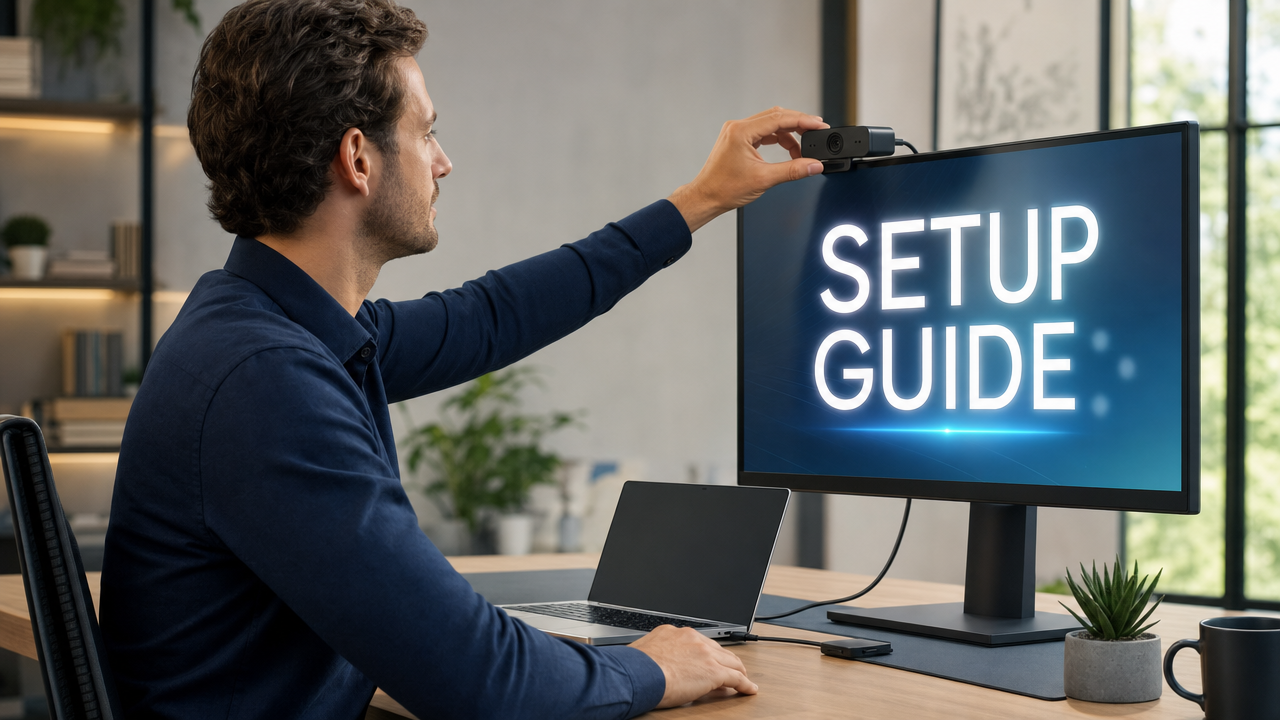
Proper positioning is the foundation of a good Zoom image. The Lyra’s integrated clip mount grips the top edge of most monitors and laptop lids firmly, and its 80g body stays stable even on thin-bezel displays.
- Place the small, rigid front area of the included mount over the top edge of your laptop bezel. Bring your Lyra camera close to the mount’s top side. Its built-in magnets will snap the camera into place.
- Fold the mount’s rear part backward so it rests against the back lid of your laptop screen. Doing so will keep the mount secure without tightly clamping the screen.

- Adjust the webcam upward or downward using the independent hinge built into the mount’s attachment point to set your eyeline.
Step 2: Connect the Lyra to Your Computer via USB-C
The Lyra is plug-and-play. No driver installation is required on Windows 10/11 or macOS; the operating system registers it immediately as a USB video and audio device.
- Connect one end of the USB-C cable to the USB-C port on the rear or underside of the Lyra.
- Connect the other end to your computer. Use a USB-C port if one is available.
If your computer only has USB-A ports, attach the included USB-C to USB-A adapter and plug into a USB 3.0 port (typically marked with a blue tab or “SS” symbol).
- Watch for the LED indicator on the Lyra body. A solid light confirms the camera is powered and the OS has recognized the device.
- Confirm OS recognition. On Windows, the Lyra appears in Device Manager under Cameras or Imaging Devices. On macOS, it shows in System Information under USB. No further action is required; recognition is automatic.
- Quick verification (recommended): Open the Windows Camera app or macOS Photo Booth and confirm a live feed from the Lyra appears. If the image is visible here, the hardware and OS side are functioning correctly before you open Zoom.
Note: Connect the Lyra directly to a port on your computer rather than through an unpowered USB hub. Hubs can reduce available bandwidth and cause intermittent frame drops or disconnections, particularly at 1080p60 output.
Step 3: Select the Lyra as Your Camera in Zoom
With the Lyra recognized by the OS, the next step is telling Zoom to use it instead of the laptop’s built-in camera.
- Open the Zoom desktop app and log into your account. Click the profile icon and select Settings from the menu.
- Click the Video & effects tab in the left-hand sidebar.

- Open the Camera dropdown under the Video tab. All cameras currently connected to the system will appear here.

- Select “Hollyland Lyra” from the list. The device may appear as “Lyra,” “Hollyland Lyra,” or “USB Video Device,” depending on your OS version.
- Confirm the live preview. The preview window directly below the dropdown should switch immediately to the Lyra’s feed, showing a sharp, well-exposed image with the 82° field of view capturing your face and upper torso.
If the Lyra does not appear in the dropdown:
- Unplug the USB-C cable, wait five seconds, and reconnect.
- Try a different USB port directly on the computer.
- Close Zoom completely and relaunch after reconnecting the camera.
- On Windows, navigate to Settings → Privacy and Security → Camera and confirm that “Let desktop apps access your camera” is enabled for Zoom.
Step 4: Configure Video Quality Settings in Zoom
Choosing the camera source is just one part of the setup. Zoom’s quality settings determine how much of Lyra’s 1080p60 output you receive.
- Stay in Zoom Settings → Video & effects.
- Under the Video tab, check the “HD” checkbox. This unlocks 720p as a baseline and allows Zoom to negotiate higher resolutions with UVC cameras. It is off by default on many accounts.

- Switch to the Appearance tab and turn off “Touch up my appearance.” If you plan to use Lyra’s AI Tuning in HollyStudio for color correction and skin smoothing, set this slider to zero. Running both simultaneously creates an over-processed, unnatural look.

- Turn off “Adjust for low light.” The Lyra’s F/1.8 aperture and built-in AI Tuning handle exposure automatically. Leaving Zoom’s low-light correction active can cause the image to appear washed out when the camera is already optimizing brightness.
- Leave frame rate selection to the Lyra. Zoom does not offer a direct frame rate control. Frame rate is negotiated automatically between Zoom and the UVC device based on available bandwidth and the selected resolution.
Note: Your Zoom output also depends on your plan and network. It is not based only on the camera’s signal. Lyra sends a sharp 1080p source to Zoom. This gives Zoom more detail before compression starts. The result can look cleaner on the other end.
Step 5: Configure the Lyra in HollyStudio for Zoom-Optimized Output
HollyStudio is the companion app for fine-grained control over the Lyra’s resolution, AI features, and audio processing. It is not required for basic Zoom use, but it unlocks the camera’s most useful capabilities for professional calls.
- Download and install HollyStudio from the Hollyland website, then launch it with the Lyra connected.
- Confirm device recognition on the app’s home screen before adjusting any settings.
- Set resolution and frame rate:
At the top of the preview screen, go to the Resolution dropdown menu.
- Select 1080p60 for live Zoom calls; this balances sharpness with bandwidth requirements and aligns with what most Zoom account tiers support.
- Select 4K30 when recording a webinar locally through HollyStudio for post-meeting distribution, where maximum detail matters more than frame rate.
- Enable AI Tracking and Smart Auto Framing. The preview shows a bounding box that follows your position, keeping you centered when you shift or turn during a call. Here’s how to turn AI Tracking and Smart Auto Framing on:
- Find the frame icon above the preview screen. Click it to enable AI tracking. Once done, the frame icon will include a padlock icon in the center.
- Now, select the gear icon to open Settings.
- Click the Camera Settings tab from the left menu.
- Then, turn Face Priority Focus on using the toggle, and close the window.
- Next, select the FOV page.
- Locate Smart Framing section, deselect None, and toggle on the image tile (portrait image tile) next to None.
- Set Digital Zoom to 1x for the full 82° field of view, or increase to 2x for a tighter headshot-style frame. Values above 2x are best reserved for close-up content rather than typical Zoom calls. In the HollyStudio app, you can zoom digitally using the Focal length slider in the Image Control page’s Advanced section.

- Tune Your Visuals. Use the skin smoothing and color correction sliders for your preferred look; keeping adjustments in the low-to-mid range produces the most natural, professional result. Here’s the step-by-step process:
- Start HollyStudio on your computer.
- Select the Beautify Page from the right-side menu toolbar.
- Turn on the Beautify toggle and click Custom.

- Use the Smooth skin slider until the smoothing seems natural.

- Click Add New Template to save your adjustments as a preset in the “My Templates” section.
- Then, go to the Image Control page.
- Scroll down and locate the Custom section. Select Color, then click Color Correct with the dropper icon.
- Pick specific colors from your webcam visuals with the color picker tool and adjust them.
- You can also refine Hue, Saturation, and Exposure for more color accuracy.
- Enable Intelligent Noise Cancellation in the audio section to process background sound before it reaches Zoom, reducing the need to also run Zoom’s own noise suppression simultaneously.
To activate Lyra’s Noise Cancellation feature, open Settings from the HollyStudio app, choose the Audio Settings tab, and toggle Noise cancellation.

- Settings persist on the device. Once saved in HollyStudio, the Lyra applies them automatically each time it connects, so you do not need to reopen the app before each Zoom session.
Step 6: Set the Lyra’s Microphone as Your Zoom Audio Source
The Lyra’s built-in microphone captures 48 kHz/24-bit lossless audio, a significant improvement over a typical laptop microphone. One setting change in Zoom routes the audio correctly.
- Open Zoom Settings → Audio.
- Click the Microphone dropdown and select the Lyra audio device. It appears as a separate entry from the camera; look for “Lyra,” “Hollyland Lyra,” or a similar label.
- Speak at your normal call volume and watch the input level bar. The green bar should respond clearly as you speak. If it stays flat, the wrong device may still be selected or the camera may not be fully connected.
- Uncheck “Automatically adjust microphone volume.” The Lyra delivers consistent levels through its 48 kHz/24-bit Hi-Fi audio system. Allowing Zoom to auto-adjust can introduce volume fluctuations that conflict with the camera’s own audio processing.

- (Optional) Connect a Hollyland LARK A1 wireless microphone.
- In the HollyStudio app, go to Settings, then Audio Settings.
- Scroll down and enable Bluetooth with the toggle switch.

- Select Start Pairing to activate Lyra’s pairing mode.

- Make sure the LARK A1 transmitter is off. Press and hold the power button for 6 seconds, then check for a flashing blue LED.

- Once pairing completes, Lyra and the LARK A1 TX will connect automatically, and the transmitter LED will remain solid blue.

Step 7: Test Your Setup Before the Meeting
Never join a live call without a quick test. Zoom’s built-in tools confirm everything is working correctly before anyone else sees or hears you.
- Open Zoom Settings → Video & effects. The live preview should show Lyra’s feed, not the laptop camera. Confirm the image is sharp, well-exposed, and correctly framed.
- Open Zoom Settings → Audio and click the “Test Mic” button. Speak for a few seconds and listen to the playback. Your voice should be clear and free of background noise.
- Alternatively, visit zoom.us/test in a browser to join a simulated test meeting. This more closely replicates a live call and tests audio and video together in a meeting context.
- Shift your position in your chair if AI tracking is enabled in HollyStudio. The preview should re-center on your face within a second or two, confirming that auto-framing is active and working.
- Check the microphone input bar while speaking to confirm the signal is registering from the Lyra mic rather than the laptop’s built-in microphone.
Pre-meeting checklist:
- Preview shows the Lyra feed, not the laptop camera
- Image is sharp and well-exposed
- Framing captures face and upper torso
- AI tracking re-centers on movement (if enabled)
- Audio input bar responds when speaking
- Test Mic playback is clear and noise-free
Pro Tips for Better Zoom Video with the Lyra
- Front-light your face. Place a lamp or key light in front of you, slightly above eye level. The Lyra’s F/1.8 aperture handles low light well, but front lighting separates a good image from a professional one.
- Mount at eye level. A camera above your screen makes you appear to look downward throughout the call. Raise your monitor or use a stand to align the Lyra’s lens with your eyes.
- Use HollyStudio virtual backgrounds instead of Zoom’s. The Lyra processes background removal with its own algorithm, producing a cleaner, more stable result than Zoom’s software-based virtual background, especially in rooms without a dedicated green screen.
- Match your output to the meeting type. Use 1080p60 for live calls to prioritize smooth motion, and switch to 4K30 when recording a webinar locally for post-meeting distribution.
FAQs
Why isn’t Zoom detecting my Hollyland Lyra?
Start with the physical connection: unplug the USB-C cable, wait a few seconds, and reconnect directly to a port on the computer rather than a hub. Then close Zoom completely and relaunch. On Windows, go to Settings → Privacy & Security → Camera and confirm that desktop app access is enabled for Zoom.
Can I use the Lyra on Zoom without installing any software?
Yes. The Lyra is UVC-compliant and plug-and-play on both Windows 10/11 and macOS, so Zoom recognizes it as a camera and audio device automatically without any driver download. HollyStudio is optional but recommended for controlling resolution, enabling AI tracking, adjusting AI Tuning, and managing virtual backgrounds.
Does the Lyra work with Zoom on Mac and Windows?
Yes. The USB-C plug-and-play connection works natively on both platforms, and the Lyra appears in Zoom’s camera and microphone dropdowns on either OS without additional setup. For HollyStudio compatibility details by OS version, check the Hollyland website; the core webcam and audio functions operate on both platforms without the companion app.
What resolution should I use for Zoom calls with the Lyra?
Use 1080p60 (UVC MJPEG) set via HollyStudio for live Zoom calls; this balances sharpness with bandwidth and matches what most Zoom account tiers support. Enable Zoom’s HD option to ensure the app accepts the full-resolution input. Reserve 4K30 for locally recorded webinars where maximum image detail is the priority.
Can I connect a wireless microphone to the Lyra for Zoom?
Yes. Lyra comes with a built-in receiver for LARK A1. You can enable Bluetooth from the HollyStudio’s Audio Settings and pair the LARK A1 transmitter.

Hollyland LARK A1 - Affordable Wireless Microphone
A perfect starter mic for creators on a budget. It’s simple to use and features effective noise cancellation.
Key Features: 48kHz/24-bit | 3-Level Noise Cancellation | 54-Hour Battery
Conclusion
Once the Hollyland Lyra is mounted, connect it through USB-C. Then select Lyra for Zoom’s camera and microphone. From there, adjust Zoom’s quality settings as needed. HollyStudio gives you more control over Lyra’s camera settings. You can also save your preferred settings for future calls. The complete setup takes a few minutes. After that, joining Zoom calls takes far less effort.