.png)
 简体中文
简体中文 
macOS does not have a dedicated camera control app, which leaves many users searching menus they cannot find. Whether you want to sharpen your video for a Zoom call, unlock 4K output from an external webcam, or simply confirm that your camera is recognized by the system, the settings you need are scattered across three separate layers. This guide maps each layer clearly and shows exactly how to adjust them.

Why Mac Webcam Settings Are Spread Across Three Places
Unlike Windows, macOS has no central “Camera Settings” panel to adjust resolution, exposure, or frame rate. Instead, webcam controls exist at three distinct levels, and knowing which level handles which setting will save you considerable frustration.

- OS permission layer: System Settings controls which apps can access the camera at all.
- App settings layer: Each video app (Zoom, Teams, FaceTime) has its own panel for camera source selection, HD toggles, and software-based visual effects.
- Hardware companion app layer: External webcams with dedicated software, such as HollyStudio for the Hollyland Lyra, expose controls that macOS and individual apps cannot reach: resolution, frame rate, exposure, white balance, and AI-powered framing tools.
Step 1: Grant Camera Access in macOS System Settings
Before adjusting any camera setting, every app on your Mac needs explicit permission to use the camera. A missing permission silently blocks camera access and is frequently mistaken for a hardware problem.
- Click the Apple menu in the top-left corner of the screen and select System Settings.

- In the left sidebar, scroll down and click Privacy & Security.
- Click Camera to open the per-app permission list.

- Locate the app you want to use (Zoom, Teams, FaceTime, OBS, etc.) and make sure its toggle is switched on.

- If an app is missing from the list, launch it and attempt to use the camera. macOS will prompt you to grant access the first time the app requests it.
- After changing any permission toggle, restart the app for the change to take effect.
Confirm the camera works at the OS level with QuickTime Player
QuickTime Player is a free, no-setup method to verify macOS is recognizing your camera before you troubleshoot inside a specific app.
- Open QuickTime Player from your Applications folder.
- Click File in the menu bar and select New Movie Recording.

- Click the small dropdown arrow next to the red record button.

- Your connected cameras and microphones appear in this list. Select the camera you want to test.

- If a live preview appears, macOS is recognizing the device correctly. If nothing appears, return to Privacy & Security → Camera and recheck that the app has permission.
Note: When you connect the Hollyland Lyra via USB-C, it appears immediately in the Camera permission list as a recognized device, confirming plug-and-play recognition with no driver installation required.

Hollyland Lyra - 4K AI Webcam
A flagship 4K AI webcam featuring a large 1/1.5″ CMOS sensor, smart auto-framing, and studio-grade 48 kHz/24-bit audio for effortless streaming and conferencing.
Key Features: 1/1.5″ CMOS & 4K30 | AI Tracking & Auto Framing | 48 kHz/24-bit Audio
Step 2: Adjust Webcam Settings Inside Your Video App
Once camera access is confirmed at the OS level, each video application manages its own settings independently. The parameters available to you vary significantly between apps.
Zoom
- Open Zoom, click the profile icon, and select Settings.

- Click the Video & effects tab in the left sidebar.

- Use the Camera dropdown at the top to select your webcam source. If you have connected the Hollyland Lyra, it will appear here as “Hollyland Lyra.”

- Check HD to enable 1080p output. For 4K output from a capable webcam, the source camera’s companion app controls the actual output resolution, not this toggle.
- Enable Mirror my video if you prefer a non-flipped view of yourself on screen.
- Toggle Touch Up My Appearance in the Appearance tab for a soft-focus skin-smoothing effect applied entirely by Zoom.

- Enable Adjust for low light to let Zoom apply automatic brightness correction when your room is dim.
Microsoft Teams
- Click Settings and more, and select “Settings” from the menu.


- Select Devices from the left menu.

- Under the Video section > Video Settings, go to the Camera section, use the dropdown to choose your webcam. The Hollyland Lyra will appear as a selectable source once connected.

- A live preview updates automatically when you switch camera sources.
- Background blur and soft-focus effects are available under Background settings when joining a meeting. Teams applies its own AI processing on top of whatever the webcam outputs.
FaceTime
FaceTime exposes minimal camera controls:
- With FaceTime open, click Video (green camera icon) in the menu bar.
- Select your preferred camera from the dropdown list.
- No additional exposure, resolution, or color parameters are accessible within FaceTime itself.
Step 3: Control Every Webcam Setting with HollyStudio (Hollyland Lyra)
App-level settings let you switch camera sources and apply software filters, but they cannot access hardware-level parameters. For full control over resolution, frame rate, exposure, white balance, and AI-powered framing, you need the webcam’s companion software. The following steps use the Hollyland Lyra and HollyStudio as the demonstration.
Note: The Mac version of HollyStudio currently supports core camera parameter adjustments. Advanced features such as color correction magic, skin beauty, and image overlays are more fully developed in the Windows version, and the Mac version is under ongoing optimization. Check the Hollyland website for the latest list of available Mac features before downloading.
Mount the Lyra and Connect via USB-C
- Open the Lyra’s clip mount and attach it to the top edge of your monitor. Adjust the tilt angle so the lens faces forward at roughly eye level.

- Connect the included USB-C cable from the Lyra to a USB-C or USB 3.0 port on your Mac.


- macOS recognizes the Lyra automatically. No driver installation is required.
- Confirm the LED indicator on the Lyra illuminates, signaling an active USB connection.
- Solid blue LED: Lyra is Ready to Use
- Solid green LED: Lyra is In Use
- To verify system-level recognition, open System Settings → Privacy & Security → Camera. The Lyra should appear in the device list within seconds of connecting.
Pro Tip: Connect the Lyra directly to a USB 3.0 port rather than through a hub for reliable 4K30 output. The Lyra requires 5V/1A input power, which most Mac USB-C ports supply natively.
Set Resolution and Frame Rate in HollyStudio
- Download and open HollyStudio from the Hollyland website if it is not already installed.
- The main interface shows a live camera preview alongside the control panel.
- Locate the Resolution dropdown above the preview screen on the main interface.
- Select the output that matches your use case:
- 3840 × 2160 @ 30 fps (4K): Maximum quality for recorded content.
- 1920 × 1080 @ 60 fps: Smooth, high-detail output for most video calls and live streams.
- 1920 × 1080 @ 30 fps: A reliable option when bandwidth is limited.
- 1280 × 720 @ 30 or 60 fps: Best for low-bandwidth environments where connection stability takes priority over resolution.

- Frame rate options update automatically based on the selected resolution. The 60 fps ceiling applies at 1080p; 4K mode is capped at 30 fps.
Fine-Tune Exposure and White Balance
- In HollyStudio, locate the Exposure slider on the Image Control page.
- Use the exposure slider to reduce brightness under bright artificial lighting (which can cause overexposed highlights) or increase it in low-light environments.

- Locate the White Balance control and use the following color temperature ranges as starting points:
- Indoor tungsten or warm artificial light: approximately 3200K to 4000K
- Mixed or fluorescent office light: approximately 4000K to 4500K
- Daylight or bright window light: approximately 5500K to 6500K
- If your lighting changes frequently during a session, enable AI Tuning for automated exposure and color temperature correction.

Note: Specific slider labels and the exact range of manual controls in the current Mac build of HollyStudio may differ from the Windows version. Refer to the in-app labels if your interface differs slightly from the descriptions above.
Enable AI Tracking and Smart Auto-Framing
The Hollyland Lyra includes AI tracking and smart auto-framing capabilities that keep the subject centered using digital pan within the camera’s 82° field of view.
- Open the HollyStudio app.
- Click the frame icon at the top of the preview screen. Once AI Tracking is active, you will see a padlock symbol in the center of the frame icon.
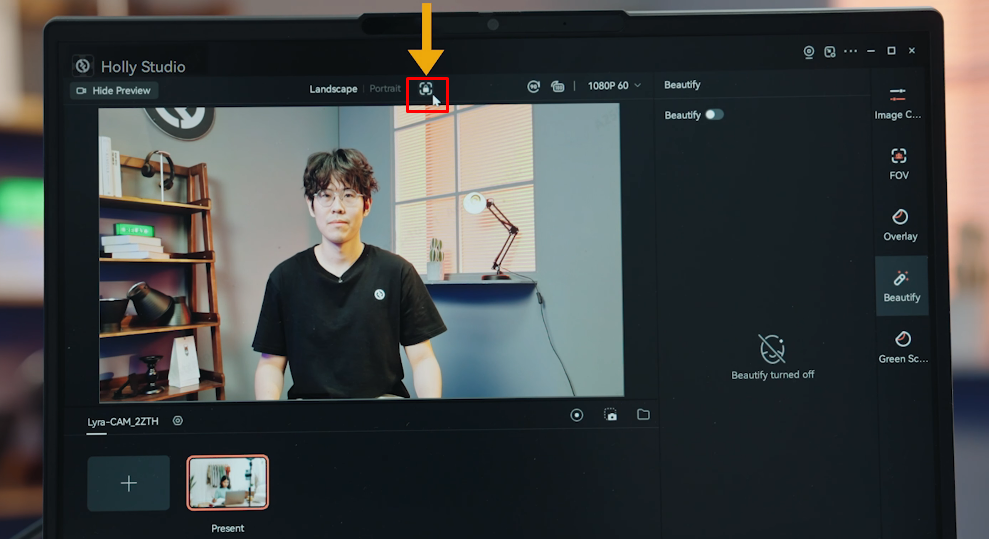
- Now, click the gear symbol below the preview screen to open Settings.

- When the dialog appears, choose the Camera Settings tab from the left sidebar.
- Enable the Face Priority Focus option and close the dialog.

- Next, to enable Smart Auto Framing, go to the FOV page.
- Under the Smart Framing section, deselect None and toggle on the auto framing tile beside None.

Note: AI tracking configuration options may vary between the Mac and Windows versions of HollyStudio. If specific tracking parameters are not visible in your current Mac build, the feature may still operate at the default firmware level. Check Hollyland’s release notes for the current Mac feature set.
Adjust Digital Zoom (1–4×)
- In HollyStudio, locate the Focal Length slider on the Image Control page. It helps with the digital zoom, ranging from 1× to 4×.

- At 1×, the Lyra uses its full 82° field of view.
- At 4×, the image is cropped to a tight telephoto frame.
- Recommended zoom levels by use case:
- 1 to 1.5×: Group calls or presentations where multiple participants need to be visible.
- 2 to 3×: Solo content or tightly framed interview-style recordings.
- When using zoom values above 2×, select 4K output in the Resolution panel first. At 1080p output, digital zoom above 2× will produce a visible reduction in image sharpness.
Step 4: Third-Party Camera Apps for Webcams Without a Companion App
If you use a generic UVC webcam without dedicated software, a small set of third-party apps can expose hardware parameters that macOS otherwise hides.

OBS Studio (free)
- Add a Video Capture Device source to a scene, then open its Properties.
- Resolution, frame rate, and color format selectors are available directly from the UVC device data.
- Useful for streaming and recording, though it requires some initial scene setup.
Cascable Pro Webcam
- Designed for Sony, Canon, Nikon, and Fujifilm users who want to use a DSLR or mirrorless camera as a Mac webcam.
- Exposes native camera controls such as ISO, shutter speed, and aperture through a Mac app.
- Not applicable to standard USB webcams, but worth noting for photographers with existing camera systems.
For most Mac users with a standard USB webcam and no companion app, OBS is the most accessible free option for unlocking resolution and frame rate controls that macOS does not expose on its own.
macOS Video Effects for Built-in Cameras (Ventura / Sonoma Only)
On macOS Ventura and later, Apple added software-based video effects accessible through Control Center. These are OS-level overlays, not hardware adjustments, and they apply primarily to the built-in FaceTime camera and some supported USB webcams within FaceTime and compatible third-party apps.
To access these effects, click the Control Center icon in the menu bar and select Video Effects:
- Portrait Mode: Applies background blur using depth estimation.
- Studio Light: Brightens and balances the lighting on your face while dimming the background.
- Center Stage: It automatically pans and zooms, keeping you centered in the frame. This requires Ultra Wide camera hardware, such as an Apple Studio Display. Compatible options include newer Macs with 12MP Center Stage cameras. You can also connect an iPhone 11 or later through Continuity Camera.
- Reactions: Adds animated AR reactions triggered by hand gestures during supported video calls.
These effects do not apply to the Hollyland Lyra’s hardware output. The Lyra’s framing and tracking features operate independently through its own firmware and HollyStudio, not through Apple’s Video Effects system.
Frequently Asked Questions
Q: Why can’t I find a webcam settings app on my Mac?
macOS does not include a separate app for camera controls. Camera settings are spread across three different locations. Privacy & Security manages camera access permissions for individual apps. Each video app controls camera selection and available software effects. External webcams may also include their own companion apps for additional settings. For the Hollyland Lyra, HollyStudio provides the hardware-level controls that macOS cannot expose on its own.
Q: How do I change my webcam resolution on Mac?
For external webcams with companion software, change resolution inside that app. For the Hollyland Lyra, open HollyStudio and use the Resolution dropdown to select 4K30, 1080p60, 1080p30, or 720p. In Zoom, enabling HD under Settings → Video & effects activates 1080p output. macOS itself does not provide a resolution slider for any connected webcam.
Q: How do I set a default webcam on Mac?
macOS does not offer a system-wide default camera setting. Each app independently remembers the last camera you selected. Open Zoom, Teams, and FaceTime individually and choose your preferred camera from each app’s camera source dropdown. You will only need to do this once per app after first connecting a new webcam.
Q: Why does my external webcam look worse than my MacBook’s built-in camera?
Most USB webcams default to compressed MJPEG output at 720p until manually configured. Use the webcam’s companion app to set the correct resolution and frame rate. For the Hollyland Lyra, selecting 1920 × 1080 @ 60 fps or 3840 × 2160 @ 30 fps in HollyStudio produces noticeably sharper output. The Lyra’s 1/1.5” CMOS sensor and F/1.8 aperture also deliver better low-light performance than most built-in Mac cameras.
Q: Does the Hollyland Lyra work with macOS without installing drivers?
Yes. The Lyra connects via USB-C and is recognized immediately as a standard UVC device on macOS, with no driver installation required. HollyStudio is optional companion software that unlocks core camera controls, including resolution selection, exposure adjustment, and AI tracking. The current Mac version of HollyStudio supports basic parameter settings, with more advanced features available on the Windows version.
Conclusion
Mac webcam settings are divided into three main areas. Privacy & Security controls system permissions for camera access. Zoom, Teams, and FaceTime provide their own camera controls. Companion apps like HollyStudio offer adjustments for compatible webcam hardware. These apps provide the most control over resolution, exposure, and framing. Visit the Hollyland Lyra product page to explore its features. You can also download HollyStudio from the same page.