.png)
 简体中文
简体中文 
Knowing the exact resolution your webcam is outputting matters whether you are troubleshooting blurry video calls, verifying a new camera is performing as advertised, or setting up a stream. The box says “4K,” but the real number depends on your OS settings, the app you are using, and even which USB port you plugged into. This guide walks through every reliable method for Windows, macOS, and dedicated webcam software.
What Webcam Resolution Actually Means
Resolution describes the pixel dimensions of the video your camera outputs — width by height — not how many megapixels the sensor contains. Those two numbers are related but separate.
| Resolution Name | Pixel Dimensions | Common Use Case |
|---|---|---|
| 720p | 1280 × 720 | Standard video calls |
| 1080p (Full HD) | 1920 × 1080 | HD streaming and professional calls |
| 4K (UHD) | 3840 × 2160 | High-detail streaming and content creation |
A practical example: the Hollyland Lyra has a 50MP CMOS sensor, but its video output tops at 4K (3840 × 2160 at 30fps). The sensor megapixels describe still-image potential; the output resolution is what apps and operating systems actually receive. That distinction is why checking resolution in software is always more reliable than reading the marketing spec.
Method 1: Check Webcam Resolution on Windows
Windows offers two accessible paths for surfacing webcam resolution data, plus a third tool that confirms device recognition.
Windows Camera App
The built-in Camera app is the fastest way to see which resolutions your webcam supports and which one is currently active.
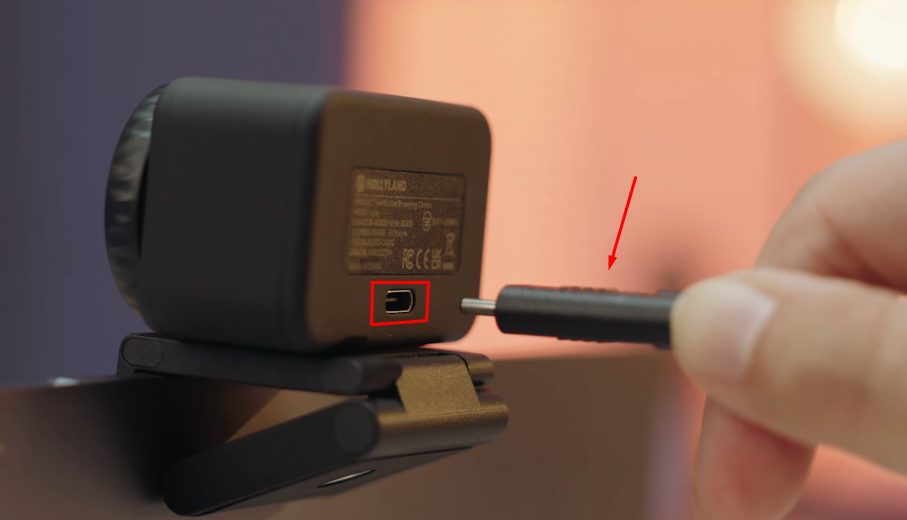
- Connect the Hollyland Lyra to your PC using the USB-C cable. The LED indicator on the Lyra turns solid, confirming an active connection. No driver installation is required since the Lyra is a plug-and-play UVC.
- Open the Windows Camera app by searching “Camera” in the Start menu.
- Click the Settings gear icon in the upper-left corner of the app.
- Scroll down the settings menu list until you reach the Video settings section, then click on Video quality.
- The resolution list populates with every output tier the connected camera supports. With Lyra selected, you will see 4K (3840 × 2160), 1080p (1920 × 1080), and 720p (1280 × 720) as available options.
- The currently highlighted or selected entry is the active output resolution.
The dropdown also shows frame rate alongside resolution, so you can confirm whether 1080p is set to 30fps or 60fps before a recording session.
Windows 11 — Settings → Cameras
This path works even when the Camera app is unavailable or needs to be reinstalled.
- Open Settings and navigate to Bluetooth & devices.

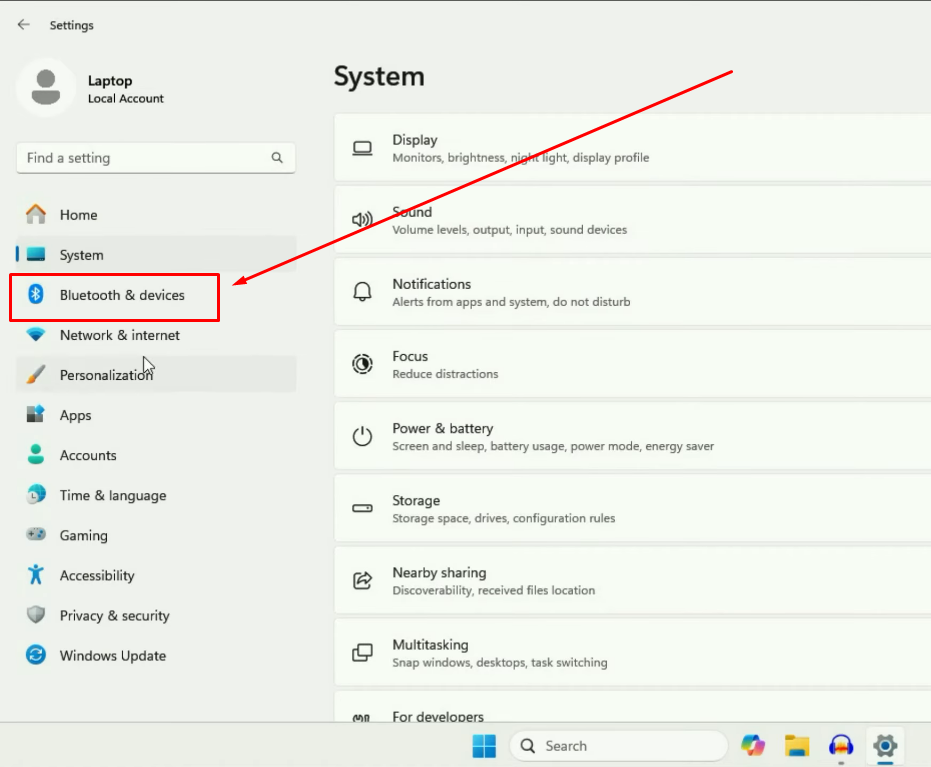
- Select Cameras.

- Click the connected webcam in the device list. After connecting Lyra via USB-C, it appears here as “Hollyland Lyra,” confirming plug-and-play recognition by Windows.
- The device details page shows the camera name as Windows has registered it and the default output format Windows has assigned.
This method is most useful for confirming Windows sees the camera correctly. For a full selectable resolution list, return to the Camera app.
Device Manager: What It Shows and What It Doesn’t
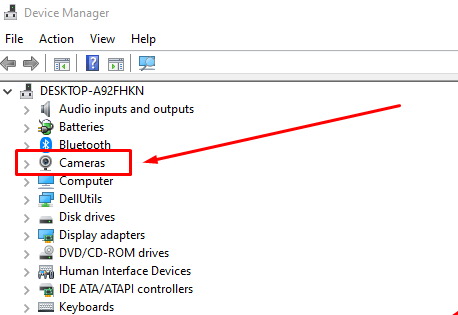
Open Device Manager, expand the Cameras category, right-click your webcam, and select Properties. This confirms the device is recognized and drivers are loaded, but it does not display selectable output resolution options. Use Device Manager only to confirm the device is recognized, then use the Camera app for actual resolution details.
Method 2: Check Webcam Resolution on macOS
macOS does not prominently expose webcam resolution in its native Camera or FaceTime apps. Two tools provide reliable data: System Information for hardware-level details, and QuickTime Player for a practical output check.
System Information (About This Mac → System Report)
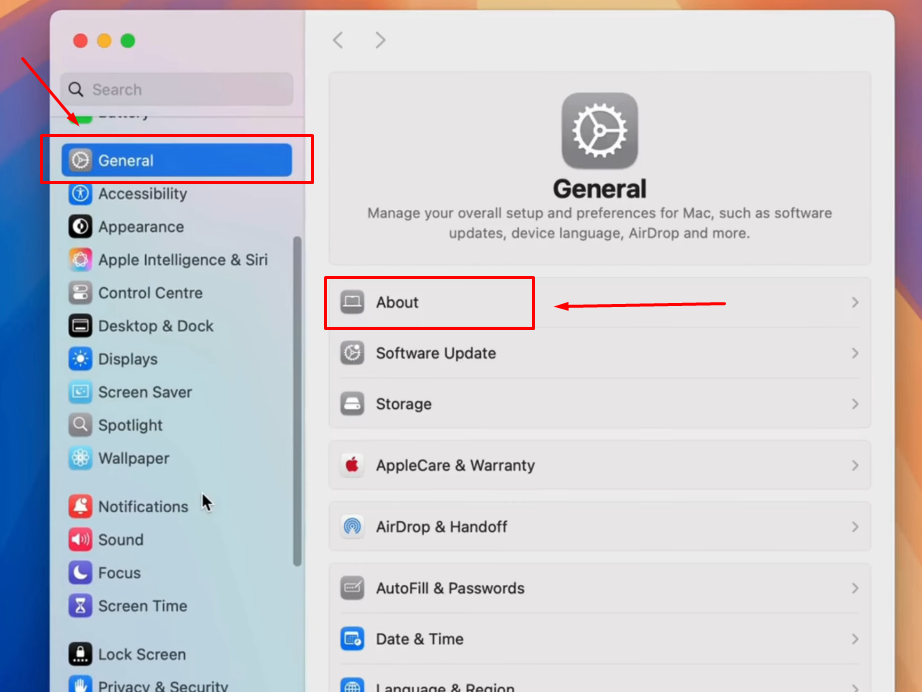
- Click the Apple menu and select System Settings.
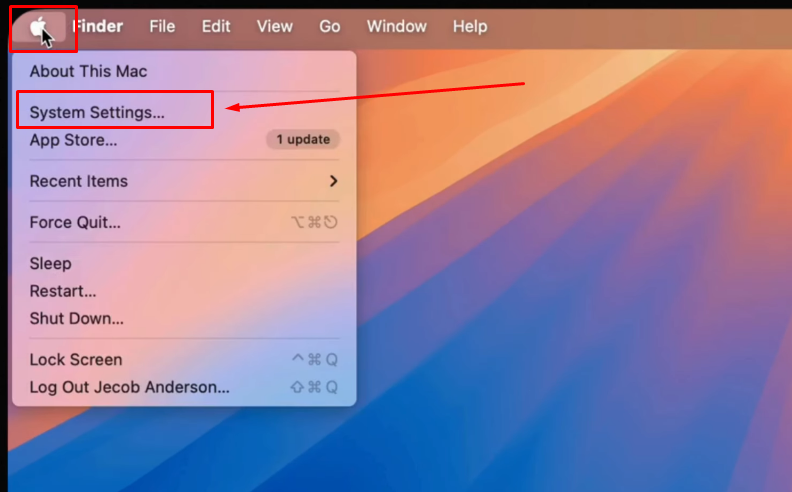
- Go to General > About and click System Report.
- In the left sidebar, expand Hardware and select USB.
- Expand the USB device tree to locate your connected webcam. After connecting Lyra via USB-C, it appears as “Hollyland Lyra” within the tree.
- Select the Lyra entry. The right panel displays the device name, USB connection speed (2.0 or 3.0), and bus details.
The USB connection speed shown here is worth noting. USB 3.0 unlocks the UVC NV12 format for uncompressed 1080p and 720p output, while MJPEG-based 4K output works on both USB 2.0 and USB 3.0. System Information shows which mode is active, which directly explains the resolution options available to any app on your Mac.
QuickTime Player: Practical Output Check
QuickTime Player is the fastest way on macOS to see the resolution a webcam will actually deliver to recording software.
- Open QuickTime Player.
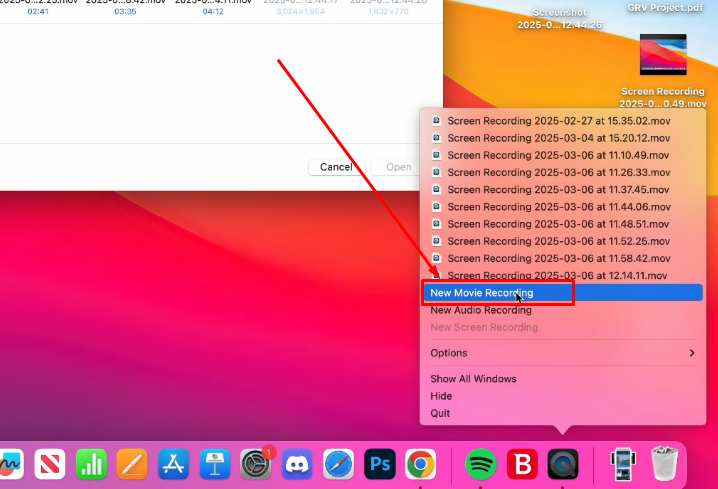
- Go to File in the menu bar and select New Movie Recording. Alternatively, go to the QuickTime Player icon in your Dock. Right-click the icon to open its context menu. Then, select the “New Movie Recording” option from the pop-up list.
- Click the dropdown arrow next to the record button.

- Select Hollyland Lyra from the camera list.
- Open the Quality selector in the same dropdown. With Lyra connected, “Maximum” quality corresponds to 4K MJPEG output (3840 × 2160 at 30fps); “High” maps to 1080p.

The quality label QuickTime assigns directly reflects the resolution tier the camera will output, making this a reliable check before any recording session.
Method 3: Check and Set Resolution Directly via HollyStudio (Hollyland Lyra)
For Lyra users, HollyStudio is the most direct and authoritative method. It displays the current active output resolution and frame rate in the interface and allows changing both, removing all guesswork about what the camera is actually delivering.
- Connect Lyra to your PC or Mac via the USB-C cable. The LED indicator turns solid, confirming an active connection.


- Launch HollyStudio on your computer.
- Lyra is auto-recognized, and the live preview populates immediately. No manual device selection is required.
- From the main screen and above the preview window, open the Resolution dropdown. The full list of available output options appears:
- 3840 × 2160 (4K at 30fps)
- 1920 × 1080 (1080p at 30fps or 60fps)
- 1280 × 720 (720p at 30fps or 60fps)
- Select your target resolution. The adjacent Frame Rate selector updates contextually — 60fps is available for 1080p and 720p but not for 4K.

- The active resolution is confirmed in the live preview panel header. Any application using Lyra as its camera source will now receive the resolution configured here.
Pro Tip: Setting resolution in HollyStudio applies globally. Once you confirm 1080p60 in HollyStudio, OBS, Zoom, and any other app using Lyra will pull that resolution without requiring separate configuration in each tool.
Method 4: Check Resolution via OBS Studio or Video Call Apps
These tools are useful when you work primarily inside streaming or conferencing software and want to confirm what resolution those apps are actually receiving from the camera.
OBS Studio:
- Open OBS Studio and click the + icon in the Sources panel.

- Select Video Capture Device, name the source, and click OK.


- In the Properties window, open the Device dropdown and select Hollyland Lyra.

- Open the Resolution/FPS Type dropdown and select Custom.
- Select Resolution from the dropdown menu. Then choose FPS from its dedicated dropdown.


Video call apps (Zoom, Teams):
Open the app’s Camera or Video settings panel. Most conferencing platforms show the active camera and allow selecting a quality tier such as HD or Full HD. The active setting tells you what resolution the platform is sending, though it may be capped below the camera’s maximum capability regardless of what the camera can output. This is a platform-side limit, not a camera deficiency.
Why Your Webcam Shows a Lower Resolution Than Expected
If the active resolution appears lower than advertised, one of these four reasons typically explains it:

- The receiving app caps resolution. Zoom and Microsoft Teams limit webcam input regardless of what the camera hardware can output. Confirming 4K in OBS or HollyStudio does not guarantee 4K inside a video call.
- The USB port type restricts available formats. If Lyra is connected to a USB 2.0 port, UVC NV12 uncompressed 1080p and 720p formats are unavailable. 4K MJPEG still works on USB 2.0, but for full format availability, including NV12 at 1080p60, a USB 3.0 or USB-C 3.0 port is required. The HollyStudio USB connection indicator confirms which mode is active.
- Compression format affects what the OS streams. MJPEG and NV12 are different pixel formats that apps negotiate with the driver. An app that does not support NV12 may fall back to a lower-resolution MJPEG tier.
- App-side quality settings override camera output. Windows Camera and conferencing tools may have their own resolution settings that cap the stream below the camera’s actual capability.
FAQs
Q: How do I know if my webcam is outputting 1080p or 4K?
Check via the Windows Camera app resolution options, QuickTime on Mac, or the Resolution dropdown in the HollyStudio app for Hollyland Lyra users. These surfaces show actual output tiers rather than marketing claims. OBS Studio is another reliable option that lists every mode the camera reports to the operating system.
Q: Does the USB port type affect my webcam’s resolution?
No, this does not directly affect the Hollyland Lyra. It does affect available video formats and compression. Lyra supports up to 4K resolution over USB 2.0 and USB 3.0. This includes 1080p and 720p through compressed MJPEG output. For uncompressed NV12 at 1080p or 720p, USB 3.0 is required.
Q: Why does my 4K webcam look like 1080p in Zoom or Teams?
Video calling apps often limit webcam feeds to 1080p HD. This can happen even when your camera supports 4K output. The limitation comes from the platform, not your webcam. Check the actual camera resolution through OBS Studio or HollyStudio. These programs can avoid resolution limits found in some apps.
Q: Can I change my webcam resolution after checking it?
Yes. Windows Camera and QuickTime let you change resolution directly. Lyra users can adjust resolution and frame rate through HollyStudio. Other apps, such as Zoom or OBS Studio, may need their camera settings updated separately. You may also need to restart the camera feed.
Q: Does a higher megapixel sensor mean higher video resolution?
No. Sensor megapixels describe still-image capture potential, not video output. The Hollyland Lyra has a 50MP CMOS sensor, yet its video output tops at 4K (3840 × 2160 at 30fps). The two specifications serve different purposes and should not be used interchangeably when evaluating what a webcam delivers to video apps.
Conclusion
For a quick check, Windows users can open the Camera app. Look under Video Quality to see the current resolution. On macOS, open QuickTime with your webcam active. Then check the available quality settings. Lyra users can check the exact resolution through HollyStudio. If the resolution seems lower than expected, check your USB port first. An app may also limit the available resolution. Choose your preferred resolution in HollyStudio or your camera app. Then check the same setting inside your video application. This helps confirm everything before you start streaming.