.png)
 简体中文
简体中文 
Upgrading from a Mac’s built-in FaceTime camera to an external webcam makes an immediate difference in video calls, recordings, and live streams. The Hollyland Lyra connects via USB-C and delivers 4K video from a large-sensor camera with AI tracking built in. But before any of that clarity shows up on screen, you need to know how macOS handles camera input and where to switch sources inside each app. This guide walks through every step.
Why Your Mac Doesn’t Have a Single “Default Camera” Setting
Many users connect an external webcam and then open System Settings looking for a “Default Camera” option. It is not there. macOS does not include a global camera selector the way it includes a default browser or default mail app. Camera input is controlled at the app level, meaning each application you use for video calls or recording maintains its own camera preference independently.

This is not a missing feature; it is simply how macOS is designed. The practical result is that you set the camera once in Zoom, once in FaceTime, once in Google Meet, and so on. Most apps remember your choice for future sessions.
Note: Before any app can access your external webcam, macOS also requires a one-time camera permission grant per app. You will confirm those permissions during Step 1 below.
Step 1: Connect Your External Webcam to Your Mac
Mount and Position the Hollyland Lyra

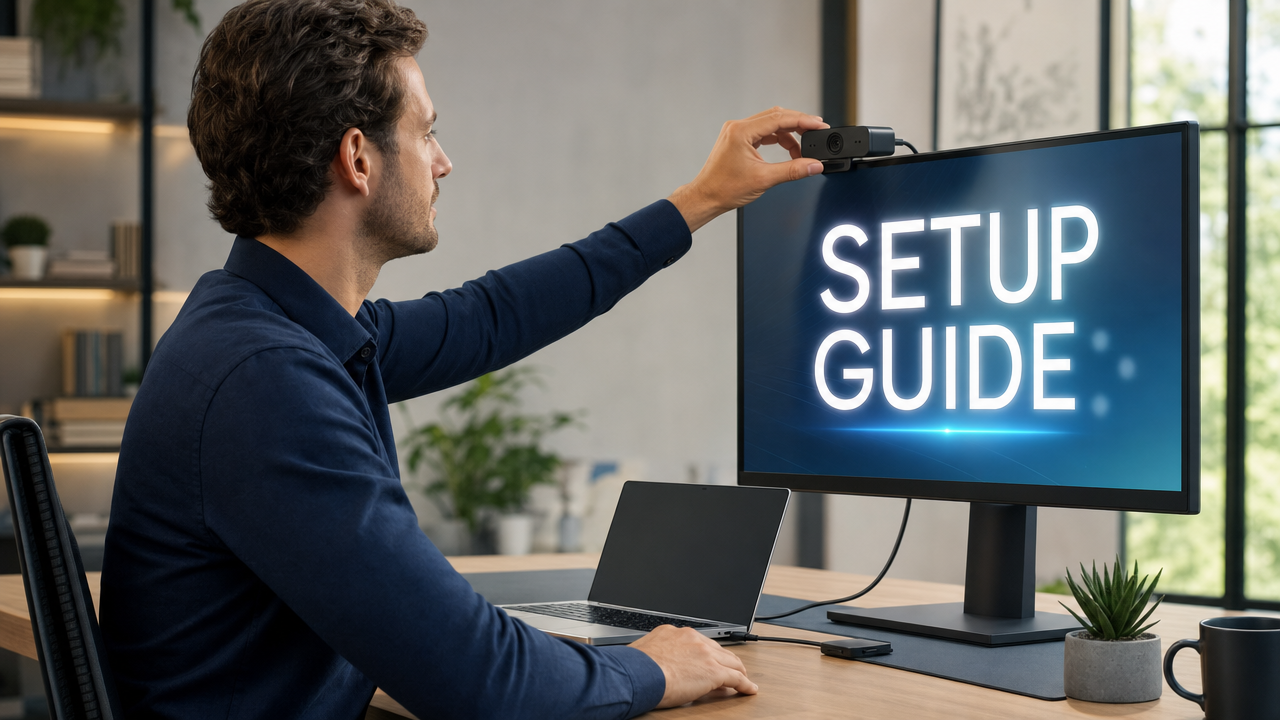
The Lyra comes with a monitor clip designed to sit on the top edge of a MacBook screen or an external display.
- Open the clip’s two-position hinge and press it onto the top bezel of your monitor.


- Adjust the tilt angle so the lens points directly at your face when you are seated at a normal working distance.
- Confirm the camera body sits flush. The Lyra’s 60 x 33.3 x 37 mm frame is compact enough to rest stable on most standard display bezels without tipping.
- For a desktop setup with an external monitor, center the camera horizontally above the screen. Centered placement produces the most natural eye contact during video calls.

Connect via USB-C and Read the LED Indicator
- Locate the USB-C port on the rear of the Lyra body.
- Plug a USB-C cable from the Lyra directly into one of your Mac’s USB-C or Thunderbolt ports. A direct port connection is preferred. If you use a hub, make sure it is a powered USB 3.0 hub, so it supplies enough bandwidth for 4K output.


- Watch the LED indicator on the Lyra: a solid blue light means the camera is connected, powered, and ready. If the LED stays off, reseat the cable at both ends or try a different port.

- No driver installation is required on macOS. The Lyra uses the UVC (USB Video Class) standard, which macOS supports natively, so the operating system recognizes it automatically the moment the cable is seated.
Pro Tip: If your Mac has only USB-A ports, use a USB-C to USB-A adapter. Confirm the adapter is rated for USB 3.0 data transfer, not charge-only. A charge-only cable carries no data signal and the Lyra will not appear to macOS.

Confirm macOS Detects the Webcam
Before opening any video app, verify that macOS has registered the Lyra as a connected device.
- Click the Apple menu and select System Settings.

- Click General and select About.

- Scroll down and click System Report to open System Information.
- In the sidebar, select USB (or Camera if your macOS version lists it separately). Look for the Hollyland Lyra in the device tree. Its presence there confirms macOS has enumerated it successfully.
- Next, open System Settings → Privacy & Security → Camera. Review the list of apps with camera access and confirm that the apps you plan to use, such as Zoom, Teams, or your browser for Google Meet, have the camera permission toggle switched on. If any app is listed but toggled off, enable it now before proceeding.

Step 2: Switch to Your External Webcam Inside Each App
With the Lyra connected and detected, the next step is selecting it as the active camera inside each application. This takes about thirty seconds per app, and most apps retain the selection for all future sessions.
Zoom
- Open Zoom and click your profile photo in the top-right corner of the home screen to open Settings.

- Select the Video and effects tab in the left sidebar.

- Click the Camera dropdown at the top of the video panel.

- Select Hollyland Lyra (or the device name as it appears in the list) from the dropdown.
- The preview window updates immediately to show the Lyra feed. Confirm the image looks correct before your next call.
Zoom retains the last-used camera selection, so this change persists across sessions even after closing and reopening the app.
Microsoft Teams
- Click the Settings and more option (three horizontal dots) near your profile picture in the top-right corner of the Teams window.

- Select Settings from the dropdown menu.

- Choose Devices in the left sidebar.

- Under the Video and Video settings section, look for the Camera option, open its dropdown menu, and select Hollyland Lyra.

- The preview thumbnail directly below the dropdown updates to the Lyra’s live feed, confirming the switch was successful.
Google Meet
Google Meet provides two places to change the camera, depending on whether you are already in a call.
Before joining a call:
1. On the pre-join screen, click the camera icon or the Settings gear near the preview tile.

2. Navigate to Video.

3. Select Hollyland Lyra from the Camera dropdown.

During an active call:
1. Click the three-dot menu (More options) at the bottom of the call screen.
2. Select Settings → Video.
3. Choose Hollyland Lyra from the Camera dropdown.
Because Google Meet runs inside a browser, you also need to confirm the browser has macOS camera permission. Check System Settings → Privacy & Security → Camera and verify your browser is toggled on. The first time you join a Meet call in that browser, a site-level prompt will ask you to allow camera access for the meeting URL. Click Allow.
FaceTime
- Open FaceTime. The Video menu in the macOS menu bar only appears while FaceTime is the active application.
- In the menu bar, click Video.
- Under the Camera submenu, select Hollyland Lyra from the list of connected cameras.
QuickTime Player (for Screen or Camera Recording)
QuickTime Player is a straightforward, built-in option for recording direct-to-camera video without any third-party software.
- Open QuickTime Player.
- In the menu bar, click File → New Movie Recording.
- A recording window opens showing the currently selected camera. Click the small dropdown arrow directly beside the red Record button.
- Under Camera, select Hollyland Lyra.
- While that dropdown is open, you can also set Microphone to Hollyland Lyra to record the camera’s built-in 48 kHz/24-bit audio into the same file.
- Click the red Record button to begin.
Step 3: Configure Webcam Settings for the Best Video Quality
Switching to the Lyra inside each app is enough for basic use, but the camera’s full capability comes through HollyStudio software. Download the app from the Hollyland website, launch it with the Lyra already connected, and the main dashboard displays a live preview thumbnail.
Set Resolution and Frame Rate
- Open the Resolution and Frame Rate dropdown in the top-right corner of the preview screen in HollyStudio software.
- Choose a mode based on your use case:
- 3840 x 2160 at 30 fps (4K30): Best for local recording in QuickTime or streaming setups where upload bandwidth is not a concern. This mode requires MJPEG as the UVC output format; confirm MJPEG is selected in the HollyStudio software before switching apps.
- 1920 x 1080 at 60 fps (1080p60): Recommended for live video calls on Zoom, Teams, and Google Meet. Delivers smooth motion with manageable upload requirements.
1280 x 720 at 60 fps (720p60): Appropriate when you are on a limited connection and need to reduce bandwidth load.

Enable AI Tracking
Toggle AI Tracking on in HollyStudio. When active, the camera uses digital panning within the Lyra’s 50 MP sensor frame to keep you centered as you move. Test it by leaning left and right while watching the preview; the frame should follow you without delay.
To enable AI Face Tracking, click the frame icon (padlock inside) in the top options of the preview screen.

Enable Smart Auto Framing
Smart Auto Framing is a separate toggle from AI Tracking. It automatically adjusts the digital zoom level to tighten the composition around one person or widen it when multiple people are in frame. So, after enabling AI Tracking, here are the steps to follow to activate Smart Auto Framing via the HollyStudio app:
- Open Settings (gear icon below the preview screen).

- Click on the Camera Settings tab in the left sidebar.
- Click on the Face Priority Focus toggle to turn it on and close the window.

- Go to the FOV page.
- Under the Smart Framing section, deselect None and select the auto framing option (a close-up image tile).

Adjust Digital Zoom
If you prefer a fixed, consistent framing, use the Focus Length slider inside the FOV page to set a level between 1x and 4x. This is a digital crop of the sensor. The Lyra’s 82° field of view is fixed at the hardware level; all zoom changes are applied in software through HollyStudio.

Tune Exposure and White Balance
Adjust the Exposure and White Balance when your lighting is inconsistent or mixed:
- The EV slider brightens or darkens the image independently of your room lighting.
- White Balance slider helps eliminate color casts from mixed light sources.
To do that:
- Go to the Image Control page.
- Under the Advanced section, adjust the White Balance and Exposure (EV) levels using their dedicated sliders.

Troubleshooting: External Webcam Not Appearing or Switching on Mac
If the Lyra doesn’t show up in an app’s camera dropdown, or the image quality is lower than expected, one of the following causes is almost always responsible.
Lyra LED is off after plugging in
- Reseat the USB-C cable firmly at both the Lyra and the Mac end.
- Try a different USB-C or Thunderbolt port directly on the Mac.
- If using a hub, switch to a direct Mac port, or confirm the hub is actively powered. Bus-powered hubs can supply insufficient current for stable 4K camera operation.
- Confirm the cable supports data transfer, not just charging. A charge-only cable carries no data signal, and the camera will not power on.
Lyra LED is solid blue, but the app does not list it
- Quit the app entirely and relaunch it. Most apps enumerate connected camera devices only at startup, so a webcam plugged in after the app opened will not appear until the app is restarted.
- If the Lyra still does not appear, open System Settings → Privacy & Security → Camera and confirm the app has its camera permission toggle switched on. Enable it, then relaunch the app.
- For browser-based apps (Google Meet, Teams via browser), also verify that the browser’s own site-level permission is set to Allow for the meeting URL. A blocked browser site permission prevents camera access regardless of the macOS setting.
Image quality is lower than expected inside the app
- In Zoom, navigate to Settings → Video and effects and confirm the Enable HD checkbox is selected. Without it, Zoom may cap output at 360p even if the camera can deliver higher resolutions.
- For 4K output specifically, confirm that MJPEG is selected as the UVC output format in HollyStudio. The NV12 format supports up to 1080p60 only; MJPEG is required to deliver 4K30 to the host application.
Built-in FaceTime camera keeps reappearing
- This typically happens when the Lyra is disconnected and reconnected between sessions, or when the app opens before the Lyra’s LED has confirmed a solid connection. Connect the Lyra first, wait for solid blue, then open your app.
- Apps like Zoom, Teams, and Meet store the last-selected camera. As long as the Lyra is already connected when the app launches, it should return to the Lyra automatically.
FAQs
Can I make the external webcam the permanent default camera on Mac?
Not at the operating system level. macOS does not include a global camera default setting. But most apps, including Zoom, Teams, and Google Meet, store the last-selected camera and reuse it automatically in future sessions. Select the Lyra once in each app, and it becomes that app’s default camera as long as it is connected when the app opens.
Why does my Mac keep switching back to the built-in FaceTime camera?
This usually happens when the external webcam disconnects before the app closes, or when the app opens before macOS fully recognizes the camera. The fix is simple: connect the Lyra first, wait for the solid blue LED confirmation, and then open your video app.
Does the Hollyland Lyra need drivers to work on a Mac?
No. The Lyra uses the UVC (USB Video Class) standard, which is natively supported in macOS. It appears in app camera dropdowns immediately after connection, with no driver installation required. HollyStudio software is an optional companion app for advanced controls like resolution selection, AI Tracking, and manual exposure. It is not required for basic webcam operation.
What resolution should I choose for video calls versus recording?
For live video calls on Zoom, Teams, or Google Meet, 1080p60 delivers smooth motion at manageable bandwidth. For local recording in QuickTime or a dedicated streaming setup where bandwidth is not limited, select 4K30 in HollyStudio and set the UVC output format to MJPEG to deliver the full 4K signal to the receiving application.
Conclusion
The process comes down to three steps. Connect the Lyra and confirm the LED, switch the camera input once inside each app you use, and fine-tune resolution and AI settings in the HollyStudio App. If you are still shopping for a webcam, visit the Hollyland Lyra product page for full specifications and purchasing details.