.png)
 简体中文
简体中文 
A messy home office, a kitchen in the background, or a roommate walking through mid-call can quickly undermine how professional you look on video. Removing or replacing your webcam background is straightforward once you know which method fits your setup. This guide explains five ways to remove webcam backgrounds. It covers built-in platform tools and dedicated webcam software. Each method includes clear steps to help you choose.

What “Removing Your Webcam Background” Actually Means
Background removal covers three related but distinct effects:

- Background blur: The background stays visible but goes soft, drawing focus to the subject. No replacement image is needed.
- Virtual background replacement: Software swaps your real background for a chosen image or video, using either AI segmentation or chroma keying.
- Full removal (transparent/chroma key): The background becomes completely transparent, allowing a custom scene layer to sit behind the subject. This is the standard approach in OBS and broadcast workflows.
Platform tools like Zoom and Teams handle blur and basic replacement. The Hollyland Lyra’s HollyStudio app handles replacement through its dedicated green screen keying workflow. OBS handles full transparent removal for maximum scene control.

Hollyland Lyra - 4K AI Webcam
A flagship 4K AI webcam featuring a large 1/1.5″ CMOS sensor, smart auto-framing, and studio-grade 48 kHz/24-bit audio for effortless streaming and conferencing.
Key Features: 1/1.5″ CMOS & 4K30 | AI Tracking & Auto Framing | 48 kHz/24-bit Audio
What You Need Before You Start
Confirm the following before beginning any method:

- Webcam resolution: 1080p minimum; webcams that output 4K (such as the Hollyland Lyra at 3840×2160 via MJPEG) produce sharper subject edges and improve both AI detection and chroma key accuracy
- Front lighting: A key light facing you, not a window or lamp positioned behind you; backlighting is the single largest cause of poor edge detection across every method
- Operating system: Windows 10/11 or macOS 12 or later; some companion apps have full advanced features on Windows only
- Platform or software installed and updated: Background effects features are sometimes added or revised in recent builds, so update before starting
- USB 3.0 port (for hardware-based methods): Ensures the full 4K or 1080p 60fps stream from your webcam reaches your computer without bandwidth bottlenecks
Method 1: Use Your Video Conferencing App’s Built-In Background Tool
The fastest method for most people is built directly into Zoom, Microsoft Teams, or Google Meet. No additional software is required. The trade-off is limited customization and, on lower-end machines without a dedicated GPU, softer edge quality around hair and fine detail. Using a higher-resolution webcam as your camera source reduces these artifacts noticeably, regardless of the platform.
Before enabling effects in any app below, open the camera settings and confirm your webcam appears as the active input. The Hollyland Lyra registers as a standard UVC device over USB-C, with no driver installation needed on Windows 10/11 or macOS 12+. Look for “Hollyland Lyra” in each platform’s camera selector dropdown before proceeding.
Zoom
- Open the Zoom desktop app and click the profile icon and select Settings.
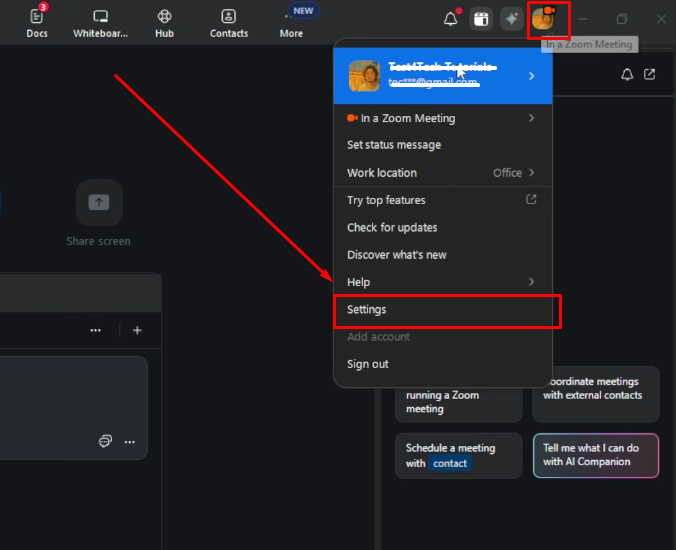
- Choose Video & effects from the sidebar on the left.

- Open Virtual backgrounds (or Backgrounds) and click the + button to upload an image.
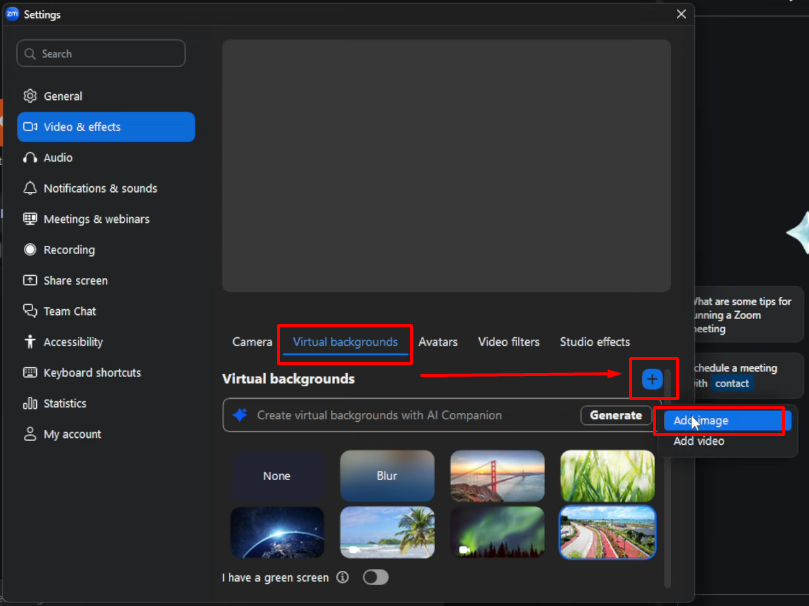
- To blur your background, select the Blur thumbnail instead. Or, you can also select one of Zoom’s preset backgrounds.

- Check the live camera preview to make sure the effect is active before joining the call.
- Note: Zoom removes backgrounds more accurately when your computer meets its minimum CPU requirements. If your computer falls below these requirements, background removal may be unavailable without a physical green screen. For cleaner edges around hair and small details, use even front lighting. Wear clothes that contrast with the background behind you.
Microsoft Teams
- Join or start a meeting and find the meeting controls bar.
- Click More (…) and choose Video effects and settings.

- Select Blur for a soft background, or choose Add new. Upload a custom background image from your device.
- Click Preview to check how your background appears on camera. Make sure everything looks clean before showing it to others.
- Click Apply to activate the effect during your meeting. You can also set it up before joining through Background filters or Video effects.

- Note: Microsoft Teams groups these options under “Video effects and settings.” If your version looks different, check the arrow beside the camera icon. This menu provides quick access to background and video effects.
Google Meet
- Before joining the call, click the three vertical dots on the self-view preview screen.
- Choose Apply visual effects or Backgrounds and effects.

- A settings panel appears on the right side. Under Backgrounds, choose slight or full background blur. To add your own image, click the + button and upload it.

- The effect activates immediately. Check your live camera preview to confirm the change.
Pro Tip: Google Meet’s background effects work best with good front lighting and clear contrast between you and the background. If edges look rough, adjusting your lighting usually fixes more than switching to a different tool.
Method 2: Remove Background Natively with the Hollyland Lyra and HollyStudio
The Hollyland Lyra offers an integrated background removal workflow through its companion app, HollyStudio, so you do not need Zoom, Teams, OBS, or any third-party background tool to produce a clean composited feed. HollyStudio includes a dedicated Green Screen Keying algorithm designed to work with green, blue, and red backdrops while preserving fine detail such as hair strands and clothing edges. Once processed, the Lyra outputs the composited feed as a standard virtual camera that any video conferencing or streaming app can pick up directly.
Important: The full feature set in HollyStudio, including Green Screen Keying, virtual backgrounds, overlays, and color correction, is currently available on Windows. macOS users currently have access to basic parameter settings; advanced features are in development.
Here is the complete workflow:
- Connect the Lyra via USB-C. Plug the included USB-C cable into a USB 3.0 port on your computer. No driver installation prompt will appear on Windows 10/11 or macOS 12+. Connect directly to the computer rather than through an unpowered USB hub to avoid power delivery issues.


- Position the camera. Clip the Lyra to the top center of your monitor so the 82-degree FOV frames you from roughly chest up. Keep yourself centered in the shot for clean edge detection, and the AI Tracking feature helps maintain that framing automatically as you move.

- Open HollyStudio. Launch the app on your Windows PC. The device dashboard should show the Lyra listed as a connected device. If it does not appear, check the USB connection and confirm the app is up to date.
- Enable AI Tracking and Smart Auto Framing. Select the frame icon from the top of the preview screen. Once clicked, a small padlock icon will appear inside it.

Then, click the gear icon below the preview screen to open Settings.

Select the Camera Settings tab on the left. Next, toggle Face Priority Focus on and close the window.

Navigate to the Smart Framing section on the FOV page, deselect None, and click on the image tile to enable auto framing.

- Set up your physical backdrop. Position a green, blue, or red backdrop behind you with even lighting across the entire surface. Wrinkles, shadows, and hotspots create color variation that leads to patchy keying. A gap of at least one meter between you and the backdrop reduces shadow spill onto the screen.
- Open the Green Screen page. Look at the right side of the interface and click Green Screen to open its settings.
- Enable Green Screen Keying. Turn on the Green Screen Keying setting to activate the background replacement function.

- Add a custom background image. Under the Custom section, click the + icon to add a background image from your computer.

- Select your preferred image. Browse the available files on your computer and choose the image you want to use as your webcam background.

- Adjust the RGB color (optional). If needed, change the RGB color settings to adjust the background appearance.
- Control the background intensity. Move the intensity slider to adjust how the background appears in the live webcam view.

- Reposition the background image. Move the mouse over the background inside the preview screen. Hold down the left mouse button and drag the image to your preferred position. You can move it left, right, up, or down to adjust its placement.

- Set the output resolution. Click on the Image Control page, open the resolution menu at the top of the preview screen, and choose based on your use case. For live calls, 1080p at 60fps is the recommended balance of quality and performance. For recorded content, 4K at 30fps (3840×2160 via MJPEG) delivers the highest edge fidelity, backed by the Lyra’s 50MP, 1/1.5-inch CMOS sensor and F/1.8 aperture.

- Refine with color correction and skin smoothing (optional). HollyStudio includes color correction and skin smoothing controls on the Image Control page. Adjusting contrast between the subject and the backdrop through these controls can tighten the green screen keying result further.
- Confirm the virtual camera output. HollyStudio exposes the composited feed as a virtual camera device. Switch to Zoom, Teams, Google Meet, or OBS and open the camera selector. Choose the Hollyland Lyra virtual camera from the dropdown. The background-replaced feed appears in the preview with no additional configuration needed.
Method 3: Use OBS Studio as a Virtual Camera for Background Removal
OBS does not include background removal by default. You can use its Chroma Key filter with a physical green screen or install the AI Background Removal plugin. The plugin removes backgrounds without needing a colored screen.
- Open OBS Studio. In the Sources panel, click + and select Video Capture Device.

- Name the source and click OK. In the Properties window, open the Device dropdown and select your webcam. For the Hollyland Lyra, set the resolution to 1920×1080 at 60fps (UVC NV12) or 3840×2160 at 30fps (MJPEG) for the highest-quality source frame.

- Right-click the source in the Sources panel, select Filters, then click + to add a filter:
- For a physical green or blue screen: Choose Chroma Key and set the key color to match your backdrop.
- For AI-based removal without a colored backdrop: Install the obs-backgroundremoval plugin separately, then add the Background Removal filter from your installed plugin list.
- Click + in the Sources panel again. Add an Image, Video, or Color source as the replacement background. Drag it below the webcam source in the Sources list so it sits behind the subject.
- In the Controls panel on the right, click Start Virtual Camera.
- Open your conferencing or streaming app, go to camera settings, and select OBS Virtual Camera as the input. Your background-removed feed will appear live.
Note: The obs-backgroundremoval plugin is a separate community-maintained download, not bundled with OBS itself. Edge quality depends on your hardware; machines with a dedicated GPU produce noticeably better results than those running on CPU alone.
Method 4: Third-Party AI Background Removal Software
Standalone virtual camera apps offer a practical middle ground: AI-quality edge removal without the complexity of building a full OBS scene. The workflow is consistent across tools. Install the software, set your physical webcam as the input, enable background removal, then select the tool’s virtual camera output inside Zoom, Teams, Meet, or OBS.
The two most widely used options are NVIDIA Broadcast and VCam.ai (by XSplit):
| Tool | GPU Required | Free Tier | Edge Quality | Best For |
|---|---|---|---|---|
| NVIDIA Broadcast | Yes (RTX GPU) | Yes (free) | Excellent | Streamers and creators on RTX hardware |
| VCam.ai (by XSplit) | No | Limited (watermark) | Good | General use on any hardware; subscription for full access |
Both tools recognize any UVC webcam your OS detects. NVIDIA Broadcast benefits most from a high-resolution input: the Lyra’s 4K MJPEG output gives its AI model more pixel data for cleaner edge separation. XSplit VCam performs consistently across hardware tiers and is a reliable choice when an RTX GPU is not available.
Tips for Getting Cleaner Background Removal (Any Method)
These adjustments improve background removal quality across every method:

- Face your light source, not a window behind you: Backlighting creates a silhouette effect that confuses edge-detection algorithms. Position a key light in front of and slightly above your face for clean, forward-lit contrast.
- Wear clothing that contrasts with your background: Similar colors between your outfit and the backdrop make it difficult for any algorithm to draw a clean boundary between you and the scene behind you.
- Keep physical distance from the background: Sitting or standing close to a wall reduces depth contrast between subject and surface. A gap of at least one meter improves separation with every method.
- Use a webcam with a larger sensor: The Lyra’s 1/1.5-inch CMOS sensor and F/1.8 aperture create natural depth separation between subject and background, giving AI algorithms and chroma key filters a cleaner starting point before any processing is applied.
- Stay centered in the frame: Moving toward the edges of the camera’s field of view can introduce momentary cut-out errors. The Lyra’s Smart Auto Framing keeps you centered within its 82-degree FOV, minimizing this during live sessions.
- Match your output resolution to the task: For calls, 1080p 60fps balances quality and bandwidth well. For recorded content where edge fidelity is critical, use the Lyra’s 4K 30fps MJPEG output to give the algorithm maximum pixel data.
- Keep the background as simple as possible: Plain, matte surfaces with even lighting always produce better AI removal results than busy, multi-textured backgrounds, even with high-end software.
- Light green screens evenly from both sides: Two softbox or LED panel lights positioned at 45 degrees on either side of the backdrop eliminate shadows and hotspots that cause patchy, uneven keying.
FAQs
Can I remove my webcam background without a green screen?
Yes. Platform tools in Zoom, Teams, and Google Meet use machine learning to cut out the background without physical props. Standalone tools like NVIDIA Broadcast and VCam.ai (by XSplit) do the same. A clear camera feed helps improve background removal. Good lighting and strong color contrast also help define edges around hair and fine details. Specialized AI hardware, such as Tensor Cores or NPUs, can also affect how accurately your system separates you from the background.
Why does my background removal look choppy or cut off my hair?
Poor room lighting, similar colors in your background and clothing, and low webcam resolution can cause problems. Quick movements near the frame edges can also make the outline look rough. Better front lighting can improve the results significantly. For cleaner edges, check your hardware and software settings. Make sure your software does not lower your video resolution. You may also need AI background removal software or a virtual green screen tool. These options can help separate fine details, such as hair, from the background.
Does background removal work with any webcam?
Platform-native and software-based removal work with any webcam your OS recognizes. Edge quality improves significantly with webcams that output 1080p or 4K rather than 720p, since higher resolution gives AI models more pixel data to separate subject from background accurately.
Is there a webcam that removes the background by itself without extra software?
Yes. The Hollyland Lyra handles Green Screen Keying and virtual background replacement through HollyStudio on Windows, without needing OBS or a third-party tool. The composited feed outputs as a standard virtual camera that Zoom, Teams, or any streaming app can select directly from the camera dropdown.
Will background removal work during a live stream, not just video calls?
Yes. The OBS virtual camera method and the Lyra’s HollyStudio virtual camera output both work with streaming platforms like Twitch and YouTube Live. Platform tools like Zoom and Teams are designed for live calls and do not output to broadcast streaming software.
Conclusion
For remote workers who need a quick fix, the platform-native tools in Zoom, Teams, or Google Meet require no setup at all. Creators and educators who want reliable, software-independent results should look at the Hollyland Lyra with HollyStudio on Windows, which handles green screen keying and virtual backgrounds without routing through OBS or additional tools. Streamers who need full scene control will find the most flexibility in the OBS virtual camera method.