.png)
 简体中文
简体中文 
Your Mac’s built-in camera often falls short during video calls. Your iPhone offers better image quality, and Continuity Camera costs nothing. You can connect wirelessly or with a cable in just minutes. This guide covers video effects, camera settings, and common fixes. You’ll also learn to select your iPhone in Zoom, Teams, and Google Meet..

What Is Continuity Camera and What Can It Do?
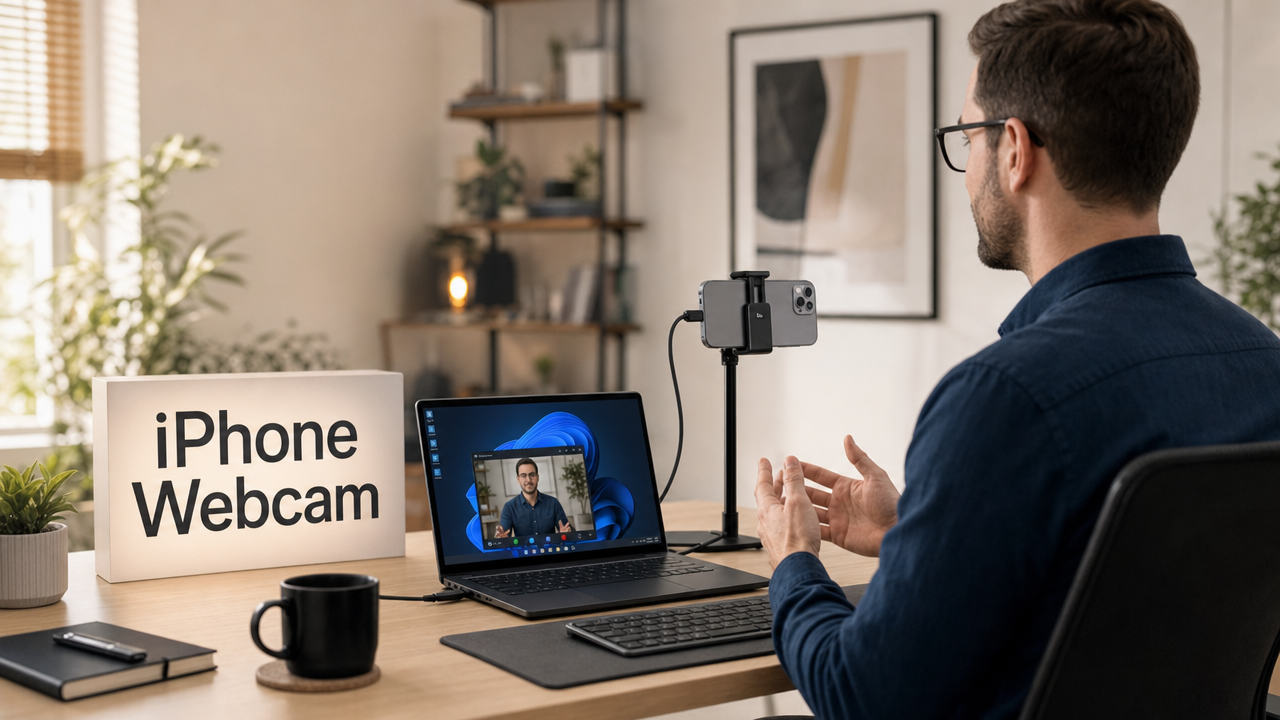
Introduced in macOS Ventura, Continuity Camera is Apple’s native feature that turns a compatible iPhone into a high-quality webcam for any Mac application. It works wirelessly over Wi-Fi and Bluetooth, or over a USB cable, and requires no third-party app or driver. Once enabled, you can select it as a camera in any Mac application that supports camera input.

Beyond basic video, Continuity Camera unlocks four dedicated effects.
- Center Stage (AI subject tracking)
- Desk View (overhead view of your desk and face simultaneously)
- Studio Light (face brightening with background dimming)
- Portrait mode (software background blur)
These are covered in detail in the features section below.
Compatibility Requirements Before You Start
Before attempting setup, confirm that both devices meet every condition in the table below. Missing even one will prevent the iPhone from appearing as a camera option.
| Requirement | Minimum Version or Setting |
|---|---|
| iPhone model | iPhone XR or later |
| iPhone software | iOS 16 or later |
| Mac software | macOS Ventura (13) or later |
| Apple ID | Same account signed in on both devices |
| Two-factor authentication | Enabled on the Apple ID |
| Wi-Fi | Enabled on both devices (wireless) |
| Bluetooth | Enabled on both devices (wireless) |
| Handoff | Enabled in System Settings > General > AirDrop and Handoff |
| USB cable | Lightning or USB-C depending on iPhone model (wired) |
If either device doesn’t meet the minimum software version, the iPhone will not appear as a camera source in any app. Bluetooth or Handoff being disabled are the two most common causes of the iPhone failing to auto-connect.
Note: Confirm that Continuity Camera is switched on inside the iPhone by going to Settings > General > AirPlay and Continuity and checking the Continuity Camera toggle.
How to Use iPhone as Webcam on Mac Wirelessly (Continuity Camera)
Once compatibility is confirmed, the wireless setup takes just a few minutes.

- Confirm Wi-Fi and Bluetooth are active on both devices. Neither device needs to share the same Wi-Fi network, but both radios must be turned on. Check Control Center on iPhone and System Settings on Mac.
- Sign in to the same Apple Account on both devices. Go to Settings > (Your Name / Apple Account) on iPhone and System Settings > (Your Name / Apple Account) on Mac to confirm the account matches.
- Mount the iPhone near your Mac in landscape orientation. Mount your iPhone securely with its rear camera facing you. Keep the phone locked and steady throughout your recording session. A MagSafe clip that attaches to the top of your Mac’s display bezel works well, as does any universal phone clip mount. Eye-level placement gives the most natural framing.

- Lock the iPhone and leave it stationary. Once locked, the iPhone listens passively for a connection request. Do not interact with it during the session; touching the screen will interrupt the camera feed.
- Open a camera-enabled app on your Mac. Launch FaceTime, Zoom, Teams, or any app that accesses a camera. macOS detects the nearby locked iPhone and in many cases switches to it automatically.
- Confirm or manually select the iPhone camera. In FaceTime, open Video from the menu bar and select your iPhone. For other apps, open their settings or preferences menu. Find the Video or Camera section. Then choose your iPhone from the dropdown list.
The iPhone screen stays off while Continuity Camera is active, which conserves battery. Incoming notifications can wake the screen without interrupting your session. If you manually unlock your iPhone, the session pauses temporarily.
How to Connect iPhone as Webcam via USB (More Stable Option)
A wired connection is the better choice on congested Wi-Fi networks, in offices with heavy Bluetooth interference, or whenever dropped frames are not acceptable.

- Connect the iPhone to your Mac with a compatible cable. For iPhone XR through iPhone 14, use a Lightning-to-USB-C cable. For iPhone 15 and later, use a USB-C cable. Plug it into a Thunderbolt, USB 4, or Thunderbolt 5 port. When transferring large files from iPhone 15 Pro or later, use a dedicated USB 3 or Thunderbolt data cable for optimal speeds.
- Tap “Trust” on the iPhone when prompted. On first connection, the iPhone displays a Trust / Don’t Trust dialog. Tap Trust and enter your passcode.

- Select the iPhone camera in your app. macOS recognizes the wired iPhone as a camera source using the same dropdown process as wireless. Refer to the app-selection section below for specifics.
How to Use iPhone Webcam Features on Mac (Center Stage, Desk View, Studio Light)
These controls are not visible by default. Access them by clicking the Video/Camera icon that appears in the Mac menu bar when the camera is in use, or through the Control Center’s Video Effects panel.

Center Stage
Center Stage uses the iPhone’s ultra-wide lens combined with AI processing to pan and crop the frame so you stay centered as you move around. To enable it, click the green camera pill in the menu bar and toggle Center Stage on. The effect applies system-wide to whichever app is currently using the camera.
Desk View
Desk View uses your iPhone’s ultra-wide camera to show your desk from above. It opens in a separate Mac window, not your main camera view. You can share this window through FaceTime or supported screen-sharing apps. To enable Desk View, open the video icon or Control Center.
Note: Desk View requires the iPhone to be mounted at the top of the display in landscape orientation. An angled or low mount position will not produce a usable overhead image.
Studio Light
Studio Light brightens your face and dims the background behind you, mimicking a front-fill lighting effect without any physical fixtures. Toggle it on from the green camera pill in the menu bar. It has the most visible impact in low-light rooms.
Portrait Mode
Portrait mode applies software-based background blur using the iPhone’s depth data. Enable it from the green camera pill in the menu bar. Once active, a slider appears that lets you control blur intensity from subtle to heavy.
How to Select iPhone as Your Webcam in Video Call Apps
After the iPhone connects, you still need to tell each app to use it. macOS does not always switch automatically.
Zoom
Go to Profile picture > Settings > Video & effects > Camera and select your iPhone from the dropdown. During an active call, click the small arrow next to the Stop Video button in the toolbar and choose the iPhone from the list.
FaceTime on Mac
Click Video in the Mac menu bar while FaceTime is open. Your iPhone appears in the camera options. Continuity Camera often auto-selects it, but you can switch manually here if the built-in camera is active.
Microsoft Teams
Open Settings and more > Settings > Devices > Camera and choose your iPhone from the dropdown. The change applies immediately without needing to leave or restart a call.
Google Meet
During a call, click the three-dot menu (More Options) in the toolbar, then navigate to Settings > Video and choose your iPhone from the Camera selector.
Note: In all four apps, choosing your iPhone camera usually switches the microphone too. If you prefer another audio source, you can change it manually. Open the same panel and select your Mac’s built-in mic or headset.
Third-Party Webcam Apps for Older iPhones and Macs
If your Mac runs macOS Monterey or earlier, or your iPhone predates the XR model, Continuity Camera is not available. Two well-established alternatives exist:
- Camo by Reincubate: A paid app that installs on both iPhone and Mac. Connect over USB or Wi-Fi, and it creates a virtual camera that appears in Zoom, Teams, and other apps.
Troubleshooting: iPhone Not Showing as Webcam on Mac
1. iPhone does not appear in the camera list. Verify: same Apple Account on both devices, Wi-Fi on, Bluetooth on, Handoff enabled, iOS 16 or later on iPhone, macOS Ventura or later on Mac, and the Continuity Camera toggle switched on in Settings > General > AirPlay and Continuity.
2. Camera feed is black or frozen. Disconnect the USB cable or toggle Bluetooth off and back on. Quit and relaunch the app. If the issue persists, restart both devices.
3. iPhone keeps disconnecting during a wireless session. Switch to a USB cable. Wireless Continuity Camera is sensitive to Wi-Fi congestion and Bluetooth interference, particularly in offices with many nearby devices.
4. Audio is not coming from the iPhone microphone. The microphone selector is separate from the camera selector. Open the audio input settings in your app and choose the iPhone there explicitly.
5. Continuity Camera pauses whenever you unlock your iPhone screen. Unlocking the phone or tapping its screen temporarily pauses the Mac’s camera feed. To continue, tap Resume on your iPhone screen. You can also press the sleep button to lock your iPhone again.
Note: If none of the above steps resolve the issue, a full Mac shutdown followed by a cold reboot has been reported to restore iPhone recognition as a camera device in persistent cases.
Want a Permanent Webcam Setup Without Using Your Phone? Meet the Hollyland Lyra
Continuity Camera is useful, but it ties up your iPhone during calls. Incoming calls, notifications, and any accidental screen tap end the session. The wireless setup also depends on Bluetooth and Wi-Fi staying active and interference-free. For users who want a webcam that sits in place, plugs in once, and is always ready, the Hollyland Lyra is a purpose-built solution.

Hollyland Lyra - 4K AI Webcam
A flagship 4K AI webcam featuring a large 1/1.5″ CMOS sensor, smart auto-framing, and studio-grade 48 kHz/24-bit audio for effortless streaming and conferencing.
Key Features: 1/1.5″ CMOS & 4K30 | AI Tracking & Auto Framing | 48 kHz/24-bit Audio

Setup on Mac:
- Mount the Lyra on your display. Open the integrated monitor clip and attach it to the top of your Mac’s display bezel. The clip secures without tools and holds the camera at a stable, eye-level position.

- Connect via USB-C. Plug the included USB-C cable into the Lyra and into a USB 3.0 port on your Mac. macOS recognizes the Lyra immediately as a UVC (USB Video Class) device with no driver installation required. On first connection, click Allow when macOS prompts for camera access. An LED indicator on the camera body confirms the device is active.


- Solid blue LED confirms that Lyra is “Ready to use”
- Solid green LED means that Lyra is “In use”

- Select Lyra in your app. The Lyra appears in the camera dropdown of Zoom, Teams, Google Meet, OBS, and QuickTime under its device name. The selection steps are identical to those covered in the app-selection section above.
- Open HollyStudio for advanced settings. Download HollyStudio from the Hollyland website. With the Lyra connected, you can:
- Set Resolution and Frame Rate: Go to the Resolution dropdown menu above the preview window. Choose 3840×2160 at 30 fps for 4K quality, or 1920×1080 at 60 fps for smoother motion

- Toggle AI Tracking on or off to control whether the camera follows your movement automatically
- Enable Smart Auto Framing to adjust the crop between single-person and group framing
To enable AI Tracking and Smart Auto Framing:
- First, navigate to the frame icon at the top of the preview window. Click it, and it will include a padlock symbol inside the frame icon.


- Next, click the gear icon underneath the preview window to open Settings.

- When the dialog box appears, click the Camera Settings tab from the left-side options.
- Then toggle on Face Priority Focus and close the Settings dialog box.

- Now, look for the Smart Framing section. Deselect the “None” tile, and click the auto framing tile beside it.

Once all the steps are performed, AI Tracking and Smart Auto Framing will be enabled.
- Go to the Image Control page and use the Focal Length slider to zoom from 1x to 4x with a real-time preview

- Adjust Exposure and White Balance for color correction

The Lyra connects once, works with every Mac app without Apple ID or OS version requirements, and keeps your iPhone fully available throughout your workday.
FAQs
Q1: Does Continuity Camera work with all video apps on Mac, not just FaceTime?
Yes, Continuity Camera connects with macOS through its AVFoundation framework. This allows your iPhone to appear as a system camera. It supports camera selection in Zoom, Microsoft Teams, Google Meet, OBS Studio, QuickTime Player, and Photo Booth. Any Mac app supporting standard camera inputs can list your iPhone. You can select it directly from the app’s camera menu.
Q2: Can I use my iPhone as a webcam while it is charging?
Yes. When connected via USB cable to the Mac, the iPhone charges and streams video at the same time. On a wireless connection, you can attach a separate MagSafe or Lightning charger to the iPhone while Continuity Camera is running, since the wireless camera session does not use the charging port.
Q3: Does using my iPhone as a webcam drain the battery quickly?
Active camera use is one of the more battery-intensive tasks an iPhone performs. For calls under 15 to 20 minutes, drain is manageable. For longer sessions, a wired USB connection is the better choice because it keeps the iPhone charged throughout the call.
Q4: Can I use the front camera instead of the rear camera?
Continuity Camera uses the rear camera only, which is why image quality is significantly better than a typical built-in Mac camera. Some third-party apps, such as Camo, let you switch to the front-facing camera, but the native Continuity Camera feature doesn’t currently offer a front-camera toggle.
Q5: Do I need to unlock my iPhone to use it as a webcam?
No, except after restarting your iPhone, when one unlock is required. This lets your Mac recognize the device for Continuity Camera. Next, keep your iPhone locked, screen off, and mounted horizontally. Unlocking your phone or waking its screen interrupts the connection. This temporarily pauses the video feed in your Mac application.
Q6: Can I use iPhone as a webcam on an older Mac that does not support Continuity Camera?
Yes, with a third-party app. Users on macOS Monterey or earlier can use Camo as described in Section 7. For a hardware alternative with no OS version restrictions, the Hollyland Lyra connects via USB-C and works on any Mac that supports a USB camera, with no iPhone or Apple ID pairing required.
Conclusion
Continuity Camera offers a free way to improve your Mac’s video quality. Choose wireless connections for convenience or USB for greater reliability. Once everything is set up, explore Center Stage, Desk View, and Studio Light. If using your iPhone during calls becomes inconvenient, consider Hollyland Lyra. This dedicated webcam provides a permanent setup with just one cable.