.png)
 简体中文
简体中文 
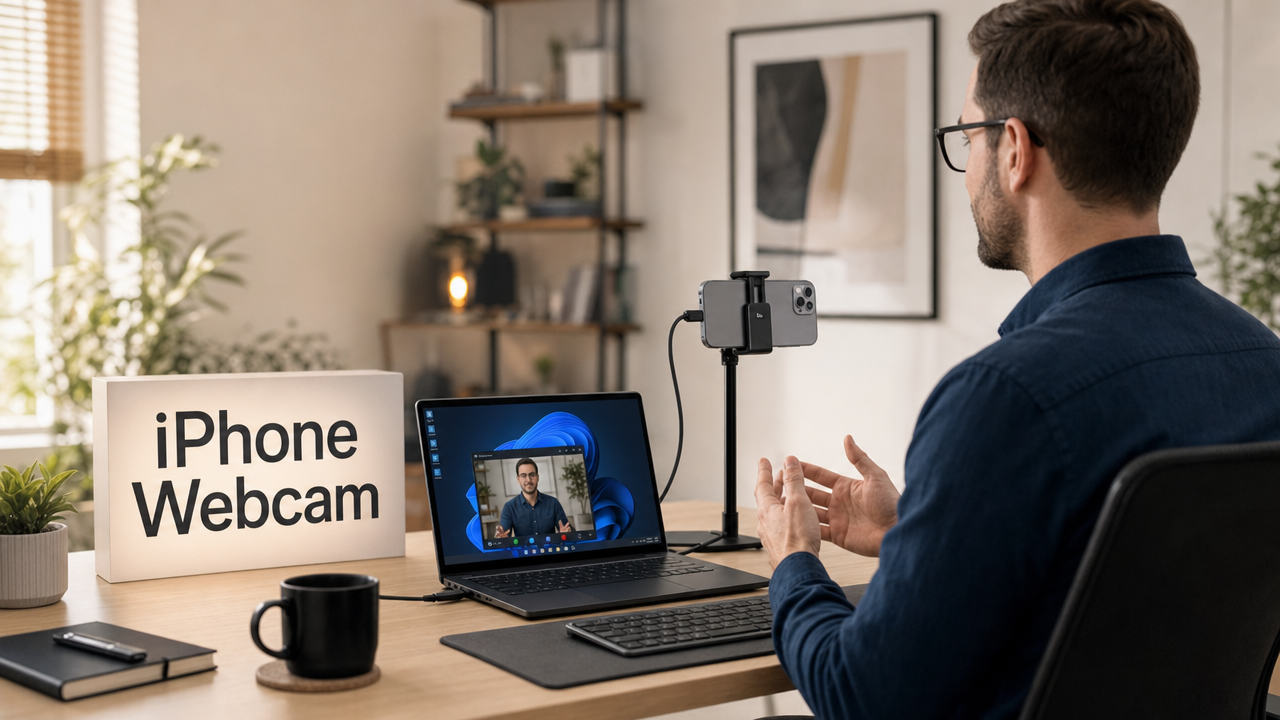
Your laptop’s built-in camera was probably fine for occasional calls, but if you’re on Google Meet daily, the grainy wide-angle feed is hard to ignore. Your iPhone already has a much better camera available. You can turn it into a live webcam quite easily. The key is choosing the right method for your setup. This guide explains two reliable ways to connect your iPhone. You will also find tips for improving video quality. A permanent webcam option can also save setup time. It keeps your phone free before every Google Meet call.
Can You Really Use an iPhone as a Webcam for Google Meet?
Yes, and it works better than most people expect. iPhone cameras, even on mid-range models, outperform the average built-in laptop webcam in dynamic range, low-light performance, and overall sharpness. Routing that feed into Google Meet takes about five minutes once your method is set up.
There are two main routes. If you’re on a Mac running macOS Ventura or later, Apple’s native Continuity Camera feature does all the heavy lifting with no extra software. If you’re on Windows 10/11 or an older Mac, a small third-party app bridges the iPhone’s camera feed to your computer.
Here’s a quick compatibility overview:
| Route | OS Required | App Needed | Cable Required |
|---|---|---|---|
| Continuity Camera | macOS Ventura+ / iOS 16+ | None | Optional |
| Third-party app (EpocCam) | Windows 10/11 or older macOS | Yes | Optional |
What You Need Before You Start
Before working through either method, confirm the following prerequisites:
- iPhone model: iPhone X or later is required for Continuity Camera. EpocCam works with iPhone 7 and later.
- iOS version: iOS 16 or later for Continuity Camera; iOS 14 or later for EpocCam.
- macOS version (Mac users): macOS Ventura (13.0) or later for Continuity Camera. Monterey or earlier requires a third-party app.
- Windows version (PC users): Windows 10 or Windows 11 for EpocCam.
- Same Apple ID (Continuity Camera only): Both devices must be signed into the same Apple ID account.
- Bluetooth and Wi-Fi: Both must be active on the iPhone and Mac for wireless Continuity Camera. EpocCam also uses Wi-Fi for its wireless mode.
- Same Wi-Fi network: For wireless operation under either method, both devices must be on the same local network.
- USB cable (optional but recommended): A Lightning-to-USB or USB-C cable provides a stable, dropout-free wired connection and charges the iPhone simultaneously.
- Google Meet: Use the latest version of Chrome or the Google Meet desktop app for the most reliable camera source detection.
Method 1: Use Continuity Camera on Mac (No Extra App Required)
Continuity Camera is Apple’s built-in feature that lets macOS treat a nearby iPhone as a webcam automatically. No downloads, no drivers, no pairing screens. Here’s how to set it up from scratch.
Enable Continuity Camera on iPhone and Mac
- On your iPhone, open Settings.
- Tap General, then tap AirPlay & Continuity (AirPlay & Handoff – older iOS).
- Toggle Continuity Camera to ON.
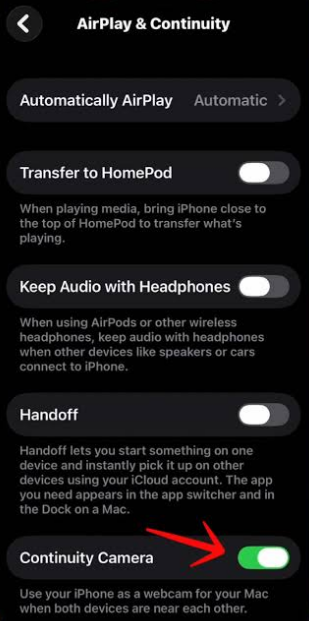
- Your Mac already has this feature turned on by default. You do not need to change any settings. First, lock your iPhone. Place it nearby in landscape mode. Then open FaceTime, Zoom, or another video app. Open its camera or video settings and choose your iPhone.
- Confirm both devices are signed in to the same Apple ID. Check Settings → [Your Name] on iPhone and System Settings → Apple ID on Mac.
- Verify that Bluetooth and Wi-Fi are both enabled on both devices, even if you plan to use a wired cable.
Mount Your iPhone and Trigger the Connection
- Place your iPhone in landscape orientation near the top edge of your Mac’s display. A MagSafe-compatible mount, a monitor clip, or any phone stand that positions it at eye level works well.
- Leave the iPhone screen locked. Continuity Camera activates most reliably when the phone is stationary with the screen off.
- If prompted on your iPhone, tap Continue to accept the connection. On subsequent uses, the connection typically triggers automatically.
- For a wired connection, plug a Lightning-to-USB or USB-C cable from the iPhone into the Mac before triggering the session. macOS will prefer the wired path over Wi-Fi for added stability.
Pro Tip: If the connection does not trigger automatically, lock the iPhone screen, move it slightly closer to the Mac, and wait about ten seconds. Continuity Camera requires the phone to be physically close, still, and unobstructed.
Select iPhone Camera in Google Meet
- Open Google Meet in Chrome or the desktop app.
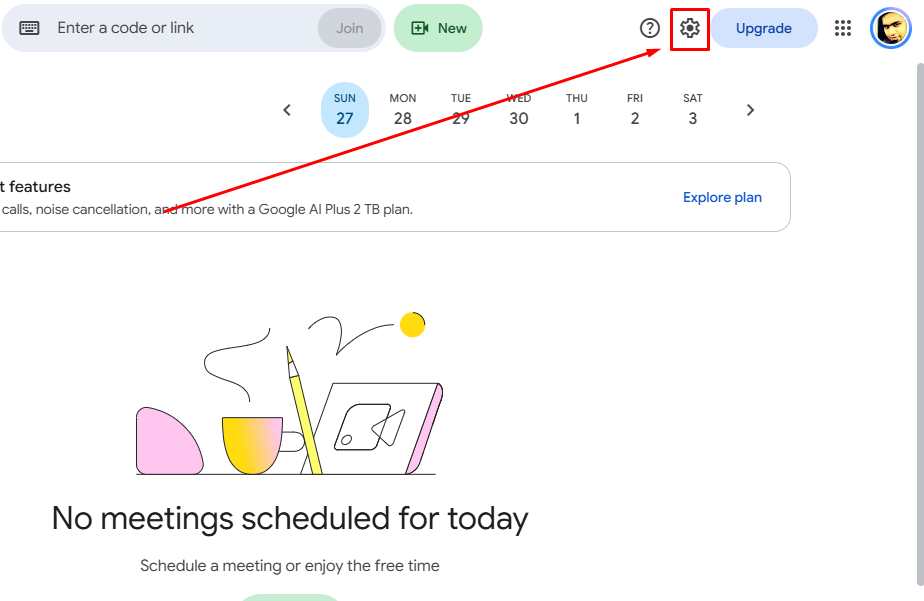
- Before a call, click gear icon to open Settings.
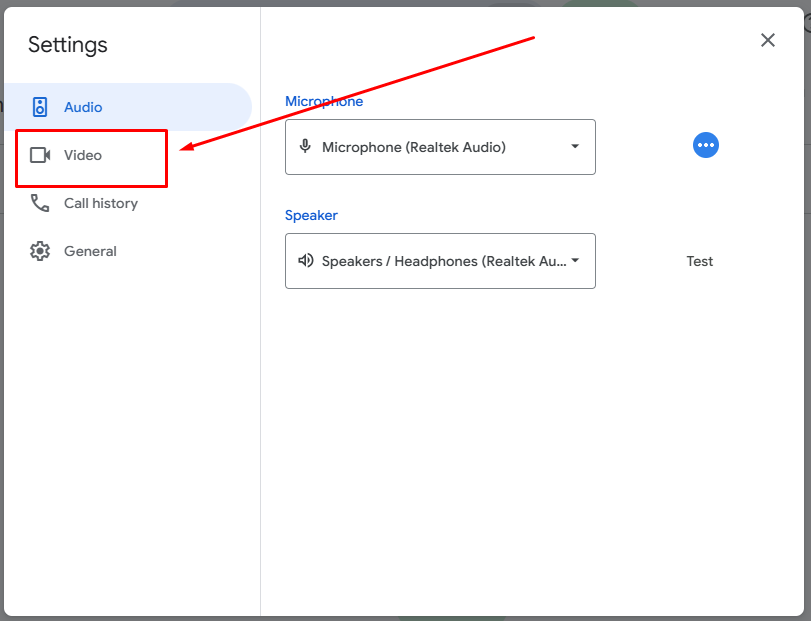
- Click the Video tab, and under Camera, open the dropdown and select “iPhone Camera”. This option appears once Continuity Camera is active.

- Check the preview window to confirm the iPhone feed is showing.
- To switch between front and rear camera, tap the camera flip icon in the Continuity Camera widget on the iPhone lock screen. The rear camera delivers noticeably better image quality for most meeting setups.
Method 2: Use a Third-Party App (Windows or Older macOS)
If you’re on Windows 10 or 11, or on macOS Monterey or earlier, Continuity Camera is not available. Camo is a dependable choice for replacing your regular webcam. The free plan supports video quality up to 720p for standard calls. Its Pro plan costs $49.99 per year. Upgrading also gives you 1080p and video output up to 4K. Here’s the complete setup:
Download and Set Up Camo
- Open the App Store and install Camo on your iPhone.

- Download Camo Studio and install it on your Mac.

- Launch Camo on your iPhone and allow camera access.
- Also give the app permission to access your microphone.

Pair Your iPhone With Your Computer
You can connect your iPhone using USB or Wi-Fi.
Using a USB Cable
- Connect your iPhone directly to your computer with a cable. Use a Lightning or USB-C cable, depending on your iPhone. If possible, connect directly instead of using a hub or dongle. This can provide a more stable connection during your call.
- If your iPhone asks for permission, tap Trust.
Using Wi-Fi
- Connect your iPhone and computer to the same Wi-Fi network.
- Open Camo on your iPhone and find the pairing option.
- On your computer, launch Camo Studio and display its QR code. Also, select your iPhone from the Device dropdown.

- Scan that QR code with the Camo app on your iPhone.
- After pairing, Camo Studio should show your live camera feed.

Choose Camo as Your Google Meet Camera
You can select Camo before or during a meeting.
Before Joining the Meeting
- Open your browser and go to Google Meet.
- Select your scheduled meeting or enter its meeting link.
- Google Meet will open its video preview screen.
- This preview area is sometimes called the green room.
- Do not click Join now just yet.
- Find the Settings gear icon on the preview screen.
- If needed, open the three-dot menu for more options.
- Select Settings, then open the Video tab.
- Find the Camera dropdown menu in the video settings.
- Select Camo, Reincubate Camo, or Camo Camera.
- This replaces your computer’s built-in webcam as the source.
- Your preview should switch to your iPhone’s camera feed.
- Check the preview and adjust your phone if needed.
- Once everything looks right, click Join now.
During a Google Meet Call
- Open Google Meet through your browser or desktop app.
- Start a new meeting or join an existing one.
- Find the Settings gear icon during the call.
- You can also open the three-dot menu instead.
- Look for the camera dropdown near your video preview.
- Open the Video tab inside the settings menu.
- Select Camo or Camo Camera as your camera.
- Google Meet should now receive video from your iPhone.
- If needed, select Camo as your microphone source too.
- This lets Google Meet receive audio from your iPhone microphone.
How to Get the Best Video Quality from Your iPhone on Google Meet
Getting the connection working is step one. These adjustments make a visible difference in how you appear on the call:
- Mount the phone at eye level. Position the iPhone at the top edge of your monitor, not flat on a desk pointing upward. A natural, forward-facing angle looks professional and reduces unflattering distortion.
- Use the rear camera when possible. Every iPhone model has a significantly better main camera than its front-facing lens. Switch via the Continuity Camera lock screen widget or the EpocCam in-app flip button.
- Light from the front, not behind. A window or lamp placed in front of your face fills shadows and balances exposure. Backlight from behind silhouettes your face and overexposes the background.
- Enable HD video in Google Meet. Go to Settings → Video → Send resolution and set it to HD (720p). Google Meet sometimes defaults lower to conserve bandwidth, so manual adjustment ensures you’re sending the best quality the iPhone feed can provide.
- Use a wired connection for long meetings. Wi-Fi is convenient but susceptible to interference. A USB cable eliminates mid-call dropouts and keeps the iPhone charged throughout the session.
Want a Permanent Upgrade? Meet the Hollyland Lyra Webcam
The Hollyland Lyra is a purpose-built webcam with a 1/1.5” CMOS sensor, 50MP effective resolution, and 4K30 video output. Its 82° field of view, F/1.8 aperture, and built-in 48 kHz/24-bit microphone address the same quality problems the iPhone method solves, without occupying the phone. Because the Lyra connects via USB-C and registers as a standard UVC device, Google Meet recognizes it immediately with no driver installation.
Here’s how to set it up:
- Mount the Lyra. Attach the integrated monitor clip to the top edge of your display. Press the clip flush against the monitor before connecting power to ensure a stable, level position.

- Connect via USB-C. Plug the included USB-C cable from the Lyra into a USB 3.0 port on your computer. The LED indicator turns solid blue to confirm the camera has been recognized. No driver installation is needed.
- Select Lyra in Google Meet. Open Google Meet → Settings → Video → Camera dropdown → select “Hollyland Lyra”. The 82° FOV preview will appear immediately.
- Set resolution in HollyStudio. Open the HollyStudio app on your computer, on the top of the preview window, look for the Resolution dropdown. For Google Meet, 1920×1080 at 60fps is the recommended setting. It maximizes smoothness without exceeding what Meet can use.

- Enable AI Tracking and Smart Auto Framing. In HollyStudio click the frame icon to enable AI Tracking. Enter the Audio Settings by clicking the gear icon (main Settings) and toggle the Face Priority Focus on. Next, enable Smart Framing from the FOV page.


- Adjust framing with digital zoom. HollyStudio → Image Control page → Advanced → Focal Length slider (1x to 4x). Tighten or widen the frame without physically touching the camera.

- Set exposure and white balance. HollyStudio → Image Control page → Advanced → adjust the Exposure slider and select a White Balance preset to match your lighting.
- Enable Intelligent Noise Cancellation. HollyStudio → Settings → Audio Settings → toggle “Noise Cancellation” ON. The Lyra registers as a USB audio device in Google Meet without any additional driver, and its 48 kHz/24-bit output is available immediately.

Troubleshooting: iPhone Not Showing Up in Google Meet
If the iPhone camera is not appearing or behaving correctly in Google Meet, one of these five issues is almost certainly the cause:
| Problem | Fix |
|---|---|
| Continuity Camera does not appear as a camera option in Google Meet | Verify both devices share the same Apple ID, Bluetooth and Wi-Fi are active on both, and the iPhone is running iOS 16 or later. Also confirm macOS is Ventura (13.0) or later. |
| Camo is not listed in the Google Meet camera dropdown | The Camo driver was not installed or is outdated. Download the latest version from reincubate.com, reinstall it, and restart the computer before opening Google Meet. |
| iPhone camera source shows a black screen | Another app on the iPhone is holding the camera lock (such as the Camera app or FaceTime). Close all other apps accessing the camera, then reopen EpocCam or re-trigger Continuity Camera. |
| Google Meet only shows the built-in laptop webcam despite the iPhone being connected | Check browser camera permissions. In Chrome, go to chrome://settings/content/camera and confirm Google Meet is not blocked. Then re-open Google Meet Settings → Video and reselect the iPhone source from the dropdown. |
| Wi-Fi dropout causes the iPhone camera feed to freeze mid-call | Switch to a wired USB connection. Plug in the Lightning or USB-C cable before opening the camera app to ensure the wired path is used instead of Wi-Fi. |
Frequently Asked Questions
Does using an iPhone as a webcam for Google Meet work on Windows?
Yes, but only through a third-party app. Apple’s Continuity Camera is exclusive to Mac. On Windows 10 or Windows 11, install Camo on the iPhone and the EpocCam driver on the PC. Once both are running on the same Wi-Fi network or connected via USB cable, Google Meet will detect Camo as a selectable camera source in its Video settings.
Can I use my iPhone’s rear camera instead of the front camera for Google Meet?
Yes. With Apple Continuity Camera, choose your iPhone in Google Meet’s video settings. The rear camera becomes active automatically, so no manual switch is needed. If you use Camo or similar software, tap its camera flip button. This lets you switch between the available camera lenses. On every iPhone model, the rear camera gives sharper images. It also provides better exposure than the front camera.
Will my iPhone battery drain while using it as a webcam?
Long streaming sessions can consume plenty of your iPhone’s battery. Connect your iPhone to power before starting the meeting. You can use either a Lightning-to-USB or USB-C cable. The cable supplies power while the camera keeps streaming. Yet, continuous processing can make the phone noticeably warm. Apple’s thermal controls may stop charging when temperatures rise. So, the battery percentage can still fall during longer meetings. Keeping the cable connected still reduces battery loss significantly. Wireless connections can drain the battery much faster instead.
Does this work with the Google Meet app on iPhone, or only on a computer?
The iPhone-as-webcam workflow applies only when Google Meet is running on a Mac or PC. When you run Google Meet on the iPhone itself, it uses the iPhone’s own camera directly. No Continuity Camera or Camo setup is required in that scenario.
Conclusion
Mac users can get started quickly with Apple’s Continuity Camera. Turn on the required option on both devices first. Then place your iPhone above the monitor in landscape orientation. Select the iPhone through Google Meet’s camera selection menu. Camo offers a similar setup on both Mac and Windows. The installation process takes only about five minutes. Once connected, good lighting can dramatically improve your video. Place a light source in front of yourself first. This can matter more than changing individual camera settings. For a dedicated webcam that keeps your iPhone available, consider Hollyland Lyra.