.png)
 简体中文
简体中文 
A blurry webcam image can make video calls and live streams frustrating. Finding the right focus setting is not always easy. You can adjust focus through three main options. These include a companion app, your computer’s camera settings, or the video call app. This guide explains each method and when to use it. The Hollyland Lyra is the example camera throughout the guide. You will also learn how to improve autofocus and adjust focus manually on different platforms.
What Controls Webcam Focus?
Every webcam focus adjustment falls into one of two modes and is accessed through one of three surfaces.
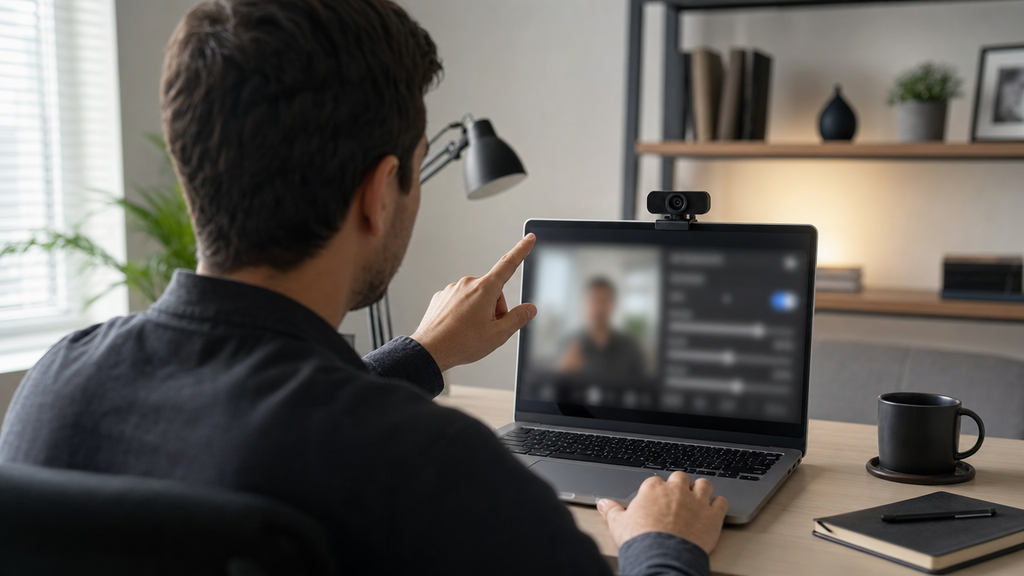
Two focus modes:
- Auto-focus: The camera continuously adjusts focus as the scene changes. The Lyra uses Phase Detection Autofocus (PDAF) for fast, stable tracking with minimal hunting.
- Manual focus: You set a fixed focus distance via a software slider or a physical ring, and it stays there until changed.
Three adjustment surfaces:
- Companion app (HollyStudio for the Lyra): Deepest, most reliable control
- OS camera settings (Windows Camera app, macOS System Settings): Platform-level, useful for verification
- In-call app (Zoom, Teams, Google Meet): Confirms device selection; not a primary focus surface
The Lyra has no physical focus ring. All focus control is handled through HollyStudio and its onboard PDAF system, making the companion app the starting point for every scenario that follows.
How to Adjust Webcam Focus Using a HollyStudio Companion App (Hollyland Lyra Walkthrough)
The companion app gives you the deepest control over webcam focus. HollyStudio surfaces a focus mode toggle, a manual focus slider, AI Tracking, Smart Auto Framing, and a digital zoom control (through the Focal Length slider) alongside the full image parameter suite. The walkthrough below covers physical setup through focus configuration.
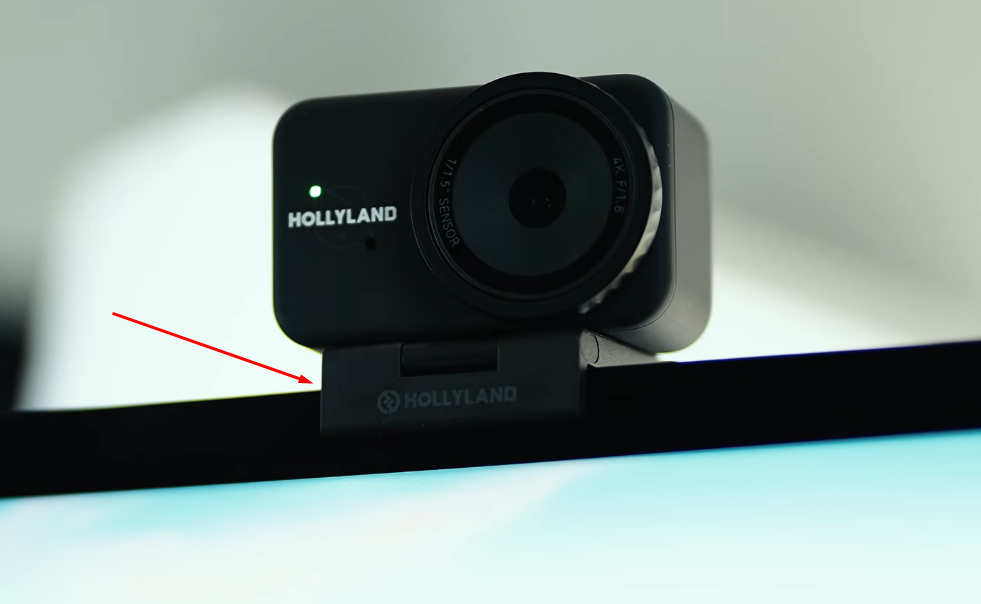
- Mount the Lyra
- Flip out the Lyra’s built-in clip mount and secure it to the top bezel of your monitor or laptop screen. Confirm the camera sits level and stable, with the lens pointing directly at your face at roughly eye level.
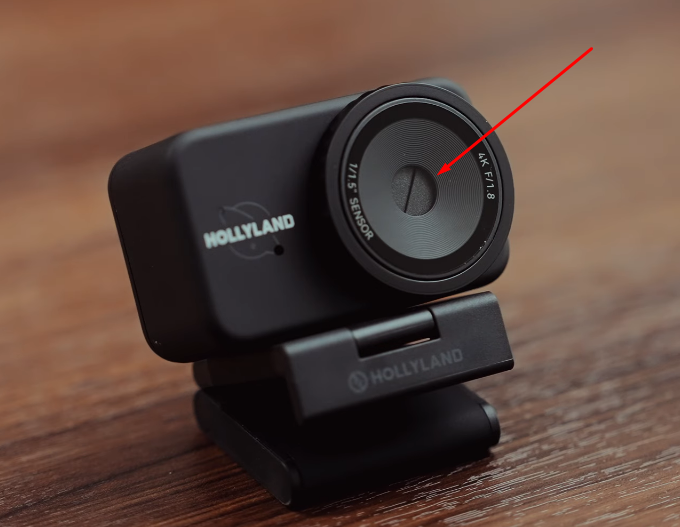
- Make sure the privacy shutter ring is fully rotated open before proceeding. A partially closed shutter causes severe blur that no focus adjustment will correct.
- Connect via USB-C
- Plug the Lyra’s USB-C cable into a USB 3.0 port on your computer. The Lyra is plug-and-play with no driver installation required on Windows or macOS. Connect directly to the computer rather than through an unpowered hub for stable power and data throughput.
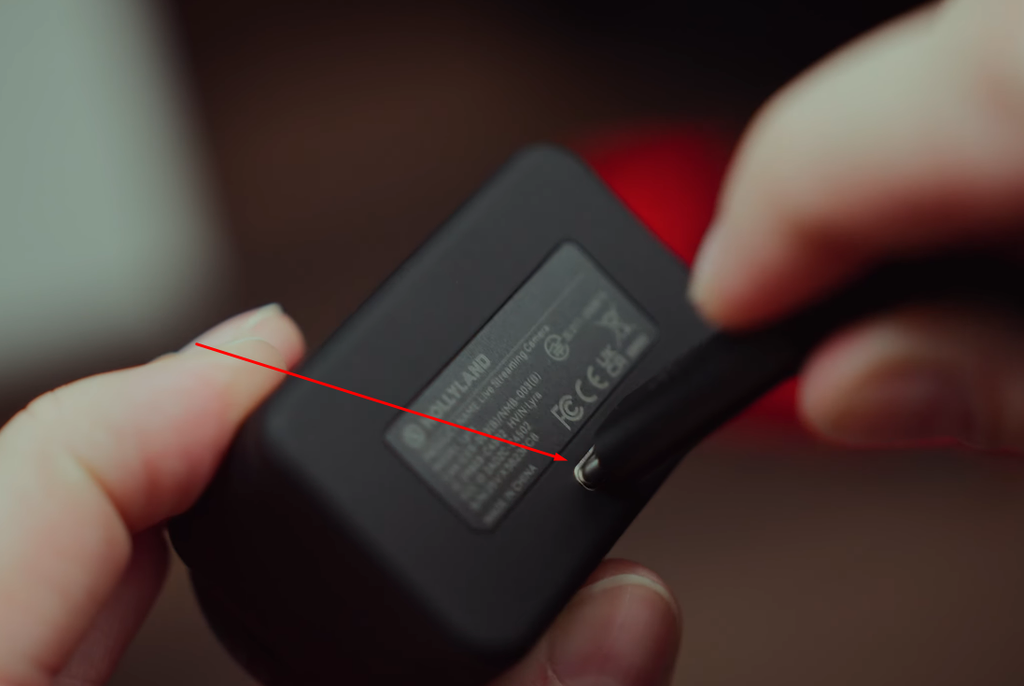

Note: You can also connect Lyra via the USB-C port on your laptop.
- Confirm the LED Indicator
- Check the LED status light on the Lyra body. Once it enters its active/ready state, the camera has been recognized by the operating system and is ready for software configuration. Solid blue light means the camera is ready to use. Whereas a solid green light means the camera is in use.

- Launch HollyStudio
- Open HollyStudio on your computer. At the top of the interface, confirm the Lyra appears as the selected device in the device selector. If it does not appear, disconnect and reconnect the USB-C cable to re-trigger plug-and-play recognition.
- Open the Camera Settings Panel
- Navigate to the camera or lens settings panel within HollyStudio. Focus mode controls, AI features, and image parameter sliders are consolidated here.
- Configure the Focus Mode
- You can adjust focus using AI Tracking & Smart Auto Framing.
- From the top options on the preview screen, click the frame icon. Once it’s clicked, you will see a padlock symbol inside it.

- Click the gear icon to bring up Settings.

- Choose Camera Settings from the menu on the left and toggle Face Priority Focus on before closing the window.

- Go to the FOV page.
- Locate Smart Framing, deselect None, and toggle on the auto framing option beside the None tile.

- Check the Digital Zoom through the Focal Length Slider
- The Lyra supports a 1–4x digital zoom range, adjustable via the Focal Length slider in HollyStudio’s Image Control page. Digital zoom crops and upscales the sensor image rather than shifting the optical focus point. Higher zoom levels amplify any existing focus inaccuracy and reduce fine detail. Keep the slider at or near 1x whenever focus precision is the priority.

- Confirm the Resolution Output
- In HollyStudio’s Resolution dropdown, select your preferred output format. The Lyra supports 4K at 30 fps and 1080p at 30 or 60 fps, among other options. Higher resolution outputs reveal focus quality more clearly.

Note: The Lyra’s 50MP sensor and F/1.8 aperture produce a shallower depth of field than most consumer webcams. This makes correct focus more rewarding visually, but it also means minor focus errors are more visible. Take an extra moment with the preview before locking in your settings.
How to Adjust Webcam Focus on macOS
macOS does not expose a native per-camera focus slider. On macOS, the companion app is the sole focus control surface. The built-in camera apps serve only as a live preview window to confirm your adjustments visually.
- Connect the Lyra via USB-C. macOS recognizes it immediately as a UVC device with no driver installation required.

- Open System Settings > Privacy and Security > Camera and confirm that HollyStudio has camera access permission enabled.
- Launch HollyStudio on macOS. Confirm the Lyra is selected as the active device in the device selector.
- Make sure AI Tracking and Smart Auto Framing options are enabled. Also, check if you need to adjust the Focal Length slider (see the previous section for detailed steps).
- To verify focus changes in real time, open FaceTime or QuickTime Player (File > New Movie Recording) and select the Lyra as the camera source from the dropdown next to the record button. Position this preview window alongside HollyStudio so you can see the effect of each slider adjustment as you make it.
macOS limitation: HollyStudio for macOS currently supports a subset of the full feature set available on Windows. If a focus control appears unavailable, check the current HollyStudio release notes or the Hollyland support page to confirm which features are accessible on your macOS version before troubleshooting a missing slider.
How to Adjust Webcam Focus in Video Conferencing Apps
Video conferencing apps are the final step for focus settings. They mainly confirm which camera is active. Some apps also let you change resolution or video quality. Set the focus in HollyStudio before joining the call. Then check the in-call preview to make sure everything looks right.
For Lyra users on all three platforms, the first step is the same. Before changing any settings, confirm Lyra is selected as the active camera in the app.
Zoom
- Open Zoom, click the profile icon, and go to Settings > Video & effects.


- Go to the Camera option and select the Lyra or your target webcam from the device dropdown.

- Enable the HD video toggle to ensure Zoom renders the camera’s full-resolution output.

- If the image appears soft despite correct HollyStudio settings, temporarily disable the HD toggle to isolate whether Zoom’s own processing pipeline is conflicting with the companion app’s focus output. Re-enable HD once the source of the issue is identified.
Microsoft Teams
- In Teams, go to Settings and more (three-dot menu) > Settings > Devices > Camera.

- Confirm the Lyra is selected as the active camera. A live preview appears at the top of the settings panel.
- Teams does not expose a manual focus slider. Return to HollyStudio or Windows camera settings for any focus adjustment.
Google Meet
- From the pre-call screen, click the gear icon and go to Settings > Video.


- Under the Camera dropdown, confirm that Lyra or your webcam is selected as the input source.

- Google Meet does not provide a focus slider. If the image looks soft in Meet but sharp in the companion app preview, bandwidth compression is likely the cause rather than a focus problem. Verify in HollyStudio before adjusting anything else.
Adjusting a Physical Focus Ring (Manual-Focus Webcams)
Some older or lower-cost webcams include a physical focus ring on the lens barrel. To adjust it:

- Open any live preview app — Windows Camera, QuickTime Player, or a video call test screen — so you have a real-time image to reference.
- Grip the focus ring on the lens barrel and rotate it slowly in one direction while watching the preview.
- Stop rotating when the subject appears sharp. The ring holds its position mechanically until physically adjusted again.
This method does not apply to the Hollyland Lyra or any modern webcam with software-controlled focus. If your camera has no ring and no software slider, it uses fixed-focus optics and the focus distance cannot be changed.
Troubleshooting: Why Your Webcam Won’t Focus (and How to Fix It)
| Problem | Likely Cause | Fix |
|---|---|---|
| Image consistently blurry despite adjustment | Subject is too close to the camera (inside minimum focus distance) | Increase subject-to-camera distance; reduce digital zoom in HollyStudio |
| Auto-focus hunts continuously | Low-contrast scene or insufficient lighting | Add a front-facing key light; switch to Manual Focus in HollyStudio to lock the focus distance |
| Focus toggle greyed out in OS | UVC driver not recognized by Windows | Reconnect the USB-C cable; check Device Manager under Cameras for warning flags |
| Sharp in companion app, blurry in Zoom or Teams | In-call app resolution override or processing conflict | Enable HD in Zoom; confirm the Lyra is selected as the active camera in the in-call app |
| Manual focus slider has no visible effect | Companion app not set as the active camera source | Reselect the Lyra in OS camera settings and within the video conferencing app |
| Focus sharp at call start, drifts mid-call | Continuous auto-focus re-evaluating on movement or background changes | Enable AI Tracking in HollyStudio, or switch to Manual Focus to lock the position |
Diagnosing focus hunting on the Lyra: In HollyStudio, temporarily disable the AI Tracking and Smart Auto Framing and observe whether the hunting stops. If it does, motion detection was triggering continuous refocus cycles. Re-enable AI Tracking and Smart Auto Framing in better lighting conditions.
Greyed-out controls: If the Lyra does not appear in HollyStudio’s device selector, disconnect and reconnect the USB-C cable to re-trigger plug-and-play recognition. Avoid passive USB-C adapters and connect directly to a USB 3.0 port.
Close-range blur: The Lyra’s 26mm equivalent focal length and F/1.8 aperture create a relatively shallow depth of field and a practical minimum working distance. If the image is blurry and the subject is very close to the lens, move back to roughly arm’s length. Reducing the digital zoom via the Focal Length slider in HollyStudio also increases the effective working distance available to the autofocus system.
FAQ: How to Adjust Focus on a Webcam
Q: How do I know if my webcam supports manual focus?
Check the webcam’s companion app or OS camera settings for a manual focus slider. If neither surface provides one and the webcam has no physical focus ring, it uses fixed-focus optics and cannot be adjusted.
Q: Why is my webcam still blurry after I adjusted the focus?
Residual blur after focus adjustment is most often caused by insufficient lighting, the subject sitting too close to the camera, or a resolution mismatch between the webcam’s native output and what the video app actually renders. Address lighting first, then verify subject distance and confirm the in-call app is using the webcam’s native output resolution.
Q: Does digital zoom affect webcam focus sharpness?
Digital zoom crops and upscales the sensor image rather than moving the optical focus point, but higher zoom levels amplify any existing focus inaccuracy and reduce visible detail. Use the lowest zoom level that achieves your desired framing. On the Lyra, keep the 1–4x Focal Length slider in HollyStudio close to 1x when focus precision matters most.
Q: Why does my webcam lose focus only during video calls, not in the companion app?
The conferencing app may be applying its own processing pipeline or requesting a different resolution from the webcam than the companion app uses. Confirm the webcam is set to its native resolution in the in-call app settings and check whether any in-app enhancement feature is conflicting with the companion app’s focus output.
Conclusion
Webcam focus control has three main levels to consider. Start with the companion app for detailed and reliable focus adjustments. Next, check the OS camera settings to confirm platform-level options. In-call settings mainly confirm the camera and resolution. Lighting and subject distance also affect how sharp the image looks. Check both before changing the focus slider.