.png)
 简体中文
简体中文 
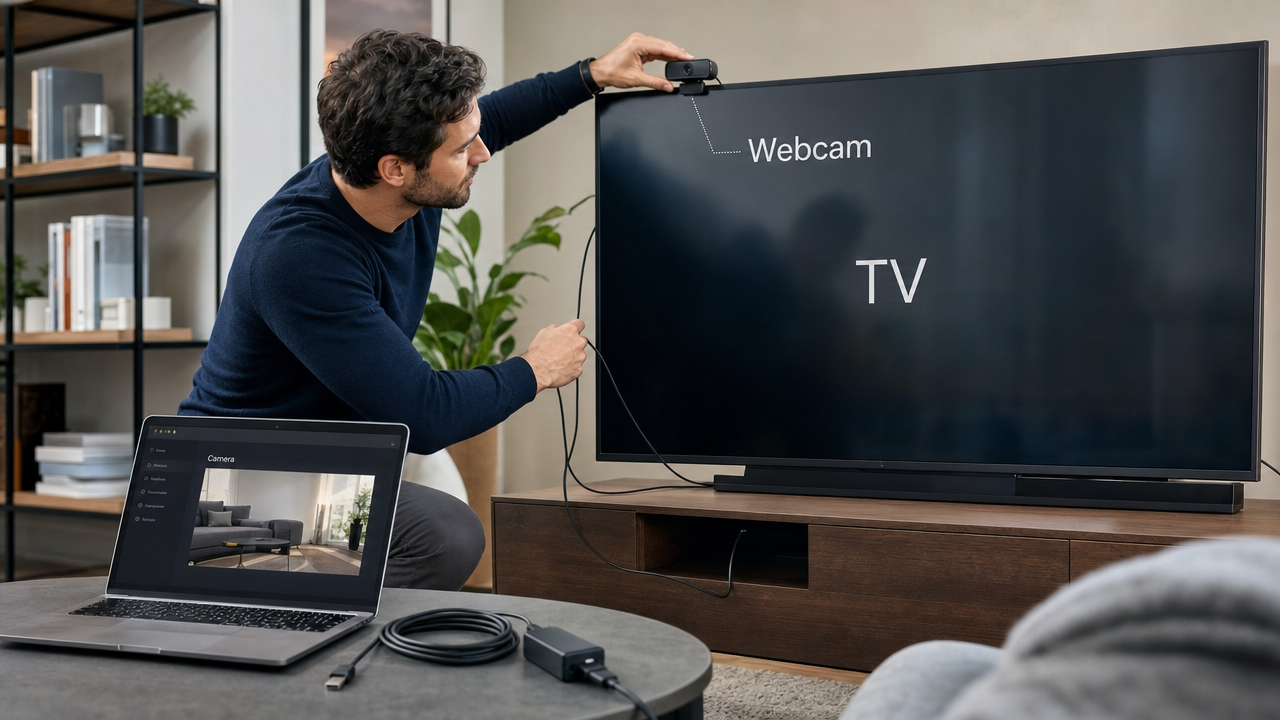
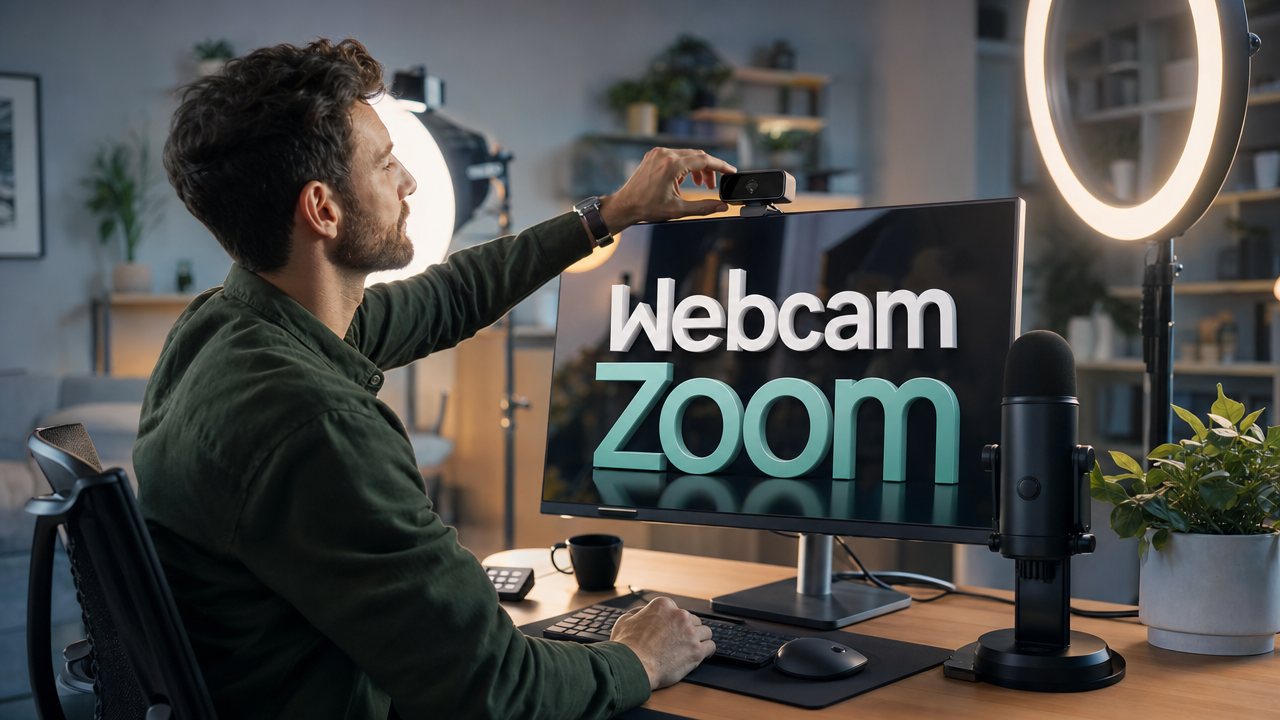
A bigger screen can make Zoom calls easier to enjoy. It works nicely in homes, offices, and meeting rooms. You might expect the webcam to connect directly to it. That is not how this setup actually works. Your webcam connects to a computer instead of the TV. The computer then sends the Zoom video to your TV. Hollyland Lyra serves as the camera example throughout this guide. You will learn about connections, positioning, and better framing.
What You’ll Need Before You Start
Gather the following hardware before you begin:
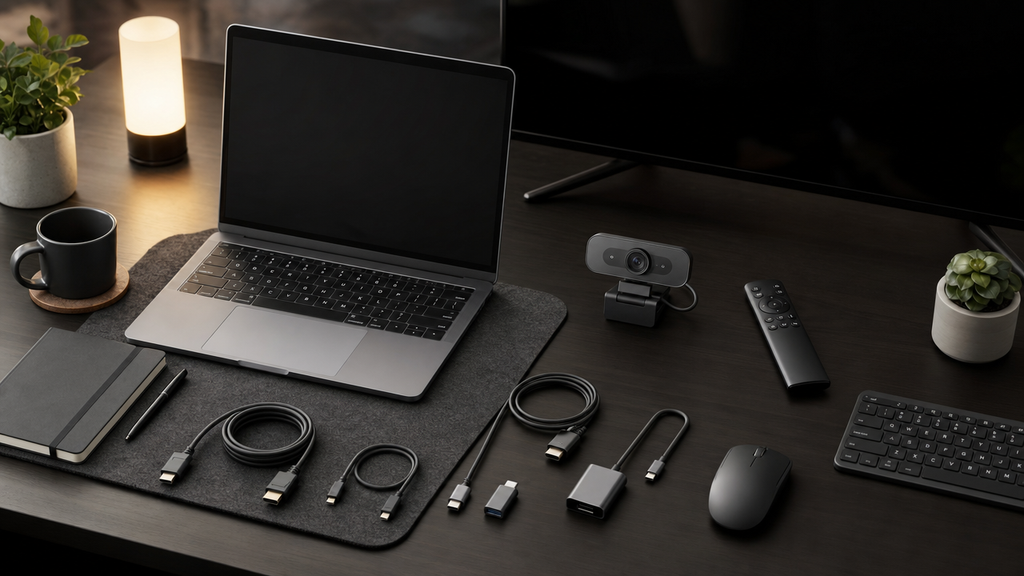
- HDMI cable (standard HDMI, mini-HDMI, or a USB-C to HDMI adapter depending on your laptop model)
- TV with at least one available HDMI input
- Laptop or desktop PC with Zoom installed and an active Zoom account
- Hollyland Lyra webcam (used throughout this guide), connected via USB-C
- USB-C to USB-A adapter if your laptop does not have a USB-C port
Key point: The Hollyland Lyra connects to your laptop via USB-C, not to the TV. The TV is the display; the laptop is the Zoom host and the webcam’s connection point. Getting this right from the start prevents the most common setup error.
Method 1: Connect Your Laptop to the TV via HDMI and Add a Webcam (Recommended)
This setup works with nearly every television model available. Your laptop runs Zoom and receives the camera feed. The TV simply displays everything on its larger screen. This lets everyone nearby see the meeting more clearly. Connect the Hollyland Lyra to your laptop through USB C. Then mount the webcam above your television screen. This position creates a natural view of everyone nearby.
Step 1: Connect the TV to Your Laptop with an HDMI Cable
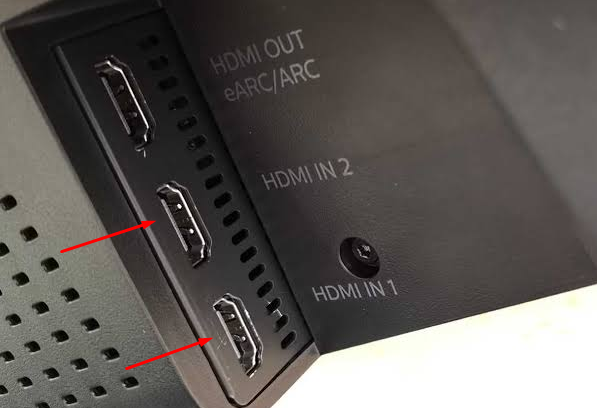
- Find an open HDMI input on the back or side panel of your TV. Most TVs label these HDMI 1, HDMI 2, and so on. Note which number you are using.
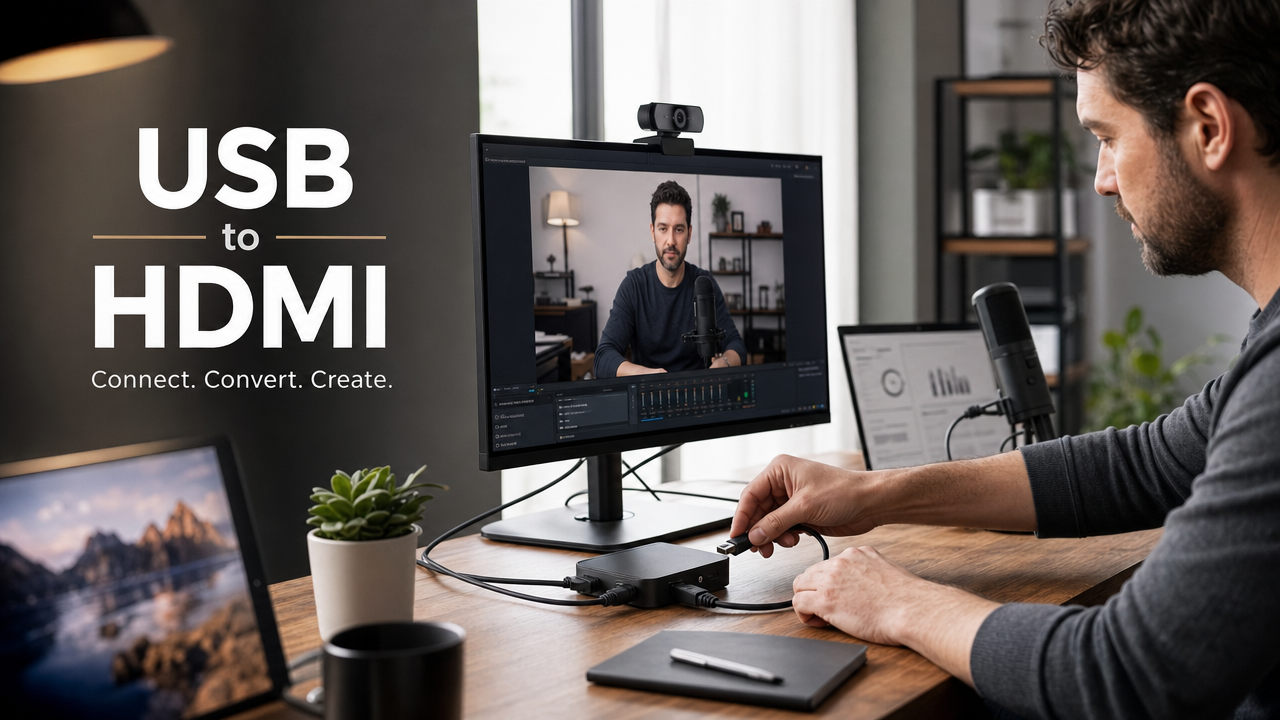
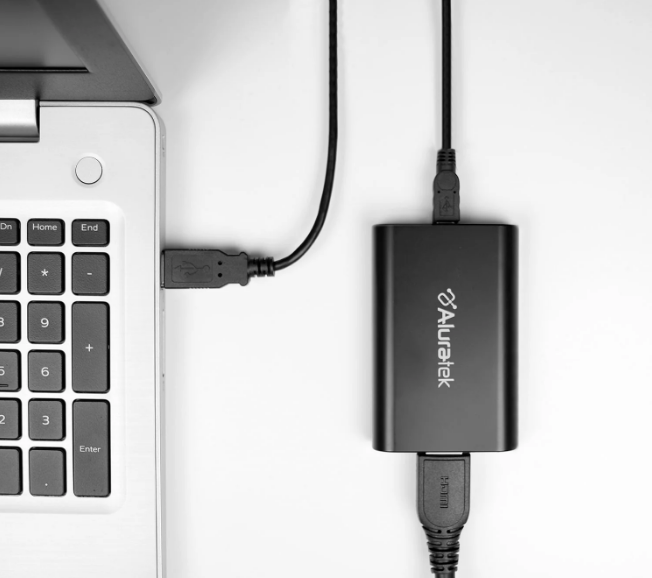
- Insert one end of the HDMI cable into the HDMI or mini-HDMI port on your laptop. Use a USB-C to HDMI adapter if your laptop only has USB-C ports.
- Insert the other end of the cable into the HDMI input on the TV.
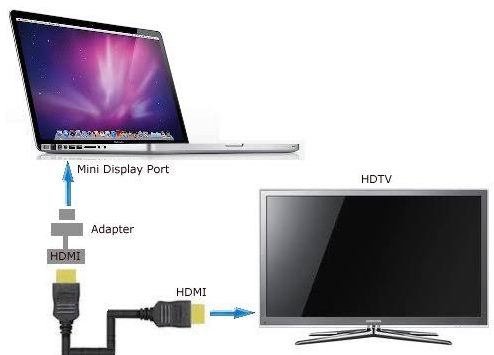
- Pick up the TV remote and press the Input or Source button. Cycle through the available inputs until you select the HDMI channel you just connected.
- Your laptop desktop should now appear on the TV screen. Zoom and all of its controls remain on the laptop side.
Step 2: Configure Your Display Output
Windows
- Right-click an empty area of the laptop desktop and select Display Settings.
- Scroll down to the Multiple Displays section.
- Open the dropdown and choose Duplicate these displays. This mirrors your laptop screen to the TV so the Zoom window appears on both simultaneously.

macOS
- Open the Apple menu and select System Settings (or System Preferences on older macOS versions).
- Click Displays.
- Select your TV or external display from the list. Open the “Use as” menu after selecting it. Then choose “Mirror” to duplicate your laptop screen.

Note: If a second person needs to view the laptop screen independently while another participant faces the TV, choose Extend mode instead of Duplicate. You can then drag the Zoom window to the TV display and run it full-screen there.
Step 3: Mount and Connect the Hollyland Lyra Webcam
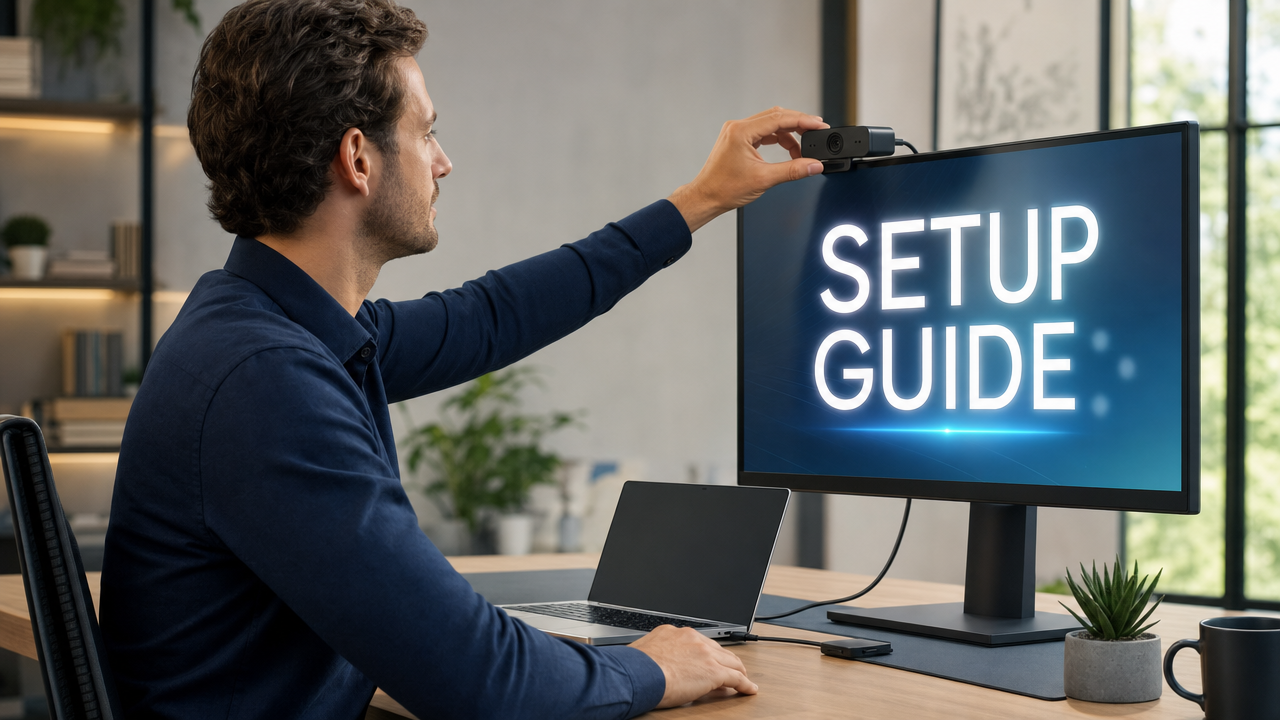
- Slide the Lyra’s integrated clip mount onto the top center of the TV’s bezel. Position the lens so it faces directly forward and sits horizontally level. Center placement produces the most natural eye-line angle for someone seated in front of the screen.

- Insert the included USB-C cable into the USB-C port on the Lyra.

- Connect the other end to the USB-C port of your laptop.

If a USB-C port is not available, connect the other end to a USB 3.0 port on your laptop via the provided adapter.
- Wait a moment for your operating system to detect the device. No driver installation is required. Windows 10/11 and macOS both recognize the Lyra automatically as a plug-and-play UVC camera. If a driver installation prompt appears, dismiss it.
- Confirm the Lyra’s LED indicator is solid blue. This signals the device is powered and registered by the OS as a UVC camera, and is ready to use.

Step 4: Open Zoom and Select the Lyra as Your Camera
- Open Zoom on your laptop and click your profile icon, then select Settings from the menu.

- Select the Video & effects tab from the left sidebar.

- Click the Camera dropdown. Look for “Hollyland Lyra” in the list. On some OS versions, it may appear as a generic UVC device descriptor. Select whichever entry produces a live preview in the preview window below the dropdown.

- In the same Video settings panel, check HD video. If your Zoom plan supports 1080p, also toggle on this option to match the Lyra’s 1920×1080 UVC output.

- Confirm the preview window shows a clear, live image before joining any meeting.
Note: The Lyra can output 4K (3840×2160 at 30 fps), but Zoom downscales video to the ceiling set by your subscription plan. For most accounts, 1080p30 or 1080p60 is the practical sweet spot. HollyStudio and Zoom can run at the same time on the same laptop without conflict.
Method 2: Smart TV with a Built-In Zoom App and a USB Webcam
Some Samsung and LG smart TVs include a native Zoom application available through the TV’s app store. In this approach, you launch Zoom directly on the TV, plug a compatible USB webcam into the TV’s USB port, and sign in to your Zoom account without a laptop.
This method can work, but it carries meaningful limitations:
- Webcam compatibility is restricted. Smart TV Zoom apps typically recognize only certified or brand-approved webcam models. A standard USB webcam may not be detected because most smart TVs implement only a partial USB UVC stack.
- TV model dependency. Zoom for TV is not available on every smart TV. Availability depends on the model year and current firmware version. Check your TV’s app store before assuming this option exists.
- Feature gaps. TV-native Zoom apps often lack advanced features found in the desktop client, including virtual backgrounds, granular video settings, and breakout rooms.
For most users, Method 1 is the more reliable and fully featured path.
Optimize the Lyra’s Settings for TV-Distance Viewing
Mounting a webcam on a TV places it 6 to 10 feet from the subject rather than 18 to 24 inches like a desk webcam. At that distance, two problems appear immediately: you look small in the frame, and any movement risks taking you out of the shot. The Lyra’s features, accessible through the HollyStudio companion app, are designed to solve exactly these issues.
- Enable AI Tracking and Smart Auto Framing. Open HollyStudio on your laptop and locate the AI Tracking (frame icon) above the preview screen. Switch it ON and you will notice a small padlock icon inside the frame.

Then, turn on the Face Priority Focus option by clicking the gear icon (main settings) below the preview window and Camera settings.


Next, go to the FOV page, look for the Smart Framing section, deselect the “None” tile, and select the image tile (the one beside the None tile) for Smart Auto Framing.

The Lyra will automatically pan and reframe to keep you centered as you move, stand, or shift position. There is a brief initialization moment when tracking first locks on. Once it locks, the camera follows you without any manual adjustment.
- Use Digital Zoom via the Focal Length Slider to tighten the frame. In HollyStudio, go to the Image Control page, make sure you are in the Advanced section, then look for the Focal Length slider. Use the slider to zoom digitally, from 1x to 4x. This will help you stay closer or farther in the frame at room distance. A setting of approximately 1.5x to 2x is typical for a viewer seated 6 to 8 feet away. Adjust until your head and shoulders fill the preview window naturally.

- Understand the fixed 82-degree field of view. The Lyra’s 82-degree FOV is set in hardware and cannot be changed with a physical dial. All framing adjustments are made through the Focal Length slider in HollyStudio. There is no separate FOV control.
- Set resolution and frame rate. On the HollyStudio main interfacel, check the Resolution menu on the top-right of the preview screen, and confirm the output is set to 1920×1080 at 30 fps or 60 fps for Zoom compatibility. Choose 1080p60 if you gesture frequently during calls, as the higher frame rate reduces motion blur.

- Adjust exposure and white balance if needed. Living-room setups are often lit primarily by the TV itself, which can leave the subject underexposed or color-shifted. In HollyStudio, increase the exposure compensation slider to brighten the subject. If the image looks too warm or too cool, switch from Auto WB to a fixed preset. Daylight works well for standard LED or natural light; Tungsten suits rooms with warmer incandescent bulbs.

Troubleshooting: Zoom Won’t Detect the Webcam After Connecting the TV
- LED is on, but Zoom shows “No Camera Detected.” Another application, including HollyStudio in preview mode, may be holding exclusive camera access. Close all camera-using apps, reopen Zoom, and re-select the Lyra under Settings → Video & effects → Camera.
- Camera feed appears degraded or drops out. Move the USB-C cable from a USB 2.0 port to a USB 3.0 port (blue connector or “SS” label) to enable the full UVC NV12 output.
- macOS does not list the Lyra as a camera option. Go to System Settings → Privacy and Security → Camera and confirm Zoom is toggled ON. The Lyra may prompt for camera permission the first time it connects.
- Windows shows a yellow warning icon on the device. Open Device Manager → Cameras, right-click the Lyra, and select Uninstall Device. Unplug the USB-C cable, wait 10 seconds, then reconnect to trigger a clean UVC re-registration.
FAQs
Can I plug a webcam directly into my TV’s USB port and use it for Zoom?
Only on smart TVs with a native Zoom app, and even then, only with certified webcam models. On a standard TV without a built-in Zoom app, plugging a webcam into the TV’s USB port will not produce a video feed. The webcam must connect to the laptop or PC running Zoom; the TV serves only as the display.
Will my 4K webcam output actually work in Zoom?
Zoom’s standard subscription caps outgoing video at 1080p. The Lyra can output 4K at 30 fps, but Zoom will downscale it to the plan’s maximum resolution. Set the Lyra’s output to 1080p30 or 1080p60 in HollyStudio for the best call quality without unnecessary bandwidth overhead.
Why do I keep going out of frame during Zoom calls on my TV?
Sitting 6 to 10 feet from a TV-mounted webcam means even a small movement can take you out of the frame. Enabling AI Tracking and Smart Auto Framing in HollyStudio activates automatic subject following, so the Lyra reframes as you move and keeps you centered throughout the call without any hardware repositioning.
Does the HDMI connection to the TV affect Zoom video quality?
No. The HDMI cable only carries the display signal from your laptop to the TV. Zoom’s outgoing video quality depends entirely on the webcam connected via USB to your laptop, your internet connection speed, and the resolution ceiling set by your Zoom subscription plan.
Conclusion
HDMI from your laptop to the TV handles the display, and the Hollyland Lyra via USB-C handles both video and audio input, with Zoom configured to read the Lyra as the active camera source. Before your next meeting, run a quick test at zoom.us/test to confirm the camera, audio, and display are all live. Once the hardware checks out, fine-tune exposure and AI Tracking and Smart Auto Framing in HollyStudio for a polished, professional look from across the room.