.png)
 简体中文
简体中文 
Your built-in laptop camera delivers soft, grainy video that rarely reflects the quality of your work. Connecting an external camera changes that immediately, giving you sharper resolution, better low-light performance, and smarter framing for video calls and live streams. This guide explains several ways to connect an external camera. The Hollyland Lyra can connect directly through USB-C. You can also connect a DSLR using a capture card. Each method helps match your camera setup correctly.
What Does “External Camera as Webcam” Actually Mean?
“External camera as webcam” describes two distinct scenarios, and which one applies to you depends on your hardware.
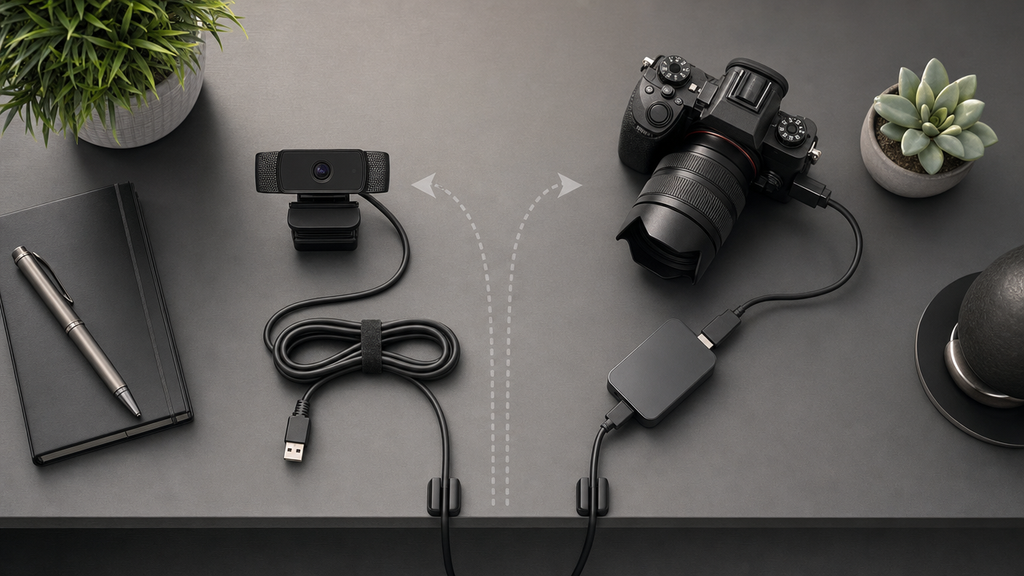
The first scenario covers purpose-built external webcams that connect via USB and output a video feed using the UVC (USB Video Class) standard. The operating system recognizes these devices automatically without extra drivers, and they appear as selectable inputs in Zoom, Teams, or OBS within seconds of being plugged in.
The second scenario involves a camera not originally designed for webcam use, such as a DSLR, mirrorless, or camcorder. These require either a manufacturer webcam utility installed on your computer alongside a USB tether connection, or a clean HDMI output routed through a USB capture card that the computer then reads as a UVC device.
Which path is yours?
- You own a dedicated USB webcam such as the Hollyland Lyra: jump to Method 1.
- You own a DSLR or mirrorless camera: jump to Method 2.
Choosing Your Method: Three Ways to Connect an External Camera
First, check the three main ways to connect your camera. Then, choose the method that matches your camera type.
| Method | Connection Required | Software Needed | Complexity |
|---|---|---|---|
| A. Dedicated USB webcam | USB-C or USB-A cable | None (UVC plug-and-play) | Low |
| B. DSLR/mirrorless via USB tethering | USB cable (varies by brand) | Manufacturer webcam utility required | Medium |
| C. DSLR/mirrorless via HDMI + capture card | HDMI cable + USB capture card | None beyond capture card driver | Medium-High |
Method A is the fastest and most reliable route to a working webcam setup. Methods B and C are covered in Method 2 for users who need to repurpose an existing camera.
Method 1: Using a Dedicated External Webcam (Hollyland Lyra Walkthrough)
The Hollyland Lyra is a 4K USB-C webcam built for video calls and live streams. It outputs video using the UVC standard over USB, supports AI tracking and smart auto framing, and integrates with the HollyStudio companion app for complete settings control. The steps below walk through the full setup process from physical mounting to a configured, call-ready feed.

Mounting the Lyra on Your Monitor or Laptop Lid
The Lyra weighs 80 grams and measures 60 × 33.3 × 37 mm, compact enough to sit on almost any monitor or laptop lid without adding noticeable weight or strain to the screen.
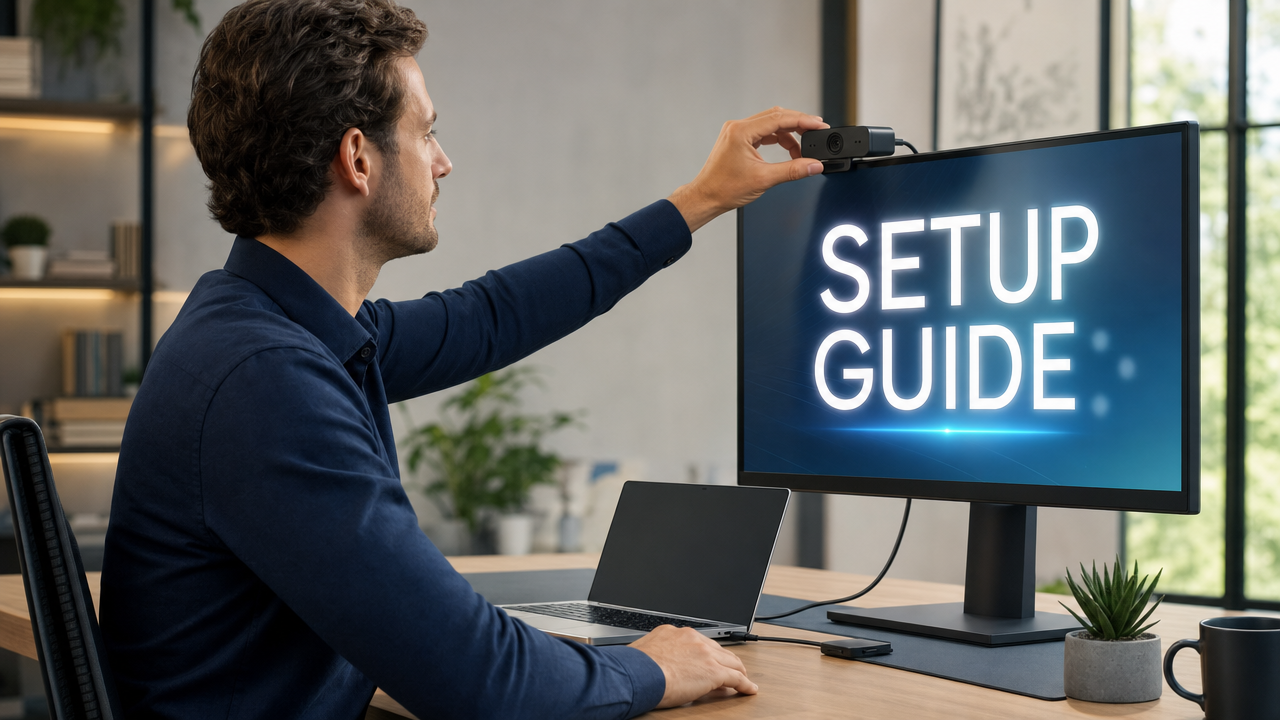
- Open the integrated clip by pulling the rear arm away from the camera body.
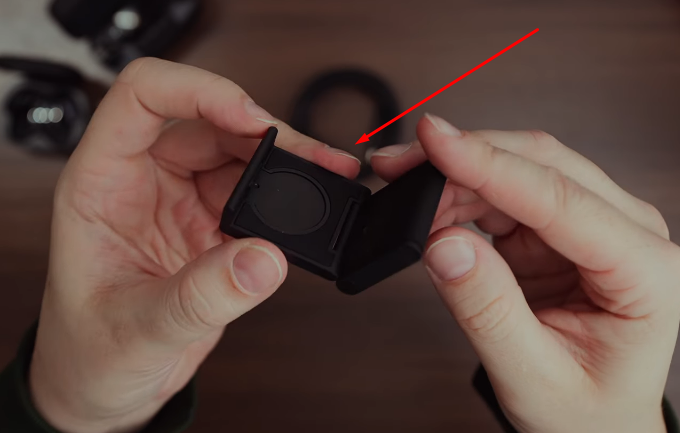
- The Lyra attaches to its magnetic base with a magnet. You can then secure the base onto a computer or screen.

- Adjust the vertical tilt of the camera body until the lens points toward your eye level. On a standard desktop monitor, this usually means angling the lens slightly downward.

- Open your system camera app and check the framing before any call. Your face should sit in the upper portion of the frame with comfortable headroom above.
Pro Tip: Eye-level framing looks more natural on calls. If your monitor sits low on the desk, raise it on a stand to bring the camera up rather than relying on digital zoom to compensate.
Connecting via USB-C and Confirming System Recognition
The Lyra package includes two USB-C connection options. One cable has USB-C connectors on both ends. A USB-C to USB-A adapter is also included. For stable 4K MJPEG output, connect through USB 3.0. On most laptops, look for a blue tab inside the port.
- Connect the USB-C end of the cable to the Lyra’s port on the rear of the camera body.

- Connect the other end to your computer’s USB-C or USB-A port, using the included adapter if needed.


- Power is delivered through the USB connection, and no separate power cable is required.
- Wait a few seconds for the operating system to enumerate the device.
On Windows:
- A “Device is ready” or “USB device recognized” notification should appear in the taskbar.
- Open Device Manager (right-click Start, select Device Manager), then expand Imaging Devices / Cameras. Hollyland Lyra should appear as a recognized UVC device.

On macOS:
- Open System Settings, go to Privacy and Security, then Camera. The Lyra should appear in the list of available camera inputs.


- No driver installation is required on either platform because the Lyra uses the standard UVC protocol.
Note: If the camera does not appear, try a different USB port, preferably a USB 3.0 port, and avoid connecting through a USB hub between the camera and your computer.
Opening HollyStudio and Navigating the Control Panel
HollyStudio is the companion app for the Lyra that provides access to settings not exposed through the OS camera picker, including resolution switching, AI controls, and audio configuration.
- Download HollyStudio from the Hollyland website or follow the link in the quick start guide included with the Lyra.

- Install and launch the app. If the Lyra is already connected, HollyStudio will detect it automatically and display a device detection dialog.
- Select the Lyra from the device list. The main interface opens with a live preview pane in the center.
- Start by checking the main controls shown on the screen. The preview window displays the camera feed as it happens. The settings area includes the Image Control, FOV, Overlay, Green Screen, and Beautify pages, with several options on each page.
Note: Make all camera adjustments in the HollyStudio app for these steps. Each step below uses HollyStudio for camera settings.
Setting Resolution and Frame Rate
Choosing the right resolution and frame rate before your call or stream prevents quality problems and avoids unnecessary bandwidth strain.
- In HollyStudio, open the Video tab.
- Click the Resolution dropdown and select the option that matches your use case.

| Use Case | Recommended Setting |
|---|---|
| High-quality stream or recorded content | 3840×2160 (4K) at 30fps, UVC MJPEG |
| Low-latency video calls | 1920×1080 at 60fps, UVC NV12 |
| Bandwidth-limited meetings or slow connections | 1280×720 at 60fps |
Note: 4K UVC output uses MJPEG compression and requires a USB 3.0 connection for consistent performance. The Lyra also supports 4K MJPEG over USB 2.0 according to its spec sheet, but USB 3.0 is strongly recommended for the best real-world results.
Adjusting Field of View and Focal Length Slider for Zoom In and Out
The Lyra has an 82-degree field of view at 1x zoom, capturing a wide, natural shot of your workspace. Use the Focal Length slider for digital zoom control to tighten the frame for solo presentations or talking-head video.
- In HollyStudio, go to the FOV page.

- Locate the Focal Length slider and drag it between 1x and 4x.

- Monitor the live preview pane to confirm the framing before starting your call or stream.
Pro Tip: Keep zoom at 1x or 1.5x for the sharpest image quality. Higher digital zoom values crop into the sensor output and can reduce perceived sharpness, especially at 720p or 1080p output resolutions. Move the camera physically closer to your subject before increasing digital zoom.
Enabling AI Face Tracking and Smart Auto Framing
AI Tracking follows your movement and adjusts the digital crop so you stay centered in the frame as you shift position or stand. Smart Auto Framing automatically sizes the crop around the detected subject.
- On the main interface of the HollyStudio app, click the framing icon with the padlock symbol at the top of the preview screen.

- Click the gear icon to open Settings.

- Choose Camera Settings from the menu on the left.
- Turn on Face Priority Focus, then close the window.

- Open the FOV page.
- In Smart Framing, deselect None and enable the auto framing option shown as the image tile beside None.

Aside: Turn AI Face Tracking off for multi-person setups where two or more people share the frame, or for static desk shots where continuous micro-adjustments may distract viewers.
Configuring Exposure, White Balance, and AI Tuning
These settings correct for common lighting conditions and give you control over your on-screen appearance before any call or stream.
- In HollyStudio, open the Image Control page.
- Under the Advanced tab, adjust the Exposure slider upward for dim rooms or downward if the image looks washed out.
- Use the White Balance slider to increase or decrease the intensity. Or, select the “A” symbol to enable the automatic white balance adjustment.

- Go to the Beautify Page through the right-side menu toolbar.

- Enable the Beautify switch and select Custom.

- Use the “Smooth skin” intensity slider to reduce texture harshness if needed.

- Select Add New Template to save the settings as a preset in “My Templates.”


- Open Image Control in the right toolbar.
- Find the Custom section by scrolling down, select Color, and press Color Correct with the dropper icon.

- Pick specific colors from your webcam visuals with the color picker tool, then adjust them.

- Fine-tune parameters including Hue, Saturation, and Exposure.

Audio Setup: Built-in Mic and Direct LARK A1 Connection
The Lyra includes a built-in microphone that records at 48 kHz/24-bit, which handles most call and streaming audio needs without a separate microphone. But if you want to connect the LARK A1, here’s how you can do it.

Hollyland LARK A1 - Affordable Wireless Microphone
A perfect starter mic for creators on a budget. It’s simple to use and features effective noise cancellation.
Key Features: 48kHz/24-bit | 3-Level Noise Cancellation | 54-Hour Battery
- Open the HollyStudio software on your computer.
- Click the gear icon below the preview screen to open Settings and choose the Audio Settings tab.
- Scroll toward the Bluetooth option and turn the toggle on.

- Select Start Pairing to put Lyra into pairing mode.

- Keep the LARK A1 transmitter powered off, then press and hold its power button for 6 seconds. A flashing blue LED indicates pairing mode.

- Lyra and the LARK A1 TX will pair automatically, and the transmitter LED will change to solid blue.

- In the HollyStudio app, enable the Noise Cancellation toggle to filter background noise, fan hum, or keyboard sounds from the audio feed.

- After completing audio configuration, confirm that your video call app has “Hollyland Lyra” or the associated audio input selected in its microphone settings to ensure the correct source is active.
Method 2: Using a DSLR or Mirrorless Camera as a Webcam
A DSLR or mirrorless camera can serve as a live webcam source. You have two connection options for this setup. Your camera needs a clean HDMI output for one option. The other requires buying a capture card for the connection.

Via USB and Manufacturer Webcam Software
- Check whether your camera brand offers a dedicated webcam utility. Common options include Canon EOS Webcam Utility, Sony Imaging Edge Webcam, and Fujifilm X Webcam.
- Download and install the utility from your camera manufacturer’s support website.
- Connect the camera to your computer using the USB cable supplied with the camera.

- Power on the camera and switch it to the mode required by the utility, typically PTP or PC Remote mode depending on the brand.
- Open the webcam utility. The camera feed should route as a virtual camera device that video apps can detect.
- Select the virtual camera input in Zoom, Teams, or OBS as you would any other camera source.
Note: USB tethering results vary significantly by camera model. Some cameras only expose a lower-resolution or compressed feed via USB, and certain older models are not supported by manufacturer utilities at all. Check the compatibility list on your manufacturer’s website before relying on this path.
Via HDMI Output and a USB Capture Card
- Confirm that your camera supports clean HDMI output with no on-screen overlays, battery indicators, or exposure data in the video signal. Enable clean output in the camera menu if the option is present.
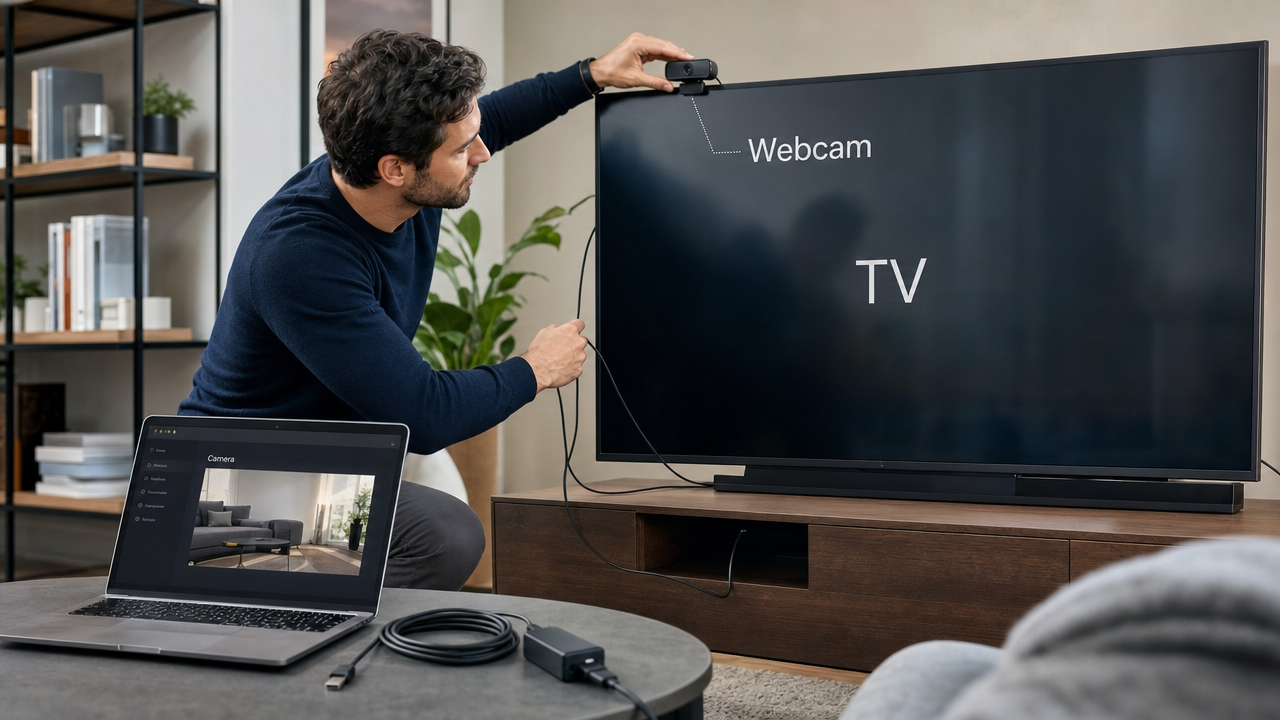
- Connect an HDMI cable from the camera’s HDMI-out port to the input on a USB capture card.

- Connect the capture card to your computer via USB.
- The capture card will enumerate as a UVC device, and your OS will recognize it without additional drivers in most cases.
- Power the camera using its AC adapter or a dummy battery to prevent automatic shutdown during long calls or streams.
- In your video app or OBS, select the capture card as the active camera source.
Pro Tip: The HDMI capture card route is generally more reliable and delivers a cleaner image than USB tethering, especially for cameras that lack dedicated webcam software support from the manufacturer.
Selecting Your External Camera in Video Call and Streaming Apps
Once your camera is connected and recognized by the operating system, you need to select it as the active input inside each application. If you are using the Lyra, it will appear as “Hollyland Lyra” in every app’s camera dropdown.
Zoom
- Open Zoom, click your profile icon, and select Settings from the menu.

- Select Video & effects from the left sidebar.

- Click the Camera dropdown at the top of the panel.

- Select “Hollyland Lyra” from the list.
- Confirm the preview pane updates to show the Lyra feed.
Microsoft Teams
- Open Microsoft Teams and go to Settings via your profile photo or the three-dot menu.


- Select Devices from the left panel.

- Under Camera, open the dropdown and select “Hollyland Lyra.”

- The preview thumbnail below the dropdown will update to confirm the selection.
Google Meet
- Before joining a call, select Settings (gear icon), then open the Video tab.

- In the Camera tab, click the dropdown menu and choose “Hollyland Lyra.”

- Confirm that the thumbnail preview updates to show the Lyra feed.
OBS Studio
- In the Sources panel at the bottom of the OBS interface, click the plus (+) icon.

- Select Video Capture Device from the source type list and name the new source.

- In the Properties window, open the Device dropdown and select “Hollyland Lyra.”

- Set the Resolution dropdown to match the output configured in HollyStudio. For example, select 1920×1080 if you set 1080p60 in the Lyra settings.

- Set the FPS value to match your HollyStudio selection (30 or 60).

- Click OK to confirm. The Lyra feed will appear in the OBS canvas, ready for scenes and streaming.
Troubleshooting: Camera Not Recognized or Poor Video Quality
Most recognition and quality issues come down to the wrong USB port, a mismatched resolution setting, or an app conflict. Work through the table below before changing cables or reinstalling software.
| Problem | Likely Cause | Fix |
|---|---|---|
| Camera does not appear in app dropdown | App launched before camera was connected; USB port is the wrong type | Restart the app after connecting the camera; switch to a USB 3.0 port; avoid USB hubs |
| Image is blurry or appears low resolution | App defaulted to a low-resolution fallback mode | In HollyStudio, confirm the resolution is set to 1080p or 4K, not an auto-downgrade value |
| Lag or dropped frames during calls | Insufficient USB bandwidth at 4K30 | Switch from 4K MJPEG to 1080p60 in HollyStudio; confirm you are using a USB 3.0 port |
| AI tracking overshoots or jumps erratically | Tracking sensitivity is too high for the environment | In HollyStudio, reduce the Tracking Sensitivity slider, or disable tracking for static setups |
If the Lyra’s LED indicator blinks instead of staying steady, this typically signals a connection issue. Disconnect the camera, wait a few seconds, and reconnect it to a different USB 3.0 port to let the OS re-enumerate the device cleanly.
Frequently Asked Questions
Does using an external camera as a webcam require installing drivers?
Purpose-built webcams like the Hollyland Lyra use the UVC standard and require no driver installation on Windows 10/11 or macOS. Capture cards also enumerate as UVC devices for the same reason. Some older DSLRs need the maker’s webcam software for USB streaming. Certain cameras may also require a specific utility. Many newer mirrorless cameras support UVC/UAC through USB. This lets them stream video without installing additional software.
Can I use an external camera as a webcam on a laptop with only USB-A ports?
Yes. Use the USB-C to USB-A adapter cable included with the Lyra, or connect through a USB hub. For stable 4K MJPEG output, connect to a USB 3.0 port, which is typically identified by a blue tab inside the connector on most laptops.
Will an external webcam work in both Zoom and OBS at the same time?
Most operating systems allow only one application to access a physical camera at a time. Windows 11 can let several apps access one physical camera. This requires enabling “Allow multiple apps to use camera at the same time.” You can find this option in the system’s advanced camera settings. For OBS scenes, first add your webcam as the video source. Include your layouts, overlays, and color corrections in OBS. Then click Start Virtual Camera in the OBS control panel. In Zoom or Teams, choose OBS Virtual Camera as the video input.
How do I get 4K output from the Lyra in Zoom?
Zoom limits its own live video output below 4K regardless of camera input. But you can capture and record at 4K using HollyStudio’s recording mode. For streaming platforms that accept 4K input, set the Lyra to 4K MJPEG in HollyStudio and confirm that your destination platform supports that resolution.
Does the Hollyland Lyra work on Chromebook?
The Lyra is UVC-compliant, and Chromebooks support UVC cameras natively, so basic webcam functionality should work without additional setup. HollyStudio Pro is currently available for Windows and macOS only, so full configuration of AI controls, resolution switching, and AI tuning requires a Windows or Mac host.
Conclusion
Using an external camera can range from simple to complex. The process depends on the camera you already own. A basic USB-C connection can take about thirty seconds. Other setups may need several hardware connection steps. The Hollyland Lyra keeps the setup process simple. Connect it through USB-C to your computer. Its UVC driver handles camera recognition automatically. You can then focus on framing and resolution settings. There is no need to troubleshoot camera compatibility. If you want a zero-driver setup without a capture card, choose Lyra. Visit the Hollyland Lyra product page for complete specifications.