.png)
 简体中文
简体中文 
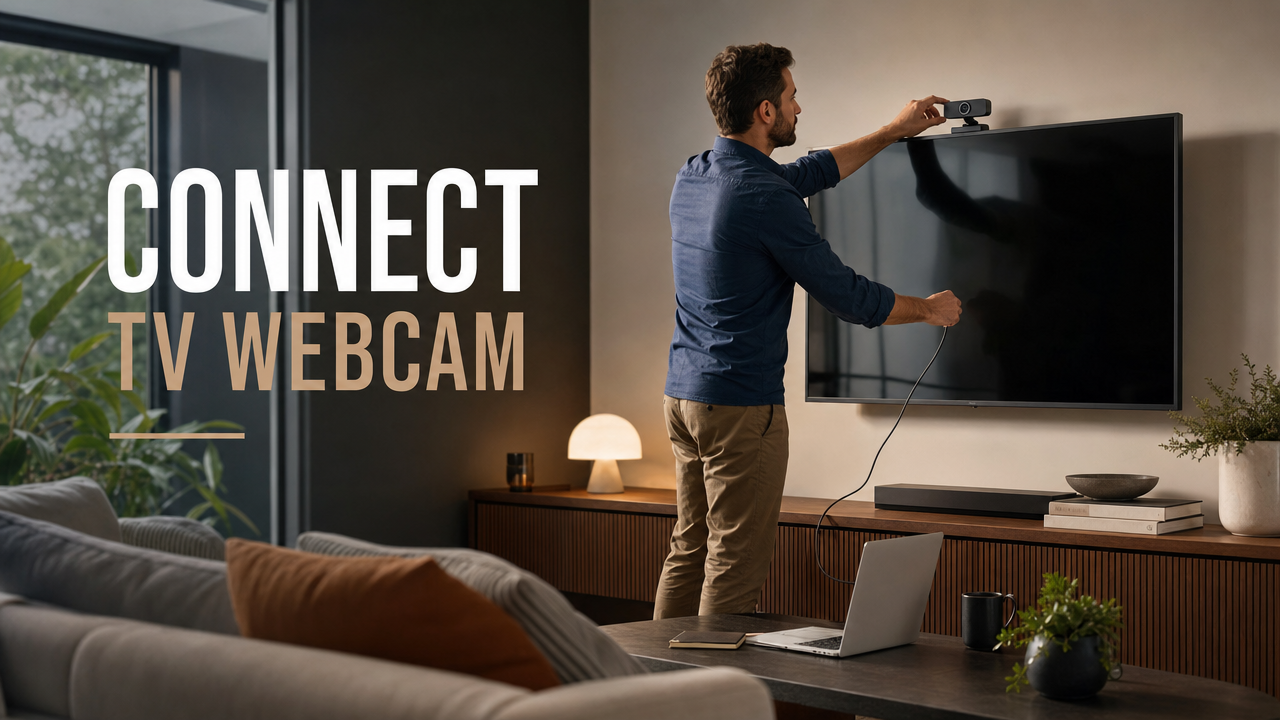
Getting your webcam feed onto a TV screen is more useful than it sounds. Whether you want Zoom in your living room or a conference room, setup is simple. You can also preview a live stream on a large screen. The guide begins with the most reliable method. It then covers the easiest option. You will also find solutions for common connection problems.
What You Need Before You Start
Most standard televisions cannot accept live webcam video directly. A TV’s USB port is typically designed for storage devices like flash drives, not live webcam video input. That means you’ll need a computer or a compatible Smart TV app in nearly every setup.
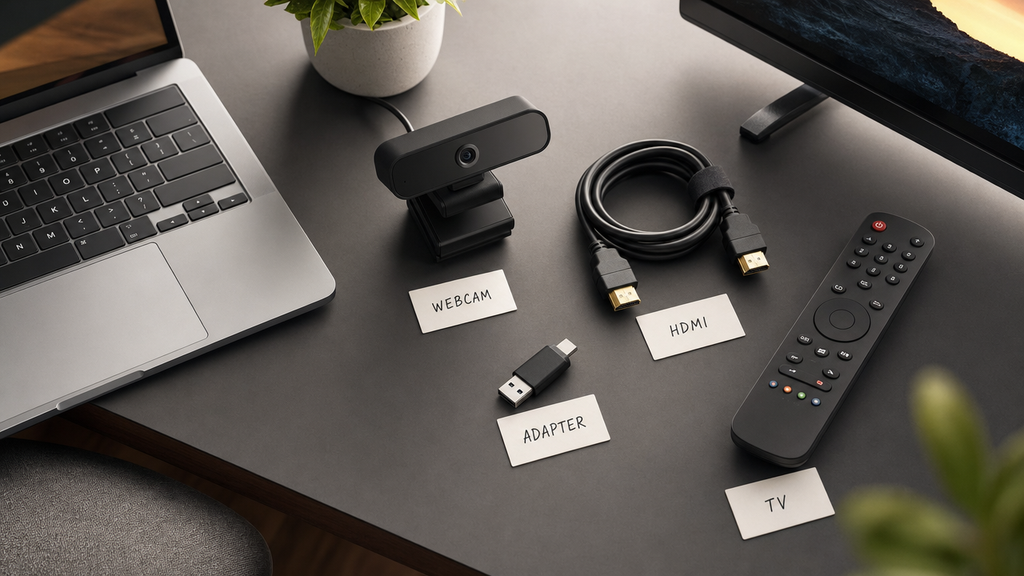
Here is what you need depending on the method you plan to use:
For Method 1 (Webcam to Computer to TV via HDMI):
- A USB-C webcam such as the Hollyland Lyra
- A laptop or desktop PC running Windows 10/11 or macOS
- An HDMI cable
- A USB-C to USB-A adapter if your computer only has USB-A ports
- HollyStudio software (free download from Hollyland)
For Method 2 (Webcam directly to Smart TV):
- A UVC-compliant USB-C webcam (the Lyra outputs UVC MJPEG and UVC NV12)
- A Samsung or LG Smart TV with a built-in Microsoft Teams app
- A USB-C to USB-A adapter (most TV USB ports are USB-A)
Note: Check your TV’s product manual or support page before attempting Method 2. Smart TV USB webcam support is model-specific and far from universal.
Method 1: Connect Your Webcam to a TV via a Computer and HDMI (Recommended)
This is the most reliable method and works with any TV that has an HDMI input, which covers virtually every television made in the last fifteen years. The computer handles all video processing; the TV acts only as an external display. All steps below use the Hollyland Lyra as the demonstration webcam.
Step 1: Mount and Connect the Hollyland Lyra to Your Computer
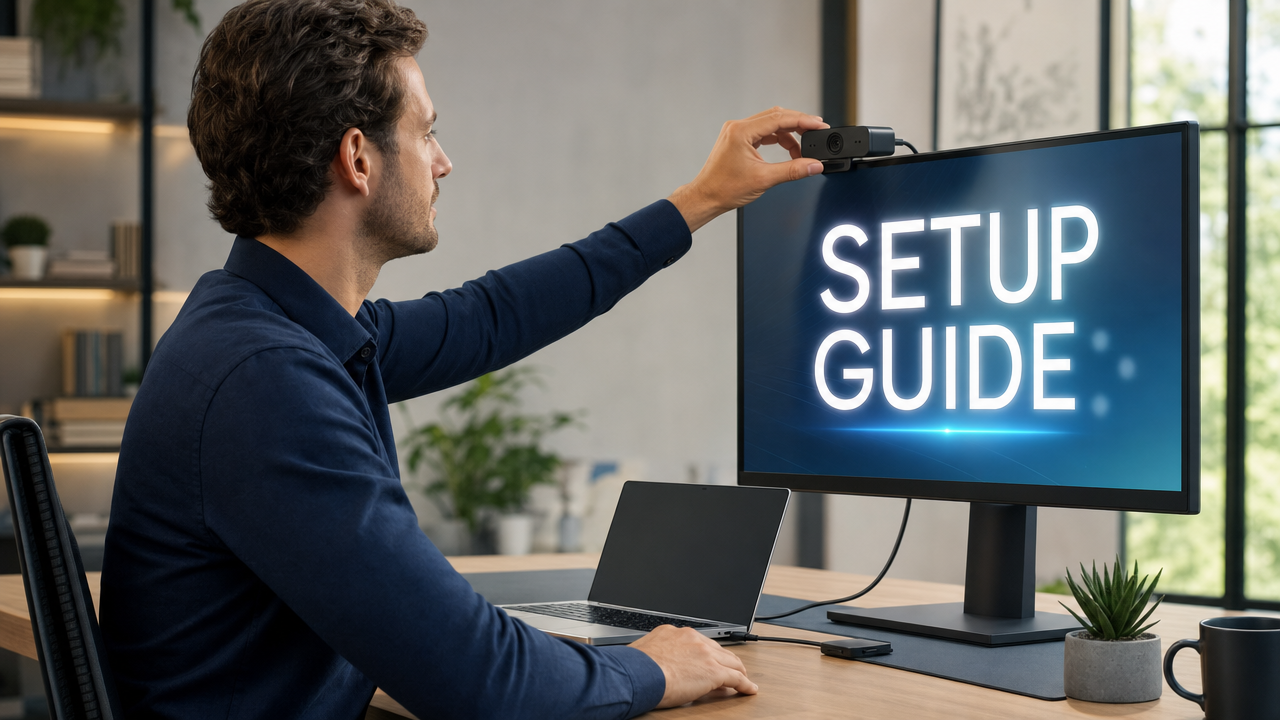
- Position the Lyra. Clip the Lyra to the top of your laptop screen bezel using the built-in monitor-mount clip, or place it on a desk surface or tripod using its flat base. Confirm the lens is aimed clearly at the subject.
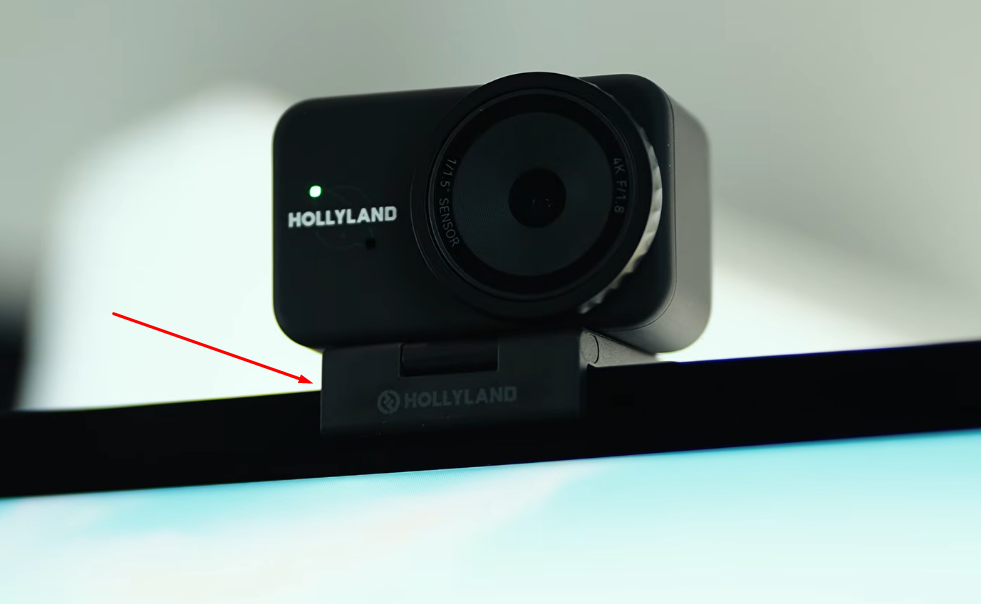
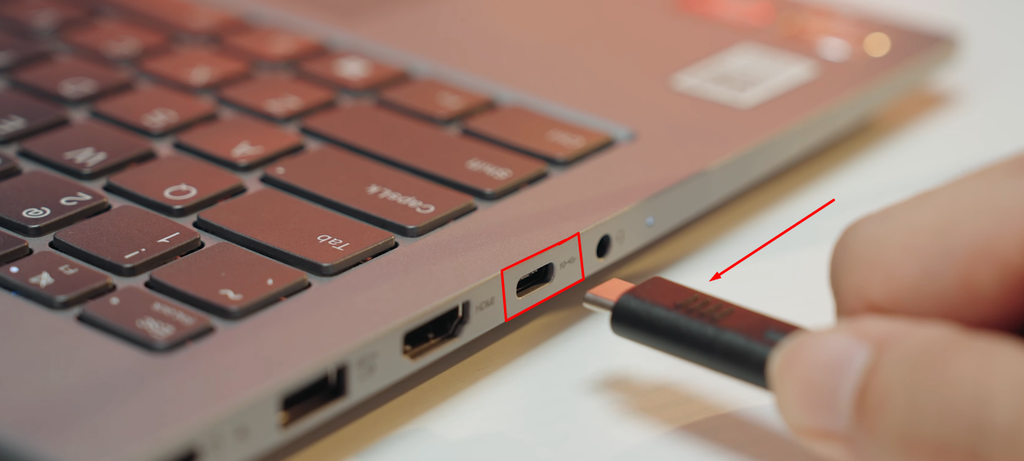
- Connect the USB-C cable. Plug one end into the USB-C port on the rear of the Lyra body and the other end into your computer’s USB-C port.

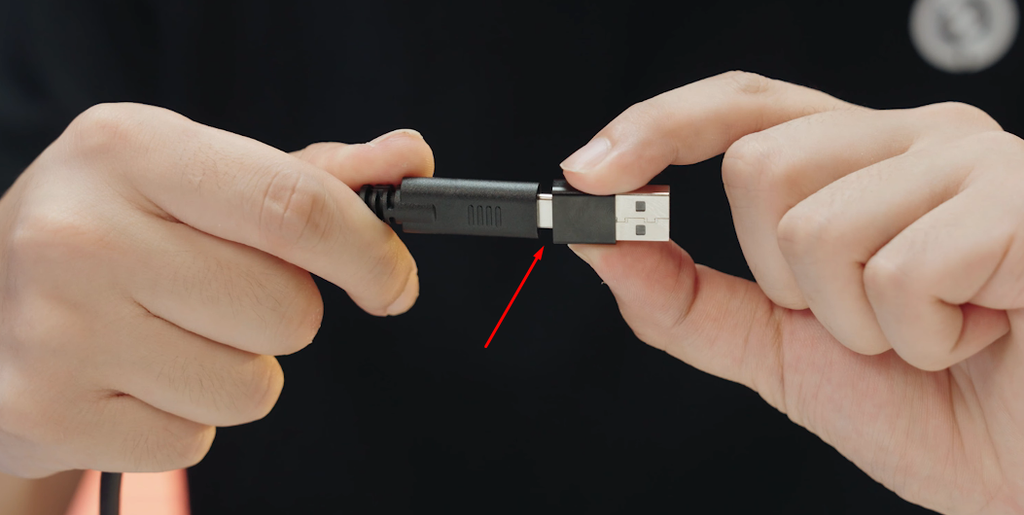
If your laptop only has USB-A ports, attach the included USB-C to USB-A adapter first.
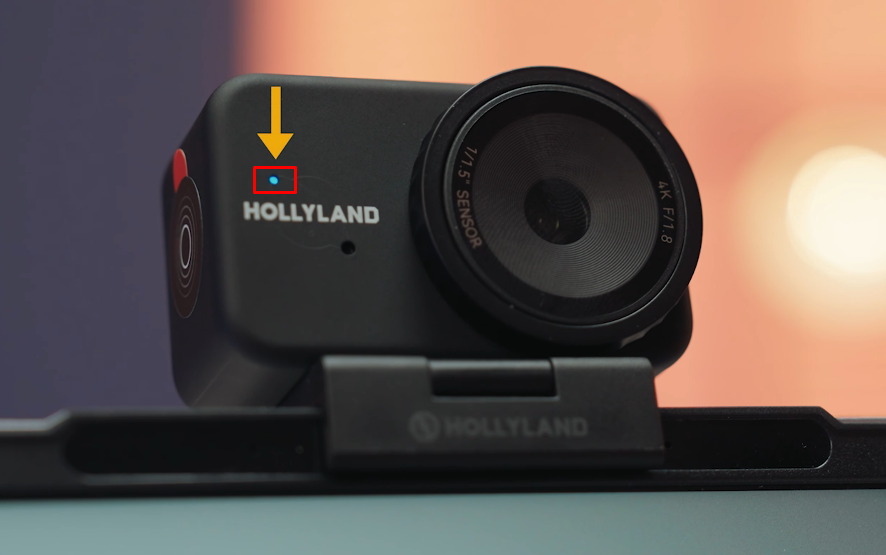
- Check the LED indicator. The Lyra’s LED should illuminate solid blue within a few seconds, confirming the device is powered, recognized, and ready to use. If the LED blinks rapidly, the device is still initializing; wait up to 10 seconds before taking further action. No light at all means the camera is not receiving power. Try a different port or cable.
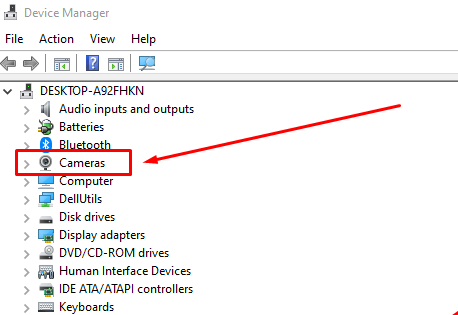
- Verify recognition on Windows. Open Device Manager and expand the Cameras section. “Hollyland Lyra” should appear without a yellow warning icon.
Alternatively, go to Settings, then Bluetooth & Devices, then Cameras.
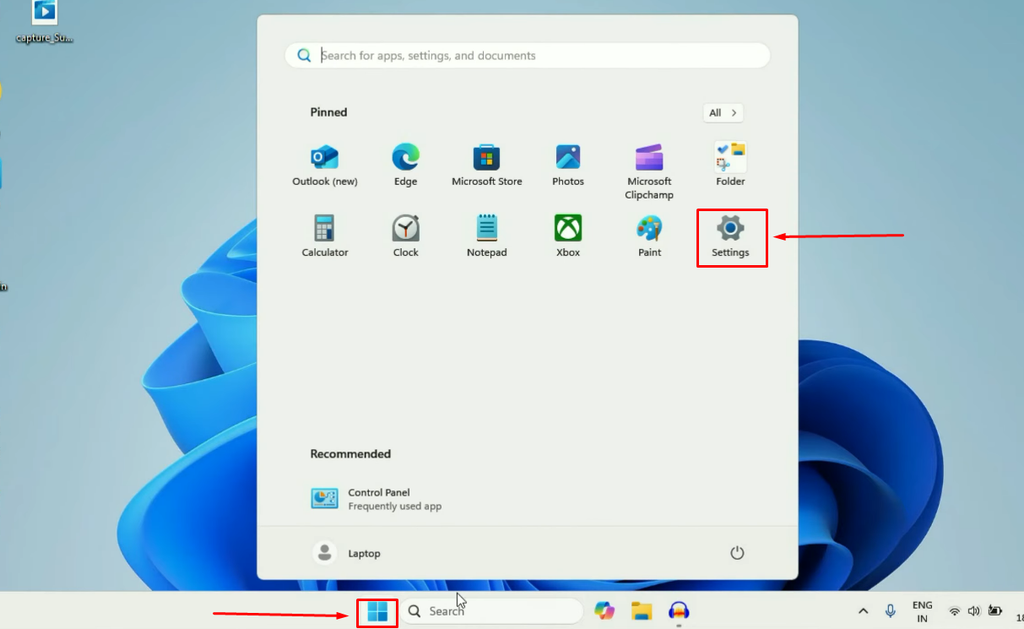
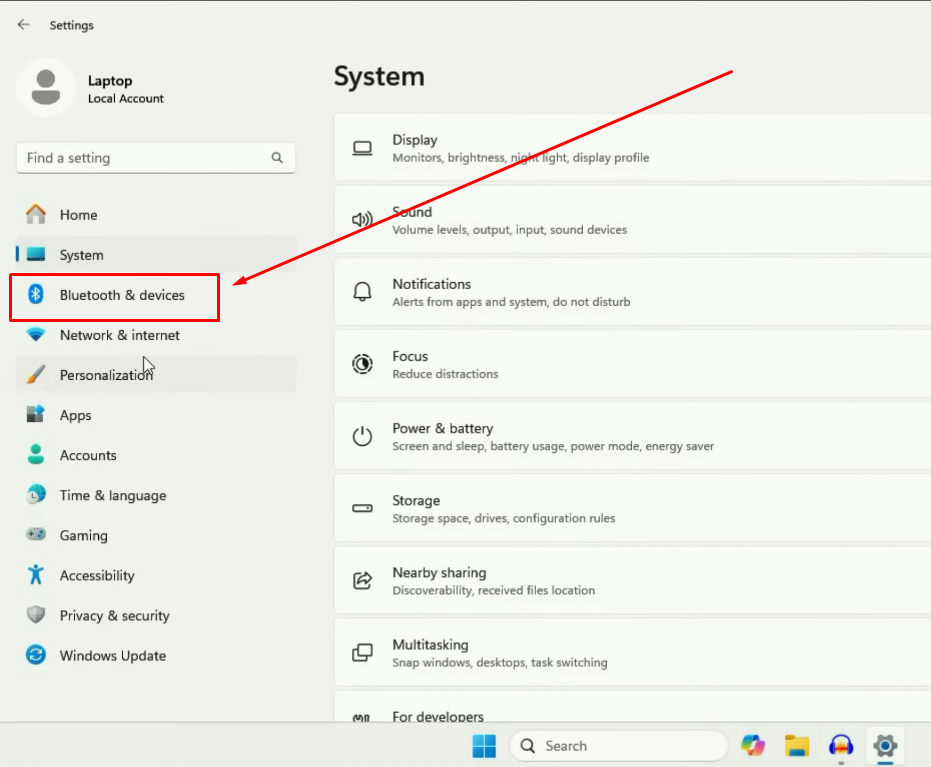

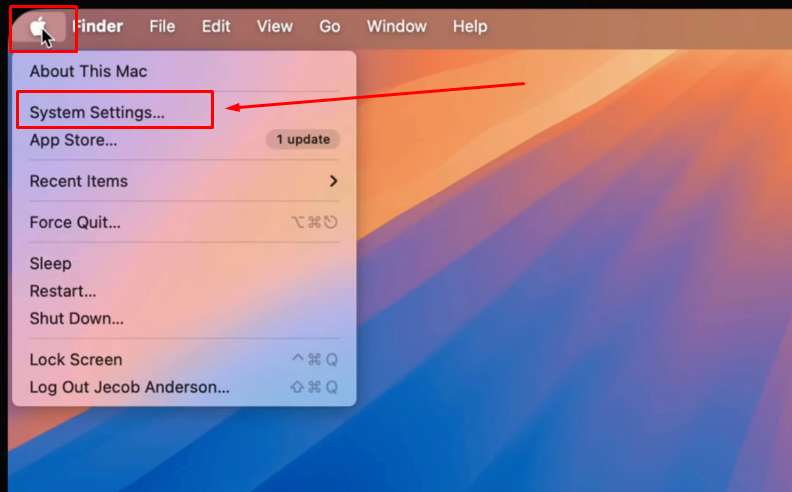
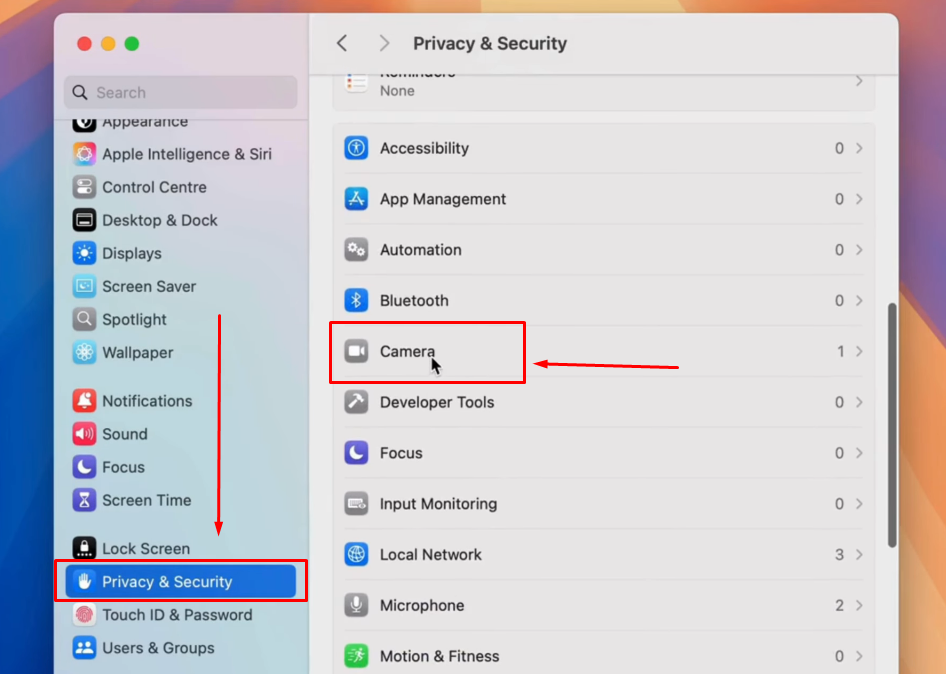
- Verify recognition on macOS. Open System Settings, then Privacy and Security, then Camera. “Hollyland Lyra” will be listed as a recognized device. No driver installation is required. The Lyra is a fully plug-and-play UVC device on both Windows 10/11 and macOS.
Step 2: Connect Your Computer to the TV via HDMI
- Run the HDMI cable. Connect one end to the HDMI output port on your laptop or desktop PC and the other end to any available HDMI input port on the TV.
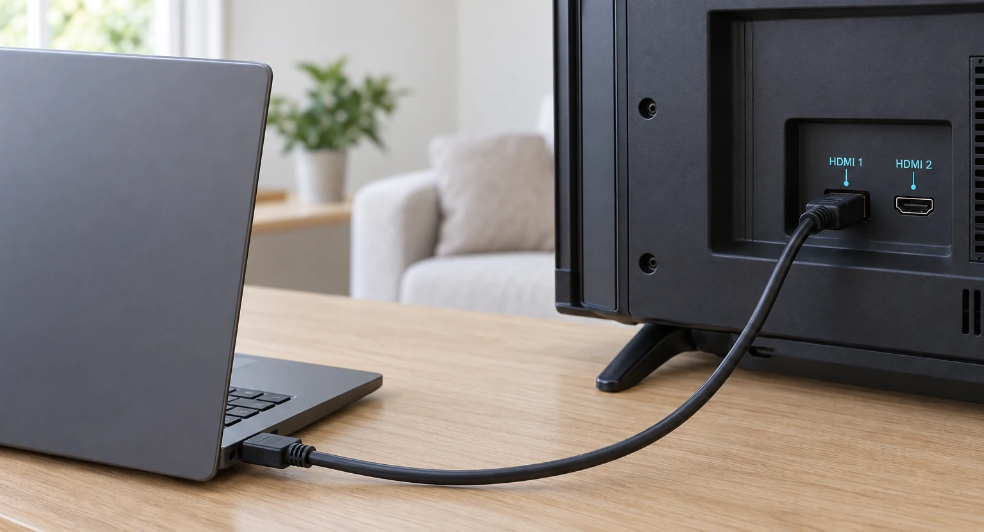
- Select the correct HDMI input on the TV. Use the TV remote to cycle through inputs (HDMI 1, HDMI 2, HDMI 3) until your computer desktop appears on screen.
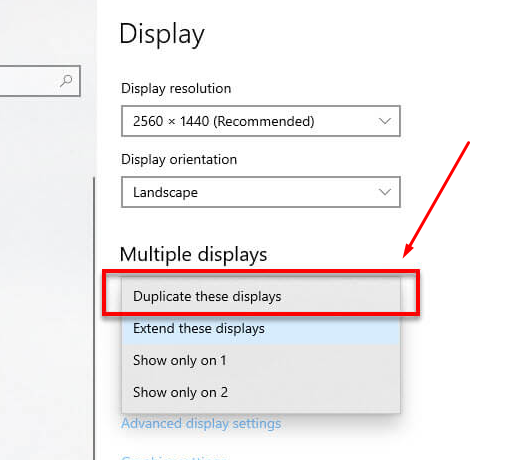
- Set the display mode on Windows. Right-click an empty area of the desktop and select Display Settings. Under the Multiple Displays dropdown, choose Duplicate these displays to mirror your screen on both the laptop and the TV. This is the right choice for most webcam-to-TV scenarios, including video calls and stream previews. Choose Extend these displays only if you want the TV to function as a separate second monitor.
- Set the display mode on macOS. Go to System Settings, then Displays. Select your TV from the list of connected displays. Then click the “Use as” pop-up menu, and choose the mirror option for your main display.
Step 3: Configure Lyra Output in HollyStudio
- Open HollyStudio. Launch the desktop application. The device header should display “Hollyland Lyra Connected.” If it shows “No Device Connected,” close the app, unplug and replug the USB-C cable, and reopen the app.
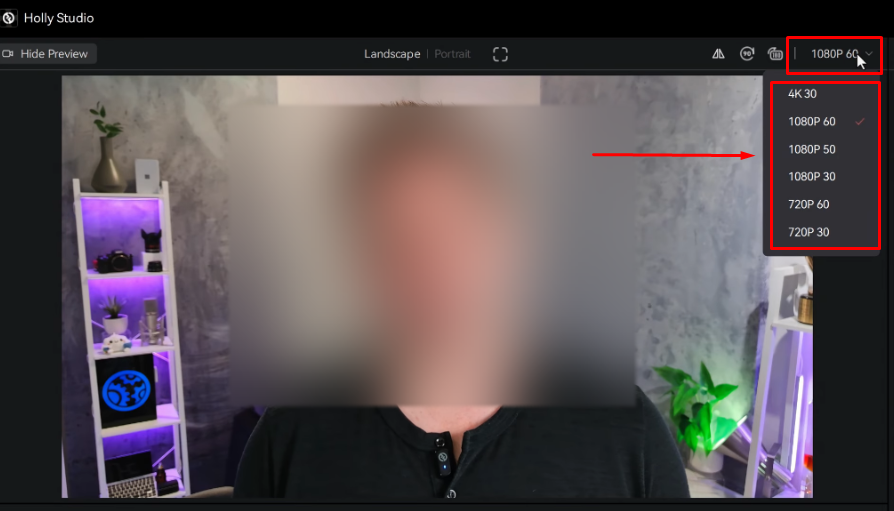
- Set the output resolution. Go to the Resolution dropdown above the preview window. Select 3840 x 2160 at 30 fps for a 4K TV, or 1920 x 1080 at 60 fps for a standard 1080p TV. Setting a resolution below the TV’s native panel resolution is the most common cause of a blurry image on a large screen.
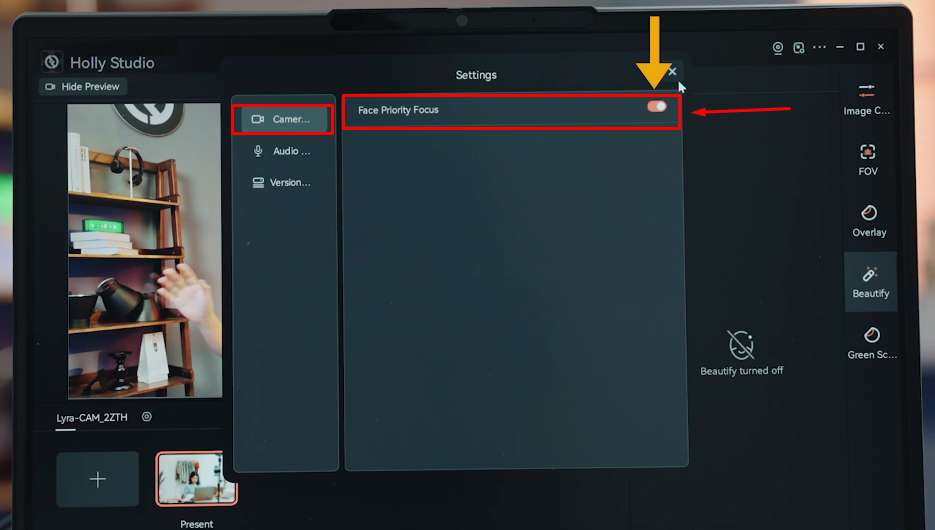
- Enable AI Tracking and Smart Auto Framing. Click the frame icon on the top of the preview window. Once it is activated, a padlock symbol will appear between the frame icon.

Next, click the gear icon below the preview window to open Settings. From there select “Camera Settings” and toggle on the Face Priority Focus option.
For more better framing, enable the Smart Auto Framing function. To do that, go to the FOV page. Scroll down to the Smart Framing section, deselect the “None” tile, and select the “Image” tile next to None.
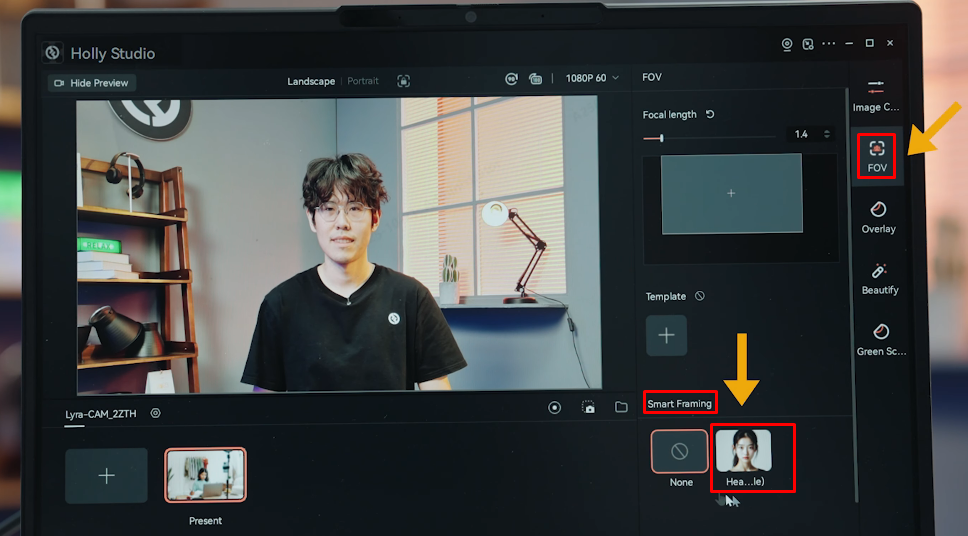
When a large TV is the primary display, subjects tend to move more freely around the room. AI Tracking and Auto Framing keeps the subject centered and in frame automatically.
- Adjust Digital Zoom. Use the 1x to 4x digital zoom via the Focal Length slider on the Image Control page of the HollyStudio app. A wider setting closer to 1x generally works best for living-room calls where more than one person may be on screen.
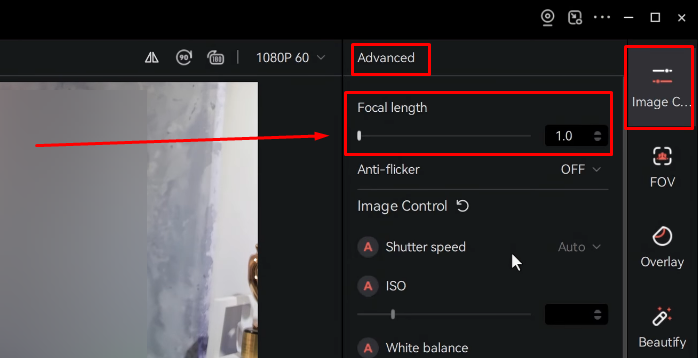
- Set White Balance. Use the manual White Balance slider or press the auto function represented by “A” to match your room lighting.
- Adjust Exposure. If the preview looks dark, drag the Exposure (EV) slider to the right to increase brightness. Avoid pushing it so far that bright highlights lose visible detail. The Lyra’s F/1.8 aperture and 1/1.5” CMOS sensor handle low light well, so persistent darkness is almost always an in-app exposure setting that needs to be raised.

- Select the Lyra in your video app or OBS. Open Zoom, Google Meet, Microsoft Teams, or OBS Studio. In the video or camera source settings, select “Hollyland Lyra” from the camera dropdown. The live feed will now pass through the computer and appear on your TV via the HDMI connection from Step 2.
Method 2: Connect a Webcam Directly to a Smart TV via USB
Certain Smart TV models from Samsung and LG include built-in Microsoft Teams applications that support UVC-compliant webcams plugged directly into the TV’s USB port. This method removes the need for a computer entirely, but it is strictly model-dependent.

- Confirm your TV supports USB webcams. Check the TV’s specification sheet or the manufacturer’s support page for Teams or Skype app availability and external camera compatibility before proceeding.
- Connect the Lyra to the TV. Attach a USB-C to USB-A adapter to the Lyra’s USB-C port and plug the adapter into one of the TV’s USB-A ports.
- Check the LED indicator. A solid blue LED confirms the TV’s USB port is supplying power and has recognized the Lyra as a UVC device. No light or a rapid blink indicates the port is either storage-only or is not providing sufficient power.
- Open the video call app from the TV home screen. Navigate to Microsoft Teams from the Smart TV’s app menu. Do not try to detect the webcam from the home screen or a general settings menu; most Smart TVs scan for UVC devices only when a supported app is actively open.
- Select the camera within the app. Inside the app’s device or settings section, find the Camera or Video options. The Lyra should appear as “USB Camera” or “Hollyland Lyra.” Select it.
- Grant camera and microphone permissions if the TV’s operating system displays a permission prompt.
Note: The Lyra outputs UVC MJPEG (up to 4K30) and UVC NV12 (up to 1080p60), both of which comply with the UVC standard that Smart TV video call apps rely on. However, Hollyland does not officially certify the Lyra for specific Smart TV models. Confirm compatibility through your TV’s documentation before relying on this method.
Method 3: Other Ways to Display Webcam Video on a TV (Brief Overview)
Two additional connection paths exist for edge cases where neither Method 1 nor Method 2 applies.
- Wireless screen mirroring: Once the Lyra is connected to your laptop via USB-C, you can mirror the laptop screen to the TV wirelessly using Miracast on Windows or AirPlay on macOS, removing the need for a physical HDMI cable. The trade-off is latency. Wireless mirroring introduces enough delay to make audio and video feel out of sync during calls, so this option is best reserved for situations where running an HDMI cable is genuinely impractical.
- Dedicated video calling hardware: Conference room systems such as Google Meet hardware bars or Microsoft Teams Rooms devices have integrated cameras and connect directly to a room display. These purpose-built solutions are suited to commercial meeting room installations, not typical home setups.
Troubleshooting: Webcam Not Showing on Your TV
TV Shows “No Signal” After HDMI Connection
- Press the Input or Source button on your TV remote and cycle through all HDMI inputs to locate the one the cable is plugged into.
- Try connecting the HDMI cable to a different TV port. Some ports are designated for ARC or eARC audio return and may not display standard video input from a computer.
- Open Display Settings on your computer and confirm the TV is detected as a second display. If it is not listed, click the Detect button on Windows or reconnect the HDMI cable on macOS to trigger a re-scan.
- Test the connection with a different HDMI cable to rule out a cable fault before assuming a port or settings problem.
Webcam Not Recognized by Computer
- Unplug the USB-C cable and firmly reconnect it.
- Try a different USB port on the computer.
- Replace the USB-C cable with a second cable and confirm the replacement is data-capable. Charge-only USB-C cables carry power but do not transmit data signals, which is a common cause of this problem.
- On Windows, open Device Manager. If “Hollyland Lyra” appears under Cameras with a yellow warning icon, right-click it, select Uninstall Device, disconnect the camera, and reconnect it to re-trigger plug-and-play detection.
- On macOS, go to the Apple menu, select System Settings, click General > About. Then click System Report.
- If HollyStudio displays a “No Device Connected” or “Camera Not Found” message, close the app fully, disconnect the USB-C cable, reconnect it, and reopen the app. The application requires a fresh connection event to detect the camera.
- For 4K output specifically, confirm you are using a USB 3.0 port. A USB 2.0 connection can pass the UVC MJPEG stream at 4K30, but bandwidth limitations on some older USB 2.0 ports may cause issues at higher resolutions.
Webcam Feed Looks Blurry or Dark on the TV Screen
For a blurry image:
- Open HollyStudio
- Open the Resolution dropdown. If the resolution is set to 720p, the image will appear visibly soft on any TV larger than 32 inches.
- Set the resolution to 1920 x 1080 at 60 fps as a minimum. For TVs 43 inches or larger, select 3840 x 2160 at 30 fps for the sharpest output.
For a dark image:
- In HollyStudio, locate the Exposure slider and move it to the right to increase brightness. Stop before bright areas of the frame lose visible detail.
- If the Exposure slider is already near its maximum and the image is still dark, check that room lighting is directed at the subject rather than coming from behind.
- Open the White Balance slider to adjust lighting. An incorrect white balance can make a well-exposed image appear flat or oddly tinted, which reads as dim on a large screen.
Note: The Lyra’s F/1.8 aperture and 1/1.5” CMOS sensor are designed for solid low-light performance. If the image remains dark after raising the Exposure value in HollyStudio, the issue is almost always the in-app setting rather than a hardware limitation.
FAQs
Can I connect a webcam to a TV without a computer?
Most TVs cannot accept a webcam directly, so a computer is required for standard televisions. The exception is certain Samsung and LG Smart TV models with built-in communication apps that expose UVC driver support through their USB ports. Compatibility is strictly model-specific, so check the TV’s specification sheet before assuming this option is available on your device.
Does running webcam video through an HDMI connection reduce quality?
No. HDMI carries the computer’s display output as a lossless signal. Output quality is determined entirely by the webcam’s resolution and the settings inside HollyStudio or your video call application, not the HDMI cable itself. The Lyra outputs up to 4K30 via UVC MJPEG, which delivers full detail on any 4K TV when the resolution is configured correctly in the app.
Can I use this setup for Zoom or Google Meet calls on the TV?
Yes. In Method 1, the video call runs on the computer while the TV mirrors the laptop display. Open Zoom or Google Meet, navigate to the video or camera settings, and select “Hollyland Lyra” as the camera source. The complete meeting interface, including your webcam feed and other participants, will appear on the TV screen through the HDMI connection.
Why does my Smart TV not recognize the webcam via USB?
Smart TV USB webcam support is limited to specific models and apps. Verify your TV model includes Teams and Zoom, and lists external camera support in its specification sheet. Confirm your webcam is UVC-compliant. Also make sure you are inside the video call app when you plug in the webcam; Smart TVs typically scan for UVC cameras only within a supported app context, not from the home screen or general settings menus.
Conclusion
For any TV in any room, Method 1 is the safest way. All you need to do is connect the Hollyland Lyra to your computer via USB-C, set the output resolution and AI Tracking in HollyStudio, and mirror the display to the TV over HDMI. Method 2 works as a cleaner, no-computer option when your Smart TV model explicitly supports USB webcams through a built-in video call app. Visit the Hollyland Lyra product page to review full specifications and get started.