.png)
 简体中文
简体中文 
If your video calls or streams make straight walls curve and faces at the frame edge appear stretched, your webcam’s wide-angle lens is producing barrel distortion, commonly called the fisheye effect. The good news is you do not need new hardware to fix it. Whether you use OBS, Zoom, Teams, or a dedicated webcam app, at least one of the four methods below corrects the distortion in real time with no editing experience required.
Why Your Webcam Produces a Fisheye Effect
Most consumer webcams use wide-angle lenses with fields of view between 90° and 120°. The short focal lengths required for that wide perspective introduce barrel distortion: straight lines near the frame edges bow outward, making walls curve and faces near the periphery appear stretched.
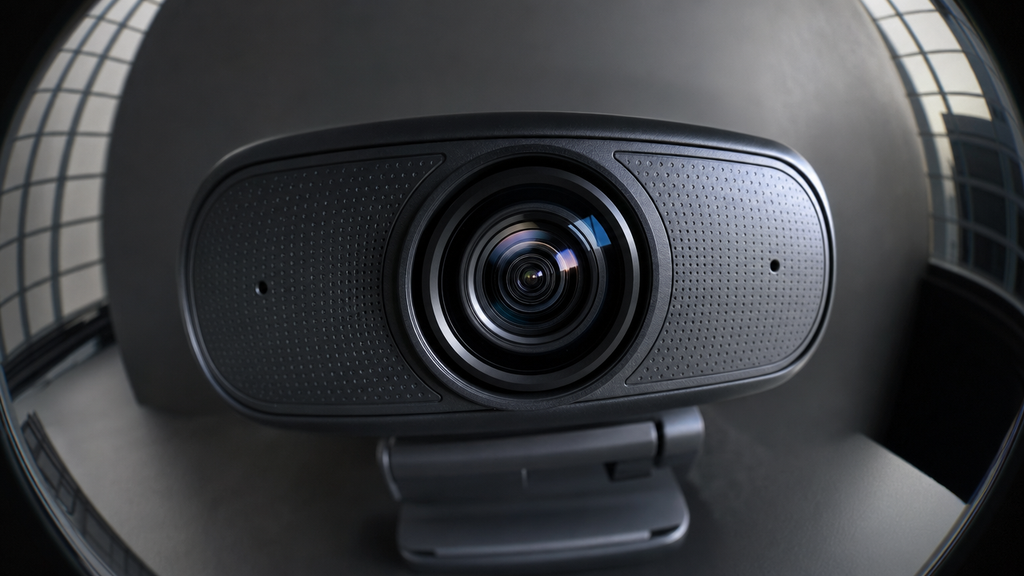
This is a predictable optical characteristic, not a malfunction. It is most pronounced on budget models with inexpensive plastic optics. Every fix in this guide counteracts that outward bowing through pixel remapping, edge cropping, or selecting hardware with a narrower field of view from the start.
Fix 1: Apply the Lens Correction Filter in OBS Studio
OBS Studio does not have a built-in filter for lens correction. You can add one through community scripts or plugins. For example, Lenscorrector Professional can correct the fisheye effect.
- First, download the third-party script or plugin. Place its files inside your OBS scripts folder.
- Next, open OBS Studio and go to Tools > Scripts. Click the + icon and load the script.
- Make sure your webcam appears as a Video Capture Device source. This source must be part of your active scene.
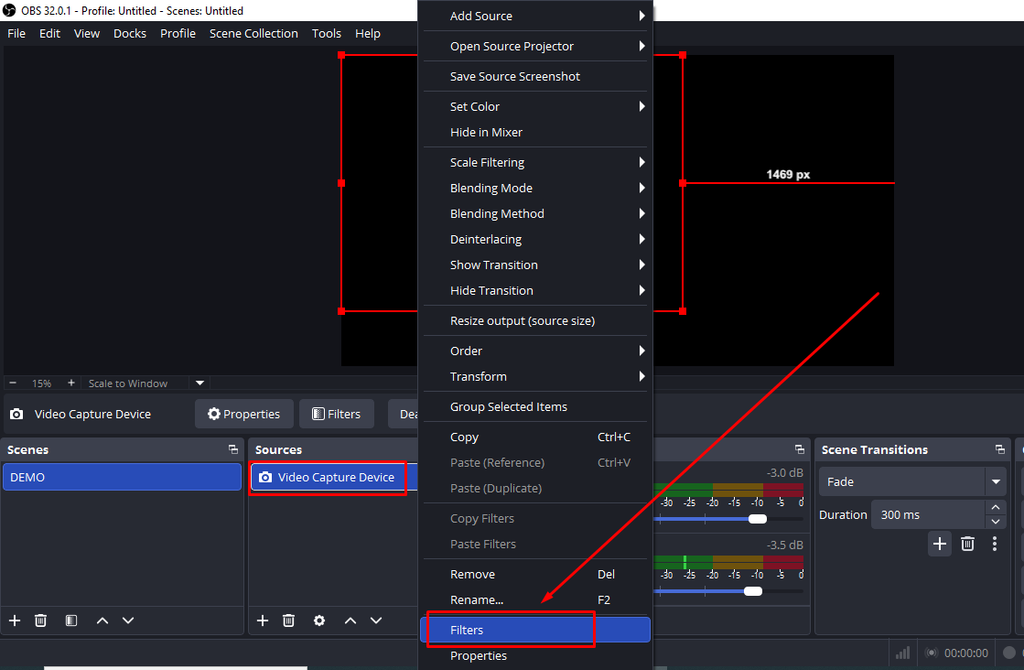
- Right-click the webcam source in the Sources panel. Then select Filters from the menu.
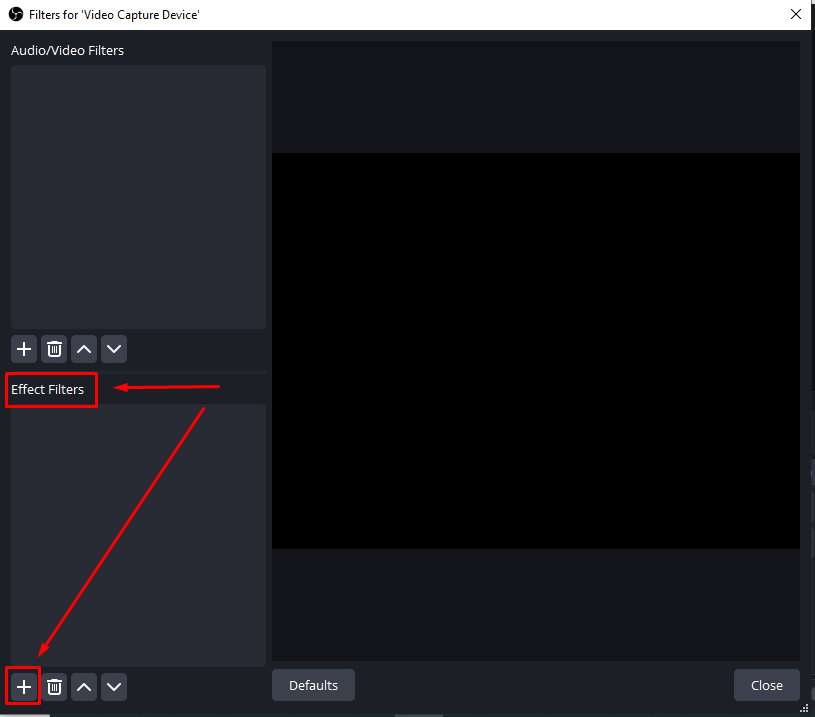
- In the Filters window, find Effect Filters and click the + icon. Select Lenscorrector Professional or your installed filter.
- Adjust the distortion settings or pick your lens focal length preset. Move the sliders while checking the OBS preview. Stop when the horizontal and vertical lines look straight.
- Close the Filters window once the correction looks right.
The correction applies immediately to recordings and live streams. It also applies to the OBS virtual camera output. Your correction settings will stay active between OBS sessions.
Note: We are not promoting any third-party tool here. The OBS Lens Correction tool above comes from an OBS Forum recommendation. We cannot confirm whether the tool is safe to use.
Fix 2: Use Digital Zoom to Crop Out the Distorted Edges
Barrel distortion concentrates at the outer edges of a wide-angle frame and is barely noticeable at the center. Applying a moderate digital zoom, from 1x to approximately 1.5x–2x, crops those heavily distorted edges out of the visible area entirely. The result is a naturally flat image with no filter math, no additional pipeline, and no third-party software required. This fix lives inside the webcam’s own companion app and corrects the image before the signal ever reaches OBS, Zoom, or any other application.
The steps below demonstrate the technique using the Hollyland Lyra and its companion software, HollyStudio.
- Connect the Lyra to your computer using the included USB-C cable. The camera operates as a standard UVC device and is recognized immediately by Windows and macOS with no driver installation required.


- Launch HollyStudio on your Mac or Windows PC.
- In the main camera control panel, locate the Focal Length slider on the Image Control Page for digital zoom control. The Lyra supports a range of 1x to 4x digital zoom.

- Drag the Focal Length slider from 1x to approximately 1.5x–2x. Watch the live preview in HollyStudio as you adjust. The bowed horizon line and any stretched faces near the frame edges should visibly flatten as the outer distortion zone is cropped away.
- At the Lyra’s native 82° FOV at 1x, barrel distortion is already less pronounced than on typical 100°–120° budget webcams, a direct result of its 26mm equivalent focal length and F/1.8 quality optics. At 1.5x–2x zoom, the remaining distortion becomes imperceptible for most call and streaming use cases.
- Confirm in HollyStudio’s Resolution dropdown above the preview window that the output resolution remains at 1920×1080 at 30 or 60 fps in the UVC stream. Modest zoom levels do not cause a noticeable quality penalty when the underlying sensor provides 50MP of resolution headroom.

- Apply or save the setting. HollyStudio retains the zoom level across sessions, so the correction persists automatically each time you connect.
Pro Tip: If you use the Lyra as a source inside OBS, configure your preferred zoom level in HollyStudio first, then launch OBS. OBS receives the pre-cropped UVC stream, which means you can skip the Lens Correction filter entirely for mild to moderate distortion cases.
Why This Works: FOV, Focal Length, and Distortion
A lower field of view means a longer equivalent focal length, which means the lens captures a narrower cone of light with less peripheral stretching. The Lyra’s 82° FOV and 26mm equivalent focal length already place it in the moderate-wide, low-distortion category. Applying 1.5x–2x digital zoom shifts the effective perspective further toward a natural portrait and conversation framing, where barrel distortion is barely perceptible during a live call or stream.
Fix 3: Check Your Webcam’s Native Driver or OS Camera Settings
Some webcams ship with OEM software that includes zoom, framing, or limited distortion controls worth checking before turning to a third-party tool.
- Logitech webcams: Logitech G HUB, Logi Options+, and Logi Tune include FOV and zoom adjustments. Models with RightSight auto-framing crop the frame dynamically, which reduces visible edge distortion as a side effect.
- Dell webcams: Dell Peripheral Manager may expose zoom and framing controls depending on the specific model.
Most users will not find a dedicated distortion slider in OEM software unless their webcam includes a full companion app. If your software does not expose distortion controls, Fix 1 or Fix 2 will be more effective.
Fix 4: Reduce Fisheye at the Source by Choosing the Right Webcam
Software corrections work well, but they are workarounds for a hardware limitation. Webcams with a field of view between 78° and 85° and quality optics produce significantly less barrel distortion out of the box, often eliminating the need for correction entirely.

The Hollyland Lyra illustrates this approach. Its 82° FOV and 26mm equivalent focal length place it in the moderate-wide, low-distortion range. The F/1.8 aperture and 1/1.5” CMOS sensor with 50 megapixels of effective resolution reflect optical quality that budget plastic-lens webcams cannot match at the same tier. The built-in 1x–4x digital zoom in HollyStudio means any residual edge distortion can be handled within the Lyra’s own ecosystem, with no OBS pipeline or additional tools required. USB-C plug-and-play operation adds no driver friction to the upgrade path.
When selecting a webcam for minimal distortion, look for a FOV of 85° or less, an equivalent focal length in the 24–28mm range, and an aperture of F/1.8 or better as a quality indicator beyond the spec-sheet numbers.
Frequently Asked Questions
Is fisheye distortion the same as barrel distortion on a webcam?
Practically yes. “Fisheye effect” in the context of consumer webcams refers to barrel distortion: straight lines bow outward toward the frame edges. True fisheye is an intentional extreme-wide optical design used in specialty lenses. What most webcam users experience is unwanted barrel distortion from a budget wide-angle lens, not a true fisheye optical design.
Does lowering the FOV setting fix the fisheye effect?
Reducing FOV, either by switching to a narrower-angle camera or applying digital zoom, does reduce barrel distortion because it crops the outer edge zone where distortion is most severe. It does not mathematically remap pixels the way OBS Lens Correction does, but the cropped result is perceptually flat for most video call and streaming purposes.
Can I fix the fisheye effect in Zoom without installing OBS?
Yes. Zoom’s Video Settings do not include lens correction tools. They also do not provide a camera zoom slider. You can instead adjust the camera through its own software. For example, using the Hollyland Lyra’s HollyStudio companion app. Your computer’s camera controls may also provide similar options. Set the camera’s Field of View (FOV) to a narrower level. You can also zoom in through the camera’s software. This crops out distorted edges around the wide-angle lens. The adjustment happens before the video reaches Zoom.
Will digital zoom reduce my image quality when fixing fisheye?
At modest zoom levels of 1.5x–2x, the quality impact on a high-resolution webcam is minimal when the base resolution is 1080p or higher. The Lyra’s 50MP sensor provides significant resolution headroom, so cropping to 1.5x still outputs a clean 1080p UVC stream with no perceptible softening at normal viewing distances.
Which type of webcam produces the least fisheye distortion?
Webcams with a 78°–85° FOV and a quality optical element produce the least barrel distortion. Look for an equivalent focal length in the 24–28mm range and an aperture of F/1.8 or better as indicators of optical quality. Avoid models that emphasize ultra-wide FOV without listing sensor size or lens specifications.
Conclusion
If you already use OBS, add a third-party lens correction filter. You can then apply the filter directly in OBS. If you use Lyra or another webcam with companion software, there is another option. HollyStudio’s zoom control can fix the issue directly in the app. You do not need to set up a separate video pipeline.