.png)
 简体中文
简体中文 
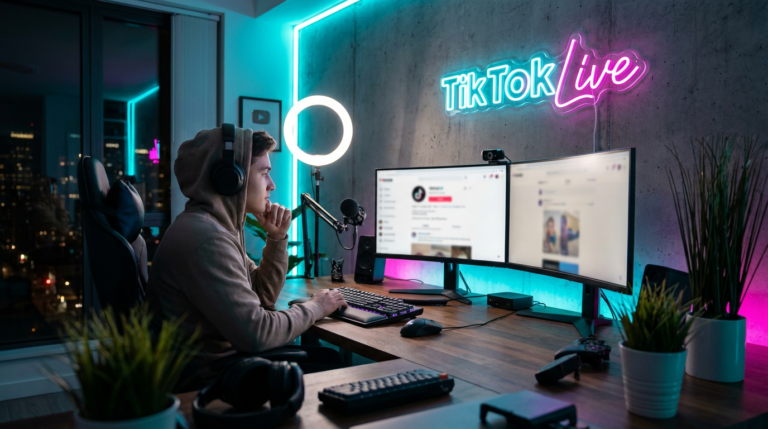
If you want to stream TikTok Live from a PC using OBS, Streamlabs, or another encoder, you need two things: an RTMP server URL and a stream key. TikTok hides these settings behind eligibility requirements and a confusing menu. This is why many creators have trouble finding them. This guide walks you through every step — from checking eligibility to pasting the key into your broadcasting software.

What Is a TikTok Stream Key and Why Do You Need It?
A stream key is a unique alphanumeric code that authenticates your broadcast and tells TikTok’s servers where to receive your video feed. It works alongside an RTMP server URL. And together, they form the connection between your external software and your TikTok Live session.

You need a stream key when you want to:
- Stream from OBS Studio or Streamlabs with custom scenes and overlays
- Use a dedicated camera, capture card, or microphone instead of your phone
- Mix multiple audio and video sources into one professional broadcast
TikTok Stream Key Eligibility Requirements
The most common reason the stream key option is missing is simply that an account does not yet meet TikTok’s requirements. Before you look for the setting, confirm all of the following:
- Follower count: Minimum 1,000 followers on your account
- Age: Must be 18 or older (some regions allow 16+)
- Account standing: No active violations or content restrictions on the account
- Region: Feature must be available in your country or region
- App version: You must be running the latest version of the TikTok app
Requirements can change, so always cross-reference with TikTok’s official Help Center for the most current information.
Method 1 — Get Your TikTok Stream Key from the Mobile App
This is the most common path. The stream key is generated inside the TikTok app each time you initiate a live session.
- Open the TikTok app on your iOS or Android device and make sure it is fully up to date.
- Tap the “+” (Create) button at the bottom center of the screen.
- Swipe through the bottom menu to find and select LIVE.

- At the top of the LIVE setup screen, look for the option labeled “Cast to PC” or “Stream to PC” and tap it.
- TikTok will display your RTMP Server URL and Stream Key — copy both values.
- Paste them into your encoder software (see Method 3 below) and then return to the app to tap Go LIVE to begin the broadcast.

Important: TikTok generates a new stream key for every session. You must re-copy and re-enter the key in your encoder each time you start a new live broadcast. Saving the key from a previous session will not work.
Method 2 — Get Your Stream Key via TikTok LIVE Studio (Desktop)
TikTok LIVE Studio is TikTok’s own free desktop broadcasting application — think of it as a simplified, TikTok-native alternative to OBS. If you are new to PC streaming and do not already use OBS, this is the quickest route to go live from a computer.
- Download TikTok LIVE Studio from TikTok’s official website and install it on your Windows PC.

- Open the application and log in with your TikTok account credentials.

- Once inside, click on Settings (gear icon), then navigate to Stream Settings.
- Your Stream Key and RTMP Server URL will be displayed in this panel — copy them from here.

- Use these credentials in any external RTMP-compatible encoder, or simply broadcast directly from TikTok LIVE Studio without a secondary tool.
TikTok LIVE Studio handles scene management, overlays, and basic layouts natively, making it a solid starting point before committing to a full OBS setup.
How to Enter Your TikTok Stream Key in OBS or Streamlabs?
Once you have your RTMP URL and stream key, the final step is connecting them to your encoder. Here is exactly where to paste them.
OBS Studio
- Open OBS Studio and click Settings in the bottom-right corner.

- Select the Stream tab from the left-hand menu.
- Under Service, choose Custom from the dropdown.

- Paste your TikTok RTMP Server URL into the Server field.
- Paste your Stream Key into the Stream Key field.

- Click Apply, then OK — OBS is now connected to TikTok Live.

Streamlabs
- Open Streamlabs and go to Settings (gear icon, lower left).

- Click on the Stream tab.
- Under Stream Type, select Custom Streaming Server.

- Enter the TikTok RTMP URL in the URL field and paste your Stream Key in the Stream Key field.

- Save the settings, then start your stream from Streamlabs as usual.
Note: The standard TikTok RTMP server address typically follows the format rtmp://push.rtmp.tiktok.com/live — confirm this matches what the app or LIVE Studio provides, as TikTok may update it over time.
Stream Key Not Showing? How to Fix It
If the “Cast to PC” or “Stream to PC” option does not appear in your LIVE menu, one of the following is likely the cause:
- Below follower threshold → You need at least 1,000 followers. There is no workaround; grow your account organically to qualify.
- App is outdated → Update TikTok to the latest version via the App Store or Google Play, then check again.
- Unsupported region → The PC streaming feature is not available everywhere. Check TikTok’s Help Center for a current list of supported countries.
- Account restriction or violation → Review your account’s notification inbox for any active strikes. Violations can temporarily or permanently block live features.
- Account age → Newly created accounts may have a waiting period before LIVE features are unlocked, regardless of follower count.
Level Up Your TikTok Live Audio
Once your stream key is working and your OBS setup is live, audio quality is the single fastest way to improve how professional your broadcast sounds. The Hollyland LARK M2 — a 9g wireless clip-on microphone designed for TikTok creators and vloggers — pairs naturally with an OBS-based setup, delivering clean, noise-free audio from wherever you’re sitting without a cable running to your desk. If viewers can hear you clearly, everything else about your stream looks better for it.
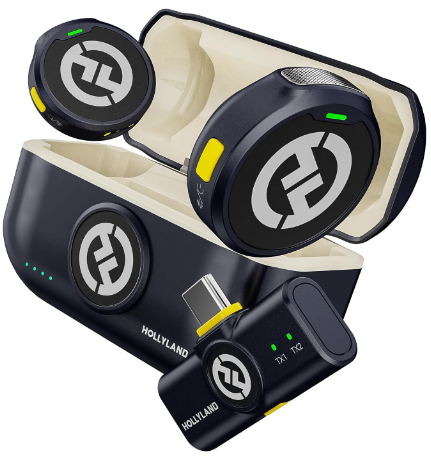
Hollyland LARK M2 - Mini Lavalier Microphone
An incredibly lightweight and compact wireless button microphone that captures high-fidelity audio.
Key Features: 9g Button Size | 48 kHz/24-bit | 40 Hours Battery

Frequently Asked Questions
Does TikTok give you a permanent stream key?
No. TikTok generates a brand-new stream key each time you initiate a live session. The key expires once the session ends, so you cannot save it and reuse it for a future broadcast. Before going live, always open the app or LIVE Studio, copy the current key, and paste it fresh into OBS or Streamlabs.
Can I use my TikTok stream key on any encoder?
Yes — any broadcasting software that supports RTMP input will work with TikTok’s stream key. This includes OBS Studio, Streamlabs, Wirecast, vMix, and other RTMP-compatible tools. Simply enter the TikTok RTMP server URL and paste the stream key into the appropriate fields within your chosen software.
How many followers do I need to go live on TikTok?
You need a minimum of 1,000 followers to access TikTok Live in most regions. To use the PC streaming or stream key feature specifically, you must also be 18 or older. These thresholds apply to the majority of supported countries, but regional rules can vary.Be sure to check TikTok’s Help Center for the specific requirements in your area.
Conclusion
Meet the eligibility requirements, grab your stream key from the mobile app or TikTok LIVE Studio, paste the RTMP URL and key into OBS or Streamlabs, and you’re broadcasting. The setup takes less than five minutes once you know where to look.