




























.png)
 简体中文
简体中文 
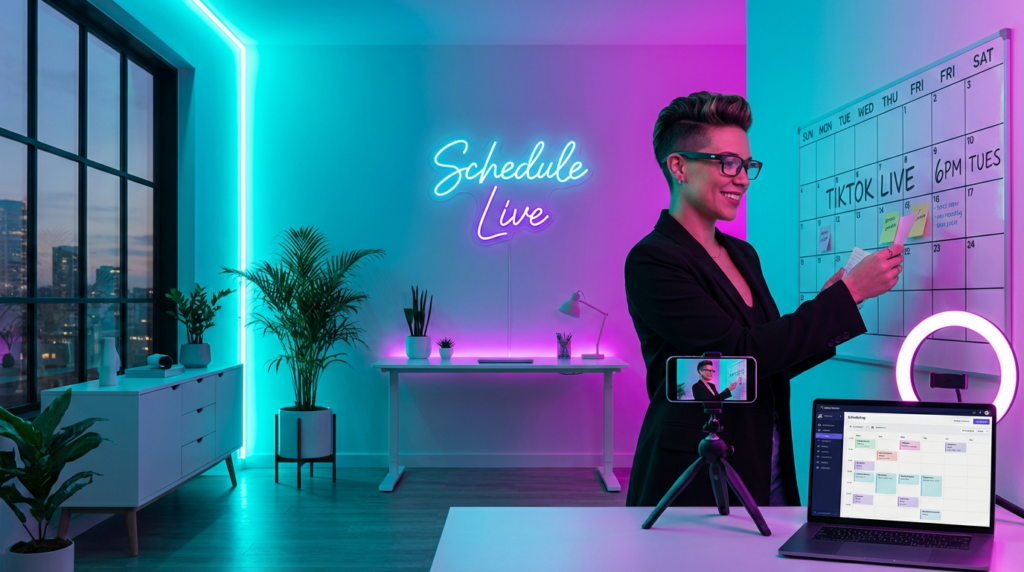
Scheduling a TikTok live session helps build excitement. It also boosts attendance. Plus, it lets you treat your broadcast like an event. This way, it’s not just a last-minute decision. But the feature isn’t available to every account, and the interface shifts often enough that older tutorials no longer match what you see on screen. This guide walks you through exactly how to schedule a live on TikTok, what happens after you confirm, and how to fix it when the option doesn’t show up.
Can You Schedule a Live on TikTok?
Yes — TikTok has a native scheduling feature built directly into the mobile app. You don’t need a third-party tool; everything happens inside TikTok itself.
That said, the option only appears when your account meets all of the following requirements:
- Minimum 1,000 followers — this is also the threshold required to go live on TikTok at all
- Age 18 or older — accounts under 18 are not eligible for live streaming or scheduling
- Account in good standing — active violations or restrictions can suppress the feature
- Feature available in your region — the scheduling tool has not rolled out to every country simultaneously
- App updated to the latest version — older builds may not show the calendar icon
If you meet all of the above and the option still doesn’t appear, check the troubleshooting section below. In most cases, eligibility — not a technical bug — is the reason.
How to Schedule a Live on TikTok: Step-by-Step
The process takes under two minutes once you know where to look. Follow these steps in order.
Step 1 — Open the TikTok App and Tap the Create Button
Open TikTok on your iOS or Android device and tap the “+” icon at the bottom center of the screen. This opens the standard camera and content creation interface.
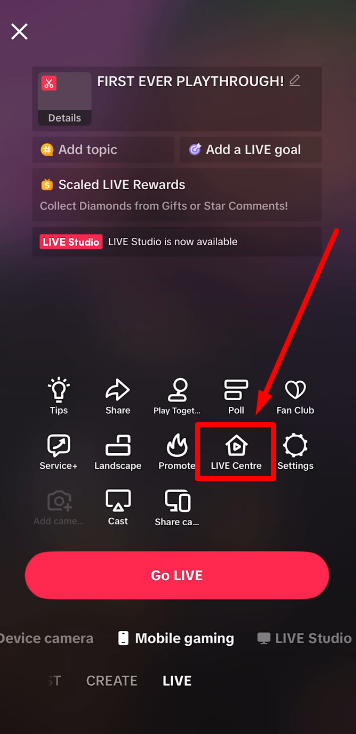
Step 2 — Navigate to the LIVE Tab
At the bottom of the camera screen, you’ll see a row of content modes (Photo, Video, Templates, etc.). Swipe through the options until you reach LIVE. Tap it to enter the live setup screen.
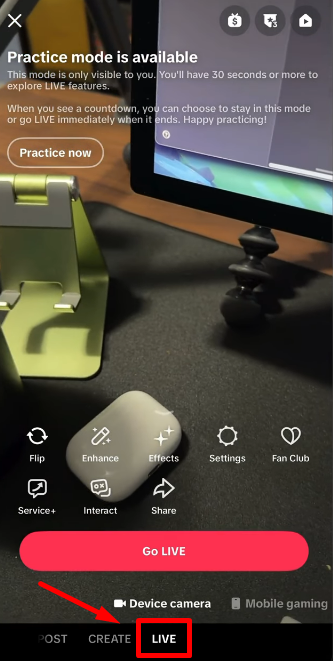
Once done, tap “LIVE Center” and “LIVE Events.”
Step 3 — Select “Schedule LIVE”
On the LIVE setup screen, look for a calendar icon or a button labeled “Schedule” — its exact position can vary slightly depending on your app version, but it typically appears near the top-right corner or below the title field. Tap it to open the scheduling settings.
Step 4 — Set Your Date, Time, and Live Title
TikTok currently allows you to schedule a live between 1 hour and 10 days in advance. Use the date and time picker to select your session slot, then add a live title. Make the title specific and descriptive — something like “Weekly Q&A: Skincare Routine Deep Dive” performs better than a vague placeholder because it tells potential viewers exactly what to expect.
Step 5 — Confirm and Publish the Schedule
Tap “Schedule” or “Confirm” to finalize. TikTok will immediately post a countdown card to your profile. Followers who visit your profile can tap the card to set a personal reminder notification for when your live begins.
What Happens After You Schedule a TikTok Live?
Once the schedule is confirmed, TikTok handles several things automatically:
- A countdown card goes live on your profile page, visible to anyone who visits
- Followers who tap the card can opt in to a reminder notification sent before the stream starts
- You’ll receive an in-app notification when it’s time to go live, so you don’t miss your own start window
- The scheduled session appears in your TikTok LIVE Center, where you can review or manage it
Need to make changes? You’re not locked in after scheduling:
- Edit the live — Go to your profile, tap the countdown card, and select the edit option to update the title, date, or time
- Cancel the live — Use the same menu to remove the scheduled session entirely; TikTok will remove the countdown card from your profile
- Share the link — From the scheduled live card, you can copy a direct link to share on other platforms ahead of the broadcast
How to Promote Your Scheduled TikTok Live?
Setting up your live comes first. The next focus is bringing people into the stream. Below are a few practical ways to increase attendance:

- Share the scheduled live link across Instagram, X (Twitter), or in a newsletter so audiences outside TikTok can add it to their calendars
- Post a teaser video in the 24–48 hours before the live — a short clip explaining what you’ll cover works well as a native TikTok post
- Add a reminder to your bio link or pin a comment referencing the upcoming live on recent posts
- Post consistently in the days before — account activity leading up to a scheduled live keeps your profile visible in feeds
- Scheduling publicly signals to your audience that your lives are worth planning around, which builds the habit of showing up
Set Up Your Audio Before Going Live
A scheduled live makes things a bit more serious. Viewers are showing up on purpose, so first impressions count more. One quick way to make a strong impression is by improving your audio quality.

Built-in phone microphones pick up room echo, background noise, and handling sound. A dedicated wireless mic solves all three without adding cables visible on camera. The Hollyland LARK M2 is a 9g clip-on wireless mic built for exactly this use case — it pairs quickly, runs up to 40 hours on a single charge, and delivers clean, broadcast-quality audio whether you’re seated at a desk or moving around during the stream. For TikTok creators who go live regularly, it’s a simple upgrade that makes every session sound more polished.
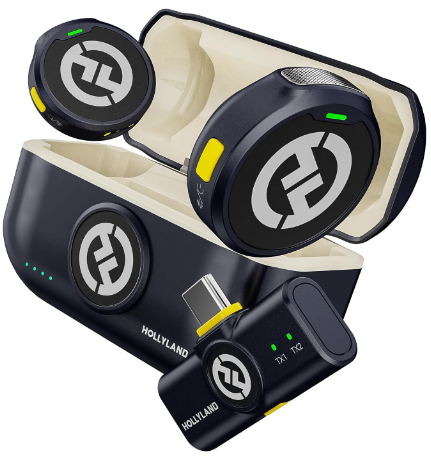
Hollyland LARK M2 - Mini Lavalier Microphone
An incredibly lightweight and compact wireless button microphone that captures high-fidelity audio.
Key Features: 9g Button Size | 48 kHz/24-bit | 40 Hours Battery
Troubleshooting — Why Can’t I Schedule a Live on TikTok?
If the Schedule LIVE option isn’t appearing, one of these is almost certainly the cause:
- Fewer than 1,000 followers — The scheduling feature is tied to live eligibility; you need to hit 1,000 followers first
- Account is under 18 — Age restrictions apply to both going live and scheduling; no workaround exists
- Feature not available in your region — TikTok rolls out features gradually; some regions receive updates later
- App version is outdated — Update TikTok through the App Store or Google Play and check again
- Account has active violations — Community guideline strikes or temporary restrictions can disable live-related features until resolved
- Unstable connection at the time of setup — A weak signal occasionally causes the LIVE tab to load incompletely; try switching to Wi-Fi
FAQs
How far in advance can you schedule a TikTok live?
TikTok currently allows you to schedule a live stream between 1 hour and approximately 10 days in advance. You cannot schedule within the next hour or beyond the 10-day window. Check the latest app version for any updates to these limits, as TikTok occasionally adjusts scheduling parameters.
Can you schedule a TikTok live on desktop?
No. As of the current rollout, live scheduling is only available through the TikTok mobile app on iOS or Android. The desktop browser version of TikTok does not include a live scheduling interface. But if you use the TikTok LIVE Studio from your computer, you can schedule or go live using that app.
Will my followers be notified about a scheduled live?
A countdown card appears on your profile automatically after you schedule. Followers who visit your profile can tap the card to opt in to a reminder notification. TikTok sends that reminder shortly before the live begins, but only to followers who actively enabled it.
Can I edit or cancel a scheduled TikTok live?
Yes. Navigate to your profile, locate the countdown card for the scheduled live, and tap it to access the edit or cancel options. You can update the title, date, or time — or remove the session entirely if your plans change.
Does scheduling a live affect the TikTok algorithm?
TikTok hasn’t confirmed a direct algorithmic benefit tied to scheduling. But scheduled lives tend to attract larger audiences through pre-promotion, and higher concurrent viewership does improve visibility within TikTok’s LIVE discovery feed — so the indirect effect is real.
Conclusion
Start by checking that you meet the eligibility requirements. Then use the in-app calendar to set your date and time. After that, promote the countdown link before going live. Once your session is scheduled, shift your focus to preparation. Plan your talking points, test your audio setup, and make sure you are ready to start on time. A prepared creator who shows up consistently builds an audience faster than one who goes live unpredictably.