.png)
 简体中文
简体中文 
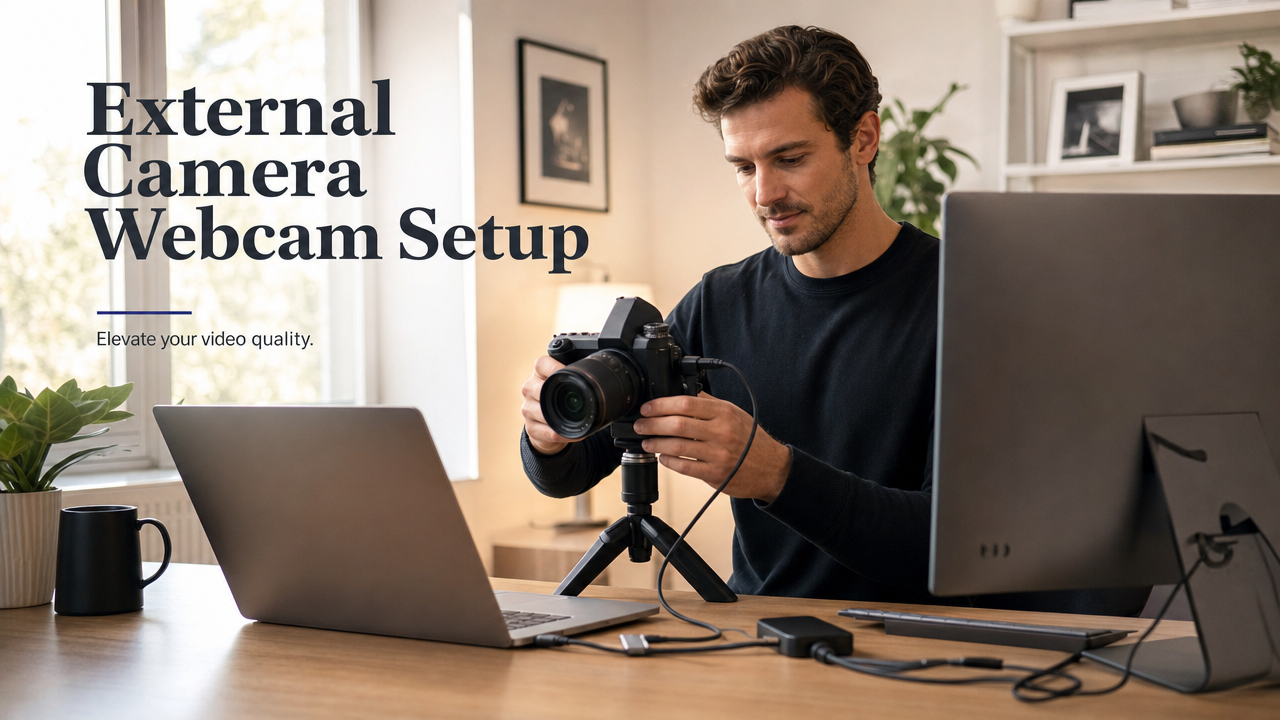
A webcam positioned below your eye line turns every video call into an unflattering upward shot. Getting the angle right is mostly a physical setup problem, not a software one. This guide explains how to measure the proper camera height first. It then covers mounting options for your desk setup. Finally, you can adjust framing through software controls. The Hollyland Lyra serves as the example camera throughout. These basic steps also work with other external webcams
Why Eye Level Is the Only Webcam Angle Worth Using
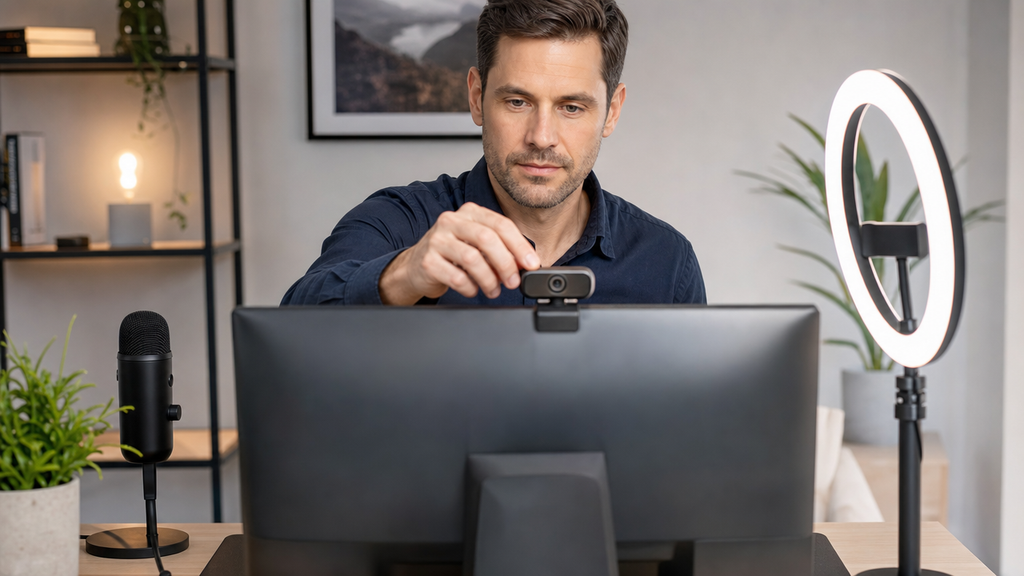
A camera below your eye level shoots upward, emphasizing your chin, nostrils, and the underside of your desk setup. It signals inattention to the person on the other side of the call, even when the content of the conversation is solid. Correcting the angle is one of the fastest, lowest-cost upgrades you can make to your video presence.
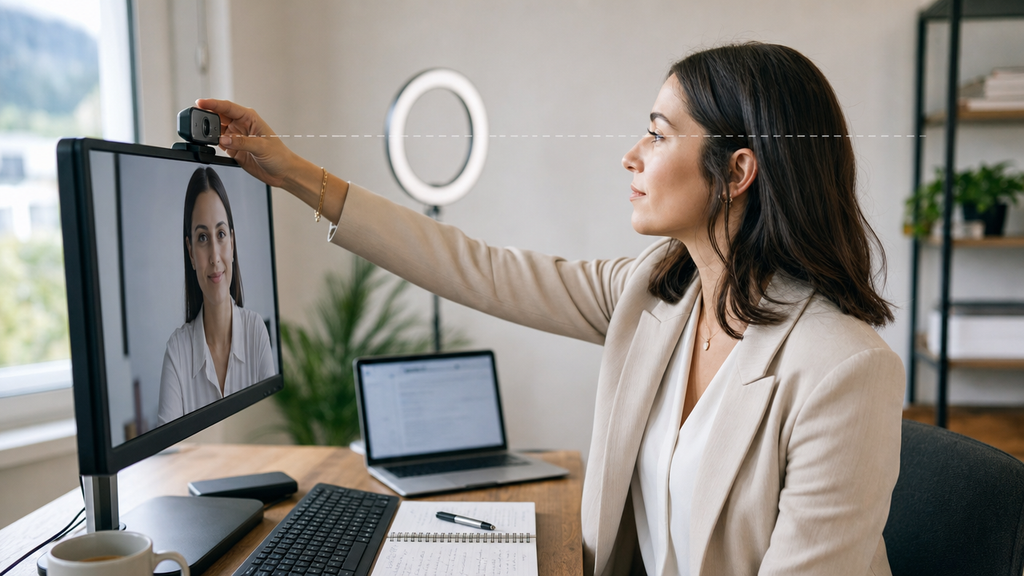
Eye-level placement creates the illusion of direct eye contact. When the lens sits at the same height as your eyes, you naturally look toward the screen and appear to be looking at your audience simultaneously. That alignment is the foundation of a credible, professional on-camera presence in both video calls and live streams.
Throughout this guide, the Hollyland Lyra serves as the hands-on demo camera. Its compact 60 × 33.3 × 37 mm body, monitor clip, and USB-C connection make it a practical stand-in for each method below, whether you are working with a single external monitor, a standing desk, or a laptop workstation.
Find Your Target Height Before You Mount Anything
First, determine the exact camera height you need. Measure this before adjusting the mount or stand. This helps avoid guesswork during the setup. It also saves you from moving the camera repeatedly.
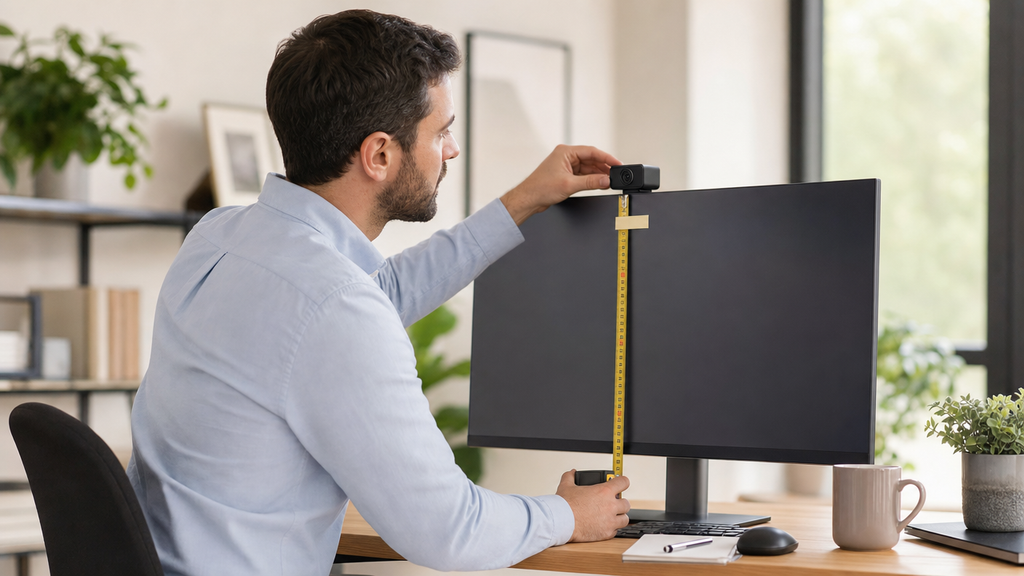
- Sit in your normal working posture. Sit the way you actually sit during a typical call: back against the chair, head level, looking forward at your screen. Do not sit up artificially straight.
- Measure from the desk surface to your eye level. Have someone hold a tape measure vertically from the desktop to the center of your eye, or mark the height directly on your monitor surround. Most seated adults measure 40–55 cm above the desk surface, which corresponds to roughly 1.1–1.2 m from the floor.
- Mark the height on your monitor bezel or the wall behind it. Place a small piece of tape at that exact height. This becomes your target zone for the Lyra’s lens.
- Add 1–2 cm above your mark as an acceptable upper limit. A lens sitting 1–2 cm above eye level with a slight downward tilt can be slightly more flattering than dead-center placement, while still maintaining a natural perspective. Do not exceed this buffer without planning to compensate in software.
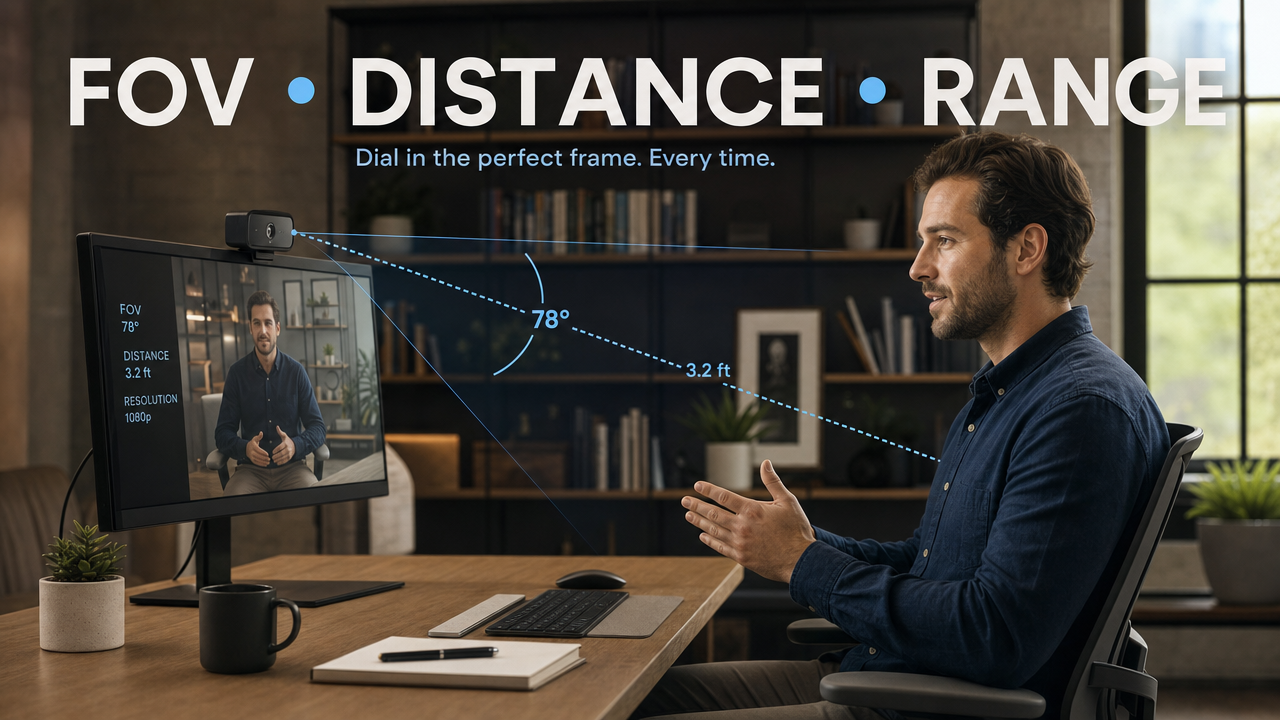
- Identify the horizontal center of your monitor. The Lyra should sit centered on your display so its 82° field of view captures your face symmetrically. Mark the midpoint on the top bezel if needed.
- Confirm your preferred working distance. Sit at the distance you use during real calls. The recommended range is 50–80 cm from the lens to your face. At closer or farther distances, framing and perspective will shift even when the height is correct.
Pro Tip: If you switch between sitting and standing desk modes, measure and mark both heights. The Lyra’s lens needs to be repositioned each time you raise or lower the desk surface.
Method 1: Mount Your Webcam on Top of Your External Monitor (Recommended)
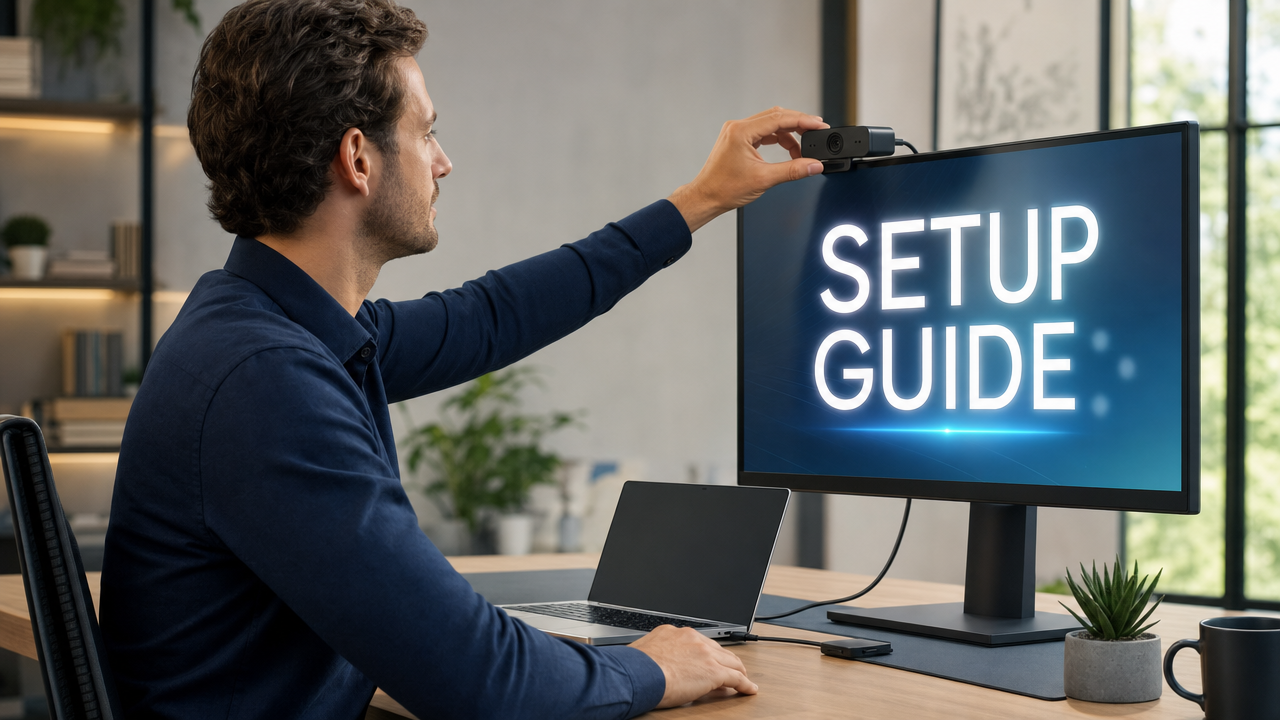
For most desktop setups with an external monitor, clipping the webcam to the top bezel is the most stable and repeatable method. The monitor edge sits close to the target height, keeps the camera centered on your face, and routes the cable cleanly.
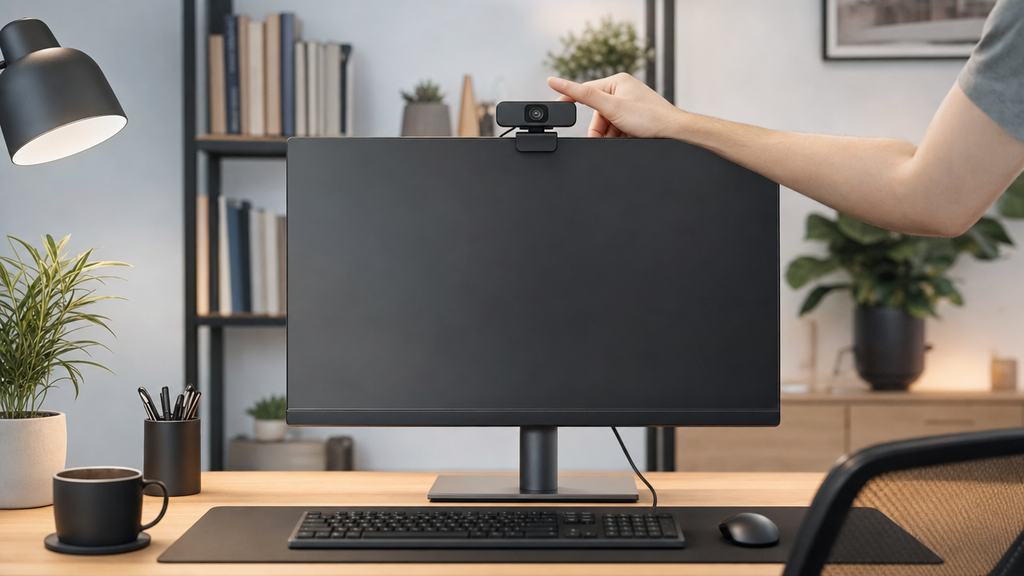
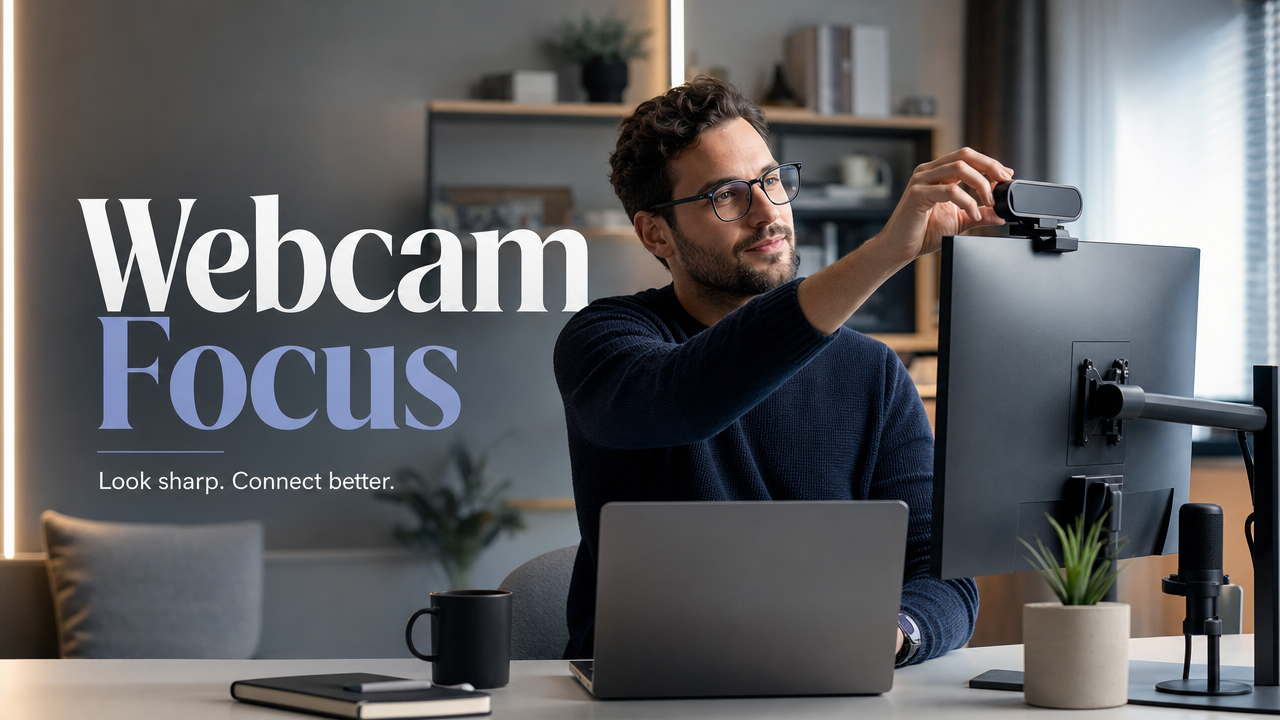
- Open the Lyra’s monitor clip to its widest position. Slide or press the clip adjustment to fit your monitor’s top bezel. The clip is designed to grip a range of bezel thicknesses without applying damaging pressure to the screen panel.
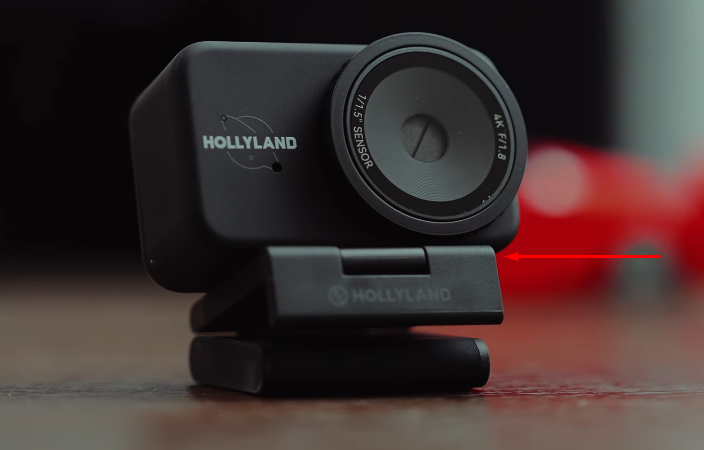
- Place the clip over the top center of the monitor. Align the Lyra’s body with the horizontal center of the display. Center alignment gives the 82° field of view equal coverage on both sides of your face and preserves the eye-contact illusion.
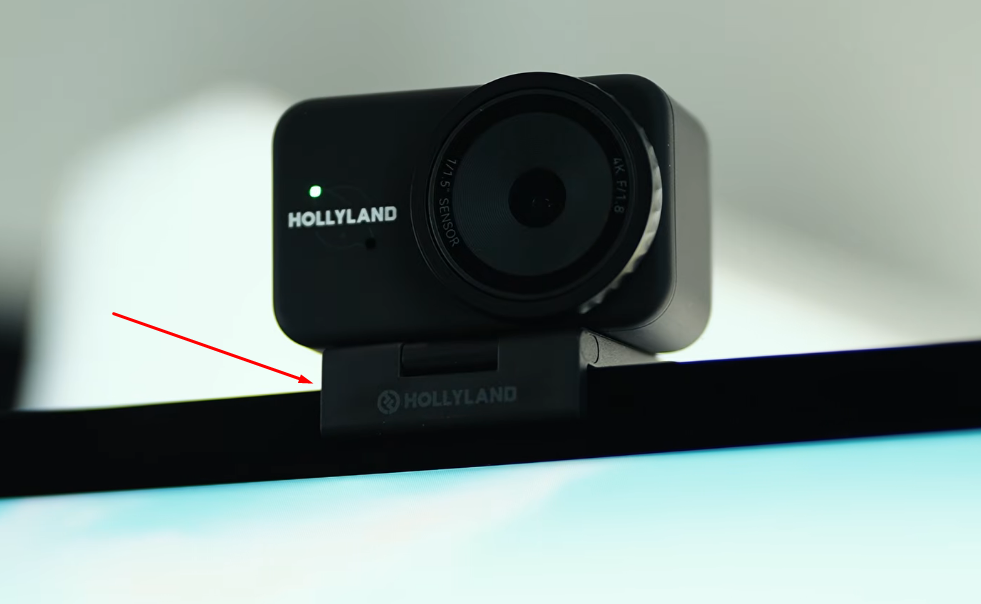
- Check the lens height against your tape mark. Compare the position of the Lyra’s lens to the target height marked in the previous section. If the lens sits more than 2 cm above your mark, lower the monitor on its stand before continuing.
- Tilt the camera body toward your face. Rotate the Lyra’s hinge forward until the lens axis points toward your seated face position. Target a lens axis that is parallel to the floor or angled 2–3 degrees downward from horizontal. Avoid steep downward angles, which produce a surveillance-camera look.
- Connect the USB-C cable. Plug the included USB-C cable into the Lyra’s port, then route it along the back of the monitor stand or down a cable channel to a free USB port on your computer. USB 3.0 supports 1080p in NV12 format and 4K 30 fps via MJPEG; USB 2.0 supports 4K 30 fps via MJPEG as well. Both connections are plug-and-play with no driver installation required.
- Confirm plug-and-play recognition. The Lyra operates as a UVC (USB Video Class) device, so Windows and macOS recognize it automatically. Open your OS camera app or video-call software and confirm the Lyra appears in the camera input list.
- Check the LED indicator. The LED on the Lyra should be solid blue when the camera is active. A dark indicator when the camera is selected in software suggests a cable or port issue to investigate before proceeding.
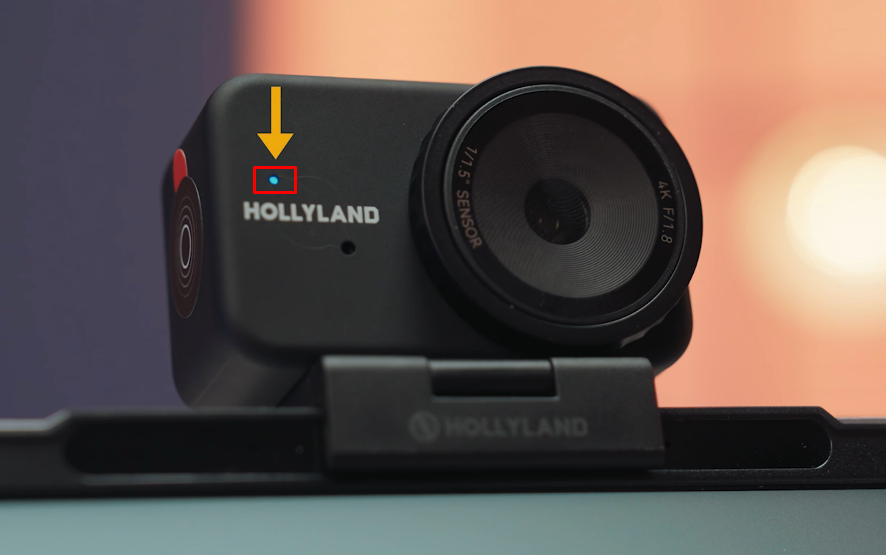
- Run a quick preview check. Open your video-call app or the OS camera preview. Your eyes should appear in the upper third of the frame with a small amount of headroom above your hairline. If framing is close but not perfect, move to the fine-tuning section rather than remounting.
Method 2: Use a Mini Tripod or Adjustable Desk Stand
If your monitor has a very thin bezel, a curved panel, or you are working with a multi-monitor arrangement where the primary display is off to one side, a mini tripod or adjustable desk stand gives you more flexibility to reach the exact measured height.
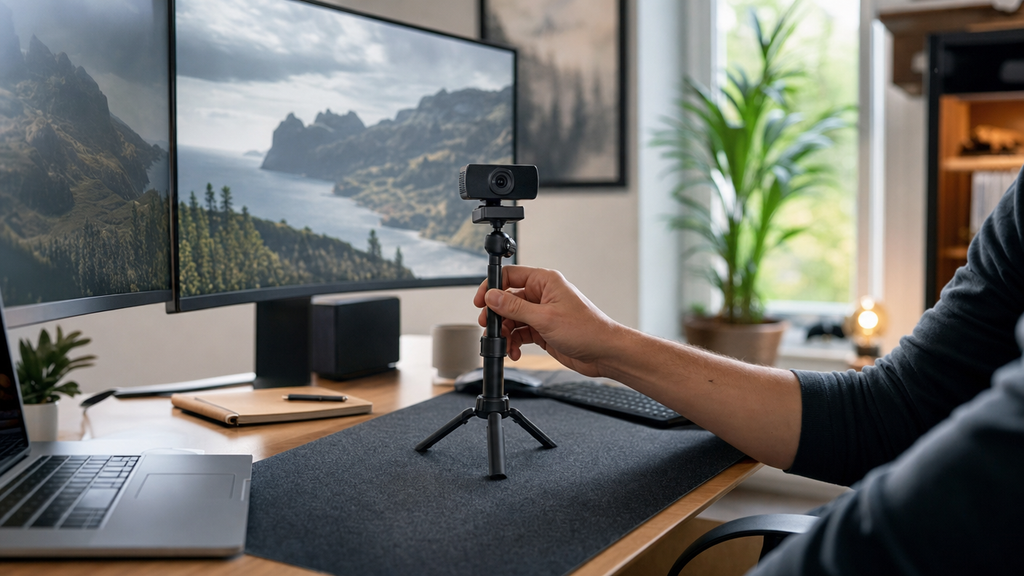
- Set the stand height to match your eye-level mark. Extend the tripod legs or raise the stand column until the mounting point aligns with the target height established in the measurement section. The Lyra weighs 80 g, so most compact mini tripods are stable at desk height with this load.
- Attach the Lyra to the stand using the 1/4-inch thread bracket. Screw the bracket securely into the tripod head. Confirm the camera body is level before tightening fully.
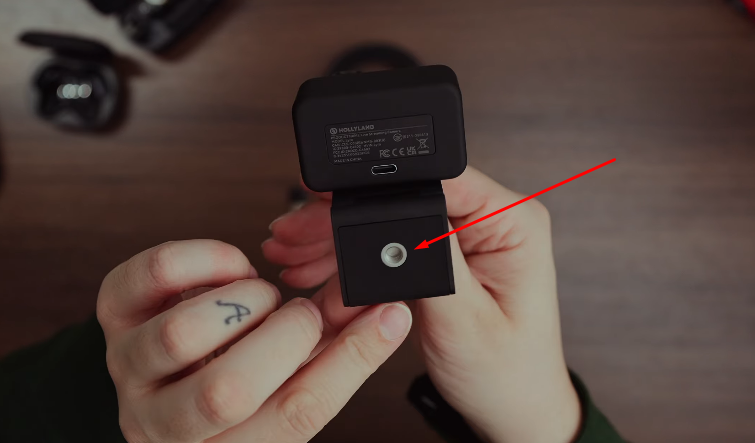
- Position the stand directly in front of you, behind or flanking the monitor. Place the tripod so the Lyra’s lens aligns as closely as possible with the horizontal center of your usual on-screen focus point. A camera significantly to the side of your monitor breaks the eye-contact illusion even at the correct height.
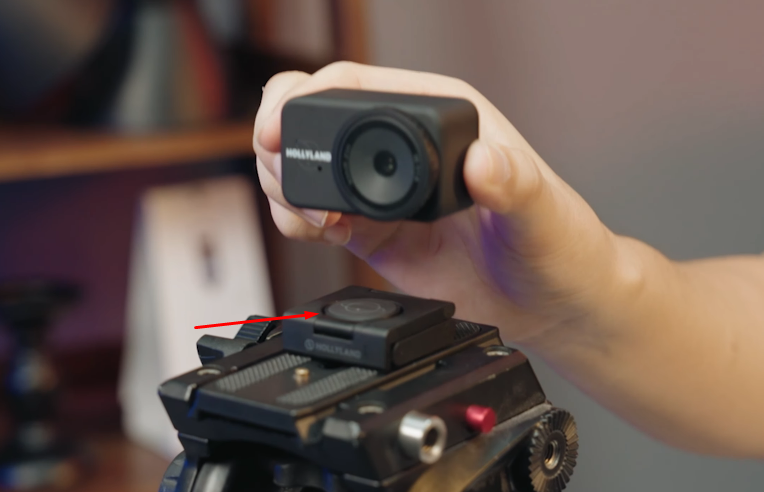
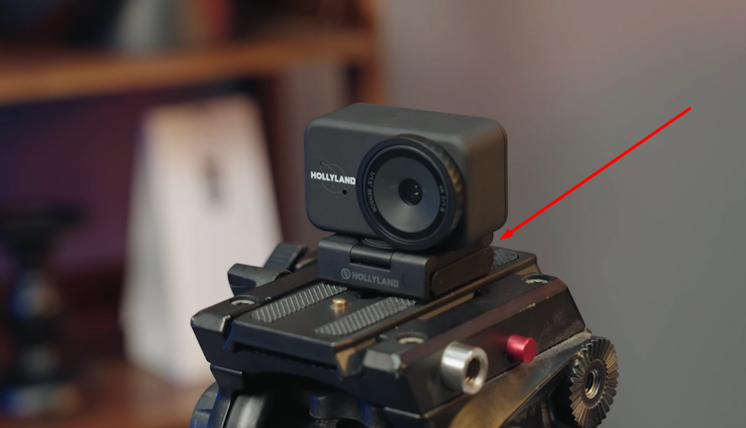
- Route the USB-C cable with enough slack to prevent tension on the camera. Cable weight or tension pulling on the Lyra’s USB-C port can gradually tilt the camera downward on a lightweight stand. Secure the cable to a stand leg with a small clip, leaving a short loop of slack between the clip and the camera body.
- Connect and confirm recognition following Method 1 steps 5–7.
Method 3: Raise Your Laptop with a Stand and Add an External Webcam
Built-in laptop cameras typically sit 15–25 cm below eye level when the laptop rests flat on a desk. A laptop stand raises the screen to eye height, but the built-in camera becomes unusable for correct framing. Pairing a raised laptop stand with the Lyra solves both problems at once.
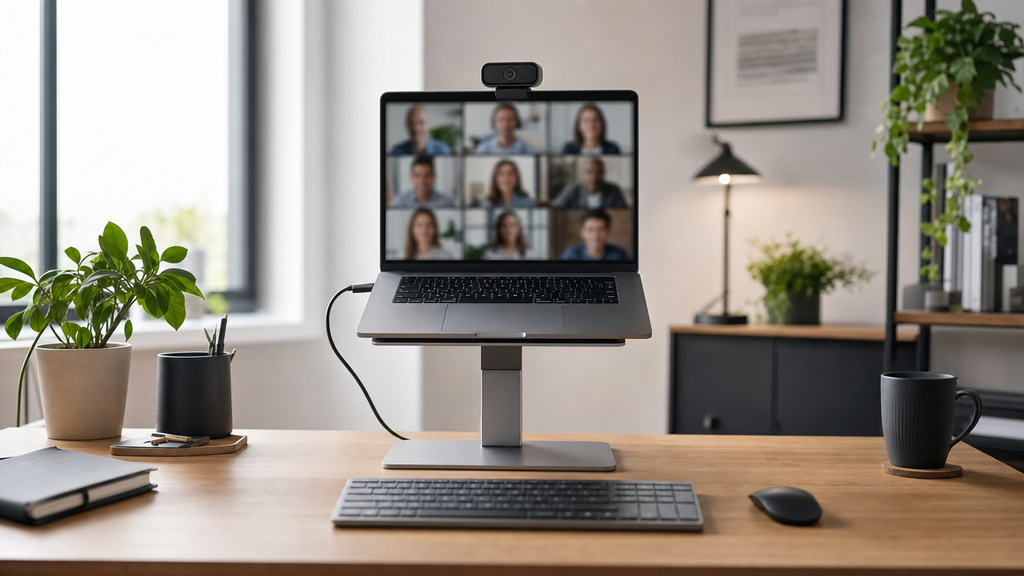
- Raise your laptop on a stand until the top of the screen reaches your eye-level mark. Once the screen is elevated, the laptop keyboard will be at an uncomfortable height, so connect a separate keyboard and mouse before your first call.
- Clip the Lyra to the top of the elevated laptop lid. The Lyra’s monitor clip can grip the top edge of a laptop display just as it would a monitor bezel. Confirm the clip does not cover or block ventilation slots on the back of the lid.
- Connect the Lyra’s USB-C cable to the laptop. If the laptop only has USB-C ports, connect directly or through a USB-C hub. The same plug-and-play recognition applies: no drivers are needed.
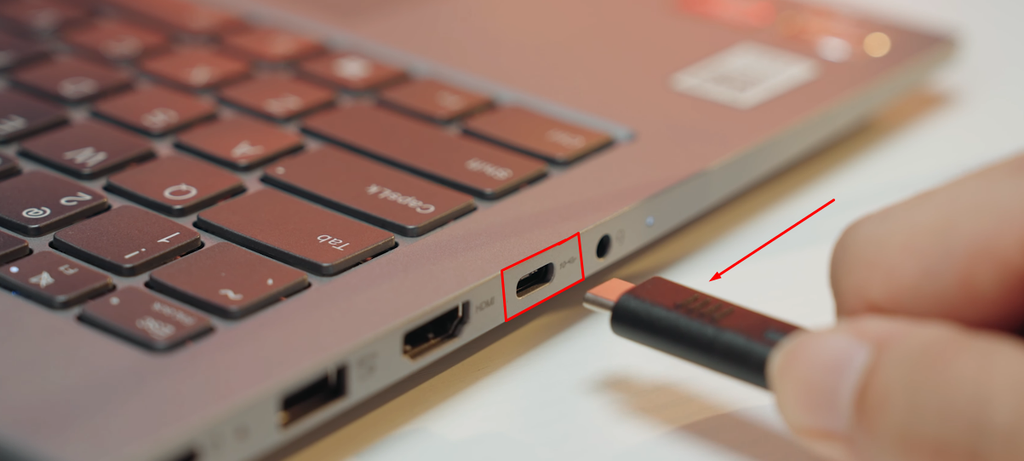
- Switch the active camera input in your video-call software. The built-in laptop camera will remain listed as an input option. Open camera settings in your video-call app or OS preferences and select the Lyra as the active camera.
- Verify framing at the new height. Because the laptop screen is now elevated to roughly monitor height, the Lyra’s lens should be near your eye-level mark. Run the same preview check described in Method 1, step 8, before your first call.
Fine-Tune Framing and Angle with the Lyra’s Software Controls
Physical placement gets the camera close to the target; HollyStudio finishes the job. After mounting and connecting the Lyra, open the companion app to make precise framing adjustments without touching the hardware again.
- Launch HollyStudio on your connected computer. Open the application and confirm the Lyra appears in the device panel as a recognized input. If it does not appear, disconnect and reconnect the USB-C cable.
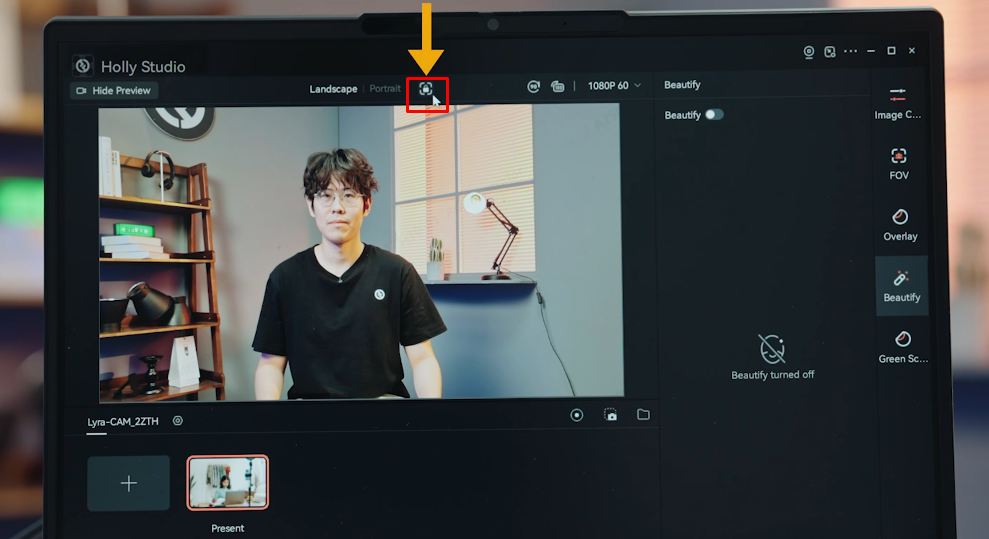
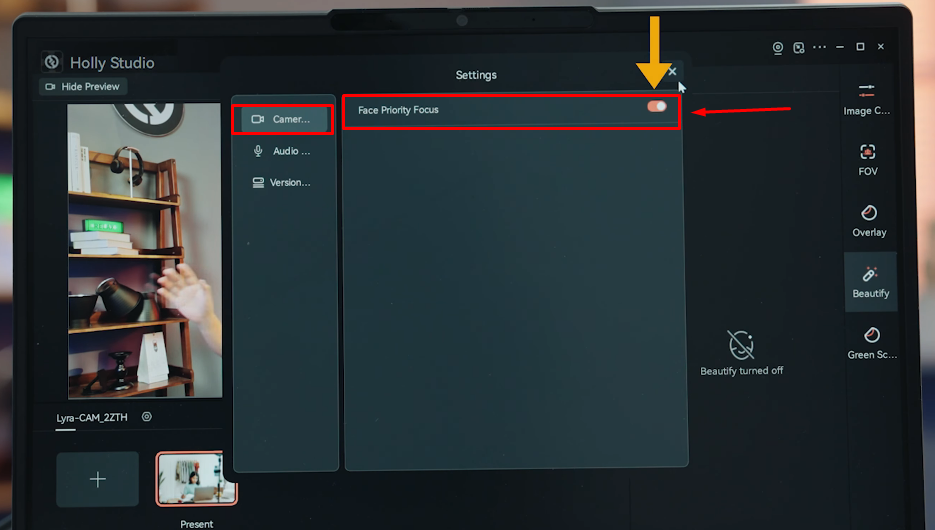
- Enable AI Tracking and Smart Auto Framing. Click the frame icon on the preview screen in the HollyStudio app to enable AI Tracking. Next, toggle on Face Priority Focus in Camera Settings, go to the FOV page, and deselect None under Smart Framing by selecting the portrait image tile next to it to activate Smart Auto Framing. The Lyra will automatically keep your face centered in the frame, which is particularly useful if the camera is mounted slightly off-center or if you lean forward and back naturally during a call.

- Use digital zoom to correct minor height deviations. If Lyra is mounted 2–3 cm above your eye-level mark and a full remount is impractical, open the Focal Length slider in the Image Control Page > Advance section to zoom visuals to 1.2–1.5×. This brings your face more prominently into the frame and reduces the sense that the camera is looking slightly downward. The Lyra’s 82° field of view provides enough coverage that moderate zoom adjustments at typical desk distances do not introduce significant quality loss.

- Check and adjust exposure and white balance if needed. HollyStudio defaults to exposure and auto-white-balance on the Image Control page. If the room lighting makes the frame appear washed out or overly dark in a way that makes the angle look distorted, access the manual controls to bring the image back into balance.
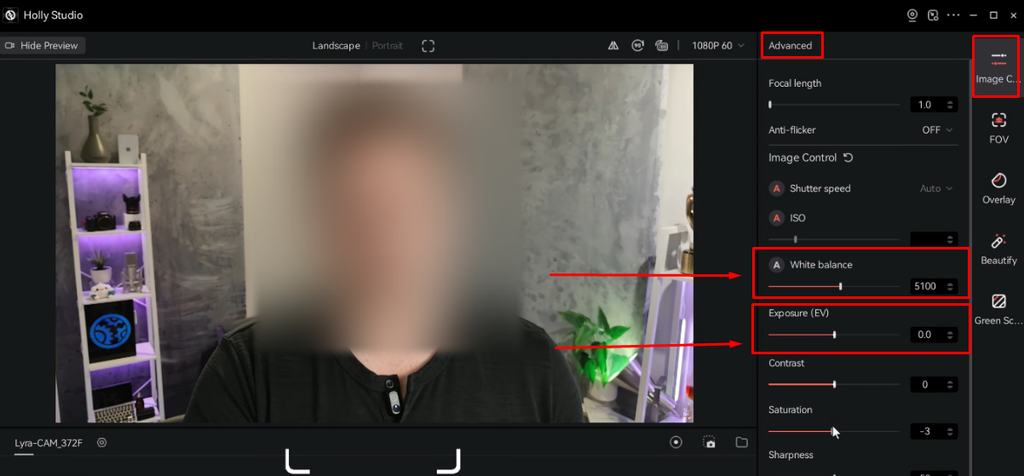
- Use the live preview to confirm final eye-level framing. In the HollyStudio preview, your eyes should appear in the upper third of the frame, you should appear to be looking straight into the lens, and there should be a visible but modest amount of headroom above your hairline. When the preview passes that check, the setup is complete.
Once physical height and software framing are aligned, the combination of correct lens placement and HollyStudio’s AI controls creates a stable, professional eye-level composition that holds even through normal desk movement.
Common Placement Mistakes and How to Avoid Them
- Mounting the webcam too high creates a downward surveillance look where the viewer sees the top of your head more than your face. Height above your eye line should not exceed 2 cm without deliberate tilt compensation.
- Tilting the lens too steeply downward, even from the correct height, distorts the face and makes the background dominant in the frame. Keep tilt between 0 and 5 degrees from horizontal.
- Placing the camera far to the side of the monitor breaks the eye-contact illusion. The lens should sit within a few centimeters of the horizontal center of your primary display.
- Forgetting to re-check height when switching desk modes is a common recurring error. Moving from seated to standing desk mode shifts your eye line by 30–40 cm; the Lyra’s mount needs to move with it.
- Relying on digital zoom alone to compensate for a poorly positioned mount introduces softness and does not correct perspective distortion. Software zoom is a finishing adjustment, not a substitute for accurate physical placement.
- The Lyra’s AI Tracking can compensate for minor framing drift during a call, but it cannot correct a camera that is mounted 10 cm above eye level. Correct physical placement always comes first.
Frequently Asked Questions
How high should a webcam be placed exactly?
The lens should align with your seated eye height, which is typically 40–55 cm above the desk surface or roughly 1.1–1.2 m from the floor for most adults. Measure in your normal working posture, not standing and not with artificially improved posture. A placement 1–2 cm above that line with a slight downward tilt is also acceptable and can be slightly more flattering.
What if my monitor is too tall and the Lyra ends up above eye level when clipped on top?
Use the Lyra’s tilt hinge to angle the lens gently downward toward your face. Then open HollyStudio and apply the digital zoom through the Focal Length slider at 1.2–1.5× combined with AI Smart Auto Framing to re-center your face in the frame. Together, these adjustments can effectively compensate for a monitor that is 3–5 cm taller than the ideal eye-level target.
Can I use books or a box to raise my webcam to eye level?
Yes, as a temporary fix. Stack firm, stable items to reach the measured height and place the Lyra on top. This works reliably for a one-off call but is not consistent enough for a permanent home office setup, since stacked items shift between sessions. A dedicated mini tripod or desk stand with a 1/4-inch thread is a more repeatable and reliable solution.
Does the Hollyland Lyra work without installing a driver?
Yes. The Lyra is a UVC device and is recognized automatically by Windows and macOS via its USB-C connection, so your video-call software will list it as an available camera input with no setup required. HollyStudio is an optional companion app that unlocks AI Tracking, Smart Auto Framing, digital zoom, and other advanced controls beyond what the OS provides natively.
Does eye-level placement matter for live streaming or just video calls?
Both. Eye-level placement creates a natural sense of connection with a live audience and eliminates the angle distortion that makes recorded content look amateurish. Whether you are in a one-on-one meeting, a group call, or a live broadcast, an eye-level lens is the consistent baseline for a professional, credible on-camera image.
Conclusion
Place your webcam at eye level in two main stages. First, measure the height and mount the camera physically. Next, refine the framing through software settings. Adjust the Hollyland Lyra clip or stand to your seated eye height. Then connect it through USB-C for plug-and-play recognition. Use HollyStudio’s AI Tracking, Smart Auto Framing, and digital zoom. These settings help you finalize the camera framing. Following both steps gives your video a more polished look.