.png)
 简体中文
简体中文 
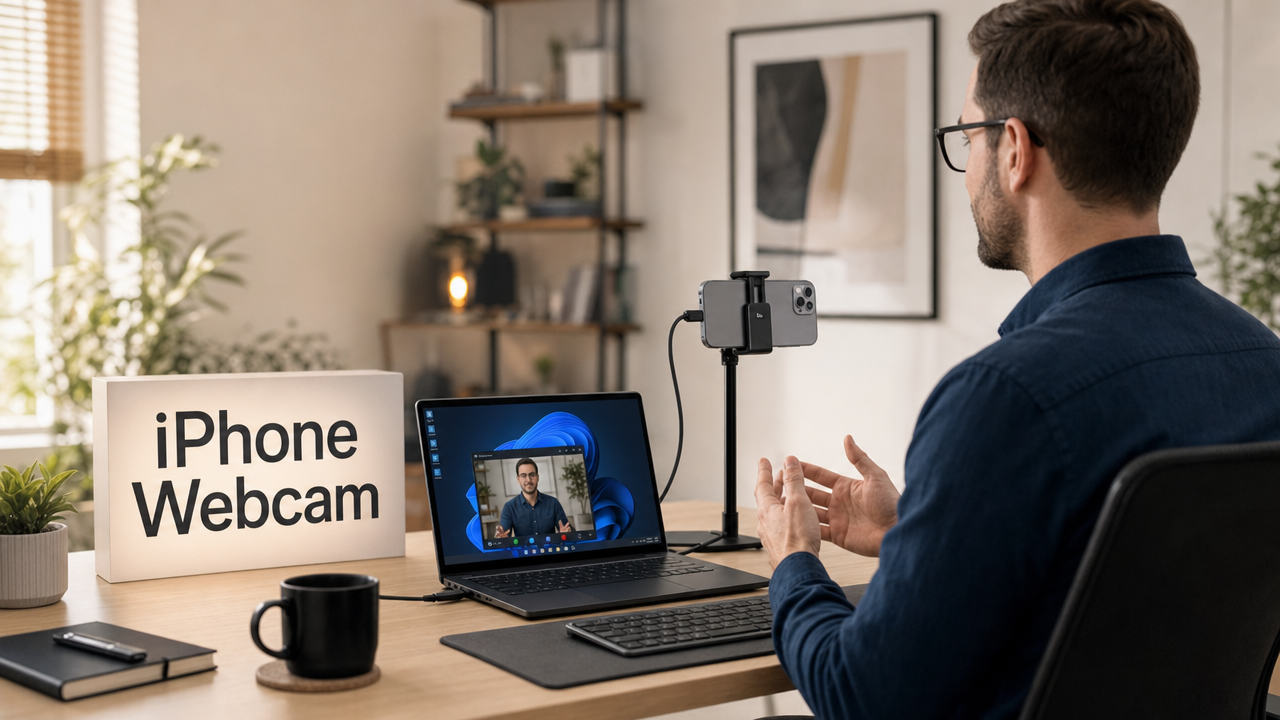
Discord desktop cannot access your phone’s camera directly. You need an app that sends your phone’s video to your computer. This creates a camera source that Discord can recognize. This guide covers DroidCam and Camo Camera or Studio. You will also get shared Discord settings and common fixes.
What You Need Before You Start
Before installing anything, confirm you have the following:

- A smartphone (Android or iPhone)
- A PC or Mac with Discord desktop installed
- A USB cable or a stable Wi-Fi network with both devices on the same connection
- One of the apps covered below: DroidCam or Camo
Discord lists only cameras that the operating system has registered as video input devices. A phone camera does not appear in that list by default. Apps like DroidCam install a virtual camera driver on your computer so that once your phone connects through the app, Discord sees a proper webcam entry it can select.
Note: If you plan to connect via USB on Android, you will need to enable USB debugging first. That process is covered in Method 1 below.
Method 1: Use DroidCam (Works on Android and iPhone)
DroidCam is free, supports both Android and iPhone, and runs on Windows and macOS. It creates a persistent virtual device called “DroidCam Source” that stays in Discord’s camera list as long as the desktop client is open and connected.
Install DroidCam on Your Phone and Computer
- On your phone, open the Google Play Store (Android) or App Store (iPhone) and search for DroidCam. Install the app published by Dev47Apps.

- On your computer, go to dev47apps.com/, choose your app variant, and download the DroidCam client for Windows or macOS.


- Run the installer on your computer. It automatically adds the DroidCam Source virtual camera driver to your system with no separate driver download needed.
- When the installation finishes, open the DroidCam desktop client.
Connect Your Phone to Your Computer
USB connection (recommended for stability):
- On Android, open Settings, go to About Phone / My Phone (depending on your Android smartphone brand).


- Tap Build Number seven times to unlock Developer Options.

- Then go to Settings → Developer Options and enable USB Debugging.


- Plug your phone into the computer with a USB cable. When a prompt appears on your phone, select File Transfer (MTP) rather than Charging only.
- In the DroidCam desktop client, click the USB tab. The client detects your connected phone and pairs automatically.
Wi-Fi connection (cable-free option):
- Make sure your phone and computer are both connected to the same Wi-Fi network.
- Open the DroidCam app on your phone. It displays an IP address and a port number on the main screen.
- In the DroidCam desktop client, click the Wi-Fi tab, enter the IP address and port shown on your phone, and click Start.
Note: USB provides noticeably more stable video than Wi-Fi for Discord calls. Wi-Fi can introduce frame drops or slight lag, especially on a congested 2.4 GHz network. Use a cable whenever one is available.
Once done, open Discord on your Mac or PC and choose your phone as a webcam
(See “How to Set Your Phone as Active Camera on Discord” section for the step-by-step process).
Method 2: Use Camo Camera and Camo Studio (Best App for iPhone Users)
If you want deeper image controls on iPhone, including ProRAW-level color management, Camo by Reincubate follows the same install-driver-on-Mac workflow at a higher price.
- Go to the App Store, search for the Camo Camera app, then download and open it.

- Once it opens up, you will be asked to give all the necessary permissions. So click the Continue button and Allow the camera access.

- Open your Mac or PC, and download the Camo desktop client (Camo Studio).
- Next, make sure your iPhone and computer are both connected to the same WiFi connection.
- Then, open the Camo Camera mobile app and the Camo Studio desktop client.
- On the desktop client, select your iPhone name from the Device dropdown menu.

- It should connect soon, and the iPhone’s camera feed should appear in the desktop client.

- Now, open Discord on your computer.
- Open User Settings (gear icon) > Voice & Video > Camera section, and choose your iPhone inside the Camera dropdown menu (see detailed steps in the next section).
How to Set Your Phone as the Active Camera in Discord
Once any virtual camera app is running and connected, the Discord configuration steps are the same regardless of which method you used. This section describes exactly where to find the setting.
- Open the Discord desktop app on Windows or macOS.
- Click the gear icon at the bottom left of the main window to open User Settings.

- In the left sidebar, scroll down and select Voice & Video.

- Scroll down the Voice & Video page to the Camera section.
- Click the Camera dropdown. Your virtual camera will be listed here, for example, DroidCam Source or Camo. It can also be listed as your smartphone name, such as “ABC iPhone.”
- Select your virtual camera from the list.

- A preview box appears below the dropdown. Click Test Video to confirm the live image is showing correctly before joining any call.

- Close settings. Your phone camera is now the active webcam for Discord video calls and Go Live streams.
Fixing Common Problems
Phone camera not appearing in Discord’s dropdown: The virtual camera client is not running in the background. Launch DroidCam or Camo on both your phone and computer and confirm the connection is established. Then close Discord’s Voice & Video settings and reopen the panel so the camera list refreshes.
Black screen or frozen frame: On Android, the USB mode is most likely set to Charging only. Pull down the notification shade after plugging in and tap the USB connection notification. Switch the mode to File Transfer (MTP), then reconnect inside the DroidCam or Camo desktop client.
High latency or choppy video on Wi-Fi: Switch to a USB cable connection. If Wi-Fi is the only option, confirm both devices are on the 5 GHz band rather than 2.4 GHz, and reduce the distance between the phone and the router.
Video displaying in portrait (vertical) orientation: Rotate your phone to landscape. Some virtual camera apps also include a rotation or flip toggle inside the desktop client settings panel. Check there if physically rotating the phone is not practical.
DroidCam Source disappears from the camera list after a reboot: The virtual driver did not reinstall correctly. Uninstall the DroidCam desktop client, then reinstall it from dev-47apps.com. On Windows, verify the driver appears under Device Manager → Cameras. On macOS, check System Settings → Privacy & Security → Camera to confirm the DroidCam extension is allowed.
Want Better Quality? Try a Dedicated Webcam (Hollyland Lyra)
Using your phone as a webcam is free, but has drawbacks. Your battery drains, and your phone stays busy during calls. The setup can also fail if the driver disconnects or the app crashes. Therefore, a dedicated webcam avoids these problems.

The Hollyland Lyra connects with one USB-C cable, and Discord recognizes it immediately as a standard webcam. There is no need to keep another app running. Driver updates also do not require reinstalling anything. Discord can access its native 1080p, 60fps video directly through UVC. Here is how to get it set up:
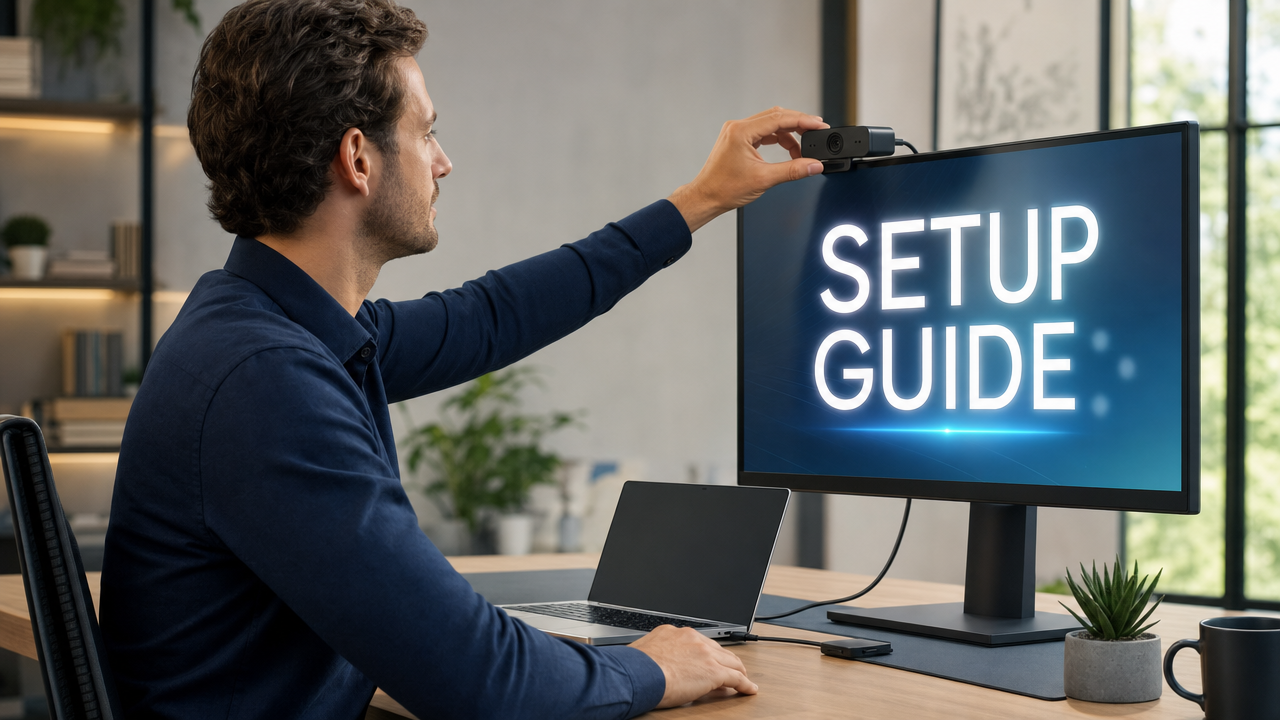
- Mount the Lyra: Open the magnetic clip mechanism and attach the Lyra to the top edge of your monitor bezel. The clip closes flush against the screen, with no tools or adhesive.


- Plug in via USB-C: Connect the included USB-C cable from Lyra’s port to a USB port on your computer. No driver download is required. Lyra is a UVC device and the operating system registers it automatically within a few seconds of plugging in.


- Select Lyra in Discord: Open Discord, go to User Settings → Voice & Video → Video Settings → Camera, and select Hollyland Lyra from the dropdown. Click Test Video to confirm the live image.
- Resolution and frame rate: With Lyra, you can record or stream at 1080p 60fps and 4K 30fps. Follow these steps to change the resolution:
- Download and open the HollyStudio software on your computer.

- Find the current resolution dropdown at the top-right corner of the preview screen. It may show 1080P 60.

- Click the dropdown and select 4K or 1080p.
- Enable AI Face Tracking and Auto Framing: You can activate AI tracking by following these steps in the HollyStudio app.
- Select the padlock framing icon in the top options above the preview.

- Click the gear icon to access Settings.

- Select the Camera Settings tab from the left-side menu.
- Toggle Face Priority Focus on, then close the window.

- Navigate to the FOV page.
- Under Smart Framing, deselect None and select the close-up image tile next to None to enable auto framing.

- Adjust exposure and white balance: In HollyStudio, open the Image Control page. Under the Advanced section, go to the Exposure (EV) slider to adjust to correct brightness. Next, adjust the White Balance slider to fine-tune unwanted color tints and warmth.


- FOV positioning and Digital zoom: When Lyra is connected to HollyStudio, you can set its 82-degree Field of View (FOV) and adjust the digital zoom. HollyStudio also lets you save up to 10 camera angle presets for use during live streams or video calls.
- Go to the FOV page through the menu on the right.

- Use the frame box beneath the Focal Length slider to set the camera angle. Just click and hold the frame box and move it around different areas to set a variety of camera angles.

- Then, move the Focal Length slider to zoom closer or farther out.
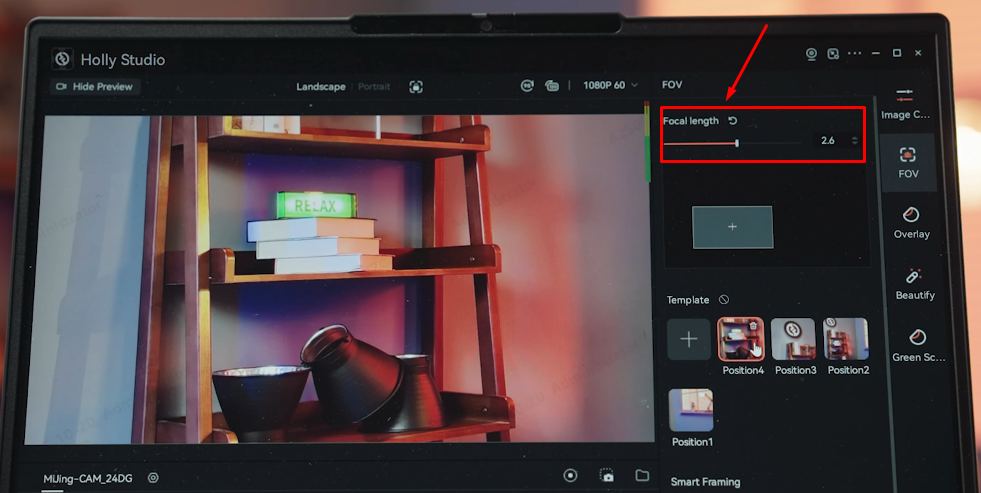
- Click “+” in the Template section to save the current angle as a preset.

- From Template, choose a saved position.

Tip: Placing the camera at roughly arm’s length from your face produces a natural head-and-shoulders framing in Discord.
- Audio: The built-in microphone records at 48 kHz/24-bit, which handles Discord call quality without a separate microphone. If you use a wireless mic, the LARK A1 transmitter pairs directly with Lyra without requiring an external receiver. Here’s how quickly you can setup LARK A1 with Lyra:
- On the main interface of the HollyStudio app, click the gear icon under the preview screen to open Settings and select Audio Settings.
- Scroll down to Bluetooth and turn on the toggle switch.

- Click Start Pairing to place Lyra into pairing mode.

- Leave the LARK A1 transmitter powered off, then hold the power button for 6 seconds. The flashing blue LED shows that pairing mode is active. Lyra will automatically connect with the LARK A1 TX, turning the transmitter LED from flashing to solid blue.
Frequently Asked Questions
Does Discord have a built-in option to use your phone as a webcam?
No. Discord has no built-in option for connecting your phone camera. Your computer may still recognize it through native webcam support. Macs can use Continuity Camera for this purpose. Windows 11 supports Android Webcam and Link to Windows. If those options are unavailable, install DroidCam or Camo. These apps create a camera source Discord can recognize. You can then select it under Discord’s Voice & Video settings.
Can I use my phone as a webcam for Discord over Wi-Fi without a cable?
Yes. Both DroidCam and Camo support Wi-Fi connections. Open the phone app, note the IP address displayed, and enter it into the desktop client. USB is still the recommended option because Wi-Fi can introduce latency and frame drops, particularly on a busy 2.4 GHz network.
Does this setup work on the Discord mobile app?
No, this guide covers Discord desktop on Windows and macOS only. In the Discord mobile app, the phone’s camera is used directly, with no extra configuration needed. The phone-as-webcam workflow only applies when Discord is running on a computer.
Which app gives the best video quality for Discord?
DroidCam is free and reliable on Android and iPhone. Camo can provide sharper video on iPhones, especially with Macs. For simple, high-quality video, consider the Hollyland Lyra 4K AI Webcam. It connects through USB-C and sends UHD 4K video at 30fps. You can also switch to 1080p at 60fps. Discord recognizes it directly without any background software.
Why is my phone showing as a black screen in Discord?
A black screen in Discord usually comes from three common issues. The DroidCam or Camo desktop client may not be running. It may also be open but not connected properly. On Android, your phone may be set to USB charging only. Open the notification shade and select File Transfer or MTP instead. Discord may also have an outdated device state saved. Fully close Discord and confirm DroidCam or Camo is connected. Then relaunch Discord and check the camera again.
Conclusion
Camo is the fastest path for iPhone users on a Mac, while DroidCam remains a highly popular free path for Android and iPhone users on Windows and Linux. For either virtual camera method, keep the software client open and connected before starting any Discord call. If the setup becomes a recurring headache due to battery drain, dropped connections, or your phone being unavailable during sessions, the Hollyland Lyra eliminates all of it with one USB-C cable and premium 4K resolution (or 1080p/60fps) output that Discord recognizes the moment you plug it in.