.png)
 简体中文
简体中文 
Your laptop webcam may not give you the video quality you want. But guess what? Your iPhone can offer a much better camera experience. With a third-party app, it can become your Windows webcam. This works with both Windows 10 and Windows 11 computers. This guide covers two reliable ways to make it happen. You will also compare USB and Wi-Fi connection options. Plus, we cover common setup problems and their fixes. You could have clearer video calls within a few minutes.
Does Apple Continuity Camera Work on Windows?
No. Apple’s Continuity Camera requires macOS Ventura 13 or later and a compatible Mac. It is a macOS-exclusive feature built on Apple’s own framework, and Windows PCs are not supported in any capacity.
Important: If you are on a Windows machine, you need a third-party app. There is no official Apple solution for this platform. The three options covered below are the most reliable available.
What You Need Before You Start
Confirm you have everything on this list before downloading anything. Missing one item is the most common reason setups stall halfway through.
- iPhone: Any model running iOS 14 or later; iOS 16 or later is recommended for best app compatibility
- Windows PC: Windows 10 or Windows 11
- USB cable: Lightning-to-USB-A for iPhone models with a Lightning port; USB-C-to-USB-C for iPhone 15 and later
- Wi-Fi network: Required only for wireless connection; both devices must be on the same network
- App Store access on iPhone: To download the companion app for whichever method you choose
- Windows client or driver: Downloaded from the developer’s website; each method section below includes the relevant source
The Two Best Apps to Use Your iPhone as a Webcam on Windows
Three apps consistently stand out for iPhone-to-Windows webcam use: iVCam and Camo by Reincubate. Each handles the core task differently and suits a slightly different user.
| App | Cost | Requires Driver | USB Support | Wi-Fi Support | Best For |
|---|---|---|---|---|---|
| iVCam | Free (watermark) / Paid | No | Yes | Yes | Casual users, fastest setup |
| Camo | Free (720p) / Subscription | No | Yes | Limited | Quality-focused, full camera controls |
Method 1: Using iVCam (Free Option)
iVCam is the most accessible starting point. The Windows client requires no driver installation, and the connection over both USB and Wi-Fi is straightforward.
Install the Apps on iPhone and Windows
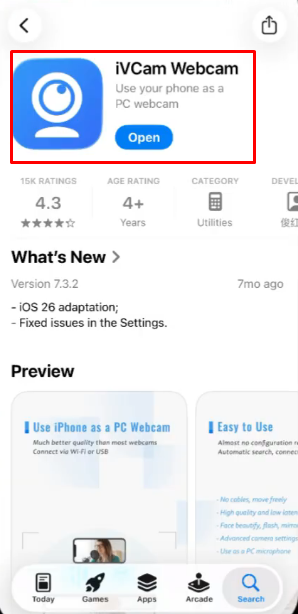
- On your iPhone, open the App Store, search for iVCam Webcam, and install it.
- On your Windows PC, go to the E2eSoft website and download the iVCam Windows client.
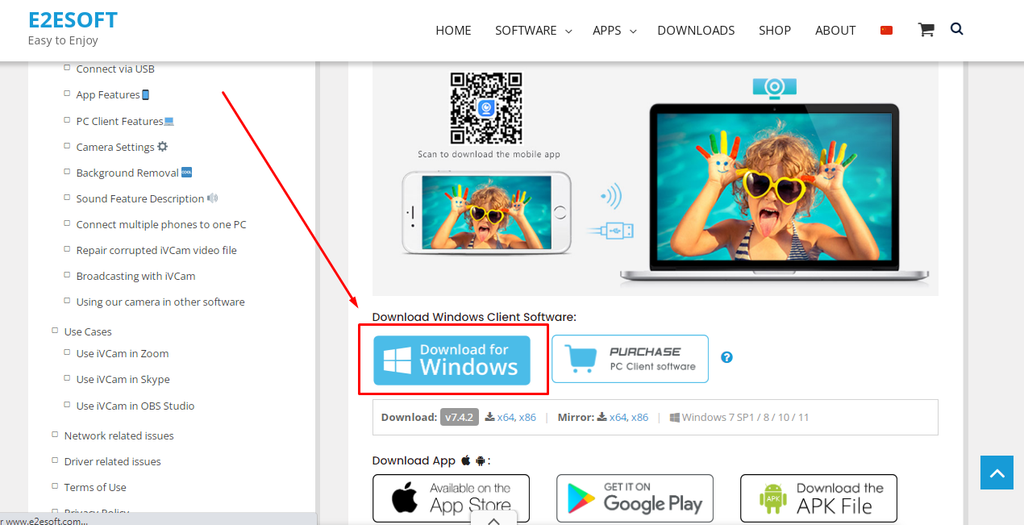
- Run the installer and follow the on-screen prompts. No separate driver installation is required.
- Note that the free tier adds a small watermark to the video output. The paid version removes it and unlocks higher-resolution options.
Connect via USB or Wi-Fi
USB method (recommended):
- Plug your iPhone into the Windows PC using a Lightning-to-USB-A or USB-C cable.
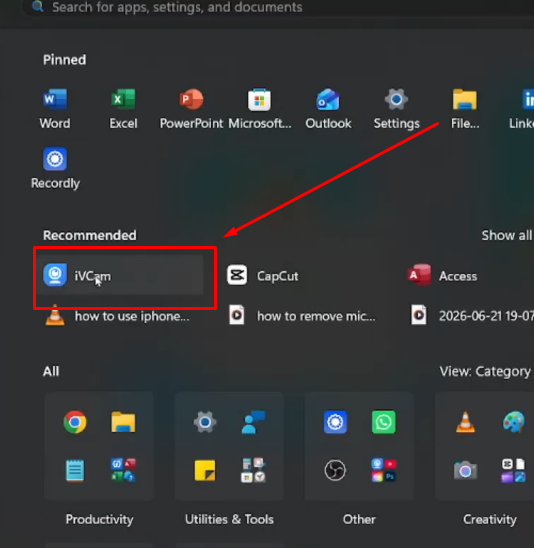
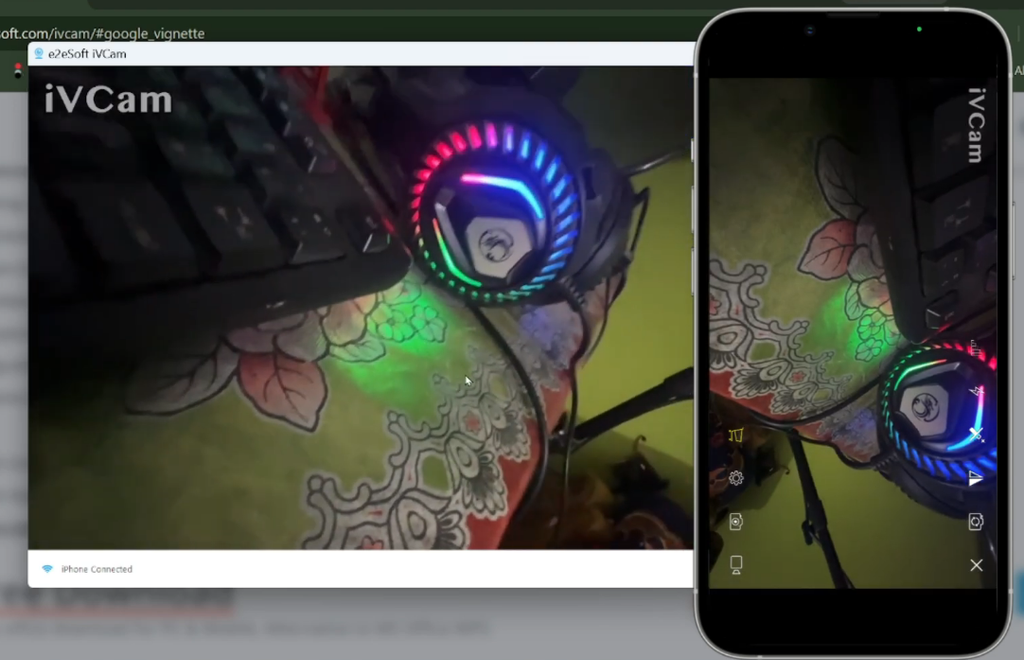
- Open the iVCam app on your iPhone, then open the iVCam Windows client. The connection establishes automatically.
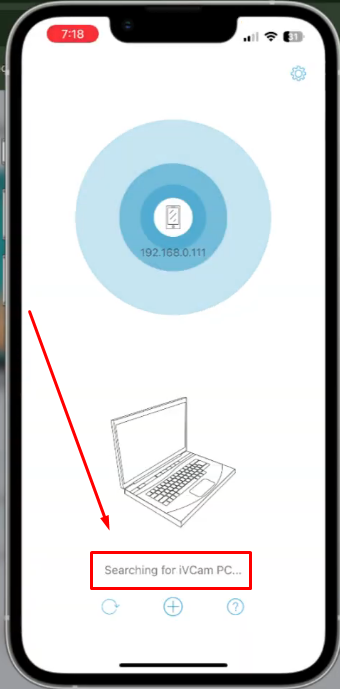
Wi-Fi method:
- Confirm both your iPhone and Windows PC are connected to the same Wi-Fi network.
- Open the iVCam app on your iPhone, then open the iVCam Windows client. The app scans the local network and discovers your PC automatically.
Note: USB delivers noticeably lower latency and a more stable signal than Wi-Fi. Default to USB whenever a cable is available.
Select Your iPhone as the Camera Source
Zoom:
1. Open Zoom, click the profile icon, and select Settings.
2. Select Video & effects, then open the Camera dropdown.
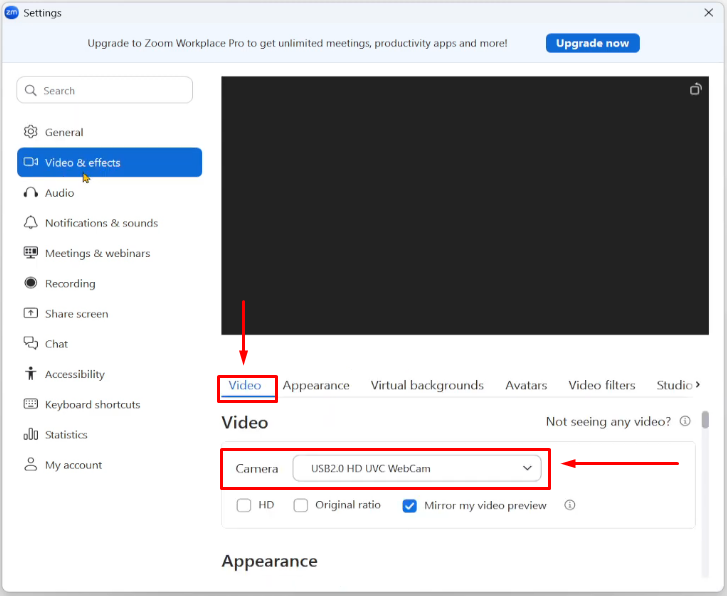
3. Choose iVCam from the list.
Microsoft Teams:
1. Open Teams, click Settings and more… (three-dot menu), and go to Settings.
2. Click Devices, go to Video and Video settings sections, and then open the Camera dropdown.
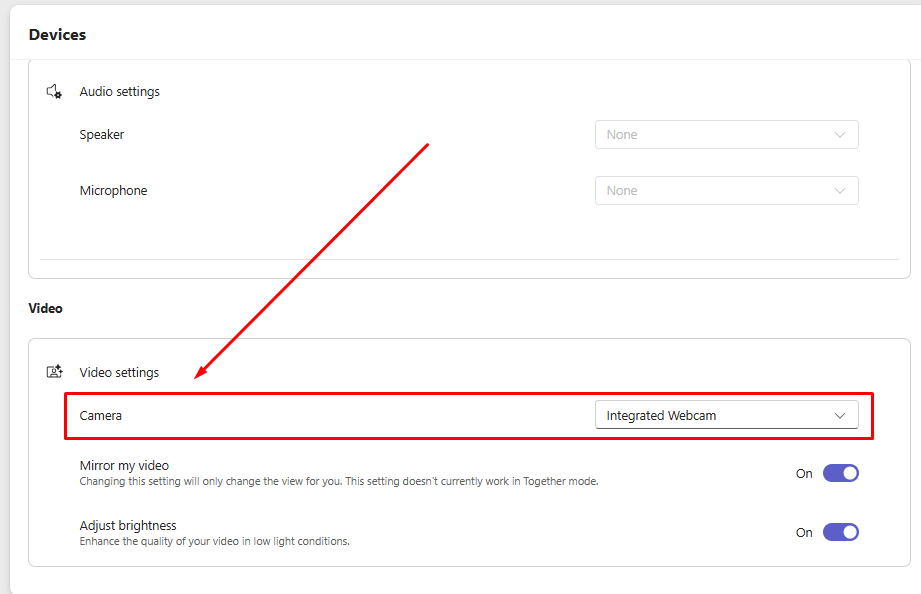
3. Select iVCam.
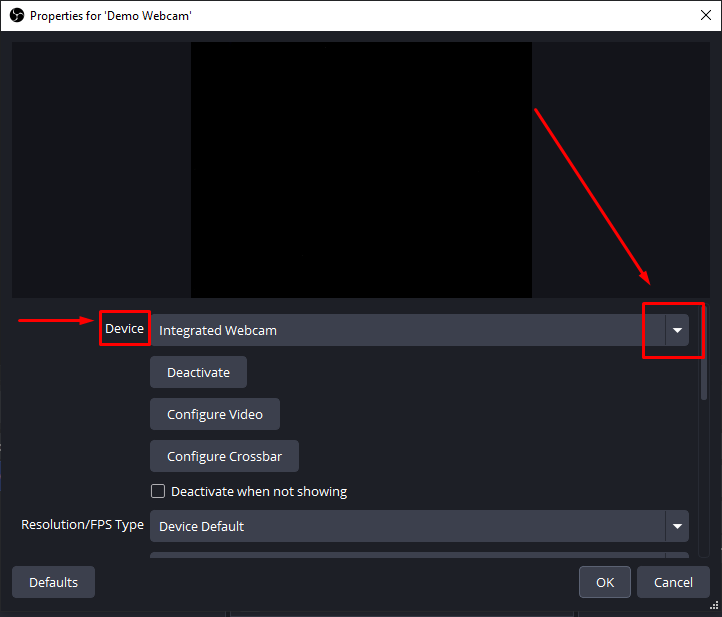
OBS Studio:
1. Under a Scene, click the + button in the Sources panel.
2. Select Video Capture Device.
3. Rename the source (optional) and click OK to enter the Properties page.
4. In the device dropdown, choose iVCam.
Method 2: Using Camo by Reincubate (Best Quality)
Camo gives you the most camera control among these three options. You can adjust resolution, zoom, lens, exposure, and white balance. All controls are available through the Windows desktop app. You can make these changes without reaching for your iPhone. If video quality matters most, choose this method.

)
Install Camo on iPhone and Windows
- Download Camo (Camo Camera) from the App Store on your iPhone.
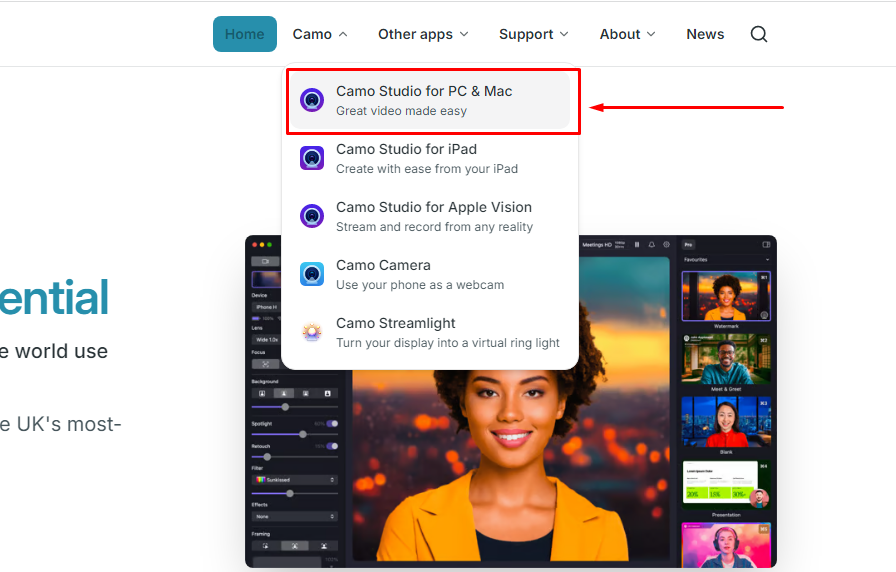
- Visit the Reincubate website, hover over the Camo tab, select “Camo Studio for PC & Mac,” and download the Camo for Windows desktop application.
- Install and launch the Windows app.
- The free tier limits output to 720p. A subscription unlocks full-resolution output and all desktop camera controls.
Connect and Use the Camo Desktop App
- Connect your iPhone to the Windows PC via a USB cable.
Note: You can also connect Camo via WiFi, but this connection may degrade webcam footage quality.
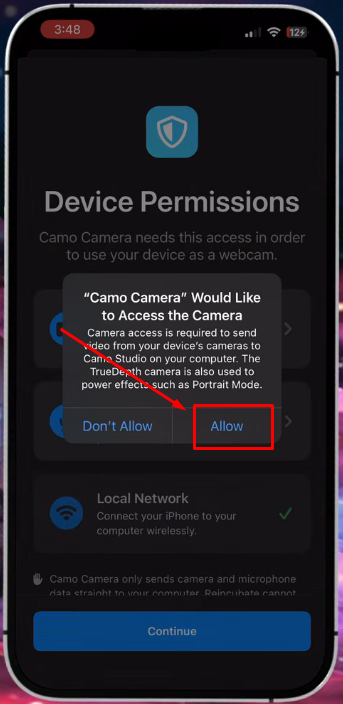
- Open the Camo app on your iPhone and allow the app to access your camera.
- The Camo desktop app will display a live preview of your iPhone camera feed almost immediately.

- Use the desktop controls to adjust resolution, zoom, lens (wide, ultrawide, or telephoto depending on your iPhone model), exposure, and white balance. These controls work entirely from the Windows side.
- Open Zoom or Teams and select Camo from the Camera dropdown.
USB vs. Wi-Fi: Which Connection Should You Use?
| Factor | USB | Wi-Fi |
|---|---|---|
| Latency | Low | Higher and variable |
| Stability | High | Moderate to low |
| Battery Use | Neutral or charging | Drains phone faster |
| Setup Complexity | Low | Slightly higher |
| Recommended For | Calls, streaming, recording | Occasional use, no cable available |
Use USB for every professional or streaming use case. The latency difference is noticeable in live video calls, and Wi-Fi connections are more likely to drop frames if network traffic spikes from another device or a background download. If you are running a Teams meeting or recording in OBS, a USB connection is an ideal option. Wi-Fi makes sense only when a cable is not available.
Troubleshooting: iPhone Not Showing Up as a Camera on Windows
Most setup problems fit into one of five categories. Work through the relevant fix before uninstalling or reinstalling anything.
- Camera not appearing in Zoom or Teams dropdown: The iPhone app must be open and connected before you launch Zoom or Teams. Close both, start the iPhone app and confirm the Windows client shows a connection, then open your video call app.
- Lag or choppy video on Wi-Fi: Switch to USB. If you must stay wireless, close any bandwidth-heavy apps on both devices, move closer to the router, and use a 5 GHz band if your router supports it.
- Black screen in the video call: Another app is holding the iPhone camera in the background. On your iPhone, close all other apps that access the camera (Camera, FaceTime, Instagram, Snapchat) and reopen the webcam app.
- Driver not installing on Windows: Right-click the installer file and select Run as Administrator. If the driver still will not install, open Windows Update and apply all pending updates. Some USB drivers are delivered through Windows Update rather than through the app installer directly.
When to Skip the Workaround: The Hollyland Lyra as a Direct Upgrade
An iPhone can work as a Windows webcam, but some issues remain. Long calls can drain its battery quickly. Full resolution may require an active app subscription. Physical camera controls are also limited during meetings. Wi-Fi can cause video delays during calls. Your phone also stays connected and unavailable during meetings. If these issues matter, consider the Hollyland Lyra instead. It is a purpose-built 4K webcam with USB-C plug-and-play.

When to Skip the Workaround — The Hollyland Lyra as a Direct Upgrade
Here is the full setup process:
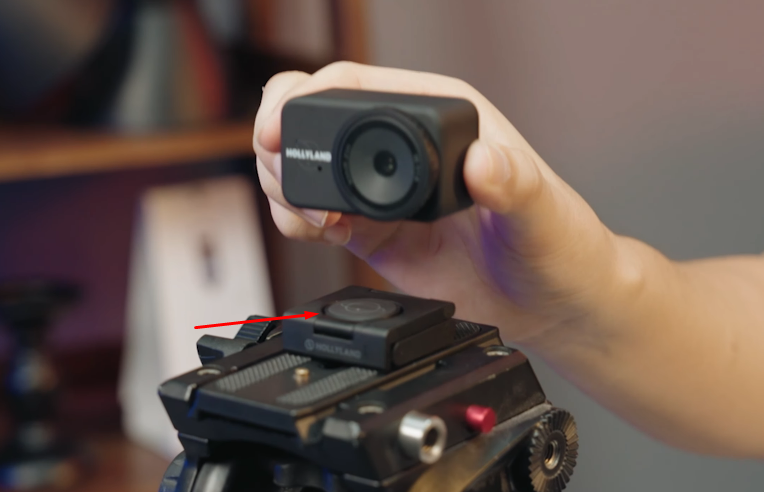
- Mount the Lyra: Clip the Lyra onto the top edge of your monitor bezel. Confirm the clip grip is secure and the lens is roughly centered on your face.
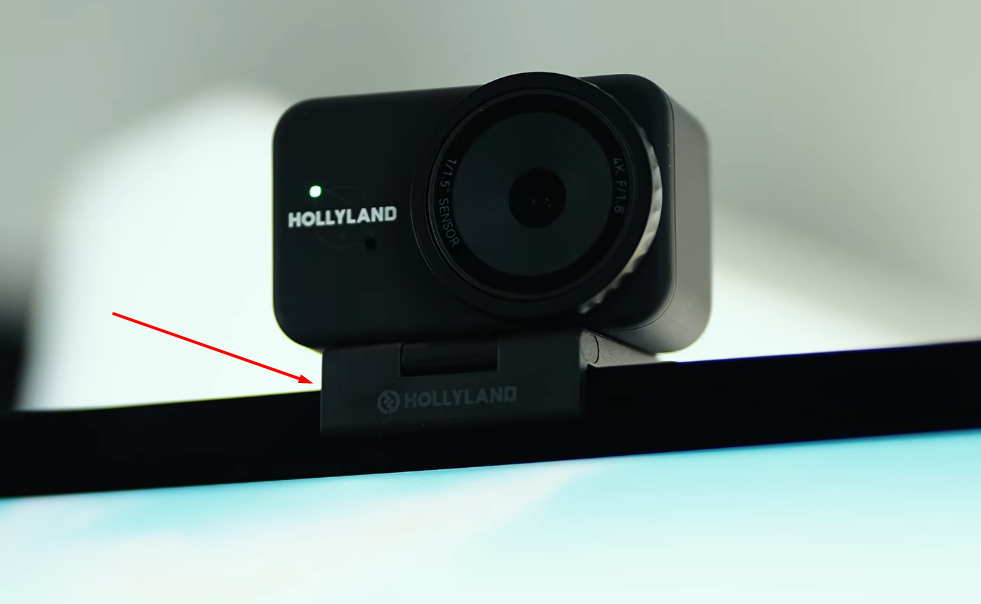
A tripod thread is also available on the body if you prefer a separate stand.
- Connect via USB-C: Plug the included USB-C cable into the Lyra and into a USB 3.0 port on your Windows PC.
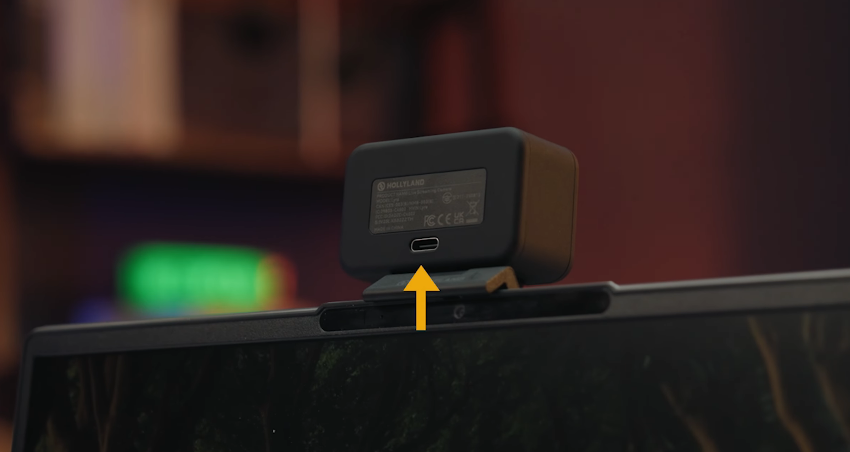

If your PC has only USB-A ports, use the included USB-C-to-USB-A adapter. Avoid using an unpowered USB hub, as it may not supply sufficient power.

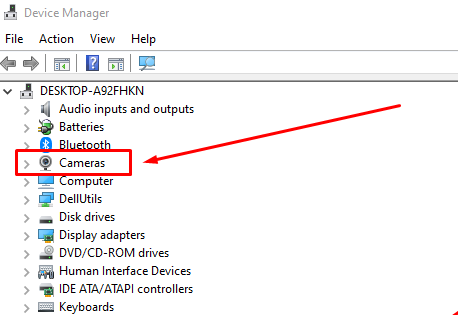
- Confirm Windows recognition: Open Device Manager and expand the Cameras or Imaging Devices section. The Lyra should appear within seconds. No driver download is required.
- Select Hollyland Lyra in Zoom or Teams: Go to Zoom Settings → Video & effects → Camera, or Teams Settings → Devices → Camera, and select Hollyland Lyra from the dropdown.
- Set resolution and frame rate in HollyStudio:
Open the HollyStudio companion app on your PC and navigate to the main interface; above the preview screen, click the Resolution dropdown menu l. Select 3840×2160 / 30 fps for maximum detail, or 1920×1080 / 60 fps for smoother motion during fast movement or presentations. Match the output format to your video platform’s maximum supported resolution.

- Enable AI Tracking and Smart Framing: Toggle the AI Tracking switch in HollyStudio to keep yourself centered in the frame automatically. This is especially useful for standing desk setups or any scenario where you move during a presentation. Here’s how you do it:
- At the top of the preview screen, select the framing icon with a padlock inside it.

- Open Settings by clicking the gear icon.

- From the left menu, select Camera Settings.
- Enable Face Priority Focus and close the Settings window.

- Navigate to the FOV page.
- Find Smart Framing, deselect None, and turn on the auto framing option beside it (portrait head image tile).

- Adjust the frame with digital zoom via the Focal Length Slider: Use the 1–4x Focal Length slider for digital zoom in HollyStudio’s FOV page to tighten or widen the composition. The Lyra’s 82° FOV is well-suited to single-person desk framing, and a small zoom adjustment can remove background clutter without repositioning the camera.

- Configure audio: The Lyra’s built-in microphone captures at 48 kHz/24-bit. But you can also use the LARK A1 wireless microphone with Lyra by following the steps below:
- Start by opening HollyStudio on your computer.
- Find the gear icon beneath the preview screen and click it to enter Settings, then open Audio Settings.
- Scroll down until you find Bluetooth, then enable the toggle.

- Click Start Pairing, which places Lyra in pairing mode.

- Make sure the LARK A1 transmitter is powered off. Press and hold the power button for 6 seconds until its blue LED starts flashing.

- The Lyra and LARK A1 TX will connect automatically. A solid blue transmitter LED confirms the connection.

The result is a clean, driver-free Windows webcam setup with 4K output, AI framing, and studio-quality audio that requires no phone, no subscription app, and no troubleshooting of virtual camera drivers.
Frequently Asked Questions
Does Apple Continuity Camera work on Windows?
No. Continuity Camera requires macOS Ventura 13 or later and a compatible Mac. Windows PCs are not supported at all. To use an iPhone as a webcam on a Windows machine, you need a third-party app such as iVCam, EpocCam, or Camo installed on both your iPhone and your PC.
What is the best free app to use an iPhone as a webcam on Windows?
iVCam is the most widely used free option. The free tier adds a small watermark to video output, and the paid version removes it.
Can I use my iPhone as a webcam in Zoom and Microsoft Teams on Windows?
Yes. Once you install the virtual camera app on Windows, the driver is active, and the iPhone app is open and connected, both Zoom and Teams recognize the iPhone feed as a standard camera source. Select it from the Camera dropdown in each app’s settings.
Is USB or Wi-Fi better for using an iPhone as a webcam on Windows?
USB is better in almost every scenario. It delivers lower latency, more stable video, and reduces battery drain on the iPhone. A USB connection also eliminates any dependency on network conditions. Use Wi-Fi only when you are having trouble finding a cable.
Which iPhone models work as a webcam on Windows?
Any iPhone running iOS 14 or later works with iVCam. Camo also requires iOS 14 or later. iPhone 12 and newer models deliver noticeably better video quality due to improved camera sensors, larger apertures, and significantly better low-light performance compared to older hardware.
Will using my iPhone as a webcam drain the battery?
Yes, especially when you connect it over Wi-Fi. The camera, screen, and wireless radio all consume power. A USB connection to your PC can reduce battery drain somewhat. For long calls, connect your iPhone to a charger. This is the most reliable way to maintain battery levels.
Conclusion
iVCam is the fastest free starting point, and Camo delivers the best image quality alongside desktop camera controls. For all two methods, USB is the default connection to use.
If phone-tethering inconveniences like subscription costs, battery management, or losing access to your phone during calls are becoming a problem, the Hollyland Lyra connects directly to Windows over USB-C, requires no driver, and delivers 4K output with AI tracking from the moment it is plugged in.